


















Use Data Import when you need to update many existing ERPNext records from a spreadsheet. This is useful for correcting field values, filling missing information, or applying the same change across records without opening each document manually.
Bulk overwrite updates existing records. It does not create a new record for each row when you choose Update Existing Records.
Before You Begin
- Export or download the existing data before making changes, so you have a rollback reference.
- Test the import with a small set of records before updating a large list.
- Keep the record identifier column, such as
IDorname, in the file. ERPNext uses it to find the record to update. - Only keep the columns you want to update, plus the required identifier columns. Remove unnecessary columns to reduce the chance of overwriting the wrong field.
- Check mandatory fields and linked fields before importing. Invalid values will stop those rows from importing.
Step 1: Open Data Import
- Go to Data Import from the Data workspace or search for Data Import.
- Click Add Data Import.
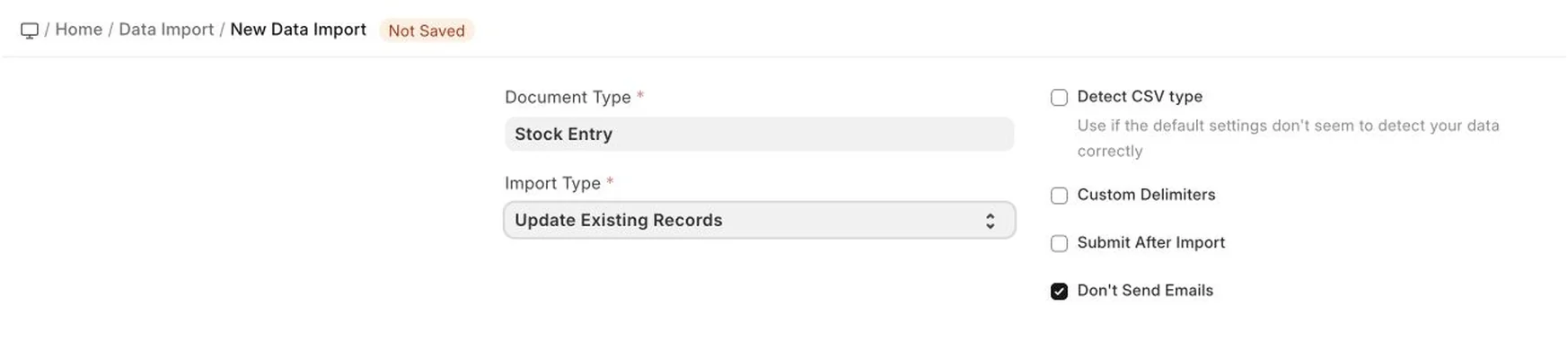
- Select the Document Type that you want to update.
Step 2: Choose Update Existing Records
- In Import Type, select Update Existing Records.
- Keep Don't Send Emails enabled unless you intentionally want update notifications to be sent.
- Use Submit After Import only when the imported documents should be submitted immediately after update.
Step 3: Prepare the Import File
- Download or prepare a spreadsheet for the selected Document Type.
- Keep the record identifier column unchanged.
- Enter the new values in the fields you want to overwrite.
- Remove rows that should not be changed.
- Save the file as CSV or Excel, depending on the import screen options.
If a field should not be changed, leave that column out of the import file. This is safer than keeping extra columns with stale values.
Step 4: Upload and Validate
- Upload the prepared file to the Data Import record.
- Start the import preview or validation.
- Review row errors carefully. Fix the file and upload it again if ERPNext reports missing links, invalid values, or permission issues.
- Start the import only after the preview looks correct.
What Gets Overwritten
ERPNext updates the fields present in the uploaded file for the matching records. The match is based on the document identifier in the file. For linked fields, the imported value must match an existing linked record.
Common Issues
- Record not found: Check that the ID or name column is present and has the exact existing document ID.
- Link validation failed: The value in a linked field does not exist or is misspelled.
- Mandatory field missing: A required field is blank or was overwritten with an empty value.
- Permission error: Your user role does not have permission to update the selected Document Type or field.
Recommended Practice
For important records, first run the update on a small sample. After verifying the result, import the remaining rows in batches. Keep the original export and the final import file for audit purposes.