


















Sales Interest / Dunning
Northstar Retail has not paid an invoice by its due date. Nova Industries can see the overdue balance in Accounts Receivable, but the customer now needs a formal notice that states what is overdue, the interest or reminder fee being charged, and the amount required to settle it.
A Dunning turns that overdue balance into a traceable collection document. It brings the relevant Sales Invoice instalments into a formal reminder, calculates optional interest and fees, stores the letter sent to the Customer, and links the eventual payment back to the demand.
Use Dunning when ordinary follow-up is no longer enough and your collection policy requires a formal reminder. It does not replace the Sales Invoice or create another sale. This guide explains how to configure reusable Dunning Types, issue the notice, and record the payment that resolves it.
Before you begin
- The Sales Invoice must be submitted and overdue.
- Create at least one Dunning Type.
- Choose the income account and Cost Center that should receive interest and dunning fees.
Set up a Dunning Type
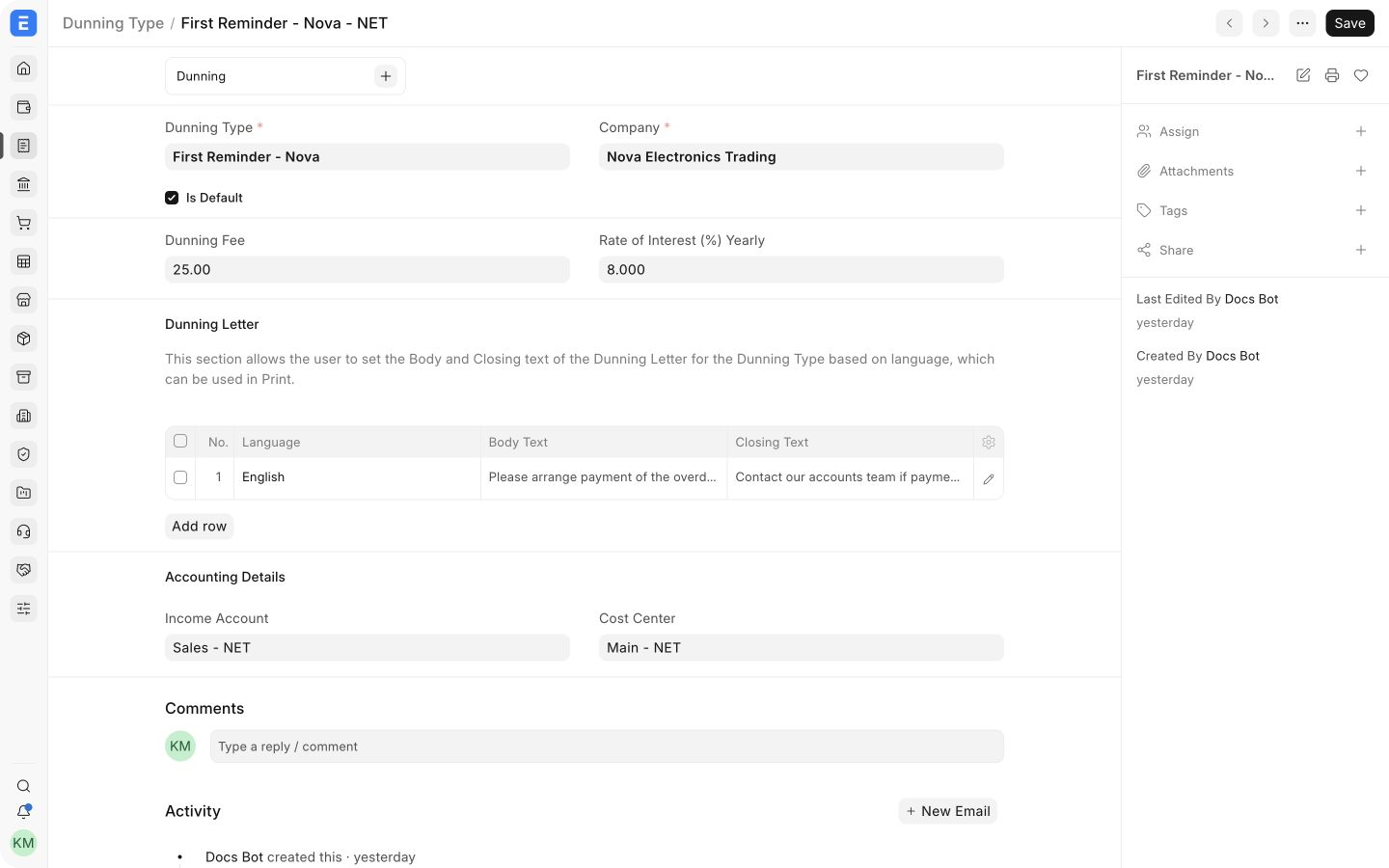
A Dunning Type stores reusable defaults for the reminder. Create different types for stages such as first reminder, second reminder, and final notice.
| Field | What it controls |
|---|---|
| Is Default | Applies this type automatically when appropriate |
| Dunning Fee | Fixed charge added to the reminder |
| Rate of Interest (%) Yearly | Annual rate used to calculate interest |
| Dunning Letter | Language-specific body and closing text |
| Income Account | Account credited when fees and interest are paid |
| Cost Center | Cost Center used for the fee and interest posting |
Create a Dunning
From an overdue Sales Invoice
- Open the overdue Sales Invoice.
- Select Create > Dunning.
- Review the overdue payment schedule rows fetched into the document.
- Select a Dunning Type, or enter the fee, interest, and letter text manually.
- Save and submit.
From the Dunning list
- Open the Dunning list and select Add Dunning.
- Select the Customer.
- Select Fetch Overdue Payments.
- Choose the overdue rows and select Get Items.
- Complete the reminder details, then save and submit.
The Dunning must reflect the amount you intend to collect. Review the invoice rows, interest, fee, total outstanding, income account, and Cost Center before submission.
Record payment
When the customer pays the invoice together with the interest and fee:
- Open the submitted Dunning.
- Select Create > Payment.
- Review the referenced invoices and the additional amount.
- Submit the Payment Entry.
ERPNext records the interest and fee through the deductions or loss section of the Payment Entry and resolves the Dunning after the full amount is received.
Statuses
| Status | Meaning |
|---|---|
| Draft | Reminder has not been submitted |
| Unresolved | Submitted, but the required payment has not been received |
| Resolved | Outstanding amount, interest, and fee have been settled |
| Cancelled | Submitted Dunning was cancelled |
Troubleshooting
Create Dunning is not available
Confirm that the Sales Invoice is submitted, has an outstanding amount, and is past its due date.
Interest or fee posts to the wrong account
Review the Income Account and Cost Center on both the Dunning Type and the Dunning before creating the Payment Entry.
The Dunning remains unresolved
Open the linked Payment Entry and verify that it is submitted and covers all referenced invoice, interest, and fee amounts.