


















Serial No and Batch Traceability Report
The Serial and Batch Traceability Report is used to track the full movement and lifecycle of serialized or batched items across your supply chain. Thre are two types of traceability methods
To view Serial No and Batch Traceability Report GoTo
Stock > Serial No and Batch > click on "Serial No and Batch Traceability"
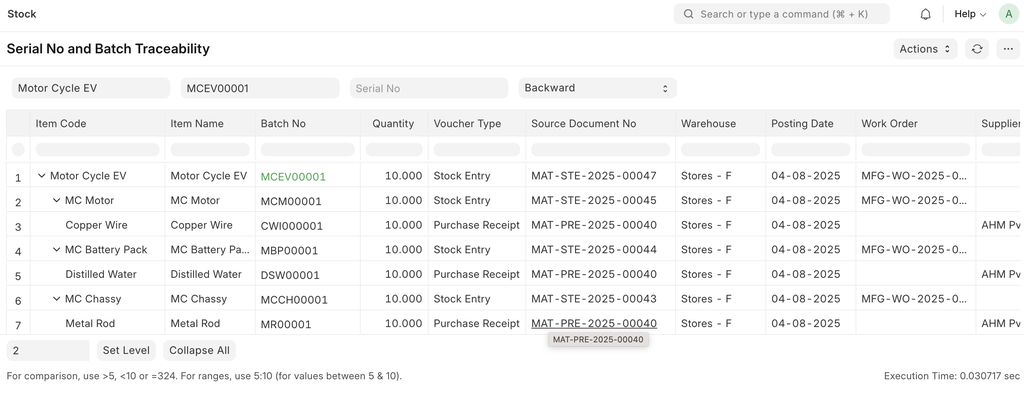
Backward Traceability
To find out which components are required to manufacture the batch and where they came from, use the Backward Traceability filter.
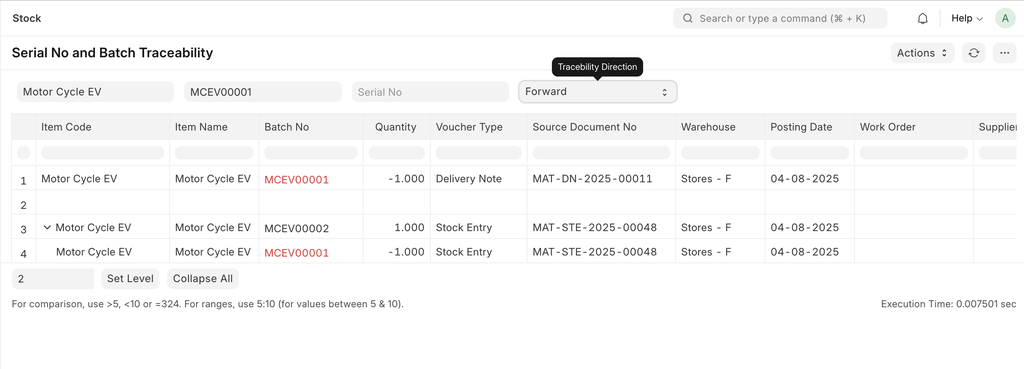
Forward Traceability
To find out where the batch has been used or to whom it was delivered, use the Forward Traceability filter.
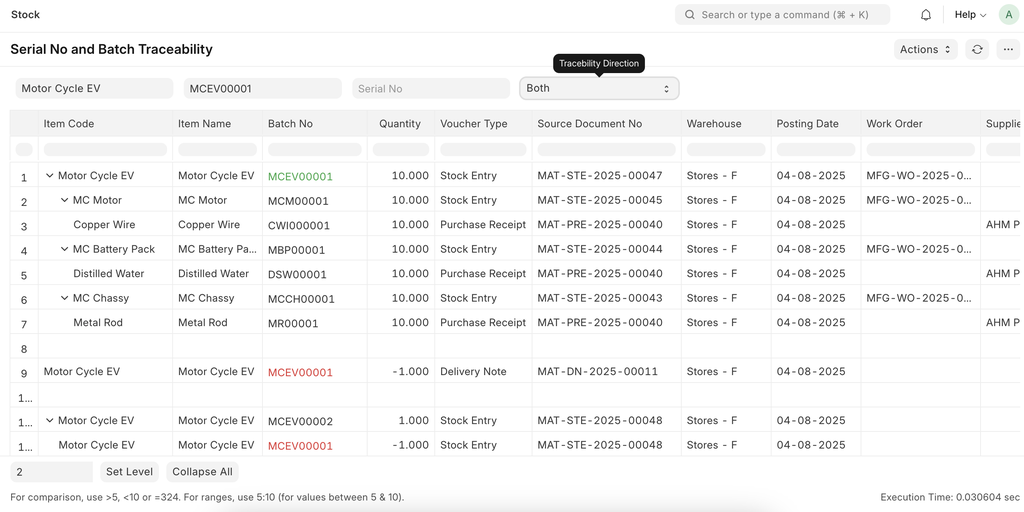
Backward and Forward (Both) Traceability
Map Raw Materials to Finished Goods - User Guide
This feature lets you record which raw material serial no or batch went into which finished good serial no or batch in a Manufacture or Repack Stock Entry.
1. What problem does this solve?
Without this feature, ERPNext only knows that a group of raw materials and a group of finished goods were part of the same Stock Entry. If you make 3 laptops from 3 motherboards, you cannot tell which motherboard is inside which laptop.
This matters when:
- A customer complains about one finished good, and you need to find the exact raw material serial or batch inside it.
- A supplier recalls a raw material batch, and you need to find only the finished goods that used it, not every finished good from that entry.
- An auditor or regulator asks for the full history of a product, from the supplier to the customer.
Once you map the materials, the Serial No and Batch Traceability report shows the exact link in both directions.
2. Where can you use it?
| Condition | Required |
|---|---|
| Stock Entry purpose | Manufacture or Repack |
| Finished good item | Tracked by Serial No or Batch No |
| Raw material item | Tracked by Serial No or Batch No |
| Stock Entry status | Draft (saved) or Submitted. Not available on cancelled entries. |
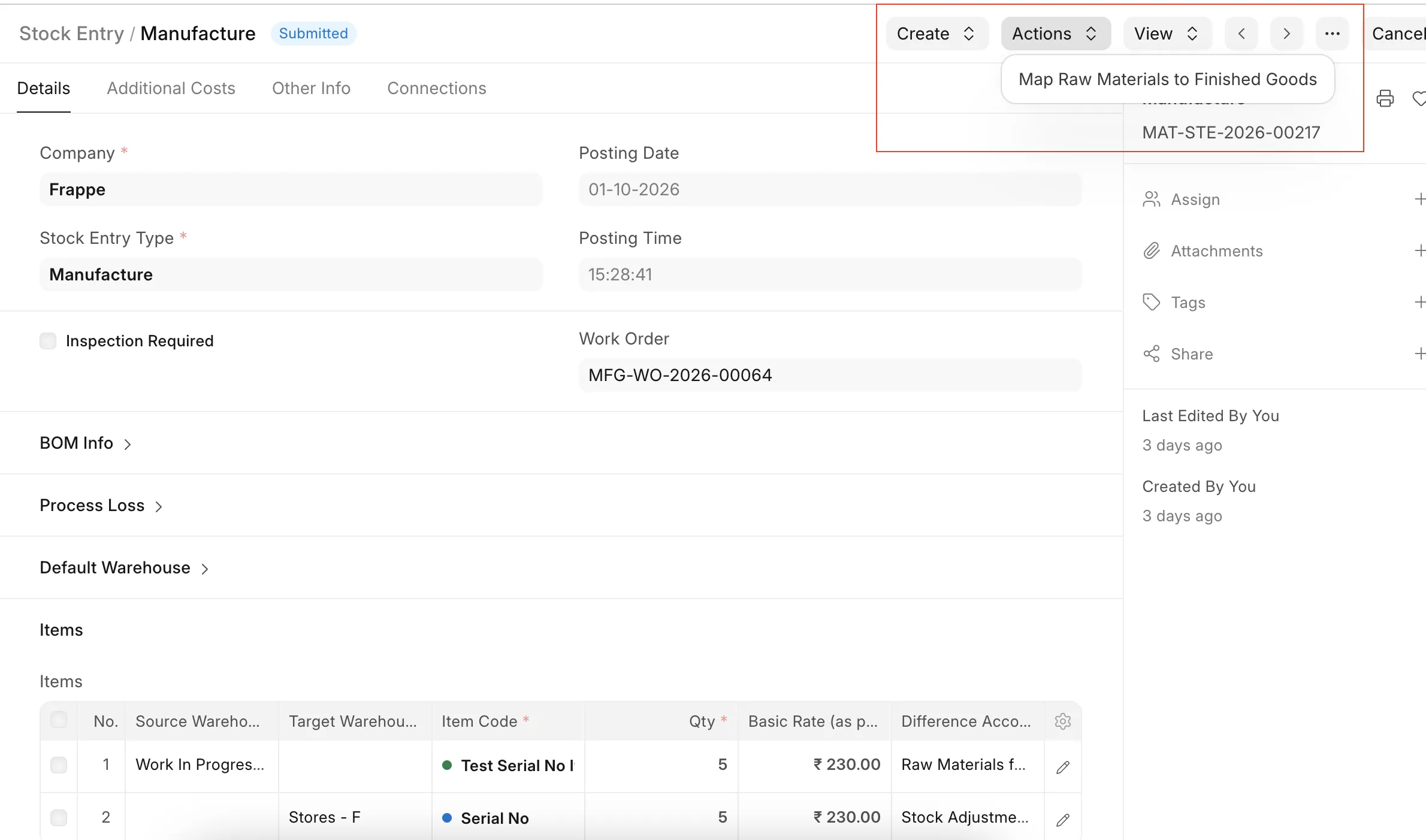
You will find the button at Stock Entry → Actions → Map Raw Materials to Finished Goods.
3. Before you start: precautions
Please read these points before you use the feature.
- Mapping is fixed after submit.
Once the Stock Entry is submitted, a raw material that is already mapped cannot be changed or cleared. Check your mapping carefully before you submit. After submit, you can only map the raw materials that are still empty. - Check the "Auto Map Raw Materials to Finished Goods" setting.
Go to Stock Settings. This setting is off by default.
- Off: ERPNext saves only the mapping you enter yourself. Everything else stays empty.
- On: On stock entry submit, ERPNext maps every raw material you left empty to the finished goods, in order. The result may not match what really happened on the shop floor. Turn it on only if your raw materials are always used in the same order as the finished goods are made.
- Know how your serial / batch nos are picked.
The setting Auto create Serial and Batch Bundle for outward in Stock Settings is on by default.
- If you do not pick raw material serial / batch nos yourself, ERPNext picks them only when you submit. In that case there is nothing to map in draft. Submit first, then map.
- If you pick the serial / batch nos yourself in draft, you can map them before submitting.
- Save the finished good serial / batch nos first.
The dialog can only offer finished goods whose serial / batch nos are already set on the entry. - Re-check the mapping if you change the entry.
If you change a finished good's serial / batch no after mapping, the old mapping may point to a serial / batch that is no longer on the entry. Submit will then stop with an error. Open the dialog again and fix the mapping. - Only one person should map an entry at a time.
If two people map the same raw material on a submitted entry, the first save wins. The second person gets an error saying that the raw material is already mapped. Nothing is overwritten. - You need the right permission.
Opening the dialog needs read permission on the Stock Entry. Saving a mapping needs write permission.
4. How to map in draft
Use this when you picked the raw material serial / batch nos yourself.
- Create the Manufacture or Repack Stock Entry and add the raw materials and finished goods with their serial / batch nos.
- Click Actions → Map Raw Materials to Finished Goods. Unsaved changes are saved first.
- A dialog opens with one row per raw material serial / batch:
- Item Code, Serial No, Batch No, Qty - the raw material (read only)
- Finished Good Serial / Batch No - pick the finished good this raw material went into
- Pick a finished good on each row. You may leave a row empty.
- (Optional) Click Auto Assign to fill the rows for you (see below), then correct any row you need to.
- Click Save. You will see "Mapping saved".
- You can open the dialog and change the mapping again as many times as you like until you submit.
What "Auto Assign" does
Auto Assign only fills the dialog. Nothing is saved until you click Save.
- One finished good: every raw material row is assigned to it.
- Several finished goods: serialized raw materials of each item are split evenly across the finished goods, in the order shown. For example, 6 serial nos and 3 finished goods give 2 serial nos each.
- If an item's serial nos cannot be split evenly (for example 5 serial nos for 3 finished goods), that item's rows are left untouched.
- Batch raw materials are not auto-assigned when there are several finished goods. Pick them yourself if needed.
5. What happens when you submit
- ERPNext checks your draft mapping. If a raw material points to a serial / batch that is not a finished good of this entry, submit stops with an error.
- Your draft mapping is always kept.
- Rows you left empty are handled by the Auto Map Raw Materials to Finished Goods setting:
| Setting | Empty rows on submit |
|---|---|
| Off (default) | Stay empty. You can map them later (section 6). |
| On | Serialized raw materials are spread evenly across the finished goods, in order. |
Batch raw materials with several finished goods: a batch is usually shared by many finished goods, so it is not auto-mapped to just one of them. It stays linked to all finished goods of the entry, and the traceability report shows it under each one.
6. How to map after submit
Use this when ERPNext picked the raw material serial / batch nos on submit, or when you skipped some rows in draft.
- Open the submitted Manufacture or Repack Stock Entry.
- Click Actions → Map Raw Materials to Finished Goods.
- The dialog shows only the raw materials that are not mapped yet. Rows that are already mapped are hidden because they cannot be changed.
- Pick the finished good for each row (or use Auto Assign), then click Save.
- If every raw material is already mapped, you will see "All raw materials are already mapped to finished goods".
Remember: once you save a row on a submitted entry, it is fixed. If you made a mistake, you have to cancel the Stock Entry and create it again.
7. See the result in the traceability report
Open Stock → Reports → Serial No and Batch Traceability.
| Filter | What to enter |
|---|---|
| Item Code | The finished good (for backward) or the raw material (for forward) |
| Serial No / Batch No | The serial nos or batches you want to trace |
| Traceability Direction | Backward, Forward or Both |
- Backward (start from a finished good): shows which raw material serial / batch nos went into it.
- Forward (start from a raw material): shows which finished good serial / batch nos it went into.
- Both: shows both directions.
Example: a customer reports a fault in laptop LAP-0003. Run the report with Item Code = Laptop, Serial No = LAP-0003, Direction = Backward. You will see the exact motherboard serial no inside it, and from there the supplier it came from.
If a raw material was not mapped, the report shows it under every finished good of that Stock Entry, because ERPNext cannot tell which one used it.