


















Correcting a Submitted Accounting Entry
You submitted an invoice or Journal Entry with the wrong account, cost center, project, amount or date. A submitted document cannot be edited freely, because its General Ledger entries are already posted. This page shows what you can change in place, and when you must cancel and amend or post a reversal instead.
What you can change without cancelling
Some fields can be changed on a submitted document, and ERPNext then reposts its General Ledger entries:
| Document | Fields you can change after submit |
|---|---|
| Sales Invoice (item rows) | Income Account, Expense Account, Cost Center, Project, accounting dimensions |
| Purchase Invoice (item rows) | Expense Account, Cost Center, Project, accounting dimensions |
| Journal Entry (account rows) | Cost Center, Project, accounting dimensions |
- Open the document and click Update Items, or edit the row directly where the field allows it.
- Change the field and save.
- ERPNext creates a Repost Accounting Ledger entry and corrects the General Ledger in the background.
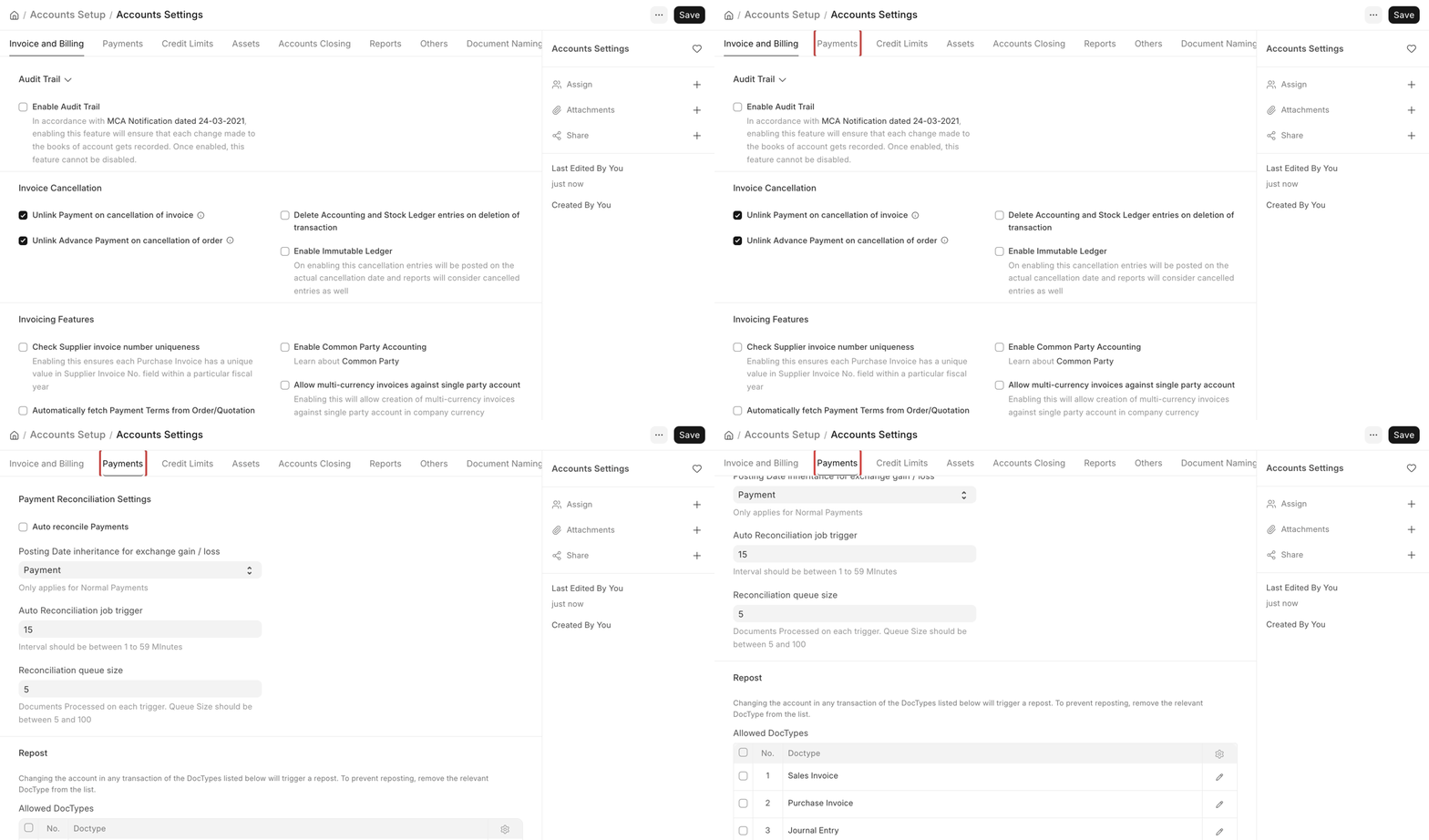
This works only for document types listed in Accounts Settings → Repost → Allowed DocTypes. If saving does nothing, ask your accounts manager to add the document type there. The list only allows reposting; it cannot make other fields editable.
The amount, the party, the posting date and the account of a Journal Entry row cannot be changed this way.
Change the amount, party or date: cancel and amend
- Cancel the document.
- Click Amend. A copy opens as a draft, with the same name and a suffix (for example
-1). - Correct it and submit.
You cannot cancel a document if later documents depend on it, for example a Payment Entry linked to the invoice. Cancel or unlink those first. For a stock document, a later entry that used its stock also blocks the cancel.
Reverse a Journal Entry
To undo a submitted Journal Entry and keep both in the books, open it and click Reverse Journal Entry. ERPNext makes a new Journal Entry with debit and credit swapped, linked to the original.
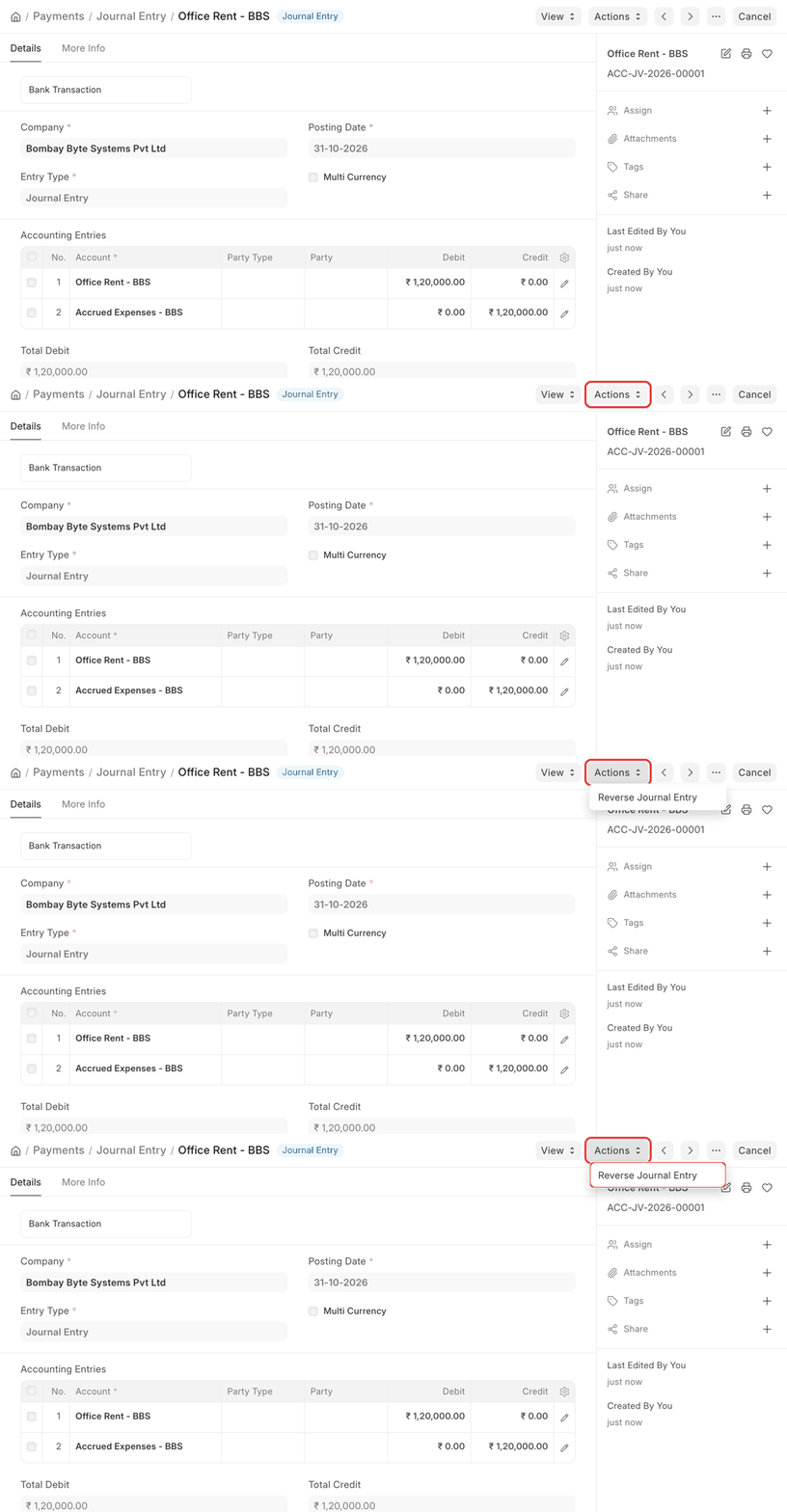
- You can reverse a Journal Entry only once. A second reversal gives "A Reverse Journal Entry … already exists for this Journal Entry."
- A reversal is always complete. You cannot edit its amounts. For a partial correction, make a separate Journal Entry.
The period is closed or frozen
- Accounts Frozen Till Date (on the Company, Accounts section, in version 16; in Accounts Settings in older versions) blocks entries dated on or before that date. Users with a role in Roles Allowed to Set and Edit Frozen Account Entries, and the Administrator, can still post and cancel them. If a user could post in a frozen period, check their roles.
- A Period Closing Voucher for the year also blocks cancelling entries in that year. To post a correction there, cancel the Period Closing Voucher, make the correction, and submit the Period Closing Voucher again. Or post the correction in the open period.
A cancelled document still shows in the General Ledger
With Show Cancelled Entries off, cancelled documents should not appear in the General Ledger or the payable and receivable reports. If one still appears, its ledger entries were not cancelled with it. Raise a support ticket with the document name; support can correct the ledger entries.
"Debit and Credit not equal"
A Journal Entry must have equal debit and credit totals in the company currency.
- Check the totals in the company currency, not the account currency, when rows use different currencies.
- A difference of a few paise from exchange rates: add a row to the company's round-off account for the difference.
- A very large precision set on a rate or amount field (with Customize Form) can cause rounding errors. Remove the customization.
- If values look fine, support an issue to your service provider.