Reverse Charge Mechanism (RCM)
Reverse Charge Mechanism (RCM) in ERPNext can be handled from the purchase flow by using separate tax accounts and a Purchase Taxes and Charges Template. The supplier invoice is recorded as a normal Purchase Invoice, while the tax rows in the Taxes and Charges table create the reverse charge liability and, when applicable, the input tax credit.
This setup is country-agnostic. Use your local tax names, rates, eligibility rules, and reporting requirements while following the ERPNext accounting pattern below.
ERPNext Documents Used
- Chart of Accounts: create separate ledgers for RCM payable, RCM input credit, and RCM expense if needed.
- Purchase Taxes and Charges Template: define the tax rows that should be applied on RCM purchases.
- Purchase Invoice: record the supplier invoice and apply the RCM tax template.
- Accounting Ledger / General Ledger: verify the final debit and credit entries after submission.
- Journal Entry or Payment Entry: settle the RCM payable account when the tax is paid or adjusted.
When to Use This
- The supplier does not charge tax on the bill, but your company must account for the tax.
- The tax liability should be posted to your company’s books separately from the supplier payable.
- The tax may also be claimable as input credit, depending on your local rules.
- You want the accounting entry to be generated from the Purchase Invoice instead of manually posting every RCM transaction.
1. Create Accounts in Chart of Accounts
Go to Accounting > Chart of Accounts and create dedicated accounts for reverse charge accounting. Keep these accounts separate from normal purchase tax accounts so RCM is easy to reconcile.
| Account | Account Type | Purpose |
|---|---|---|
| RCM Tax Payable | Tax or liability account | Credits the tax liability that your company must pay or settle. |
| RCM Input Tax Credit | Tax or asset account | Debits eligible input credit, if your company can claim it. |
| RCM Tax Expense | Expense account | Used when reverse charge tax is not eligible for input credit. |
The exact account type may depend on your chart of accounts and localization. The important point is that the payable account should appear as a liability, while eligible credit should not be mixed with normal expense.
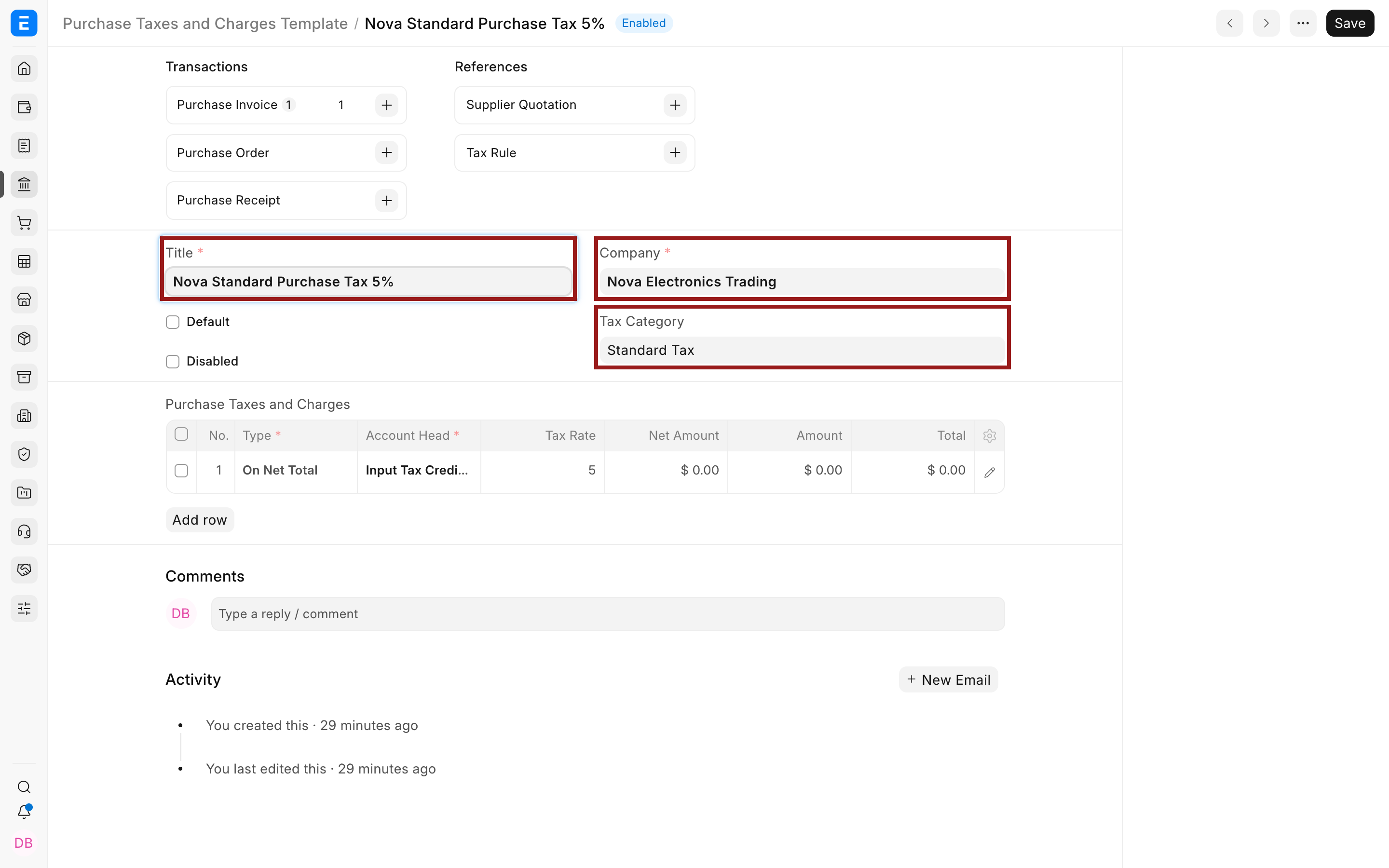
2. Create a Purchase Taxes and Charges Template
Go to Accounting > Taxes > Purchase Taxes and Charges Template and create a template for reverse charge purchases.
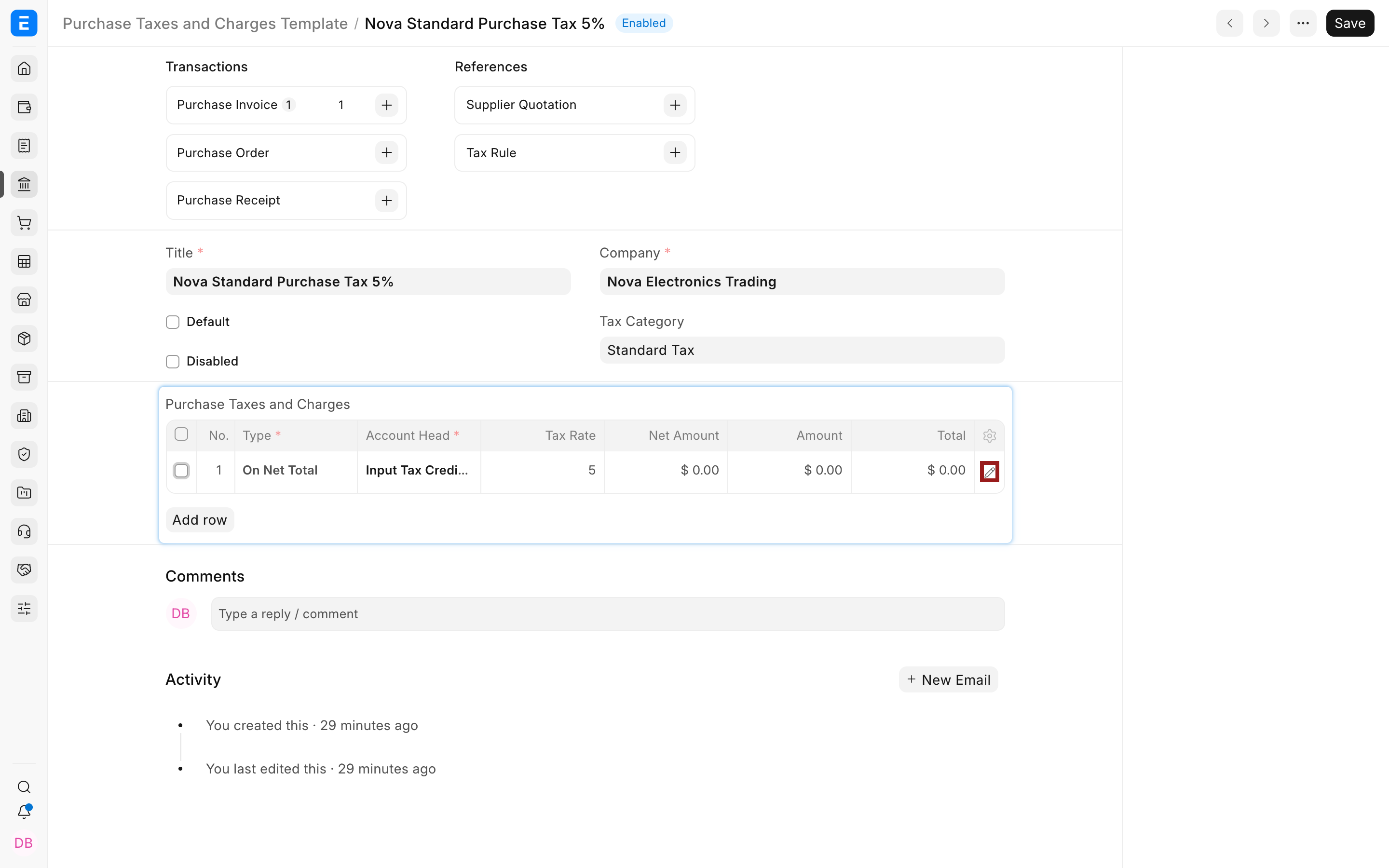
In the Purchase Taxes and Charges table, add rows based on how RCM should be posted.
For Fully Creditable RCM
| Field | Payable Row | Input Credit Row |
|---|---|---|
| Charge Type | On Net Total | On Net Total |
| Account Head | RCM Tax Payable | RCM Input Tax Credit |
| Rate | Applicable tax rate | Applicable tax rate |
| Add or Deduct | Add | Deduct, if you need the credit row to offset the payable row in the invoice total |
| Description | RCM payable | RCM input credit |
Use the template preview and the Purchase Invoice totals to confirm that the supplier payable remains correct. The supplier should be payable only for the supplier bill amount, not for the reverse charge tax if the supplier did not charge it.
For Non-Creditable or Partly Creditable RCM
If the tax is not eligible for input credit, use an expense account instead of an input credit account. If only part of the tax is eligible, split the tax between the input credit account and expense account using separate rows or adjusted rates.
3. Apply the Template on a Purchase Invoice
Go to Accounting > Payables > Purchase Invoice and create the supplier bill.
- Select the Supplier, Company, and Posting Date.
- Add the purchased items in the Items table, or add expense accounts if you are booking a service or expense invoice.
- In the Taxes and Charges section, select the RCM Purchase Taxes and Charges Template.
- Check that the tax rows are added in the Purchase Taxes and Charges table.
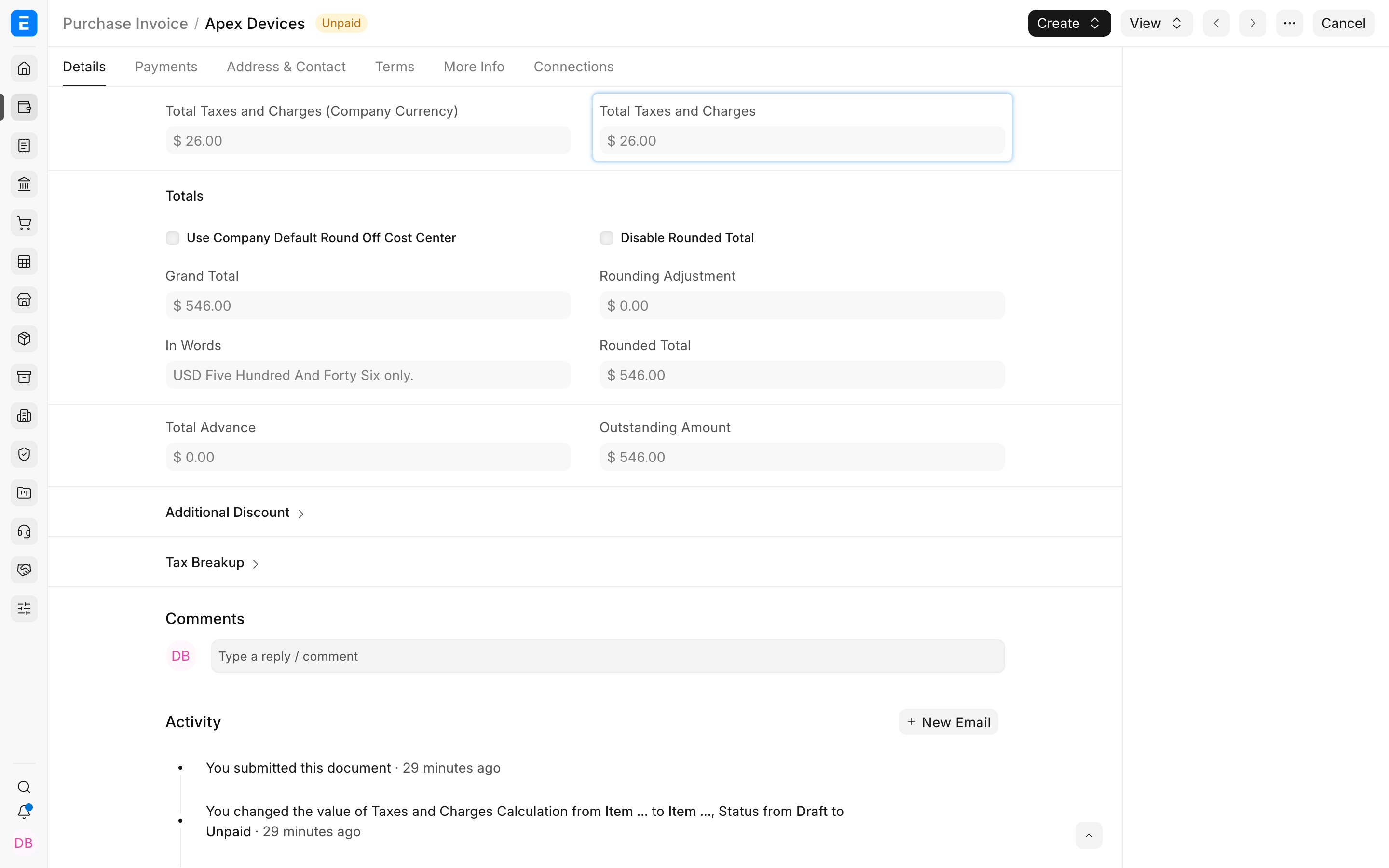
- Review the Grand Total, Rounded Total, and Outstanding Amount before submitting.
If the supplier invoice does not include tax, the supplier outstanding amount should normally remain equal to the supplier bill amount. The reverse charge tax should be posted through the tax accounts, not added to the supplier payable unless your accounting policy requires it.
4. Review Accounting Ledger Before Posting More Invoices
After submitting the first few RCM Purchase Invoices, open the invoice and use View > Accounting Ledger. You can also check Accounting > General Ledger and filter by the Purchase Invoice number.
For a fully creditable RCM purchase, the ledger should typically look like this:
| Account | Debit | Credit |
|---|---|---|
| Expense or Stock / Item Account | Purchase amount | |
| RCM Input Tax Credit | Eligible reverse charge tax | |
| Supplier Payable | Supplier bill amount | |
| RCM Tax Payable | Reverse charge tax payable |
If the credit is not eligible, the debit may go to RCM Tax Expense instead of RCM Input Tax Credit.
5. Settle the RCM Payable Account
When the reverse charge tax is paid or settled, post the entry against the RCM Tax Payable account. Depending on your process, this can be recorded through a Journal Entry or through the payment workflow used for tax payments.
Use the General Ledger to reconcile the RCM payable account for the tax period. The account should show the tax liability created from Purchase Invoices and the payments or adjustments posted against that liability.
Example
A supplier bill is received for 1,000.00. The supplier does not charge tax. Your company must record reverse charge tax of 100.00, and the full amount is eligible as input credit.
In ERPNext:
- Create a Purchase Invoice for 1,000.00.
- Apply the RCM Purchase Taxes and Charges Template.
- The template posts 100.00 to RCM Tax Payable.
- The template posts 100.00 to RCM Input Tax Credit.
- The supplier outstanding remains 1,000.00 if the supplier did not charge the tax.
Common Checks
- Check the Purchase Taxes and Charges table before submitting the invoice.
- Check Outstanding Amount to ensure the supplier payable is correct.
- Check Accounting Ledger after submission to confirm the RCM payable and input credit accounts are posted correctly.
- Use separate RCM templates for different tax rates or different credit eligibility rules.
- Do not reuse a normal purchase tax template for RCM unless it is configured to create the reverse charge liability correctly.
Notes
- ERPNext gives you the accounting tools to model RCM, but the tax rate, eligibility, and return reporting rules must come from your local compliance requirements.
- If RCM tax affects item valuation in your business, test the template on a draft invoice and verify stock and accounting impact before using it in production.
- If only part of the tax is creditable, split the amount between input credit and expense accounts.
- Use naming conventions such as “RCM - Purchase Services” or “RCM - Imports” if your company has multiple RCM use cases.