


















Sales Taxes and Charges Template
A Sales Taxes and Charges Template is a reusable set of tax and charge rows for selling transactions. It can calculate sales tax, shipping, insurance, handling, duties, or another amount that belongs in the transaction total.
The template is available in Quotations, Sales Orders, Delivery Notes, Sales Invoices, and other supported selling flows. Selecting it copies its rows into the transaction, where ERPNext calculates the actual amounts from the items and quantities.
Use separate templates when the tax jurisdiction, treatment, company, or commercial charge structure differs. A Tax Rule can select the correct template automatically from the customer, address, Tax Category, item context, date, and priority.
Before you begin
Create or identify the ledger accounts that each row should use. A tax liability account should normally have Account Type set to Tax in the Chart of Accounts. Charges such as shipping or insurance may use an income or expense account instead, depending on how your organization recognizes them.
Decide whether prices are tax-exclusive or tax-inclusive, whether a charge is fixed or percentage-based, and whether any row depends on a previous row. Write out one numerical example before configuring compound taxes.
Create the required Tax Category if the template represents a specific treatment. In current ERPNext, only one Sales Taxes and Charges Template can use a particular Tax Category for the same company, so use categories deliberately rather than as labels for several otherwise identical templates.
Create a Sales Taxes and Charges Template
Go to Accounting > Taxes > Sales Taxes and Charges Template and select Add Sales Taxes and Charges Template.
- Enter a clear Title, such as
Nova Standard Sales Tax 8%. - Select the Company.
- Select a Tax Category, when the template participates in category-based selection.
- Enable Default only when this should be the normal template for new selling transactions for the company.
- Add a row under Sales Taxes and Charges.
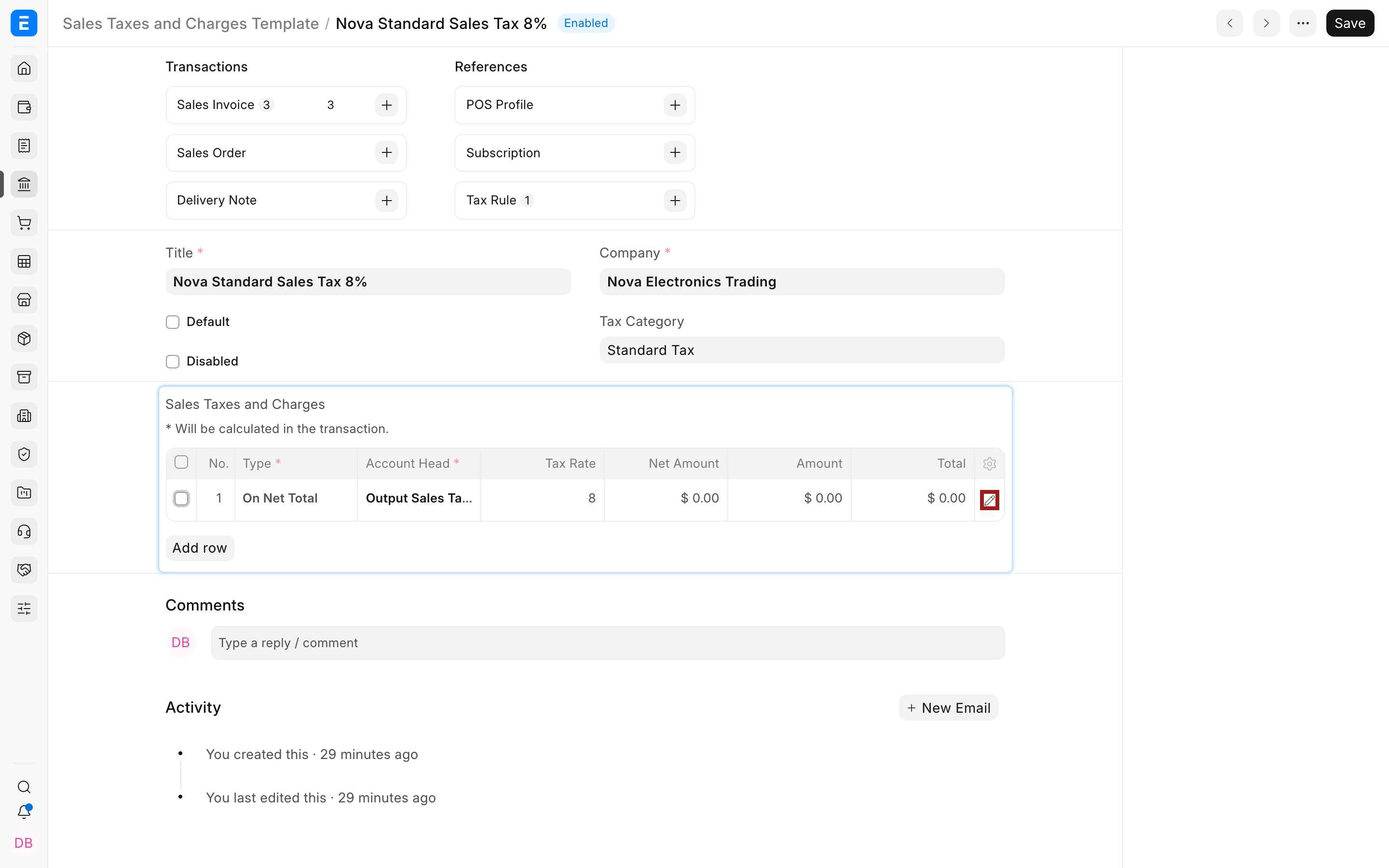
- Use the pencil icon to open the row and configure its calculation, account, rate, and description.
- Add more rows in the exact order in which they should calculate.
- Save.
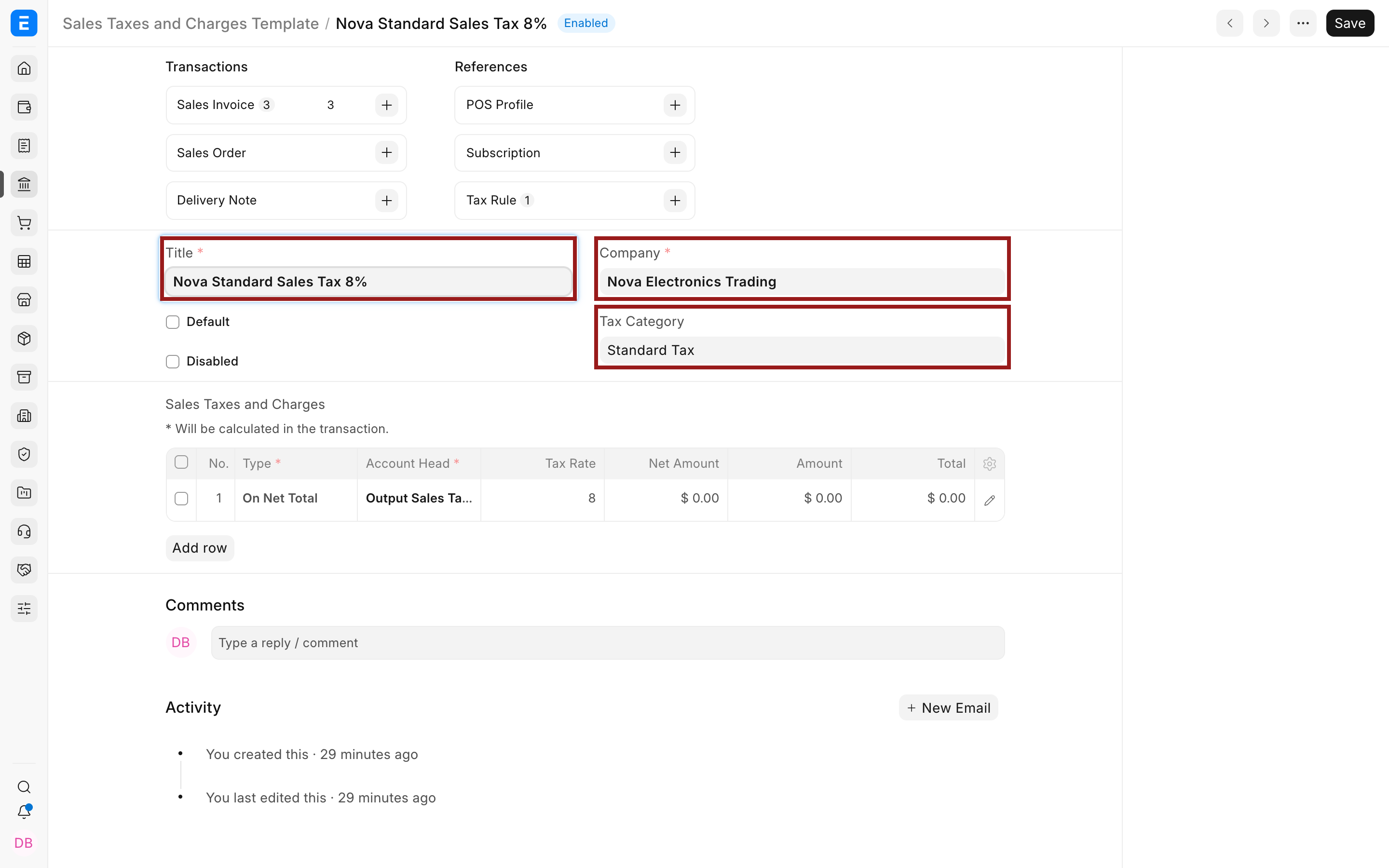
The Disabled checkbox makes the template unavailable for new selection without removing its historical references.
Add and edit a tax or charge row
The table shows the calculation type, account, rate, and calculated values. Values such as Net Amount, Amount, and Total are zero on the template because they are calculated only after the rows are copied into a transaction.
Use the pencil icon to open the complete child-table row.
Select the calculation type, account, and rate. A clear description is useful because it can appear on quotations and invoices.
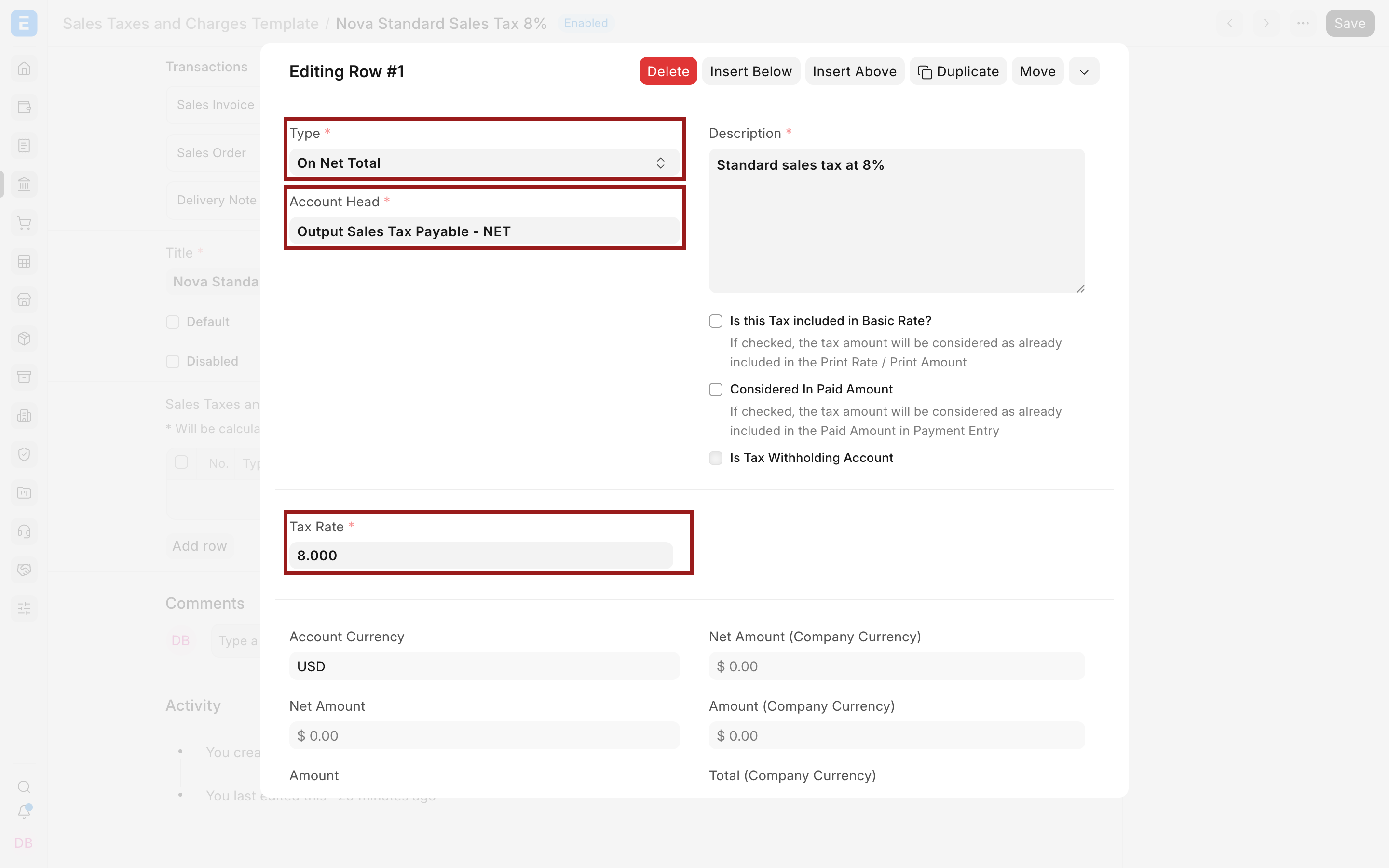
Important row fields and what they mean
| Field | What it controls |
|---|---|
| Type | The base used to calculate the row, such as Net Total, a fixed amount, a previous row, or item quantity |
| Account Head | The ledger account to which the tax or charge posts |
| Description | The user-facing explanation that can appear in printed transactions |
| Tax Rate | The percentage or per-unit amount used by the selected Type |
| Tax Amount | The fixed amount used when Type is Actual |
| Reference Row # | The earlier row whose Amount or Total becomes the base for a dependent calculation |
| Is this Tax included in Basic Rate? | Back-calculates the net value when the entered item price already includes this tax |
| Considered In Paid Amount | Treats the row as part of the amount already represented by a payment in supported payment flows |
| Is Tax Withholding Account | Identifies a row posted to a withholding account when that behavior is applicable |
| Cost Center | Allocates an income or expense charge to a Cost Center when the selected account requires one |
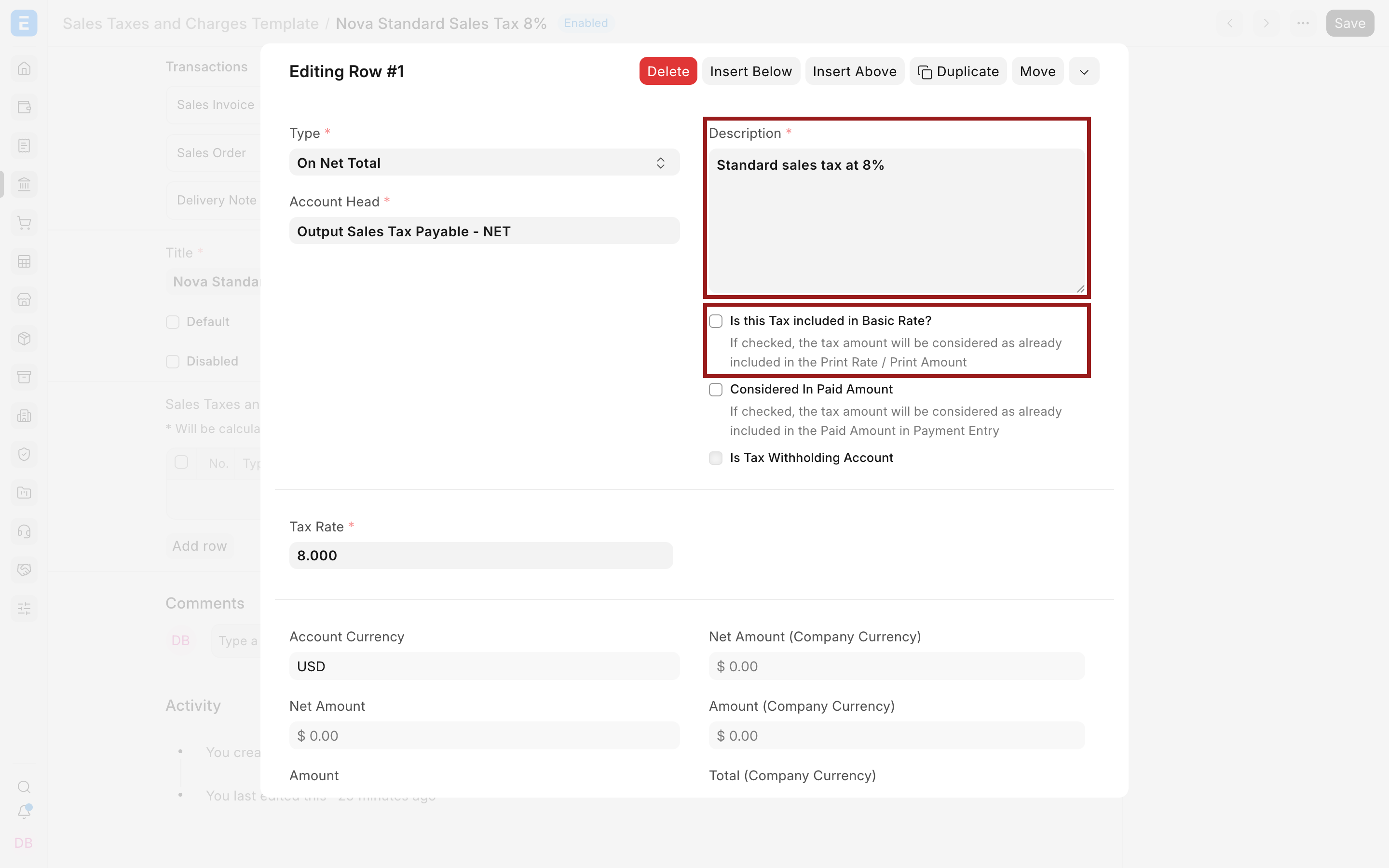
Do not select Is Tax Withholding Account merely because the row is a normal sales tax. Withholding is a separate deduction workflow. Use Tax Withholding Category and the appropriate party or payment configuration.
Choose the calculation type
ERPNext provides five calculation types:
| Type | Calculation | Common use |
|---|---|---|
| Actual | A fixed amount entered in Tax Amount | Fixed shipping or documentation charge |
| On Net Total | Net Total multiplied by Tax Rate | A standard percentage tax on the items |
| On Previous Row Amount | The Amount of a referenced row multiplied by Tax Rate | A levy calculated only on another tax amount |
| On Previous Row Total | The running Total of a referenced row multiplied by Tax Rate | A charge on the subtotal after an earlier tax or charge |
| On Item Quantity | Total item quantity multiplied by Tax Rate | A fixed amount per unit |
See Types in Tax Template for worked calculations and the difference between the two previous-row options.
The Rate for On Item Quantity is an amount per unit, not a percentage. For example, a rate of 2 with a total quantity of 5 adds 10 in the transaction currency.
Configure inclusive tax
Enable Is this Tax included in Basic Rate? when the item rate entered by the user already contains the tax. ERPNext works backwards from the tax-inclusive amount to derive the net amount and tax component.
For example, if a displayed item rate of $108 includes 8% tax, ERPNext derives a net amount of $100 and tax of $8. It does not add another $8.64 on top.
The inclusive setting belongs to the Sales Taxes and Charges row. An Item Tax Template can override the rate for an item, but it follows the inclusive or exclusive calculation behavior of the matching transaction tax row. A single matching tax row therefore cannot be inclusive for some items and exclusive for others without a different transaction structure.
Configure tax on another tax or charge
Place the base row first. On the dependent row, select On Previous Row Amount or On Previous Row Total, enter the earlier row number in Reference Row #, and set the dependent rate.
If row 1 calculates $200 tax and row 2 is 15% On Previous Row Amount with Reference Row 1, row 2 is $30. If row 2 is On Previous Row Total, its base is the running total after row 1, not only the $200 tax.
Do not reorder compound rows without reviewing their references. ERPNext validates that Reference Row # is used only with a previous-row calculation type.
Use the template on a transaction
Create a draft Sales Invoice, Sales Order, Quotation, or Delivery Note. Select the company, customer, address, Tax Category, and Sales Taxes and Charges Template.
After the rows are copied:
- Review every Type, account, rate, and description.
- Confirm any Reference Row # values.
- Check Net Total, each row Amount, Total Taxes and Charges, and Grand Total.
- Verify tax-inclusive rows against the item Net Rate.
- Review the accounting ledger after submitting an invoice.
In the demo transaction, an 8% row calculates $55.92 on a $699 net item value, producing a Grand Total of $754.92.
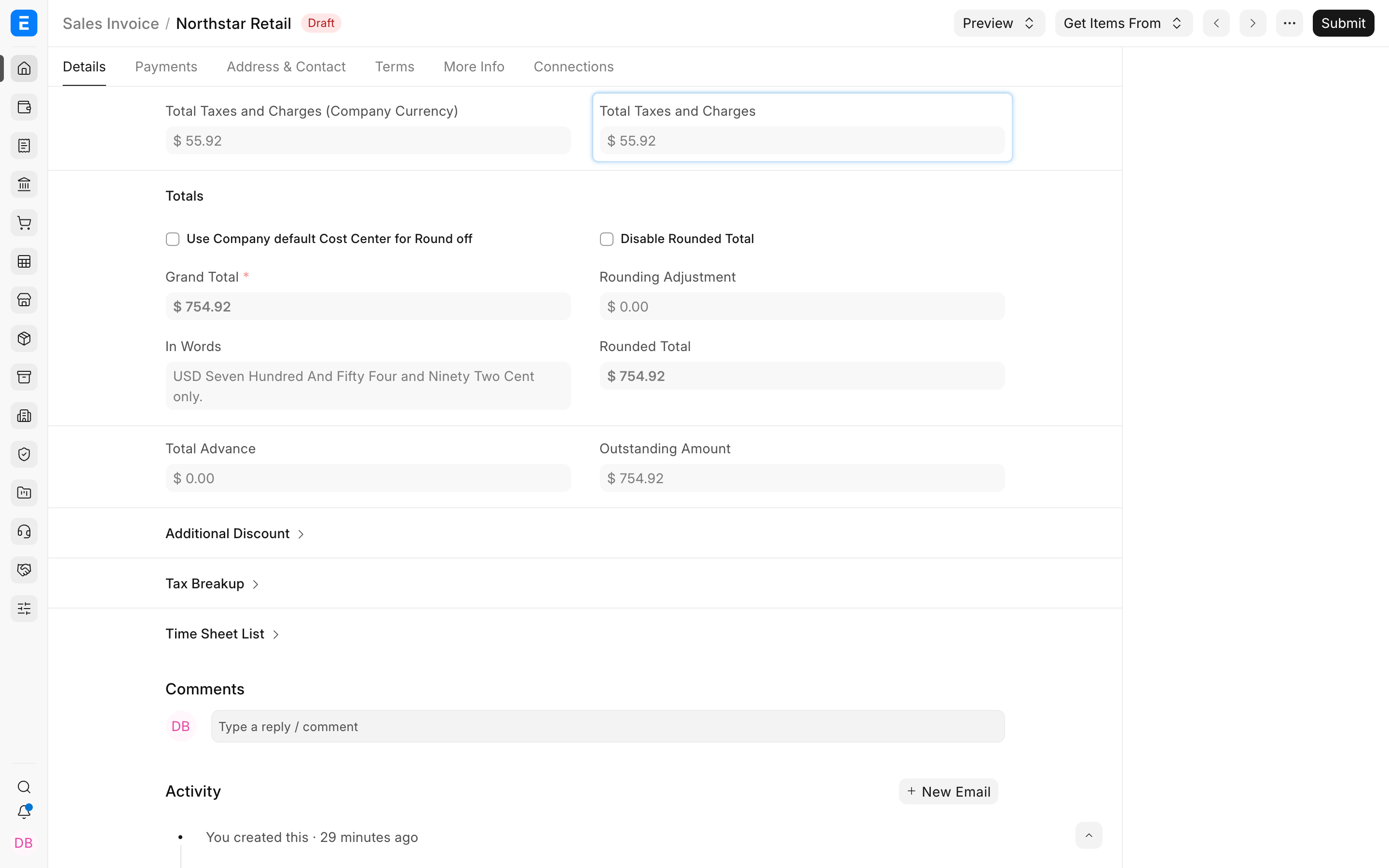
Selecting a template copies its current rows to the transaction. Later edits to the master template do not safely substitute for checking existing drafts. Reselect the template or recreate the draft when configuration has materially changed, then verify the result again.
Apply different rates to individual items
The rate in the Sales Taxes and Charges Template is the standard rate for the matching account. Assign Item Tax Templates when individual products or services require reduced, zero, or otherwise different rates.
The Item Tax Template account must also appear in the transaction tax table. If the account names do not match, the item override cannot calculate against the row. See Item Tax Template for mixed-rate examples and validity rules.
Regional selection
Regional apps can add fields and automatic selection behavior to a tax template. For example, India localization can provide Is Inter State logic so an inter-state template is selected when the place of supply differs from the relevant customer address.
Treat such fields as localization-specific. Follow the documentation for the installed regional app and verify the party tax identifiers, place of supply, billing or shipping address, and transaction type. Do not reproduce another country's template logic in a country-neutral company merely because the field is visible.
Troubleshooting
The template is not selected automatically
Check the company, Default flag, Tax Category, matching Tax Rule, party, address, date, and rule priority. A default is company-specific, while a Tax Rule can select a more appropriate template from the transaction context.
Tax is calculated twice
Check whether an inclusive tax row was configured as exclusive, whether the same charge appears in two rows, and whether a manually entered row duplicates a template row. Compare the item rate, Net Total, tax Amount, and Grand Total.
An item-specific rate is ignored
Confirm the Item Tax Template assignment, Tax Category, validity date, and matching Account Head. Recheck the item row after changing the transaction category or template.
A compound row produces an unexpected amount
Confirm whether the intended base is the previous row's Amount or running Total. Check Reference Row # after inserting, deleting, or moving rows.
Frequently asked questions
Can I use the template for shipping or insurance instead of tax?
Y
es. Use an appropriate calculation type and income or expense account. Add a Cost Center when the selected account and accounting policy require one.
Can more than one template be the default?
Keep one clear default for each company and transaction side. Use Tax Rules and Tax Categories for context-specific selection rather than competing defaults.
Why are Amount and Total zero on the template?
The master stores reusable formulas. ERPNext calculates monetary values only after it copies the rows into a transaction with actual items, quantities, and net values.
Does changing a template update submitted invoices?
- Submitted transactions preserve their own rows and accounting history. Update the master for future transactions and amend or correct existing records only through supported accounting workflows.
Should each tax rate have a separate ledger account?
Use separate accounts when your reporting or statutory posting requires separate components. Item-wise rate overrides can use the same matching tax account when the rates differ but the ledger destination is the same.