


















Setting Up Taxes
Tax setup connects a legal calculation to the ordinary sales and purchase workflow. The goal is not merely to add a percentage to an invoice, but to calculate the right charge, post it to the right account, and retain enough detail for reporting and compliance.
Nova Industries may sell the same electronics to retail customers, resellers, and customers in another region. The applicable tax can depend on the Item, party, address, transaction type, and jurisdiction. Reusable templates and rules allow ERPNext to choose consistently instead of asking users to rebuild the calculation on every invoice.
This page provides the setup sequence and explains how accounts, templates, Item Tax Templates, Tax Categories, and Tax Rules work together. Confirm the exact rates and legal treatment with a qualified local adviser.
Before you begin
Confirm the tax registration, rates, place-of-supply rules, recoverability, and reporting requirements with a qualified adviser. Create the required tax ledgers in the Chart of Accounts.
Create sales and purchase tax templates
Open Sales Taxes and Charges Template or Purchase Taxes and Charges Template.
- Select the company.
- Add a row for each tax or charge.
- Choose the calculation type.
- Select the tax ledger.
- Enter the rate and description.
- Mark a template as default only when it applies to most transactions.
- Save.
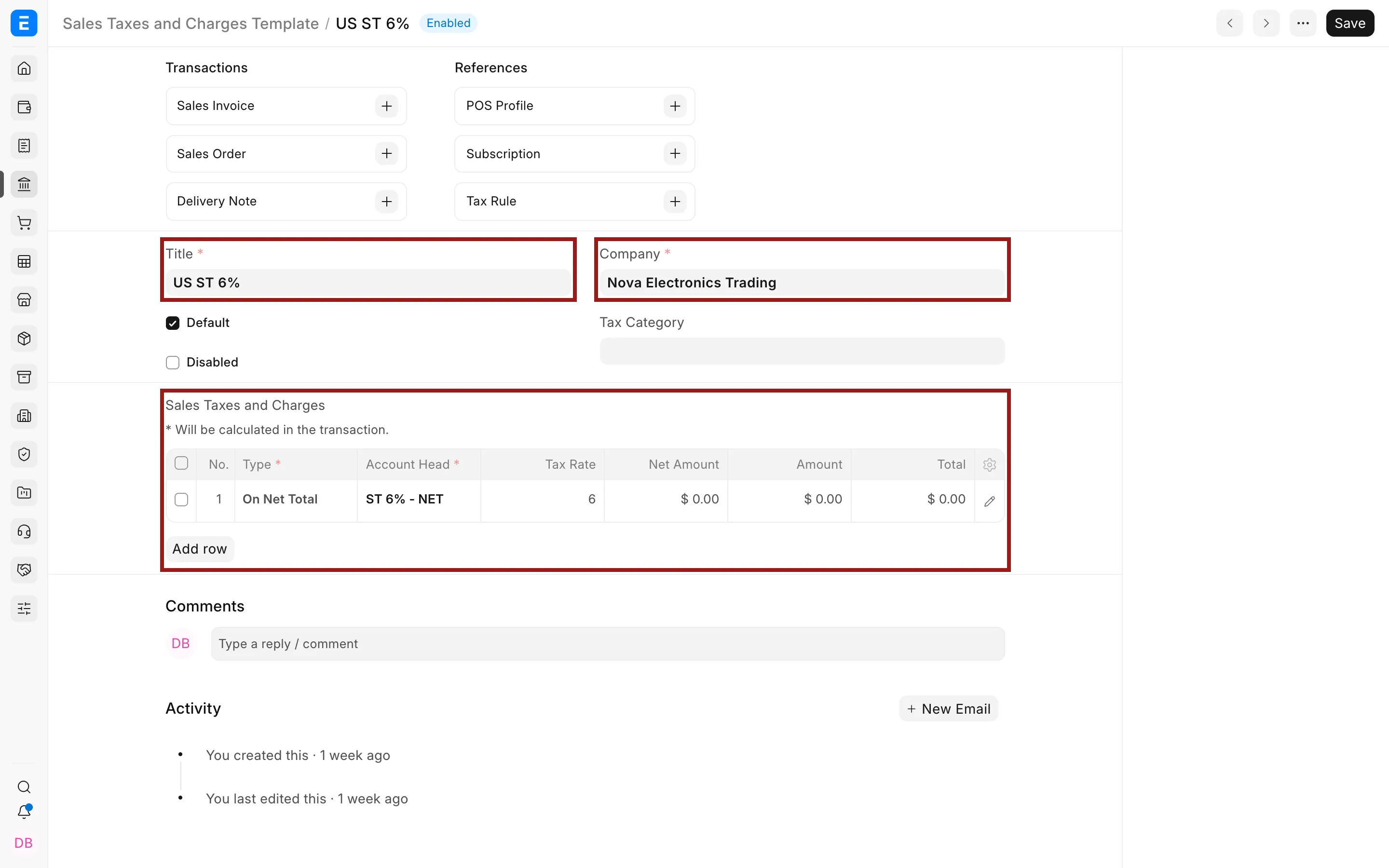
Review whether purchase tax should be added to valuation, treated as recoverable input tax, or posted as an expense.
Use Tax Categories
A Tax Category identifies a tax treatment, such as domestic standard, export, or exempt.
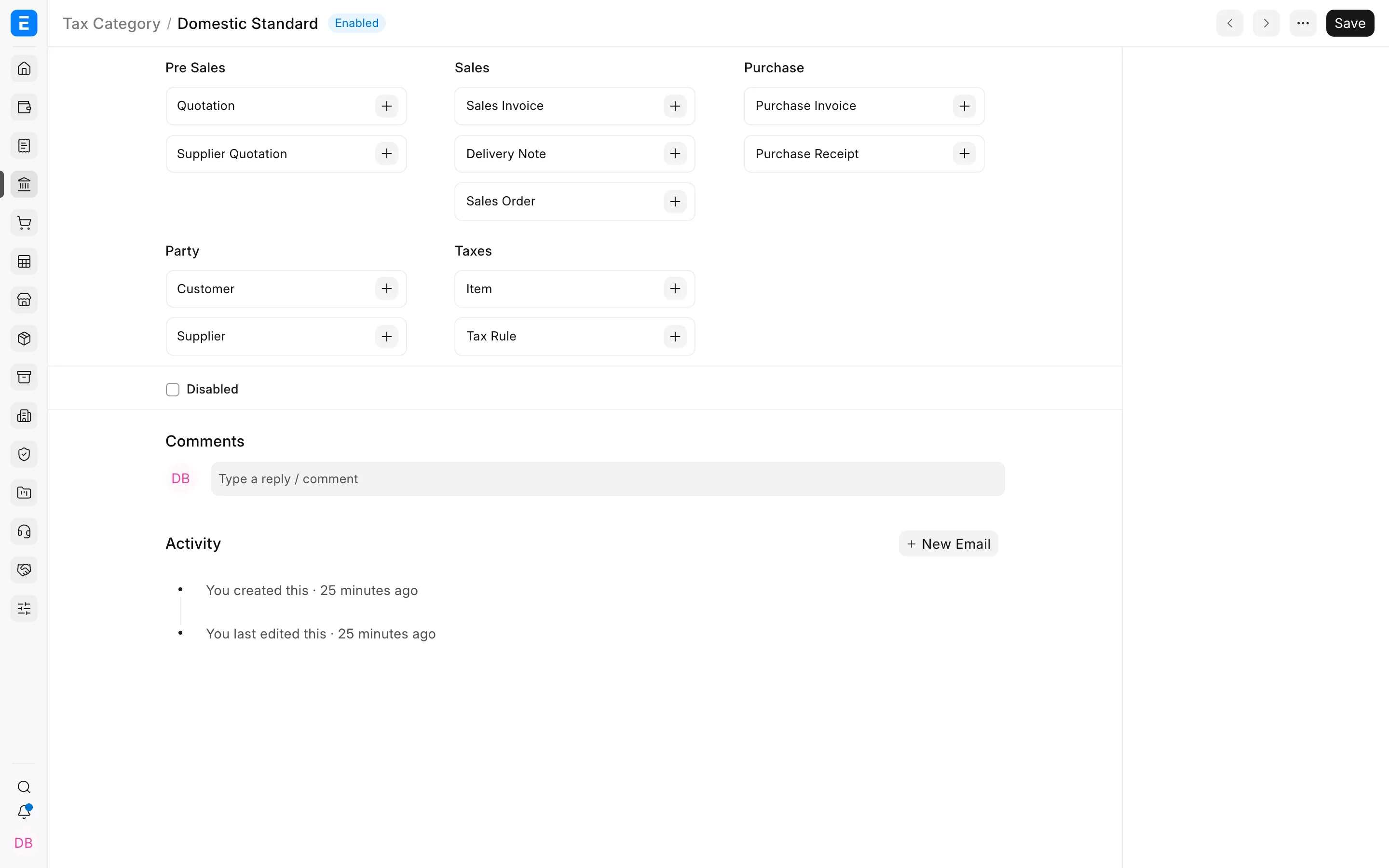
Assign the category to parties or transactions. Then use a Tax Rule to choose the correct template based on company, Customer, Supplier, item, territory, billing or shipping location, and validity dates.
Configure item-specific tax rates
Use an Item Tax Template when particular Items have a different rate or exemption. Link the template on the Item or transaction row.
Test the configuration
Create representative draft Sales Invoices and Purchase Invoices for each tax treatment. Check the taxable value, each tax row, grand total, General Ledger preview, and printed tax information. Include discounts, returns, and foreign-currency cases in testing when they apply.
Withholding and localization
Withholding tax uses separate Tax Withholding Category configuration. Country-specific apps may add tax identifiers, reports, e-invoicing, and statutory validations. Follow the localization documentation when it overrides generic setup.
Troubleshooting
The wrong tax template is selected
Check the Tax Category, Tax Rule priority and validity, party and address data, company, and transaction date.
Tax is missing for one Item
Review its Item Tax Template and the tax account mapping in the transaction template.
Tax is calculated on the wrong value
Check the row calculation type and whether the charge is based on Net Total, Previous Row Total, Previous Row Amount, or Actual.