


















Why can't I invoice a Sales Order or Delivery Note the way I expect?
You want to make a Sales Invoice from a Sales Order or Delivery Note, and the order is not in the list, the invoice is blocked, Update Stock is missing, or the Sales Order status says To Deliver or Overdue when everything looks done. This page explains how ERPNext links the three documents, and what to check.
How the documents link
The usual flow is Sales Order → Delivery Note → Sales Invoice:
- The Delivery Note moves the stock and updates % Delivered on the Sales Order.
- The Sales Invoice posts the accounts and updates % Billed on the Sales Order and the Delivery Note.
You can also invoice straight from the Sales Order, and tick Update Stock on the invoice so it moves the stock itself. Only one document may move the stock for the same items.
The order is not in "Get Items From"
On a Sales Invoice, Get Items From → Sales Order lists only Sales Orders that are:
- submitted, for the same Company, and for the selected customer (if you selected one);
- not Closed or On Hold;
- not fully billed.
Get Items From → Delivery Note lists only submitted Delivery Notes of the company that are not fully billed. On a return invoice, it lists returns.
So check the Sales Order's status and % Billed. If an order was closed by mistake, open it and click Status → Re-open.
If the dialog gives a server error (for example when you add a date filter), update the site: several such errors were fixed in 2026 releases.
"Delivery Note required" or "Sales Order required"
Two settings in Selling Settings decide the flow:
- Is Sales Order required to create Sales Invoice/Delivery Note?
- Is Delivery Note required to create Sales Invoice?
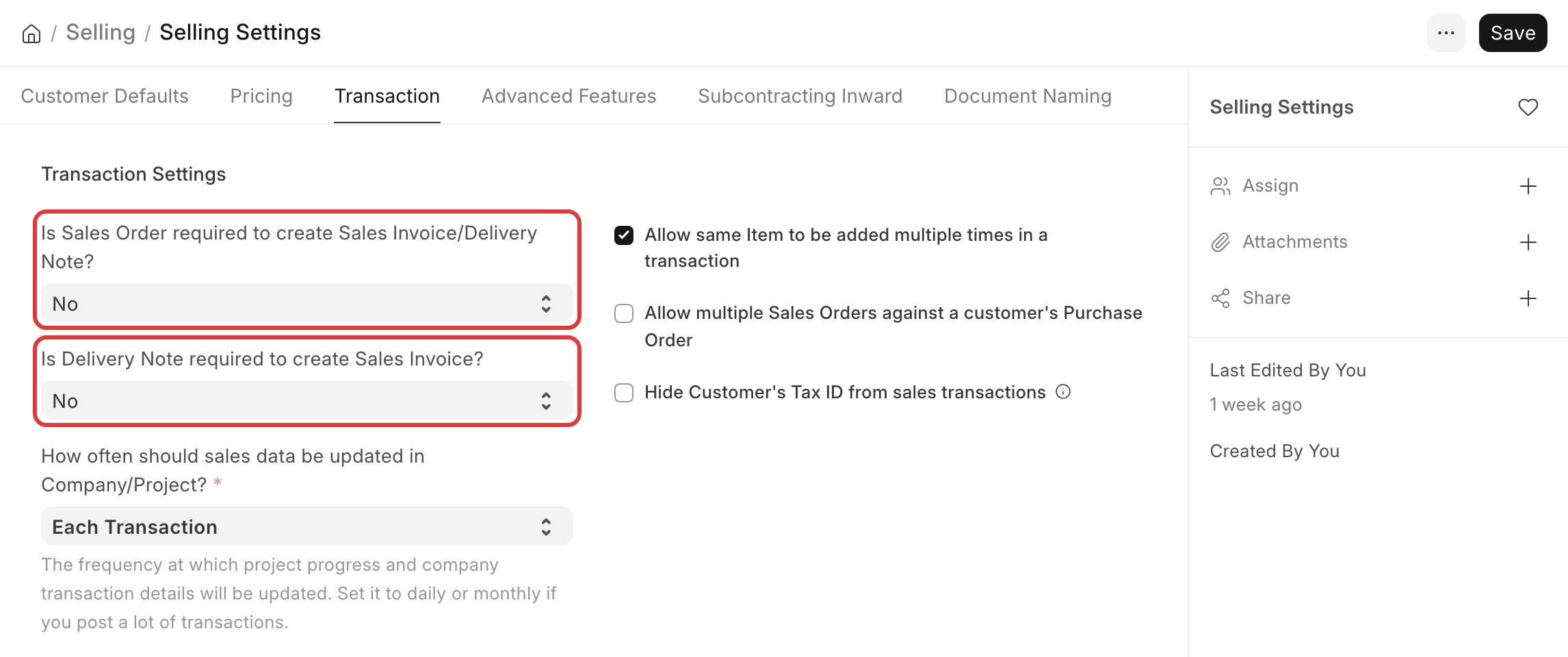
When set to Yes, an invoice must be made from that document. With Delivery Note required, make the invoice from the Delivery Note (Create → Sales Invoice), not from the Sales Order. The settings apply to every user; there is no role that can skip them.
Update Stock is missing on the invoice
When the invoice's items come from a Delivery Note, Update Stock is hidden. The Delivery Note already moved the stock, and ticking it again would move it twice. To move stock with the invoice, make the invoice from the Sales Order (or without one), not from a Delivery Note.
The Sales Order says To Deliver, To Bill or Overdue
| Status | Meaning |
|---|---|
| To Deliver and Bill | Not fully delivered and not fully billed |
| To Deliver | Fully billed, not fully delivered |
| To Bill | Fully delivered, not fully billed |
| Overdue | Shown in the list when the Delivery Date has passed and the order is not fully delivered |
| Completed | Fully delivered and fully billed |
If the status looks wrong:
- Open the Sales Order and check % Delivered and % Billed.
- Draft Delivery Notes and invoices do not count. Submit them.
- A return (Delivery Note or Credit Note with Is Return) reduces the delivered or billed quantity. See below.
- If the rest of the order will never be delivered, click Status → Close. A closed order no longer shows as pending.
The Sales Order can be billed again after a return
A Credit Note reduces the billed amount of the Sales Order only when Update Billed Amount in Sales Order is ticked on the Credit Note. Then the Sales Order shows that quantity as not billed, and it appears again in Get Items From.
- To give the money back and not sell the items again: leave it ticked, then Close the Sales Order.
- For a price correction only: see Returns and credit notes.
Delivery Note and invoice are not linked to each other
If you made both the Delivery Note and the Sales Invoice from the Sales Order, each is linked to the Sales Order, but not to each other. To see them together in Connections, make the invoice from the Delivery Note.
Do not make Sales Order an accounting dimension. The link from the invoice to the order already exists on each item row, and the dimension can break the Connections view.