


















Setting up "Buy 1 Get 1 Free" Pricing Rule
Use a Product Discount Pricing Rule to add a free item when a transaction meets a purchase condition. The free item can be the same Item or a different promotional Item.
Before you begin
Create or confirm:
- The qualifying and free Items.
- Selling Item Prices.
- Sufficient stock for the free Item when it maintains stock.
- The eligible Customer, Customer Group, Territory, or campaign when the offer is restricted.
Test the rule on a demo transaction before enabling it for users. Product Discount rules can re-add a free row when users remove it while the qualifying condition still applies.
Create a Buy 1 Get 1 Free rule
- Open the Pricing Rule list and select Add Pricing Rule.
- Enter a clear title, such as Buy AeroBook Sleeve, Get One Free.
- Set Apply On to Item Code and add the qualifying Item.
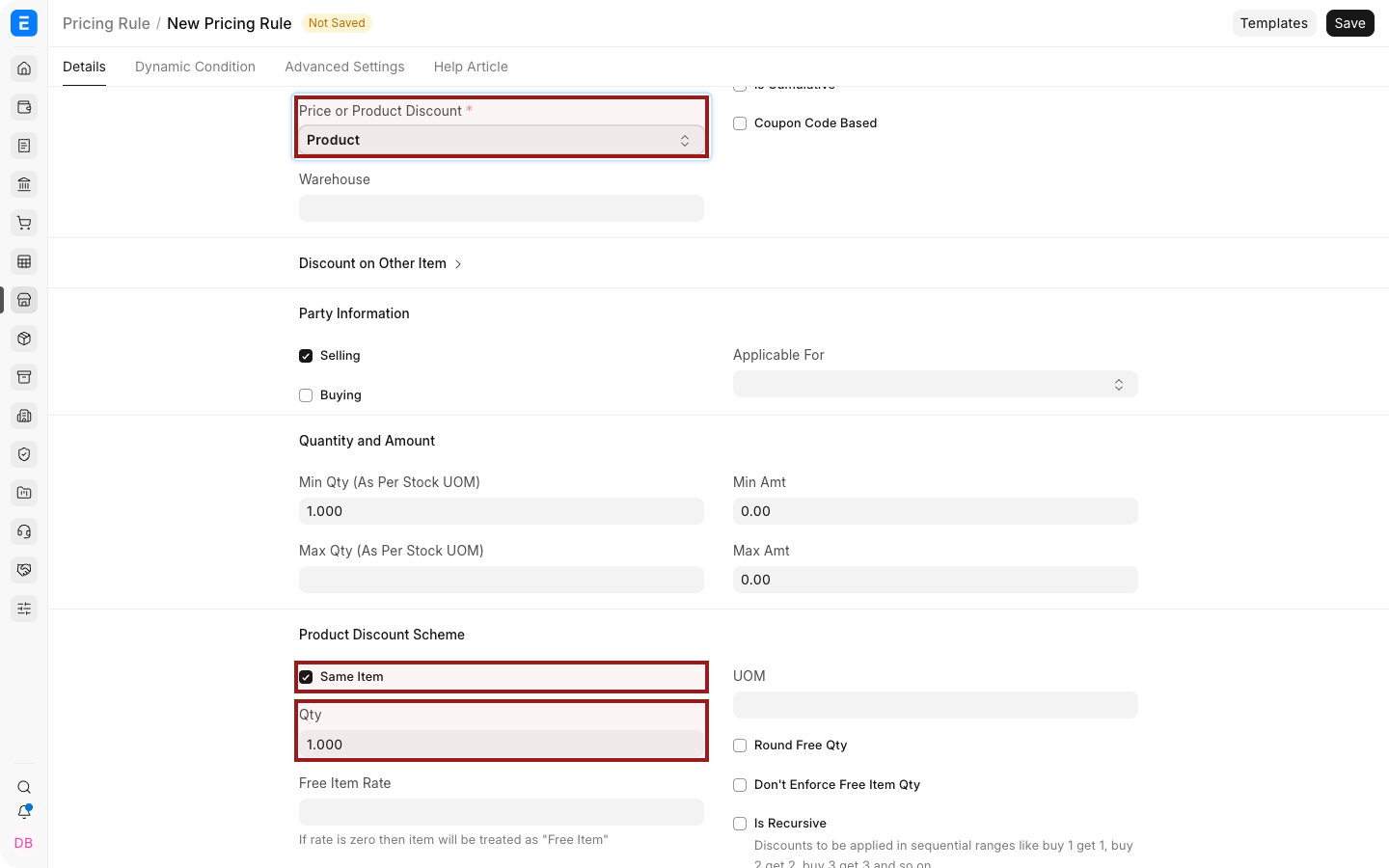
- Set Price or Product Discount to Product Discount.
- Set the minimum quantity to 1.
- In the Product Discount section:
- Enable Same Item when the purchased Item is also free.
- Otherwise select the free Item.
- Set Free Qty to 1.
- Configure the Selling or Buying applicability, party conditions, dates, and priority.
- Save and enable the rule.
Test the offer
- Create a new Quotation or Sales Order.
- Select an eligible Customer and add the qualifying Item.
- Enter the minimum qualifying quantity.
- Save or select Apply Pricing Rule when required by the form.
- Confirm that ERPNext adds the free row with a zero rate.
The dot before an Item Code shows stock availability at a glance: green means in stock and red means out of stock.
Use the highlighted pencil icon to open the full child-row editor when you need to verify fields that are not shown in the grid.
Same-item and different-item offers
| Offer | Configuration |
|---|---|
| Buy one, get the same Item free | Enable Same Item and set Free Qty |
| Buy one Item, get another Item free | Leave Same Item disabled and select the free Item |
| Buy several units, get one free | Set the qualifying minimum quantity and Free Qty |
| Apply the offer to an Item Group | Apply the condition to the Item Group and test every eligible Item |
Stock and fulfilment
A zero-rate promotional Item can still require stock. Verify availability before launching the offer and include the free row in downstream Delivery Notes and stock updates.
If insufficient stock prevents submission, replenish or change the offer. Do not delete the free row and assume the Pricing Rule is satisfied, because ERPNext can fetch it again.
Rule priority and overlap
Review other Pricing Rules, Promotional Schemes, and Coupon Codes that could match the transaction. Use clear validity periods and priorities, then test whether offers should combine or remain exclusive.
Troubleshooting
| Problem | What to check |
|---|---|
| The free row is not added | Confirm the rule is enabled and all item, party, quantity, date, and transaction conditions match |
| The free row returns after deletion | The qualifying condition still applies; change the transaction or disable the rule |
| Submission reports insufficient stock | Check stock for the free Item and selected Warehouse |
| More than one promotion applies | Review overlapping rules and priorities |
| The wrong Item is free | Review Same Item and the selected free Item |
Frequently asked questions
Can the free Item differ from the purchased Item?
Yes. Leave Same Item disabled and select the promotional Item.
Can I set Buy 2 Get 1 Free?
Yes. Set the minimum qualifying quantity to 2 and Free Qty to 1.
Does the free Item appear on delivery documents?
Yes, when the mapped document includes the promotional row.
Can the free Item have a non-zero rate?
A Product Discount free row is intended to carry a zero promotional rate. Use a Price Discount rule for a reduced, non-zero rate.