


















Partial Fulfilment of Sales Order
A submitted Sales Order does not need to be delivered or billed in one transaction. In ERPNext, you can fulfil selected Items and quantities through several Delivery Notes, create several Sales Invoices, return delivered stock, and close a balance that the customer no longer wants.
ERPNext calculates the remaining quantity from the submitted documents linked to each Sales Order row. This preserves one confirmed order while giving the warehouse and billing teams the flexibility to work in stages.
Before you begin
You need:
- a submitted Sales Order with at least one outstanding Item quantity;
- permission to create and submit the required delivery, invoice, return, and purchasing documents;
- available stock in the selected Warehouse for warehouse-fulfilled Items; and
- a Supplier and purchasing setup for drop-shipped Items.
Confirm the customer's requested quantities and dates before creating downstream documents. You cannot reduce an order below quantities that are already delivered, billed, picked, or assigned to production.
One Sales Order, multiple Delivery Notes
Use multiple Delivery Notes when Items ship in batches, on different dates, or from different warehouses.
- Open the submitted Sales Order.
- Select Create > Delivery Note.
- In the new Delivery Note, keep only the lines being dispatched.
- Enter the quantity being delivered for each retained line.
- Confirm the source Warehouse, posting date, delivery address, and transporter details.
- Save and submit the Delivery Note.
- Repeat the process from the same Sales Order when the next batch is ready.
The mapped Delivery Note starts with quantities that remain deliverable. Before submission, remove lines that are not part of the current shipment and reduce a line's Quantity when only part of it is being delivered.
After each submission, ERPNext updates % Delivered on the Sales Order. The Sales Order remains To Deliver and Bill or To Deliver until its delivery requirement is complete.
Deliver selected lines or quantities
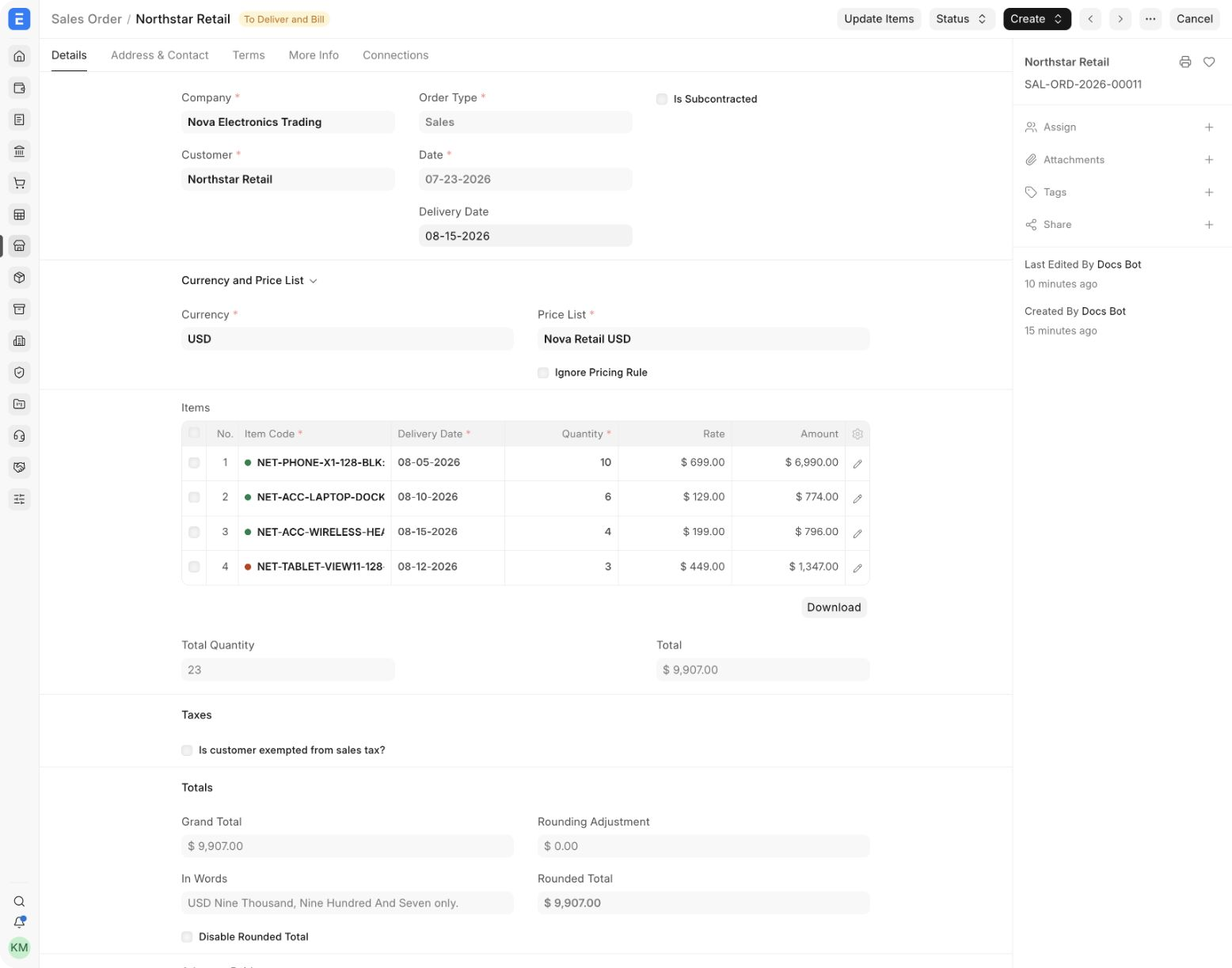
Suppose an order contains 10 phones, 6 laptop docks, and 4 headphones, but the first shipment contains only 4 phones and 2 docks. Create a Delivery Note, remove the headphone row, and set the two retained quantities to 4 and 2.
The dot before an Item Code shows stock availability at a glance: green means the Item is in stock, while red means it is out of stock.
Select the pencil icon at the end of an Item row when the field you need—such as Warehouse, serial number details, or a row-level reference—is not shown as a table column.
Do not change the original ordered quantity merely to record a partial dispatch. The Sales Order should continue to show what the customer confirmed; the Delivery Note records what was dispatched now.
One Sales Order, multiple Sales Invoices
You can split billing independently of physical delivery:
- Open the submitted Sales Order.
- Select Create > Sales Invoice.
- Keep only the lines being billed.
- Enter the quantity to invoice now.
- Review taxes, payment terms, income accounts, and cost centers.
- Save and submit the invoice.
- Create another invoice from the same Sales Order for the next billing stage.
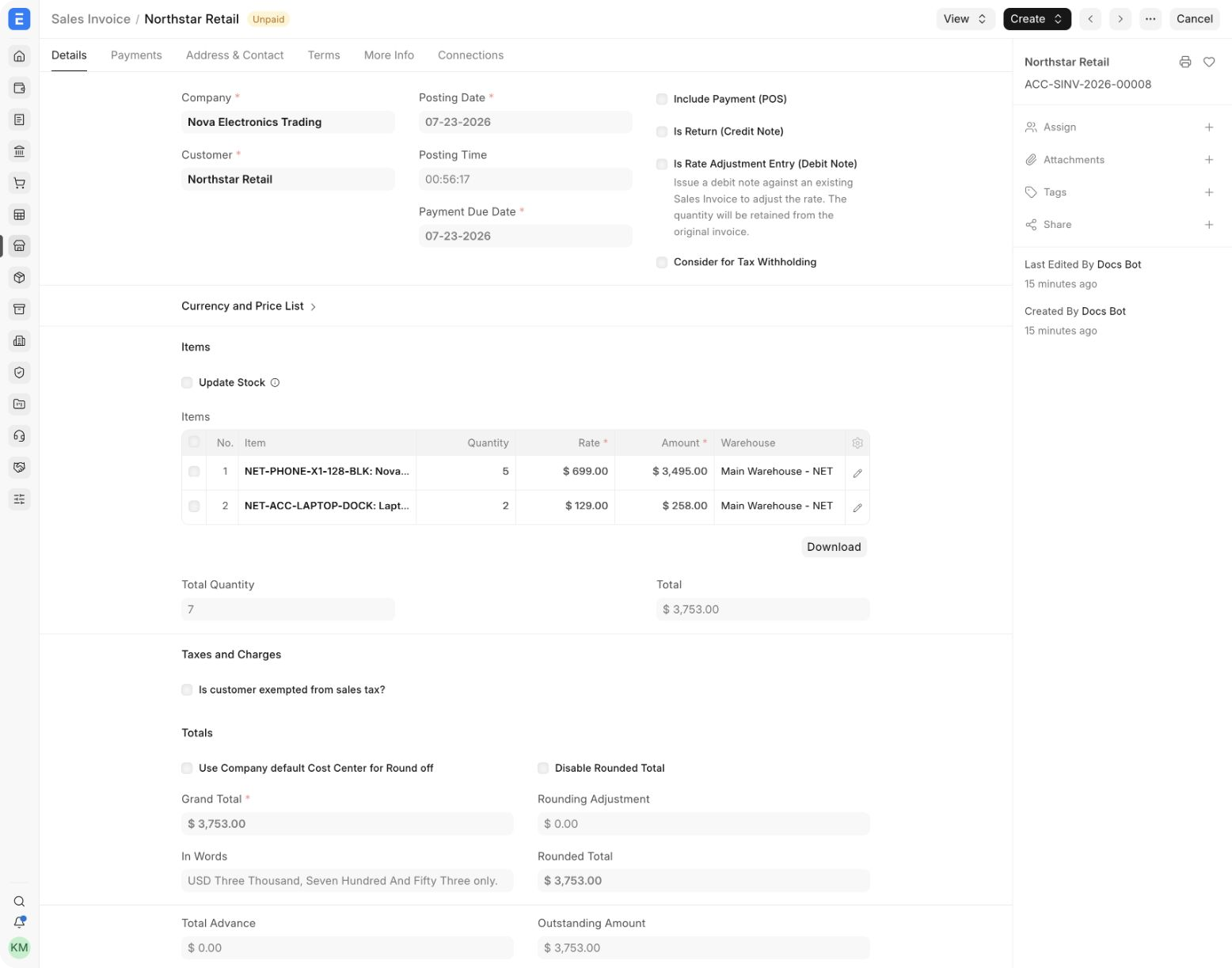
ERPNext updates % Billed from submitted invoices. A direct invoice from the Sales Order does not create a stock movement unless Update Stock is enabled. When your process uses Delivery Notes, create the invoice from the relevant Delivery Note when you want its delivered quantities and references carried into billing.
Avoid billing the same quantity through two routes. Review the source references and remaining quantity before submitting each invoice.
Partial fulfilment for services and projects
Service and project-based companies can represent one engagement with a single Sales Order line whose quantity is 1, then use decimal quantities to record progress. For example, invoice 0.25 after completing 25% of the work, 0.35 at the next milestone, and the remaining 0.40 at completion. If your process records service delivery separately, use the same decimal quantities on Delivery Notes.
Use a decimal-friendly UOM and ensure Must be Whole Number is not enabled for that UOM. The Item should normally be configured as a non-stock service Item. Each submitted document updates the delivered or billed percentage against the same Sales Order, so the order remains the common reference for the full engagement.
Before using this method, define what each decimal represents in the contract—for example, accepted effort, a completed milestone, or a percentage of the total service. Use Payment Terms when the schedule is purely date- or milestone-based and does not need partial quantities.
Review linked fulfilment documents
Open the Connections tab on the Sales Order to see the Delivery Notes, Sales Invoices, Pick Lists, and purchasing documents linked to it. This is the quickest way to confirm how many stages have been completed and open the underlying transactions.
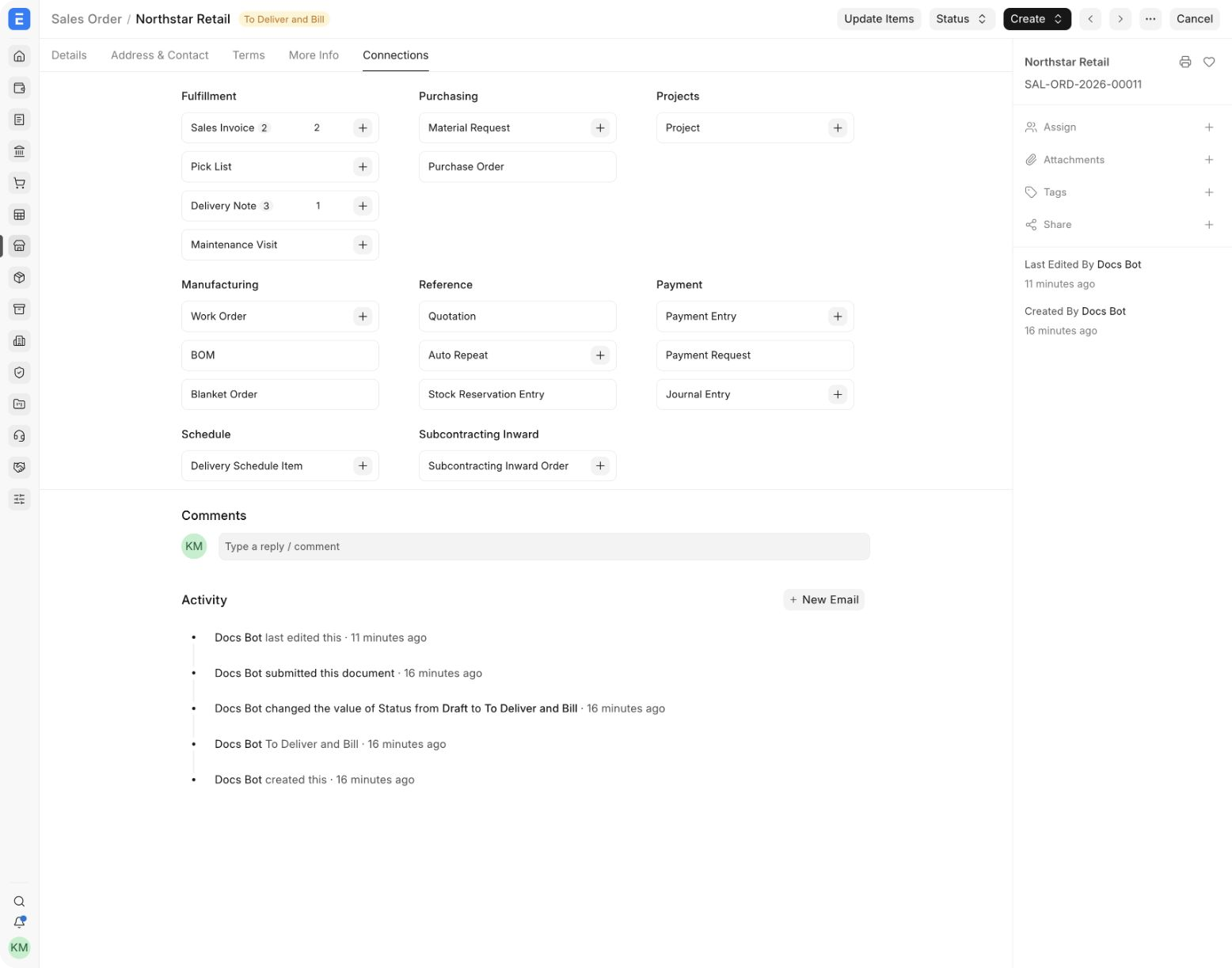
The Delivery Note count can include a return because a sales return is recorded as a return Delivery Note. Use the document list and its Is Return value to distinguish outbound deliveries from returned stock.
Reduce an outstanding quantity
Use Update Items when the customer and seller agree to reduce the ordered quantity but want the Sales Order to remain the controlling document.
- Open the submitted Sales Order.
- Select Update Items.
- Change the Item quantity to the revised total quantity—not the remaining quantity.
- Review the revised totals and save the update.
For example, if 7 of 10 phones were delivered and the customer now wants only 8 in total, update the Sales Order quantity to 8. The outstanding delivery becomes 1. Do not enter 1 as the revised order quantity.
ERPNext prevents a reduction that conflicts with quantities already delivered, billed, picked, or produced. If the commercial value changes after an invoice was submitted, handle the financial adjustment with a Credit Note instead of forcing the order below its billed quantity.
Close the undelivered balance
Close the Sales Order when the customer no longer wants any outstanding quantity and you want to preserve the original order as submitted.
- Confirm that no further Delivery Note or Sales Invoice should be created.
- Open the Sales Order and select Status > Close.
- Confirm the action.
The status becomes Closed, and ERPNext stops treating the remaining balance as work to be fulfilled. Closing does not cancel submitted Delivery Notes or Sales Invoices, return stock, or create a financial adjustment. Complete those actions separately when required.
Use Update Items when the agreed order itself changed and the revised total should be visible. Use Close when the original commitment should remain visible but its remainder will not be completed.
Returns after partial or complete delivery
Create a Sales Return against the Delivery Note that originally moved the stock:
- Open the submitted Delivery Note.
- Select Create > Sales Return.
- Keep only the returned lines and enter the returned quantities.
- Confirm the receiving Warehouse.
- Save and submit the return.
The return Delivery Note uses negative quantities, adds accepted stock back to the Warehouse, and reduces the net delivered quantity against the Sales Order. A return can therefore make a previously completed delivery partially outstanding again.
For money already invoiced, create a Credit Note against the relevant Sales Invoice. The stock return and financial credit are related business actions, but they affect different ledgers.
Mixed warehouse and drop-ship fulfilment
A Sales Order can contain some Items supplied from your Warehouse and other Items shipped directly by a Supplier.
- For warehouse lines, set the source Warehouse and create Delivery Notes as each batch leaves your premises.
- For drop-ship lines, mark the Item row for Supplier delivery and create the required Purchase Order for the selected Supplier.
- Keep the delivery address and Supplier instructions accurate because the goods bypass your Warehouse.
- Review each line's fulfilment route before creating documents; do not include a drop-ship line in a normal warehouse Delivery Note.
This mixed model is useful when Nova Electronics Trading ships accessories from stock but asks a distributor to send a tablet directly to the customer. The Sales Order remains the common commercial reference while the operational documents follow different routes.
Status and progress
| Sales Order indicator | What it means |
|---|---|
| % Delivered | Net quantity delivered through submitted Delivery Notes, adjusted for submitted returns |
| % Billed | Quantity or value billed through submitted Sales Invoices, adjusted by relevant credits |
| To Deliver and Bill | Both delivery and billing are incomplete |
| To Deliver | Billing is complete, but delivery remains |
| To Bill | Delivery is complete, but billing remains |
| Completed | Delivery and billing requirements are complete |
| Closed | The remaining balance was intentionally closed |
Troubleshooting
| Problem | What to check |
|---|---|
| The mapped document includes unwanted Items | Remove those rows before submission; do not set them to an arbitrary value |
| The remaining quantity is not what you expect | Check submitted Delivery Notes, returns, Sales Invoices, and cancelled documents in Connections |
| ERPNext will not let you reduce the order | The proposed total may be below a quantity already delivered, billed, picked, or produced |
| The Sales Order did not become Completed | Check both % Delivered and % Billed; one side may still have a balance |
| A drop-ship Item appears in a warehouse shipment | Review the Item row's drop-ship setting, Supplier, and purchasing document |
| A return changed the order back to To Deliver | The return reduced net delivered quantity; close the balance or create a replacement delivery as appropriate |
Frequently asked questions
Can I invoice before delivering?
Yes. You can create a Sales Invoice directly from the Sales Order. Whether this is appropriate depends on your accounting policy and whether stock movement must be recorded separately.
Can one invoice cover quantities from several Delivery Notes?
Yes, provided the invoice references the correct delivered quantities and does not exceed what remains billable. Review the linked source rows before submission.
Should I cancel the Sales Order when only the balance is cancelled?
Usually no. Close the order or reduce its total quantity, depending on whether you need to preserve the original commitment. Cancel the Sales Order only when the whole transaction should be reversed and linked documents allow it.
Does a return automatically create a refund?
No. A return Delivery Note reverses stock movement. Use a Credit Note and the appropriate payment process for the financial reversal.
Can I reopen a closed Sales Order?
Use Status > Re-open when the option is available and your permissions allow it. Recheck the outstanding quantities before creating more documents.