


















Restrict Sales Users to specific Customers and Transactions
Use User Permissions when a sales user should work only with named Leads, Customers, and the sales transactions connected to those Customers. A Sales Person record is useful for targets, commissions, and the Sales Team table, but assigning a Sales Person does not by itself create record-level access restrictions.
This guide uses Avery Stone as a sales user. Avery can work with Northstar Retail, Summit Digital Stores, and two assigned Leads, but not the rest of the sales portfolio.
Before you begin
- You need System Manager or equivalent permission to manage Users and User Permissions.
- The user must be a System User with the roles required for their work.
- Create the relevant Customers and Leads first.
- Decide whether access will be maintained customer by customer or through a grouping master such as Territory.
Roles and User Permissions do different jobs. A role grants access to a document type. A User Permission limits which records of that type the user can access.
1. Give the user the required sales role
- Open User and select the sales user.
- Open Roles & Permissions.
- Enable Sales User.
- Add another role only when the person needs the corresponding actions. For example, do not assign Sales Manager merely to make the workspace visible.
- Save the User.
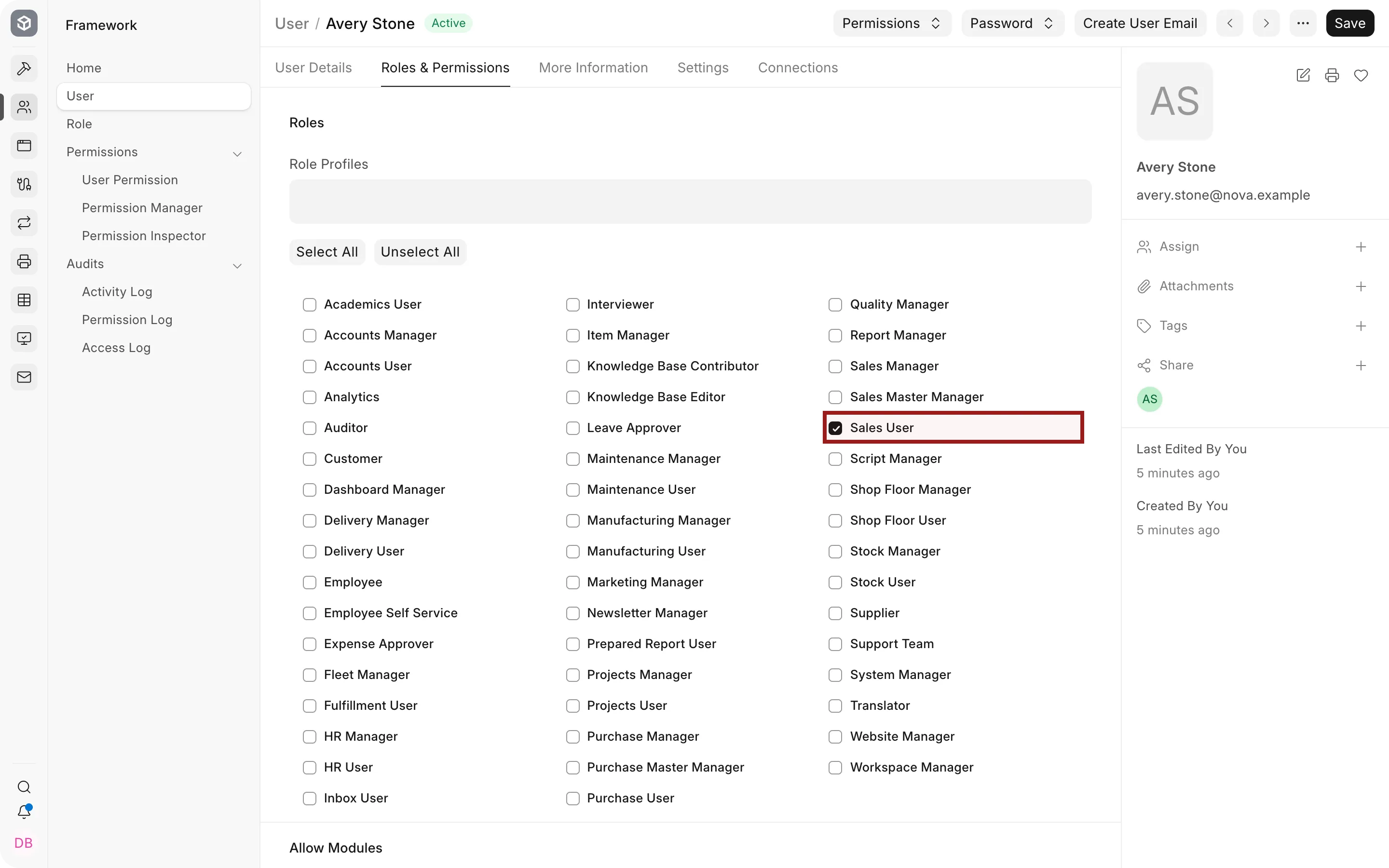
The Sales User role normally provides access to sales masters and transactions according to the configured Role Permission Manager. User Permissions added in the following steps narrow that access.
2. Open User Permission
Go to Users and Permissions > User Permission, then select Add User Permission.
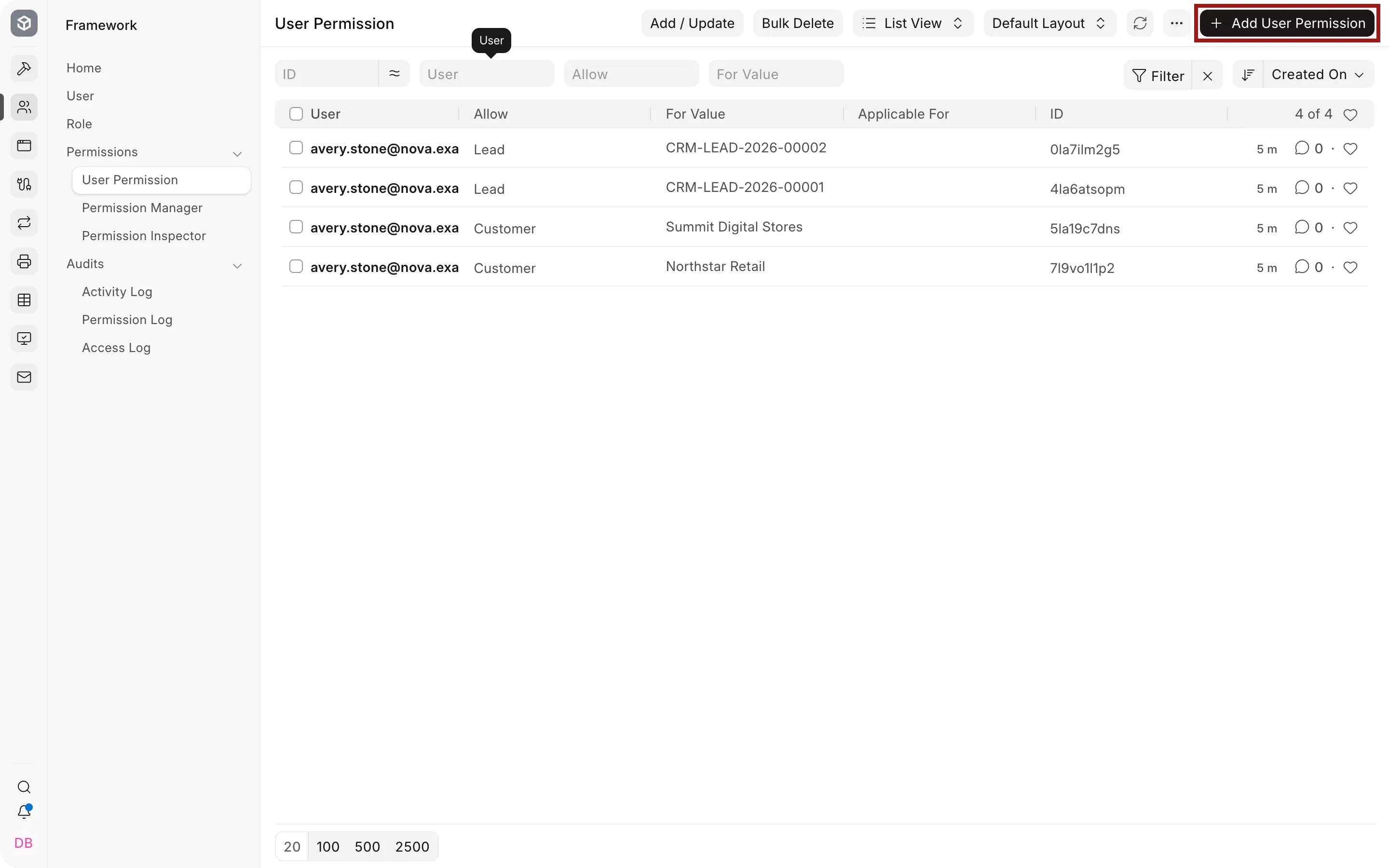
You can also open the User and use Permissions > Set User Permissions. Both routes create the same User Permission records.
3. Allow the Customers assigned to the sales user
Create one User Permission for each Customer in the user's portfolio:
- In User, select the sales user.
- Set Allow to Customer.
- In For Value, select an allowed Customer.
- Save the User Permission.
- Repeat for each additional Customer.
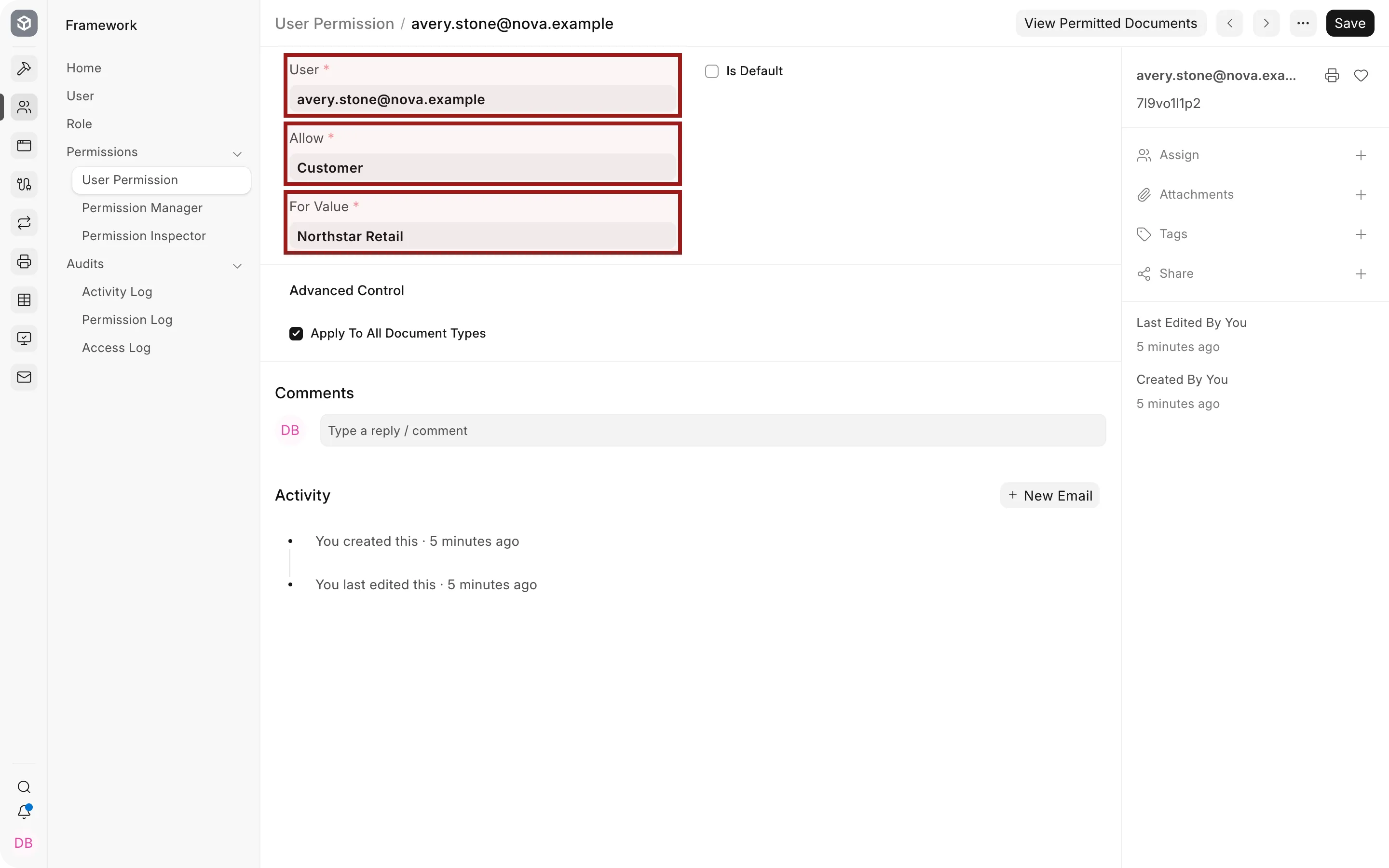
For example, Avery has separate permissions for Northstar Retail and Summit Digital Stores. ERPNext combines permissions for the same master, so Avery can access either Customer.
Why this also restricts sales transactions
A Customer is linked from documents such as a Quotation, Sales Order, Delivery Note, and Sales Invoice. When the user's role applies User Permissions, the Customer restriction is carried into those linked documents.
This means you normally do not create separate User Permissions for every Sales Order or Sales Invoice. Maintain the Customer portfolio, and the restriction follows the Customer link.
4. Add Lead permissions separately
A Lead is not yet a Customer. A Customer permission therefore cannot decide which unconverted Leads the user may access.
Create a separate User Permission for each assigned Lead:
- Select the same sales user.
- Set Allow to Lead.
- Select the permitted Lead in For Value.
- Save and repeat for the user's other Leads.
When a Lead is converted, add the resulting Customer to the user's Customer permissions. Review the old Lead permission according to your retention policy.
5. Apply the restriction to linked document types
Keep Apply To All Document Types enabled when the Customer permission should restrict every supported document containing a Customer link.
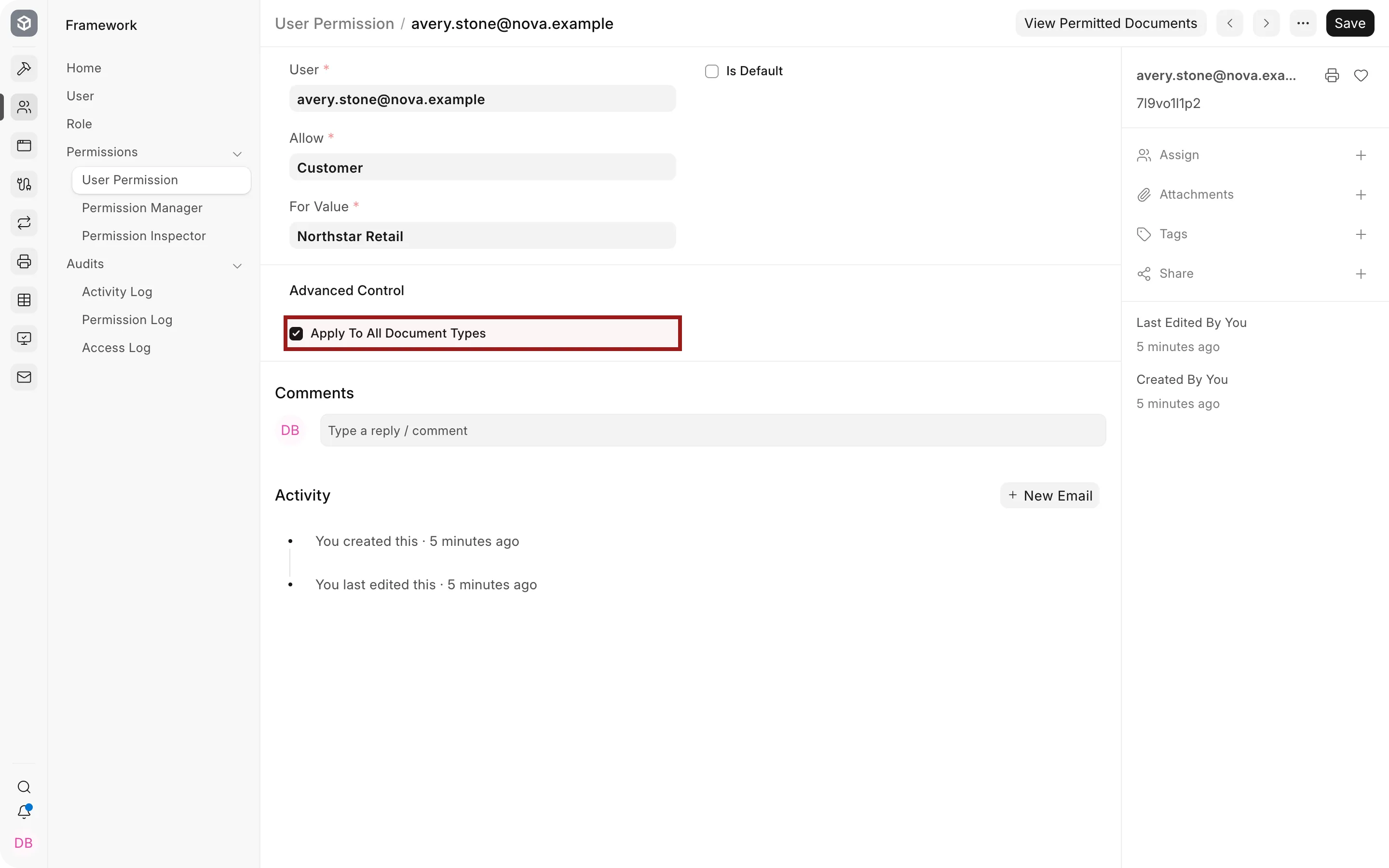
Clear this option only when the permission must apply to one specific document type. After clearing it, select that document type in Applicable For. For example, limiting a Customer permission to Sales Order would not provide the same restriction across Quotations, Delivery Notes, and Sales Invoices.
6. Review the complete portfolio
Open the User Permission list and filter by the user. Confirm that every permitted Customer and every unconverted Lead appears once.
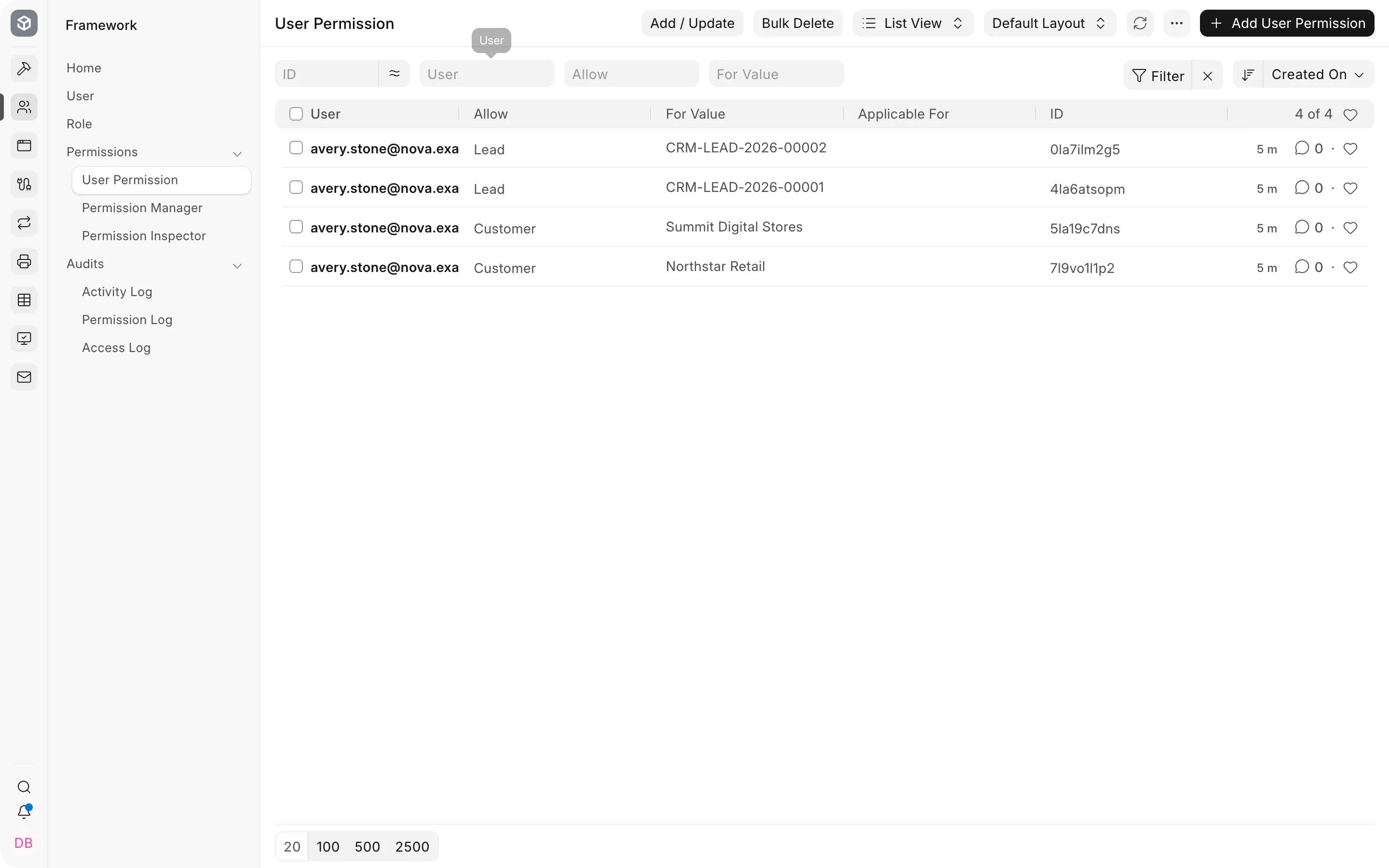
In this example, Avery can access:
- Northstar Retail and Summit Digital Stores;
- the sales transactions linked to those Customers; and
- Leads CRM-LEAD-2026-00001 and CRM-LEAD-2026-00002.
Avery should not receive a broad Customer, Customer Group, or Territory permission that includes the rest of the portfolio. A broader permission expands access rather than overriding the individual Customer permissions.
7. Verify access before handing over the account
Do not assume that a saved permission produces the intended result.
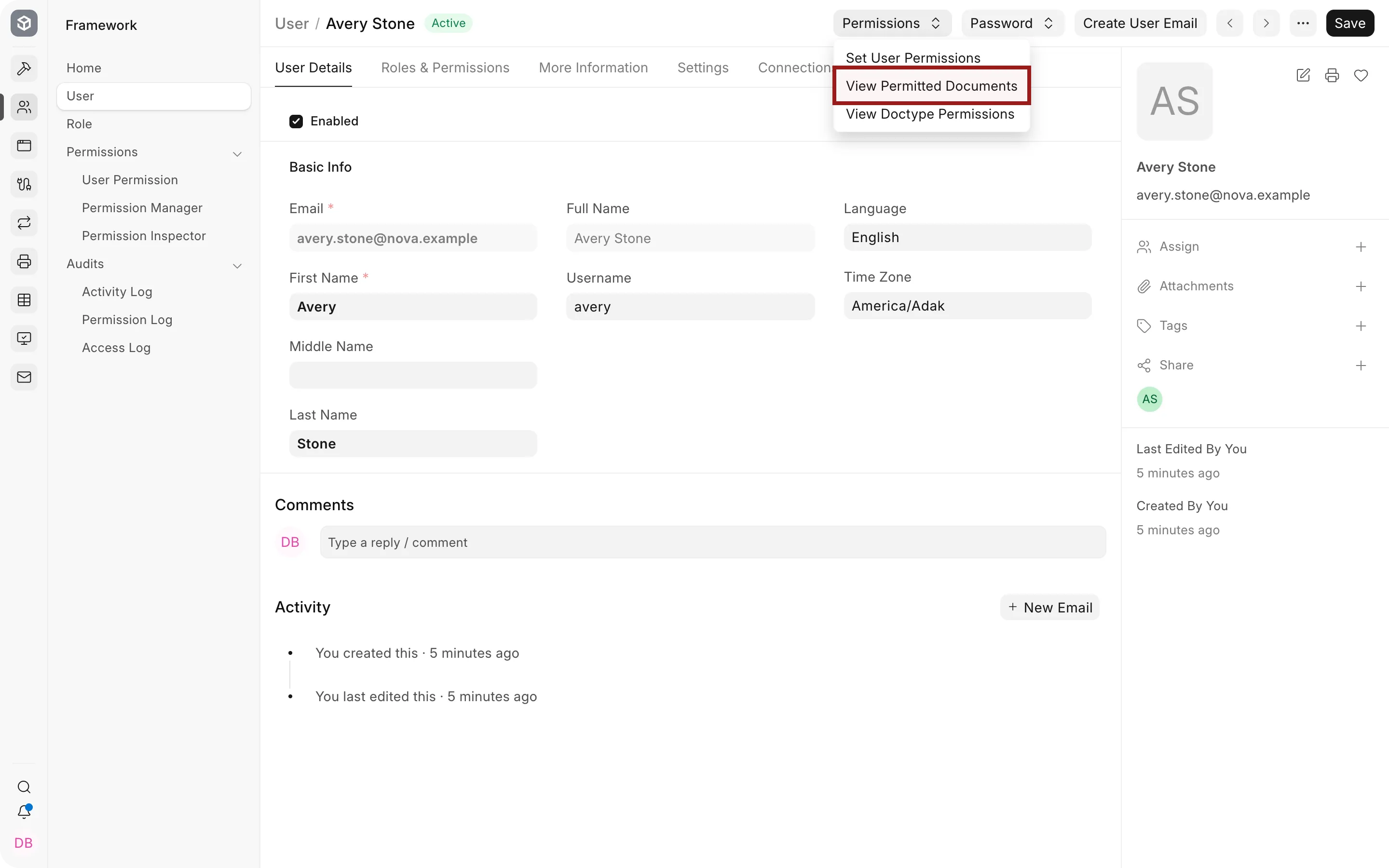
- Open the User.
- Select Permissions > View Permitted Documents.
- Check Customer, Lead, Quotation, Sales Order, Delivery Note, and Sales Invoice.
- Confirm that permitted records appear and an unrelated Customer does not.
- Test list views and the reports the user will actually use.
For a final security check, sign in with a non-administrator test user that has the same roles and permissions. System Manager and Administrator accounts can bypass restrictions and are not suitable for validating a salesperson's experience.
How access is determined
| Configuration | What it controls |
|---|---|
| Sales User role | Which sales document types and actions are available |
| Customer User Permission | Which Customers and Customer-linked transactions the user can access |
| Lead User Permission | Which specific unconverted Leads the user can access |
| Apply To All Document Types | Whether the allowed value restricts all supported linked document types |
| Applicable For | Limits one User Permission to a selected document type |
| Apply Strict User Permissions | Controls whether records with a blank restricted link remain visible |
When there are many Customers
Individual Customer permissions are precise and easy to audit, but they require maintenance when portfolios change. If Customers and Leads are cleanly divided by region, create a User Permission for the appropriate Territory instead. A parent Territory can also include descendants unless Hide Descendants is enabled.
Use a grouping master only when it matches the real access boundary. Do not use Customer Group for access if the group exists mainly for pricing or reporting and contains Customers belonging to several salespeople.
Records with a blank Customer or Territory
Review Apply Strict User Permissions in System Settings. When strict permissions are enabled, a record with a blank restricted link is hidden. When they are not enabled, records whose restricted link is blank may remain visible.
Before enabling this setting, review integrations and older data for missing Customer or Territory values. Test the effect on all teams because it is a system-level setting.
Troubleshooting
| Problem | What to check |
|---|---|
| The user can still see every Customer | Check for a broader Customer, Customer Group, or Territory permission. Confirm the user's role has Apply User Permissions enabled. |
| The user cannot open any sales transactions | Confirm the Sales User role grants Read access and that the transaction contains an allowed Customer. |
| The user can see unrelated records with blank links | Review missing Customer or Territory values and the Apply Strict User Permissions setting. |
| Assigned Leads are missing | Create Lead User Permissions separately. Customer permissions do not cover unconverted Leads. |
| A report shows more data than expected | Test the report with the restricted user. Review custom or script reports to confirm they apply permission-aware queries. |
| A manager cannot see a salesperson's portfolio | Add the required broader permissions to the manager. A Sales Person hierarchy does not automatically replace User Permissions. |
Frequently asked questions
Is linking a User to a Sales Person enough?
Sales Person assignment supports sales attribution, targets, and commission reporting. Use User Permissions for record-level restrictions.
Must I add every Sales Order to User Permissions?
Allow the Customer and keep Apply To All Document Types enabled. Supported Customer-linked transactions inherit that restriction.
Can one salesperson have several Customers and Leads?
Y
es. Create one User Permission for each allowed value, or use a suitable Territory when the portfolio follows that hierarchy.
Can sales managers see all records?
Yes, if their roles and User Permissions grant the broader access. Test managers separately instead of assuming the Sales Person tree controls visibility.