


















Nova Industries, an example electronics distributor, sends a Sales Invoice to Northstar Retail, one of its customers. The customer's United States address should read 100 Market Avenue, Metro City, California 94016, while addresses in other countries may need a different order.
An Address Template controls that order.
ERPNext uses the template for the Address country and falls back to the template marked Is Default when no country-specific template exists.
Copy a working address template
The following template prints the street first, keeps optional values from leaving awkward punctuation, and places the city, state, and postal code on one line:
{{ address_line1 }}<br>
{% if address_line2 %}{{ address_line2 }}<br>{% endif %}
{{ city }}{% if state %}, {{ state }}{% endif %}{% if pincode %} {{ pincode }}{% endif %}<br>
{% if country != "United States" %}{{ country }}{% endif %}
For Northstar Retail, this produces:
100 Market Avenue
Metro City, California 94016
Start with this pattern, then change only the lines required by the country's postal format.
Create or edit an Address Template
You need the System Manager role to create or edit a template.
- Open Address Template from the search bar.
- Open the required country or select Add Address Template.
- Select the Country.
- Enter the Jinja and HTML in Template.
- Enable Is Default only if this should be the fallback format.
- Save the record.
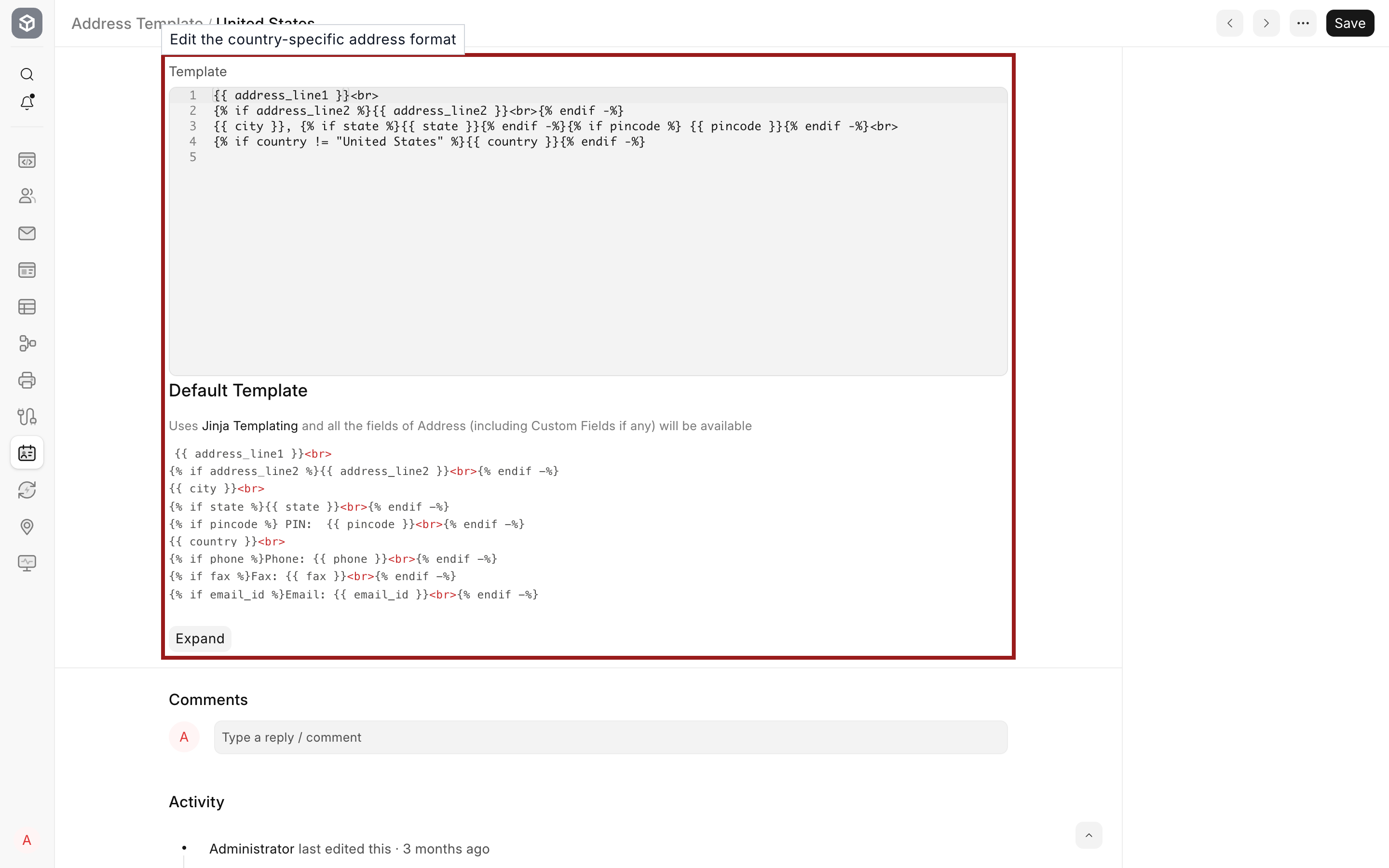
Copy the current template before a major edit. A change can affect every Customer, Supplier, and transaction that renders an Address for that country.
How ERPNext chooses a template
| Situation | Template used |
|---|---|
| The Address country has its own template | The country-specific template |
| No template exists for the Address country | The template marked Is Default |
| A different template is marked Is Default | The previous default is cleared automatically |
Each Address Template belongs to one Country. If no default exists, ERPNext can make a newly saved template the default. The active default cannot be deleted until another template becomes the fallback.
Use Address fields safely
Common fieldnames are address_line1, address_line2, city, county, state, pincode, and country. Fieldnames are case-sensitive. Check Customize Form before using a custom field.
Wrap an optional value and its punctuation inside the same Jinja condition so an empty field does not leave a blank label or comma. Use <br> for deliberate line breaks, and keep complex business rules out of the template.
Verify the formatted address
Saving the template confirms that its syntax is valid, but it does not prove that every output looks correct.
- Open a representative Customer or Supplier Address for the same country.
- Confirm that it contains the fields used in the template.
- Open a Quotation, Sales Order, Delivery Note, or Sales Invoice.
- Check the formatted address and preview the relevant Print Format.
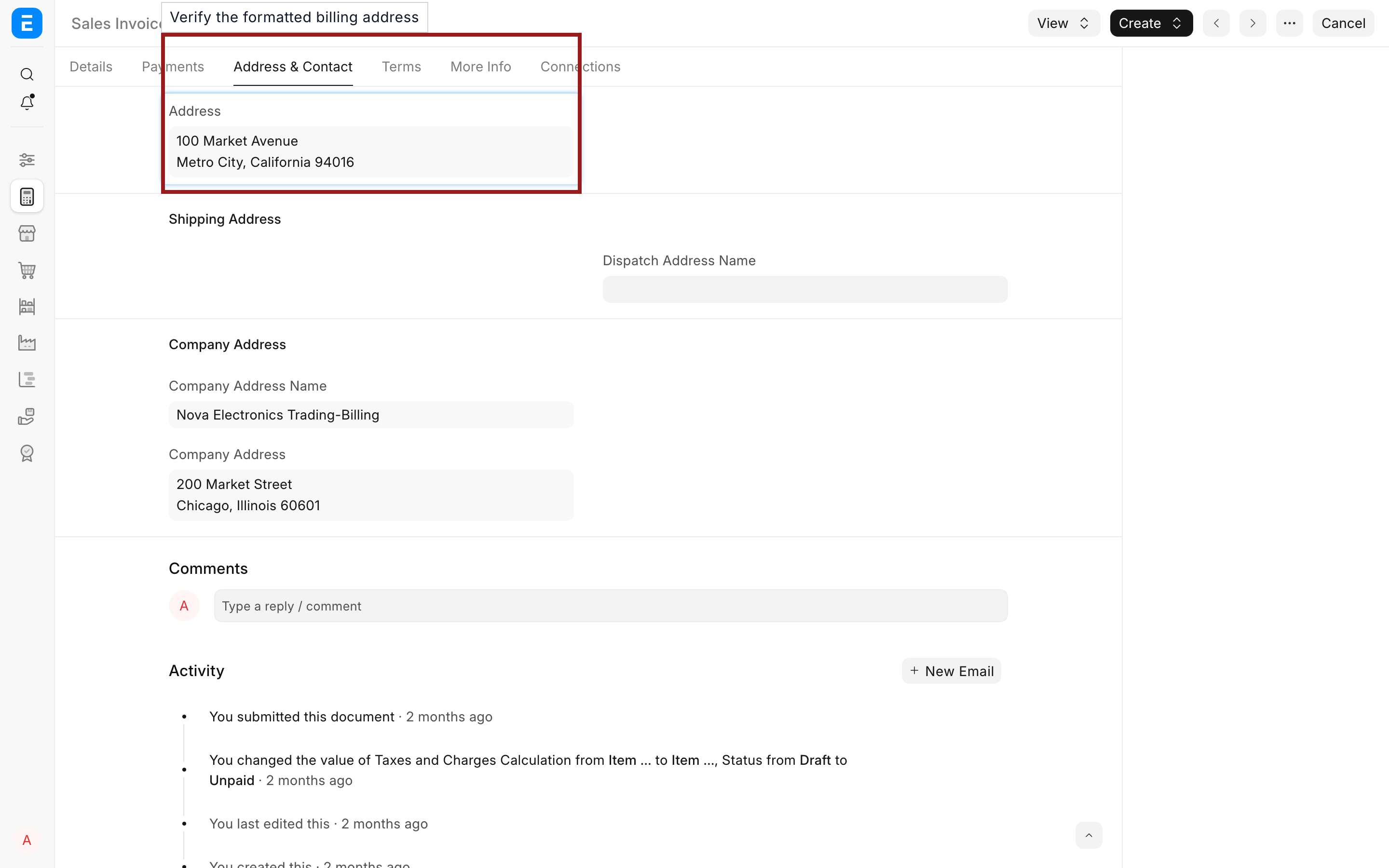
The United States template formats Northstar Retail's address without an unnecessary country line. Test one Address with optional fields blank and one with every field populated.
Troubleshooting
| Problem | What to check |
|---|---|
| The wrong format appears | Confirm the Country on the Address and that a template exists for that country. |
| A country has no template | Confirm that the intended fallback template has Is Default enabled. |
| Blank labels or punctuation appear | Put the optional value, label, and punctuation inside one Jinja condition. |
| A field never appears | Verify the exact fieldname and confirm that the Address contains a value. |
| A syntax error appears | Check matching Jinja blocks such as {% if %} and {% endif %}. |
Frequently asked questions
Should every country have an Address Template?
Create a country-specific template only when its postal format differs. The default template handles countries without their own format.
Can an Address Template use custom fields?
Custom Address fields are available by fieldname. Verify that the field exists in every site where the template will be used.
Do template changes rewrite saved addresses?
The template changes how ERPNext renders Address data. It does not change the street, city, state, or postal-code values stored on the Address. Test historical documents because some views render the current template while others use a value already stored on the document.