


















Multi Currency Setup
Before Nova Industries begins foreign-currency sales, its accounts, parties, Price Lists, rates, and payment settings must agree.
Nova wants to invoice EuroTech Retail in EUR while reporting its accounts in USD. Enabling EUR alone is not enough. The Customer, receivable account, Price List, rate source, payment account, and gain-or-loss accounts must agree, or the first invoice or payment can fail with a currency mismatch.
This page connects those settings in a safe order. By the end, Nova can create a EUR invoice, receive payment, record any exchange difference, and report the result in USD. Complete the sequence in a test Company before applying it to live Companies.
Decide the accounting model
Answer these questions before configuring ERPNext:
| Decision | Recommended starting point |
|---|---|
| What is the Company's base currency? | Use the statutory or primary reporting currency. Do not treat it as a per-transaction choice. |
| Which foreign balances must be retained? | Create a separate account for each currency-specific bank, receivable, or payable balance. |
| Does each party normally use one currency? | Set its Billing Currency and matching default account. |
| Are rates market-based or finance-approved? | Use the provider for market rates and Currency Exchange for controlled rates. |
| How are closing balances revalued? | Configure unrealized gain or loss and a review frequency. |
For the concepts behind these choices, read Multi Currency Accounting.
1. Confirm the Company currency
Open the Company and verify Default Currency. ERPNext uses it for base debit and credit values and Company financial statements. Changing it after transactions exist is a migration decision, not ordinary setup.
2. Enable required currencies
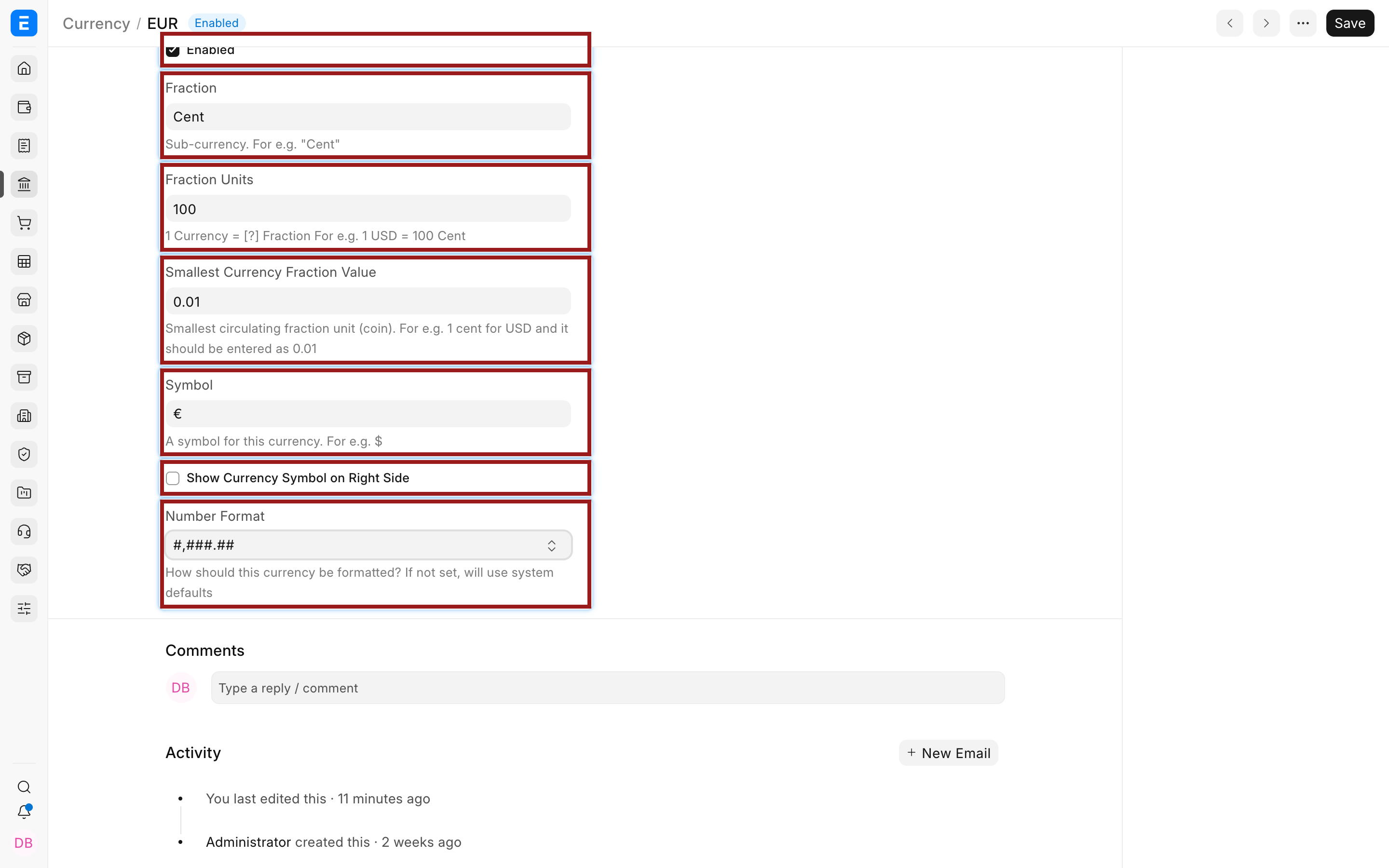
Open Currency, enable EUR, and review its symbol, fraction, and number format. Enabling a currency only makes it selectable. It creates no accounts or rates.
3. Create foreign-currency accounts
In the Chart of Accounts, create the ledgers that must keep foreign balances. For the example:
- Euro Bank, Account Type Bank, Currency EUR
- Euro Receivables, Account Type Receivable, Currency EUR
- Euro Payables, Account Type Payable, Currency EUR
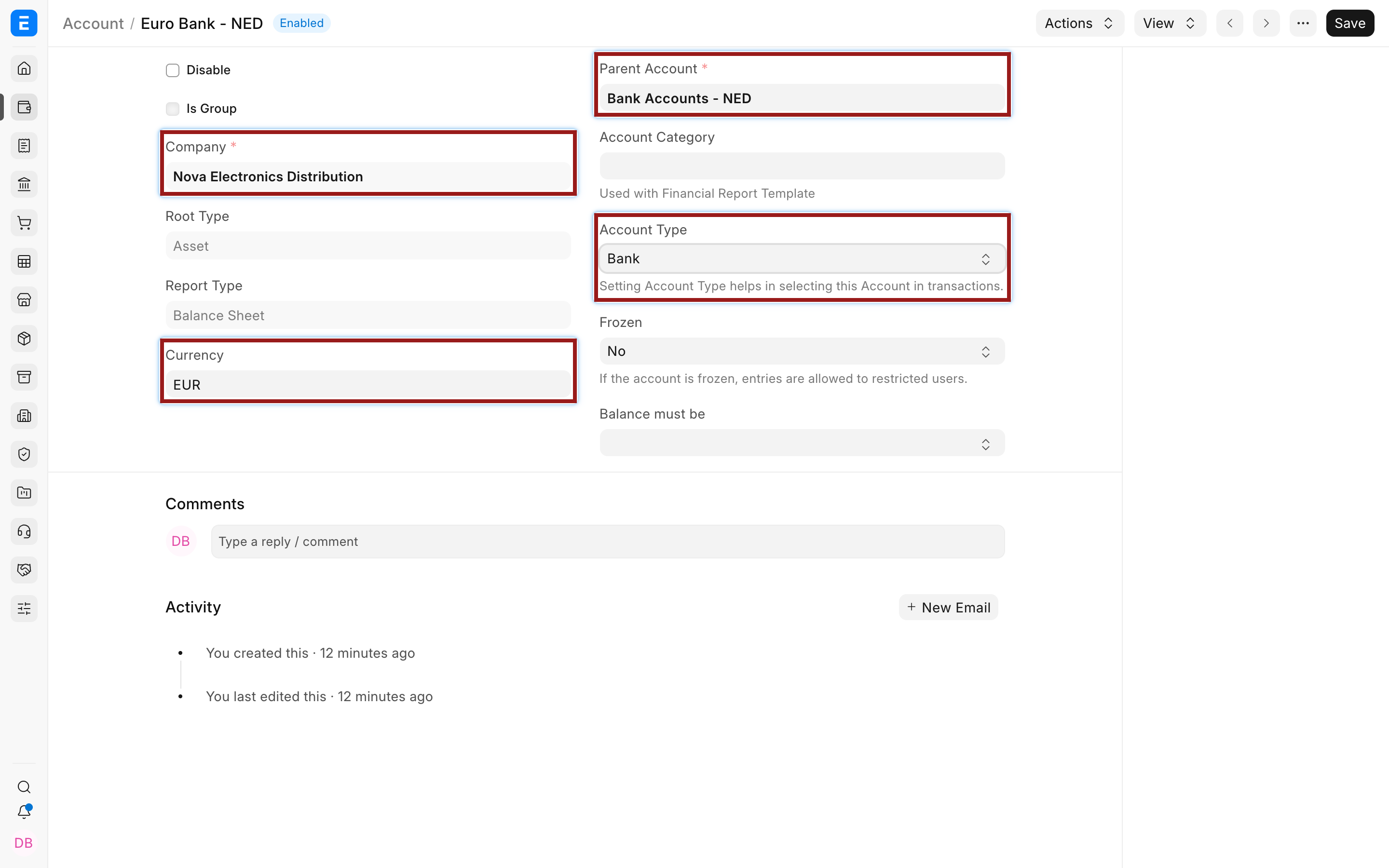
Do this before posting entries. ERPNext does not allow an account's currency to be changed once ledger entries exist. Keep separate accounts for separate bank currencies even when the same institution supplies both balances.
4. Configure Customers and Suppliers
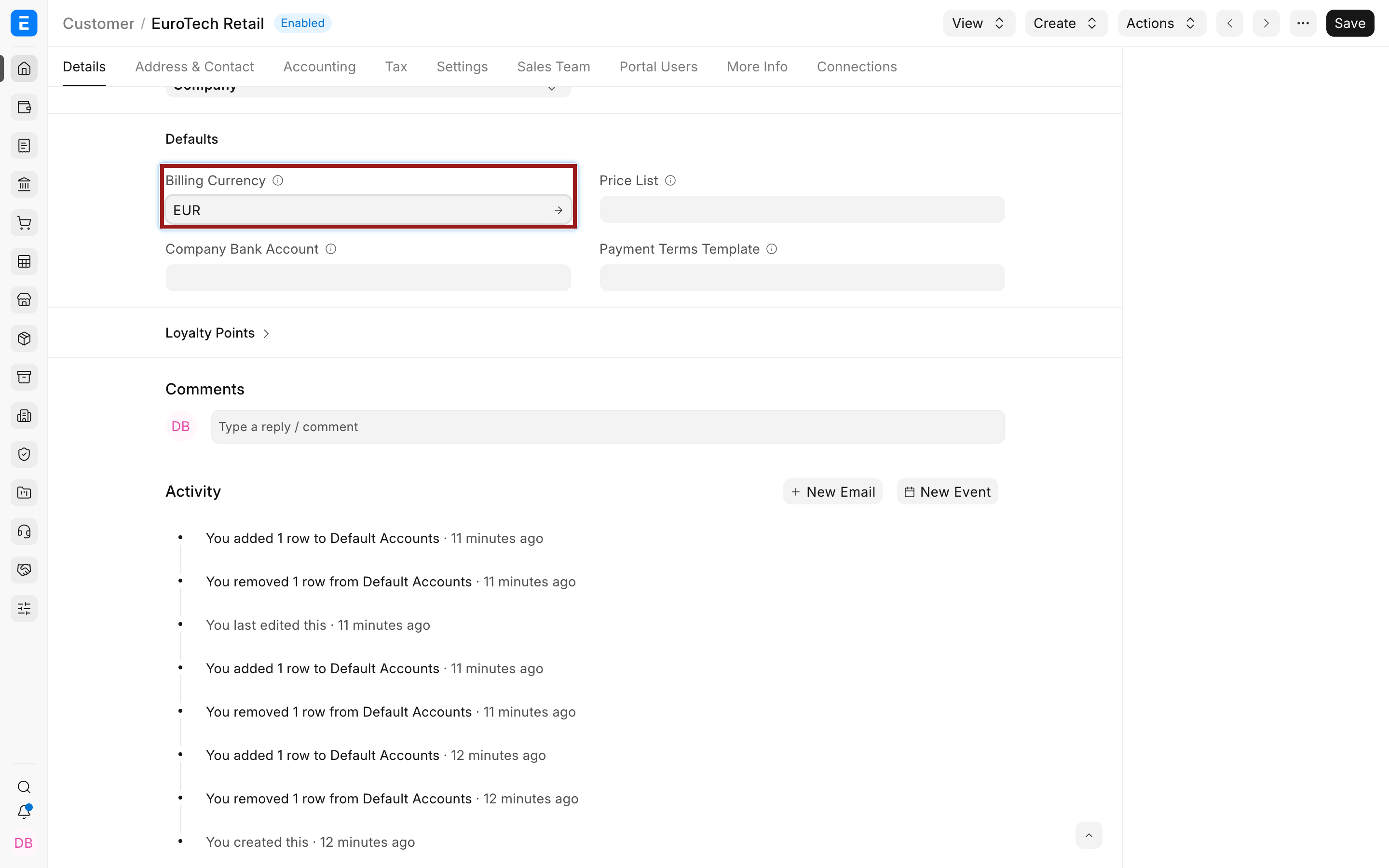
On the Customer, set Billing Currency to EUR. In Default Accounts, link Nova Electronics Distribution to Euro Receivables. Use the pencil in the child row to open the full editor.
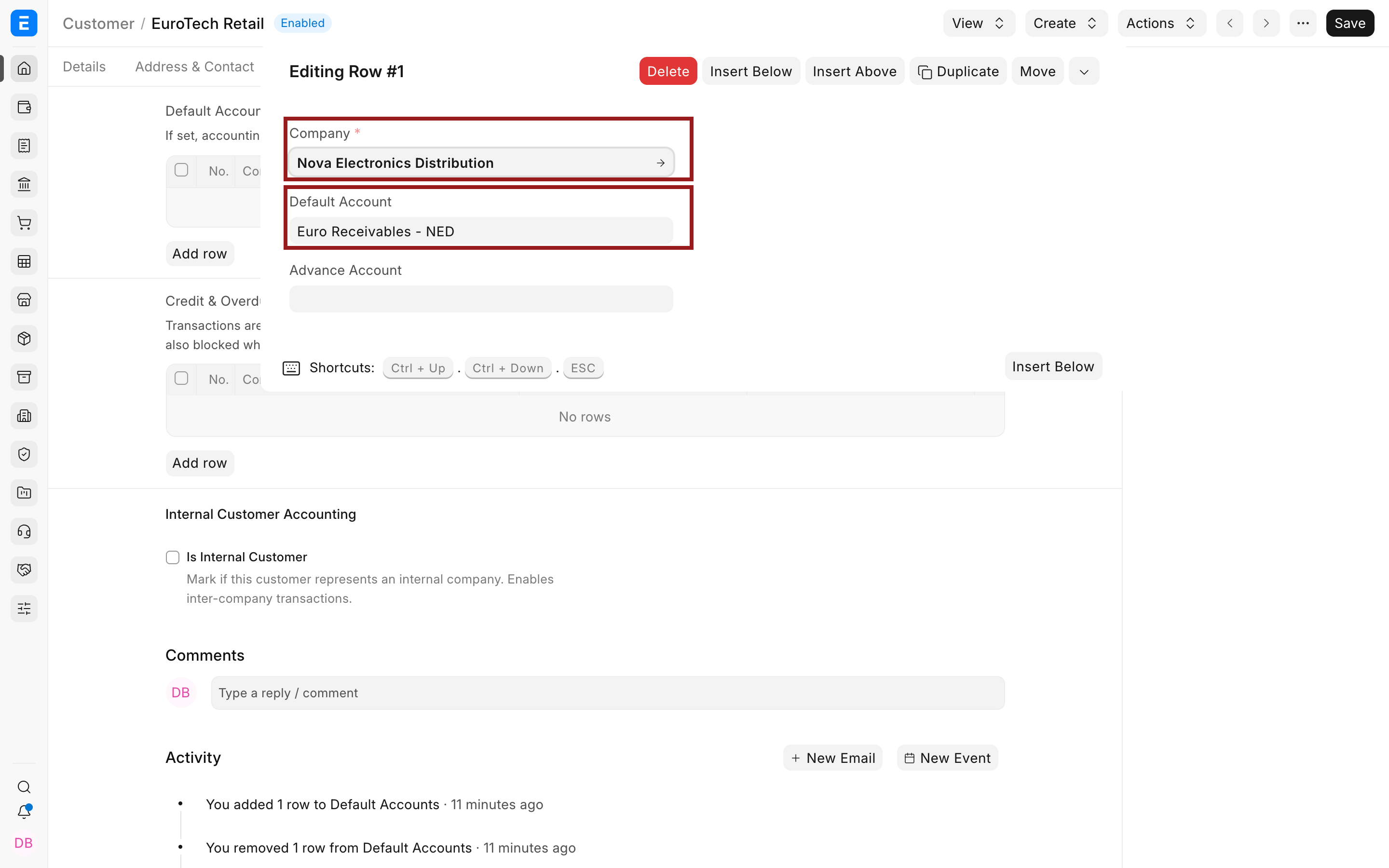
Apply the corresponding setup on the Supplier with Euro Payables. A party's billing currency and account currency should agree with the normal invoice currency.
5. Create currency-specific prices
Create a EUR Price List when you maintain contractual or market prices in euros. Add EUR Item Prices. This is independent from the accounting rate. On a transaction:
- Exchange Rate converts the transaction total to Company currency.
- Price List Exchange Rate converts item prices when Price List currency differs from transaction currency.
When both the transaction and Price List use EUR, the Price List Exchange Rate is 1.
6. Define the exchange-rate policy
Create Currency Exchange records for approved or historical rates. Configure Currency Exchange Settings for provider fallback. Decide how Allow Stale Exchange Rates and Stale Days should work in Accounts Settings.
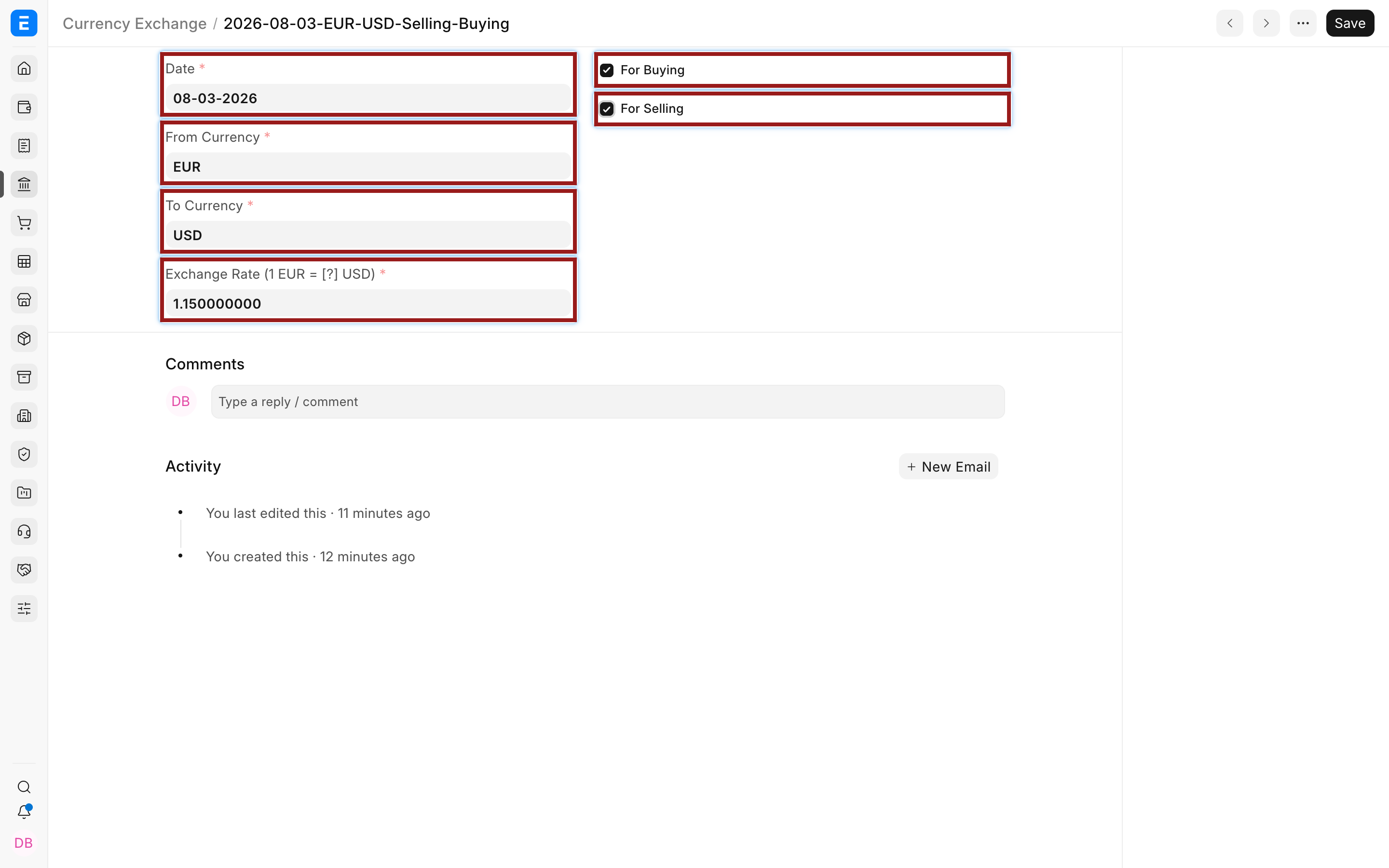
Document who may update manual rates, how often rates are reviewed, and whether buying and selling use the same rate. Store both directions when processes request both EUR to USD and USD to EUR.
7. Configure gain and loss accounts
In Company accounting defaults, set:
| Field | Purpose |
|---|---|
| Exchange Gain / Loss Account | Realized differences, commonly when a payment settles an invoice at a different rate. |
| Unrealized Exchange Gain/Loss Account | Reporting-date revaluation of balances that remain open. |
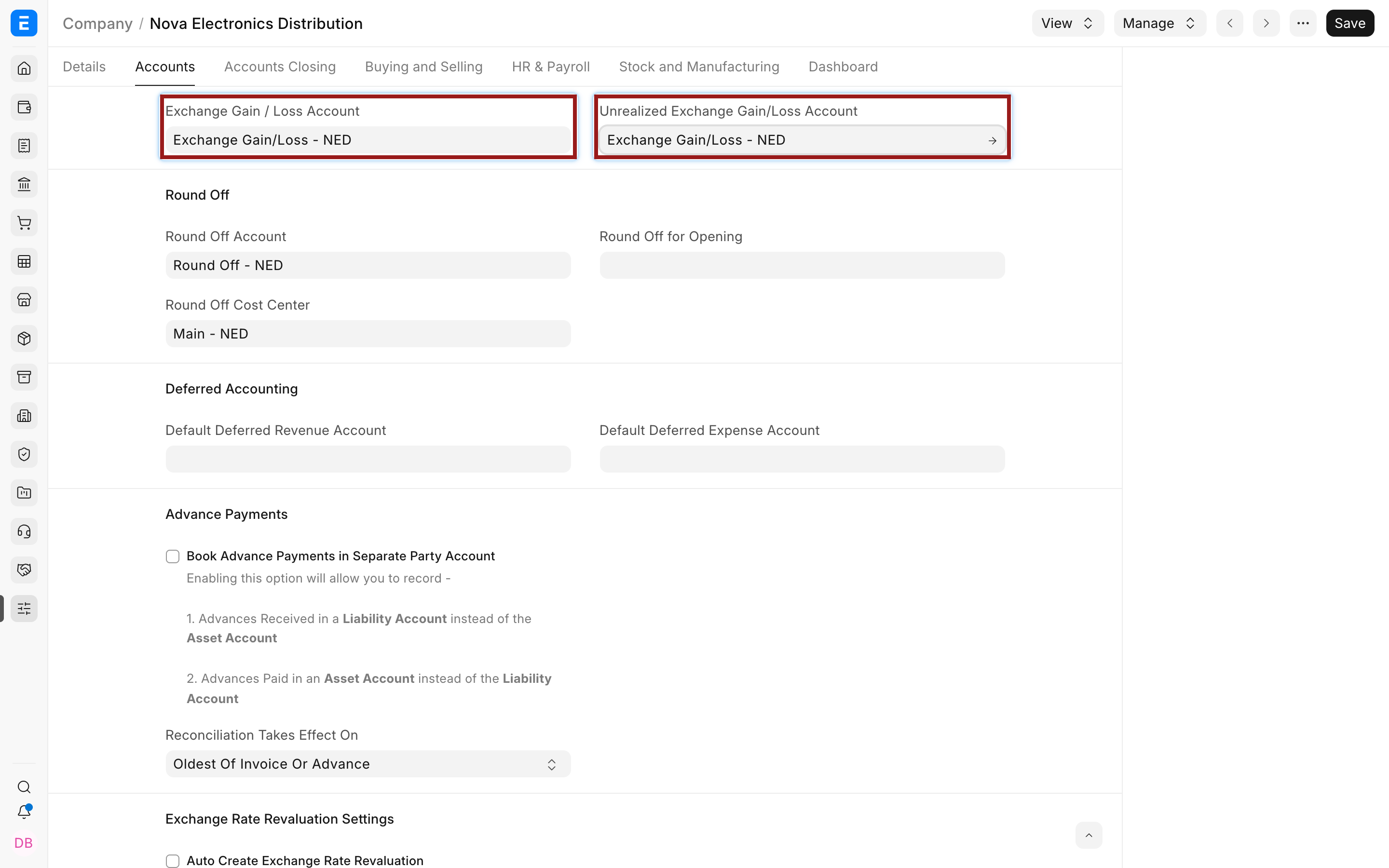
Use accounts approved by your accountant and local reporting policy. Some organizations separate gain and loss accounts or realized and unrealized presentation further through their chart and reporting design.
8. Test the complete cycle
Before importing or entering live data:
- Create a draft EUR Sales Invoice and verify EUR and USD totals.
- Confirm Debit To is Euro Receivables.
- Create a draft EUR Purchase Invoice and confirm Credit To is Euro Payables.
- Create a Payment Entry using the intended bank account and verify paid, received, and Company-currency amounts.
- Run the General Ledger and Accounts Receivable and Payable reports.
- Test Exchange Rate Revaluation in Draft for a closing date.
Do not stop at a successfully saved invoice. The payment and reporting tests reveal account-currency mismatches that are easy to miss during setup.
Record the tested document names, expected rates, account balances, and report filters in the implementation checklist. Repeat the test for each regularly used currency and for both receipts and payments. A EUR sales test does not prove that a GBP supplier payment or a foreign bank transfer is configured correctly.
Setup checklist
| Area | Verification |
|---|---|
| Currency | Required codes are enabled and display correctly. |
| Company | Base currency is correct and stable. |
| Accounts | Each foreign bank, receivable, and payable account has the intended currency and Account Type. |
| Parties | Billing Currency and per-Company default account match. |
| Pricing | Price List currency and item prices match the commercial agreement. |
| Rates | Manual records, provider, direction, date, and buying or selling flags are understood. |
| Payments | Source and target account currencies produce the intended amounts. |
| Closing | Realized and unrealized gain or loss accounts are configured. |
| Reports | Finance has verified account-currency and Company-currency views. |
Troubleshooting
ERPNext prevents changing an Account currency
The Account already has ledger entries. Create a new account with the correct currency and plan the transition with your accountant.
The Customer defaults to EUR but the invoice uses USD
Check the selected Company, Debit To account, Billing Currency, transaction Currency, and whether the multi-currency-single-party-account setting changes the normal restriction.
A Payment Entry has unexpected paid and received currencies
Review the paid-from and paid-to accounts. Their account currencies drive those fields.
FAQs
Do I need a separate receivable account for every Customer?
No, you can share one EUR receivable account across EUR Customers and use party dimensions in receivable reports. Separate accounts by currency or accounting need, not automatically by Customer.
Should I enable Allow multi-currency invoices against single party account?
Only when the business genuinely invoices the same party in multiple currencies and has tested payment, outstanding, reconciliation, and reporting behavior. A dedicated account per regular currency is easier to reason about.
Can the provider replace all manual Currency Exchange records?
It can supply market rates for supported pairs. Manual records remain useful for approved, historical, unsupported, or contract rates.
Should revaluation be automatic?
Start with a reviewed manual process. Enable automatic creation only after the rate source, accounts, frequency, journal submission policy, and period-close controls are proven.