
Inserting New Records
The Data Import Tool in ERPNext allows users to upload bulk records into the system using a predefined template. This document outlines the step-by-step process for importing new records.
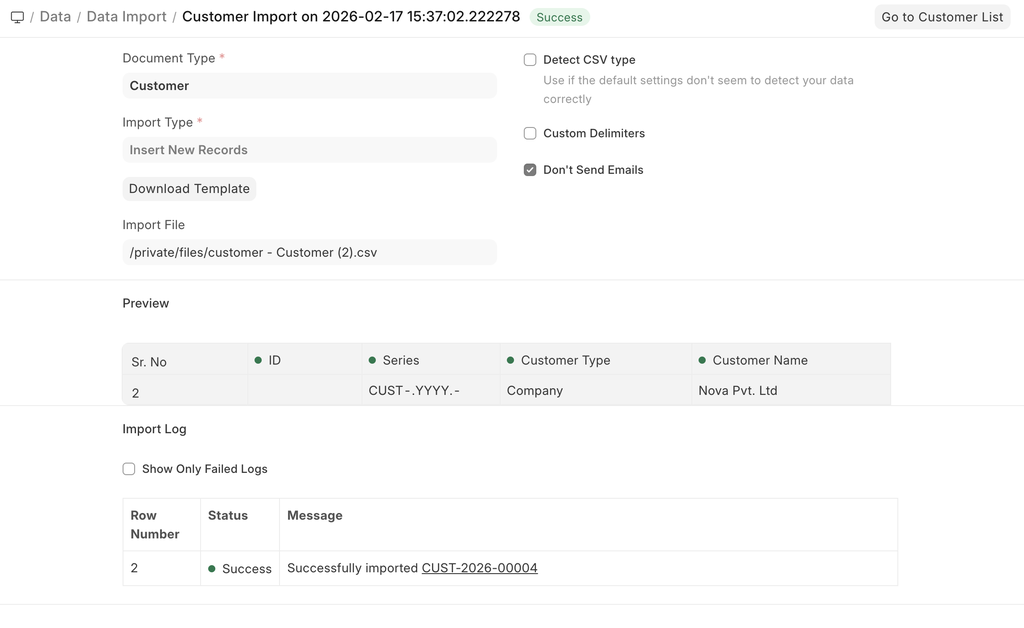
- Navigate to Data Import
- Select the Document Type
- Select Import Type as Insert New Records.
- Click on Save.
- Now, click on Download Template.
- While inserting new records, the template should be blank. If you have a few records in your system, you can select Export Type as "5 Records" to see the format in which you have to enter the data in the template.
- Select the File Type of the export template.
- Select the fields you want to include in the document.
- Click on Export.
- Now, save your template as an Excel or Comma-Separated Values (CSV) file.
You can leave the ID column as blank while inserting new records. When you import this template, each row will make a record in the system.
- Once the template is updated and ready with the data, we can import it. For more details, check here.
Last updated 3 hours ago
Was this helpful?