


















Terms And Conditions
Terms and Conditions in ERPNext are reusable clauses that describe the commercial, delivery, warranty, return, and other conditions that apply to a transaction. A template helps your team use approved wording consistently instead of rewriting the same text for every Quotation, Sales Order, or purchase document.
ERPNext copies the selected template into the transaction. Users can review or edit the copied text before submitting the document, subject to your organization’s approval process. Because the wording may create legal obligations, have qualified legal or commercial reviewers approve every template used by your business.
Before you begin
- Confirm the approved wording with your legal, finance, sales, and operations teams.
- Decide which ERPNext modules should be allowed to use the template.
- Create supporting records such as Payment Terms, Incoterms, and shipping rules separately. Do not rely on narrative wording when ERPNext has a structured field for the same control.
- Choose a clear template naming convention, such as Sales Standard, Export Sales, Purchase Standard, or Service Engagement.
- Review the active Print Format to confirm that it displays Terms and Conditions.
Create a Terms and Conditions template
- Go to Selling > Settings > Terms and Conditions.
- Select Add Terms and Conditions.
- Enter a descriptive Title.
- Select the Applicable Modules.
- Enable Copy Attachments to Transaction when files attached to this template should be copied to documents that use it.
- Enter and format the approved wording in Terms and Conditions.
- Save the template.
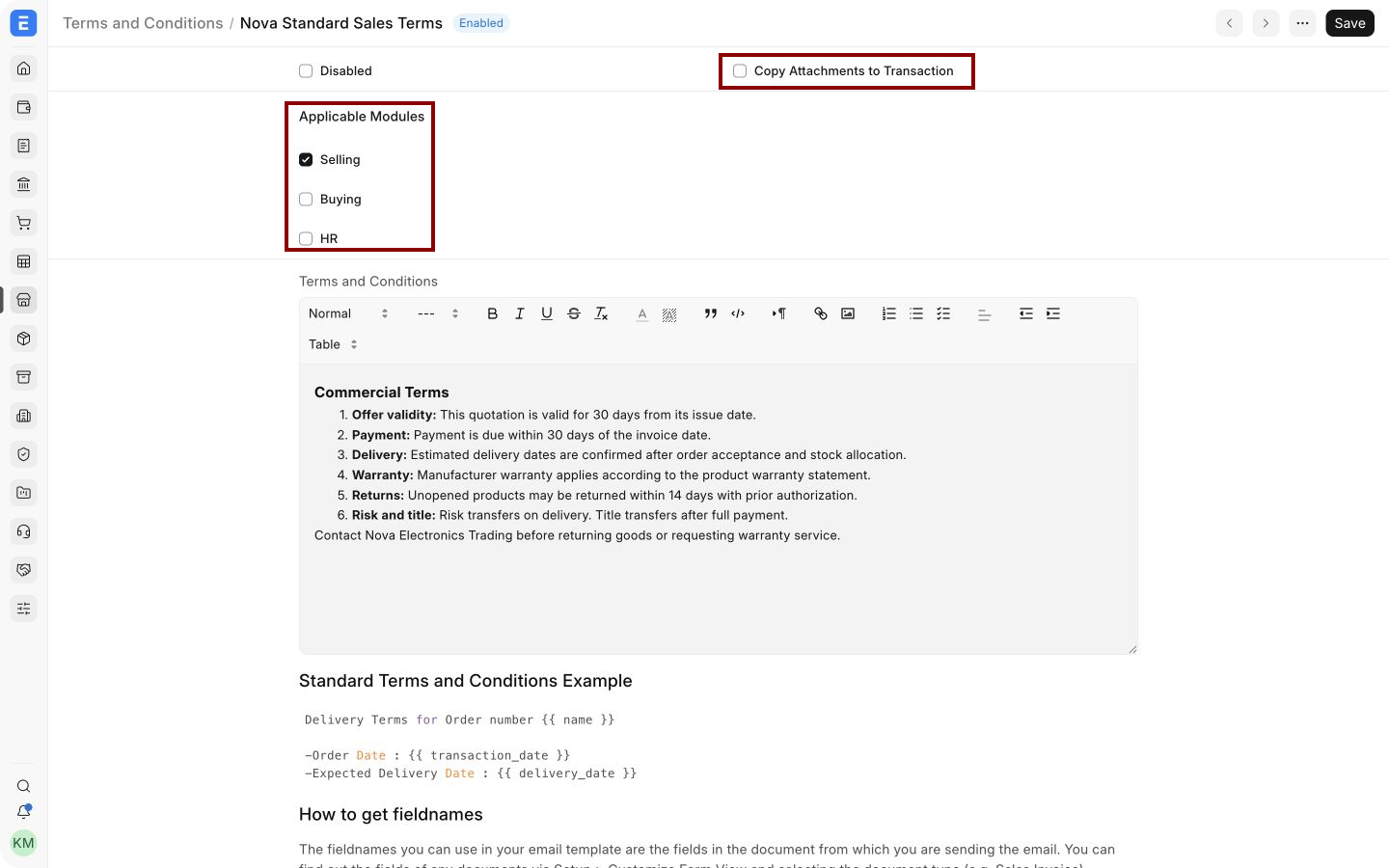
The example is limited to Selling and contains reusable commercial terms for Nova Electronics Trading.
Alternative ways to add Terms and Conditions
Select a template in a transaction
- Open or create a supported transaction such as a Quotation or Sales Order.
- Open the Terms tab.
- In the Terms and Conditions section, select the required template in Terms.
- Review the copied text in Terms and Conditions Details.
- Edit transaction-specific details when permitted, then save the document.
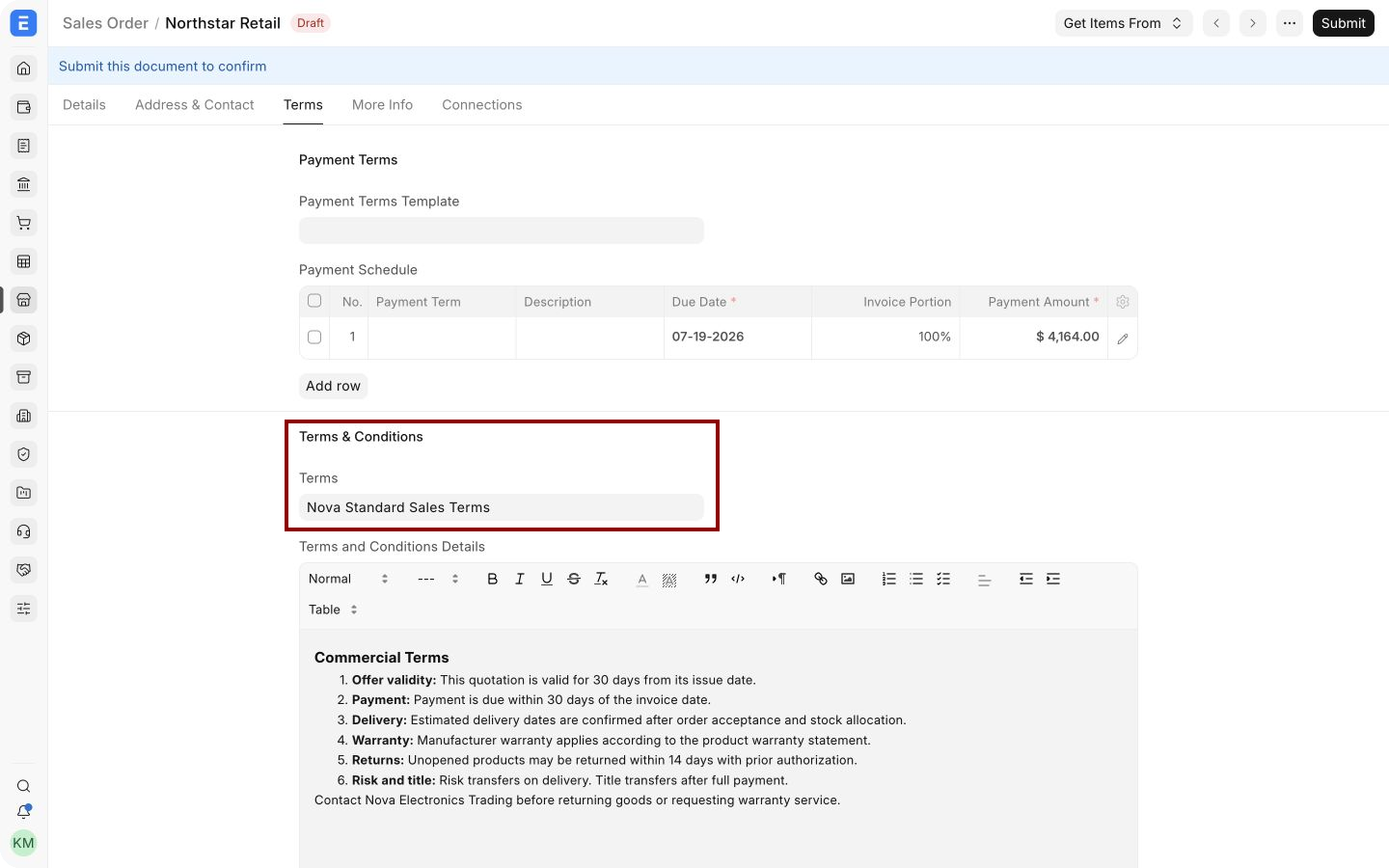
The highlighted field selects Nova Standard Sales Terms. ERPNext copies the template content below it, where the terms can be reviewed before the document is submitted.
Enter transaction-specific terms without a template
You can enter text directly in Terms and Conditions Details when the conditions apply only to one transaction. Use this for a genuine exception, not as a replacement for an approved reusable template. Ask the appropriate reviewer to approve material changes before the document is sent or submitted.
Use a template in buying or HR
Enable Buying or HR on the template when its wording is intended for those modules. For example, a Purchase Order may need supplier delivery and inspection clauses, while an HR document may require employment-related wording. Keep unrelated conditions in separate templates so users see only appropriate choices.
Important fields and what they mean
| Field | What it means |
|---|---|
| Title | The name users select in a transaction. Include the purpose, region, or document type when several templates exist. |
| Disabled | Prevents new transactions from selecting the template without deleting its historical record. |
| Copy Attachments to Transaction | Copies files attached to the template into a transaction that uses it. Use this for approved schedules or policy documents that must travel with the transaction. |
| Selling | Makes the template available to supported Selling documents. |
| Buying | Makes the template available to supported Buying documents. |
| HR | Makes the template available to supported HR documents when the installed application supports it. |
| Terms and Conditions | The reusable rich-text content copied into a transaction. |
| Terms | The template link selected on a transaction. |
| Terms and Conditions Details | The copied transaction text. Changes here affect this transaction, not the original template. |
What should Terms and Conditions contain?
Avoid copying generic terms from another company or jurisdiction. ERPNext stores and displays your approved text, but it does not determine whether the wording is legally suitable.
Use structured fields with narrative terms
Terms and Conditions complement ERPNext fields rather than replacing them. Use structured fields wherever possible:
| Requirement | Recommended ERPNext control |
|---|---|
| When payment is due | Use a Payment Terms Template and Payment Schedule. Summarize special conditions in the narrative terms only when necessary. |
| Shipping responsibility | Use Incoterm and Named Place fields, then add explanatory wording if required. |
| Delivery commitment | Use transaction and item Delivery Dates. |
| Tax calculation | Use the appropriate Sales Taxes and Charges Template. |
| Currency and pricing | Use Currency, Price List, and transaction rates. |
Structured fields support calculations, reports, and downstream documents. Narrative terms provide the additional contractual explanation.
Use attachments with a template
Attach a file to the Terms and Conditions record when users must send an approved schedule, warranty statement, specification, or policy with the transaction. Enable Copy Attachments to Transaction so ERPNext copies those files when the template is selected.
Before relying on this option, test the complete workflow. Confirm that the attachment appears on the transaction and that your email or document-sharing process includes it. Review attachment permissions and avoid placing confidential documents in a broadly available template.
Use variables with Jinja
Terms and Conditions support Jinja expressions, which can insert values from the transaction into the copied content. For example, a Sales Order template can reference its document name or delivery date:
Order reference: {{ name }}
Order date: {{ transaction_date }}
Expected delivery: {{ delivery_date }}
Use field names that exist on the transaction. Test the template on a draft document before using it operationally. Keep important obligations understandable even when an optional value is empty. For background, see Jinja templating in ERPNext.
Print and share the terms
Once terms are present in a transaction, they can appear in its print view, PDF, or email attachment if the selected Print Format includes that field.
- Open the transaction.
- Select Print.
- Choose the required Print Format and language.
- Review the Terms and Conditions section.
- Print the document or generate its PDF.
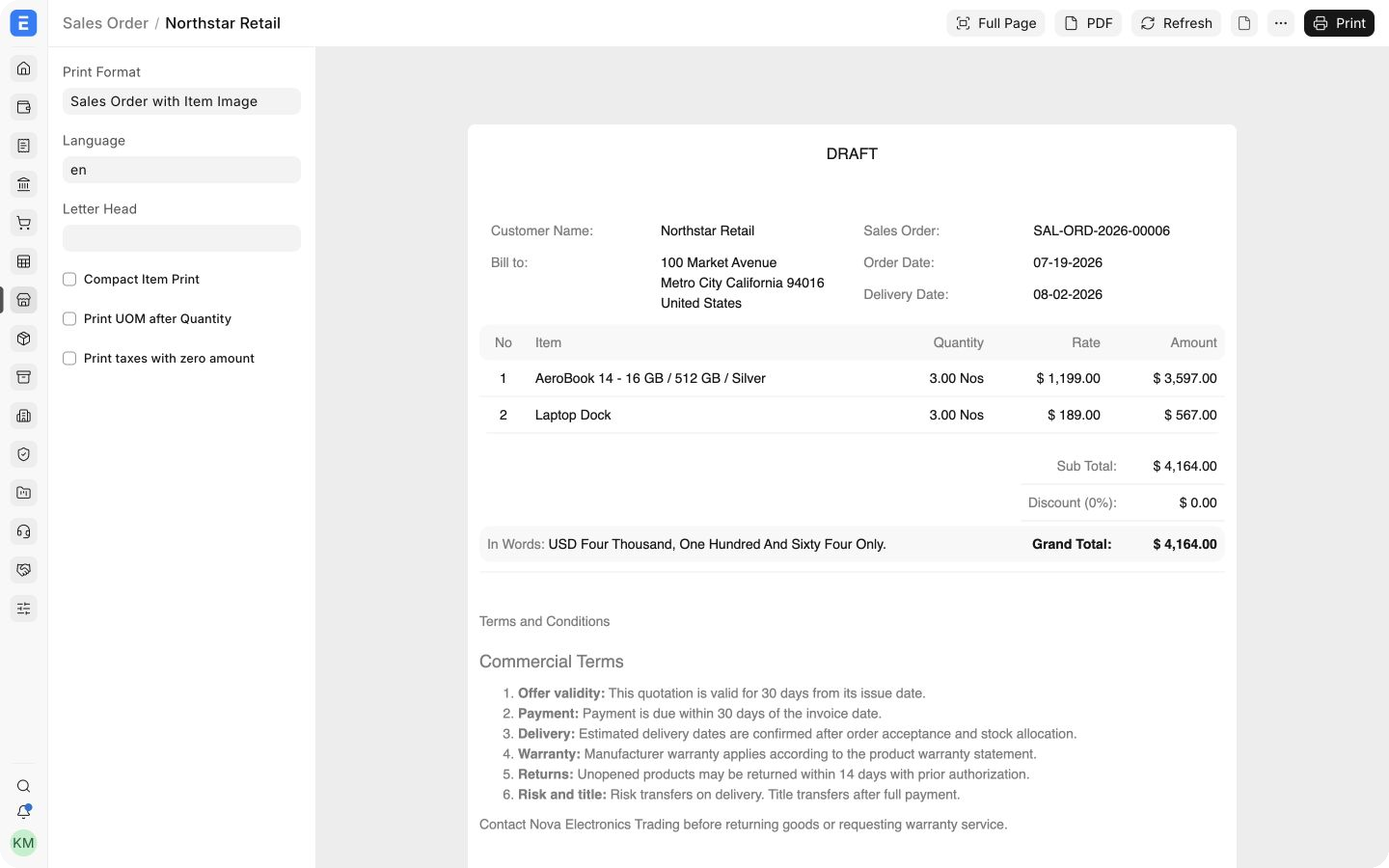
The preview shows the commercial terms after the Sales Order totals. Always inspect the final document before sending it to the Customer.
Submit and next steps
Review the copied wording together with the Customer, items, delivery dates, payment schedule, taxes, and totals. Save and submit the transaction only after the commercial terms match the agreement. The submitted Sales Invoice, Delivery Note, or another downstream document may use its own template and print format, so confirm the terms required at each stage.
Changing the reusable template later does not rewrite already created transactions. Update an existing draft transaction by selecting the template again or editing its copied terms. Do not silently replace terms on a submitted document. Follow the applicable amendment or cancellation process.
Good practices
- Give every template a clear owner and review date.
- Keep sales, purchase, service, export, and HR wording separate.
- Disable superseded templates instead of deleting records needed for audit history.
- Limit editing permissions for approved templates using Role-Based Permissions.
- Test Jinja variables, attachments, print formats, and translations before rollout.
- Use a short standard template for routine transactions and separate schedules for complex obligations.
Troubleshooting
The template does not appear in a transaction
Confirm that it is not disabled and that the correct Applicable Module is enabled. Also check that the transaction supports Terms and Conditions and that the user can read the template.
Selecting the template does not update the text
Save the template, then select it again in the transaction. If text was already edited in the transaction, confirm before replacing it so approved changes are not lost.
Terms do not appear in print
Confirm that the transaction contains Terms and Conditions Details. Then inspect the selected Print Format and verify that it displays the terms field. A custom format may omit it.
Jinja values are blank or incorrect
Verify the field name on the source DocType and confirm that the field contains a value. Test the expression on a draft transaction and avoid using fields that are unavailable on that document type.
An attachment was not copied
Confirm that the file is attached to the template and that Copy Attachments to Transaction is enabled before selecting the template. Check the Attachments section on the transaction.
Frequently asked questions
Can I edit the terms after selecting a template?
Yes. The text is copied into the transaction and can be adjusted before submission, subject to your approval process. The original template is not changed.
Can I use one template for sales and purchases?
ERPNext allows multiple Applicable Modules, but separate templates are usually clearer because customer and supplier obligations differ.
Will changing a template update old transactions?
No. Existing transactions keep the text that was copied when the template was selected.
Can Terms and Conditions replace Payment Terms?
No. Use Payment Terms and the Payment Schedule for due dates and invoice portions. Use narrative terms for the additional contractual explanation.
Can the same terms be printed in another language?
Create and approve the required translated wording and confirm the selected print language and format. Do not assume that ERPNext will legally translate custom contractual text.