


















Accounting policies often begin as a small operational decision and later affect every invoice, payment, exchange-rate calculation, and ledger posting. Accounts Settings is where ERPNext stores those site-wide rules, so a convenient-looking checkbox can change how future transactions behave.
Nova Industries may decide that supplier invoice numbers must be unique, overdue invoices should stop further credit, or cancelled invoices should release linked payments. The finance team should understand the accounting consequence of each option before enabling it, especially on a site that already contains submitted transactions.
This page explains each settings area in practical terms, the business decision behind it, and the checks to perform before changing production behavior.
Invoice and Billing
This tab controls invoice validation, stock expense posting, analytical accounting, deferred accounting, taxes, printing, prices, and exchange rates.
Invoice cancellation and invoicing
| Setting | What it changes |
|---|---|
| Unlink Payment on cancellation of invoice | Converts linked payments into unallocated amounts when an invoice is cancelled |
| Unlink Advance Payment on cancellation of order | Removes the allocation between an advance and a cancelled order |
| Delete Accounting and Stock Ledger entries on deletion of transaction | Allows ledger rows to be removed when an eligible cancelled document is deleted |
| Enable Immutable Ledger | Posts reversal entries instead of rewriting older ledger history |
| Check Supplier invoice number uniqueness | Prevents duplicate supplier invoice numbers within the configured scope |
| Automatically fetch Payment Terms from Order/Quotation | Copies the schedule from the linked order or quotation |
| Enable Common Party Accounting | Supports adjustment entries when one party is both Customer and Supplier |
| Allow multi-currency invoices against single party account | Permits foreign-currency invoices against a party account maintained in company currency |
| Enable Discount Accounting | Posts discounts to configured discount accounts |
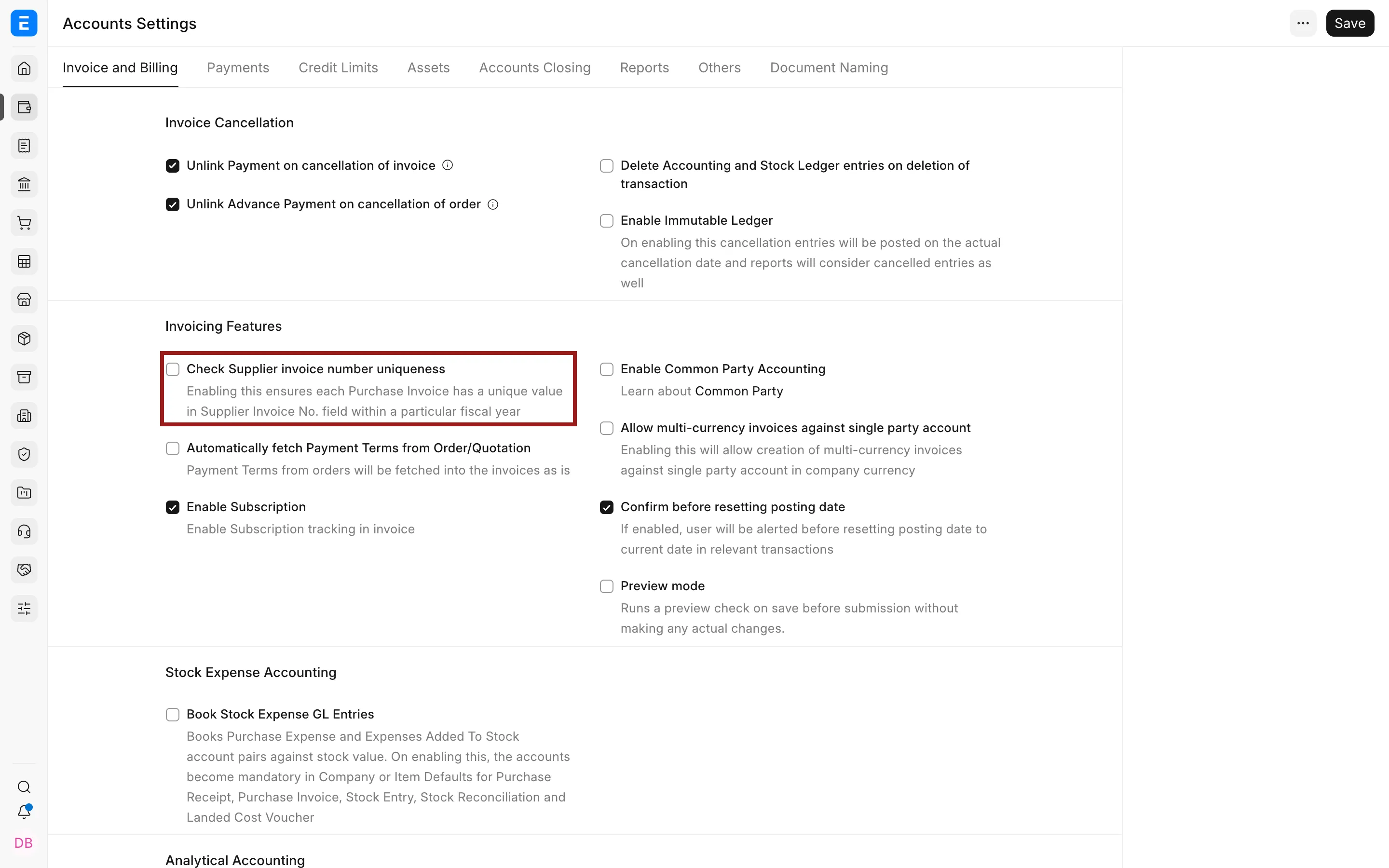
Use cancellation options only after deciding how your audit trail should work. Immutable Ledger is the safer choice when accounting history must not be rewritten.
Stock expense and analytical accounting
Book Stock Expense GL Entries posts purchase expense and expenses included in stock value through configured stock expense accounts. When enabled, confirm the required accounts on the Company or Item defaults.
Analytical Accounting settings can require Cost Center, Project, or Accounting Dimensions on profit-and-loss entries. Enable mandatory dimensions only after defaults and user workflows are ready.
Journals and deferred accounting
Journal settings control when ERPNext uses Journal Entries for specific accounting processes. Deferred accounting is used for annual subscriptions, prepaid insurance, rent, service contracts, and other amounts recognized over time.
| Setting | Use |
|---|---|
| Book Deferred entries based on | Spreads recognition by days or by months |
| Automatically process deferred Accounting entry | Lets scheduled jobs create recognition entries |
| Book deferred entries via Journal Entry | Creates Journal Entry documents instead of posting only ledger rows |
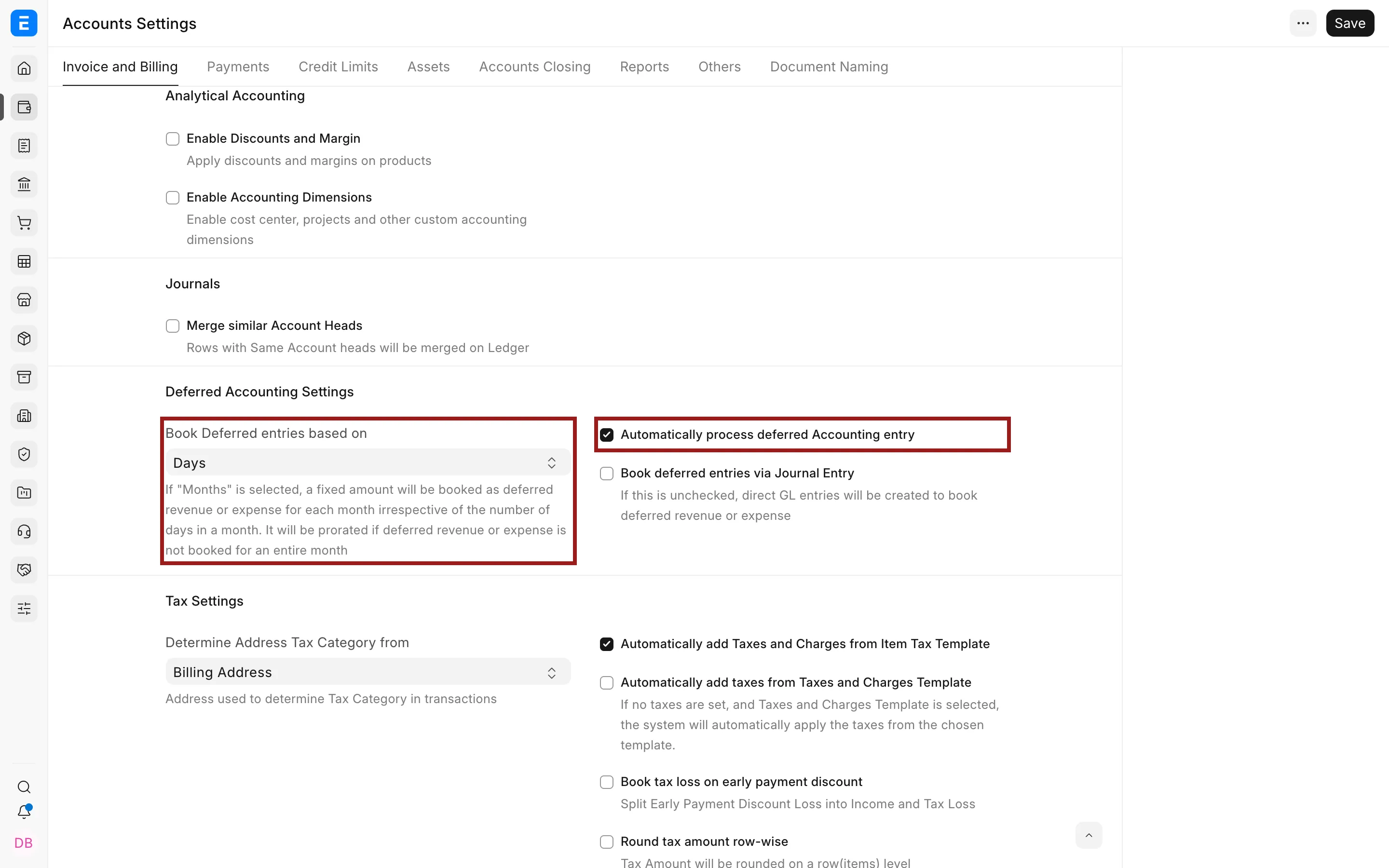
If automatic processing is disabled, run Process Deferred Accounting manually and monitor unprocessed schedules.
Tax, print, Item Price, and currency exchange
Tax settings determine how address Tax Categories and Item Tax Templates are applied. Print settings control whether inclusive tax, tax tables, and payment schedules appear in printed documents. Item Price options affect how prices are created or updated from transactions.
Currency Exchange settings determine whether stale rates are allowed and how old a saved rate may be. If stale rates are not allowed, ERPNext fetches or requires a current rate based on the configured tolerance.
Payments
The Payments tab controls payment reconciliation, repost behavior, and payment options.
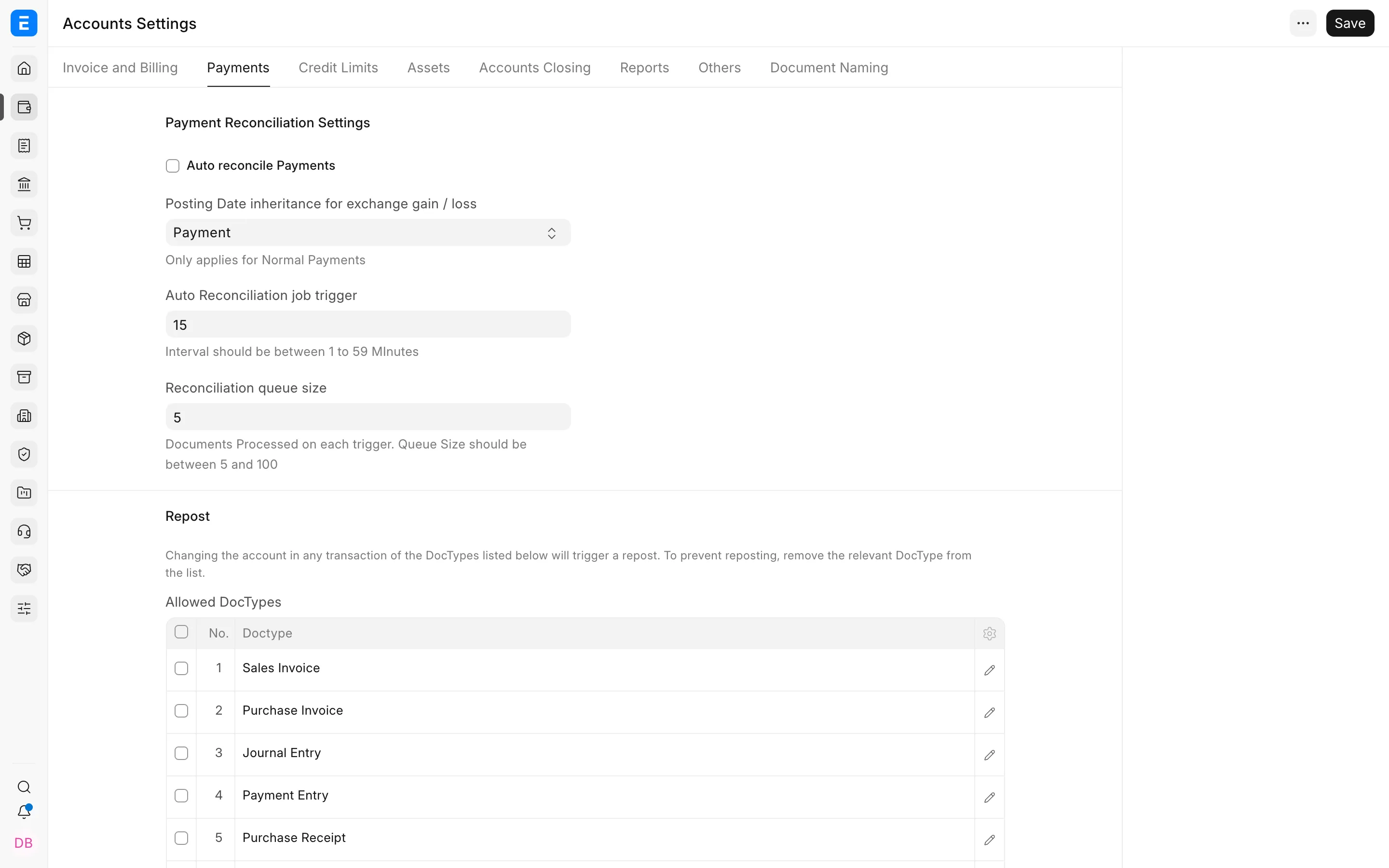
Payment Reconciliation Settings
| Setting | What it controls |
|---|---|
| Auto reconcile Payments | Runs reconciliation automatically for eligible payments |
| Posting Date inheritance for exchange gain/loss | Chooses whether exchange differences use the payment or invoice date |
| Auto Reconciliation job trigger | Frequency, in minutes, for processing queued reconciliation |
| Reconciliation queue size | Number of documents processed in each run |
Use conservative queue settings on a busy production site. Automatic reconciliation reduces manual allocation work, but users should still review party balances and exceptions.
Repost
The Allowed DocTypes table identifies transaction types whose account changes can trigger reposting. Include only documents that your correction process requires. Reposting may use background workers and can affect later ledger entries.
Payment Options
Review payment-entry creation, allocation, and exchange-difference behavior. Test receipts, supplier payments, advances, refunds, multi-currency payments, and write-offs before changing defaults.
Credit Limits
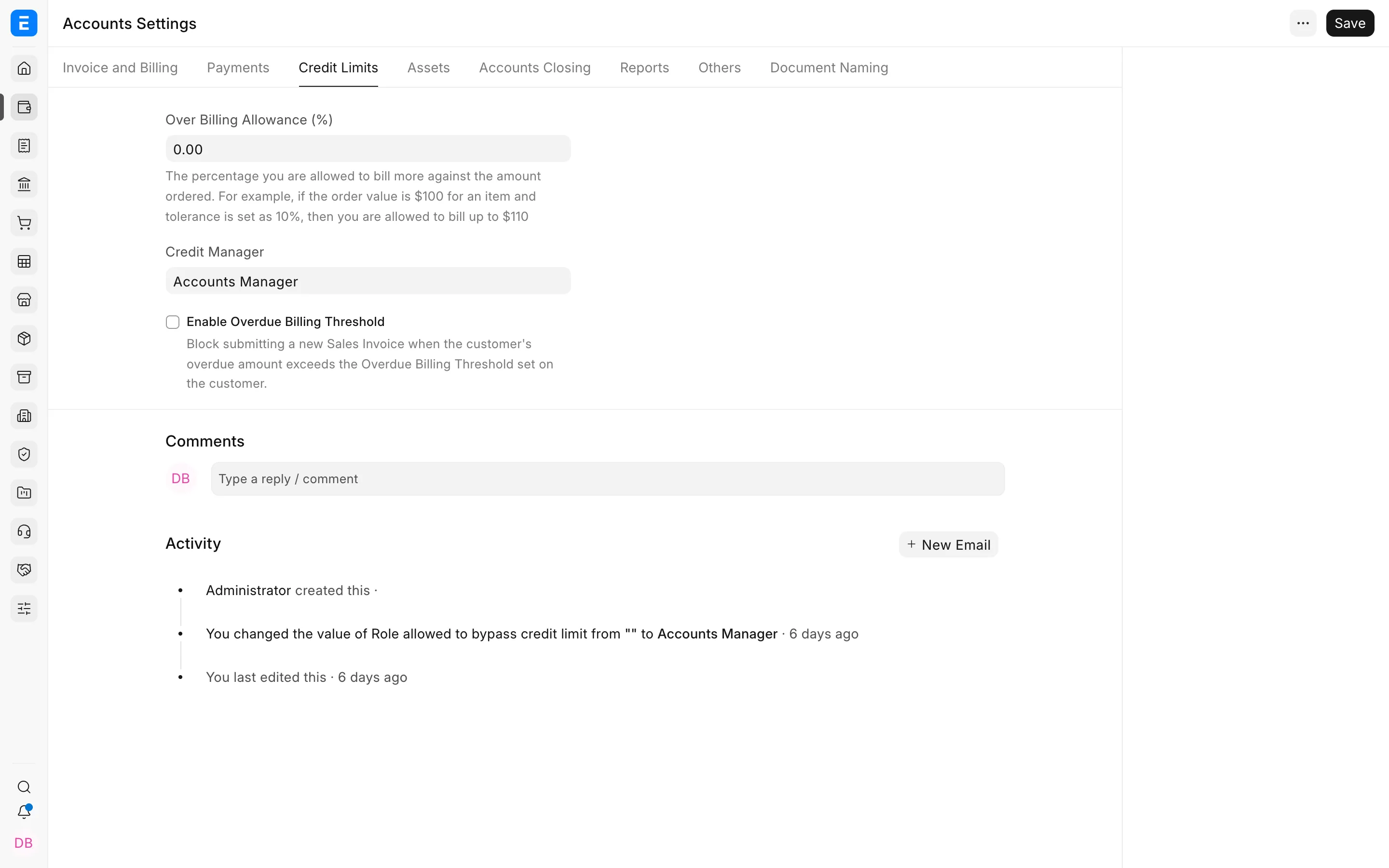
This tab controls overbilling and overdue-balance restrictions.
| Setting | What it means |
|---|---|
| Over Billing Allowance (%) | Permits billing above the ordered amount within the stated percentage |
| Role Allowed to Over Bill | Lets only the selected role exceed the normal allowance |
| Enable Overdue Billing Threshold | Blocks new billing when overdue exposure crosses the configured threshold |
| Role allowed to bypass overdue billing limit | Allows an authorized role to proceed after reviewing the risk |
Customer and Company records provide credit limits. Accounts Settings determines how strictly users must follow them. Keep override roles limited and require a documented approval process.
Assets
The Assets tab controls automatic depreciation and other asset-accounting behavior.
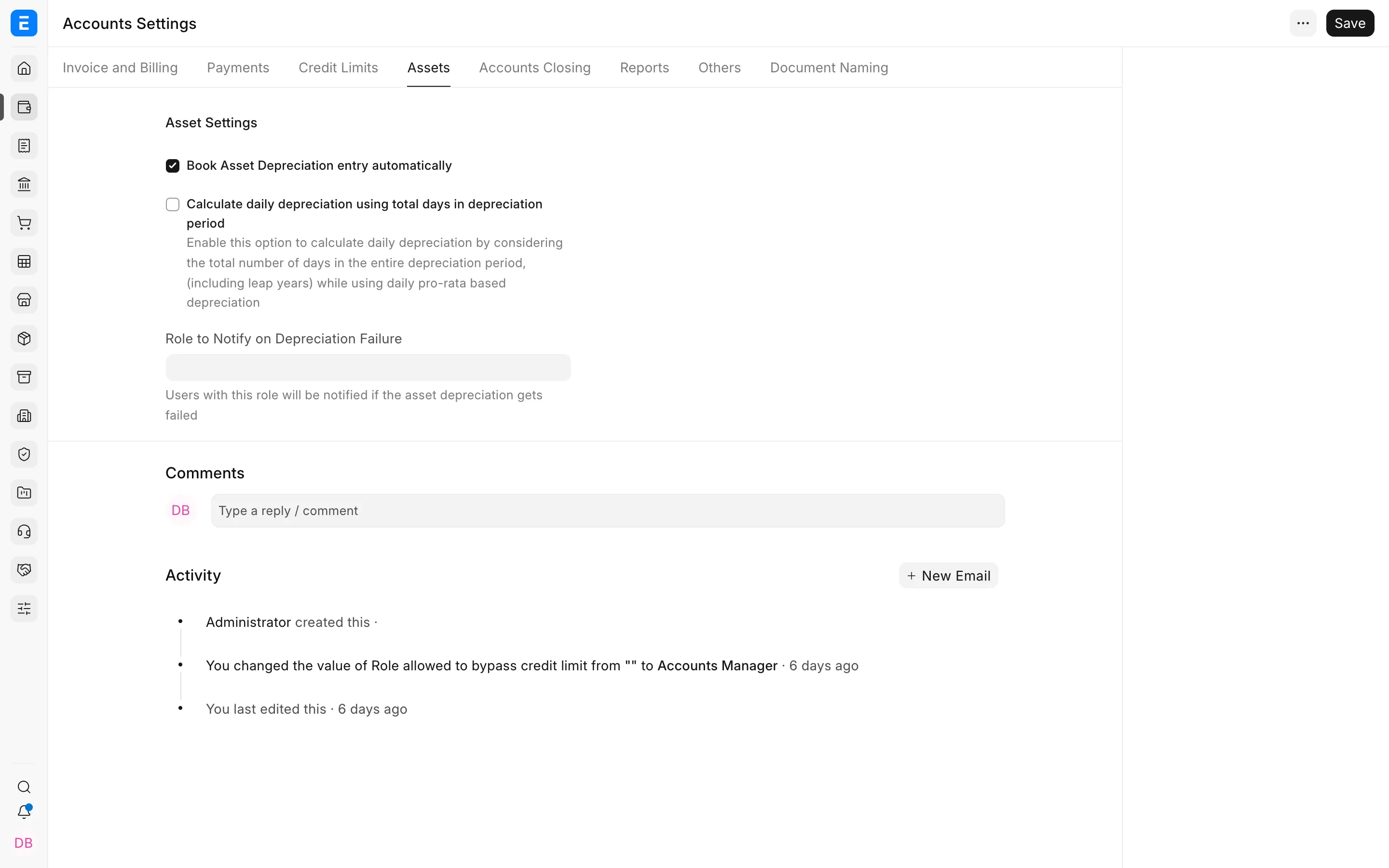
Enable automatic depreciation only after setting Asset Categories, finance books, depreciation methods, schedules, and default accounts. Confirm that scheduled jobs are running. Review depreciation entries, asset purchases, capitalization, transfers, disposals, and value adjustments in a test company.
Changing asset settings does not automatically correct previously posted depreciation. Use the appropriate asset transaction or adjustment workflow instead of editing submitted ledger entries.
Accounts Closing
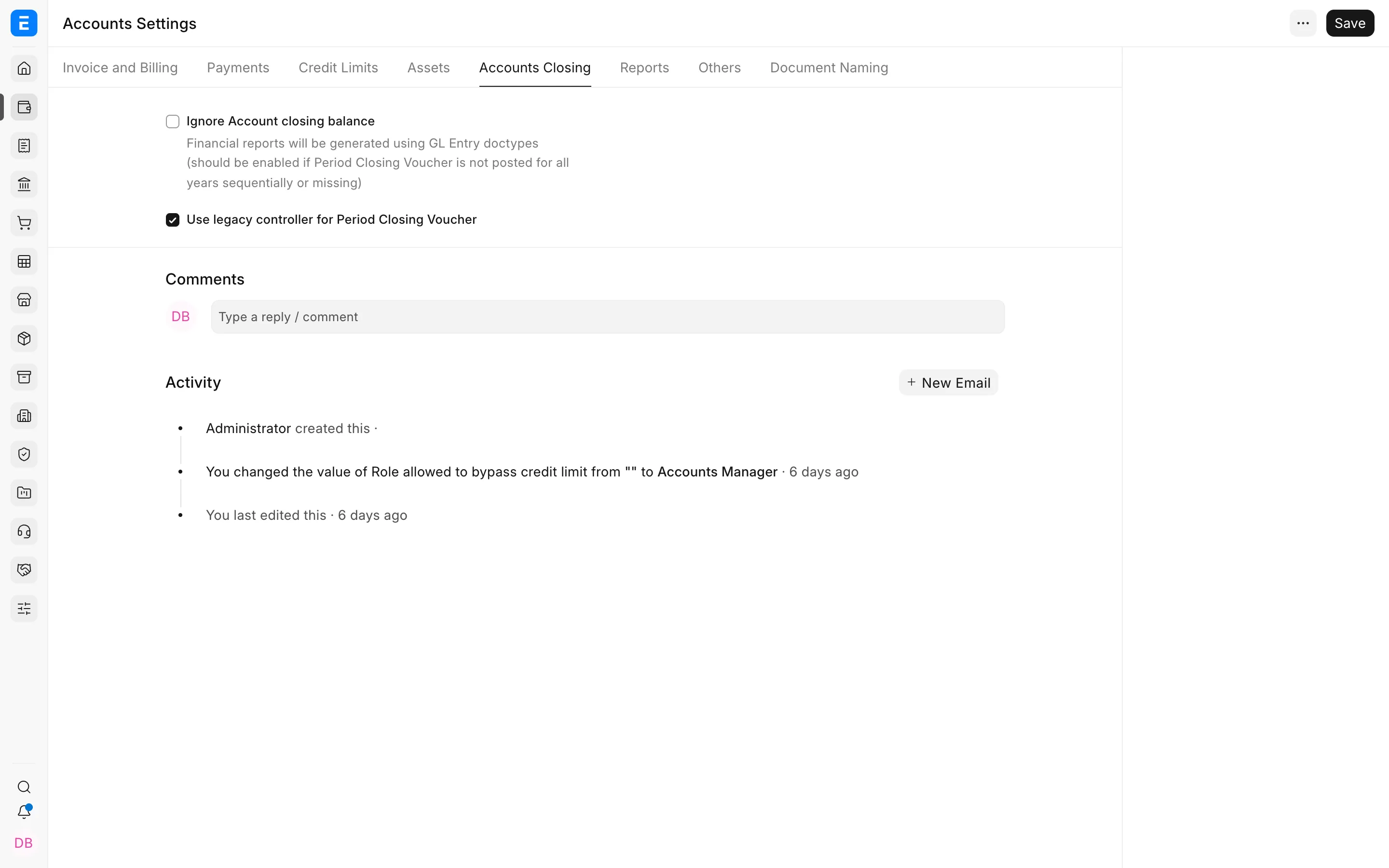
The Accounts Closing tab restricts backdated postings and identifies who can work in frozen periods.
| Setting | Purpose |
|---|---|
| Accounts Frozen Till Date | Prevents ordinary users from creating or changing accounting entries on or before the date |
| Role Allowed to Set Frozen Accounts and Edit Frozen Entries | Grants a controlled exception for authorized accounting administrators |
| Credit Controller | Identifies the role permitted to approve transactions beyond credit limits |
Use a freeze during month-end review, audit, or final reporting. For transaction-specific restrictions across a date range, use an Accounting Period. For year-end profit transfer, use a Period Closing Voucher.
Before freezing a period, reconcile bank accounts, receivables, payables, taxes, stock, assets, payroll, and intercompany balances.
Reports
The Reports tab tunes the output and performance of accounting reports.
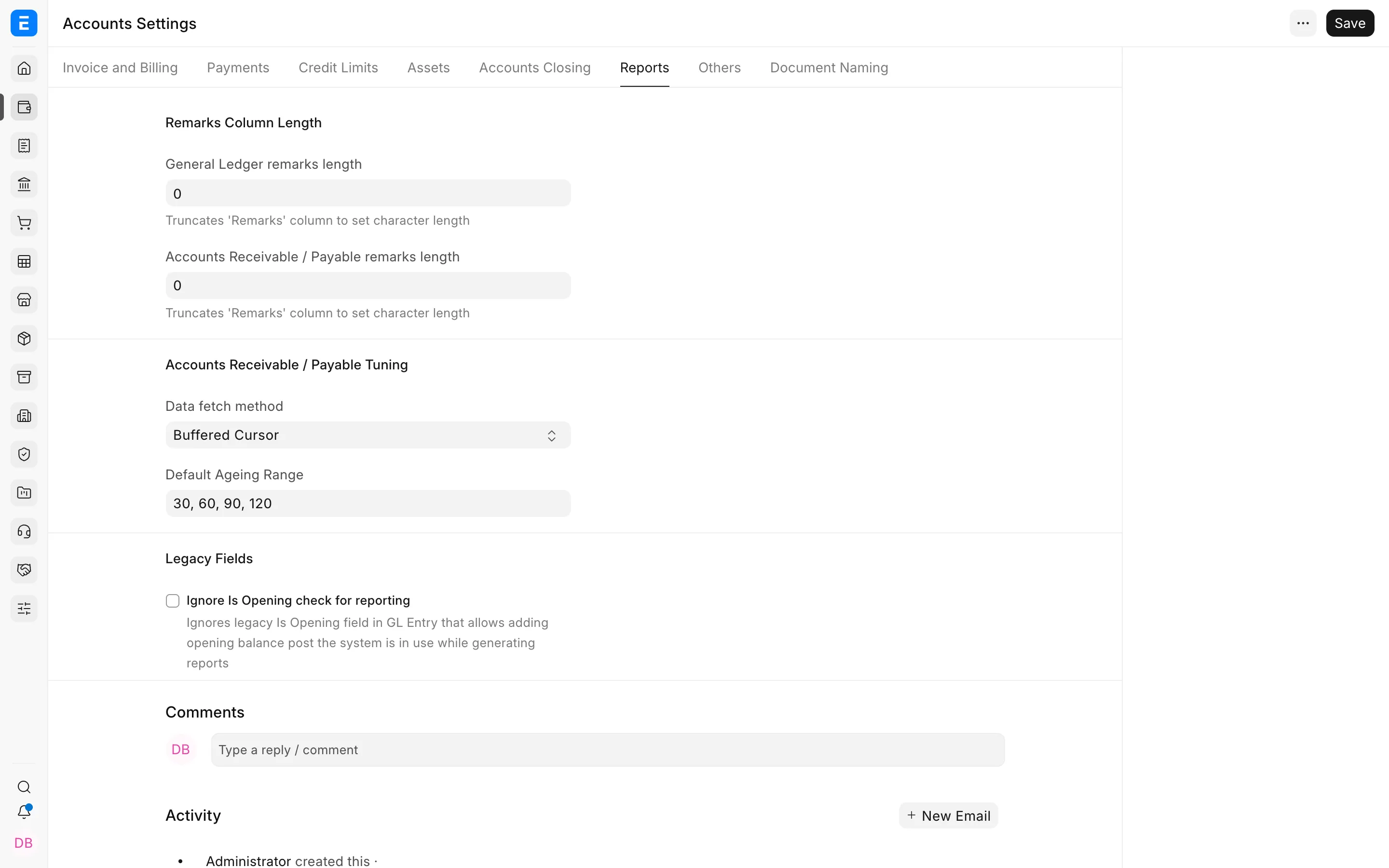
Remarks Column Length limits how much voucher text appears in report results. Longer remarks may help investigation but can make reports harder to scan.
Accounts Receivable and Accounts Payable tuning settings control how those reports process large datasets. Change performance options only after testing with production-like volume. A faster report that omits required detail is not an acceptable tradeoff.
Legacy fields preserve compatibility with older reports or implementations. Leave them unchanged unless migration testing or an upgrade note requires them.
Others
The Others tab groups Chart of Accounts, banking, Payment Request, and budget behavior.
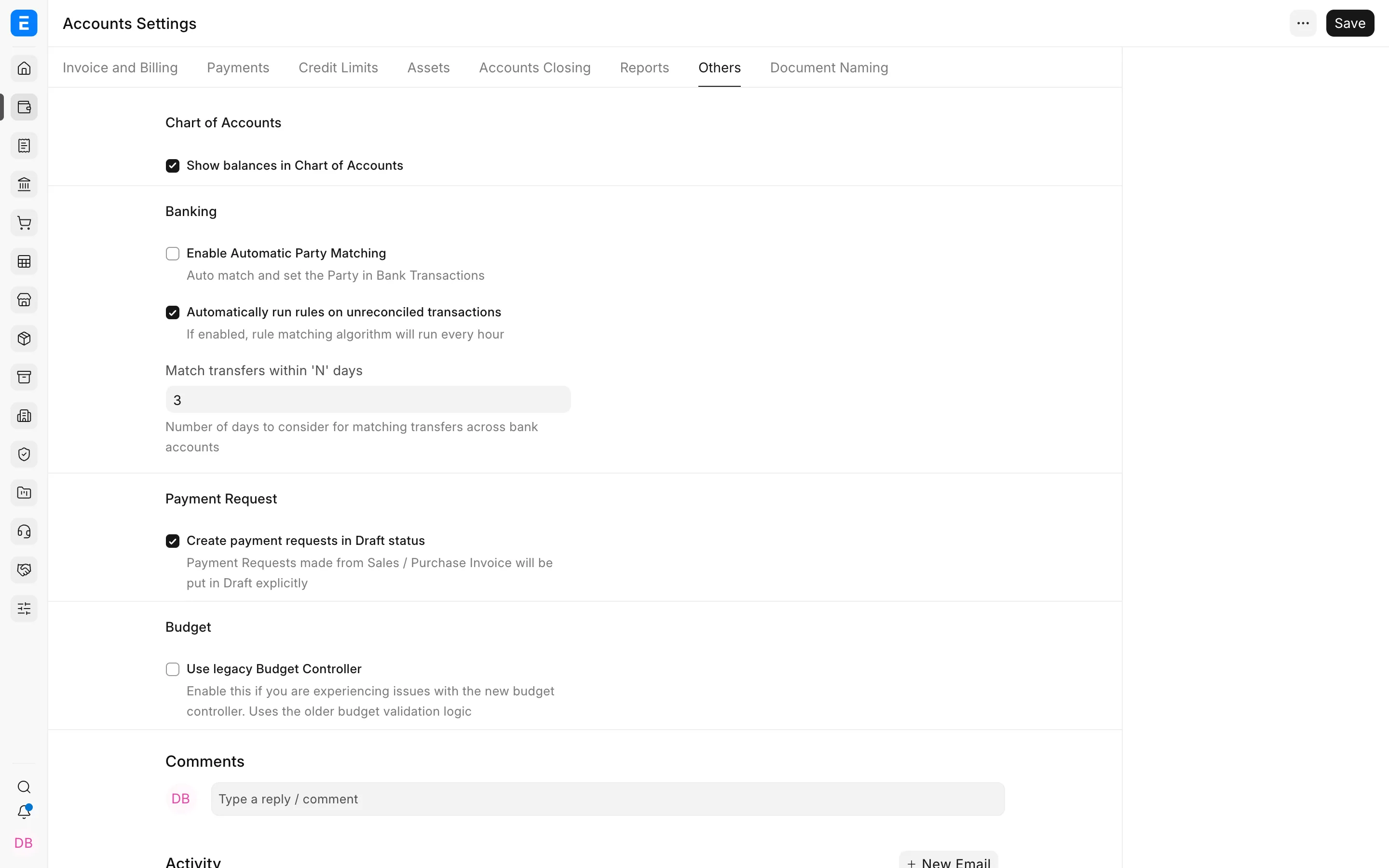
Chart of Accounts
Review options that affect account creation, validation, and ledger behavior. Make structural changes before importing opening balances.
Banking
Banking options affect Bank Transactions, statement imports, reconciliation, and matching. Test a representative statement before enabling automation.
Payment Request
Configure how payment requests and payment gateways create or update accounting documents. Confirm the clearing and bank accounts used by each gateway.
Budget
Budget settings determine whether ERPNext warns or stops users when a transaction exceeds a budget. Test the action at monthly, quarterly, and annual limits and confirm which roles may override it.
Document Naming
This tab controls naming series for accounting documents.
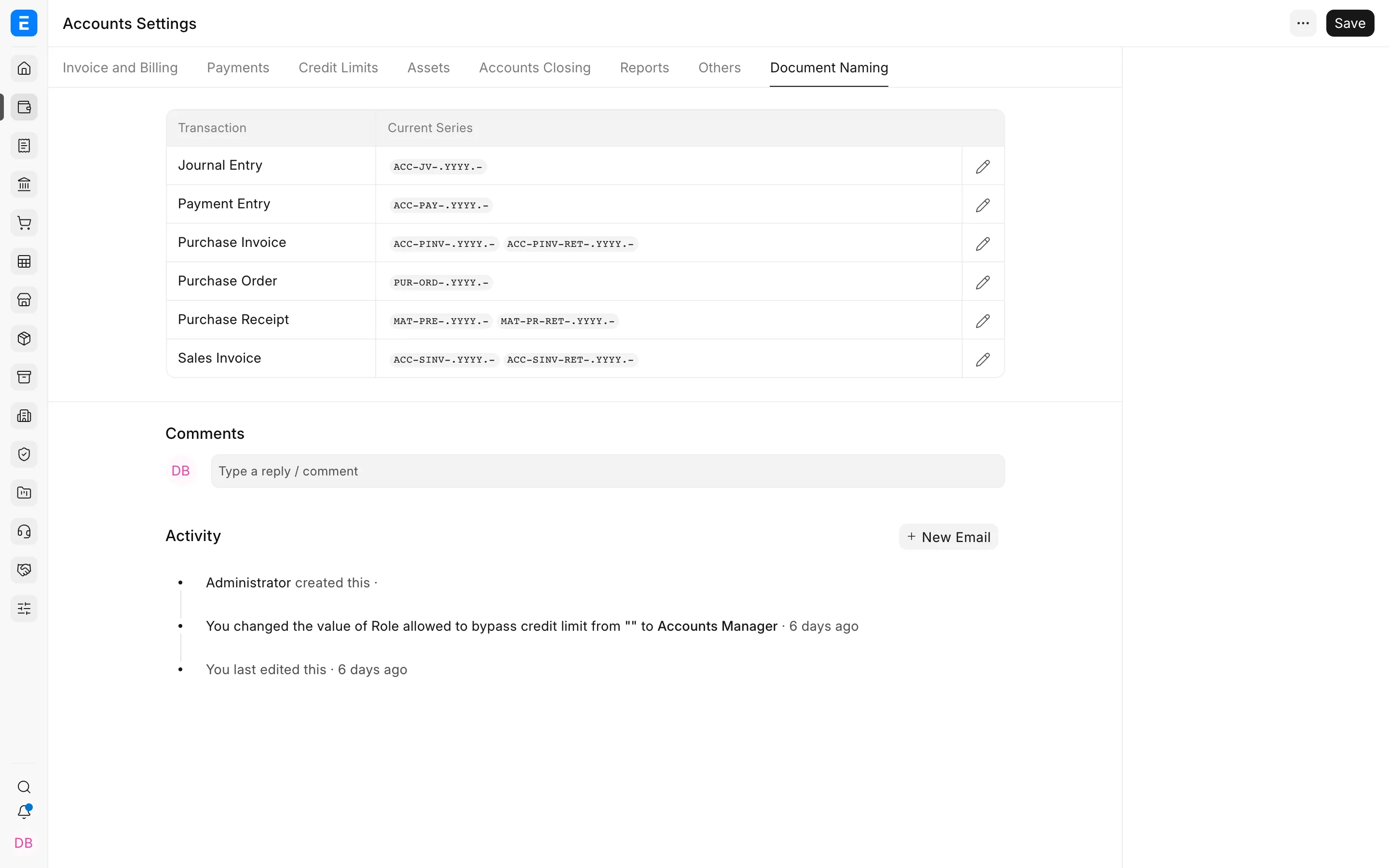
Choose naming series before go-live. A good series distinguishes company or document type without becoming difficult to read. Confirm legal invoice-number requirements, yearly resets, amendments, returns, credit notes, and multi-company use.
Changing a naming series affects new documents only. Do not rename submitted accounting documents to imitate another sequence.
Before saving a change
- Record the current value and reason for the change.
- Confirm whether the setting affects all companies on the site.
- Test the relevant transaction from draft through submission, cancellation, and amendment.
- Check the General Ledger, Stock Ledger, receivable or payable report, and financial statements.
- Test permissions and override roles.
- Communicate the change to users and approvers.
Troubleshooting
A setting does not take effect
Reload the form and create a new test transaction. Check whether Company, Item, Item Group, Customer, Supplier, Mode of Payment, or row-level values provide a more specific default.
A user can still submit a restricted transaction
Review their roles, workflow permissions, override role, and whether the configured limit applies to that transaction.
A report changed after the setting was updated
Compare the underlying General Ledger entries and report filters. Do not repost accounting data until the source transaction and expected result have been verified.