


















Imagine Nova Industries sells an old inspection camera for $1,500. The camera originally cost more, but part of that cost has already been recorded as depreciation. The accountant cannot treat the $1,500 like an ordinary product sale because the remaining asset value must also be removed.
Selling an Asset records the customer amount, removes the asset's cost and accumulated depreciation, and calculates the gain or loss. The Asset remains in the register with a Sold status so its history is not lost.
Before you begin
Confirm the Asset is submitted, not already sold or scrapped, and that depreciation is posted up to the disposal date according to policy. Prepare the customer and disposal accounts.
Create the sale
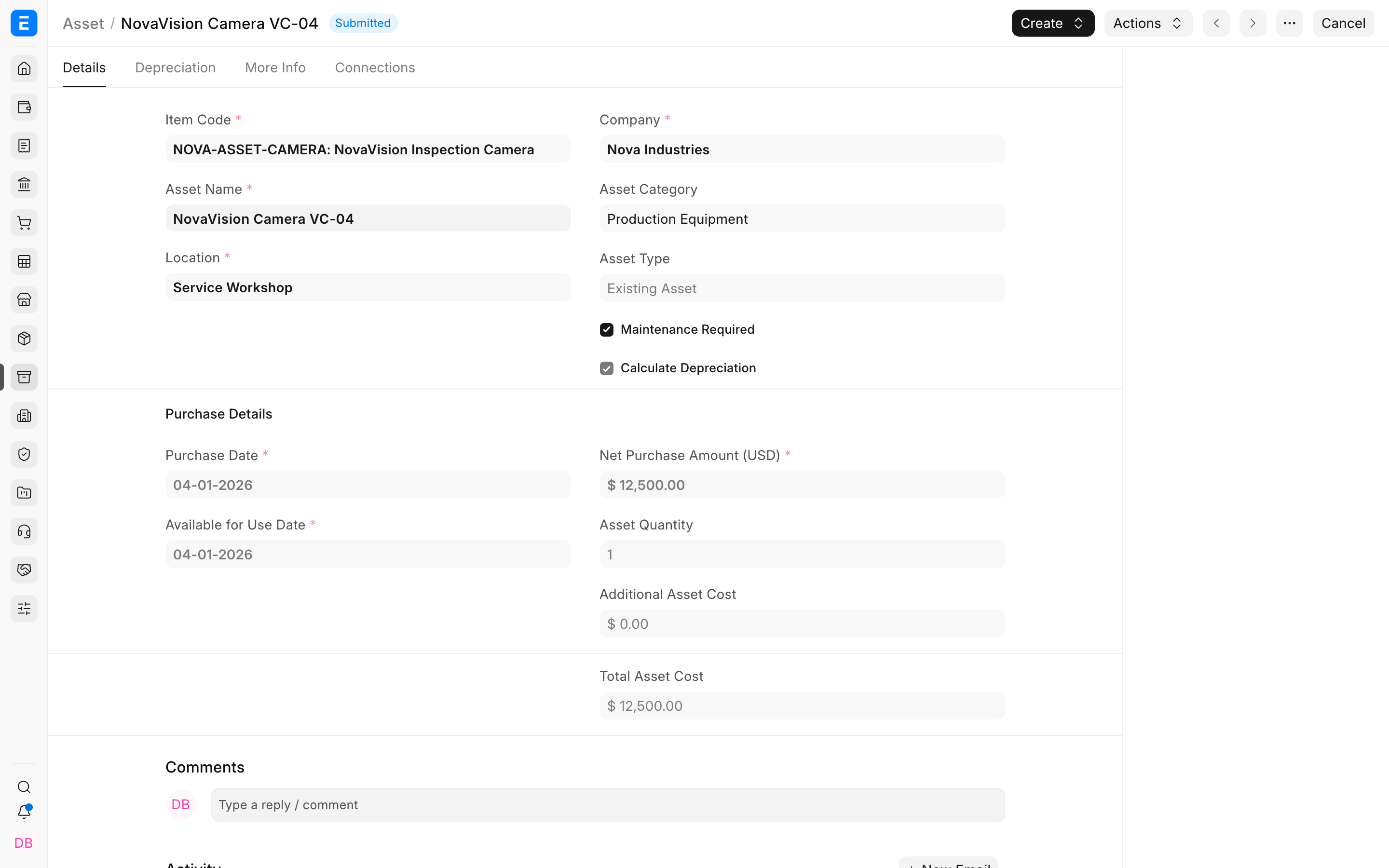
- Open the Asset and use Create > Sales Invoice, or create a Sales Invoice and select the fixed-asset Item and Asset.
- Enter the customer, posting date, Asset, quantity, and sale rate.
- Review taxes and disposal accounts.
- Submit the Sales Invoice.
Verify the disposal
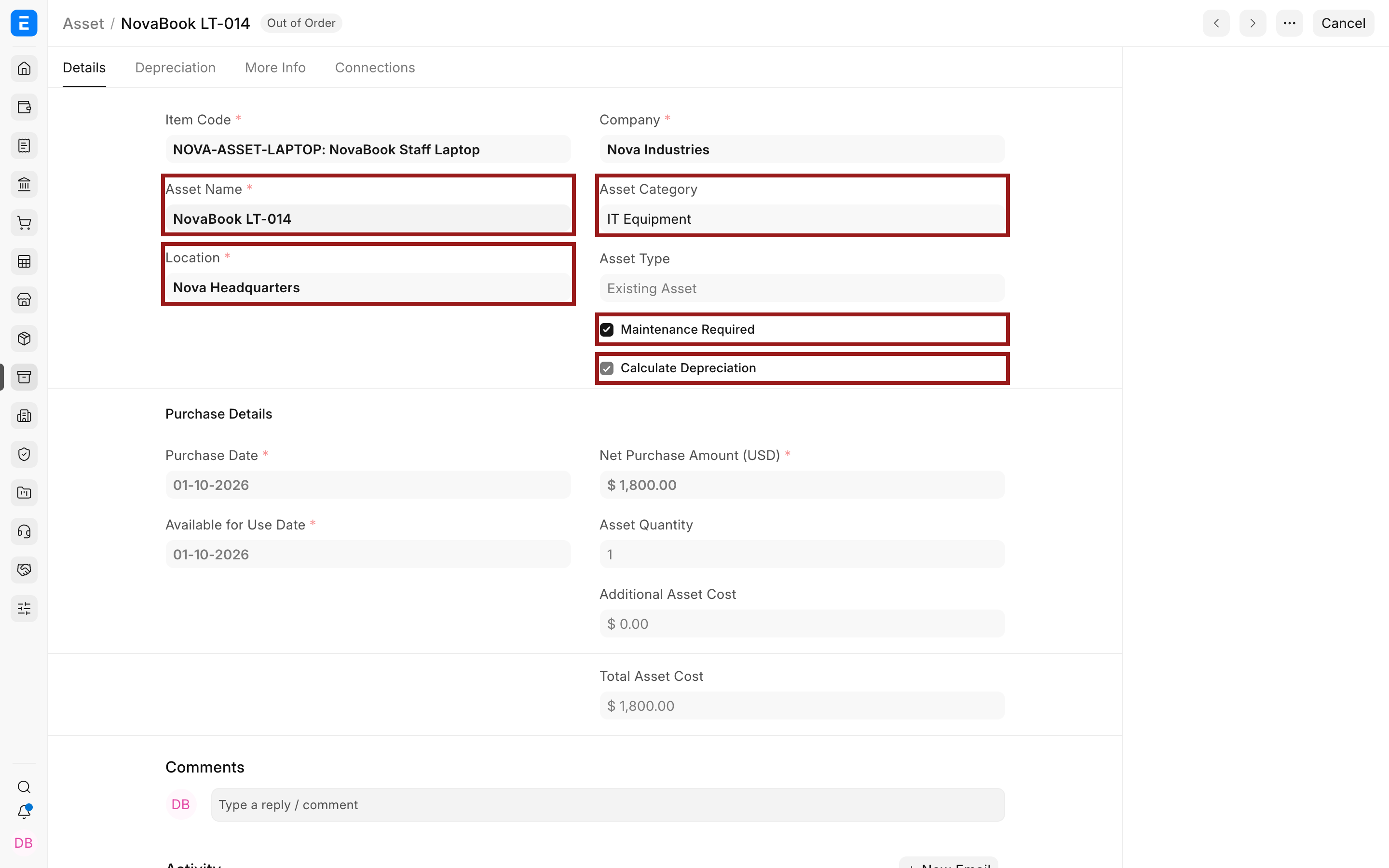
The Asset status becomes Sold and its disposal date is recorded. Review the Sales Invoice, Journal Entry or General Ledger to confirm receivable, asset cost, accumulated depreciation, and gain or loss.
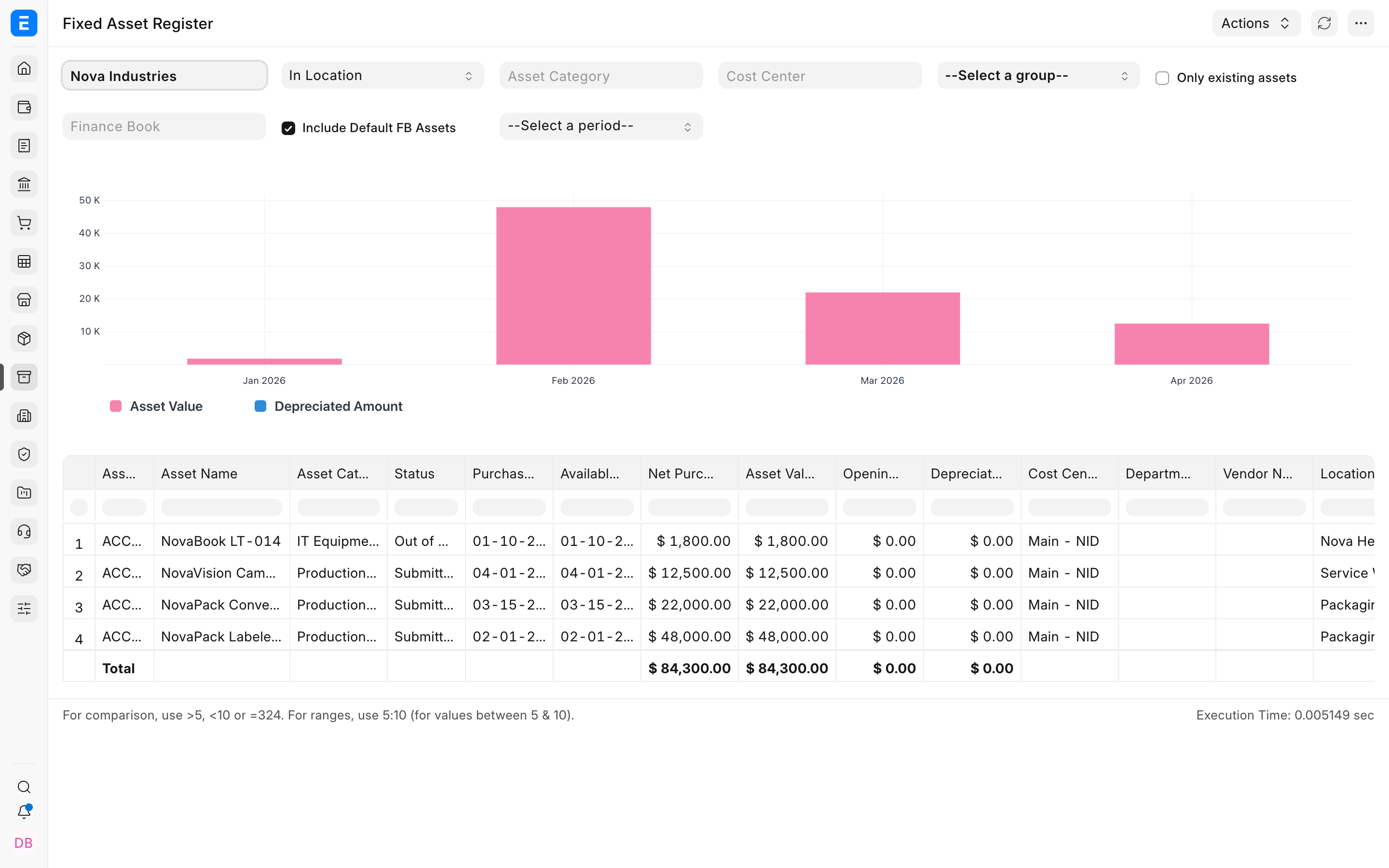
Use the Fixed Asset Register to confirm the asset no longer appears as an active existing asset for the relevant date.
Troubleshooting
The Asset cannot be selected on the Sales Invoice
Confirm the Item is a fixed asset, the Asset is submitted and available, and the company matches.
Gain or loss looks wrong
Check sale proceeds, disposal date, net book value, booked depreciation, taxes, and selected accounts.
Frequently asked questions
Should I create a normal sales item for the asset?
Use the fixed-asset Item and link the specific Asset so ERPNext can perform disposal accounting.
Does selling cancel the Asset?
In ERPNext, no. It changes lifecycle status to Sold and preserves the history.
Can I sell a partially depreciated asset?
In ERPNext, yes. Gain or loss is based on sale proceeds versus carrying value at disposal.