
















Nova Industries is a fictional company that manufactures and distributes electronics. It has just hired 25 employees across sales, warehouse, manufacturing, and finance. One employee reads 08-09-2026 as 8 September, another reads it as 9 August, shared login sessions stay open longer than intended, and customer emails use inconsistent footers. These are not transaction-level problems. They are rules for the whole ERPNext site.
System Settings gives the System Manager one place to define those shared rules. A careful setup makes dates and numbers predictable, limits risky login behaviour, controls files and emails, and establishes operational limits. A careless change can lock users out, weaken security, or change how information is displayed across the site, so record the current value and test sensitive changes with a non-administrator account.
Before you change System Settings
Use an account with System Manager access. Confirm the intended country, time zone, language, security policy, file policy, and backup policy with the responsible teams. Some settings affect the next login or newly loaded page, so save, reload, and test in a separate user session.
General and localisation settings
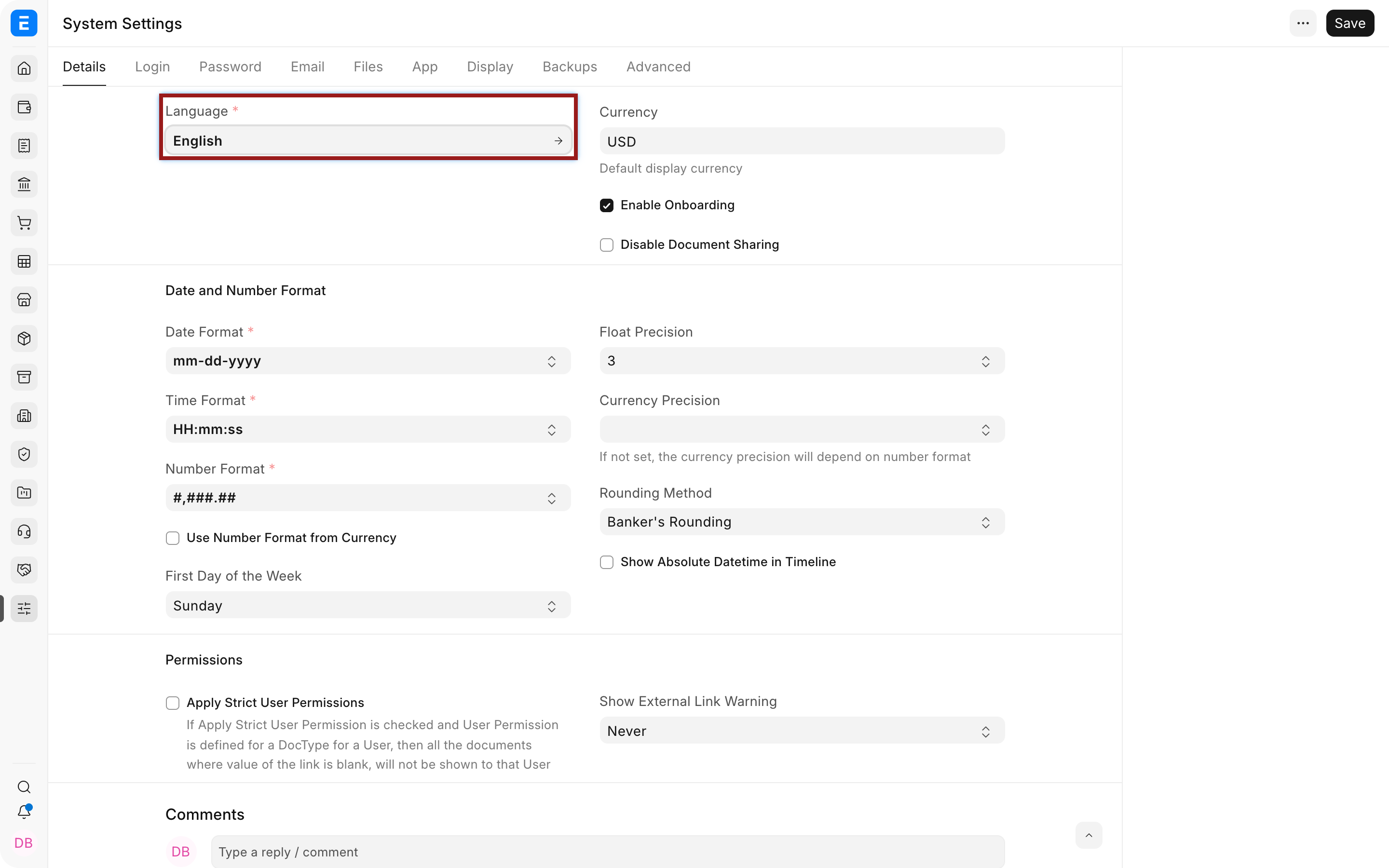
| Setting | What it means | Nova example |
|---|---|---|
| Application Name | Name displayed for the site where supported | Nova labels the internal site ERPNext rather than changing the legal Company name. |
| Country | Site-level localisation context | United States is used for the documentation site. Company and transaction tax setup remains separate. |
| Language | Default interface language | English is the default, while individual users may select another language. |
| Time Zone | Time used for timestamps and scheduled activity | Choose the site’s operating time zone before transactions begin. Users can have personal time zones where supported. |
| Currency | General site currency context | USD is used for display defaults; Company and transaction currencies remain authoritative. |
| Enable Onboarding | Shows setup guidance to new users | Enable during implementation, then hide it when the team no longer needs the checklist. |
| Setup Complete | Records that initial setup has finished | Leave this managed by the setup process rather than using it as a daily control. |
| Disable Document Sharing | Removes ad hoc document sharing | Nova disables sharing only when access must be governed entirely through roles and permissions. |
Date, time, number, and rounding settings
| Setting | What it means | Nova example |
|---|---|---|
| Date Format | How dates are displayed | mm-dd-yyyy shows August 9 as 08-09-2026. |
| Time Format | Whether seconds are displayed | HH:mm is simpler for most users; HH:mm:ss helps operational logs. |
| Number Format | Digit grouping and decimal symbols | #,###.## displays 1234.5 as 1,234.5. |
| Use Number Format from Currency | Uses the linked Currency format where available | Useful when users regularly work with currencies that use different separators. |
| First Day of the Week | Starting day for calendars | Monday suits Nova’s operational reporting week. |
| Float Precision | Decimal places for non-currency values | Three places show a quantity such as 1.275. |
| Currency Precision | Decimal places for monetary values | Two places show USD cents; use more only when the business genuinely prices below one cent. |
| Rounding Method | How midpoint values are rounded | Finance chooses Banker's or Commercial Rounding according to policy and verifies tax totals. |
| Show Absolute Datetime in Timeline | Shows exact timestamps instead of relative time | An auditor can see the precise date and time rather than “two days ago.” |
Permissions and external links
| Setting | What it means | Nova example |
|---|---|---|
| Apply Strict User Permissions | Applies User Permission restrictions more strictly across linked records | A regional sales user sees only allowed Companies and related records. Test reports and link fields before enabling. |
| Show External Link Warning | Warns before opening links outside ERPNext | Set to Ask when users frequently follow supplier or payment links. |
Sessions, login methods, and brute-force protection
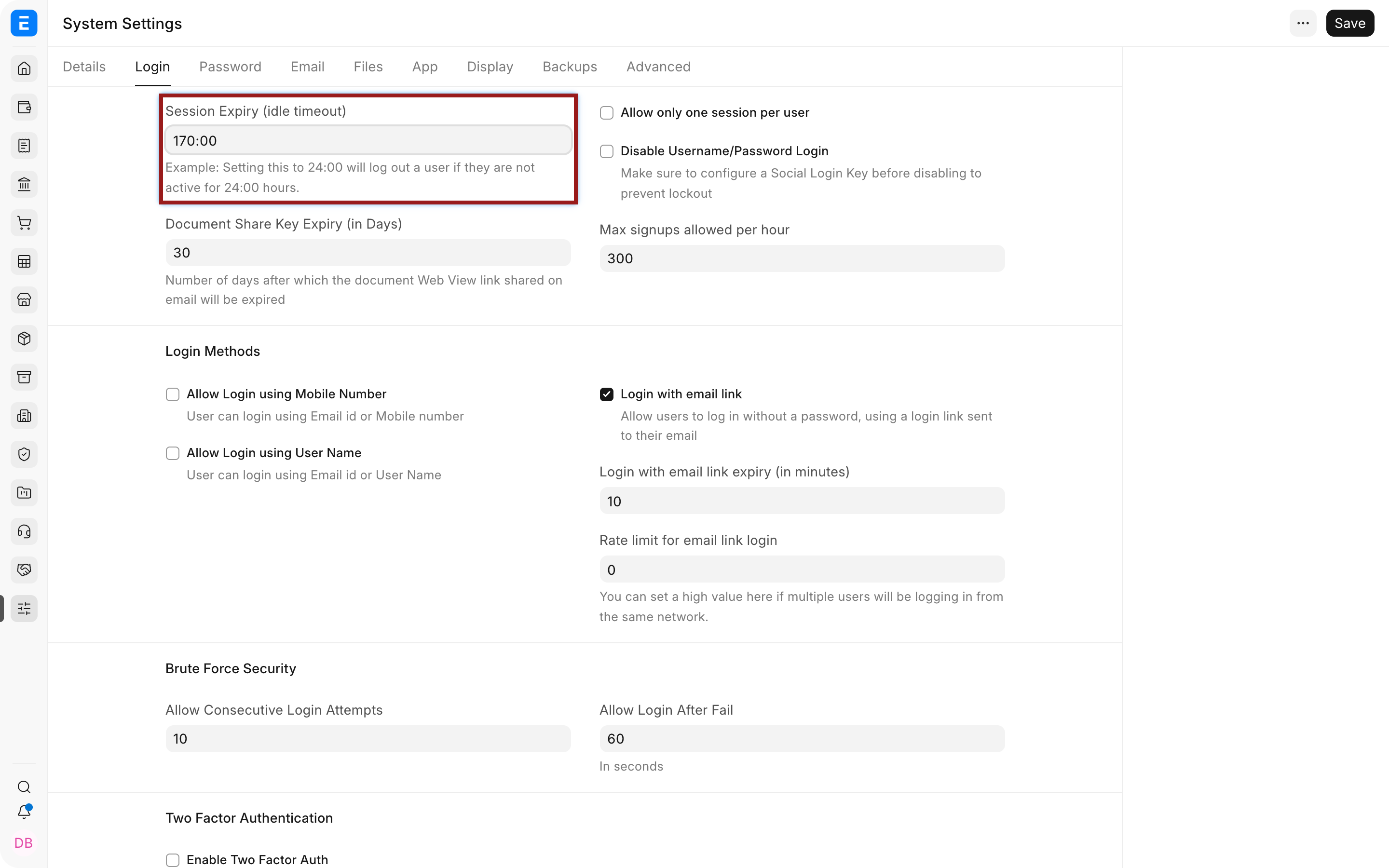
| Setting | What it means | Nova example |
|---|---|---|
| Session Expiry | Idle time before a login expires | 08:00 closes a session after eight idle hours. Very long values increase exposure on unattended devices. |
| Document Share Key Expiry | Days before a public share key expires | A 7-day quotation review link should not remain valid indefinitely. |
| Allow only one session per user | Prevents one account from staying active on several devices | Useful for tightly controlled operational accounts, but inconvenient for users switching between office and mobile devices. |
| Disable Username/Password Login | Requires another configured login method | Configure and test SSO first. Otherwise users may be locked out. |
| Max signups allowed per hour | Limits public account creation | A portal can accept genuine registrations without allowing unlimited automated signups. |
| Allow Login using Mobile Number | Accepts a unique mobile number as login | Enable only when user mobile numbers are complete and unique. |
| Allow Login using User Name | Accepts the configured username | Useful when company policy avoids email addresses as the typed login identifier. |
| Login with email link | Sends a temporary sign-in link | Useful for occasional portal users who do not remember a password. |
| Email-link expiry | Minutes before that link becomes invalid | Ten minutes limits the time an intercepted email link can be used. |
| Email-link rate limit | Limits repeated requests | Prevents a user or bot from generating excessive sign-in emails. |
| Consecutive Login Attempts | Failed attempts allowed before delay | Ten attempts provides a controlled retry window. |
| Allow Login After Fail | Delay before another attempt | A 60-second delay slows automated guessing. |
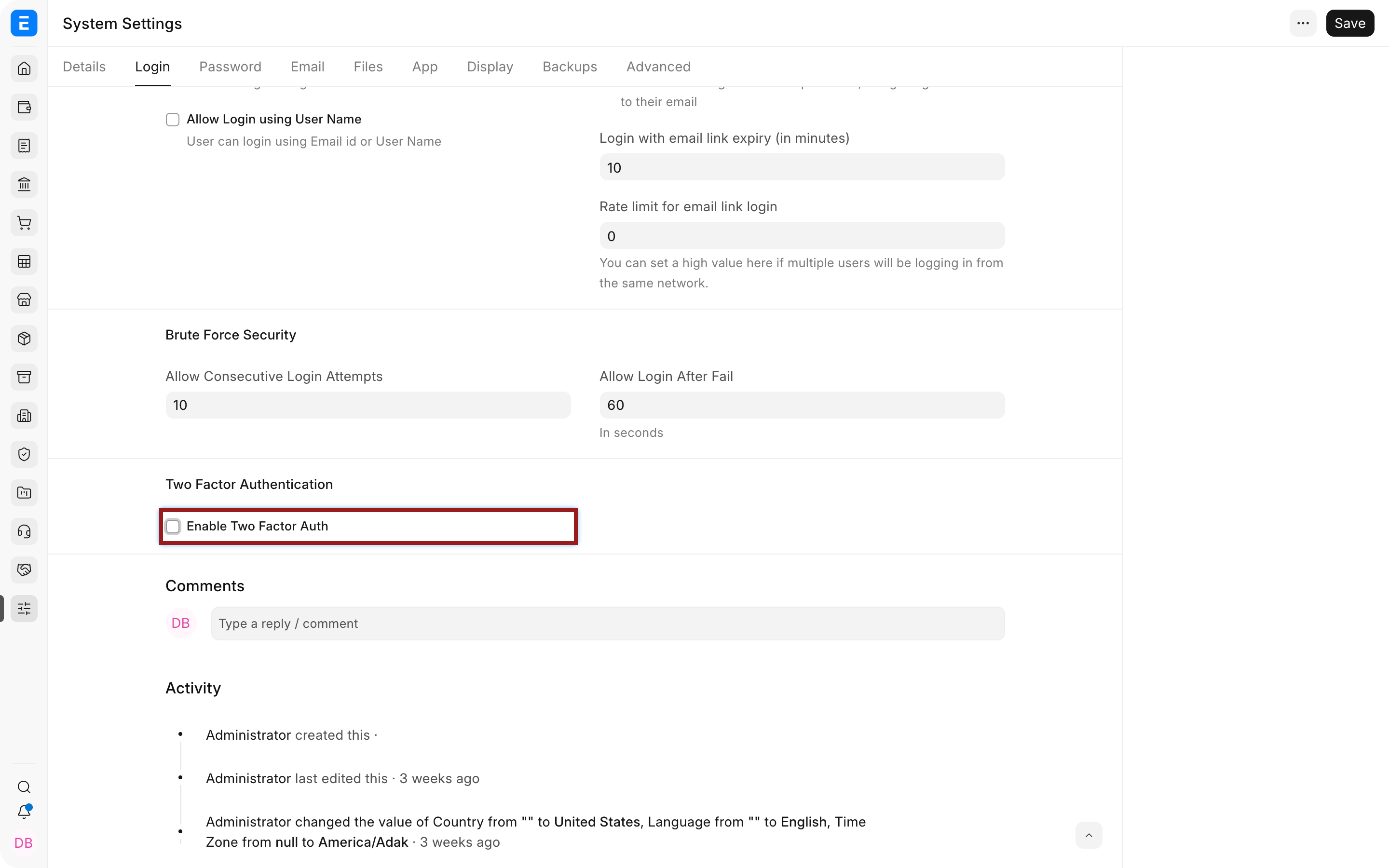
Two-factor settings enable OTP App, SMS, or Email verification. The bypass options change how restricted IP addresses interact with two-factor authentication, so test them with the exact network policy. QR-code expiry limits setup-page lifetime, while OTP Issuer Name is the label users see in the authenticator app. SMS also requires a working SMS configuration and template.
Password settings
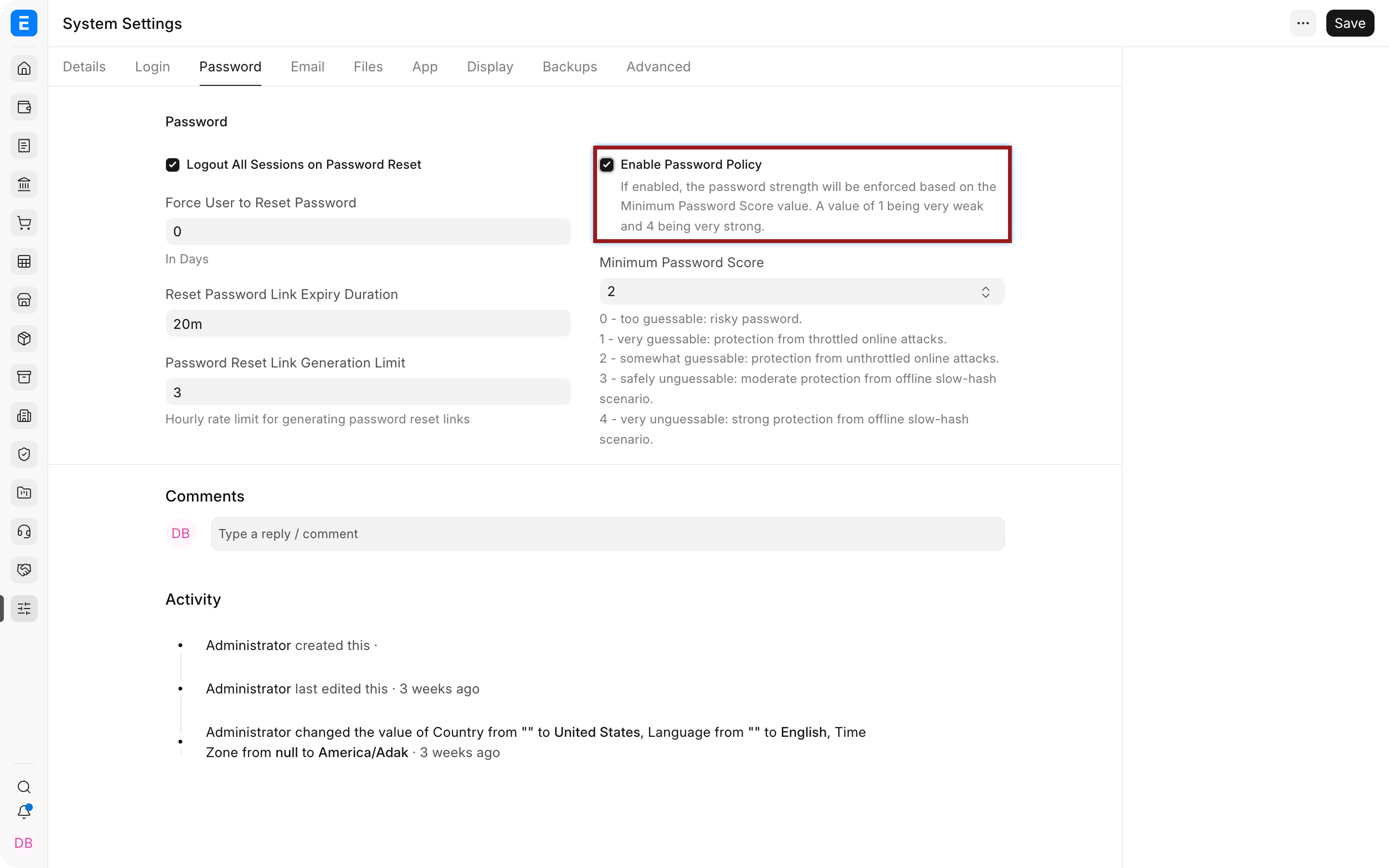
Logout All Sessions on Password Reset removes existing sessions after a reset. Force User to Reset Password sets the age after which a reset is required. Reset-link expiry and generation limit reduce the useful life and volume of reset links. Enable Password Policy and Minimum Password Score require stronger passwords. Nova tests these rules with a normal user before enforcing them company-wide.
Email settings
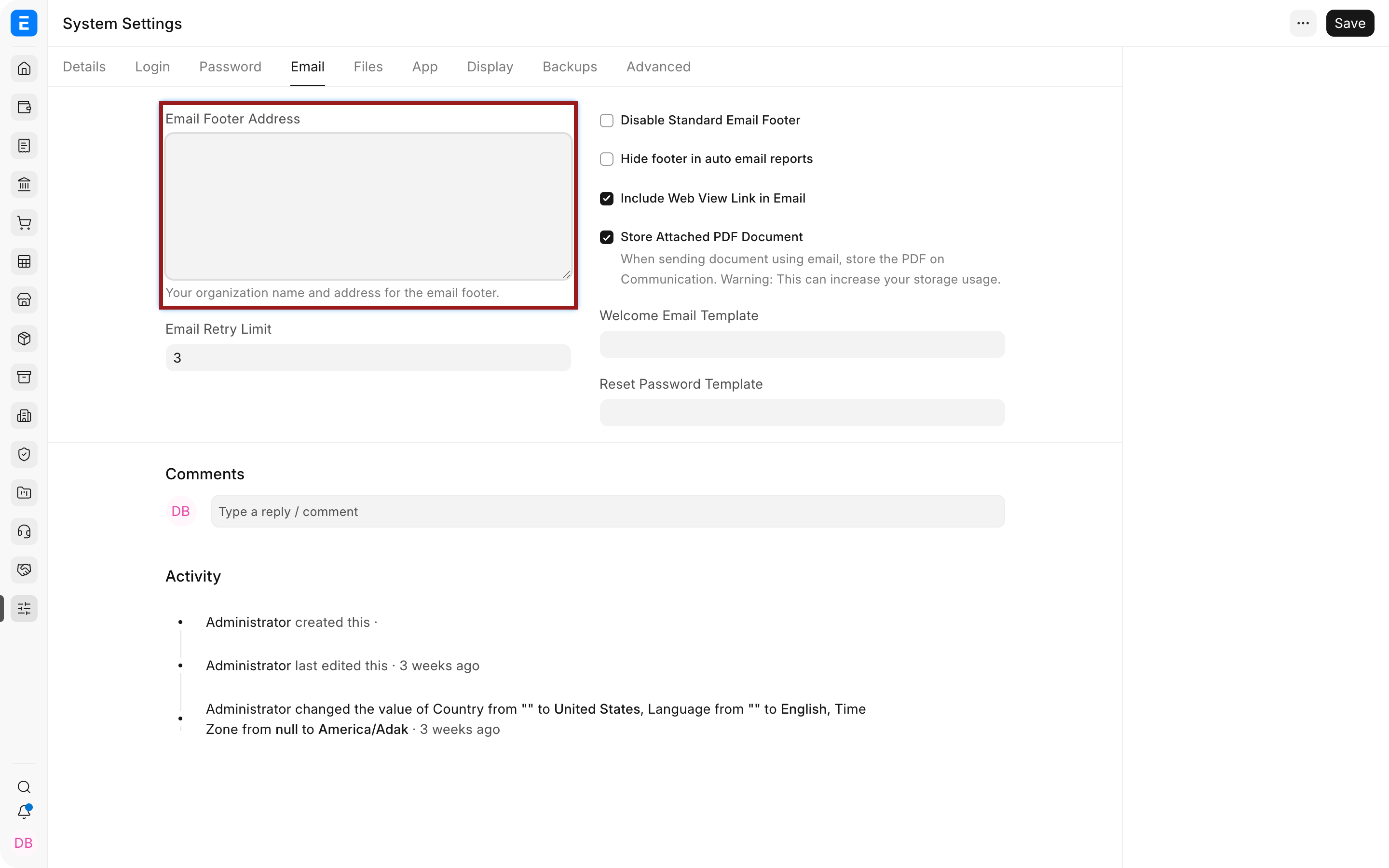
Email Footer Address supplies the organisation address. Email Retry Limit controls retries after delivery failure. The footer controls determine whether the standard footer, auto-email-report footer, and web-view link appear. Store Attached PDF Document keeps the generated attachment as a File. Welcome and reset-password templates allow approved messages instead of generic text.
File settings
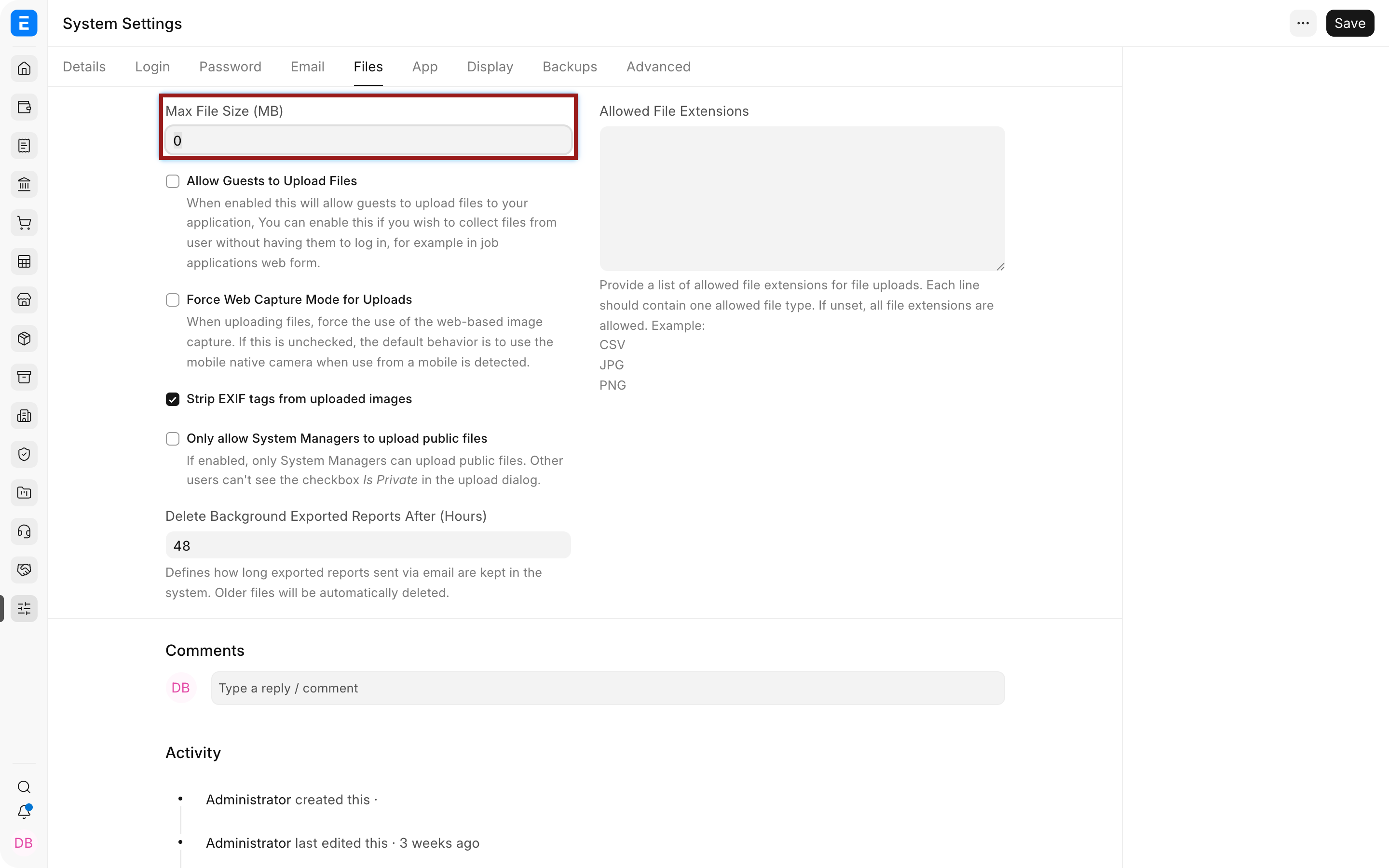
Max File Size limits each upload. Guest uploads should be enabled only with an explicit list of allowed DocTypes. Web Capture can prefer a camera on supported devices. EXIF removal strips embedded image metadata, while the public-file restriction limits who may publish files. Allowed File Extensions provides an allow-list, and background export retention removes generated report files after the configured hours.
Display, backups, and advanced settings
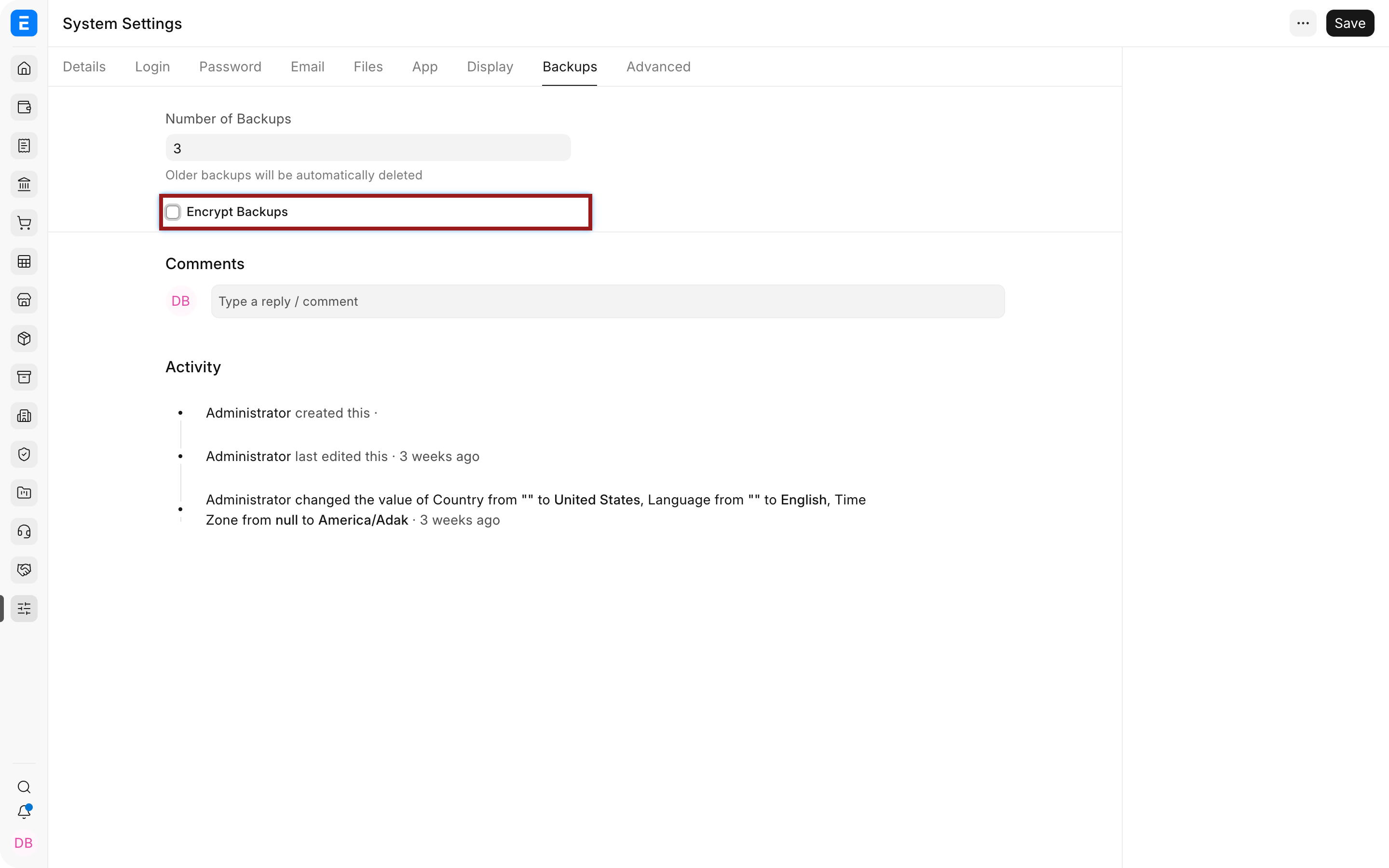
Display settings can suppress update notices, change-log notices, empty read-only fields, and product suggestions. Number of Backups controls retention; Encrypt Backups protects backup contents but requires secure key handling and a tested restore process.
Advanced controls limit auto-email reports and report rows, enable scheduled report snapshots, configure scheduler behaviour for inactive sites, and control error traceback and telemetry. Link-field result limits and API logging affect performance or storage. Change them only for a measured operational reason and monitor the result.
Troubleshooting
Users cannot log in after a security change
Test the alternative login method, restore username and password login if needed, and confirm two-factor delivery. Keep an administrator recovery path before enabling restrictive settings.
Dates or numbers still appear differently
Reload the page and check the user language, Currency number format, field precision, browser locale, and the relevant report formatting.
A file upload is rejected
Compare the file size and extension with System Settings. For guest uploads, also verify that the target DocType is explicitly allowed.
Scheduled work is not running
Confirm Enable Scheduled Jobs, inspect background workers, and check whether the site is treated as inactive under the dormant-days setting.
Frequently asked questions
Do System Settings override every Company setting?
System Settings controls site-wide behaviour and presentation. Company, module, user, and transaction settings can still supply more specific business values.
Can the site time zone be changed later?
Treat the site time zone as an implementation decision. Changing timestamp interpretation after live data exists can be disruptive and should be tested and planned.
Should backup encryption be enabled immediately?
Enable it only when the encryption key is stored safely and a restore has been tested. An encrypted backup without its key cannot serve as a recovery copy.
Does hiding update notifications stop updates?
The setting changes the notification display. It does not install, postpone, or manage the software update itself.