


















Opening Balance in Accounts
Opening balances tell ERPNext where the company stands at the migration cut-off date. They should reproduce the verified closing position from the old system, not introduce new income or expense into the first reporting period.
If Nova Industries begins on 1 January, its bank, loans, fixed assets, inventory, equity, receivables, and payables must agree with the old books as of 31 December. Customer and supplier balances should be loaded through outstanding invoices where future settlement and ageing matter, while other ledger balances can be brought across through the appropriate opening tools.
This page explains the balance types, temporary opening account, posting approach, and checks needed to confirm that total debits equal total credits.
Before entering balances
Complete the Chart of Accounts, company defaults, Fiscal Year, Cost Centers, parties, taxes, and opening document imports.
Obtain an approved Trial Balance and supporting schedules at the cutover date. The Trial Balance must balance before it is entered in ERPNext.
Choose the correct import method
| Balance | Recommended method |
|---|---|
| Outstanding Customer invoices | Opening Invoice Creation Tool |
| Outstanding Supplier invoices | Opening Invoice Creation Tool |
| Unallocated payments and advances | Opening Payment Entry or approved opening journal method |
| Stock quantity and value | Stock Reconciliation with opening purpose |
| Fixed assets | Asset opening records |
| Other ledger balances | Opening Journal Entry |
Do not include a control-account balance in the Journal Entry if another opening document already creates it.
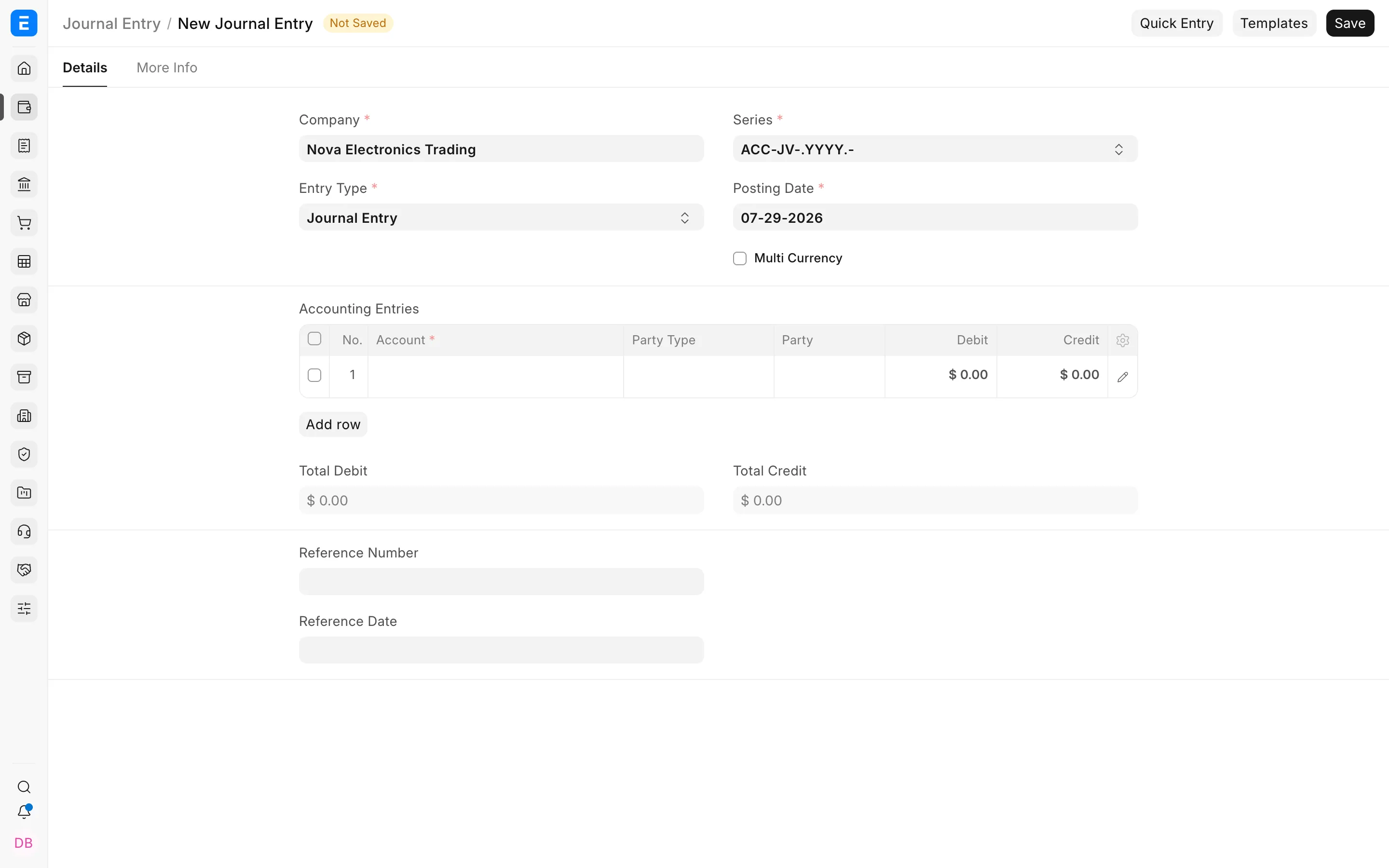
Create the opening Journal Entry
- Go to Home > Accounting > General Ledger > Journal Entry.
- Create a Journal Entry.
- Select the Company and cutover date.
- Set Is Opening to Yes.
- Add one row for each residual ledger balance.
- Enter debit or credit, not both, on each row.
- Select party, Cost Center, Project, or Accounting Dimensions when required.
- Add the source report and migration batch reference in User Remark.
- Confirm total debit equals total credit.
- Save, review, and submit after other opening documents are complete.
Use Temporary Opening
ERPNext uses a Temporary Opening account to balance opening entries while detailed balances are loaded. After all opening documents are posted, its balance should be zero unless the approved migration design explains a temporary difference.
Do not hide an unexplained difference in retained earnings, suspense, or rounding.
Example
Assume balances not created by invoices, stock, assets, or payments are:
| Account | Debit | Credit |
|---|---|---|
| Prepaid Insurance | 12,000 | |
| Security Deposit | 5,000 | |
| Accrued Expenses | 7,000 | |
| Retained Earnings | 10,000 |
The Journal Entry debits 17,000 and credits 17,000.
Mid-year opening
If migrating mid-year, decide how year-to-date income and expense will appear. Importing balances into individual income and expense accounts preserves current-year Profit and Loss totals but does not reproduce transaction-level history.
Document the method and reconcile it to the source Profit and Loss Statement.
Verify
After submission:
- Run Trial Balance at the cutover date.
- Compare every account with the approved source Trial Balance.
- Run Balance Sheet and Profit and Loss Statement.
- Verify party, bank, stock, and asset control accounts against their schedules.
- Confirm Temporary Opening and migration-clearing accounts are zero.
Correcting an opening balance
If the period is still open, cancel and amend the incorrect opening document or post an approved correcting opening entry. Keep the original and correction references in the migration log.
Do not edit submitted ledger rows or use reposting as a substitute for correcting the source document.