
















Drop shipping lets a Supplier deliver an item directly to your Customer. Your company creates the Sales Order and Purchase Order, but the goods do not pass through your warehouse. ERPNext links the two transactions so purchasing and sales teams can follow the same fulfilment.
Before you begin
Create the Customer, Supplier, Item, selling and buying prices, Customer shipping address, and Supplier contact details. The Item must have a Default Supplier or an appropriate supplier must be selected during purchasing.
Create a drop-ship Sales Order
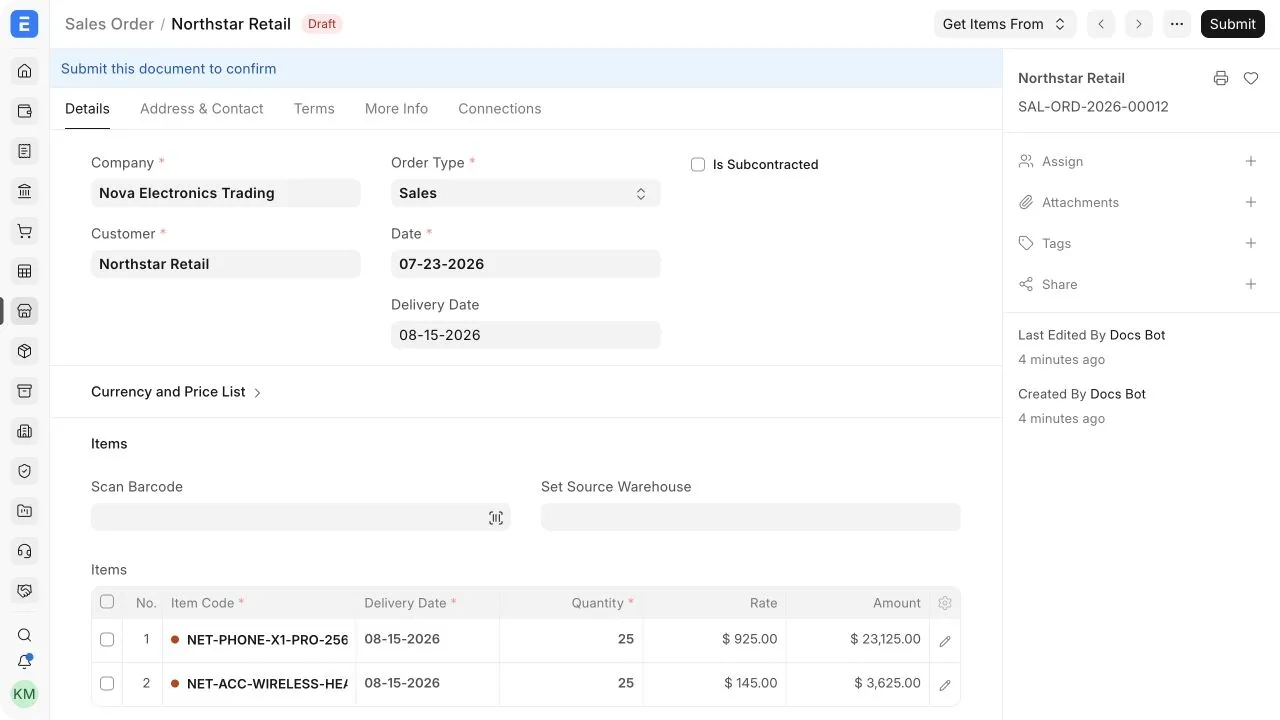
- Go to Selling > Sales > Sales Order and select Add Sales Order.
- Select the Customer, Company, and delivery date.
- Add the Item and Quantity.
- Open the item row with the pencil icon.
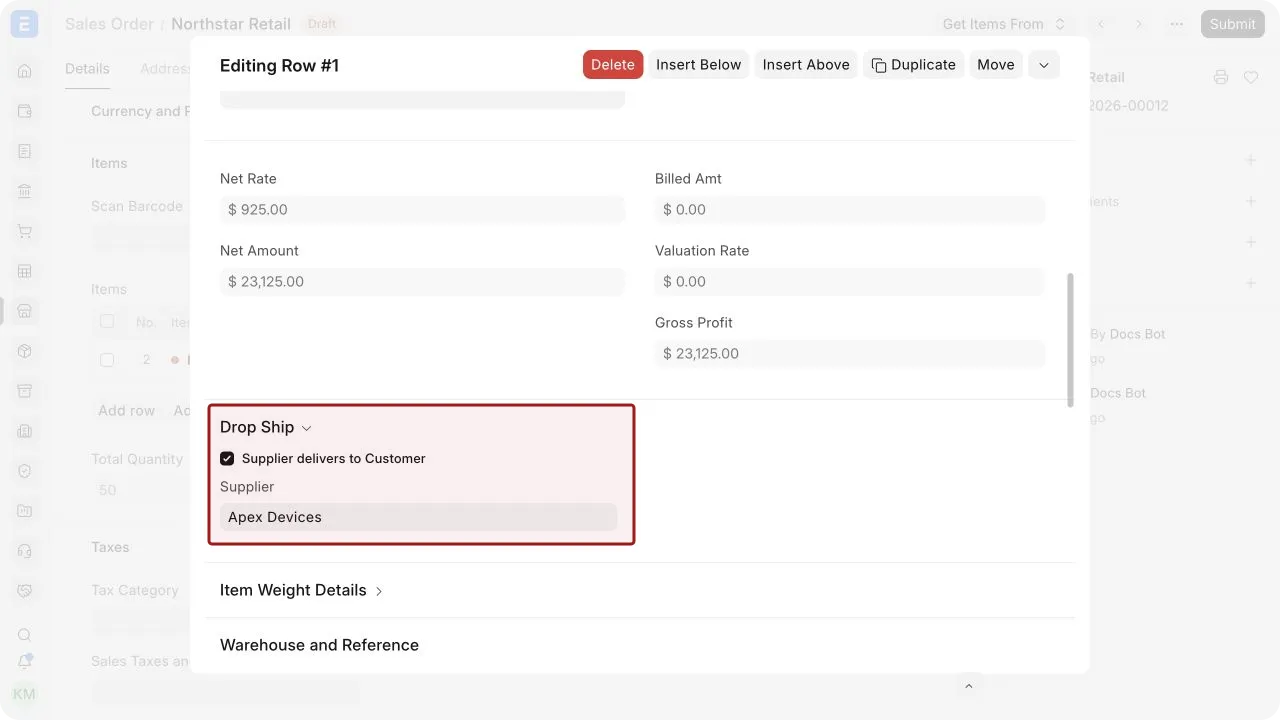
- Enable Deliver to Customer for the row.
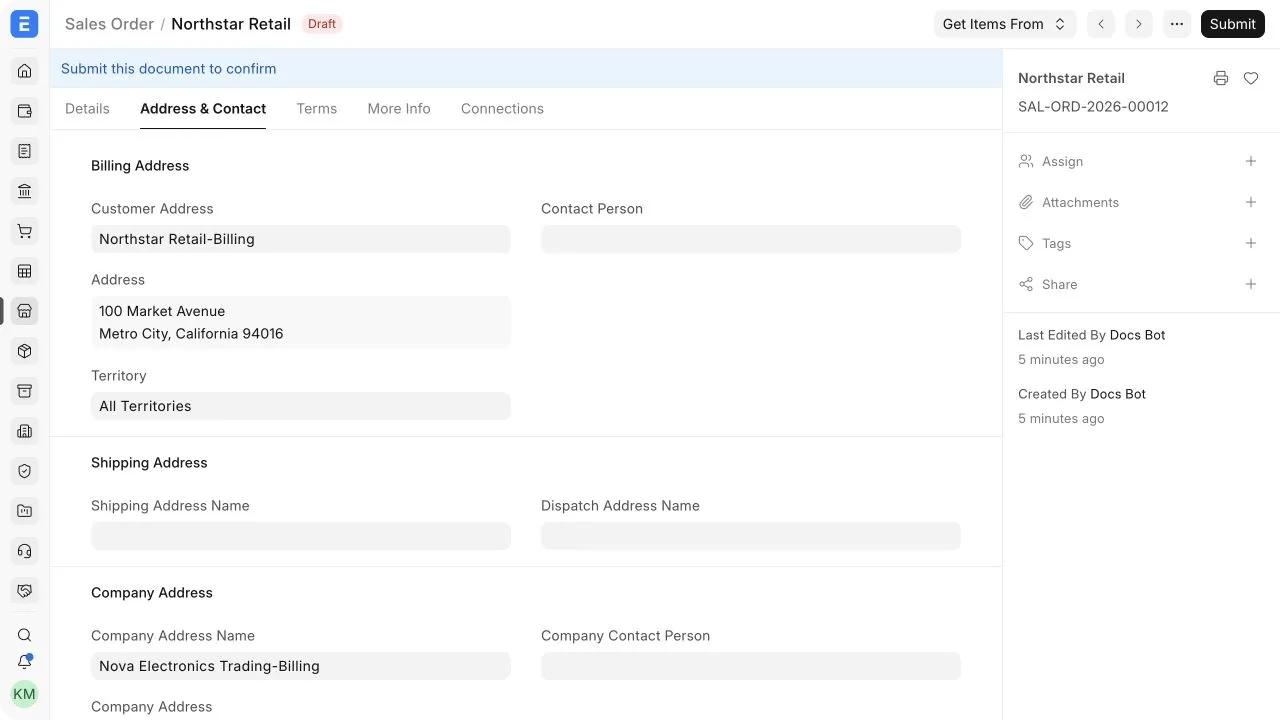
- Select the Supplier and confirm the Customer shipping address.
- Save and submit the Sales Order.
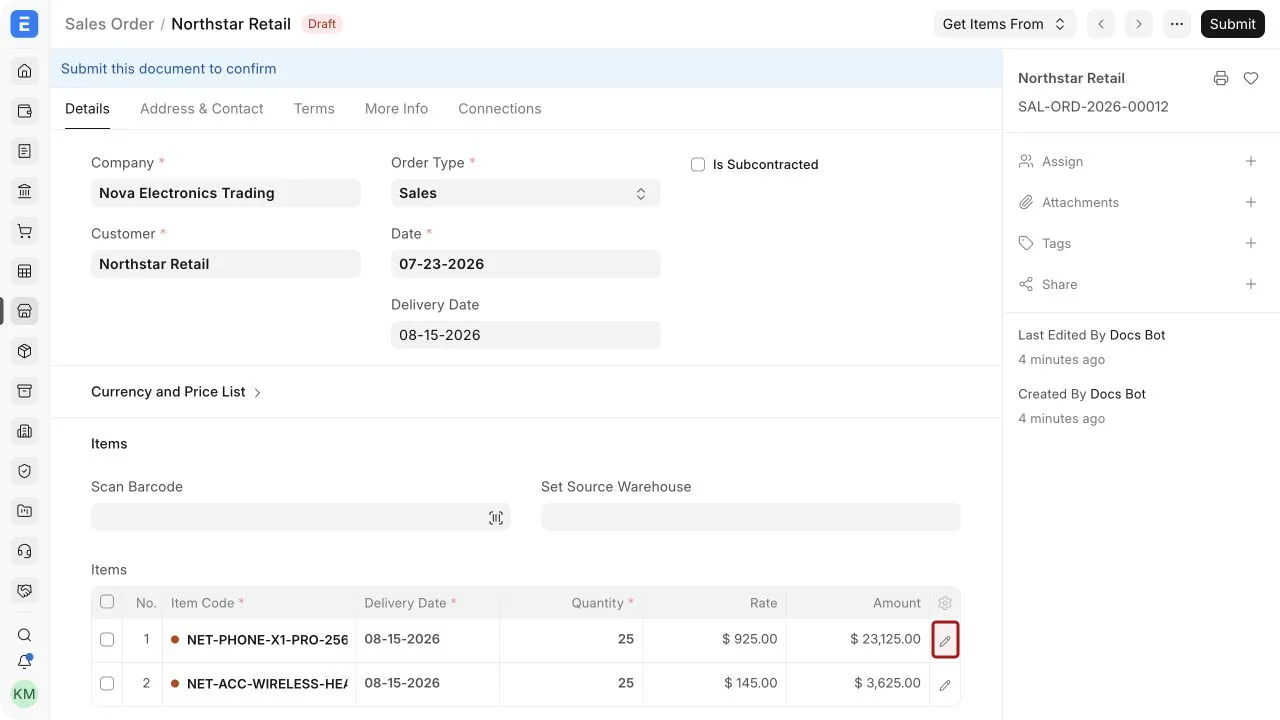
The stock indicator before an Item Code is green when the item is in stock and red when it is out of stock. Drop shipping does not require the item to be received into your warehouse, but the indicator can still help users understand the item’s current availability.
Create the Purchase Order
From the submitted Sales Order, select Create > Purchase Order. In the dialog, select the Supplier and the drop-ship items, then create the Purchase Order.
Review the following before submission:
- Is Subcontracted should remain disabled unless the transaction is genuinely subcontracting.
- Supplier must be the party that will ship the goods.
- Customer and Customer Address must identify the final delivery destination.
- The items, quantities, rates, taxes, schedule dates, and terms must match the supplier agreement.
Submit the Purchase Order and send the approved document or instructions to the Supplier.
Important fields and what they mean
| Field | What it means |
|---|---|
| Deliver to Customer | Marks the Sales Order item for direct delivery by a Supplier. |
| Supplier | The Supplier expected to fulfil that item. |
| Customer | The party receiving the goods. It is mapped to the Purchase Order for drop shipping. |
| Customer Address | The shipping destination printed or shared with the Supplier. |
| Schedule Date | The date by which the Supplier should deliver the item. |
| Warehouse | Usually not used to receive a drop-shipped item because it does not enter your stock. |
| Delivered By Supplier | Indicates that fulfilment is performed by the Supplier. Availability and wording can depend on the transaction and version. |
Complete the sales cycle
A drop-ship Purchase Order does not create a stock receipt for your company. When the Supplier confirms delivery, use the actions available on the linked Sales Order or Purchase Order to record the delivery status according to your ERPNext version and process.
Create the Sales Invoice for the Customer and the Purchase Invoice for the Supplier. Verify linked quantities so the Sales Order, Purchase Order, receivable, and payable all represent the same fulfilment.
If only part of an order is drop shipped, keep the remaining items on the normal warehouse fulfilment path. Each row can follow the appropriate route, but teams should verify the linked documents carefully.
Returns and exceptions
If the Customer returns a drop-shipped item, coordinate the commercial and physical return with the Supplier. Create the appropriate return or credit documents for both sides. Because the goods did not enter your warehouse during the original delivery, do not create a warehouse receipt unless your return process actually brings them into your stock.
If the Supplier cannot fulfil the order, update or cancel the affected Purchase Order and resolve the Customer commitment on the Sales Order. Do not leave an open quantity without an owner or revised delivery date.
Frequently asked questions
Does drop shipping update stock?
Normally no. The Supplier delivers directly to the Customer, so the item does not pass through your warehouse.
Can one Sales Order contain warehouse and drop-ship items?
Yes. Mark only the rows that the Supplier will deliver directly. Fulfil the other rows through Delivery Notes from your warehouse.
Can different Suppliers fulfil different items?
Yes. Create the required Purchase Orders by Supplier and confirm that each item row is linked correctly.
Why is the Purchase Order not available from the Sales Order?
Check that the Sales Order is submitted, the item row is marked for delivery to the Customer, a Supplier is selected or available, and the quantity is not already fully ordered.
Who sends the invoice to the Customer?
Your company normally invoices the Customer. The Supplier invoices your company under the linked purchase transaction.