


















Bank Reconciliation
Bank Reconciliation compares the bank statement with entries in ERPNext. Match existing vouchers first, create missing accounting entries only when necessary, and finish by explaining every difference between the statement and ledger balances.
Before you begin
Confirm the correct Company, currency, receivable or payable account, and bank or cash ledger. Use submitted source documents and keep the bank reference or remittance advice available.
Use Bank Reconciliation
- Select the Company Bank Account and statement date range.
- Import or synchronize Bank Transactions.
- Match each statement line with the correct Payment Entry, Journal Entry, or other supported voucher.
- Create a missing voucher only after checking that it does not already exist.
- Record bank fees, interest, and timing differences explicitly.
- Confirm that the closing balance agrees with the bank statement.
Important fields and what they mean
| Field | What it controls |
|---|---|
| Bank Account | Company account being reconciled. |
| Bank Statement Closing Balance | Closing balance from the source statement. |
| Bank Transactions | Imported statement lines. |
| Vouchers | Accounting entries available for matching. |
| Unreconciled Amount | Difference still requiring action. |
| Clearance Date | Date on which a voucher cleared the bank. |
What happens after you submit or process
ERPNext updates the relevant accounting records and, where applicable, the outstanding or unallocated amounts. Review the General Ledger, party ledger, and source document status before treating the workflow as complete. A saved draft does not affect the ledger.
Troubleshooting
A Payment Entry does not appear for reconciliation
Check that it posts to the selected bank account, falls within the date range, is submitted, and has not already been cleared. Also review the banking settings and the Payment Entry's Paid From and Paid To accounts.
The bank statement balance does not match ERPNext
Confirm the statement opening and closing dates, opening balance, uncleared cheques, bank fees, interest, transfers, and duplicate imports. Do not force the difference into the reconciliation date without identifying it.
An imported Bank Transaction has no suggested match
Verify the amount, date, currency, reference number, and bank account. Expand the matching date range when settlement dates differ, then select the correct voucher manually if necessary.
The clearance date changed, but the General Ledger posting date did not
This is expected. Reconciliation records when the bank cleared the transaction; it does not move the original accounting posting date.
The Bank Reconciliation Statement still shows a difference
The Bank Reconciliation Statement report lists entries posted in ERPNext that the bank has not cleared yet. An entry is cleared when it has a Clearance Date, set by the Bank Reconciliation Tool or in Bank Clearance.
- Run Bank Clearance for the bank account and period. Entries without a clearance date are listed. Set the dates of the entries the bank has already processed.
- Look for entries that are in the bank statement but not in ERPNext (bank charges, interest, direct debits), and post them.
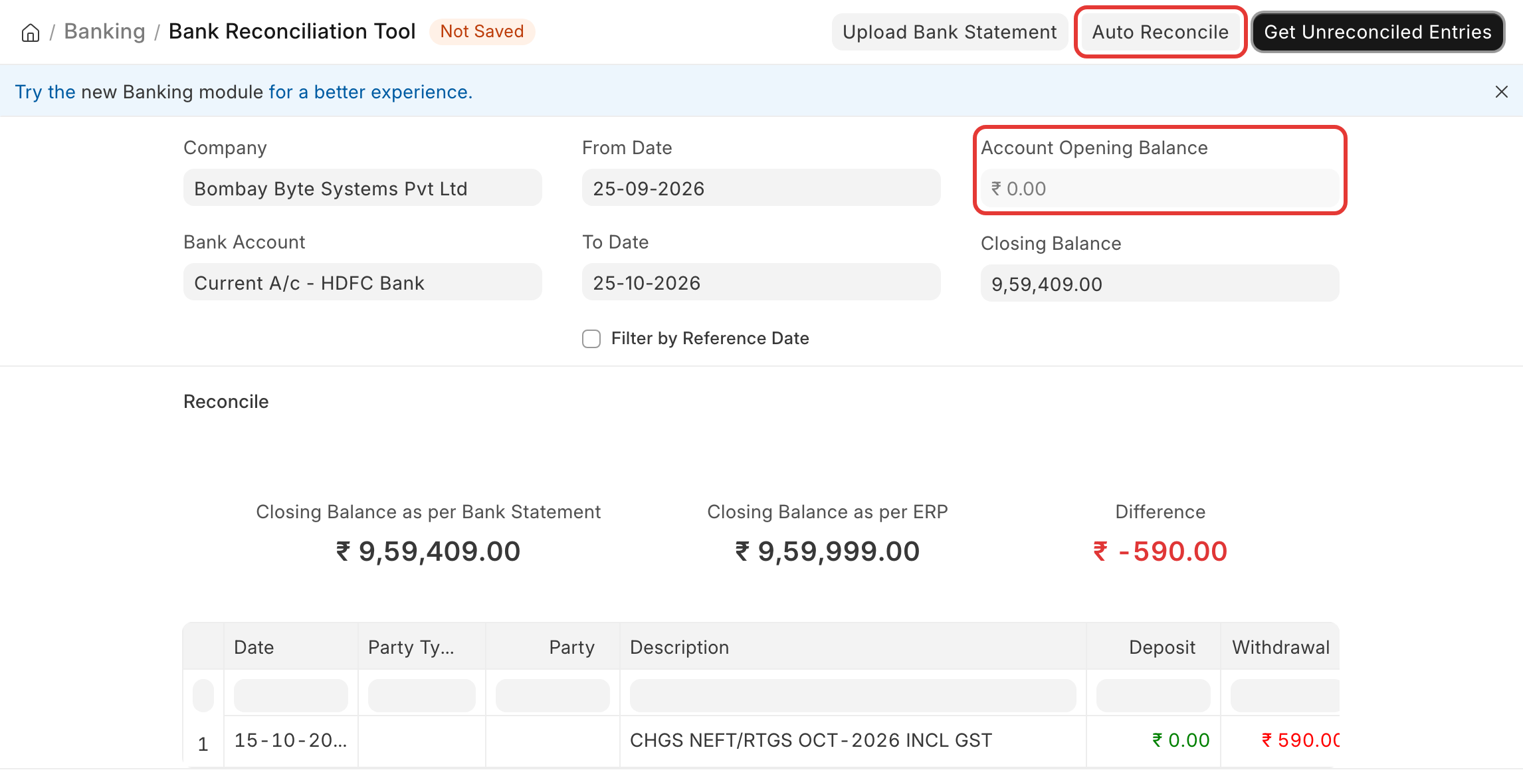
- In the Bank Reconciliation Tool, Account Opening Balance is the balance up to the day before the From Date. An entry dated on the From Date is not in the opening balance.
Auto Reconcile does not match anything
Auto Reconcile matches a bank transaction only with a Payment Entry or Journal Entry whose Reference No (on a Journal Entry, Cheque No) is the same as the transaction's Reference Number. Entries with a different or empty reference must be matched by hand. With many transactions, Auto Reconcile runs in the background: refresh after a few minutes.
Transfers between your own bank accounts
A transfer is one Payment Entry (Payment Type = Internal Transfer) or Journal Entry with two bank accounts. Reconcile it in both banks: first in the paying bank, then in the receiving bank. Until the second side is reconciled, the transfer still shows as pending there.
A document has only one Clearance Date, even when it has two bank accounts. The date of the side you reconcile last is kept.
An entry never shows in the tool or in Bank Clearance
- A Purchase Invoice or Sales Invoice paid with the Paid checkbox (Is Paid, or Include Payment (POS)) has no Payment Entry. Such invoices appear under the Sales Invoice and Purchase Invoice options of the tool, which are meant for these cases.
- The entry is already cleared. Clear its Clearance Date in Bank Clearance to reconcile it again.
Importing a bank statement
- Download the template from Bank Statement Import and keep its columns. Dates must be in the site's date format; check a few imported dates before you reconcile.
- The Currency of the statement must be the Bank Account's currency.
- Only users with the System Manager role can import a bank statement.
- If Start Import does nothing, check that a Bank Account is selected and the file is attached, then reload the form.
Frequently asked questions
What is the difference between Payment Reconciliation and Bank Reconciliation?
Payment Reconciliation links party payments to invoices. Bank Reconciliation matches accounting transactions to the bank statement and records clearance.
Should reconciliation be done daily or monthly?
Use a frequency appropriate to transaction volume and control requirements. High-volume accounts often benefit from daily or weekly work, with a formal month-end completion.
Can one bank transaction be matched to several Payment Entries?
Use the supported multi-allocation behavior when the bank combined several accounting payments into one statement line. The selected entries must explain the statement amount completely.
Should unmatched bank fees be entered during reconciliation?
Create the appropriate accounting transaction for the fee, using the bank charges account, and then reconcile it. Reconciliation should not replace the accounting entry.