

















Agent Availability
Availability lets everyone on your team show whether they're around to take on new leads and deals. Your teammates see your status as a small coloured dot on your avatar, and assignment rules use it to send new leads and deals to people who are available.
Setting your status
Click your name at the top left of the sidebar, go to Settings > Profile and choose a status under Availability.
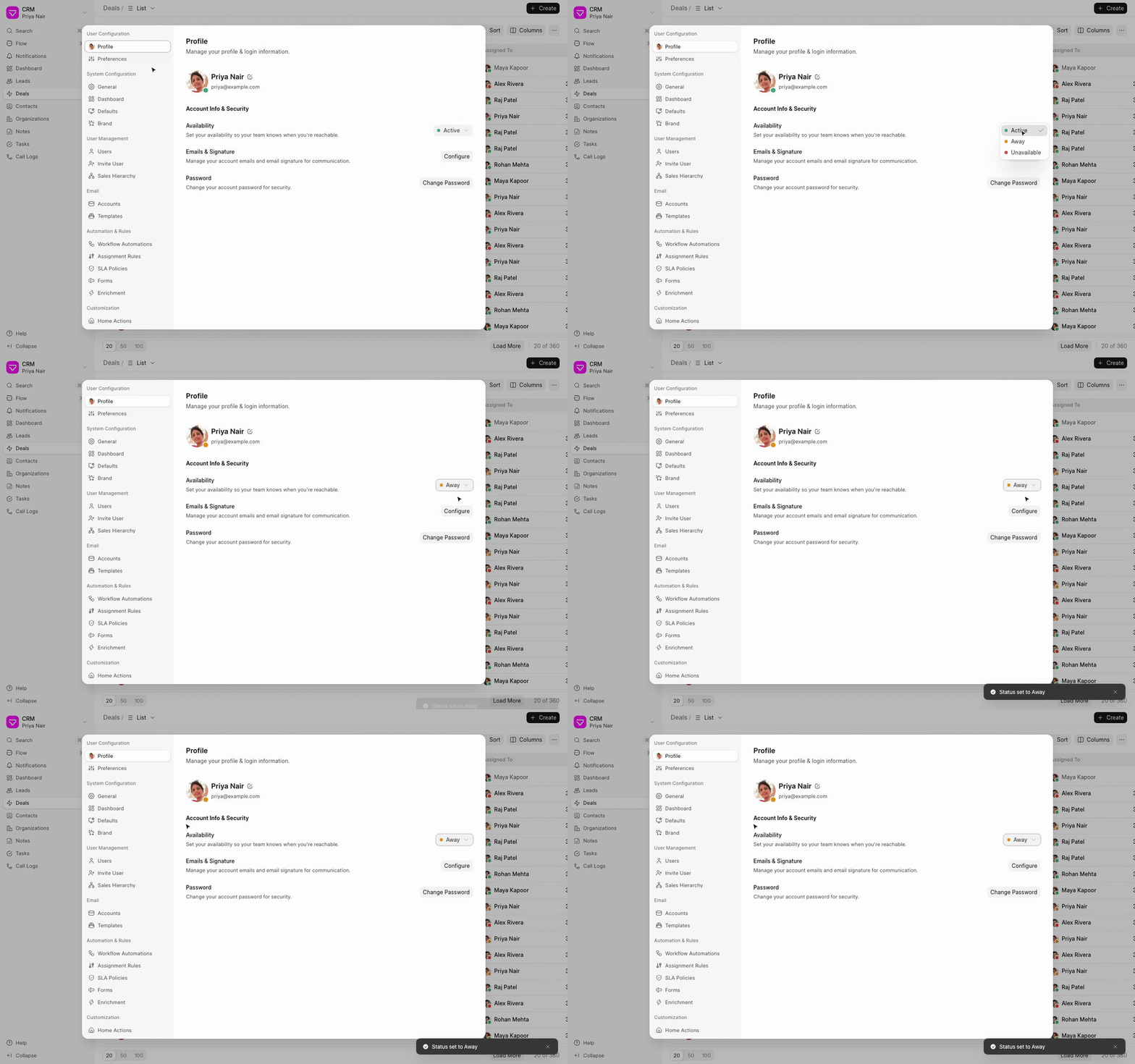 Changing your status in Settings > Profile
Out of the box, there are three statuses:
- Active (green) – You're working and can take on new leads and deals
- Away (amber) – You're around but not at your desk
- Unavailable (red) – You're off and shouldn't get new work
If you've never set a status, you count as Active.
Your status only changes when you change it. It doesn't switch to Away on its own.
Where the dots show
The dot shows on teammates' avatars across the CRM, including:
- Assigned users in the Leads, Deals and Tasks lists, and at the top of a lead or deal
- The Assign to dialog
- The activity timeline, notifications and @mentions
- The user list in Settings and inside Assignment Rules
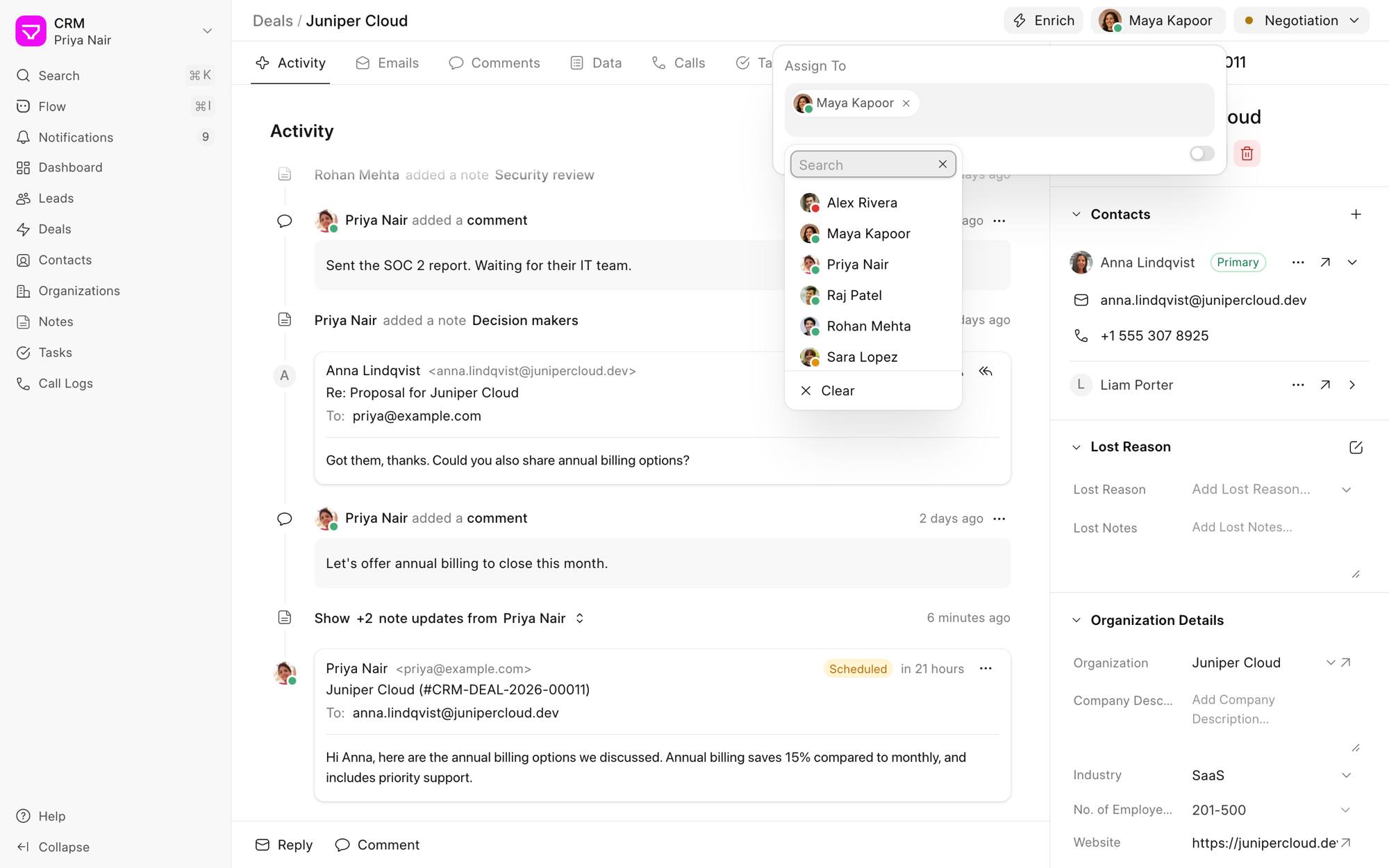 Availability dots in the Assign to dialog
When you assign a lead or deal to someone who is Away or Unavailable, you'll see a warning. The assignment still goes through.
How assignment rules use it
Assignment rules for leads and deals look at availability before they assign anything. Whether a rule uses Auto-rotate or Assign by workload, it picks from:
- Users in the rule who are Active
- If nobody is Active, users who are Active or Away
- If everyone is Unavailable, all users in the rule, so the record still gets assigned
This is always on. There's nothing to set up. Read more about Assignment Rules.
Adding your own statuses
You can add statuses like "In a meeting" or "On leave" from the desk. Go to CRM Availability Status (see how to open the desk) and create a new one. Each status has:
- Status – The name people see
- Category – Active, Away or Unavailable. This is what assignment rules look at
- Color – The colour of the dot
- Position – Where it shows in the list
- Enabled – Switch off a status to hide it. Anyone using it goes back to the default
You need the Sales Manager or System Manager role to add or change statuses. At least one enabled status has to be in the Active category.