

















Data Enrichment
Data enrichment fills in company details on a lead, deal or organization from the company's own website. It reads the website on the record and fills fields like the company name, logo, description, industry and social profile links. There's no API key to set up and no per-record cost.
Enriching a record
Open a lead, deal or organization that has a Website, and click Enrich in the top right.
Enrichment runs in the background. While it runs, the button shows Enriching… and the Data tab is locked so nothing you type gets overwritten. When it's done, you'll see a message listing the fields it filled.
Each field filled from the website gets a small lightning icon next to its label. The icon goes away once you edit that field yourself.
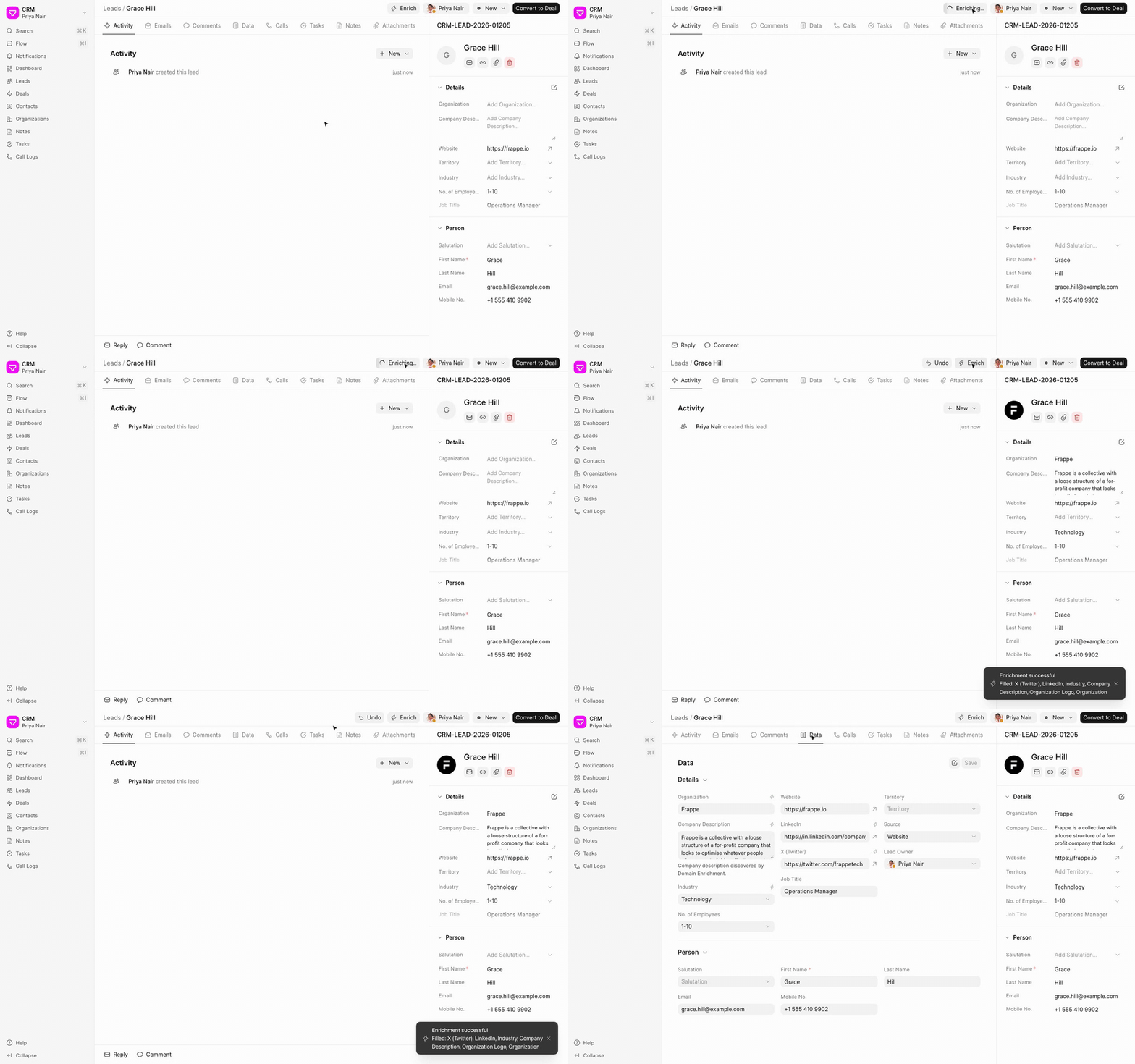 Click Enrich and the company details fill in from the website
If the record has no website, the button is disabled. Add a website first. If you have unsaved changes on the record, save them before enriching.
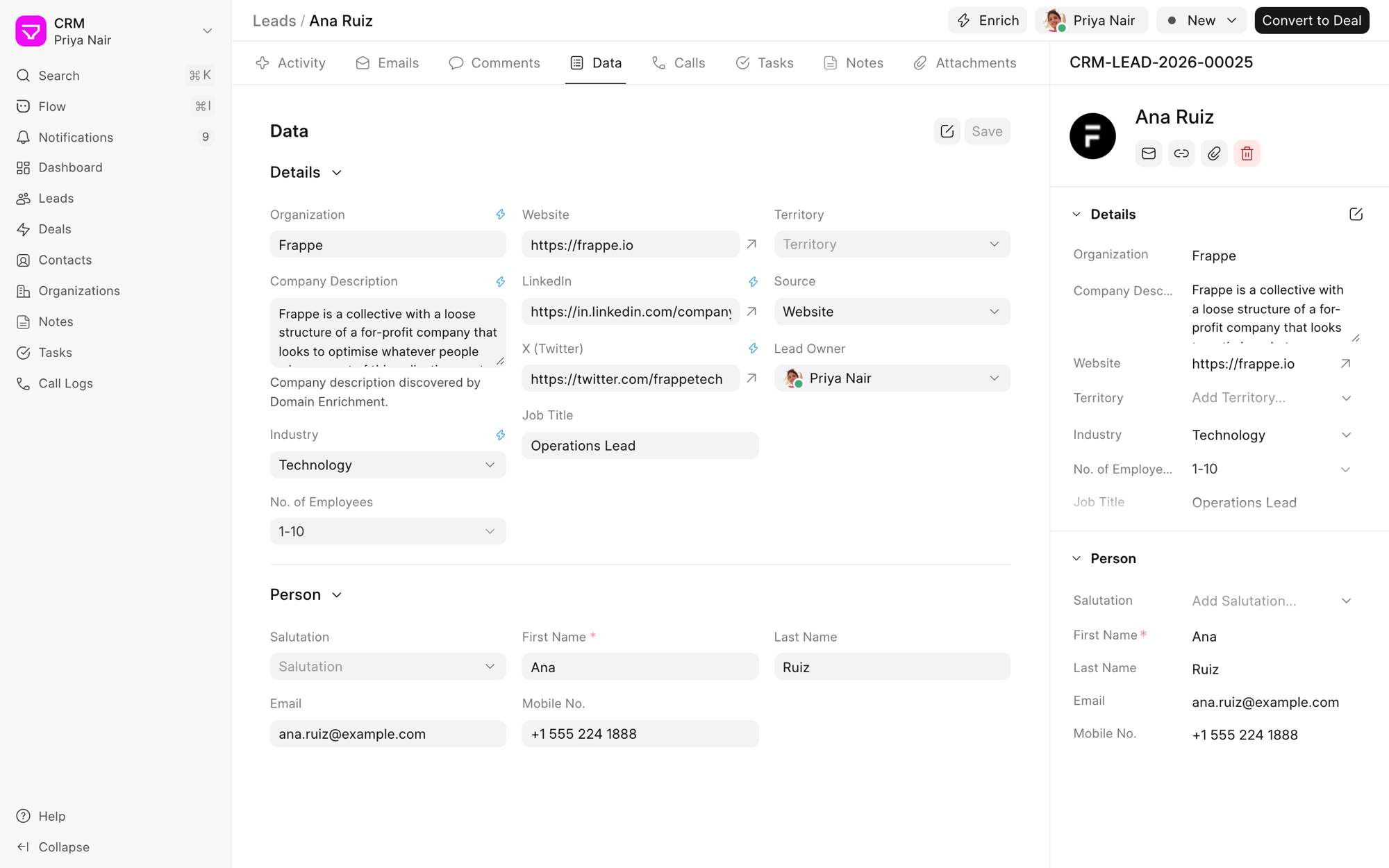 Fields filled from the website have a lightning icon
What gets filled
| Found on the website | Field on the record |
|---|---|
| Company name | Organization / Organization Name |
| Logo | Organization Logo |
| Description | Company Description |
| Industry | Industry |
| Social links | LinkedIn, X (Twitter), Facebook |
Enrichment only fills fields that are empty. If someone has already filled a field, it's left as it is.
If the industry it finds doesn't exist in your CRM yet, a new Industry is created (as long as you have permission to create one).
When you link a lead or deal to an organization that's already been enriched, the organization's details are copied into the empty fields on the lead or deal.
Undo
After an enrichment fills at least one field, an Undo button appears next to Enrich. Click it to put back the values the fields had before. Any field you edited after the enrichment keeps your edit.
Undo is only available until you refresh or leave the page, and only to the person who ran the enrichment.
Enriching again
Click Enrich on a record that's already been enriched, and you'll be asked to confirm. Enriching again can update fields with newer values from the website. If any of those fields were edited by hand and would be replaced, the dialog lists them.
When it can't read a website
Some websites can't be read. You'll see a message telling you why:
- The website timed out or refused the connection.
- The website is behind bot protection. Try the company's main domain instead (for example acme.com instead of shop.acme.com).
- The website builds its content with JavaScript, so only the title, description and logo could be read.
Enrichment settings
Go to Settings > Enrichment (under Automation & Rules). You'll need the Sales Manager or System Manager role to see it.
The General tab has:
- Enable enrichment – Turns enrichment on or off for leads, deals and organizations. It's on by default
- Maximum pages – How many pages of a website it reads in one run, from 1 to 20. The default is 10
- Auto-enrich new records – Enriches new leads, deals and organizations in the background as soon as they're created with a website. When this is off, use the Enrich button on the record
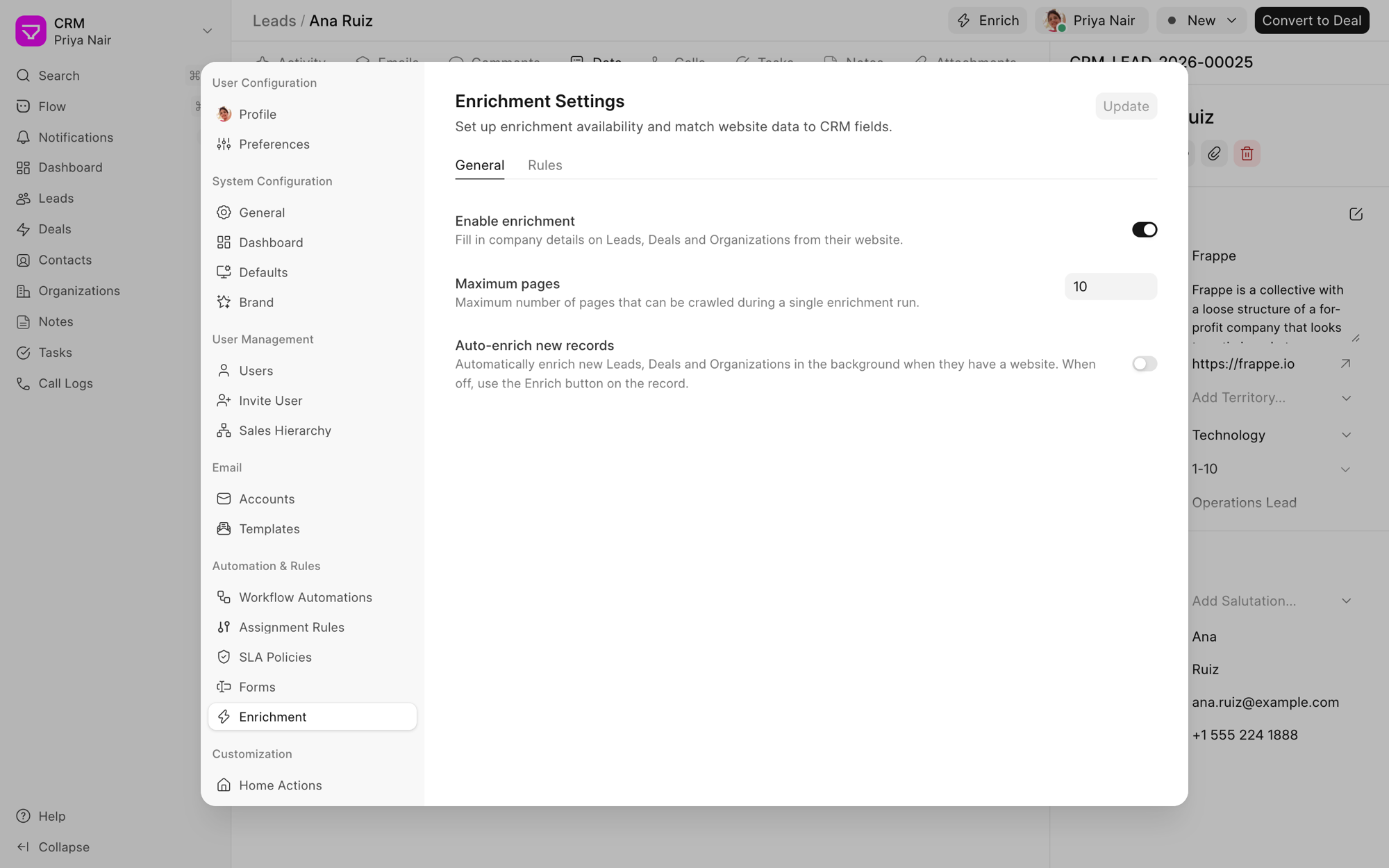 Enrichment settings, General tab
The Rules tab decides what enrichment looks for on a website:
- Social profile rules – Which profile links to pick up. Each rule has a platform and a pattern. LinkedIn, X (Twitter), GitHub, Facebook, Instagram and YouTube are set up for you. Click Add social rule to add another platform
- Industry rules – Which words on a website point to which industry. For example, words like "logistics" or "freight" can point to Logistics. Many common industries are set up for you. Click Add industry rule, choose an industry (or type a new one) and add keywords separated by commas
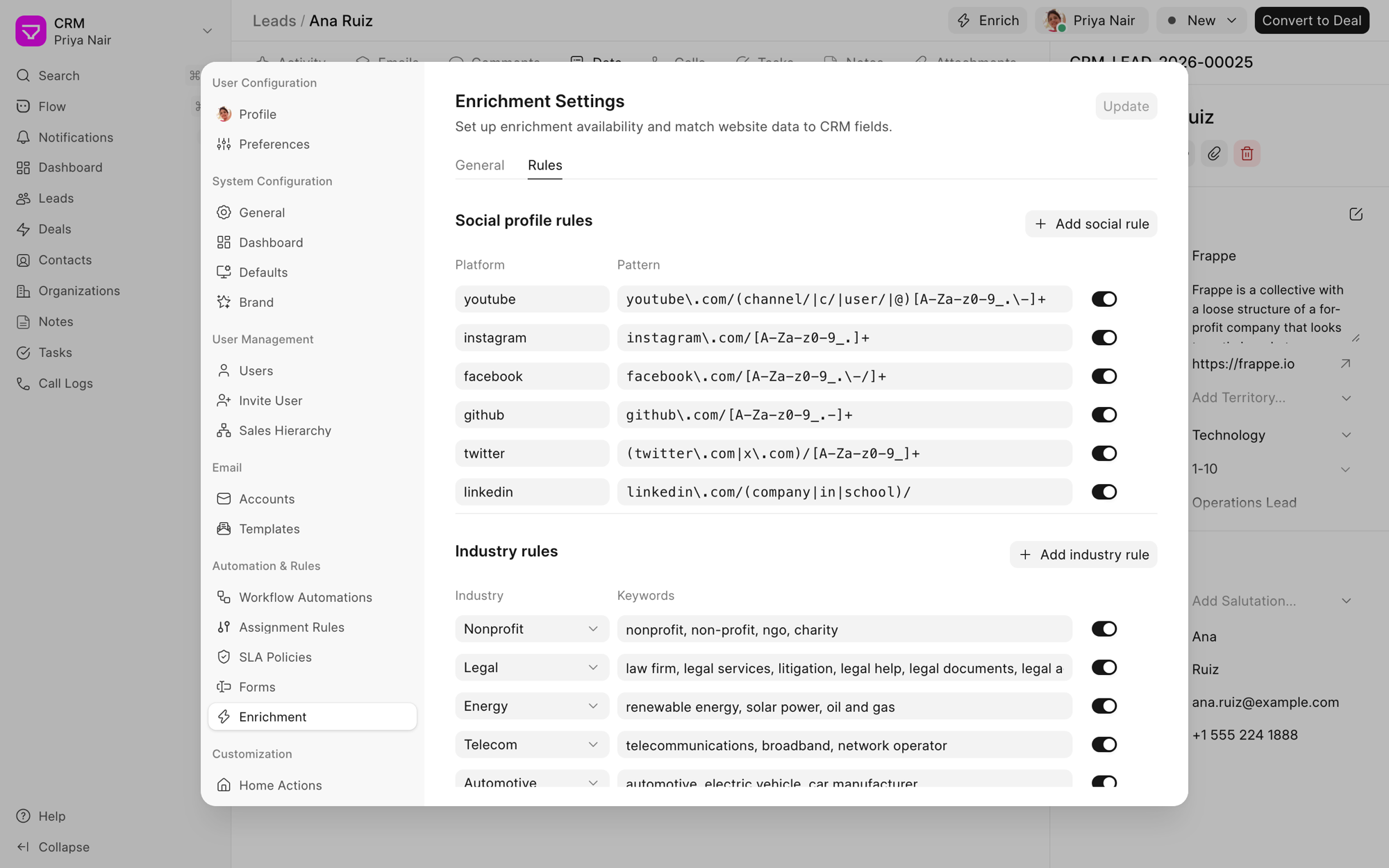 Enrichment settings, Rules tab
You can switch a rule off without deleting it. Click Update to save your changes.
Who can use it
Anyone who can edit the record can enrich it. Each person can run up to 10 enrichments a minute.