

















Importing Data
If you already have leads, deals, contacts or organizations in a spreadsheet, you can bring them into Frappe CRM in one go. You can import a CSV or Excel file, or a Google Sheet.
Starting an import
Open the list you want to import into, for example Leads. Click the ... menu at the top of the list and choose Import. (The option isn't there in Kanban view, so switch to List first.)
You can import leads, deals, contacts, organizations, tasks and call logs.
The steps below are for version 16. On version 15, Import opens the older import page, where you upload a file, map the columns and start the import on a single page.
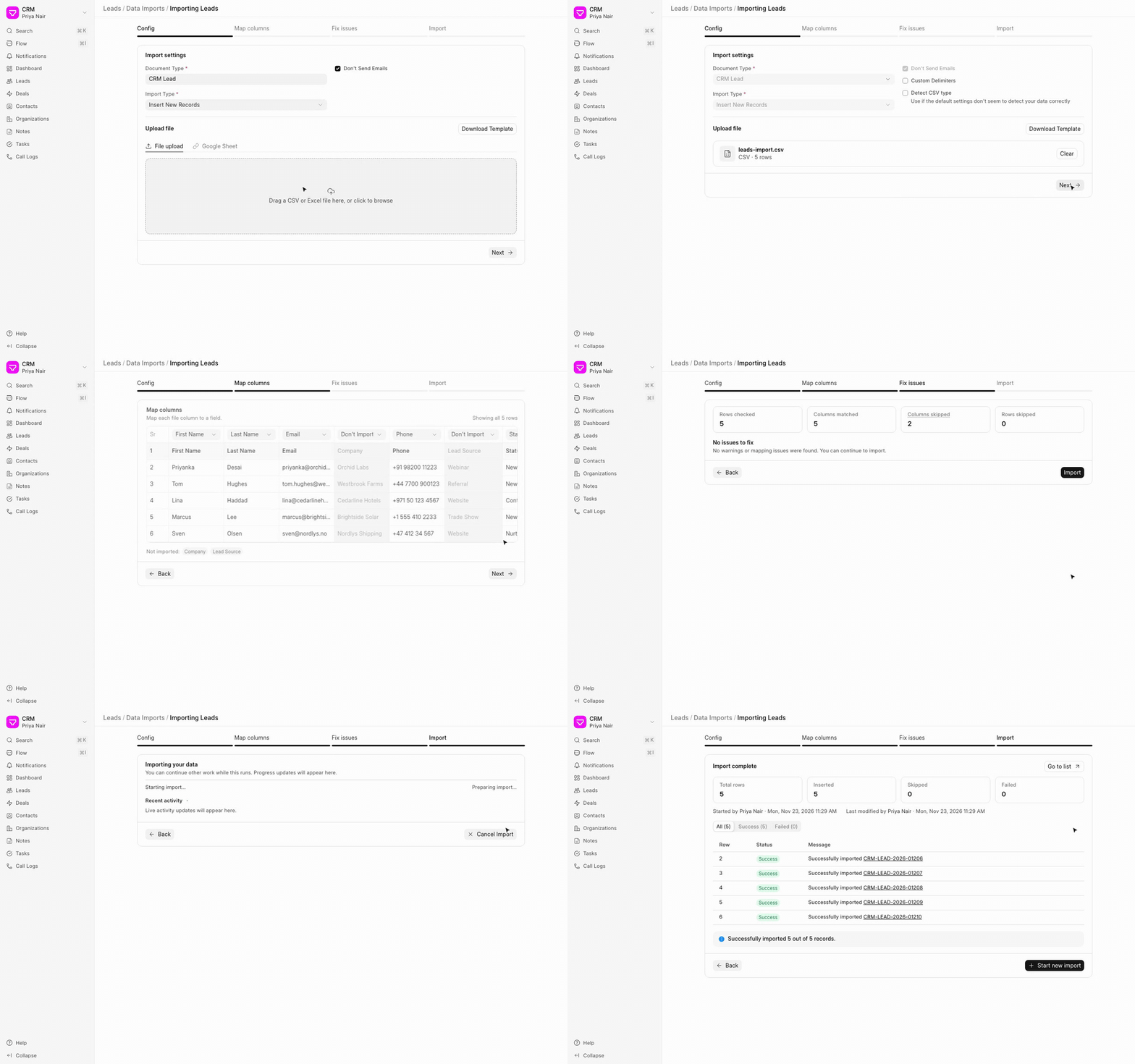 Importing five leads from a CSV file
Step 1: Upload your file
Choose whether to Insert New Records or Update Existing Records.
If you're not sure how to lay out your file, click Download Template. You'll get a file with the right columns that you can fill in.
Then drag your CSV or Excel file into the box, or switch to Google Sheet and paste the link. The sheet has to be shared publicly.
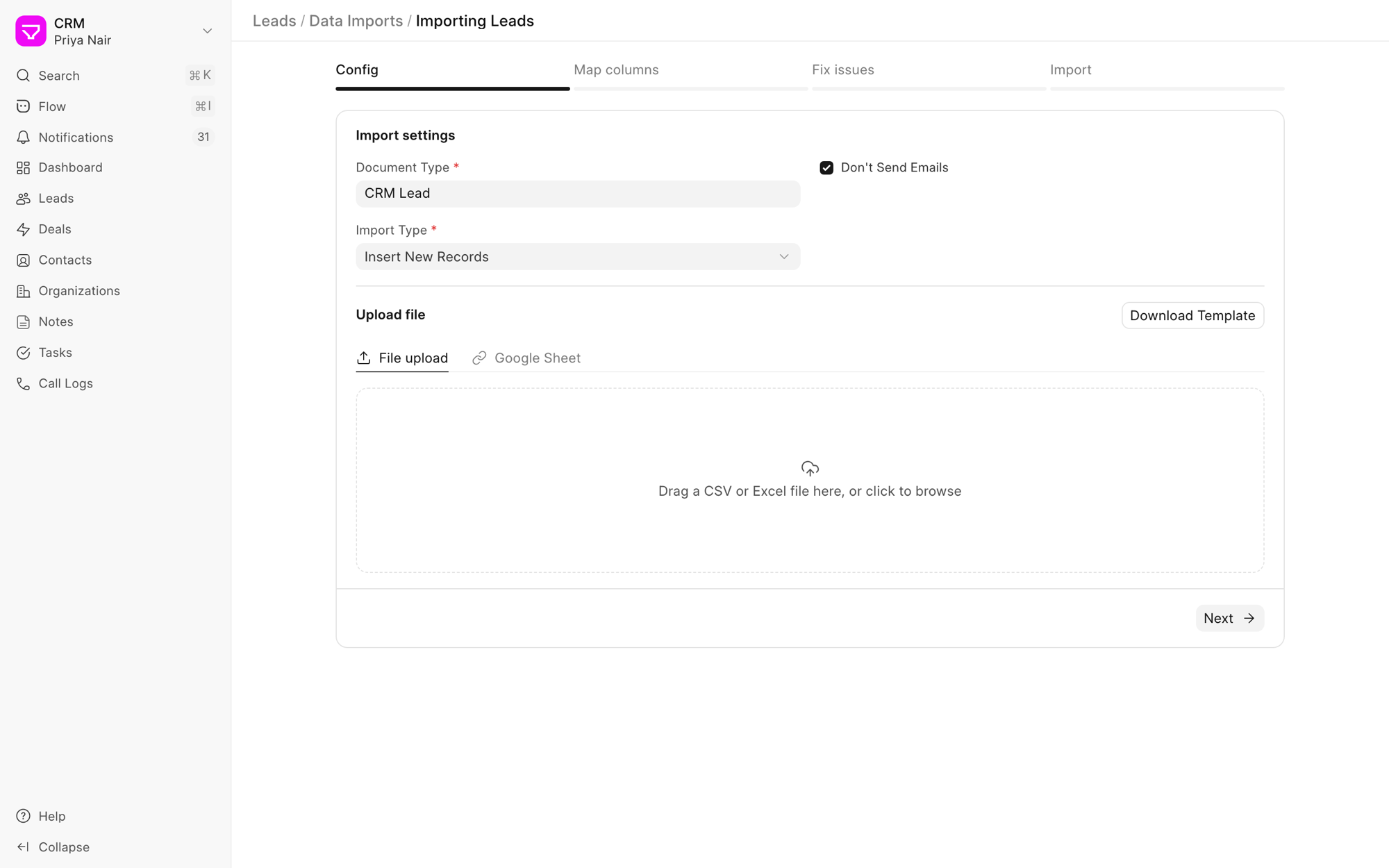 Step 1: choosing the import type and uploading a file
Step 2: Map your columns
Each column in your file is matched to a field in the CRM. Check the matches and change any that are wrong. Columns you don't need can be skipped. If your file has dates, pick the date format it uses.
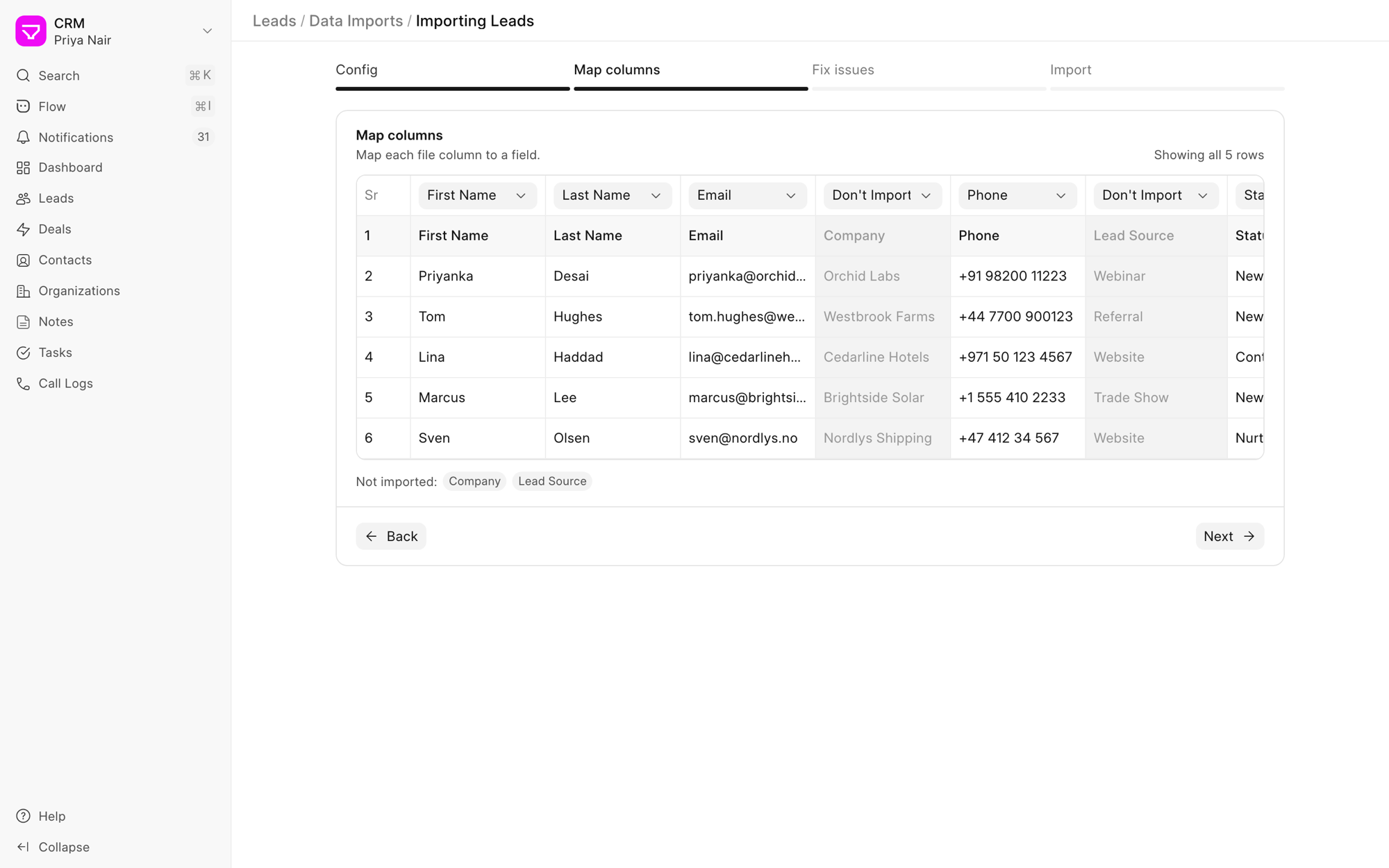 Step 2: matching file columns to CRM fields
Step 3: Fix issues
Before anything is imported, every row is checked. You'll see how many rows and columns are fine, and a list of anything that needs attention:
- Row errors – Rows that can't be imported as they are, for example because a required field is missing. You can fix the file and upload it again, or skip those rows
- Mapping warnings – Values in your file that don't exist in the CRM yet, like a lead source or territory. You can map them to an existing value or create them
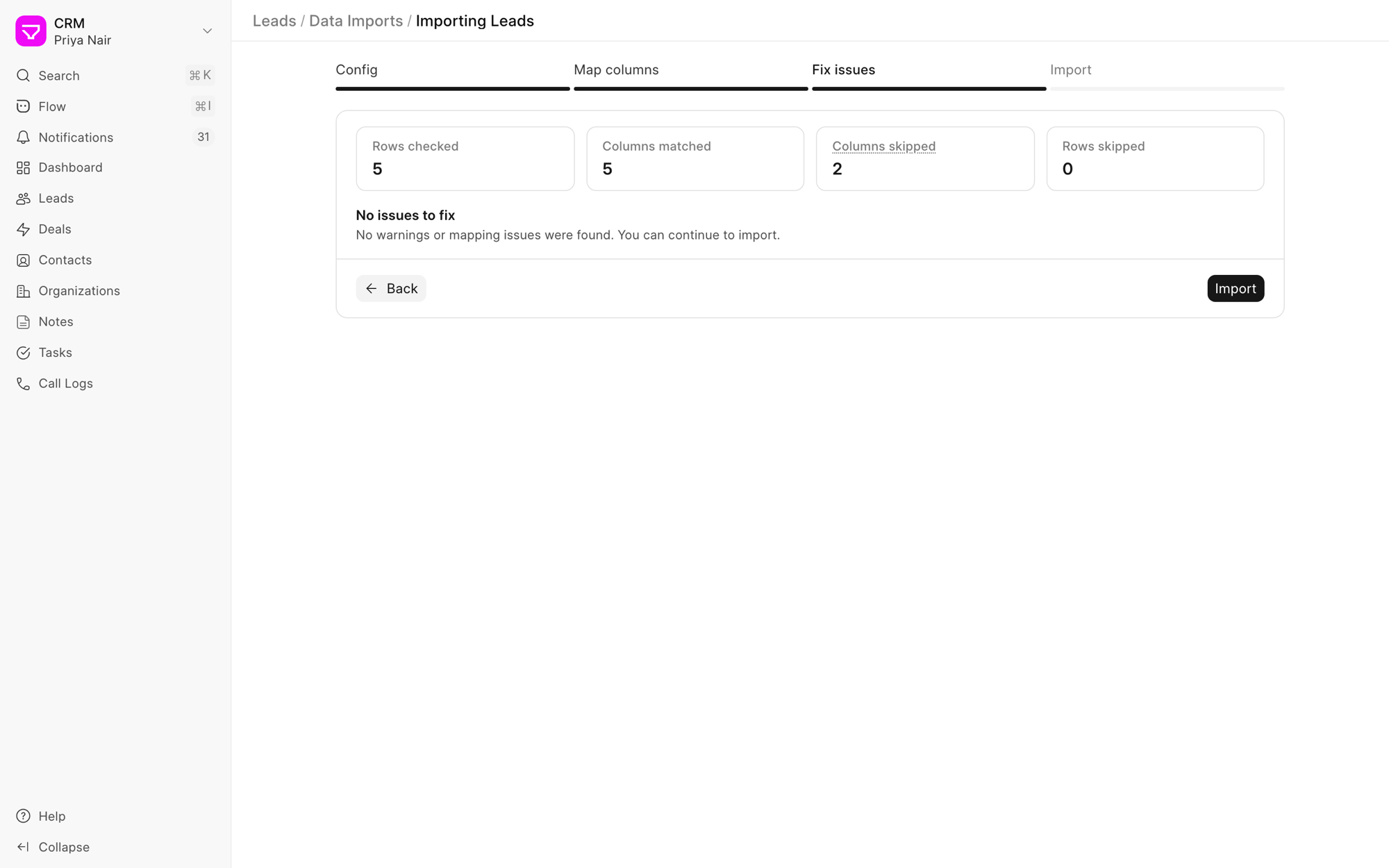 Step 3: the check before importing
Step 4: Import
Click Import. You'll see the progress row by row, and a summary at the end of what was inserted, updated or skipped.
If some rows failed, click Download Failed Rows, fix them and import that file. Click Go to list to see the records you just imported.
Your imports
All your imports are listed on the Data Imports page, with their status: Pending, In Progress, Success, Partial Success, Error or Timed Out. You can get to it from the breadcrumb at the top of any import. Click an import to see its details or carry on where you left off.
On version 16, Sales Managers and Sales Users can import records, and Sales Users only see the imports they started. On version 15, importing needs the System Manager role.