
Ways to Import Data
Import from Google Sheets
You can import data directly from Google Sheets by following these steps:
- Upload or copy your template into Google Sheets.
- Enter or update your data in the sheet.
- Ensure the Google Sheet is set to Public access.
- Once confirmed, use the Google Sheets link in the Data Import page to proceed with the import.
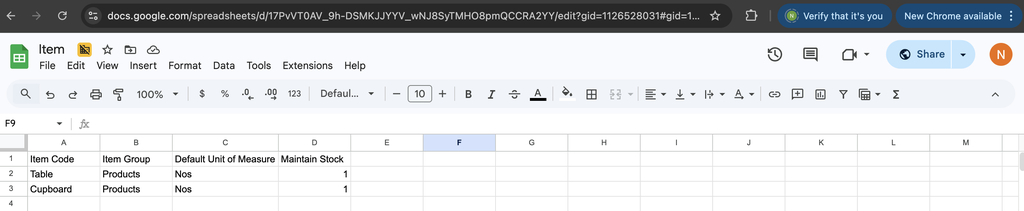 Google sheet Data File
Important:To verify that the sheet is publicly accessible, open the Google Sheets URL in an incognito/private browser window. If the file opens without requiring login access, it is correctly configured.
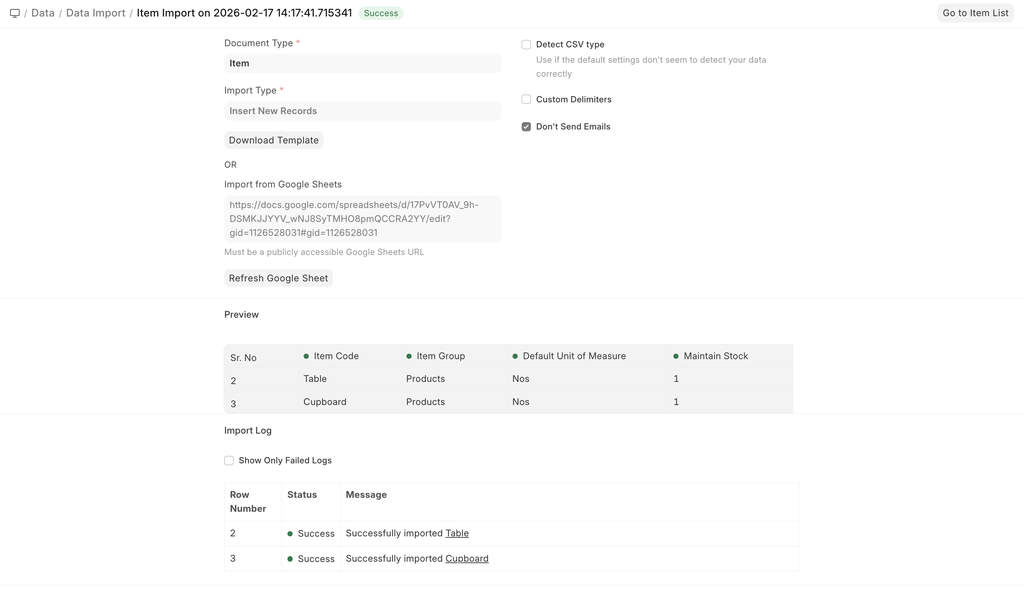 Post Import using google sheets
Import from the file system
- On the Data Import Page, there are two available options:
- Attach File
- Import Using Google Sheets
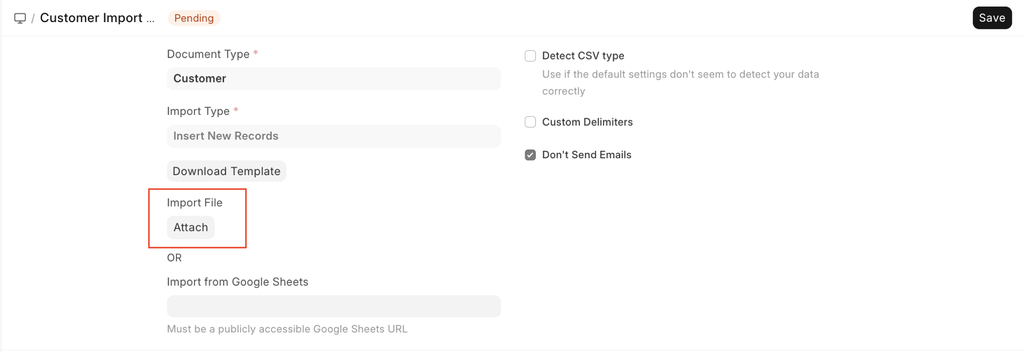
- After clicking Attach, you will see multiple upload options:
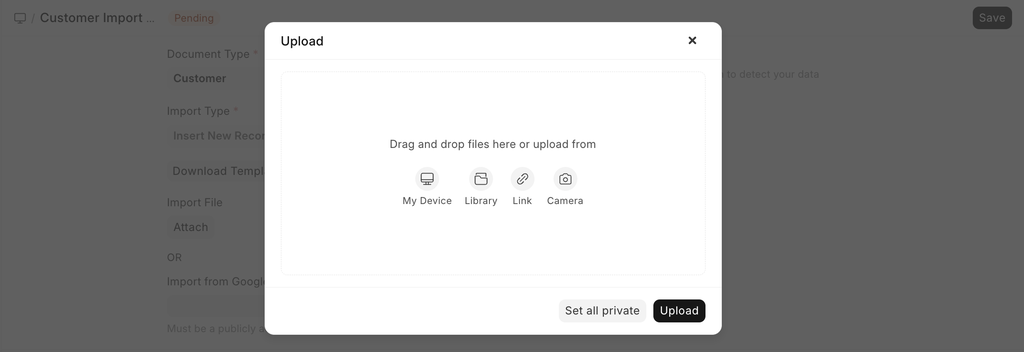
- Available Upload Options
- My Device
Upload a file directly from your local computer. - Library
Select a file that has already been uploaded and stored in the system’s file library. - Link
Provide a direct web URL to a file hosted online.
- Choose the appropriate option based on where your file is stored, then proceed with the upload.
Submit After Import
In ERPNext document types are mainly of two types - masters and transactions. The masters are records like Customer and Task which can only be saved not submitted. Transactions like Sales Orders, Purchase Invoices are submittable documents and can be submitted.
When you select a submittable document type for Import, you can tick Submit After Import to submit the document after it is imported.
Don't Send Emails
Let's say you have created a Notification in your system and whenever a Lead is created an email is sent. Now, if you are bulk importing Leads then a lot of emails will be sent, which may not be desired. You can disable this option to avoid sending emails.
Additional Notes
Upload Limit
There is no hard limit on the number of records that can be imported. But you must try and upload only a few thousand records at a time. Importing a large number of records (let's say 50,000) might slow down the system considerably for the users that are using the system.
CSV Files
A CSV (Comma Separated Value) file is a data file that you can upload into ERPNext to update various data. Any spreadsheet file from popular spreadsheet applications like MS Excel or Open Office Spreadsheet can be saved as a CSV file.
If you are using Microsoft Excel and using non-English characters, make sure to save your file encoded as UTF-8.
For older versions of Excel, there is no clear way of saving as UTF-8. So save your file as CSV, then open it in Notepad, then save as “UTF-8”. (Or upgrade your Excel!)