
Asset Capitalization
Asset Capitalization is a transaction used to combine stock items or existing Assets into a new composite Asset and capitalize all related costs.
Example Scenario
A company is building a new production line. The production line consists of:
- Conveyor Belt (Stock Item)
- Industrial Motor (Stock Item)
- Control Panel (Stock Item)
- Installation Charges (Service Expense)
Instead of tracking these separately, the company wants to create a single Asset called “Production Line – Plant A” and capitalize all component and service costs into one composite Asset.
Asset Capitalization allows you to:
- Combine multiple stock items into one Asset
- Capitalize service and installation costs
- Merge multiple existing Assets into one new Asset
- Automatically generate the correct accounting entries
To access the Asset Capitalization feature, go to:
Home > Assets > Maintenance > Asset Capitalization
1. Convert Stock Items into a New Composite Asset
This is used when building a new Asset from inventory items.
1.1 Steps
- Go to Asset Capitalization and click New.
- Select the Target Asset (new composite Asset).
- Update if required:
- Naming Series
- Company
- Finance Book
- Posting Date
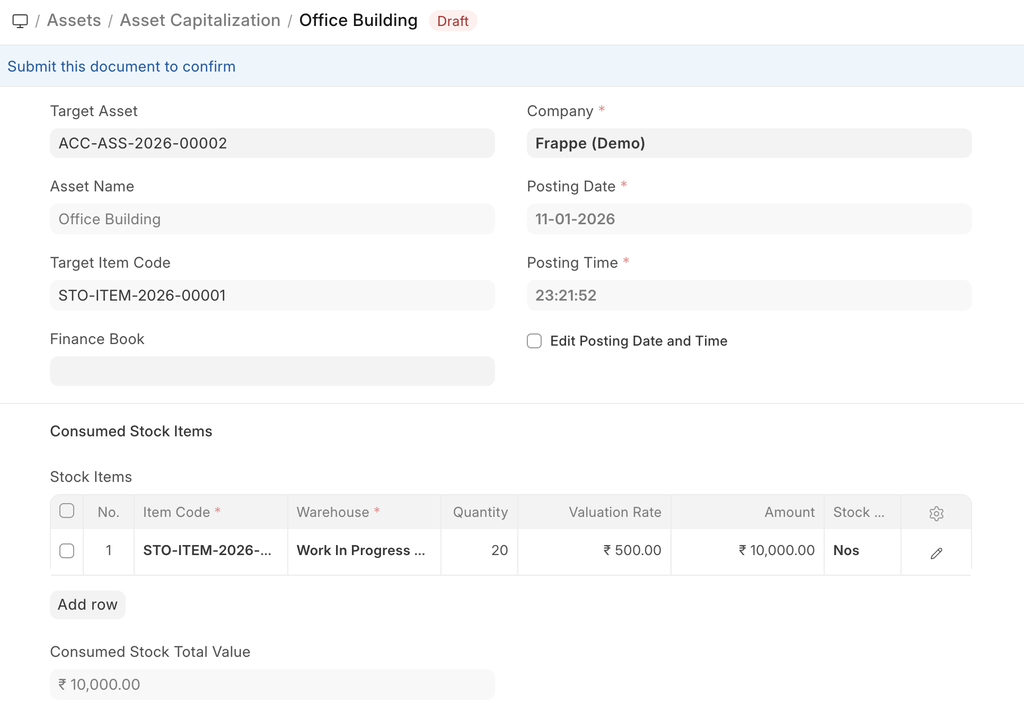
- In the Consumed Stock Items table:
- Add stock items
- Select Quantity and Warehouse
- Click Save and Submit.
- Open the newly created Asset.
- Set Depreciation Details (if applicable).
- Submit the Asset.
1.2 Accounting Effect
- The Consumed Stock Items will be reduced by the selected qty from the selected warehouses and the Warehouse Stock Accounts will be credited with the issued stock value amount.
- The system will first check if the target asset is in CWIP (Capital Work in Progress). If so, the CWIP account will be debited by the total value.
- Upon submission of the target asset, the CWIP account will be credited, and the corresponding Fixed Asset account will be debited.
2. Convert Stock Items and Capitalize Service Expenses
This scenario includes service-related costs.
2.1 Steps
In addition to Consumed Stock Items, add:
- Service Expenses
- Corresponding Expense Accounts
2.2 Accounting Effect
- Service Expense Accounts are credited.
- Total Asset value includes:
- Stock item value
- Service expenses
All costs are capitalized together.
3. Convert Existing Assets into a New Composite Asset
Used when multiple Assets are merged into one.
3.1 Steps
- Create a new Asset Capitalization.
- Select the Target Asset.
- Adjust Company, Finance Book, and Posting Date if required.
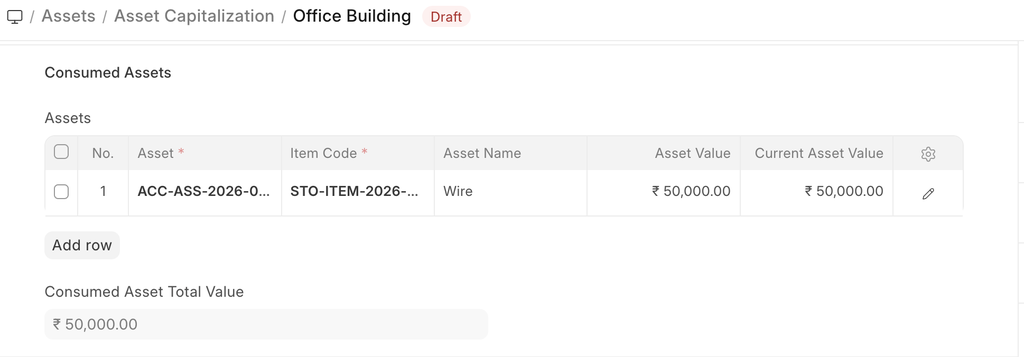
- Add Assets in the Consumed Assets table.
- Click Save and Submit.
- Set depreciation details for the new Asset.
- Submit the Asset.
3.2 Accounting Effect
When submitted:
- Consumed Assets are depreciated up to the Posting Date.
- Depreciation Journal Entries are created automatically.
- Asset status changes to Capitalized.
- Fixed Asset Accounts of consumed Assets are credited.
- If CWIP is used:
- CWIP is debited initially.
- On final submission, CWIP is credited and Fixed Asset account is debited.
4. After Submitting
After completing Asset Capitalization:
- Stock quantities are reduced.
- Depreciation entries (if required) are posted.
- GL Entries are created automatically.
- The new composite Asset is ready for depreciation.