Depreciation Methods
Depreciation in ERPNext is the systematic allocation of an asset’s cost over its useful life.
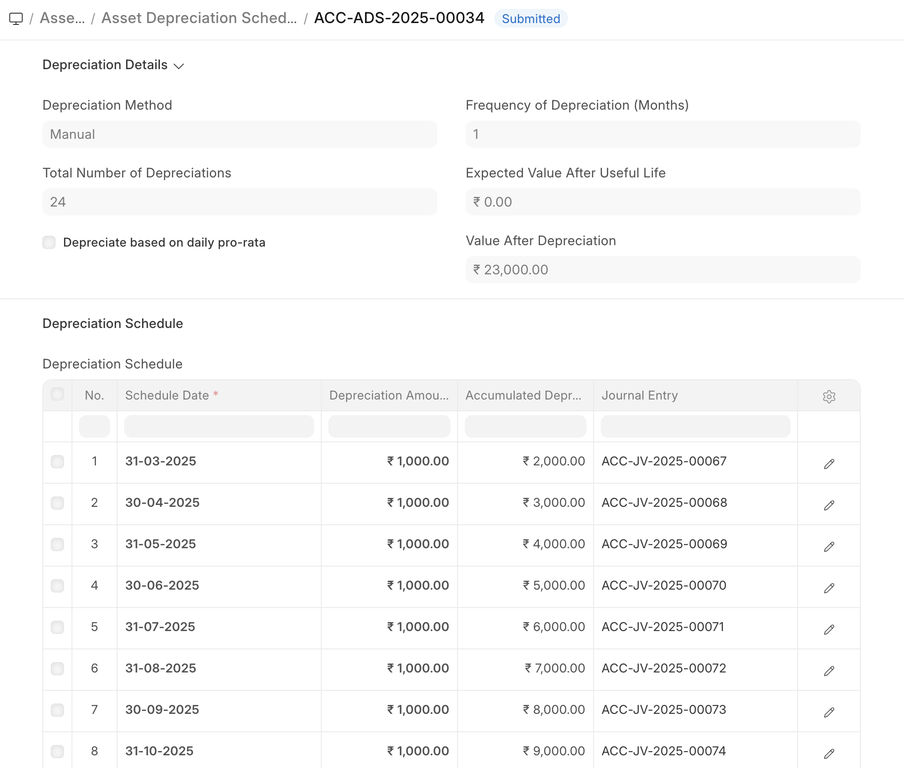
The system automatically generates a depreciation schedule based on the Depreciation Method, Total Number of Depreciations, and other inputs such as the Available-for-Use Date in the Asset record. Multiple schedules can also be created for different Finance Books.
Note: To generate a depreciation schedule automatically, ensure that ‘Calculate Depreciation’ is enabled while creating the asset.
1. Depreciation Methods in ERPNext
1.1 Straight Line
- The asset value is reduced uniformly over its useful life until it reaches its salvage value.
- Useful when depreciation occurs evenly over time.
Example:
If an asset costs 1,000 and its salvage value is 500 after 5 years, depreciation would be 100 per year.
Additional Options:
- Depreciate based on daily pro-rata: Adjust depreciation based on the number of days in a month.
- Depreciate based on shifts: Adjust depreciation based on asset usage per shift. Define shift factors in Asset Shift Factor and allocate them using Asset Shift Allocation.

1.2 Double Declining Balance
- Also called 200% declining balance.
- Depreciates faster in the initial years and slows down later.
Example:
If an asset costs 100,000 and its salvage value is 11,000 after 8 years, depreciation in early years will be higher than in later years.

1.3 Written Down Value (WDV)
- Depreciation is applied to the current written down value of the asset each period.
- Useful for assets that lose more value in the initial years.
Example:
If an asset costs 1,000 with a depreciation rate of 40% over 5 years, each year the depreciation is 40% of the remaining value.

1.4 Manual
- The system generates a default schedule based on asset details.
- You can edit dates and depreciation amounts manually for any period as needed.
2. Automatic Depreciation Entries
- Enable automatic depreciation in Accounts Settings to post entries automatically on scheduled dates.
- Otherwise, create entries manually using the Make Depreciation Entry button in the Depreciation Schedule row.
The related accounts can be set in the Asset Category or Company.
3. Accounting Entries on Depreciation
When depreciation is posted:
- Accumulated Depreciation Account is credited
- Depreciation Expense Account is debited
The related accounts are defined in the Asset Category or Company master.
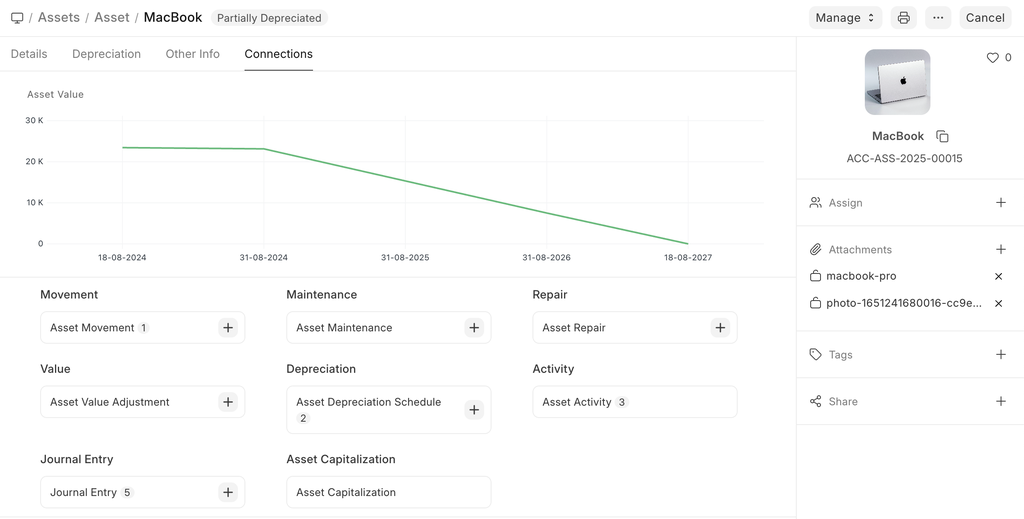
4. Asset Value Chart
- ERPNext displays the net value of the asset over different depreciation dates in a line chart for better visualization.