Asset Movement is a transaction used to transfer an Asset between locations and/or employees (custodians).
This feature helps you track the physical movement and custody of Assets within your organization. You can move an Asset from one warehouse to another, assign it to an employee, or record its return.
For example, a laptop can be issued from the Head Office location to an employee in the Sales department, and later transferred back to Stores when returned.
To access the Asset Movement list, go to:
Home > Assets > Assets > Asset Movement
1. How to Create an Asset Movement
- Go to the Asset Movement list.
- Click on New.
- Select the Purpose.
- Enter the required details.
- Click Save and Submit.
Asset Movement is a transaction and must be submitted to update the Asset’s location or custodian.
2. Features
2.1 Purpose of Asset Movement
The Purpose field determines what type of movement is being performed. Based on the selected purpose, the mandatory fields will change.
- Transfer: Move an asset from one location to another location.
- Example: Transfer a molding machine from “Plant A” to “Plant B”.
- Issue: Move an asset from one employee to another employee
- Example: Issue a company laptop from Stores to John Carter (Sales Executive).
- Receipt: Move an asset from an employee back to a location.
- Example: Receive a laptop from an employee who has resigned and move it back to Stores.
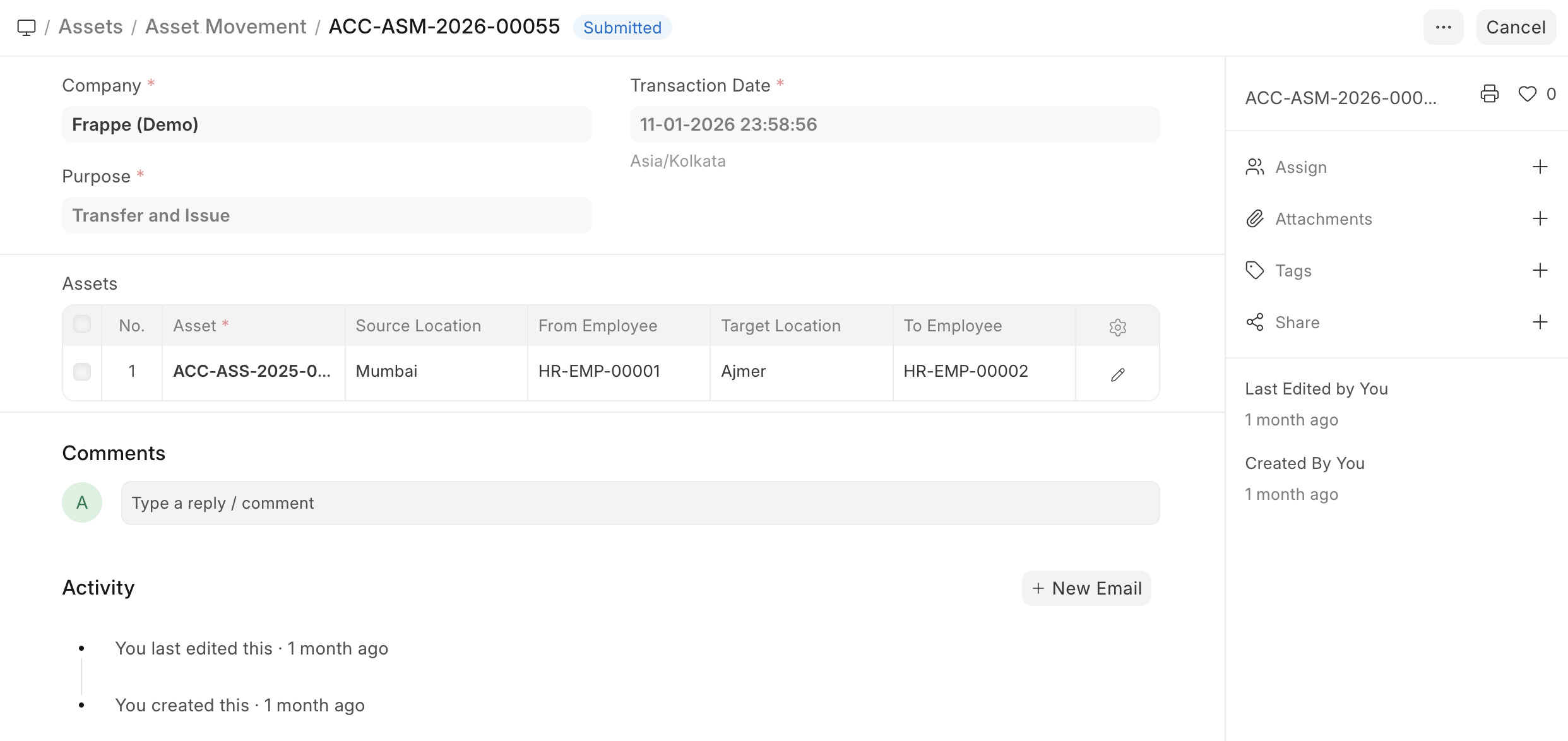
- Transfer and Issue: An asset from one location to another location, and from one employee to another employee, all in a single entry.
This is useful when an Asset changes both physical location and custodian at the same time.
3. Moving Multiple Assets at Once
If you want to move multiple Assets together:
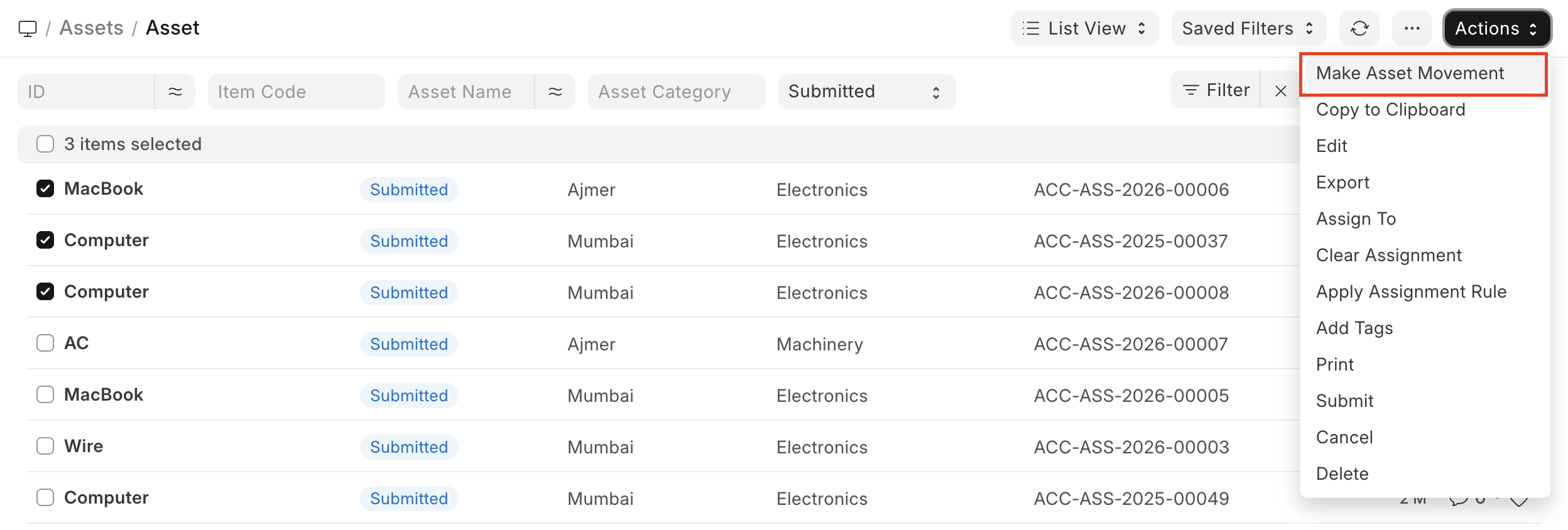
- Go to the Asset List.
- Select multiple Assets using the checkboxes.
- Click Actions (top right).
- Select Make Asset Movement.
This creates a new Asset Movement with the selected Assets pre-filled.
4. Initiating Asset Movement from Asset Form
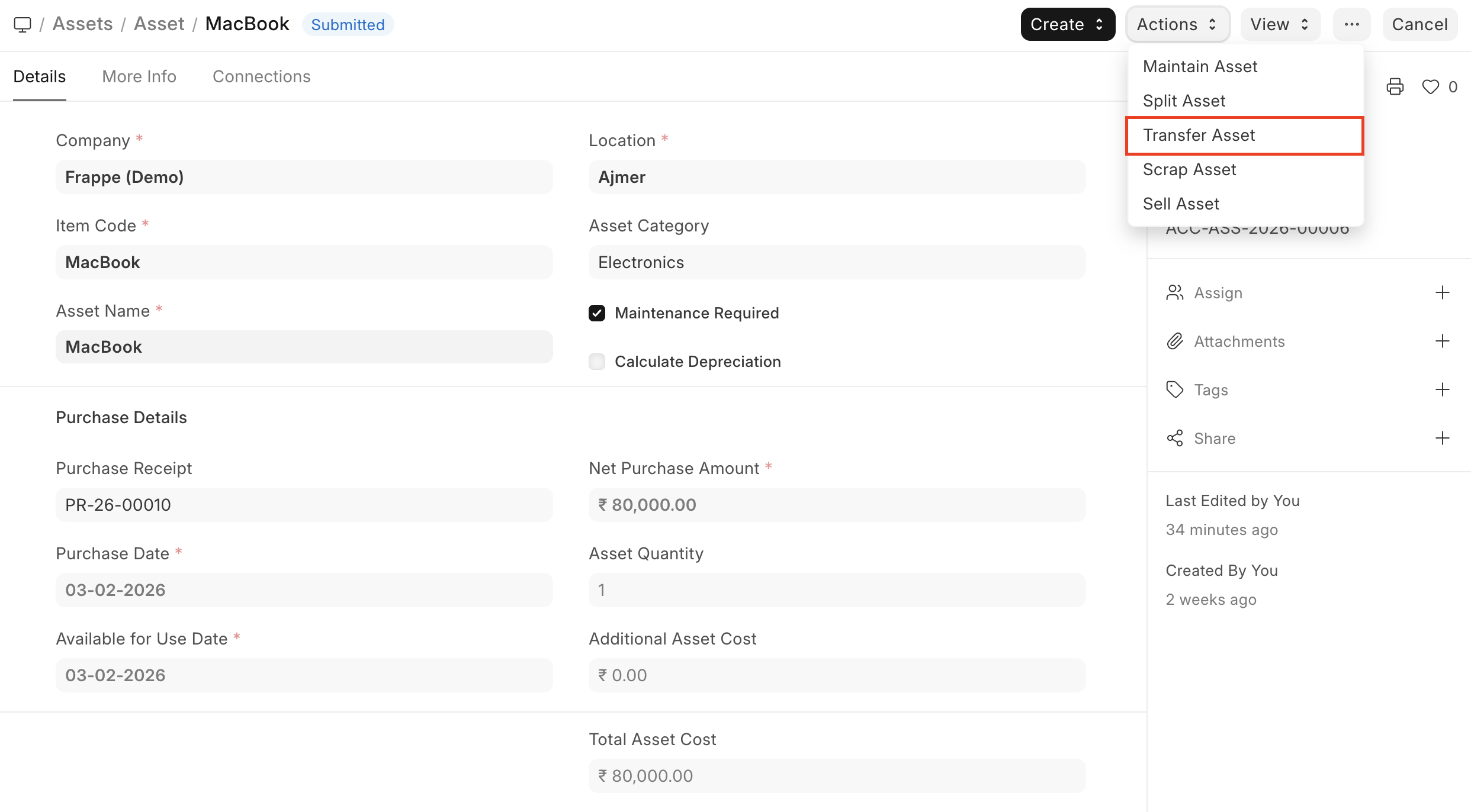
There is also a Transfer Asset option in the Action dropdown on the top right of the Asset form to initiate Asset Movement. It auto fills available fields from Asset Form.