
Asset Category classifies different assets of a company and sets default accounting and depreciation rules for them.
The Asset Category DocType helps organize similar assets under a single classification and simplifies asset management. For example, all desktops and laptops can belong to an Asset Category called “Electronic Equipment”. Each category can have default depreciation methods, accounting settings, and cost centers, which are automatically applied to all assets in that category.
To access the Asset Category list, go to:
Home > Asset > Assets > Asset Category
1. Prerequisites
Before creating an Asset Category, it is advised to:
- Create a Company
2. How to create an Asset Category
- Go to the Asset Category list and click New.
- Enter a Name for the category.
- Configure optional depreciation and accounting details as needed.
- Click Save.
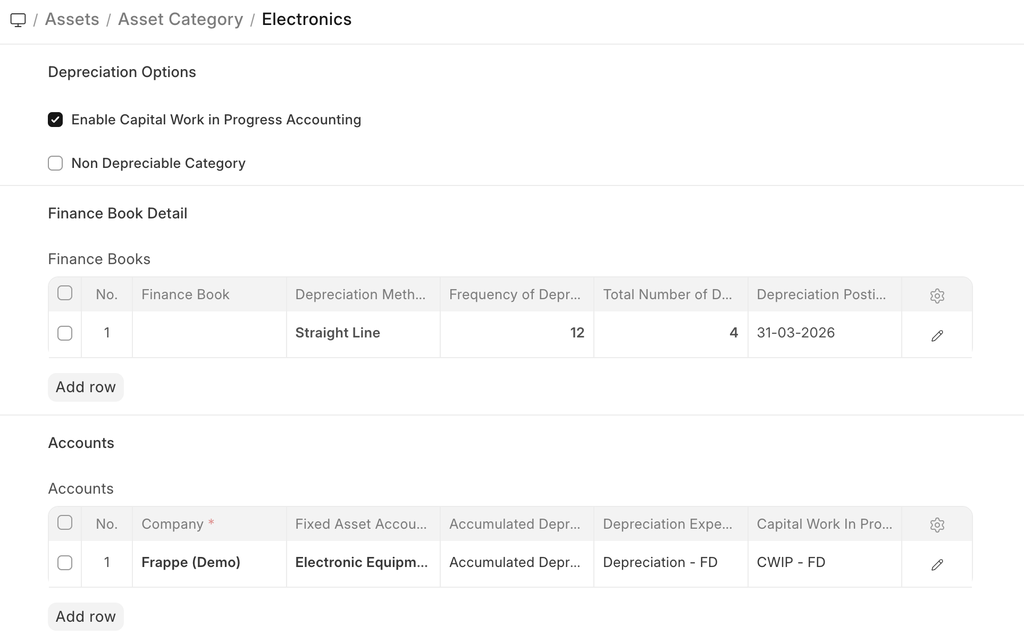 Asset Category
2.1 Additional options when creating an Asset Category
- Enable Capital Work in Progress Accounting: On enabling this, accounting entry for assets under this category which are not in use are posted in the Capital Work in Progress accounts. This happens when you own the Asset but it isn't being used yet, i.e. 'Available for Use Date' is set at a later date. If you use all your assets immediately, disable this feature. On disabling this, CWIP accounting will be skipped.
- Non Depreciable Category: On enabling this, depreciation is skipped for assets under this category. Depreciation-related account fields are not required, and no depreciation schedule is generated. Use this for assets like land or other non-depreciable items. Disable if depreciation should apply.Features
3 Features
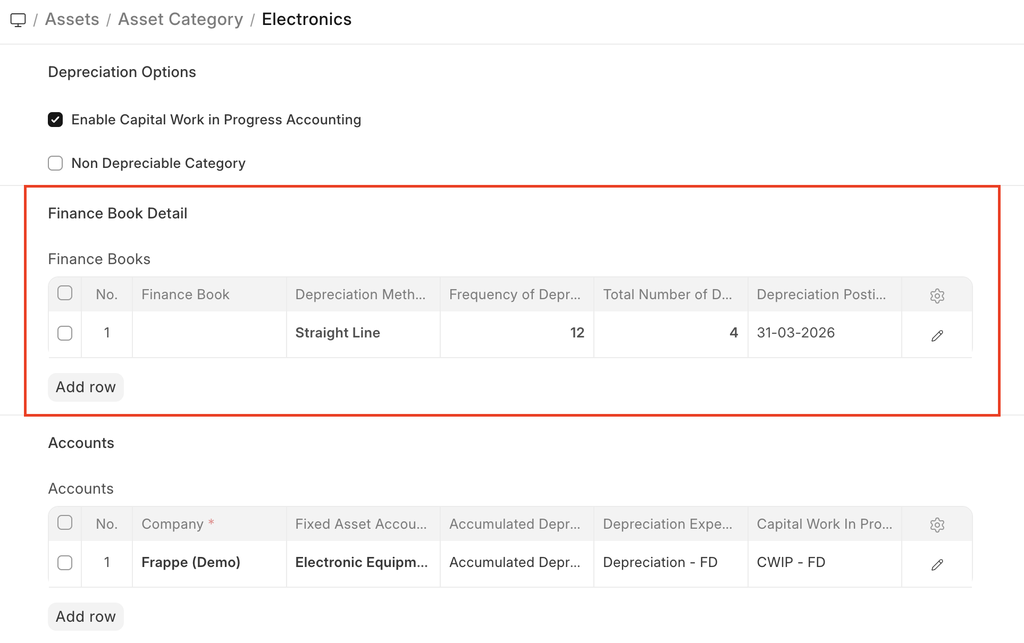
3.1 Finance Book details
You can link a Finance Book if you report depreciation in different ways. You can enter the following fields:
- Depreciation Method: Choose a depreciated method on which you'll record the depreciation of assets in this category. To know more, visit this page.
- Frequency of Depreciation (Months): The number of months within which the depreciation will be booked. The asset may be scrapped after this period.
- Total Number of Depreciations: The number of deprecations to be booked in the selected time frame.
- Rate of Depreciation: The rate of deprecation applied over the selected period. This will be calculated based on the Depreciation Method selected.
3.2 Accounting Details
The following account details can be set to record asset values in the ledger:
- Company
- Fixed Asset Account
- Accumulated Depreciation Account
- Depreciation Expense Account
- Capital Work In Progress Account
4. After Creating an Asset Category
Once created, you can:
- Create new Assets under this category.
- Track depreciation, maintenance, transfers, or disposal using the Asset module.