

















POS Invoice Consolidation
The Point of Sale can create either a Sales Invoice or a POS Invoice for every order, based on the Invoice Type Created via POS Screen setting in POS Settings. POS Invoice consolidation applies when this setting is set to POS Invoice, which is recommended for high-volume transactions.
Note: The Invoice Type in POS Settings cannot be changed while any POS Opening Entry is open. Close all open POS sessions before changing it.
When the POS creates POS Invoices, the sales from the POS session do not affect the stock and accounting ledgers until a POS Closing Entry is submitted for that session. It functions like so:
- Each transaction from the POS screen creates an intermediate invoice (called a POS Invoice) which doesn't update the stock and accounting ledgers to keep it as fast as possible. This is also called a "sub-ledger". Separating the POS ledger from the General Ledger makes the system a lot more scalable.
- The stock and accounting entries are created at the end of the day while closing a POS session, by a single Sales Invoice which merges all the intermediate invoices created throughout the session. The status of the merged POS Invoices changes to Consolidated.
- This single consolidated Sales Invoice only creates a few ledger entries, instead of a set of ledger entries for every invoice created throughout the day.
- Since drastically fewer ledger entries are made, the load on the general ledger is also eased, making it faster.
If there are more than 10 invoices while closing a POS, the consolidation takes place in a background job. Any small difference due to precision loss while consolidating is written off up to the Write Off Limit set in the POS Profile.
When the POS creates Sales Invoices directly, each invoice updates the stock and accounting ledgers as soon as it is submitted, and no consolidation takes place on closing.
How Stock is Tracked Until a POS Session is Closed
While the Stock Ledger excludes POS Invoices from any open POS session, the quantities from this "sub-ledger" are shown in the Reserved for POS Transactions column of the Stock Projected Qty report.
Stock > Stock Reports > Stock Projected Qty
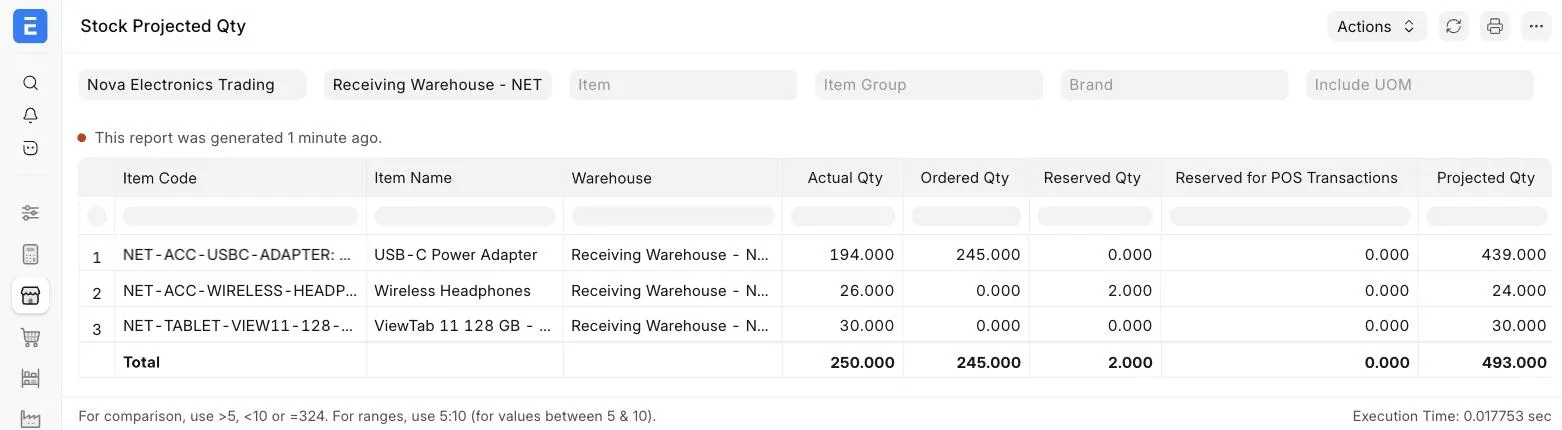
In the above report, the "Actual Qty" column represents the value of the stock ledger. The "Reserved for POS Transactions" column represents the quantities that are currently reserved because of POS Invoices from active POS sessions that have not yet made entries on the Stock Ledger, because the sessions have not been closed. In this example, the POS creates Sales Invoices, so the stock ledger is updated on every sale and nothing is reserved for POS transactions. Note also that the "Projected Qty" of the USB-C Power Adapter includes the 245 units that are ordered but yet to be received.
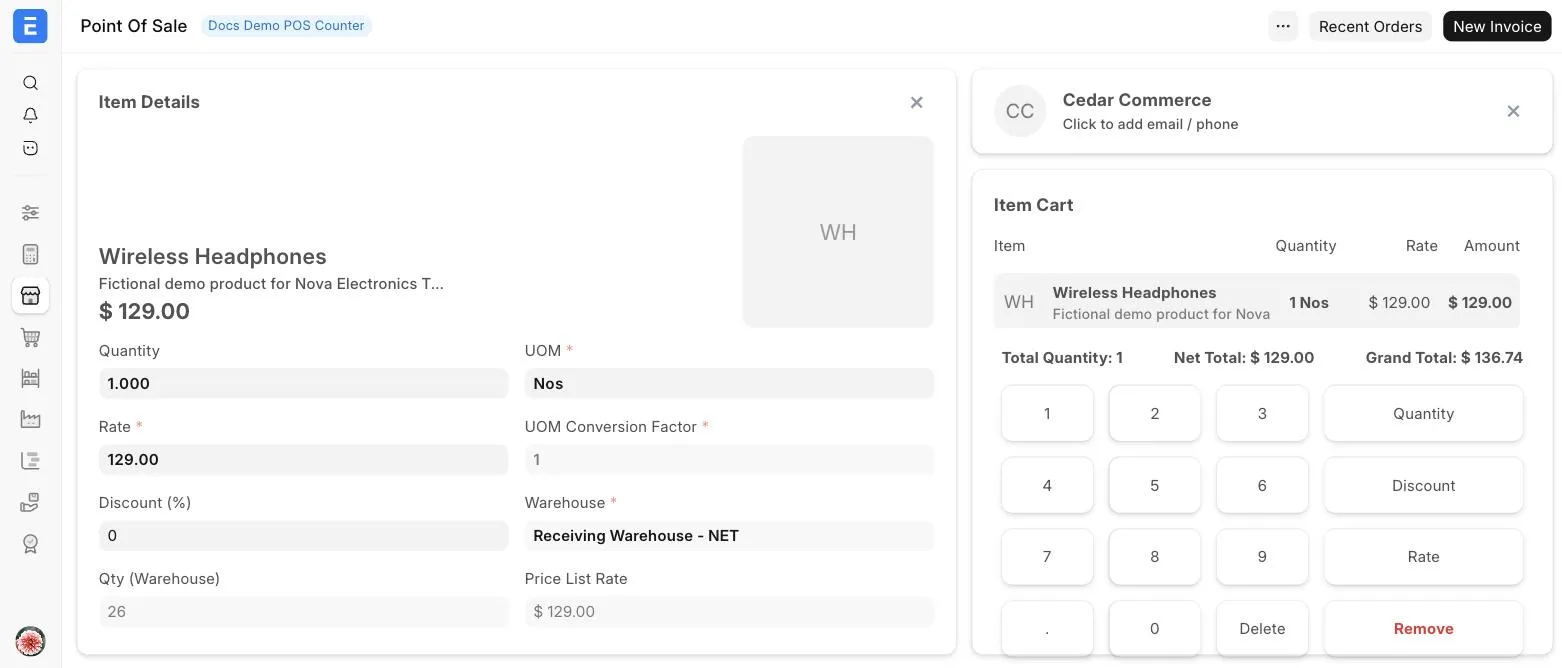
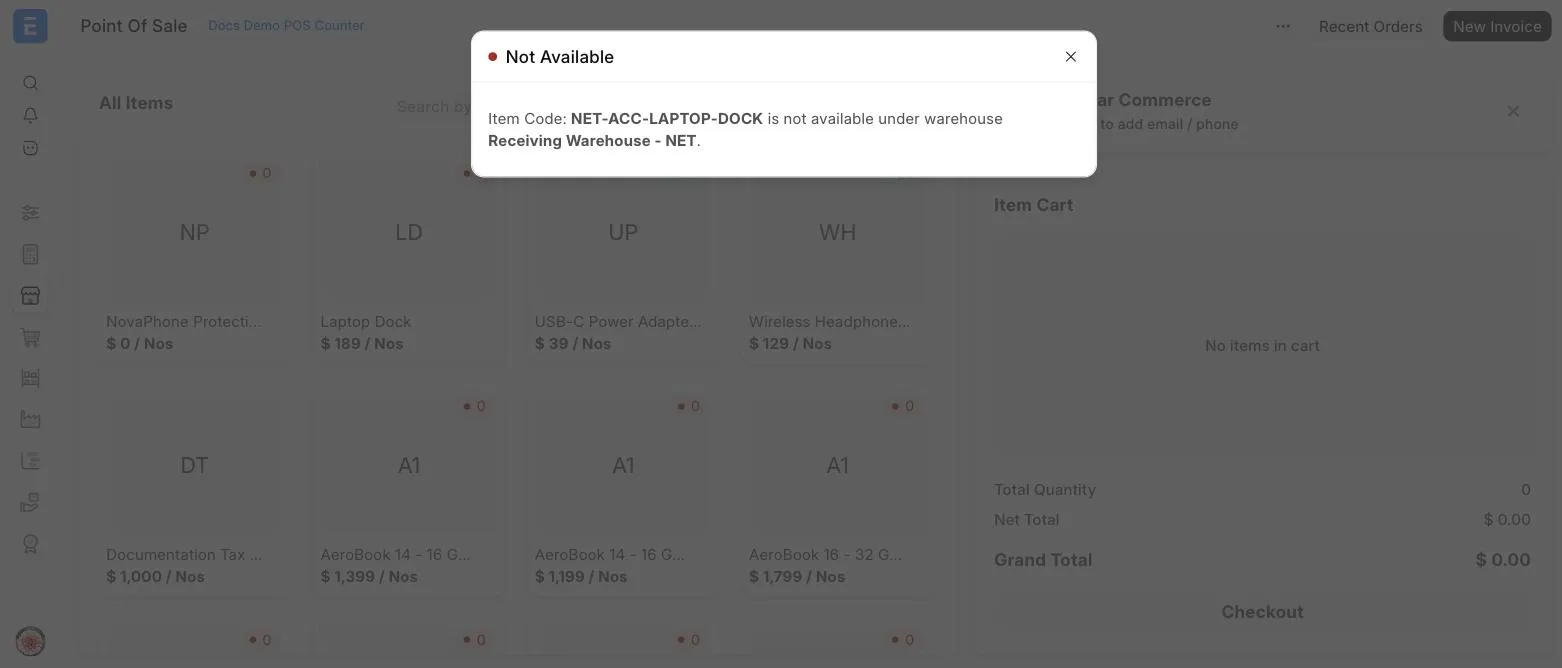
Within the Point of Sale, the quantity available in the warehouse (shown as Qty (Warehouse) in the Item Details view) is the actual quantity less the quantity reserved for POS transactions. Quantities on order but not received are not included. In the instance below, the Item Details view shows the quantity available in the warehouse. If there's not enough quantity on-hand, the item cannot be added and a "Not Available" message is shown. This applies to any and all open POS sessions active at any time and is applied globally (as in, the transaction from one session affects the quantities available for all other open sessions).