


















Shift Management
Until now, everyone in the Production department at the Nova Industries Pune branch worked the Day Shift, 09:00 to 18:00. From Monday, 9 November 2026, a new order needs the press line running until 22:00. Four people, Rohan Kulkarni, Sneha Patil, Vikram Joshi and Pooja Nair, move to a new Evening Shift, 14:00 to 22:00, for that week, and the other fourteen stay on Day Shift.
If the system still believes everyone works 09:00 to 18:00, the evening team's punches at 21:55 fall outside their shift and are ignored, and Auto Attendance marks them Absent for days they worked. Supervisors also cannot see who is on which shift without a spreadsheet.
Shift Management in Frappe HR keeps this in the system. You define each shift once as a Shift Type, tell Frappe HR who works it and when, and see the plan on the Roster. Check-ins are then matched to the right shift, and attendance is marked against it. This page explains how the pieces fit together and where to go for each task.
How the shift records fit together
flowchart LR
  A[Shift Type] --> B[Shift Assignment]
  C[Shift Schedule] --> D[Shift Schedule Assignment] --> B
  E[Shift Request] -->|approved| B
  F[Shift Assignment Tool] --> B
  B --> G[Roster]
  B --> H[Employee Checkin]
  H --> I[Auto Attendance]
  I --> J[Attendance]
| Record | What it is for |
|---|---|
| Shift Type | One working pattern: start and end time, holiday list, check-in window and Auto Attendance rules. Create one per shift, for example Day Shift and Evening Shift. |
| Shift Assignment | Says that one employee works one Shift Type from a start date, optionally to an end date. It takes priority over the Default Shift on the Employee record. |
| Shift Schedule and Shift Schedule Assignment | A repeating pattern, such as Evening Shift on Monday to Friday every second week, and the employee who follows it. Frappe HR creates the matching Shift Assignments automatically, checking every hour. |
| Shift Request | An employee asks for a different shift for some dates. When the approver approves and submits it, a Shift Assignment is created. |
| Shift Assignment Tool | Assigns a shift or a schedule to many employees at once, or approves or rejects many Shift Requests. |
| Roster | A month calendar of all assignments, where you can also create, move and swap shifts. |
| Shift Location | An optional site with coordinates and a check-in radius, added to an assignment to stop check-ins from too far away. |
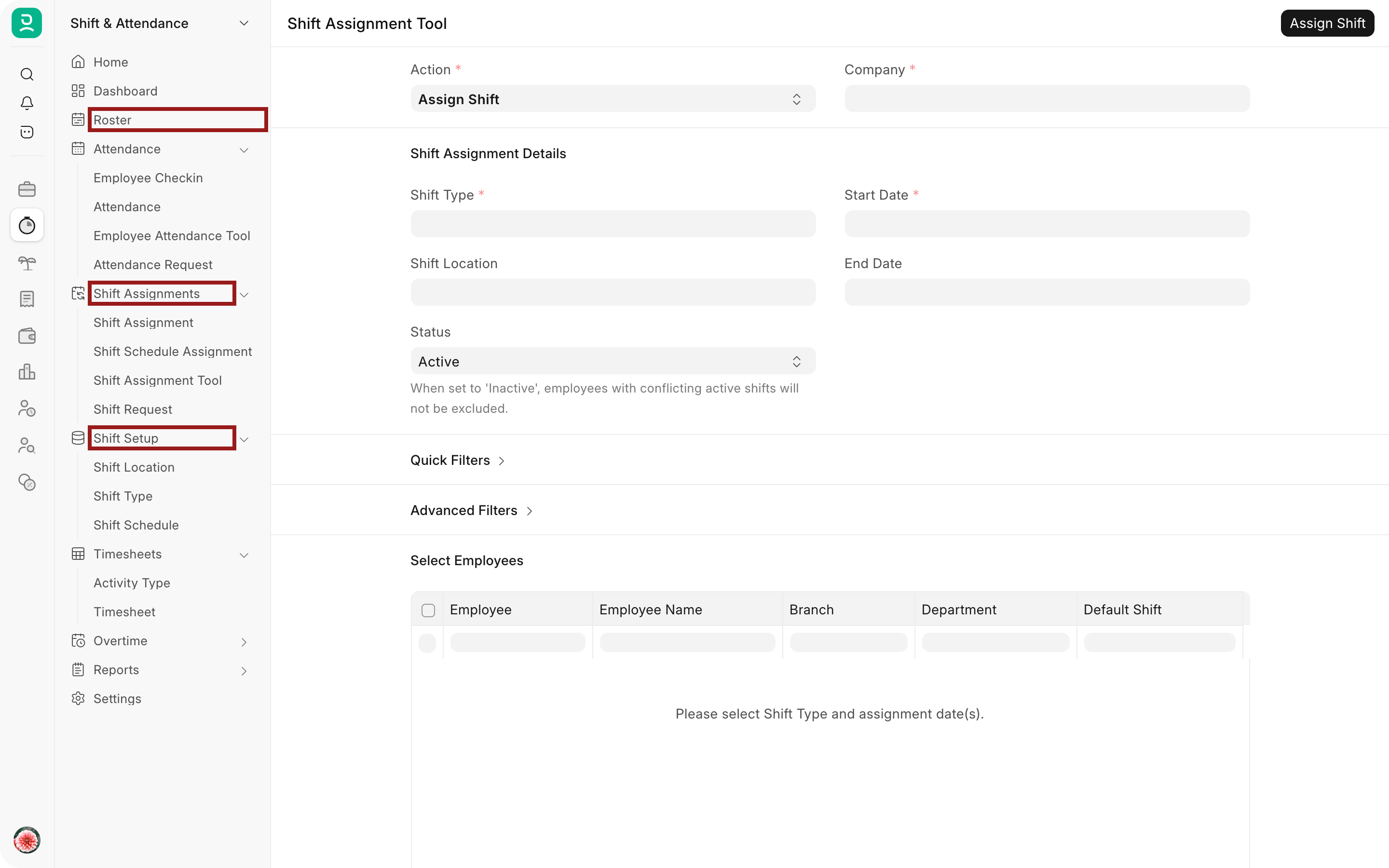
All of these are in the Shift & Attendance workspace: the Roster at the top, assignment records under Shift Assignments, and the reusable setup under Shift Setup.
Choose how to assign shifts
| Situation | Use |
|---|---|
| An employee always works the same shift. | Set Default Shift on the Employee record. No assignments are needed. |
| A group changes shift for some dates, as in the example. | The Shift Assignment Tool with Action Assign Shift, or one Shift Assignment per employee. |
| Shifts rotate on a fixed pattern. | A Shift Schedule for the pattern and a Shift Schedule Assignment per employee, or the tool with Action Assign Shift Schedule. |
| Employees ask for changes themselves. | Shift Request, approved one by one or in bulk with Action Process Shift Requests. |
| A supervisor adjusts the plan by hand. | The Roster: drag a shift to another day, or onto another employee's shift to swap them. |
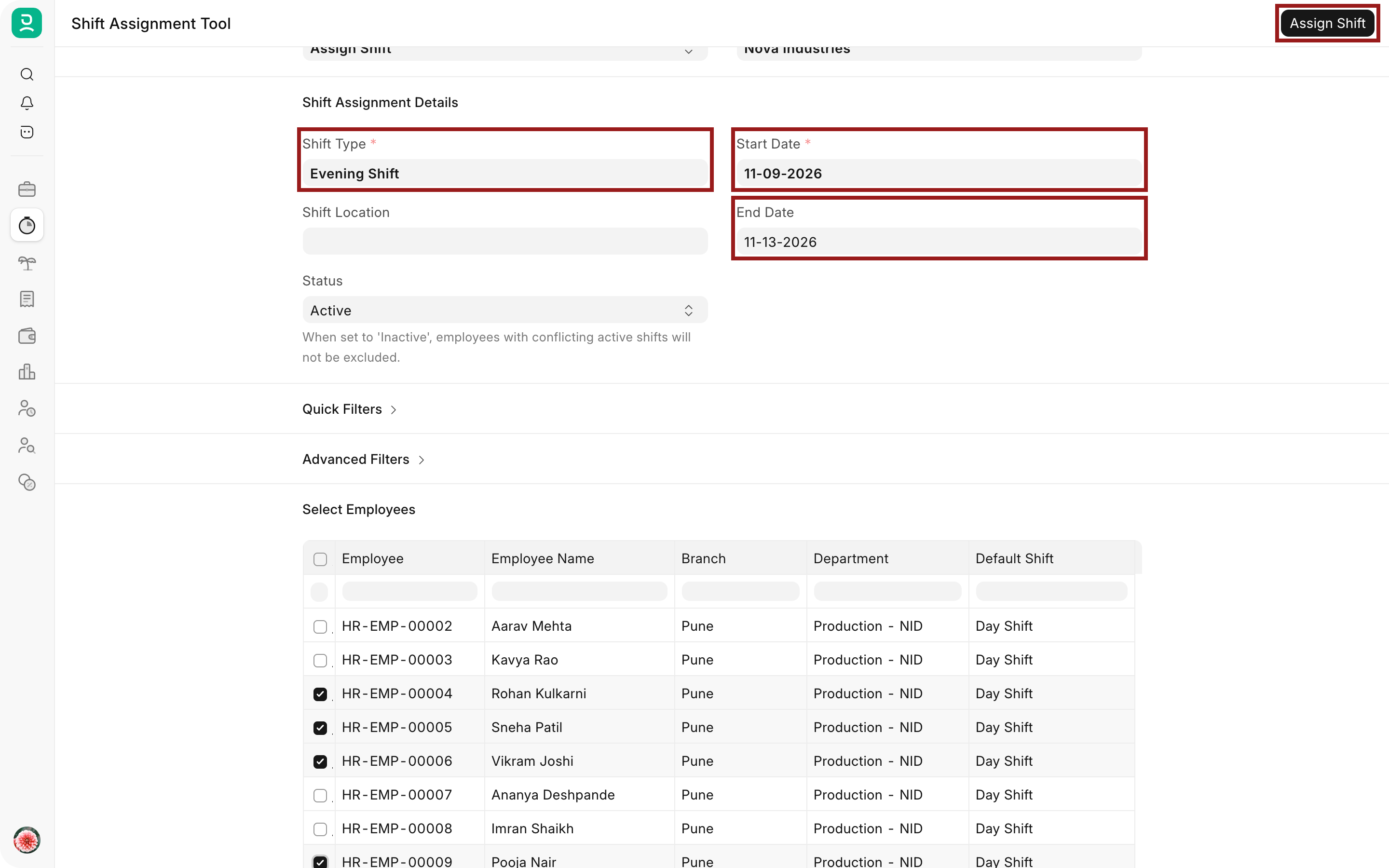
For the example, HR opens the Shift Assignment Tool, selects Evening Shift from 9 to 13 November 2026, filters to Branch Pune and Department Production, ticks the four employees and selects Assign Shift. A second run assigns Day Shift to the other fourteen for the same week.
By default, an employee can have only one shift on a date. To allow two non-overlapping shifts on the same day, tick Allow Multiple Shift Assignments for Same Date in HR Settings.
See who works when
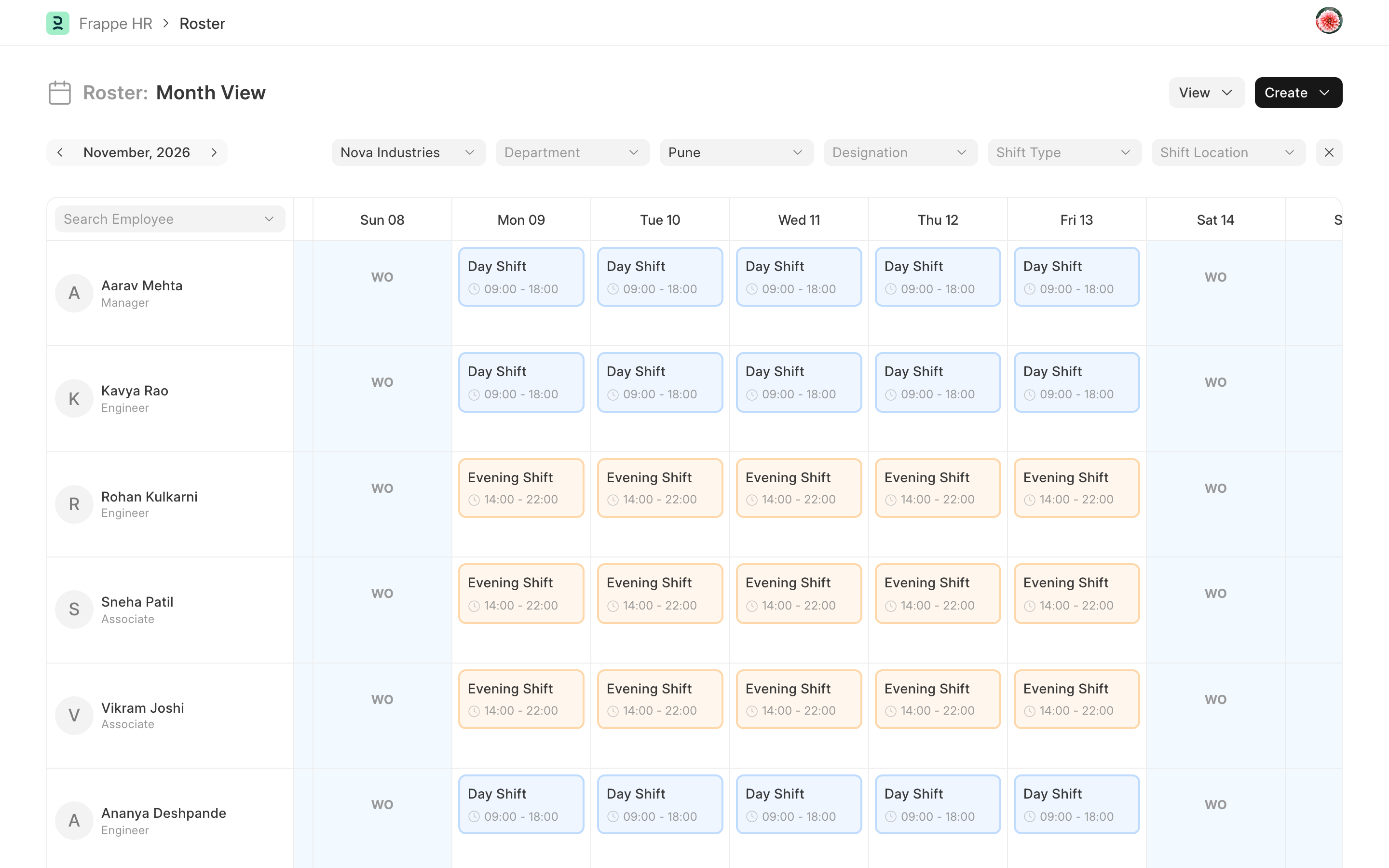
Open Roster and filter by company and branch. Each assignment shows as a coloured block with the shift name and times, using the Roster Color of the Shift Type. Weekly offs from the Holiday List show as WO. In the example, the week of 9 November shows the evening team in orange and everyone else on Day Shift in blue.
Set up shift management for the first time
- Create a Shift Type for each working pattern, with its holiday list and Roster Color.
- Optionally, create a Shift Location for each site where check-ins should be limited by distance.
- Give every employee a shift: a Default Shift for fixed patterns, and assignments, schedules or requests for changes.
- For biometric devices, set Attendance Device ID (Biometric/RF tag ID) on each Employee and connect the device. See Integrating Frappe HR with Biometric Attendance Devices.
- Let employees check in from the device or the mobile app. Each Employee Checkin is matched to the shift of its time.
- Enable Auto Attendance on the Shift Type to mark Attendance from the check-ins. Overtime rules for extra hours are also set on the Shift Type.
Troubleshooting
Check-ins are marked Off-Shift
The employee had no shift covering the time of the punch, or the shift window is too narrow. Add or correct the Shift Assignment, widen the check-in window on the Shift Type if needed, then use Fetch Shift on the logs.
An employee is missing from the Shift Assignment Tool
The tool hides employees who already have an active shift for the dates. Check the Roster for the conflicting assignment, or set Status to Inactive in the tool to include them.
The Roster is empty
The Roster shows Shift Assignments, not Default Shifts, and starts with the default company. Select the right company and branch, and create assignments for the period.
Frequently asked questions
Do I need Shift Assignments if everyone works the same hours?
A Default Shift on each Employee record is enough. Add assignments only for the dates when someone works a different shift.
Can a shift run past midnight?
Set an end time earlier than the start time, for example 22:00 to 06:00. Attendance for that shift is dated by the day it starts.