


















Imagine you are the purchase manager at Nova Electronics Trading (NET), the distribution company of Nova Industries. Keystone Cables, a cable and adapter maker in Oakland, has just been approved as NET's newest accessories supplier, and its first order has to go out this week: 200 USB-C adapters at the agreed $18.00 each, $3,600.00 before tax.
Before anyone can raise that order, ERPNext needs to know who Keystone Cables is and how NET deals with it: which currency it bills in, which purchase prices apply, when its invoices are due, where to send orders, and which account holds what NET owes it. If each buyer types those details on every document, one of them will eventually pick the wrong price list or send an order to an old address, and the supplier will notice before you do.
The Supplier record holds those details once. Every Request for Quotation, Purchase Order, Purchase Receipt, Purchase Invoice and Payment Entry for Keystone Cables starts from it. After this page, Keystone Cables' first order opens with the right price list, the $18.00 rate, Net 30 terms and the supplier's billing address already filled in.
Before you begin
Create or confirm the records the supplier will point to:
- a Supplier Group for the category, with default payment terms if the category shares them. NET uses Nova Electronics Suppliers, which carries Net 30.
- a buying Price List with Item Prices for what you buy. NET's Nova Purchase USD has the USB-C adapter at $18.00.
- the naming rule in Buying Settings. By default, a supplier is named by its Supplier Name. To use a numbered series such as SUP-2026-00001, set Supplier Naming By to Naming Series there; the series field on the supplier form is ignored until you do.
Create a Supplier
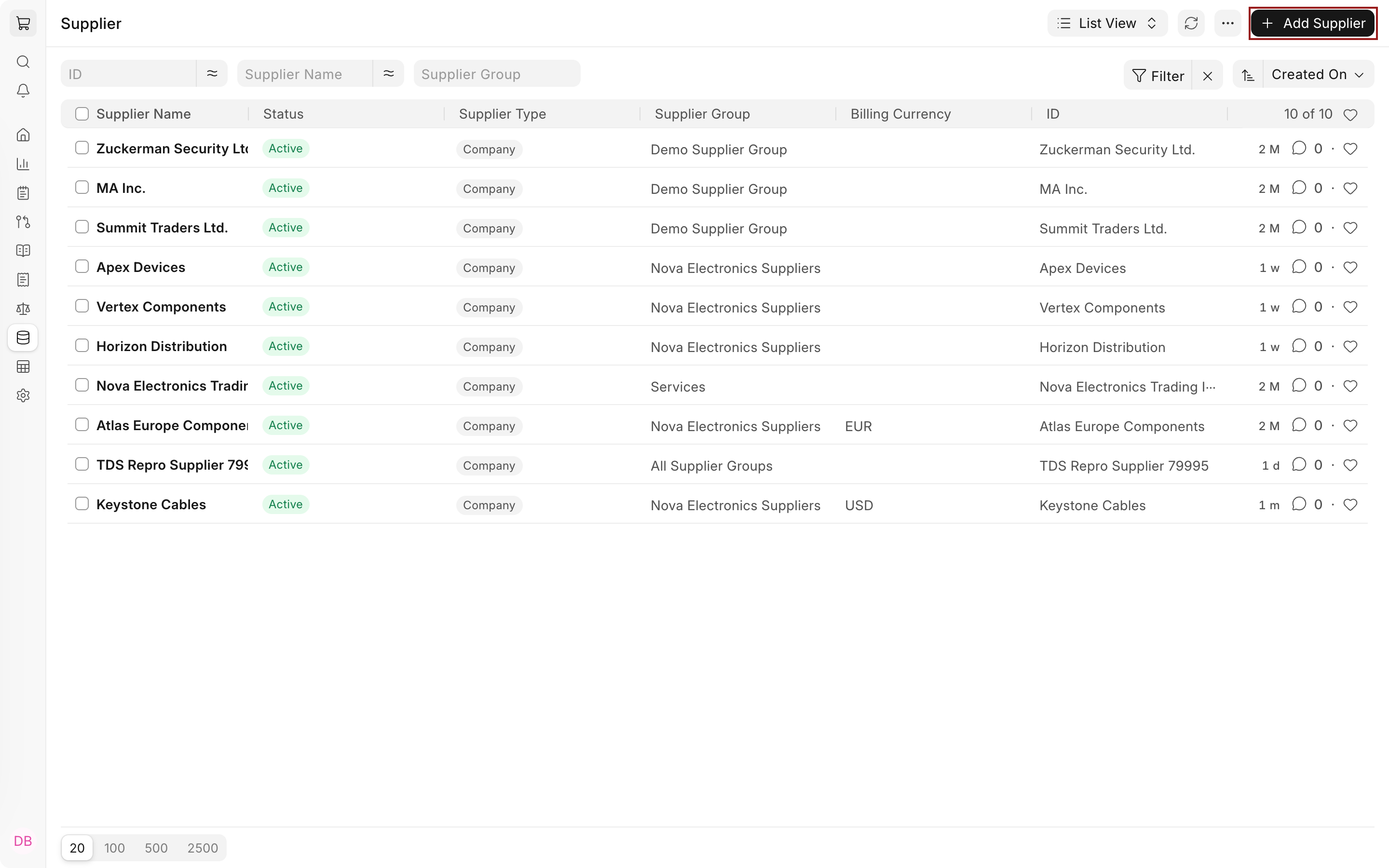
- Open the Supplier list from the Buying workspace or the awesome bar and click Add Supplier.
- Enter the Supplier Name, Keystone Cables. Add an Alias if the supplier is also known by a short or trading name.
- Select the Supplier Group. Selecting it copies the group's payment terms and accounts into this supplier, which is why Payment Terms Template shows Net 30 for Keystone Cables without being typed.
- Select the Supplier Type: Company, Individual or Partnership. Choosing Individual shows a Gender field.
- Select the Country.
- In Defaults, set the Billing Currency and the Price List. NET selects USD and Nova Purchase USD.
- Save.
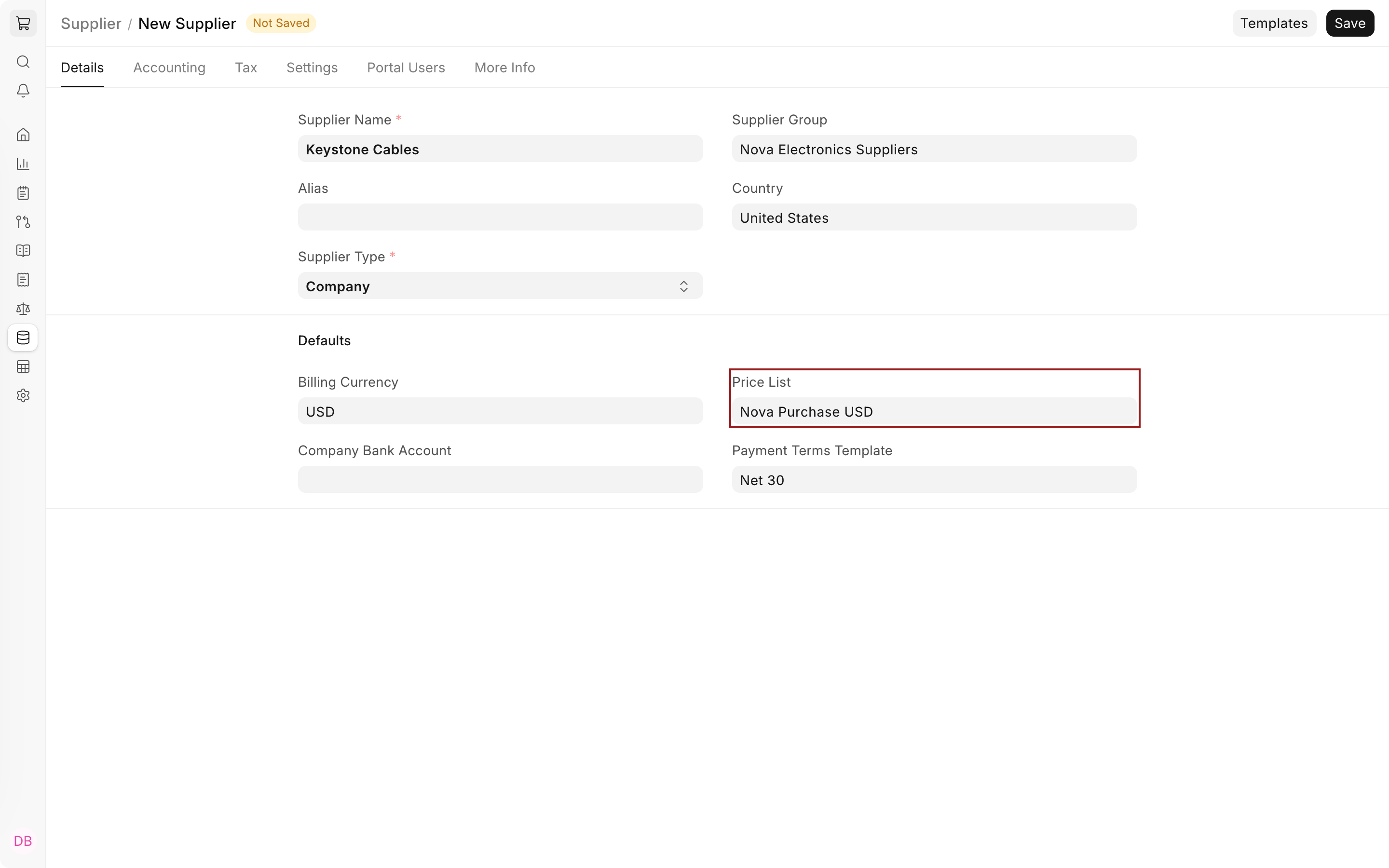
The other tabs, Address & Contact and Connections, appear once the supplier is saved.
Defaults
The Defaults section on the Details tab sets what every new purchase document for this supplier starts with.
| Field | What it does |
|---|---|
| Billing Currency | The currency the supplier bills in. If it differs from the company currency, purchase documents for the supplier open in that currency and fetch the exchange rate. Other currencies can still be used on individual documents. See Multi Currency Accounting. |
| Price List | The buying price list for this supplier. Item rates come from its Item Prices. It overrides the Default Buying Price List in Buying Settings, which at NET is Standard Buying. |
| Company Bank Account | Your company's bank account used by default for payments to this supplier. |
| Payment Terms Template | The terms applied to orders and invoices. If empty, ERPNext uses the Supplier Group's terms, then the company's. |
Address and contacts
Addresses and contacts are separate records linked to the supplier, so one supplier can have many of each, such as a billing office and a returns warehouse. On the Address & Contact tab, click + Address or + Contact. NET added Keystone Cables' billing address in Oakland and its sales manager, Dana Whitfield, as the primary contact.
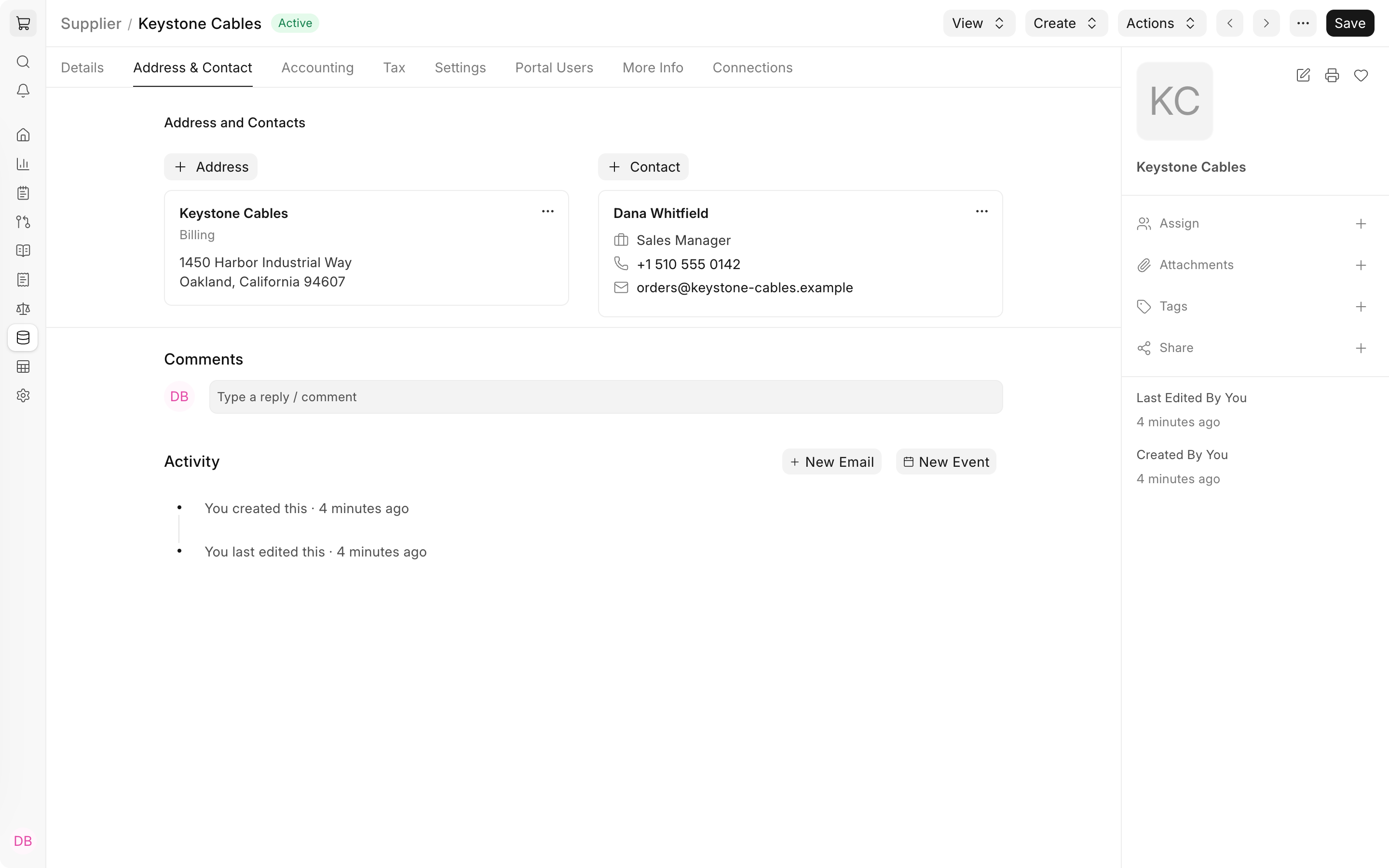
When you select the supplier in a transaction, ERPNext fetches the address marked as primary or preferred and the contact marked Is Primary Contact. A supplier address also drives tax templates where Tax Rules match on billing location.
Accounting
By default, everything NET owes a supplier is booked in the company's Default Payable Account, Creditors - NET. To use a different account for one supplier, add a row to Per-Company Accounts with the Company, a Default Account of type Payable, and optionally an Advance Account for advances paid to the supplier. Add one row per company that buys from this supplier. Rows left out fall back to the Supplier Group and then to the company.
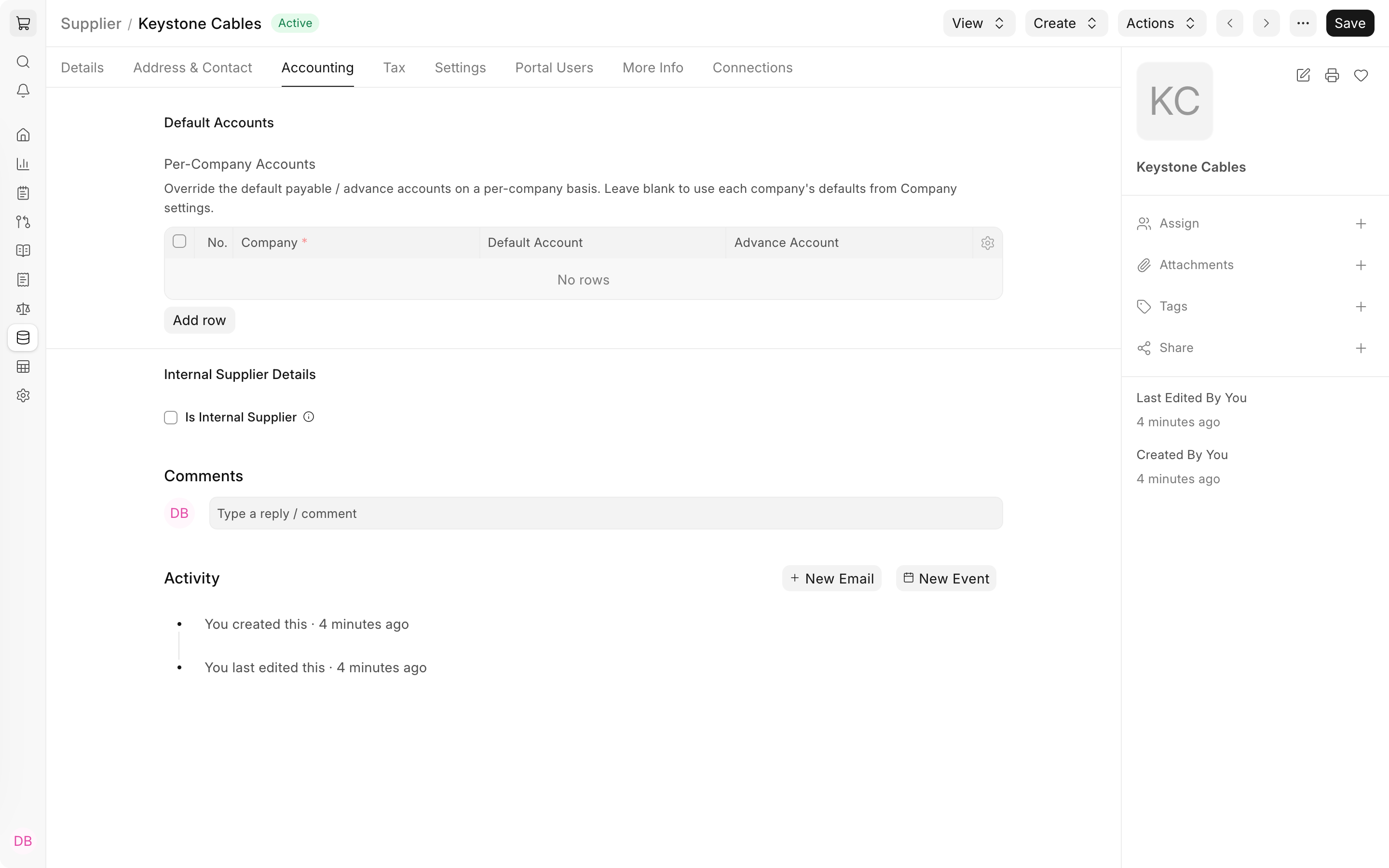
Create the account in the Chart of Accounts before selecting it. Only Payable accounts of the row's company can be chosen.
If the supplier is one of your own companies, check Is Internal Supplier, select the company it represents in Represents Company, and list the companies allowed to buy from it in Allowed to transact with. ERPNext uses these for Inter Company Invoices, and such purchases are not checked against Buying Settings' same-rate rule.
Tax
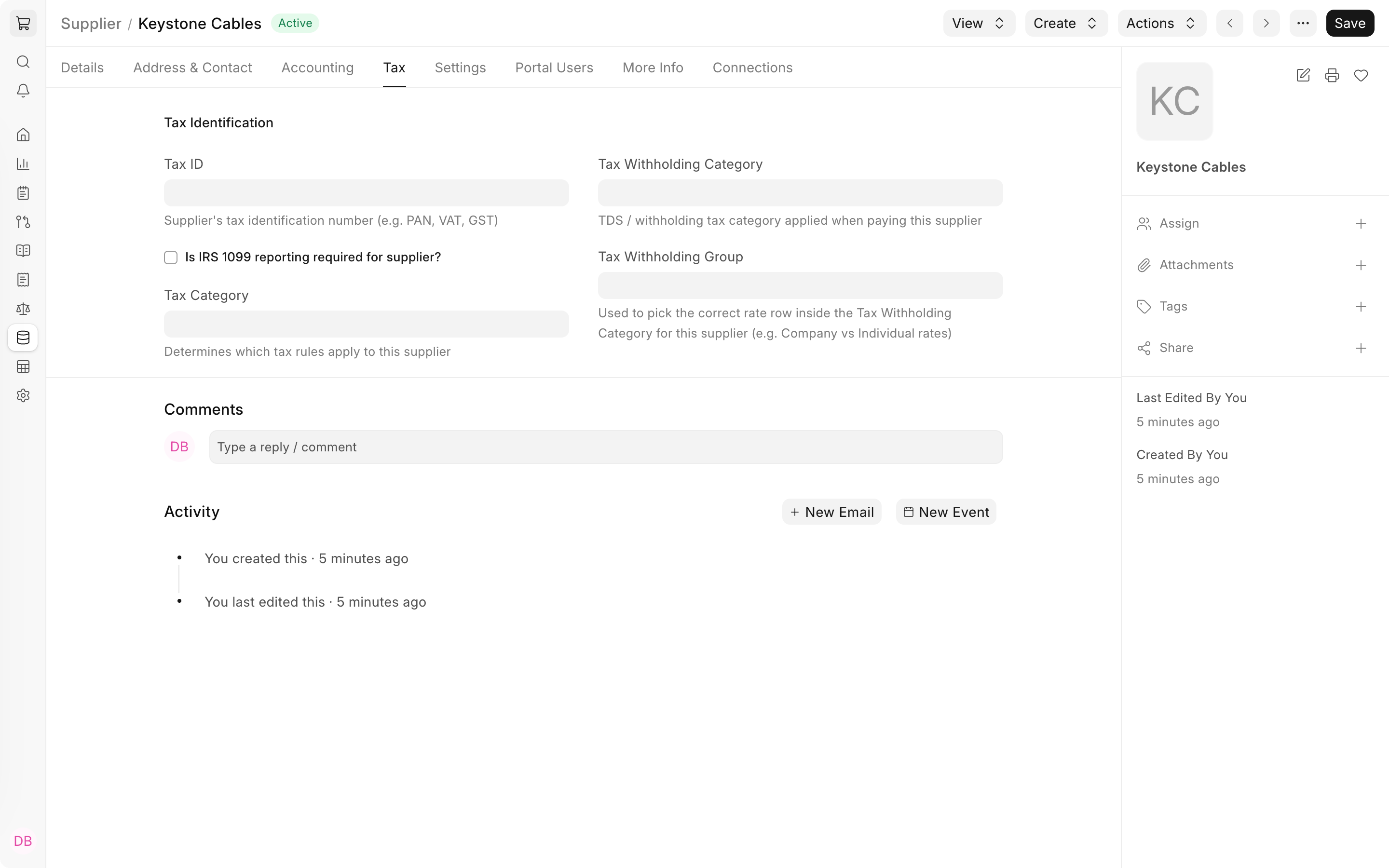
| Field | What it does |
|---|---|
| Tax ID | The supplier's tax identification number, such as a VAT, GST or PAN number. |
| Is IRS 1099 reporting required for supplier? | Shown for companies in the United States. Includes the supplier in IRS 1099 reporting. |
| Tax Category | Links the supplier to a Tax Category. Tax Rules that match it set the Purchase Taxes and Charges Template on the supplier's documents. |
| Tax Withholding Category | The withholding tax applied when invoicing or paying the supplier. It is fetched into Purchase Invoices and Payment Entries. See Tax Withholding Category. |
| Tax Withholding Group | Picks the right rate row within the withholding category, for example company or individual rates. |
In India, the India Compliance app adds fields such as GST Category, GSTIN and PAN to this form.
Settings
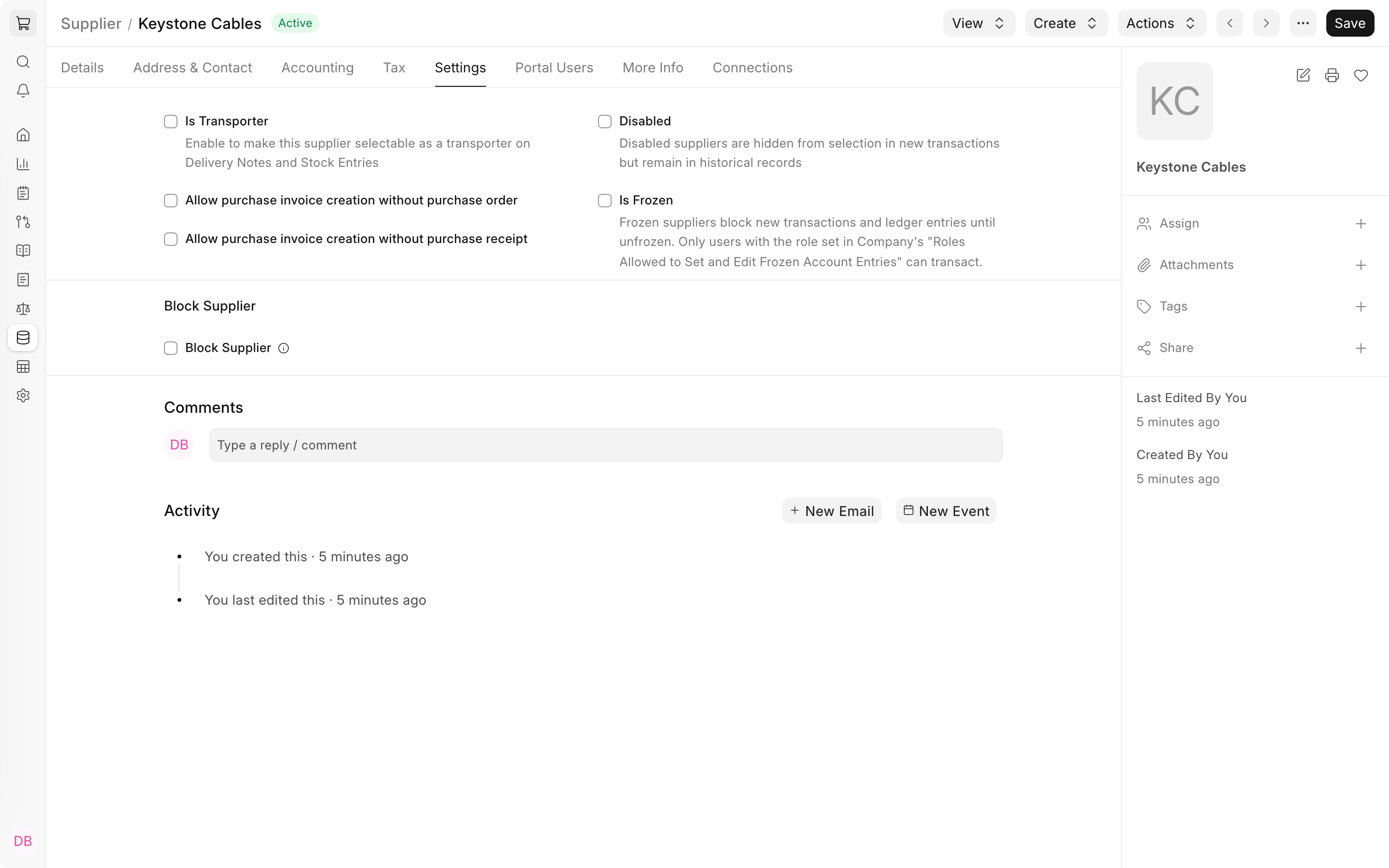
| Field | What it does |
|---|---|
| Is Transporter | Lets the supplier be selected as a transporter on Delivery Notes and Stock Entries. |
| Allow purchase invoice creation without purchase order | Lets Purchase Invoices for this supplier be created without a Purchase Order when Buying Settings requires one. Purchase Receipts still need an order. |
| Allow purchase invoice creation without purchase receipt | Lets Purchase Invoices for this supplier be created without a Purchase Receipt when Buying Settings requires one. |
| Disabled | Hides the supplier from new transactions while keeping its history. |
| Is Frozen | Blocks new transactions and ledger entries for the supplier until it is unfrozen, except for users with the role in the company's Roles Allowed to Set and Edit Frozen Account Entries. Useful while a supplier's bank details are being verified. |
Block Supplier puts a supplier on hold, for example during a quality dispute. Check it, choose a Hold Type, and optionally a Release Date. The hold lifts on the release date; without one, it lasts until you uncheck it. A blocked supplier shows the status On Hold in the supplier list, and blocked documents stop with the message that the supplier is blocked so the transaction cannot proceed.
| Hold Type | Blocks |
|---|---|
| Invoices | Purchase Orders and Purchase Invoices. |
| Payments | Payment Entries to the supplier and Journal Entries that pay it from a bank or cash account. |
| All | Everything above, plus Purchase Receipts, Supplier Quotations and Requests for Quotation. |
Returns to the supplier are never blocked. Users with the required permission also see Restrict to Companies on this tab, which limits the supplier to the companies you list.
Portal users and more information
On the Portal Users tab, add the people who may sign in to the supplier portal for this supplier, where they can see Requests for Quotation and submit quotations.
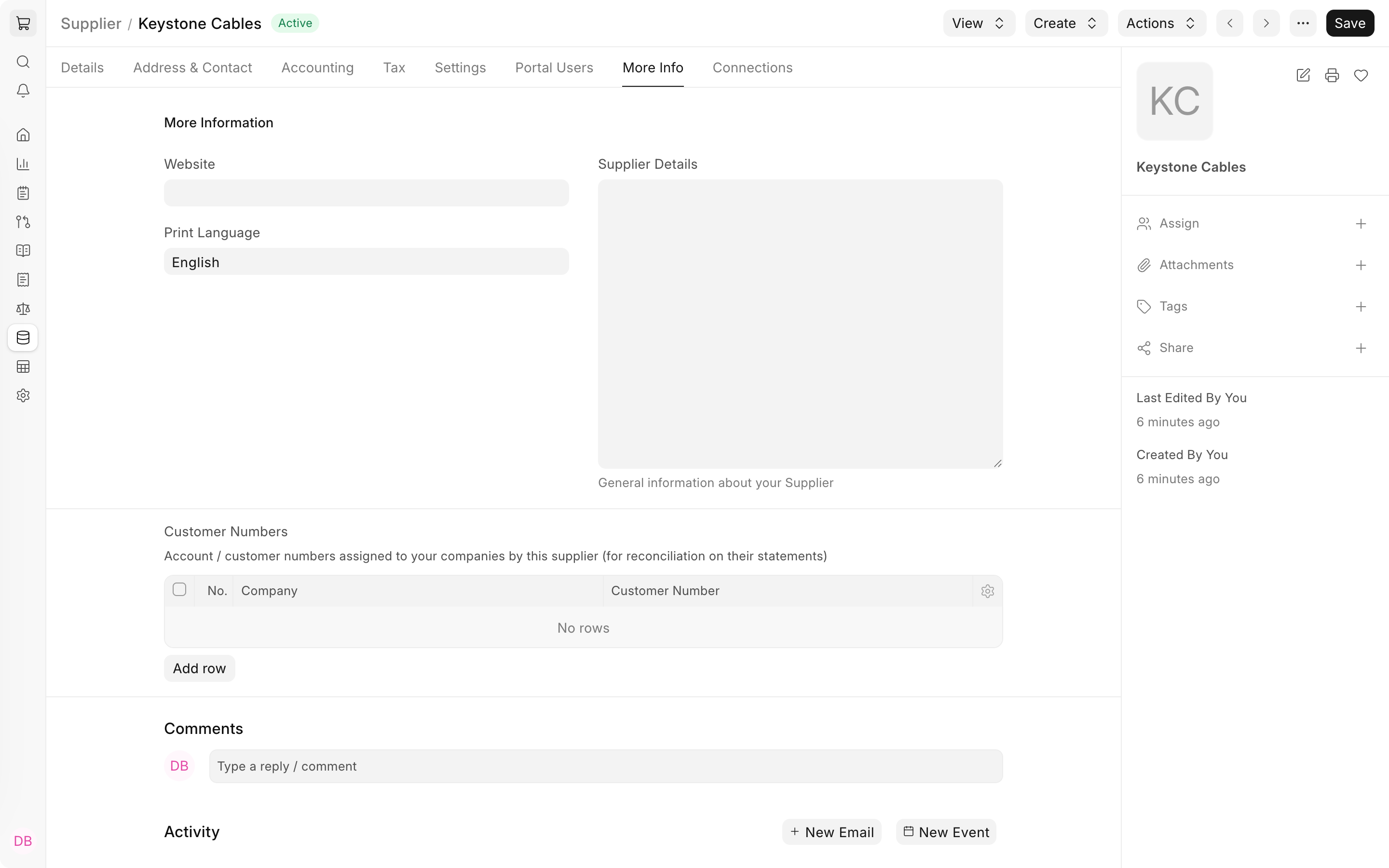
The More Info tab holds the supplier's Website, the Print Language for documents sent to it, free-text Supplier Details, and Customer Numbers: the account number each of your companies has with the supplier, which helps when matching its statements.
See the defaults in a Purchase Order
On October 7, 2026, NET created Purchase Order PUR-ORD-2026-00022 and selected Keystone Cables. The Currency and Price List section filled in Nova Purchase USD, the adapter row picked up $18.00, and 200 units came to $3,600.00. The Terms tab showed Net 30, inherited through the supplier from its group. The order was submitted at $3,816.00 with 6% purchase tax.
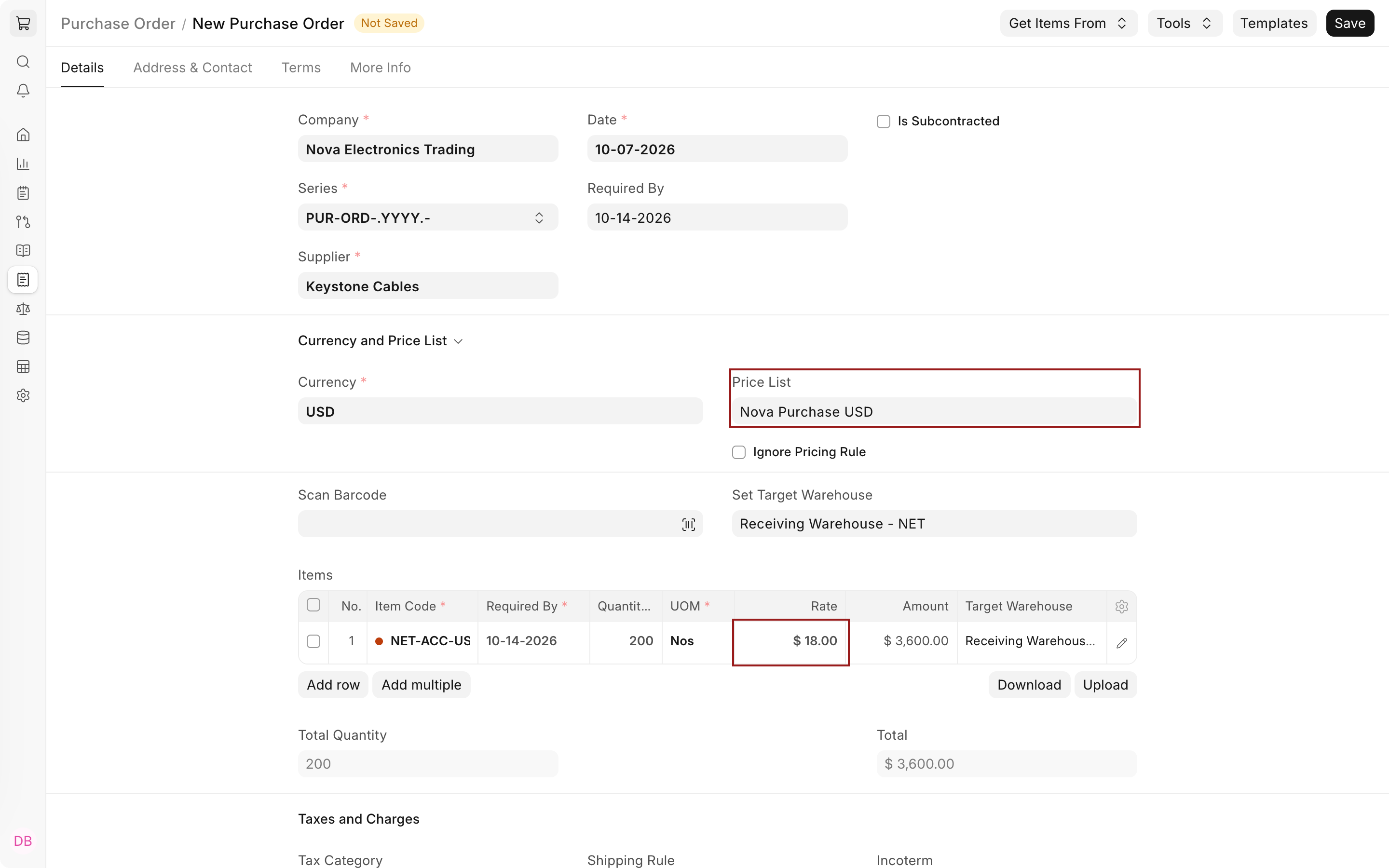
The dot before the Item Code shows stock in the target warehouse: green means in stock and red means out of stock. The adapter is red because NET has none in its Receiving Warehouse yet.
After saving
The Connections tab lists every document linked to the supplier, grouped as Procurement (Request for Quotation, Supplier Quotation), Orders (Purchase Order, Purchase Receipt, Purchase Invoice), Payments (Payment Entry, Bank Account), Pricing (Pricing Rule) and Allowed Items (Party Specific Item). Keystone Cables now shows its first Purchase Order.
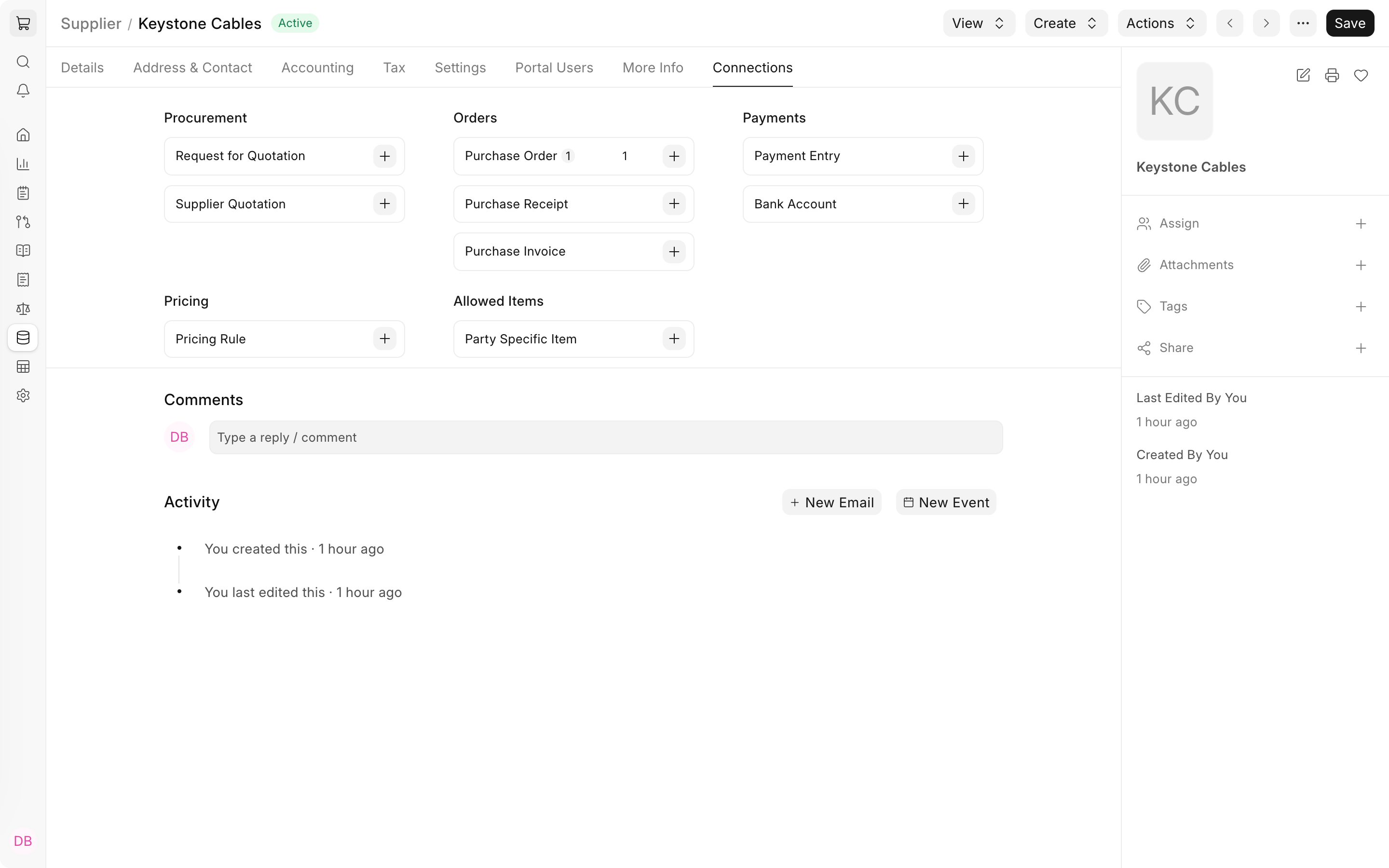
The toolbar adds three menus. View opens the supplier's Accounting Ledger or the Accounts Payable report. Create starts a Purchase Order, Purchase Invoice, Request for Quotation, Supplier Quotation, Bank Account or Pricing Rule for the supplier. Actions has Get Supplier Group Details, which copies the group's current terms and accounts again, and Link with Customer, shown when common party accounting is enabled in Accounts Settings, for a party that both sells to and buys from you.
If you track supplier performance with a Supplier Scorecard, its standing can warn about or prevent new Requests for Quotation and Purchase Orders for the supplier.
Troubleshooting
Orders open with the wrong price list
The order uses the supplier's Price List when set, and Buying Settings' Default Buying Price List otherwise. Check the supplier's Defaults section, then the order's Currency and Price List section, where a buyer may have changed it.
A supplier transaction stops because the supplier is blocked
Open the supplier's Settings tab and check Block Supplier, the Hold Type and the Release Date. Uncheck the block, or wait for the release date, to continue. An Invoices hold does not stop payments, and a Payments hold does not stop orders.
The naming series on the supplier form has no effect
Suppliers are named by Supplier Name until Supplier Naming By in Buying Settings is changed to Naming Series. Existing suppliers keep their names.
Frequently asked questions
Can I buy from a supplier in a currency other than its billing currency?
The billing currency is only the default for new documents, and you can change the currency on an individual order. On invoices, ERPNext compares the invoice currency with the currency of the supplier's payable account. To invoice in another currency against a payable account in the company currency, enable Allow multi-currency invoices against single party account in Accounts Settings, or give the supplier a payable account in that currency.
How do I keep different prices for different suppliers?
Create a buying price list per supplier and set it in the supplier's Price List field. An Item Price can also name a supplier. ERPNext then prefers that price for the supplier and uses the price without a supplier for everyone else, so one price list can hold supplier-specific rates.
How do I add another address, such as a returns warehouse?
On the Address & Contact tab, click + Address, choose the address type, and check Preferred Shipping Address or Preferred Billing Address if it should be fetched by default. You can then pick it on any purchase document for the supplier.