


















Working Days Calculation in the Salary Slip
Working Days is the number of days the employee should work in the slip period. Payment Days is the number of those days the employee is paid for. Components with Depends on Payment Days are paid as: amount × Payment Days ÷ Working Days.
Example
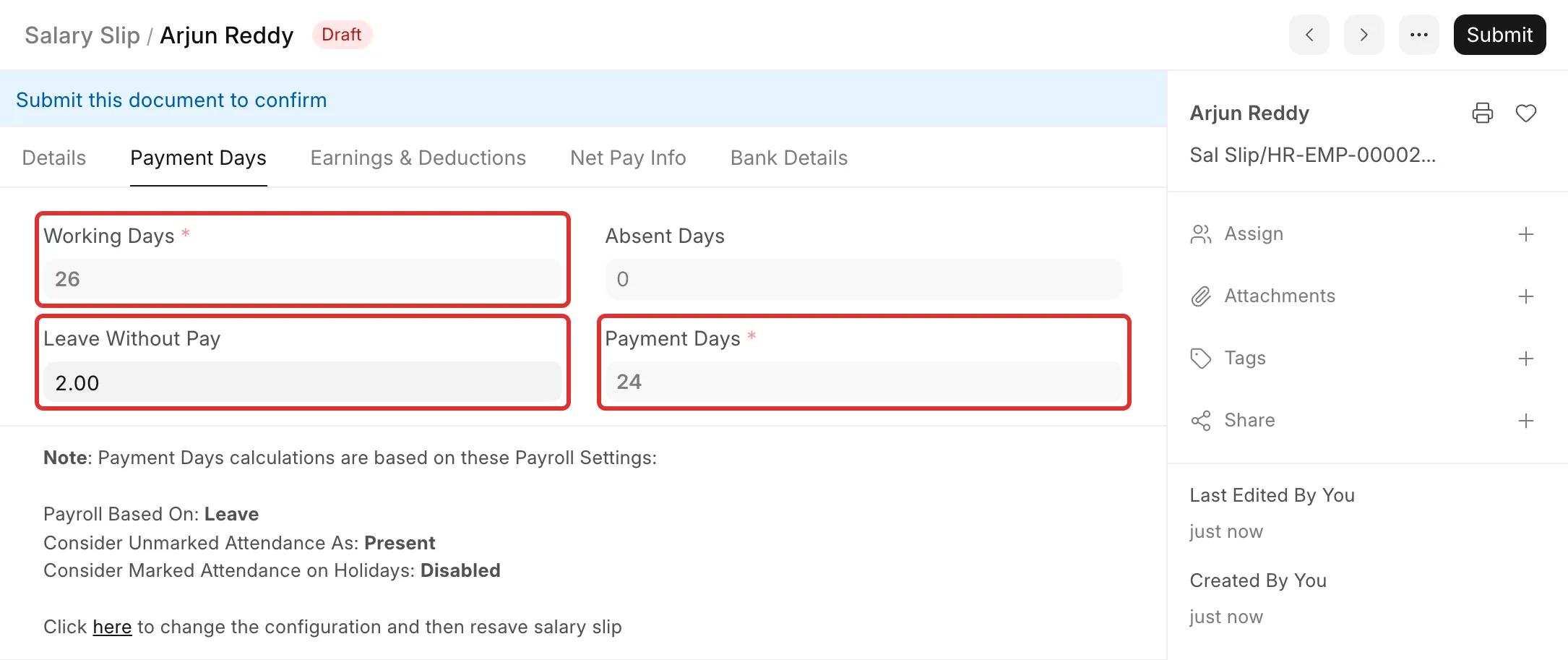
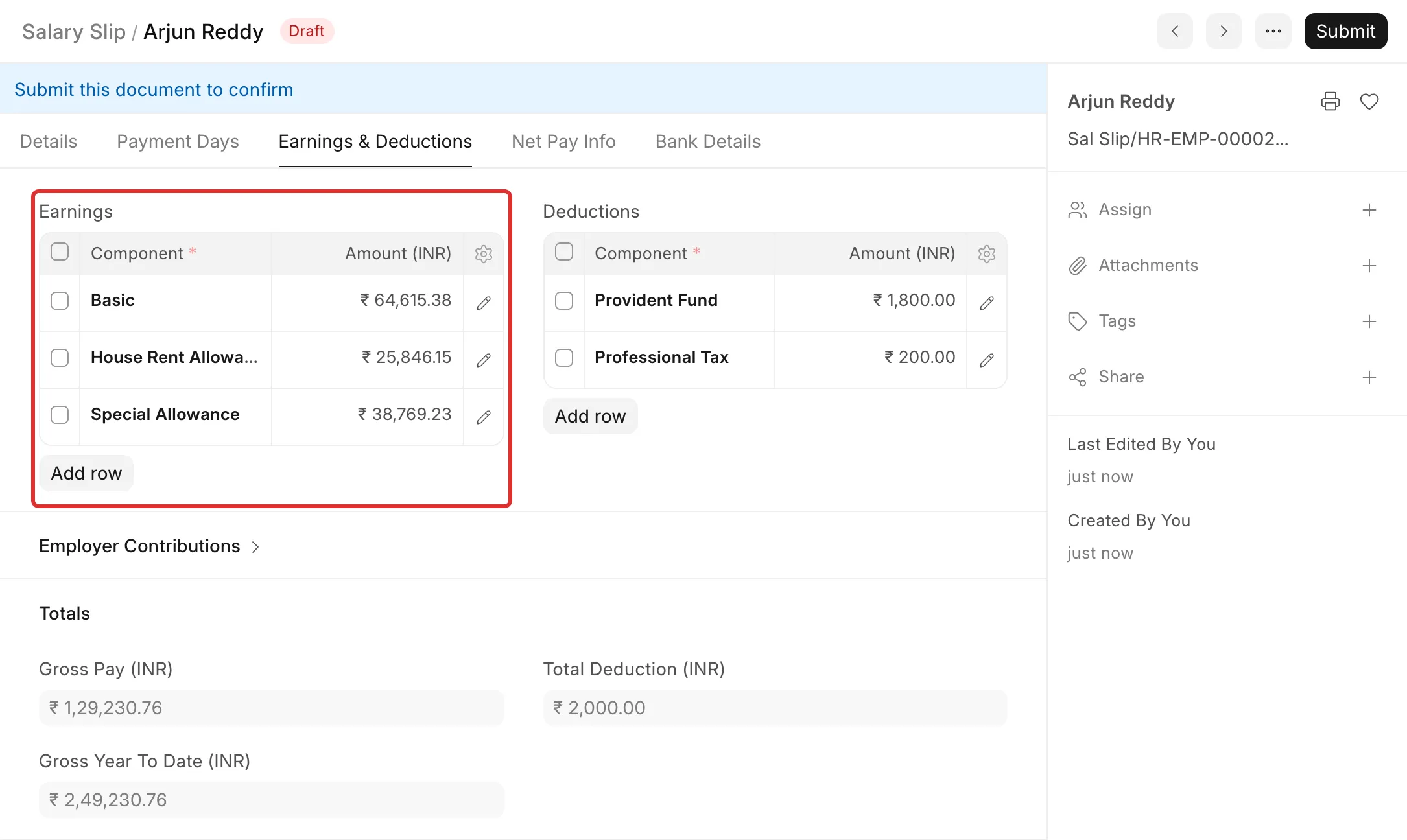
Bluepeak Technologies Pvt Ltd pays Arjun Reddy a monthly Basic of ₹70,000. In January 2026, he takes 2 days of Leave Without Pay. January has 31 days, 4 Sundays, and Republic Day (26 January).
| Value | Why | |
|---|---|---|
| Days in the period | 31 | 01-01-2026 to 31-01-2026 |
| Holidays | 5 | 4 Sundays and Republic Day, from his holiday list |
| Working Days | 26 | 31 − 5, because Include holidays in Total no. of Working Days is off |
| Leave Without Pay | 2 | His approved Leave Application |
| Payment Days | 24 | 26 − 2 |
| Basic on the slip | ₹64,615.38 | 70,000 × 24 ÷ 26 |
The settings that control it
Go to Payroll → Settings → Payroll Settings. The Working Days and Hours section has these settings:
| Setting | What it does |
|---|---|
| Calculate Payroll Working Days Based On | Leave: unpaid days come from approved Leave Applications. Attendance: unpaid days come from Attendance records. |
| Include holidays in Total no. of Working Days | On: holidays count as Working Days and are paid. Off: holidays are taken out of Working Days. |
| Fraction of Daily Salary for Half Day | The part of a day that is paid for a half day. The default is 0.5. |
| Consider Unmarked Attendance As | Shows only for Attendance. Absent: days with no Attendance record are unpaid. Present (default): they are paid. |
| Consider Marked Attendance on Holidays | Shows only when holidays are included. On: an Absent Attendance on a holiday is unpaid. |
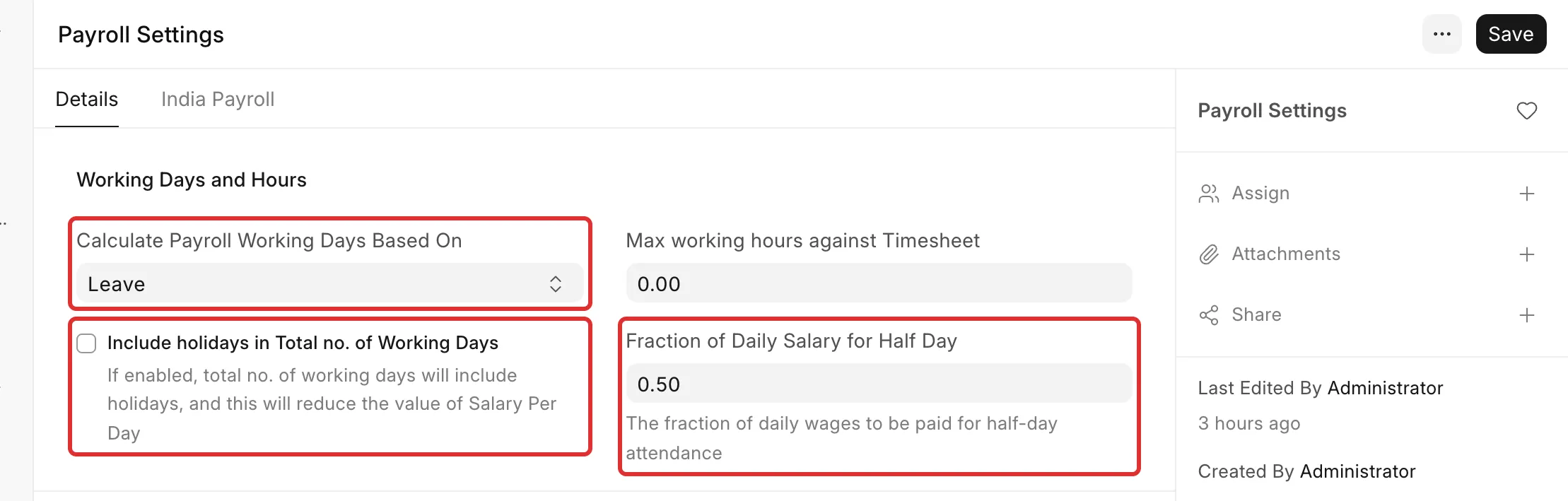
The Payment Days tab of each Salary Slip shows which settings were used.
How Working Days is calculated
- Frappe HR counts the days from the slip Start Date to End Date.
- If Include holidays in Total no. of Working Days is off, it takes out the holidays from the employee's holiday list in that period. A half-day holiday takes out half a day.
The holiday list comes from the Holiday List Assignment of the employee, or of the company when the employee has none. In v15, it comes from the Holiday List field of the Employee, or the Default Holiday List of the Company.
How Payment Days is calculated
- Frappe HR starts from the days the employee is employed in the period. Days before the Date of Joining and after the Relieving Date are left out.
- If holidays are not included, it excludes holidays on those days.
- It takes out the Leave Without Pay:
- With Leave: the days of approved Leave Applications whose Leave Type has Is Leave Without Pay. A half-day leave counts as 1 − Fraction of Daily Salary for Half Day. A Leave Type with Is Partially Paid Leave counts only the unpaid part.
- With Attendance: the same, from Attendance records with status On Leave or Half Day.
- With Attendance only, it also takes out:
- each Absent Attendance (Absent Days),
- each Half Day whose other half is absent, by the Fraction of Daily Salary for Half Day,
- each day with no Attendance, if Consider Unmarked Attendance As is Absent.
With Leave, Attendance records are not used. An employee with no approved Leave Without Pay gets full Payment Days, even if no Attendance is marked.
Common problems
Sundays or holidays are counted as Working Days
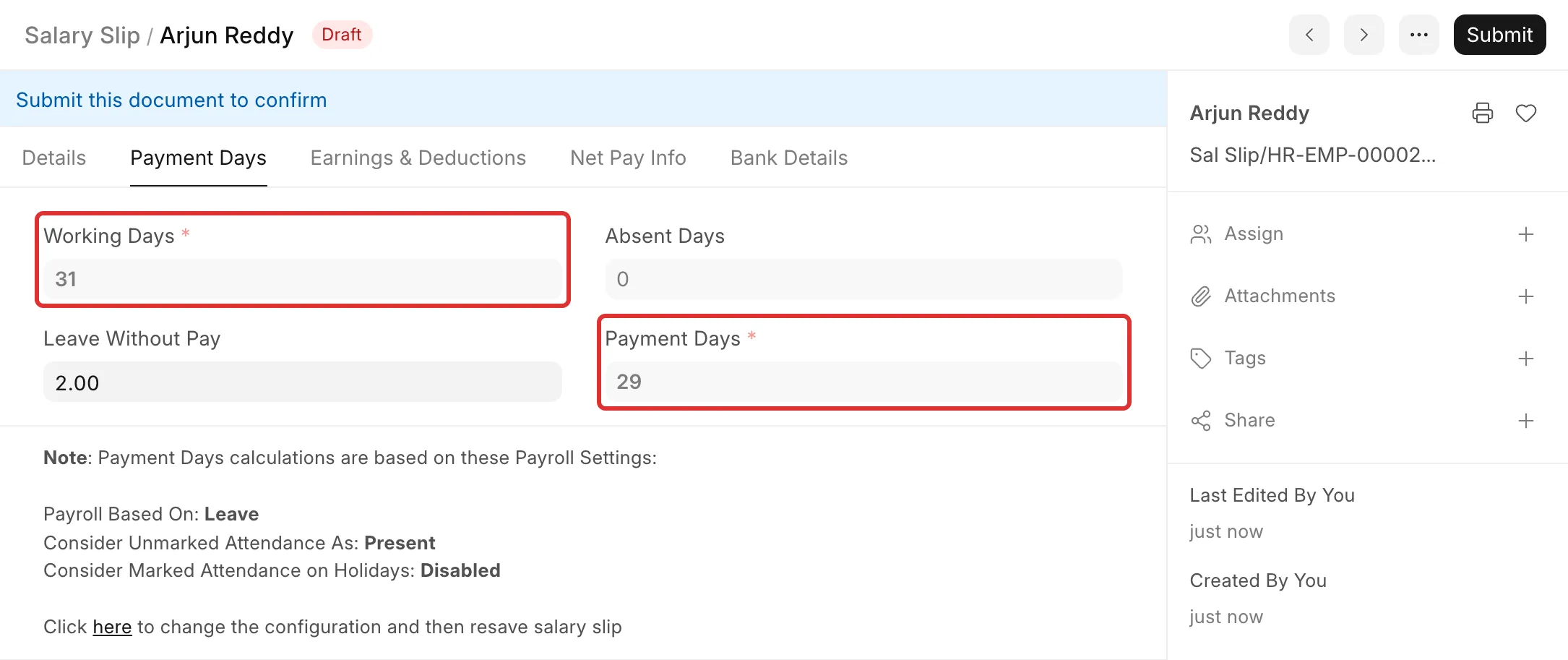
The employee's holiday list does not cover the slip period. For example, Arjun's holiday list ended on 31-12-2025. His January 2026 slip had no holidays, so it showed 31 Working Days and 29 Payment Days.
To fix it:
- Create a Holiday List for the new period, with the weekly offs and holidays.
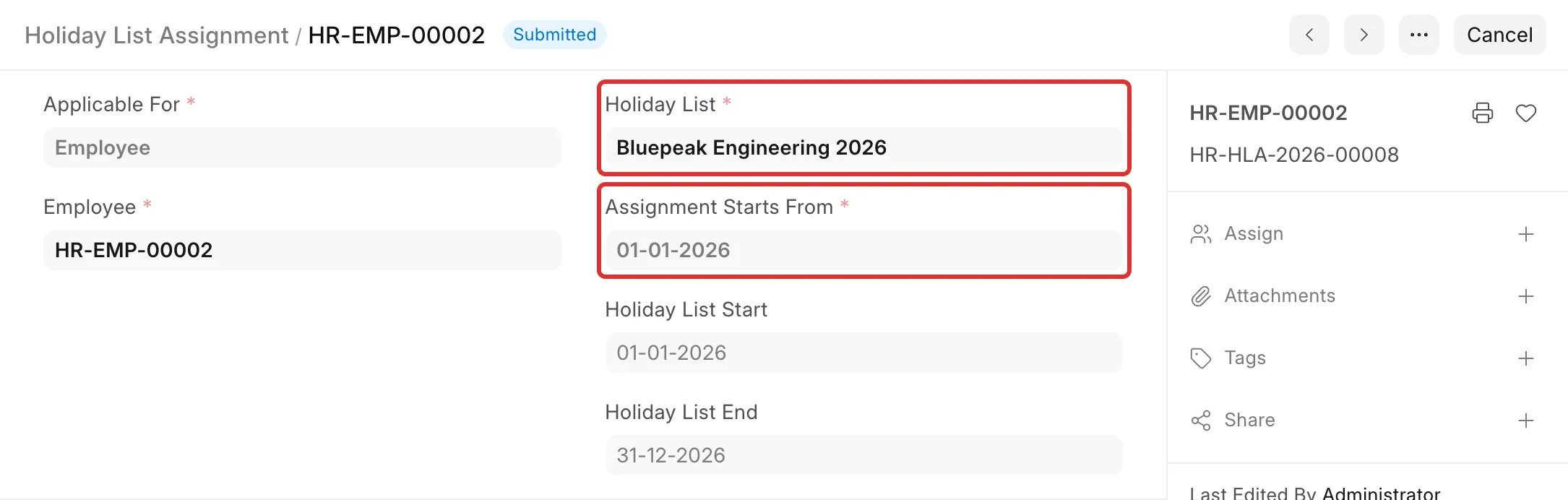
- Open the Holiday List Assignment list and click + Add Holiday List Assignment.
- Select the Employee (or set Applicable For to Company), the Holiday List, and Assignment Starts From.
- Click Save, then Submit.
- Open the draft Salary Slip and click Save. Frappe HR calculates the days again.
If the slip is already submitted, cancel it, amend it and submit it again.
The employee is paid for holidays with no attendance
Include holidays in Total no. of Working Days is on, so holidays are paid. If you do not want to pay holidays, clear the setting. If you want to count holidays and still not pay one, set Calculate Payroll Working Days Based On to Attendance, turn on Consider Marked Attendance on Holidays, and mark Absent Attendance for that holiday.
Payment Days is less than expected for a new or leaving employee
Days before the Date of Joining and after the Relieving Date are not paid. Check both dates on the Employee. If you change a date, save the draft Salary Slip again.
The employee is paid in full, but has Leave Without Pay or absent days
The amount does not depend on Payment Days. Open the Salary Structure, and in the Earnings table select Depends on Payment Days for each component that you pay per day. Then create the slip again.
Attendance or leave changed after the slip was made
A draft slip does not update by itself. Open it and click Save, or delete it and create it again from the Payroll Entry.
Half days are not counted as expected
Check the Attendance record. A Half Day with a leave type counts as half a day of that leave. A Half Day with Status for Other Half set to Absent reduces Payment Days only when Calculate Payroll Working Days Based On is Attendance.