


















Request for Quotation
Nova Industries knows it needs 200 USB-C power adapters by 5 November, but it does not yet know which supplier offers the best combination of price, delivery, and terms. Sending separate emails from a buyer's inbox would make it difficult to prove that suppliers received the same requirement or to connect their replies to the original need.
A Request for Quotation, or RFQ, gives the buyer one place to define what is needed and invite one or more suppliers to quote against the same requirement. Nova can create an RFQ directly for the 200 adapters and send it to Keystone Cables and Horizon Distribution. The RFQ does not commit Nova to buy, move stock, or post accounting entries.
Before you begin
Create each Supplier, its primary Contact, and a valid email address if ERPNext will send the RFQ. Create the Items and, where possible, start from a submitted purchase Material Request so the demand remains traceable.
If suppliers will respond through the portal, enable Request for Quotation in Portal Settings and ensure the supplier Contact can become a Website User. Configure an outgoing Email Account and review the fixed RFQ sender in Buying Settings.
Create an RFQ from a Material Request
- Open the submitted Material Request.
- Select Create > Request for Quotation.
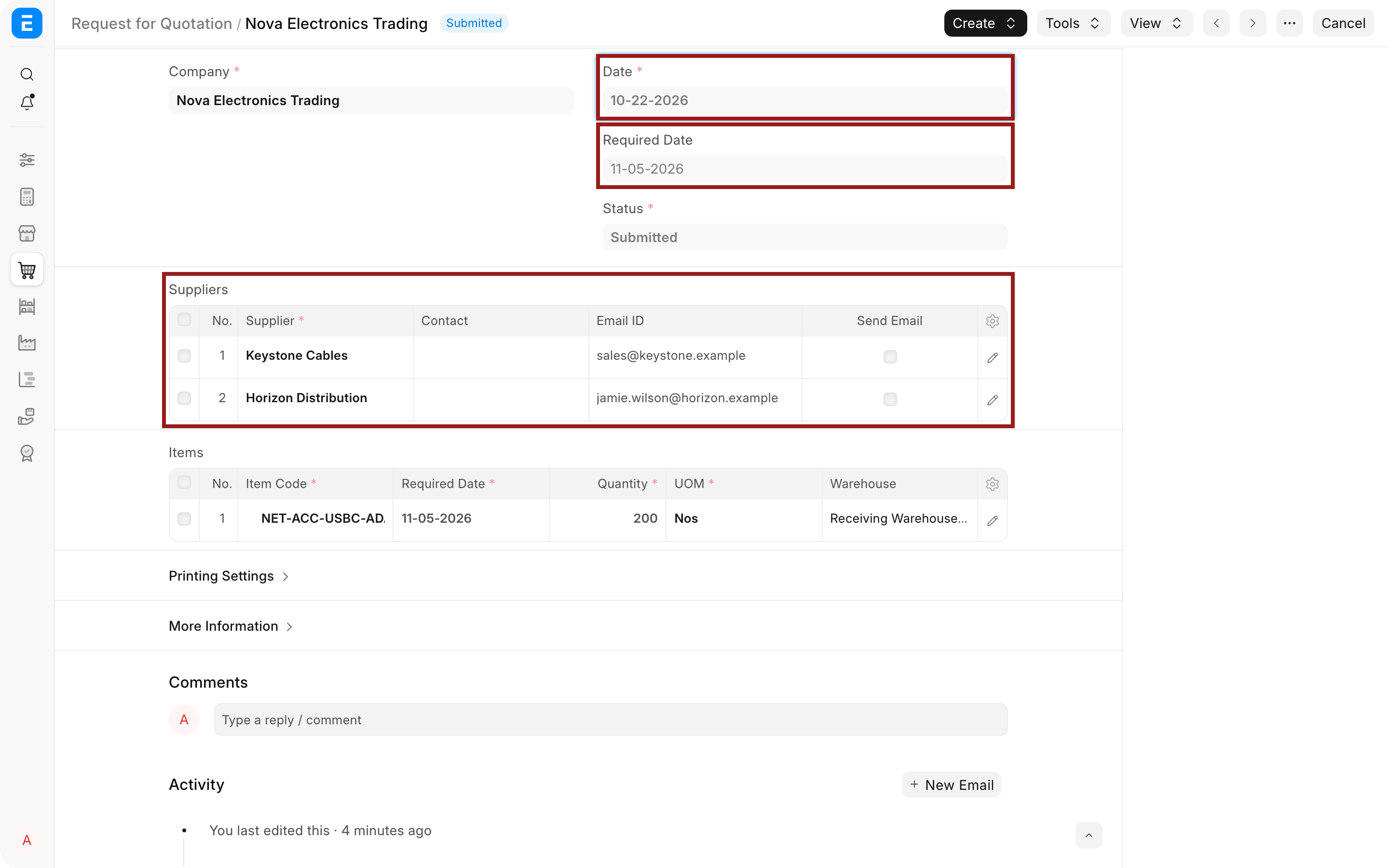
- Confirm the Company, Date, and Required Date.
- Add the suppliers who should receive the same request.
- Review the Items, quantities, UOMs, warehouses, and required dates.
- Configure email details if ERPNext will send the request.
- Save, review, and submit the RFQ.
You can also start from the RFQ list and use Get Items From to pull eligible Material Requests. Depending on the current form and installed apps, ERPNext can also fetch items from an Opportunity or possible-supplier suggestions.
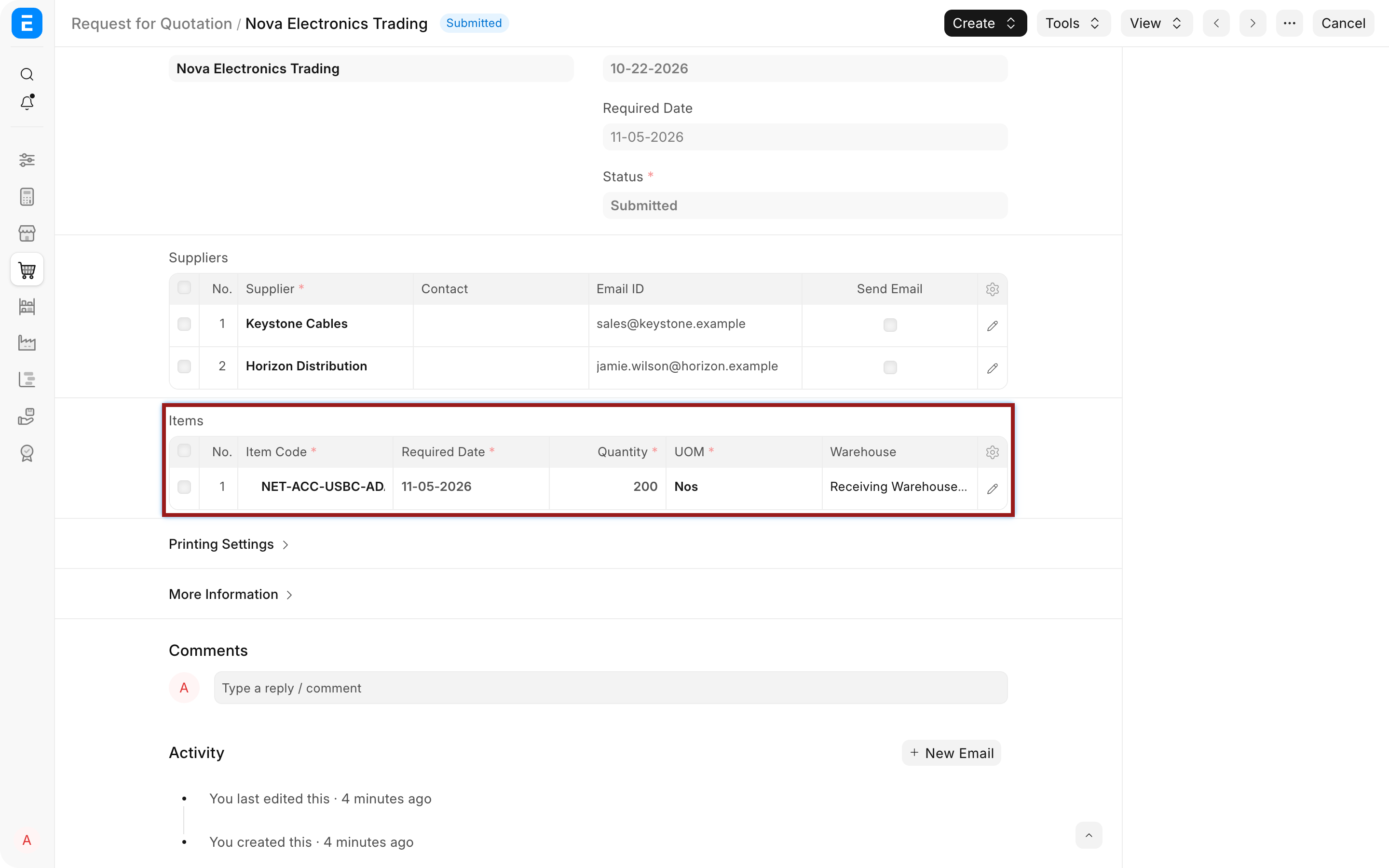
The item table should describe the requirement, not a negotiated price. In the example, every invited supplier sees the same quantity of 200 Nos and the same required date.
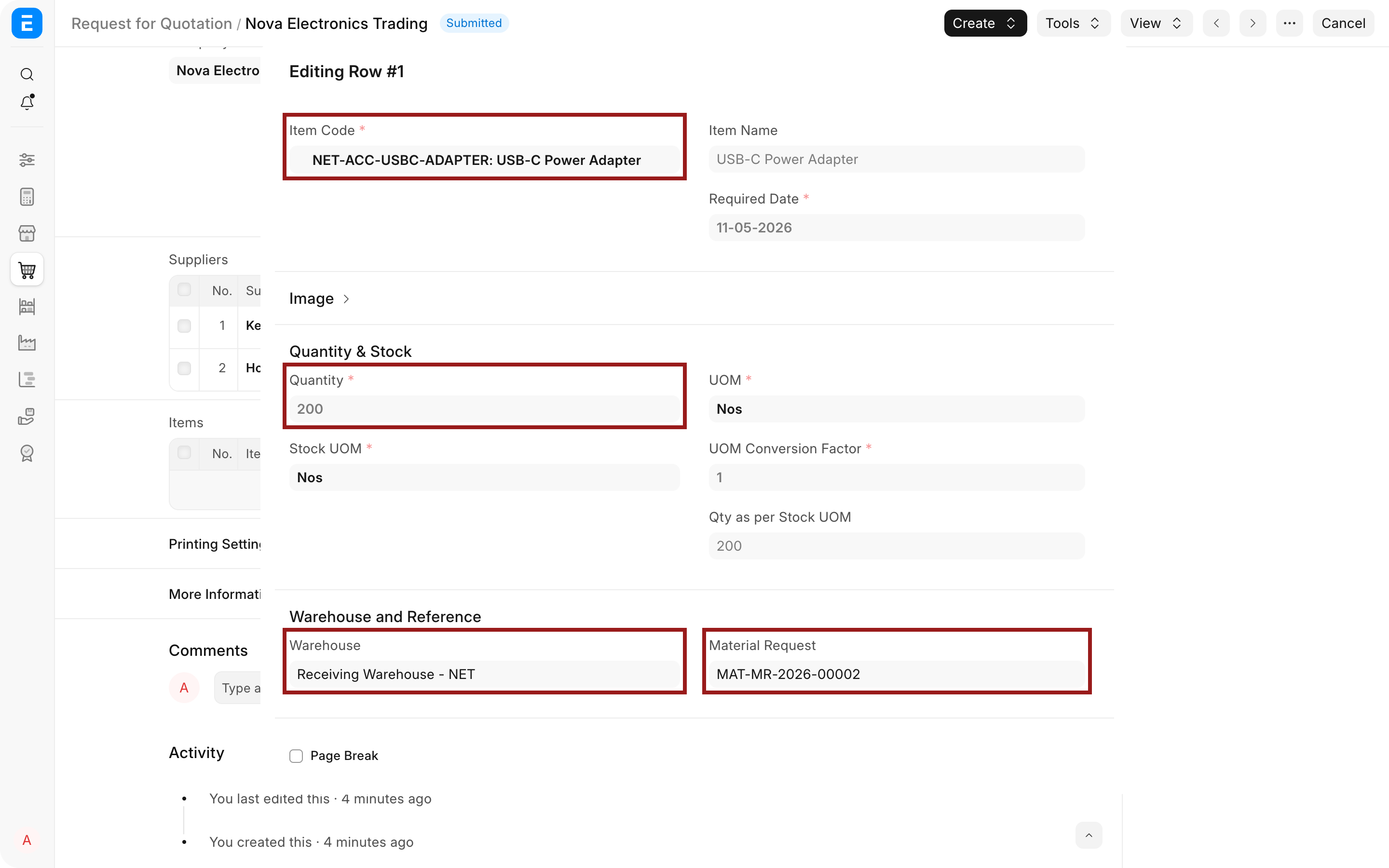
The Material Request reference proves where the demand came from. Keep it by creating the RFQ from the request or fetching the request into the RFQ. Manual re-entry can produce the same visible item but loses that connection.
Add and manage suppliers
| Field | What it controls | Nova example |
|---|---|---|
| Supplier | Identifies the party invited to quote | Keystone Cables and Horizon Distribution |
| Contact | Selects the supplier contact linked to the request | Supplier's purchasing contact |
| Email ID | Sets the recipient used when email is enabled | sales@keystone.example |
| Send Email | Includes that supplier when the RFQ emails are sent | Enable only after checking the address and message |
| Quote Status | Shows whether a supplier response has been received | Pending until a linked Supplier Quotation exists |
Use Get Suppliers when you want to add candidates by Supplier Group or Tag. This is useful for a controlled vendor pool, but it does not decide which suppliers are suitable. Review capability, geography, lead time, and approved-supplier policy before sending.
Prepare the outgoing email
When Send Email is selected for at least one supplier, the Email Details section lets you set a subject, message, and template. Preview the email for each supplier before submission. Attachments and the RFQ print can be included when the supplier needs drawings, specifications, or commercial conditions.
ERPNext templates can use values from the RFQ and supplier contact, including supplier name, portal link, password-update link, contact salutation, contact last name, and the current user's full name. Use only variables supported by the current template context. Send a test RFQ to an internal supplier record before rolling out a new template.
The portal link requires the RFQ portal route to be enabled. ERPNext can create or link a Website User for the supplier contact when the email is sent. Treat portal access as external access: verify the Contact belongs to the correct Supplier and avoid sharing internal attachments.
Submit and receive responses
Submitting the RFQ sends email to rows where Send Email is enabled. If you intentionally submit without emailing, use the Tools action later to send supplier emails. A submitted RFQ remains an invitation, not an order.
Suppliers can respond in two ways. Your team can record a reply as a Supplier Quotation, or an authorized supplier contact can open the portal request, enter rates and notes, and create a draft Supplier Quotation. The response should be reviewed and submitted internally before it is treated as an approved commercial offer.
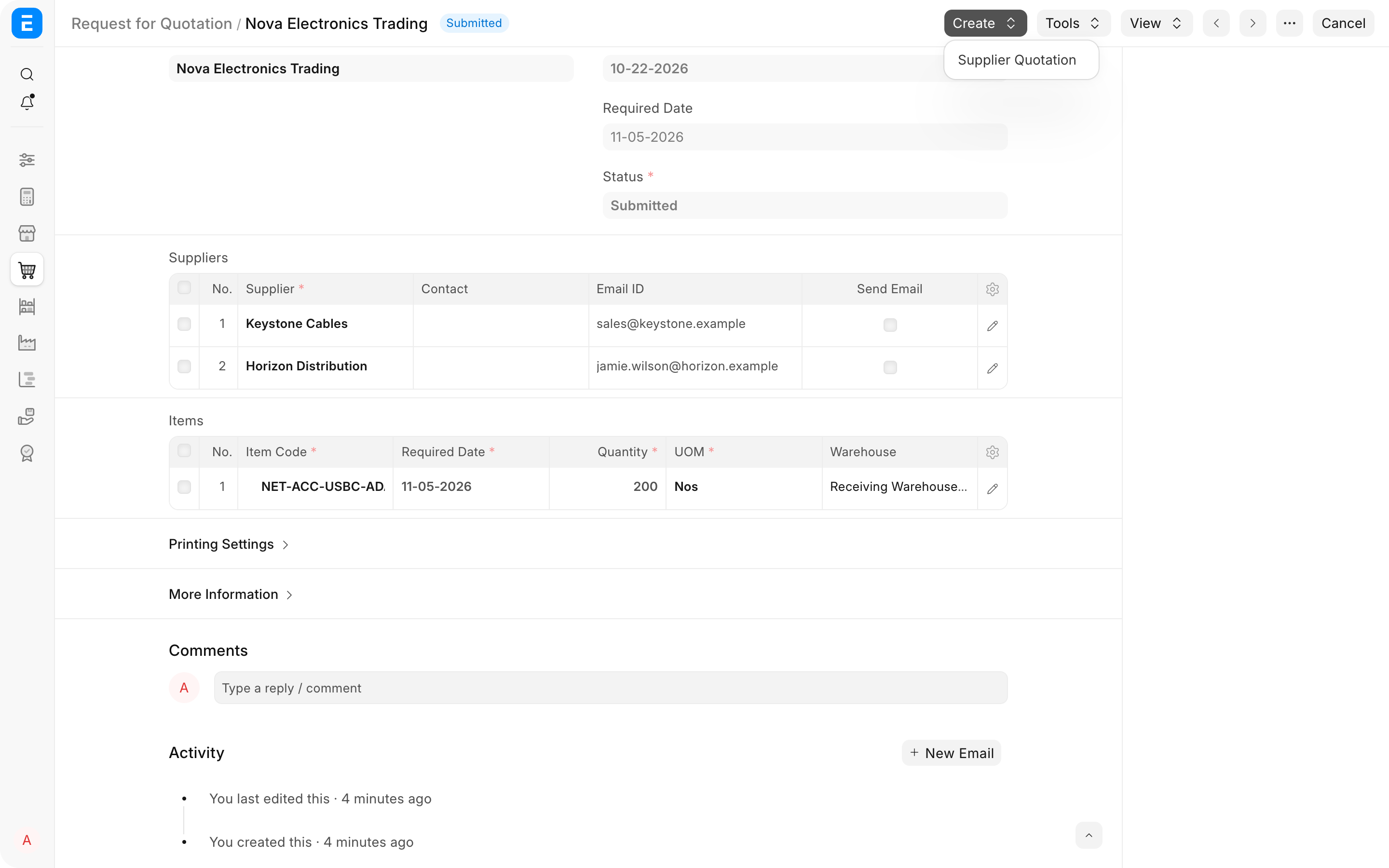
The Create action carries the RFQ items into a new Supplier Quotation. Select the responding supplier, enter the quoted rates, validity, delivery information, taxes, and supplier quotation number, then save and submit it.
Print or send an RFQ outside the portal
An RFQ can be printed or sent as a PDF when the supplier does not use the portal. Select the supplier before printing so supplier-specific part numbers are shown where configured. Letter Head and Print Heading control the document presentation.
A supplier may return a PDF or email instead of entering the portal. Attach the original reply to the Supplier Quotation and record its commercial values in structured fields. The attachment is evidence; the Supplier Quotation is what ERPNext can compare and carry into a Purchase Order.
Use terms and delivery conditions
Use Terms and Conditions for instructions that every supplier must consider. Use Incoterms and Named Place when responsibility for transport, insurance, and delivery location needs an internationally recognized definition.
Keep commercial requirements clear but avoid overloading the RFQ with internal commentary. Suppliers should see the requested items, quantities, dates, specifications, response deadline, and terms needed to prepare a comparable quote.
Compare supplier responses
Use Supplier Quotation Comparison after the responses are recorded. Compare the same Item and quantity across suppliers, but do not select the lowest rate without checking taxes, freight, lead time, validity, warranty, payment terms, and specification compliance.
For Nova, a rate of $18 that arrives before 5 November can be better than a rate of $17.50 that arrives after the campaign begins. Record the selected offer by creating the Purchase Order from that Supplier Quotation instead of retyping the rate.
Troubleshooting
A supplier does not receive the RFQ email
Check Send Email on the supplier row, the Email ID, the outgoing Email Account, and Email Queue. If a fixed outgoing account is configured in Buying Settings, verify that account is enabled and allowed to send.
The supplier cannot open the portal link
Confirm that Request for Quotation is enabled in Portal Settings, the Contact is linked to the correct Supplier, and the email address belongs to an enabled Website User. Resend access only after checking the recipient.
A Material Request is missing from Get Items From
The request must be submitted, have Purpose Purchase, belong to the same Company, and retain quantity that is eligible for buying. Stopped, cancelled, or fully ordered requests are not appropriate sources.
The response is not reflected in Quote Status
Create the Supplier Quotation from the RFQ or retain the RFQ reference on its item row. A manually entered quotation without the source reference cannot be reliably counted as the response to that RFQ.
Frequently asked questions
Is an RFQ mandatory before a Purchase Order?
It is optional unless your organization enforces it. Use it when competitive quotes, supplier outreach, or a documented sourcing decision adds value. Skip it for an already contracted supplier when the approved rate and terms are known.
Does one RFQ create one Supplier Quotation?
One RFQ can invite several suppliers, and each supplier response becomes a separate Supplier Quotation. This is what makes side-by-side comparison possible.
Can suppliers see each other's quotations?
Supplier portal access is restricted to the supplier relationship of the logged-in contact. Your internal team sees the collected quotations and comparison reports.
Can the RFQ be changed after it is submitted?
Cancel and amend it when the requirement itself is wrong. If an important change was already sent, communicate the corrected request clearly so suppliers do not quote against different versions.
Does submitting an RFQ update stock or accounting?
It sends or records a commercial enquiry only. Stock and ledger effects occur later through receipt, invoice, and payment documents.