


















Shift Assignment
Pooja Nair works on the press line at the Nova Industries Pune branch. Her Default Shift is the Day Shift, 09:00 to 18:00. From Monday, 23 November 2026, the press line needs her on the Evening Shift, 14:00 to 22:00, and nobody yet knows for how long. HR has to record the change so that her check-ins from 14:00 count as arrival, not as a late Day Shift.
A Shift Assignment puts one employee on one Shift Type from a start date, either to an end date or with no end date. While it is active, it replaces the Default Shift on the Employee record. Employee Checkin records are matched to the assigned shift, and Auto Attendance marks attendance against it.
Assignments are also created for you. An approved Shift Request creates one, the Shift Assignment Tool creates them for many employees at once, and a Shift Schedule Assignment creates them for a rotation. For how these fit together, see Shift Management.
Before you begin
- The employee is Active, and the Shift Type exists.
- You have the HR User or HR Manager role. The Employee role can view assignments but cannot create or submit them.
- To limit check-ins to a site, create a Shift Location first.
Create a Shift Assignment
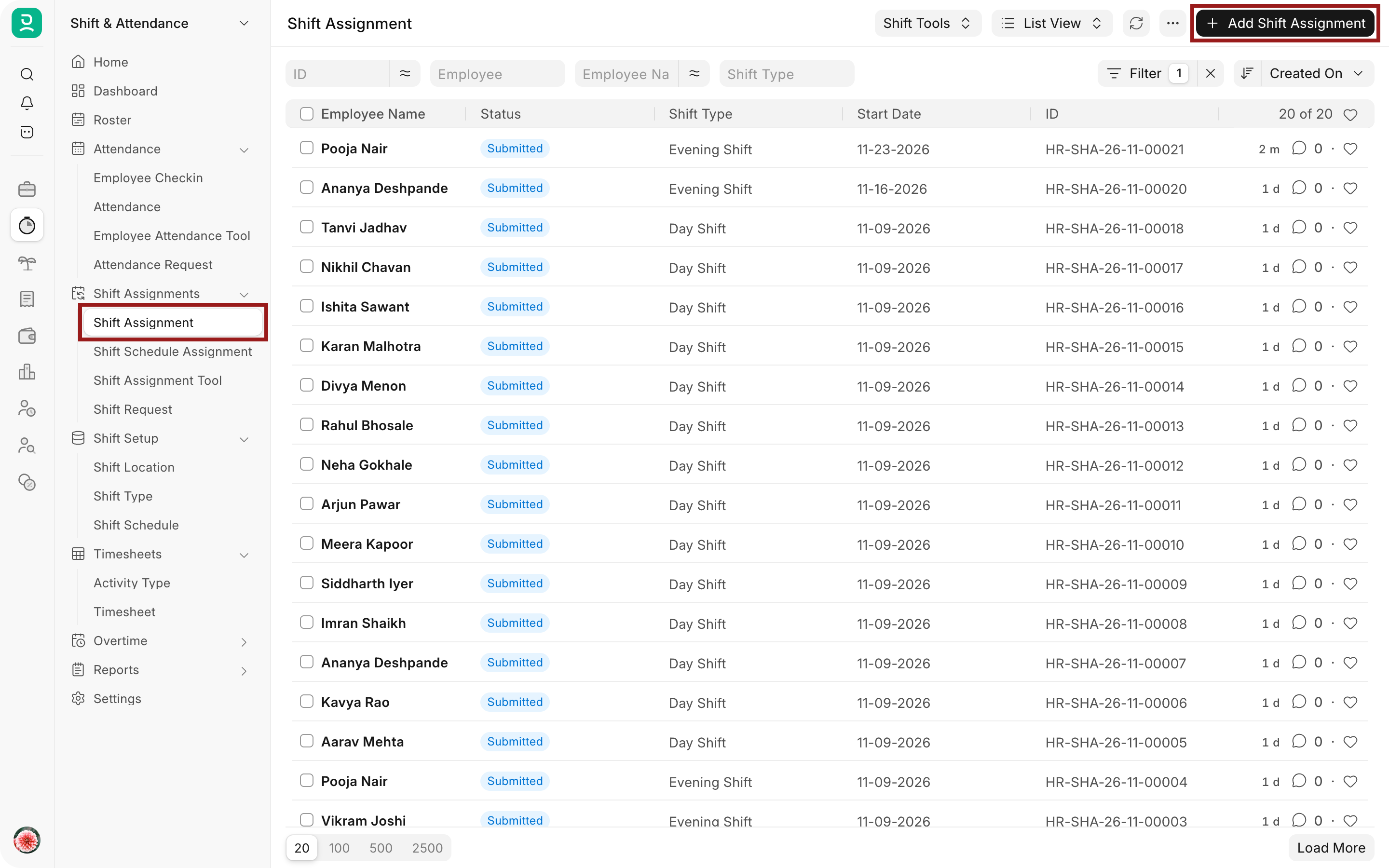
- Open the Shift & Attendance workspace and select Shift Assignment under Shift Assignments. Select Add Shift Assignment.
- Select the Employee. The name, company and department are filled in.
- Select the Shift Type, here Evening Shift, and the Start Date, here 23 November 2026.
- Set an End Date if the shift is for a fixed period. Leave it empty for an ongoing assignment, as for Pooja.
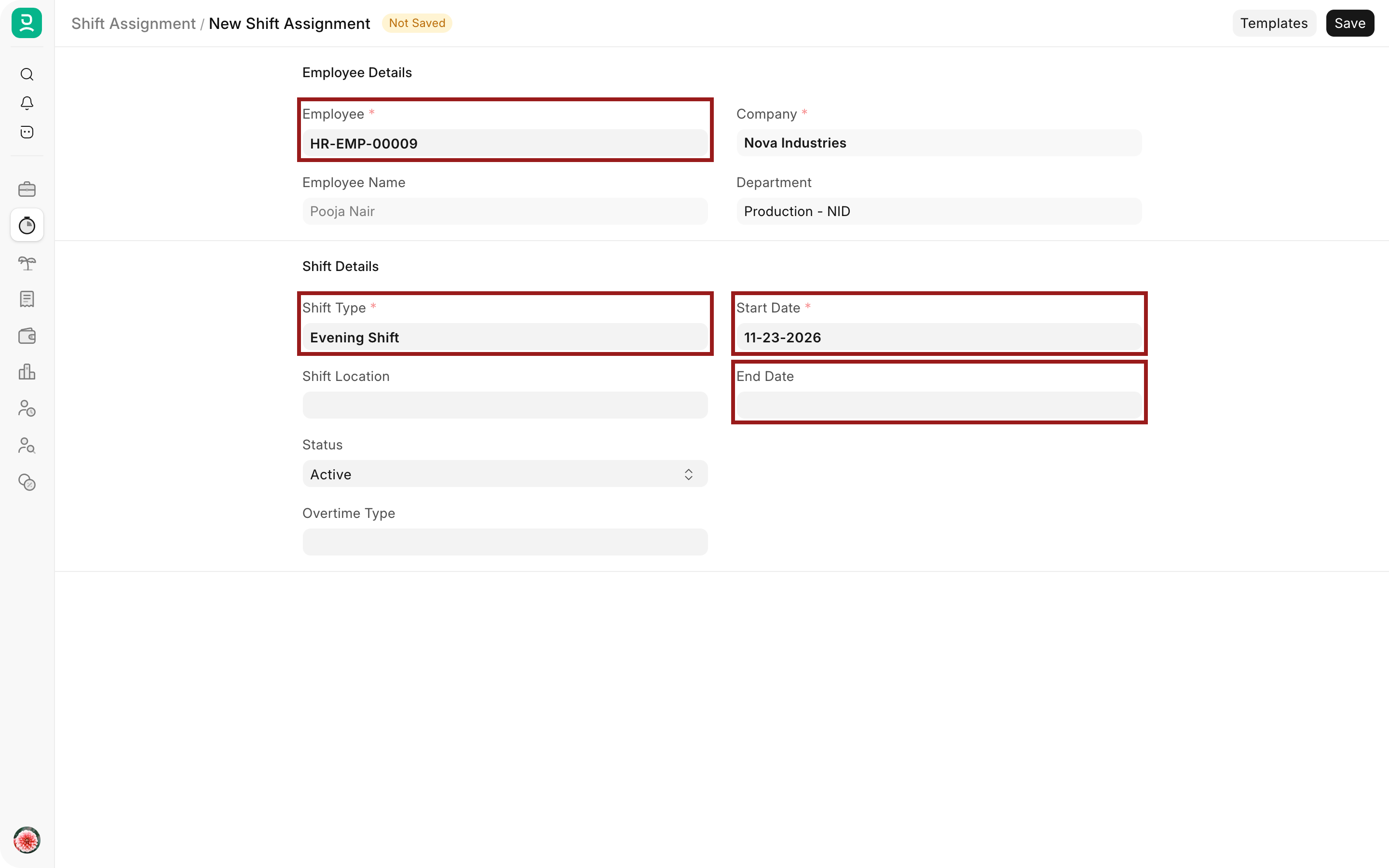
- Optionally select a Shift Location to accept check-ins only near that site. Overtime Type is taken from the Shift Type if it has one.
- Select Save, then Submit. Only a submitted assignment is used for check-ins and attendance.
Change or end an assignment
After submission you can still change the End Date and the Status. When Pooja's evening work ends, set an End Date and select Update. To stop an assignment at once, set Status to Inactive. An Inactive assignment is ignored, and the employee goes back to their Default Shift.
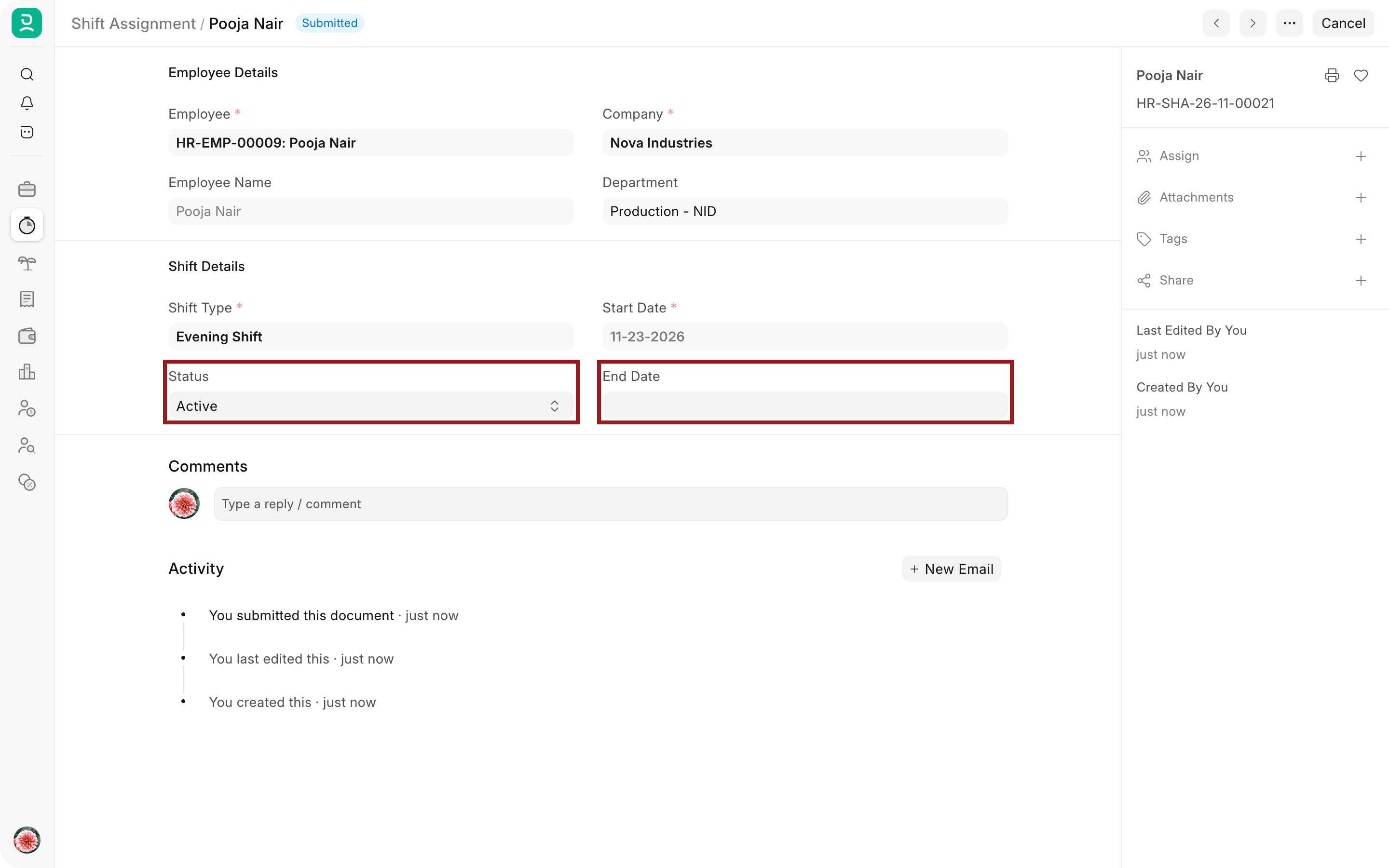
A daily job sets Status to Inactive on assignments whose End Date has passed, so old assignments do not stay Active. Frappe HR checks for overlaps again when you change the dates.
You can cancel an assignment only if no Employee Checkin or Attendance for that employee and shift falls inside its dates. Once check-ins exist, end the assignment with an End Date instead.
More than one shift on the same date
By default an employee can have only one active assignment on a date. To let someone work two shifts on one day, for example a morning shift and a late shift with a gap between them, tick Allow Multiple Shift Assignments for Same Date in HR Settings, on the Shift and Attendance tab.
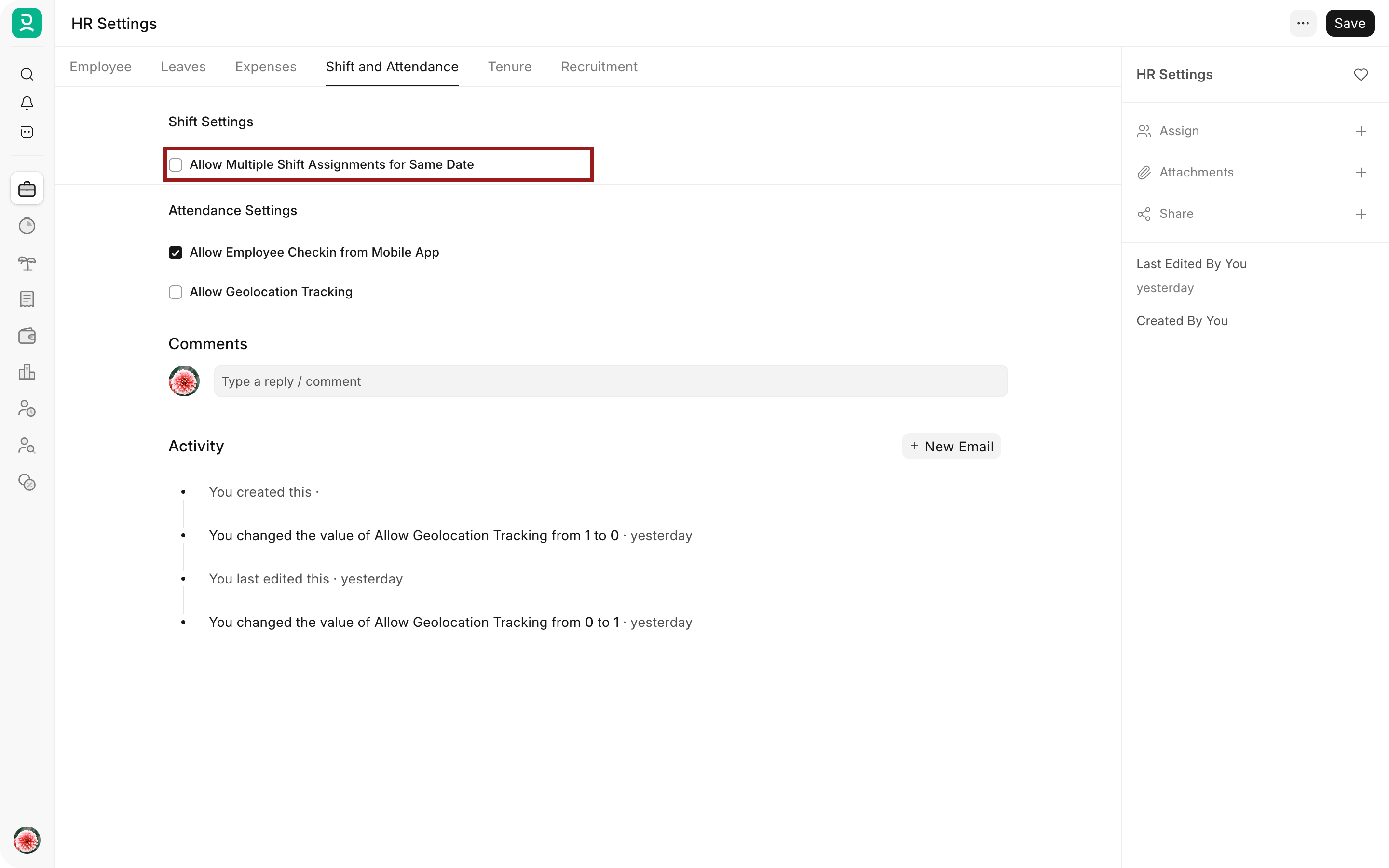
Even with this setting, two shifts whose times overlap cannot be assigned to the same employee on the same date. To see everyone's shifts by week, use the Roster.
Troubleshooting
Employee already has an active Shift Assignment for some/all of these dates
Another submitted, Active assignment covers some of the same dates. End or deactivate the other assignment, or tick Allow Multiple Shift Assignments for Same Date if the employee really works two shifts that day.
Employee already has an active Shift that overlaps within this period
The times of the two shifts overlap, which is never allowed. Choose a shift with different times, or end the other assignment before the new start date.
Cannot cancel Shift Assignment as it is linked to Employee Checkin
Check-ins or attendance already use this assignment. Set an End Date or set Status to Inactive instead of cancelling.
The assignment turned Inactive by itself
Its End Date has passed, and the daily job marked it Inactive. Create a new assignment, or clear the End Date and set it back to Active if the shift continues.
Frequently asked questions
What happens on days without an assignment?
Frappe HR uses the Default Shift on the Employee record. Without a Default Shift, check-ins on those days are saved as Off-Shift and Auto Attendance ignores them.
Can I assign a shift to many employees at once?
Use the Shift Assignment Tool, which creates and submits one assignment per selected employee. For repeating patterns, such as alternating weeks, use a Shift Schedule Assignment.