


















Fetch shipping charges based item's value or weight
Imagine Nova Industries pays a fixed $40 delivery charge for small orders, $70 when the order value is higher, and a weight-based charge for bulky equipment. Buyers should not remember the thresholds or type freight manually on every Purchase Order.
A Shipping Rule applies a configured charge when a transaction falls within a net-total or net-weight range. ERPNext adds the charge to the Taxes and Charges table so the buyer can review it before submission.
Create the Shipping Rule
- Open Shipping Rule and create a new record.
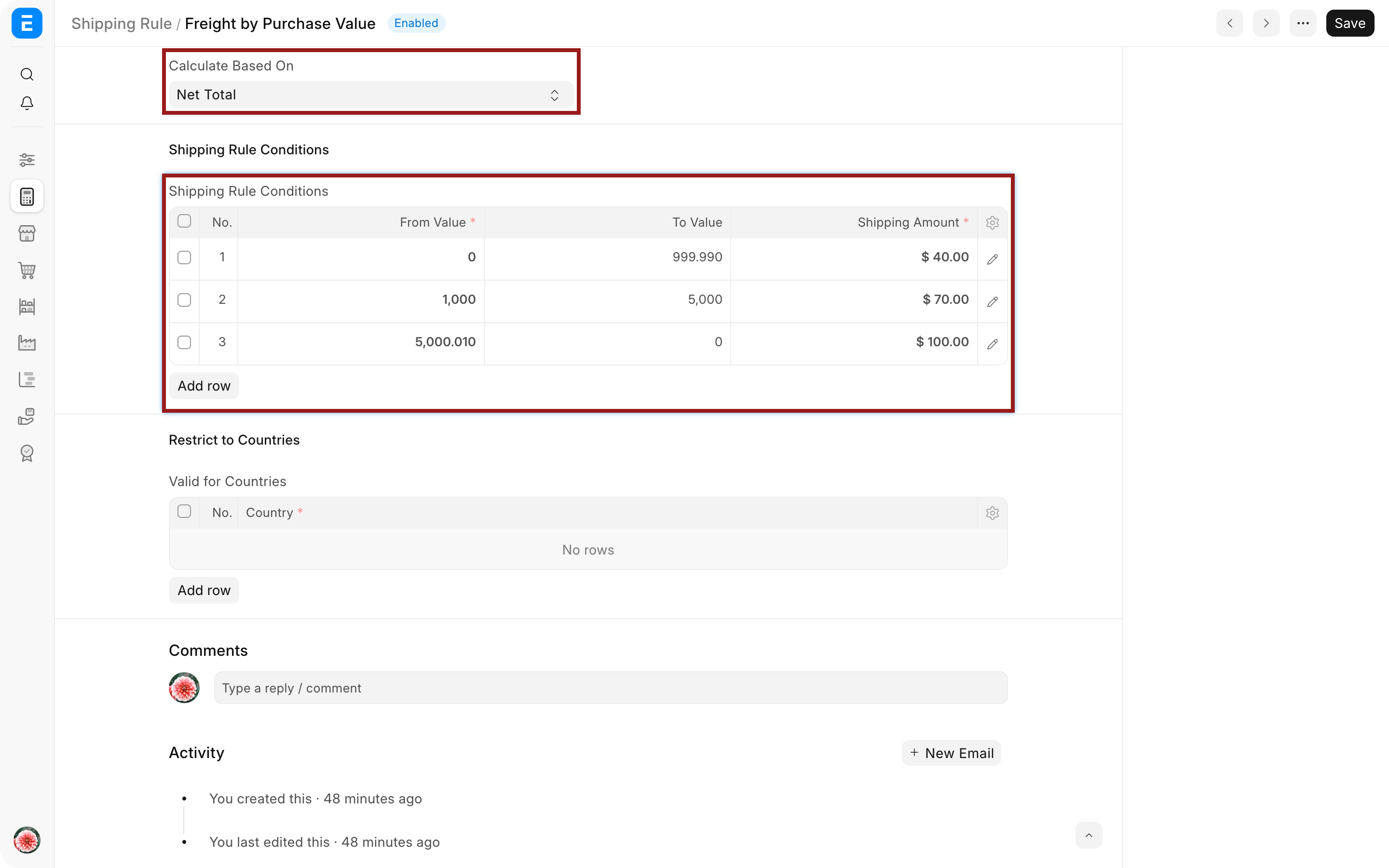
- Choose whether the calculation is based on Net Total or Net Weight.
- Set the Company and the countries or conditions where the rule applies.
- Add non-overlapping minimum and maximum ranges.
- Enter the shipping amount for each range.
- Select the account and cost center used for the charge.
- Save the rule.
For a weight-based rule, every Item needs an accurate weight and Weight UOM. Missing or inconsistent Item weights make the result unreliable.
Apply the rule to a Purchase Order
- Create the Purchase Order and add the Items.
- Review Net Total or total weight.
- Select the Shipping Rule.
- Confirm that ERPNext adds the correct Taxes and Charges row.
- Review the account, amount, tax treatment, Grand Total, and valuation behavior.
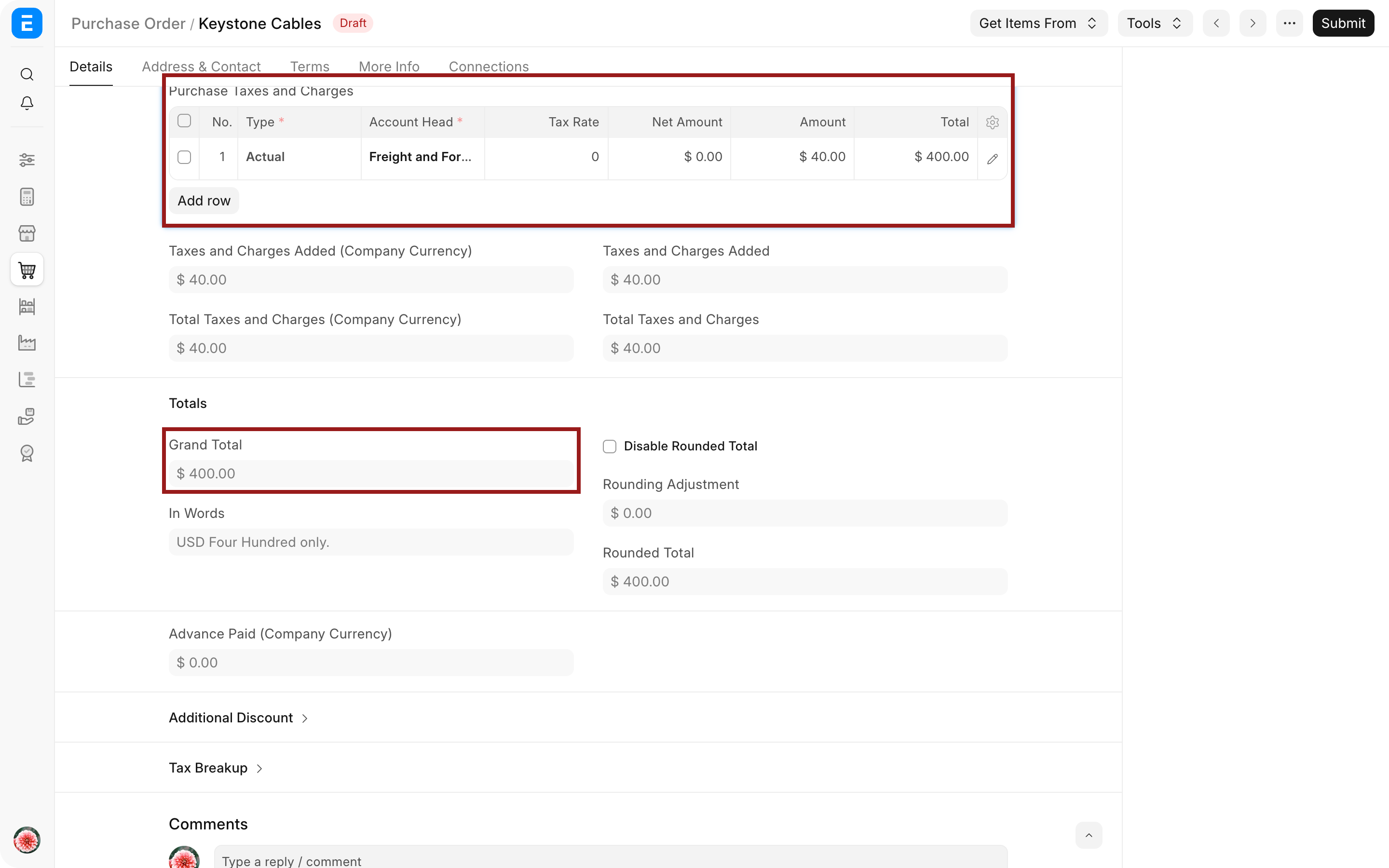
If the order moves into another range, refresh or reselect the rule and confirm the updated charge. Do not assume that an earlier amount is still correct after changing Items, quantities, discounts, currency, or UOM.
Design ranges carefully
| From | To | Charge | Example meaning |
|---|---|---|---|
| $0 | $999.99 | $40 | Small order |
| $1,000 | $4,999.99 | $70 | Standard order |
| $5,000 | No upper limit | $0 | Free shipping threshold |
Avoid gaps and unintended overlaps. Document whether boundary values belong to the lower or higher range and test transactions exactly at each threshold.
Troubleshooting
No shipping charge is fetched
Check the rule's Company, calculation basis, country conditions, range, currency, and active state. For weight-based rules, verify Item weights and Weight UOM.
The wrong range is selected
Review overlapping boundaries, discounts, currency conversion, and whether the rule uses Net Total or Net Weight. Test the transaction at the exact boundary value.
The amount appears but posts incorrectly
Check the Taxes and Charges row's Account Head, Cost Center, and whether it affects Total, Valuation, or both.
Changing quantity does not refresh the charge
Reapply or refresh the Shipping Rule after the transaction total or weight changes, then review the recalculated row before submission.
Frequently asked questions
Can the same rule be used for sales and purchases?
Configure and test the rule for the transaction type and accounts your implementation supports. Do not reuse a selling charge blindly in buying when the accounting destination differs.
Can the rule calculate a percentage?
Shipping Rule normally selects configured charges by range. Use the Taxes and Charges table or a supported customization when the commercial rule requires another formula.
Does the fetched charge automatically include tax?
Not necessarily. Add or configure the relevant tax row and calculation basis, then verify the result.
Combine the Shipping Rule with Item, UOM, and Supplier setup. Apply and verify the charge in Purchase Order, Purchase Receipt, and Purchase Invoice. Use a Purchase Taxes and Charges Template for reusable tax rows, a Landed Cost Voucher for costs known after receipt, and Buying Settings for transaction controls.