


















Amending Purchase Order after Submit
Imagine Nova Industries submits an order for 200 adapters. Before delivery, Keystone Cables confirms that it can supply only 180 at the agreed rate, while the remaining 20 must come later at a different price. The order is already submitted, so simply editing its history would make approvals and downstream receipts impossible to trust.
ERPNext provides two controlled approaches. Use Update Items for supported quantity or rate changes that do not conflict with receipts or invoices. Use Cancel and Amend when the commercial change requires a new submitted version and linked documents allow cancellation.
Choose the right approach
| Situation | Recommended action |
|---|---|
| Change unreceived or partially received quantity | Update Items, within validation limits |
| Change uninvoiced or partially invoiced rate | Update Items, within validation limits |
| Add another Item before receipt or billing | Update Items when ERPNext permits it |
| Correct a wider submitted-document error | Cancel and Amend after resolving links |
| Change an already received quantity | Correct or return the receipt first; do not rewrite history |
| Change an already billed rate | Correct the invoice through the supported accounting workflow |
Update Items without cancelling the order
- Open the submitted Purchase Order.
- Select Update Items.
- In the dialog, change the eligible quantity or rate, or add a row.
- Review the effect on totals and pending quantities.
- Select Update.
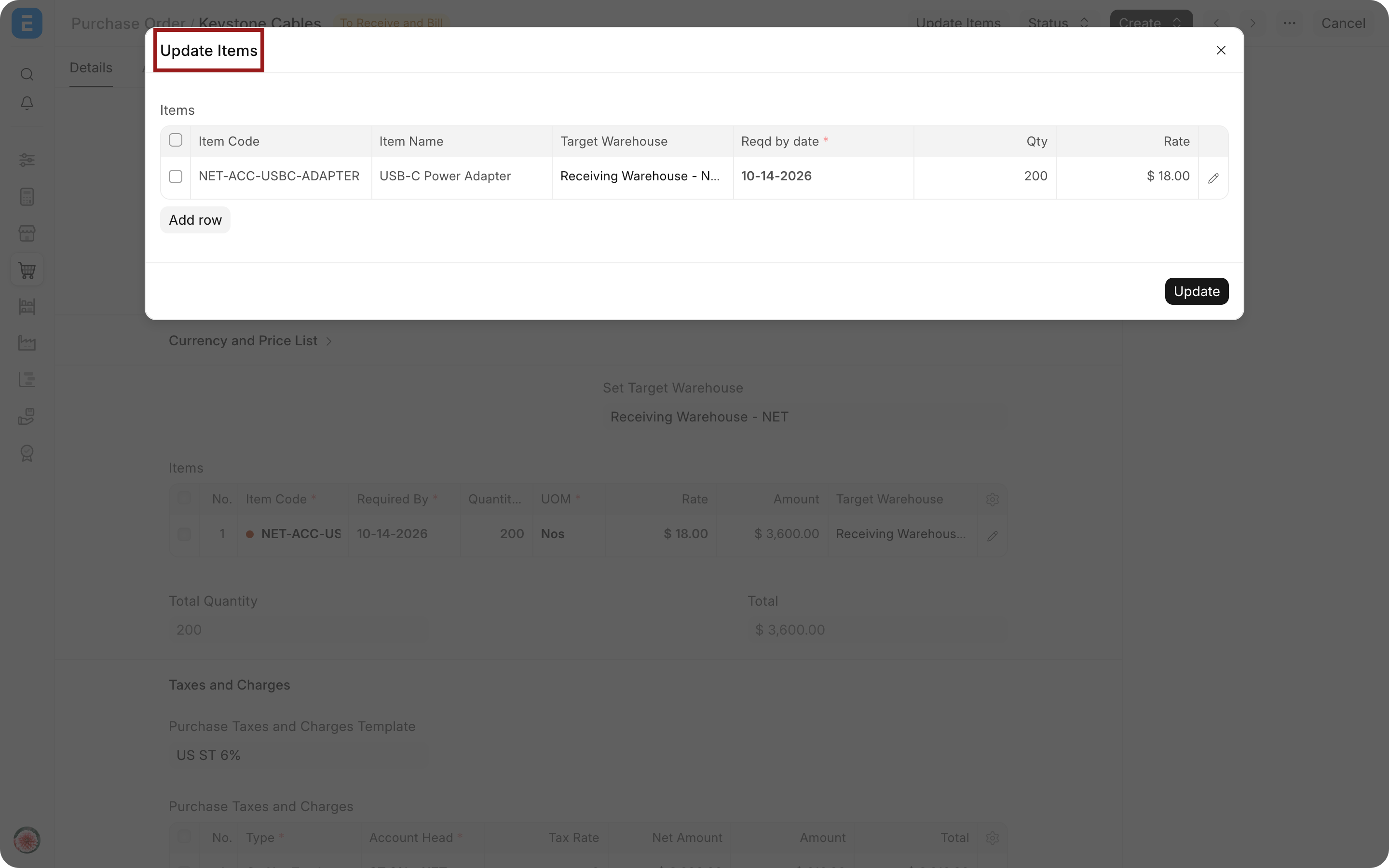
The action opens a controlled dialog instead of making the submitted order freely editable.
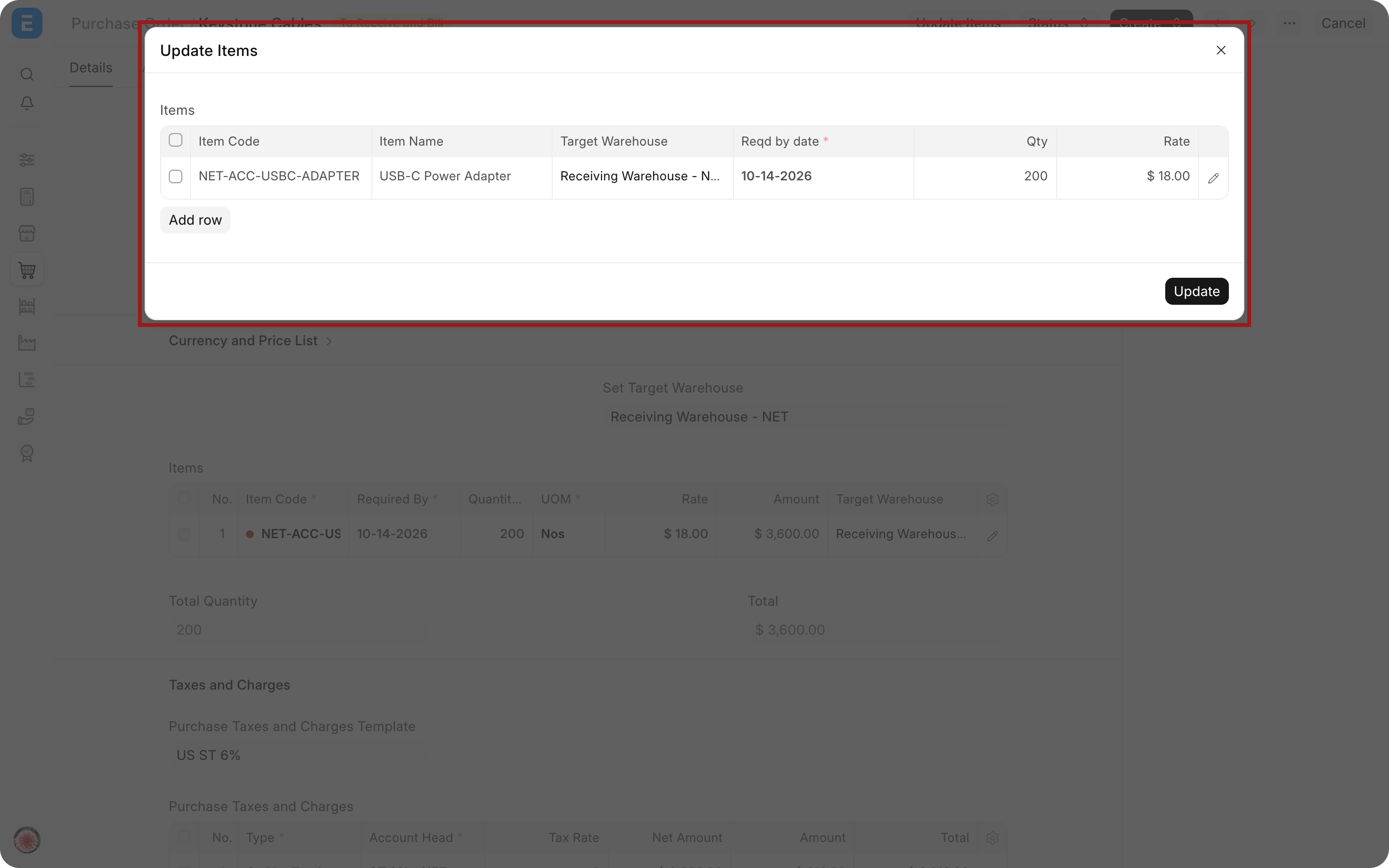
ERPNext checks linked Purchase Receipts and Purchase Invoices. Quantity cannot be reduced below what has already been received. Rate cannot be changed for quantity already billed in a submitted invoice.
Cancel and amend the Purchase Order
Use this route when Update Items cannot represent the correction and no submitted downstream document blocks cancellation.
- Review Connections for receipts, invoices, payments, and other links.
- Cancel or reverse downstream documents in the correct order when the business event itself must be undone.
- Cancel the Purchase Order.
- Select Amend.
- Make the correction in the new draft.
- Review the amended-from reference and submit the new version.
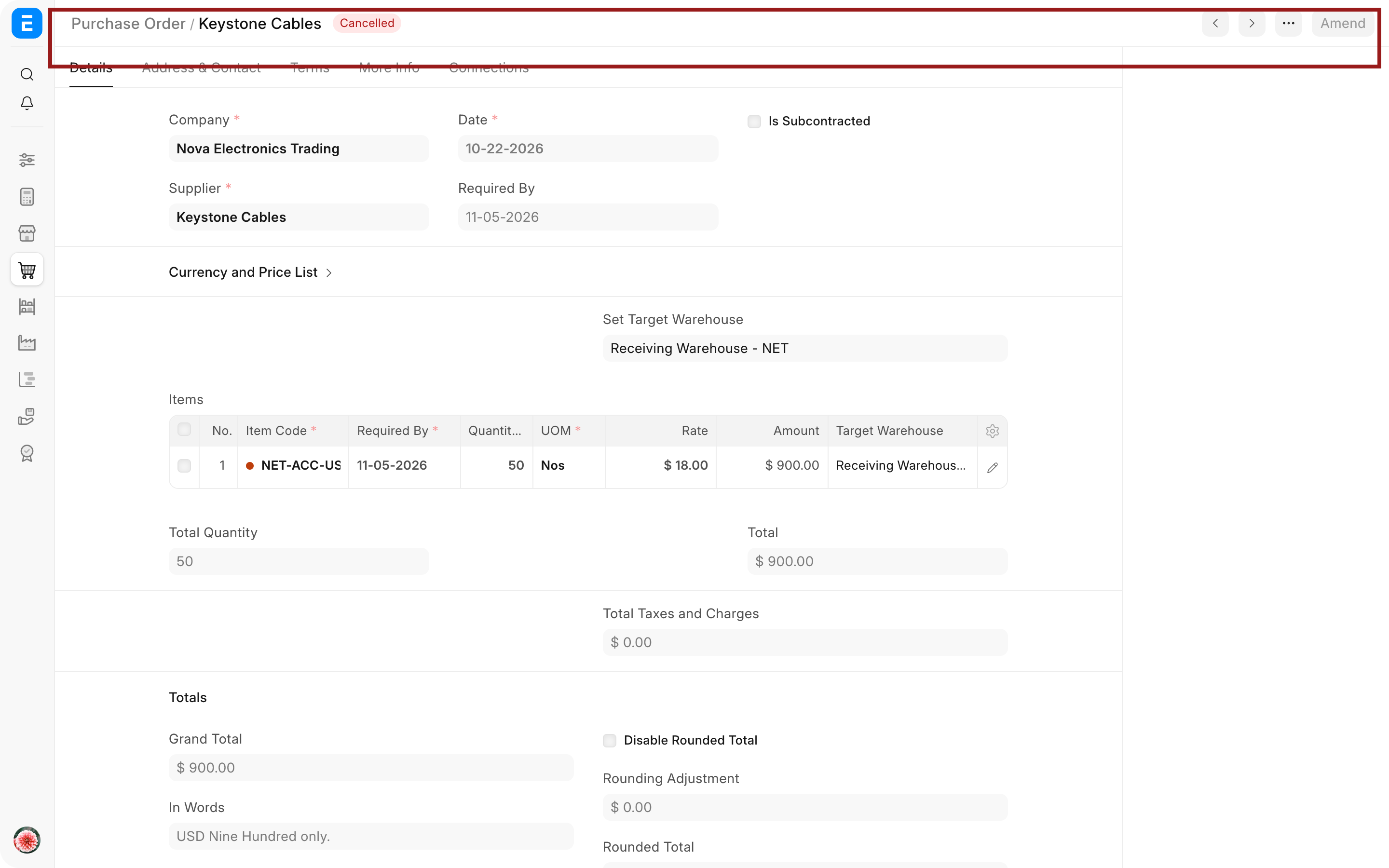
The cancelled order remains in the audit trail. The amended document receives a new revision identity and points back to the original.
Verify the result
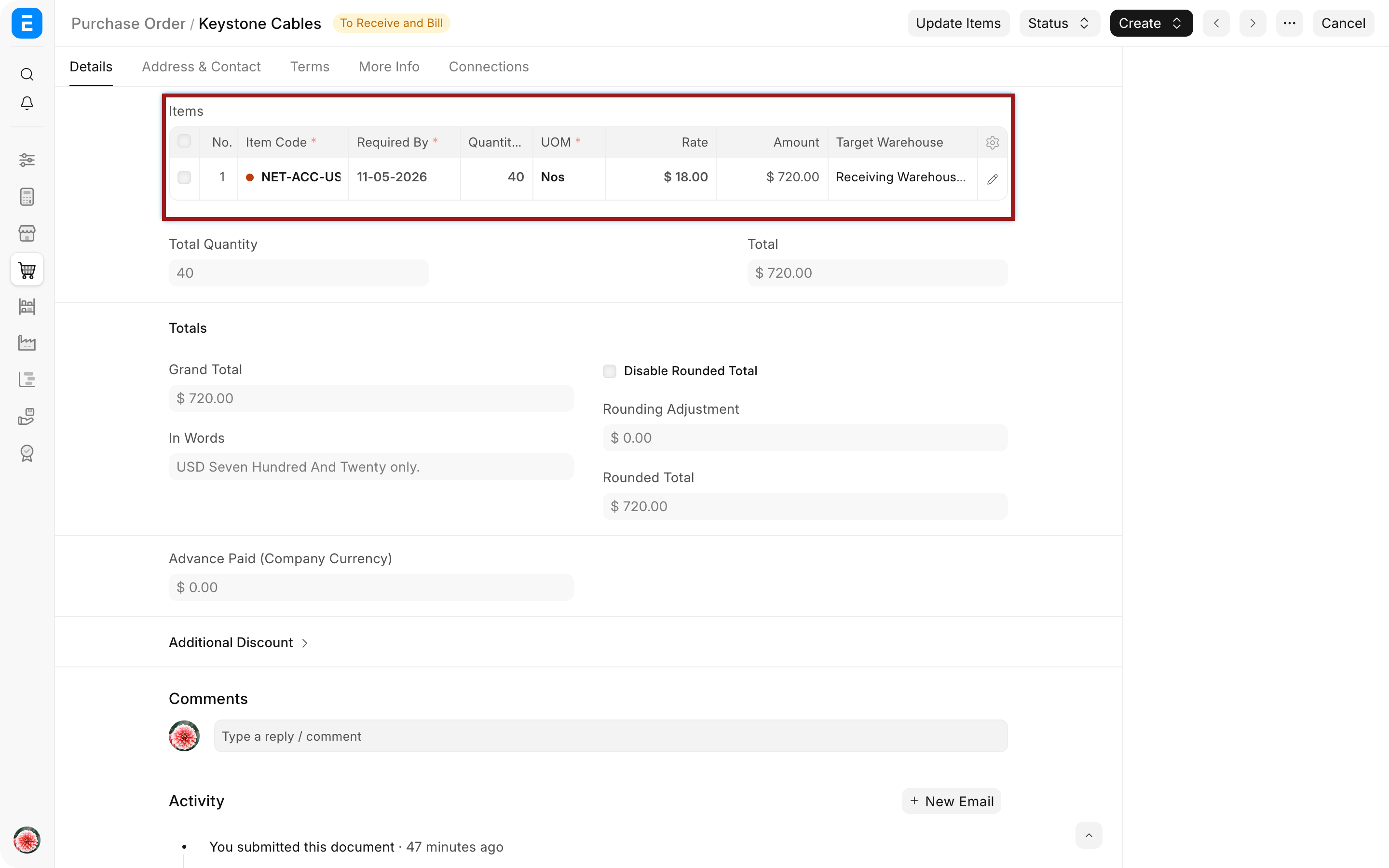
Check the order's Items, totals, received percentage, billed percentage, and Connections. Notify the Supplier when the commercial order changed and send the current print, not the cancelled one.
Troubleshooting
Update Items will not allow the new quantity
Compare the proposed quantity with what has already been received and returned. ERPNext does not allow the order to contradict posted stock.
The rate cannot be changed
Check submitted Purchase Invoices linked to the item. Correct the invoice or use the supported price-adjustment process instead of changing the billed order history.
The Purchase Order cannot be cancelled
Review linked Purchase Receipts, Purchase Invoices, payments, and subcontracting records. Reverse or cancel dependent documents only when the underlying business event should be reversed.
The Supplier received the old order
Send the amended Purchase Order with a clear message that it replaces the cancelled version. Use print headings or terms to make the revision understandable without exposing internal record codes in normal communication.
Frequently asked questions
Is Update Items the same as an amendment?
Update Items is not the same as an amendment. It changes permitted fields on the submitted order while preserving the same document. Cancel and Amend creates a new version linked to the cancelled original.
Can I delete an Item that was partially received?
An Item that was partially received should not be deleted. Posted receipt history must remain explainable. Adjust the unreceived balance within allowed rules or close the remaining quantity when it will not be fulfilled.
Does changing the Purchase Order change existing receipts or invoices?
Changing the Purchase Order does not rewrite submitted downstream documents. They keep their own quantities, rates, and accounting or stock effects. Review each one separately.
Use Material Request, Request for Quotation, and Supplier Quotation for the upstream trail. After amendment, verify downstream impact in Purchase Receipt, Purchase Invoice, Purchase Return, Payment Entry, and the Procurement Tracker. Review Buying Settings and the Supplier record when the permitted workflow differs by supplier.