


















Imagine you lead purchasing at Nova Industries, an electronics manufacturer and distributor. One buyer accepts an invoice without an order, another changes the agreed rate, and a third orders more than requested. Without a common policy, the company cannot tell an approved exception from a mistake.
Buying Settings turns purchasing policies into defaults and validations. It controls supplier naming, rates, mandatory documents, quantity variation, and subcontracting. It applies site-wide, so review changes with purchasing, warehouse, finance, and manufacturing teams.
Before you begin
You need System Manager or Purchase Manager permission. Create the required Supplier Groups, buying Price Lists, Roles, Email Accounts, and naming series first. Test changes because a stock-purchase rule may interrupt a valid service or emergency purchase.
Open Buying > Settings > Buying Settings, or search for Buying Settings. The form is organized into Defaults, Pricing, Transaction Settings, Subcontracting Settings, Request for Quotation, and Document Naming. Select Save after making changes.
Defaults
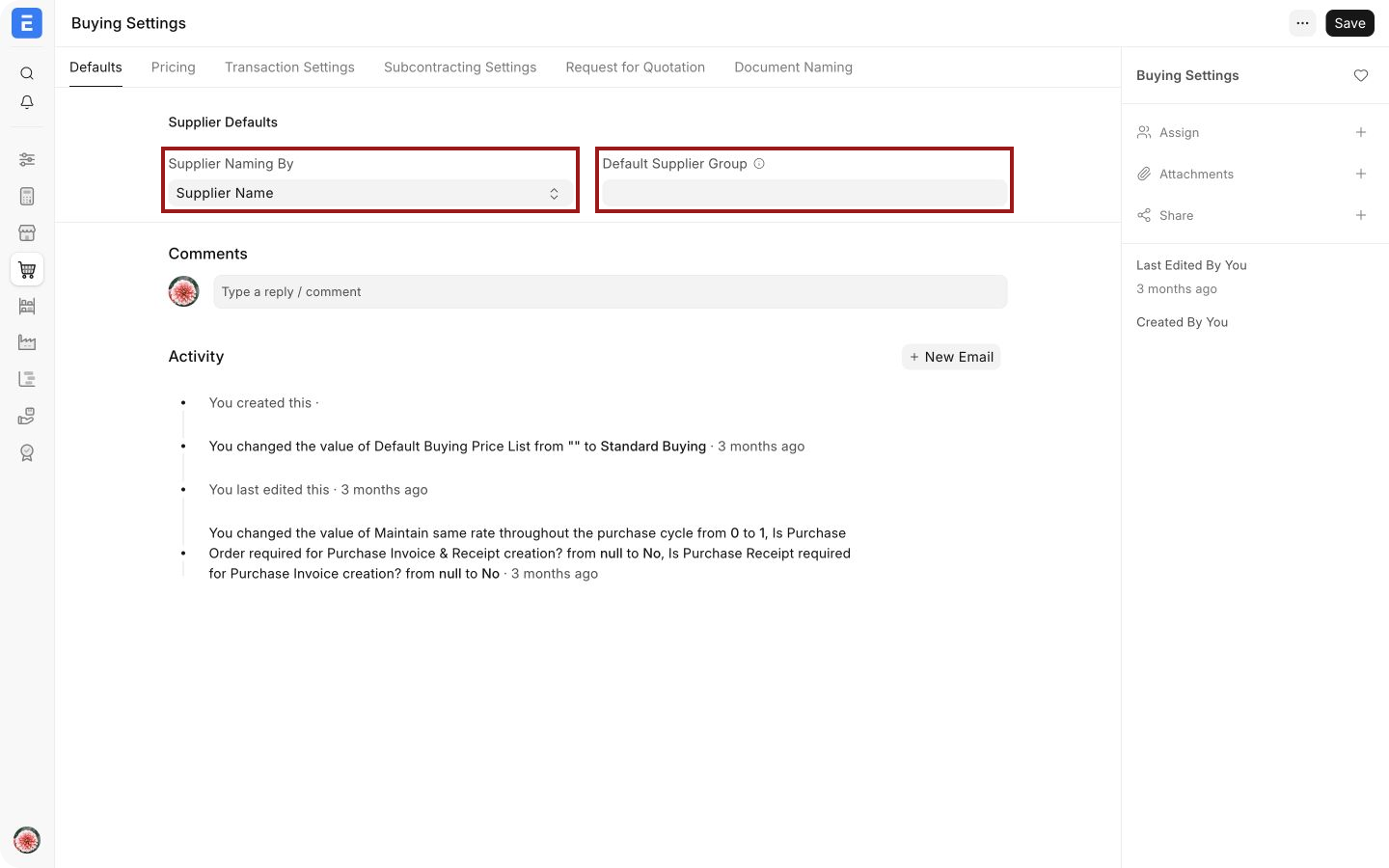
| Field | What it controls | Nova example |
|---|---|---|
| Supplier Naming By | Chooses the unique ID. Supplier Name uses the entered name. Naming Series produces IDs such as SUP-2026-00001. Auto Name uses the DocType's automatic rule. | Nova uses Supplier Name to search directly for Keystone Cables. Use a series when names may change or collide. |
| Default Supplier Group | Prefills the Supplier Group when another value is not supplied. | Set a default only when most new suppliers belong to one group. Nova leaves it blank so a buyer must deliberately choose Raw Material, Services, or another category. |
Supplier Group can supply defaults such as payment terms. A value on the Supplier is more specific than the site-wide default.
Pricing
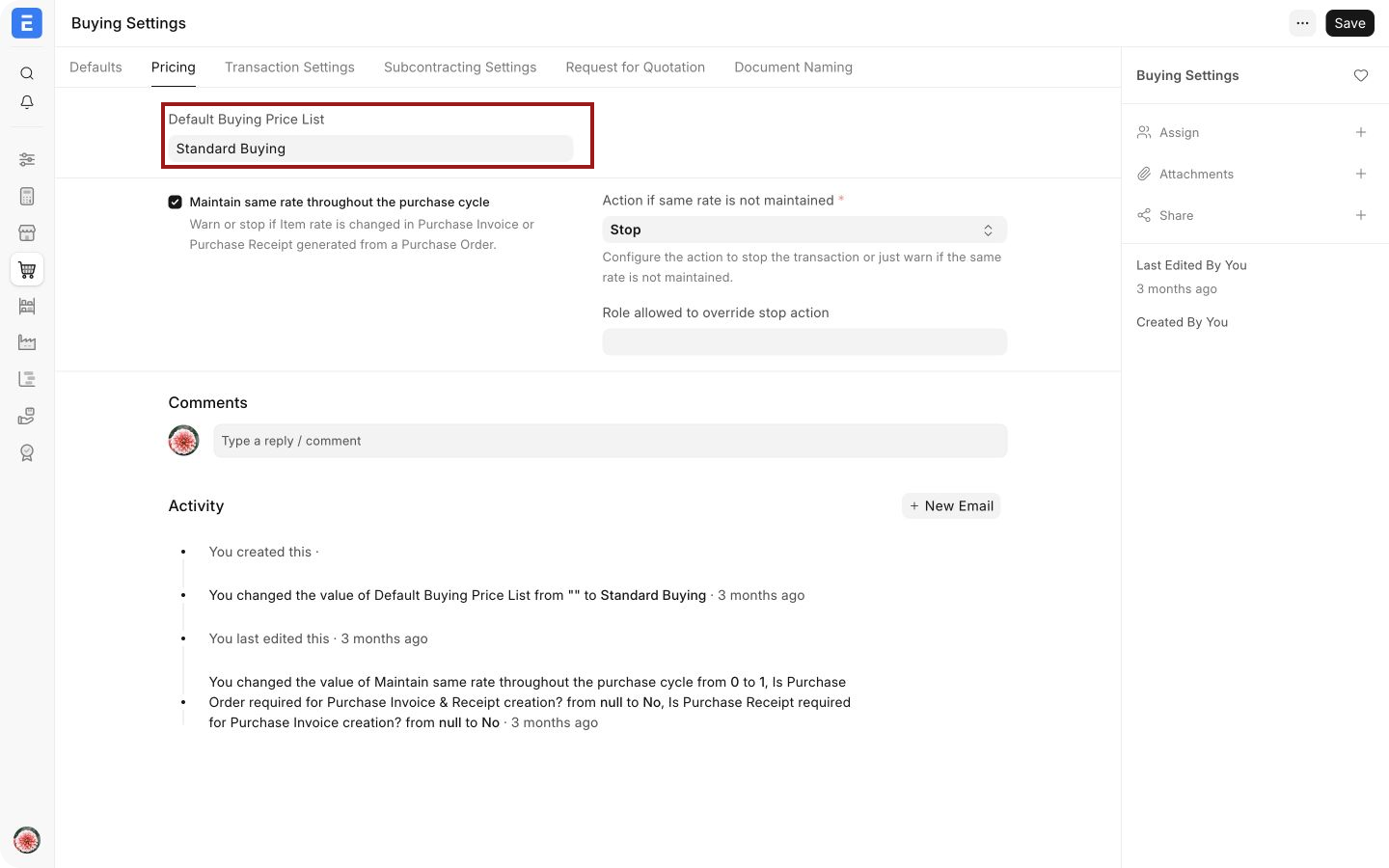
Default Buying Price List is used on a new buying transaction when the supplier does not specify another Price List. Nova uses Standard Buying as the fallback, while Keystone Cables can use a supplier-specific list containing its contracted rates.
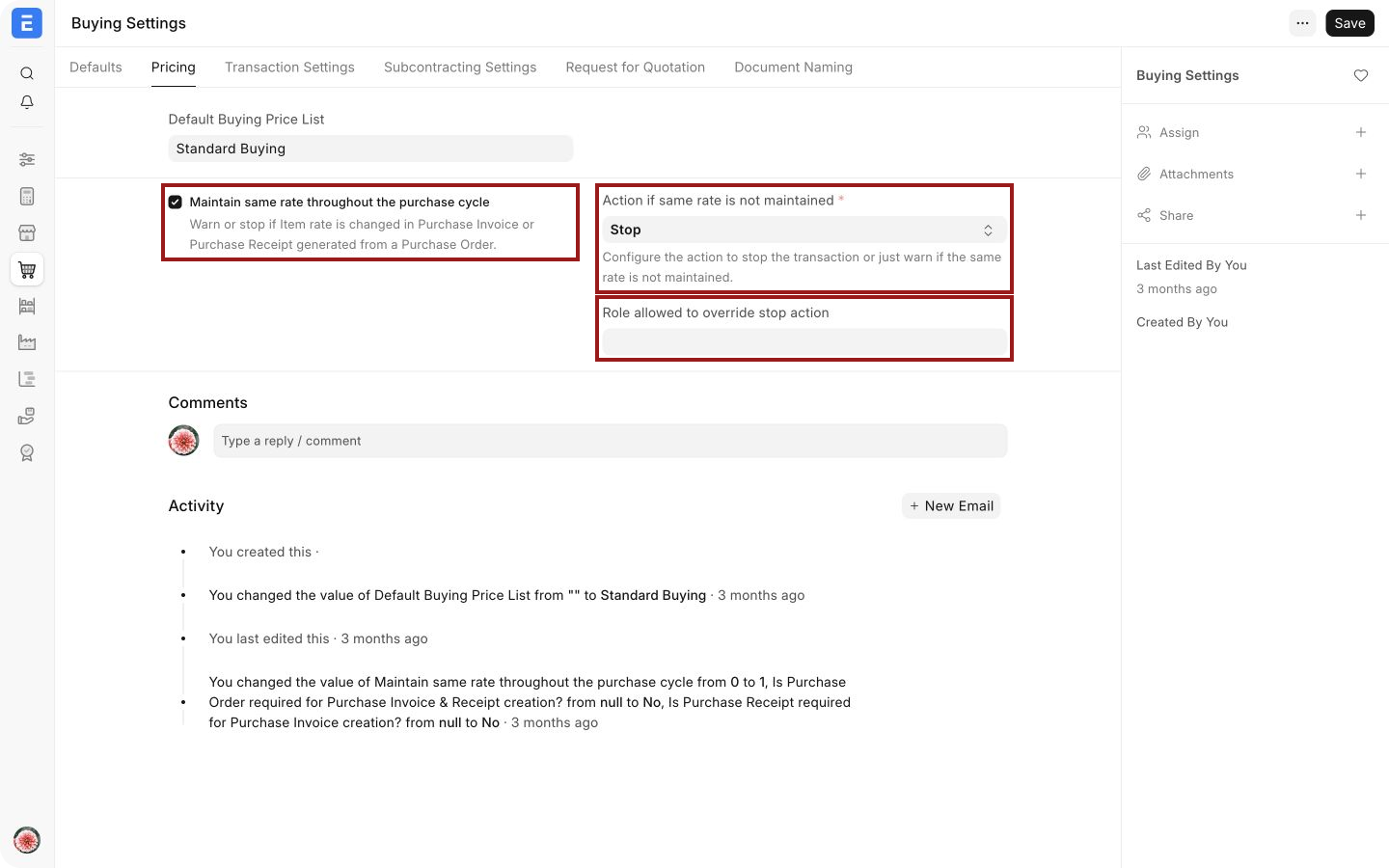
Maintain same rate throughout the purchase cycle compares a downstream item rate with its source order or receipt. Returns and purchases from an internal supplier are exempt because they can legitimately use a different rate.
| Field | What it controls | When to choose it |
|---|---|---|
| Action if same rate is not maintained | Stop refuses the changed rate. Warn allows the document but shows a warning. | Use Stop when the Purchase Order is the approved commercial rate. Use Warn when invoice differences are common and reviewed later. |
| Role allowed to override stop action | Lets users with the selected Role save a genuine exception even when the action is Stop. | Give this to a limited purchasing or finance approval role. Leave it empty when nobody should bypass the check. |
Nova orders 200 adapters from Keystone Cables at $18 each. If the supplier bills $19 and the action is Stop, the buyer must correct the invoice, amend the order, or obtain an authorized override.
Set Landed Cost Based on Purchase Invoice Rate appears only when same-rate validation is disabled. If a receipt values an imported item at $100 and the invoice rate becomes $105, ERPNext creates a Repost Item Valuation entry to recalculate stock and dependent accounting entries.
This does not replace a Landed Cost Voucher, which allocates freight, customs, insurance, and other charges to received items.
Transaction Settings
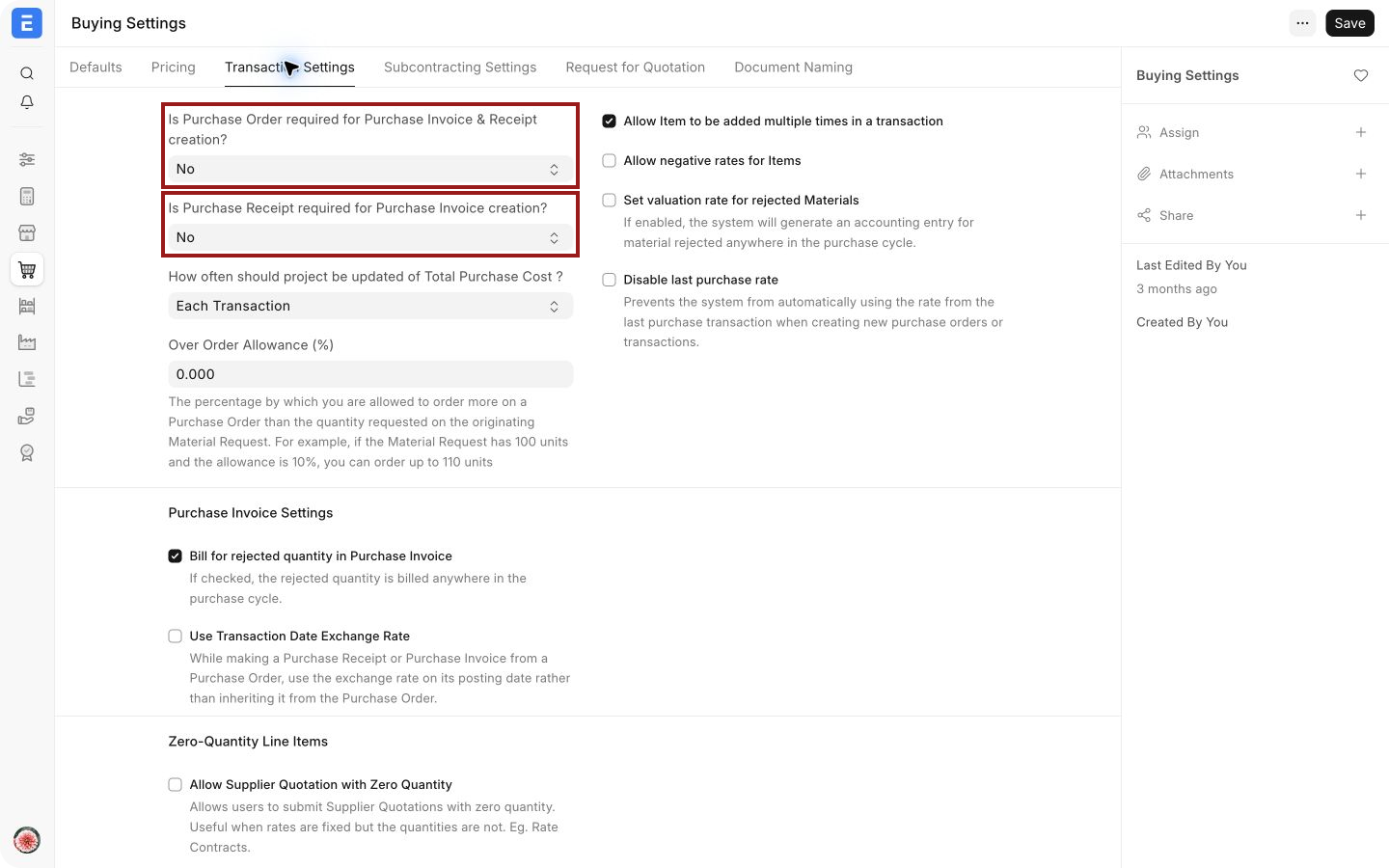
| Field | What it controls | Nova example |
|---|---|---|
| Is Purchase Order required for Purchase Invoice & Receipt creation? | Yes stops an unlinked Purchase Receipt or Purchase Invoice. Returns are unaffected. | Use Yes when every goods purchase needs prior approval. A supplier exception can allow direct invoices, but not direct receipts. |
| Is Purchase Receipt required for Purchase Invoice creation? | Yes stops an invoice not linked to a receipt. | Use Yes for three-way matching. Exempt approved service suppliers when nothing is received into stock. |
Supplier-level fields can allow a Purchase Invoice without a Purchase Order or Purchase Receipt. Use exceptions narrowly because they bypass site-wide control for that supplier.
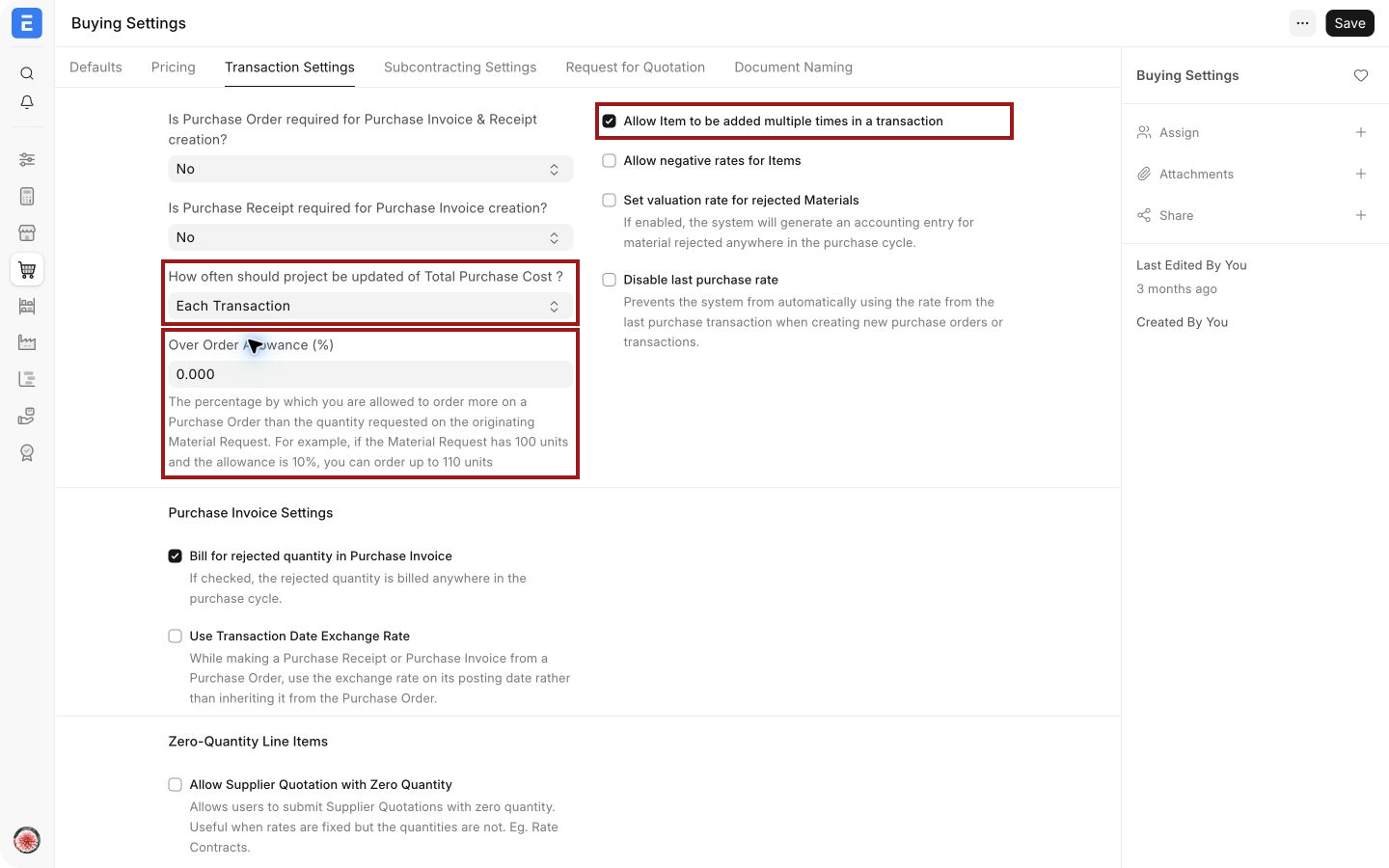
| Field | What it controls | Nova example |
|---|---|---|
| How often should project be updated of Total Purchase Cost? | Each Transaction refreshes cost after a linked purchase. Manual waits for a refresh. | Use Manual only when transaction volume makes repeated updates undesirable. |
| Over Order Allowance (%) | Allows a Purchase Order to exceed the quantity in its Material Request by the stated percentage. | A 10% allowance lets a request for 100 adapters become an order for up to 110. |
| Allow Item to be added multiple times in a transaction | Allows the same Item on several rows. | Keep it for different dates or warehouses. Disable it when repeated rows are accidental. |
| Allow negative rates for Items | Permits negative item rates. | Use only for a defined adjustment process. Normal discounts are clearer through discount fields or pricing rules. |
| Disable last purchase rate | Stops ERPNext from suggesting the last purchase rate on a new buying document. | Enable it when rates must come only from Price Lists, quotations, or current negotiation. |
Purchase Invoice settings
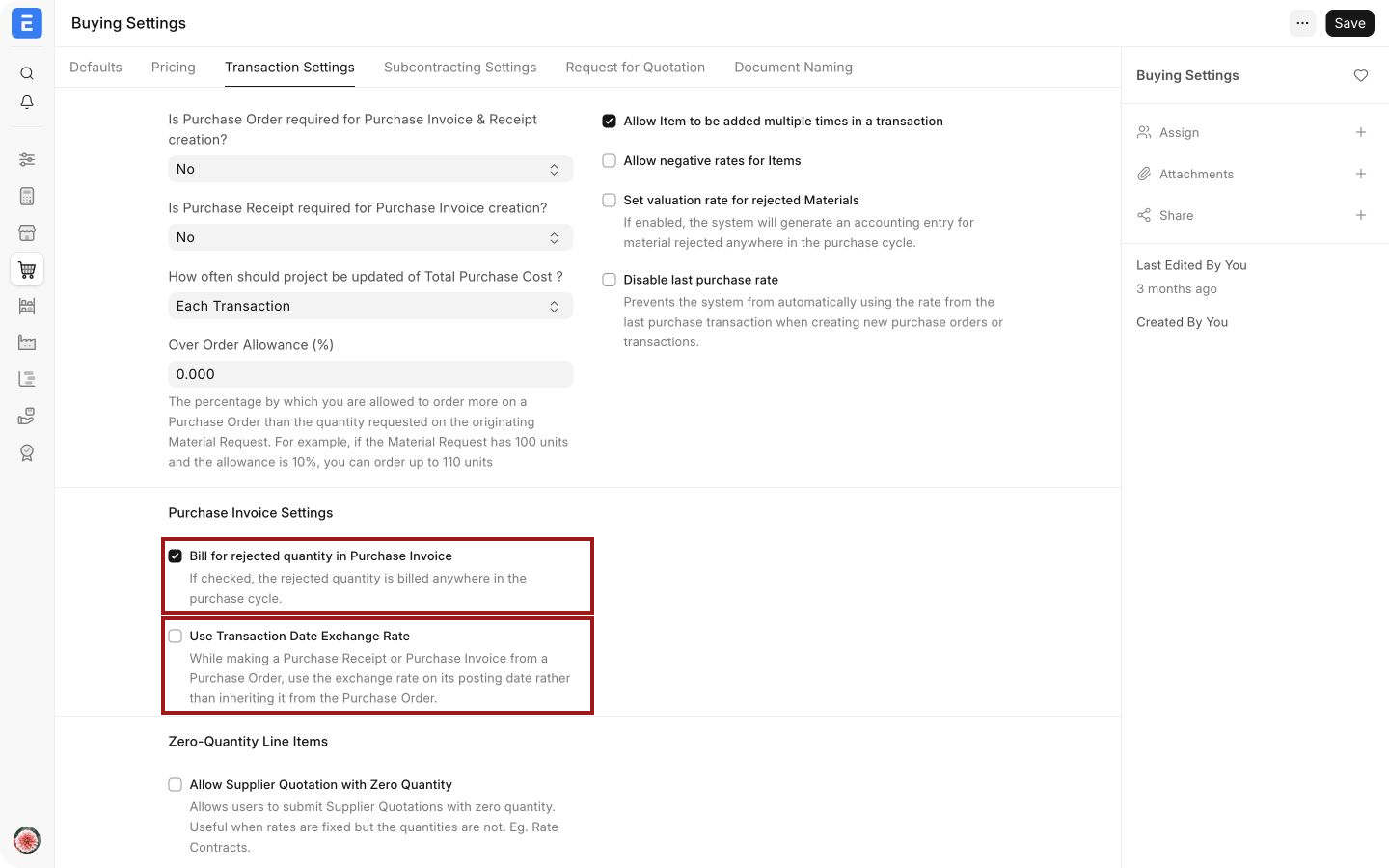
| Field | What it controls | Nova example |
|---|---|---|
| Bill for rejected quantity in Purchase Invoice | Includes rejected quantity when an invoice is created from a Purchase Receipt. | Enable it when the supplier still bills rejected goods and a separate return or claim will settle them. |
| Set valuation rate for rejected Materials | Appears when rejected quantity is billed. It gives rejected material a value and creates accounting entries instead of leaving its value at zero. | Use it when rejected stock remains an owned, valued item while the dispute is resolved. |
| Use Transaction Date Exchange Rate | For a foreign-currency invoice made from a Purchase Order, uses the invoice date's exchange rate instead of inheriting the order's rate. | Enable it when accounting policy requires the invoice-date rate for the payable. |
Zero-quantity lines and blanket orders
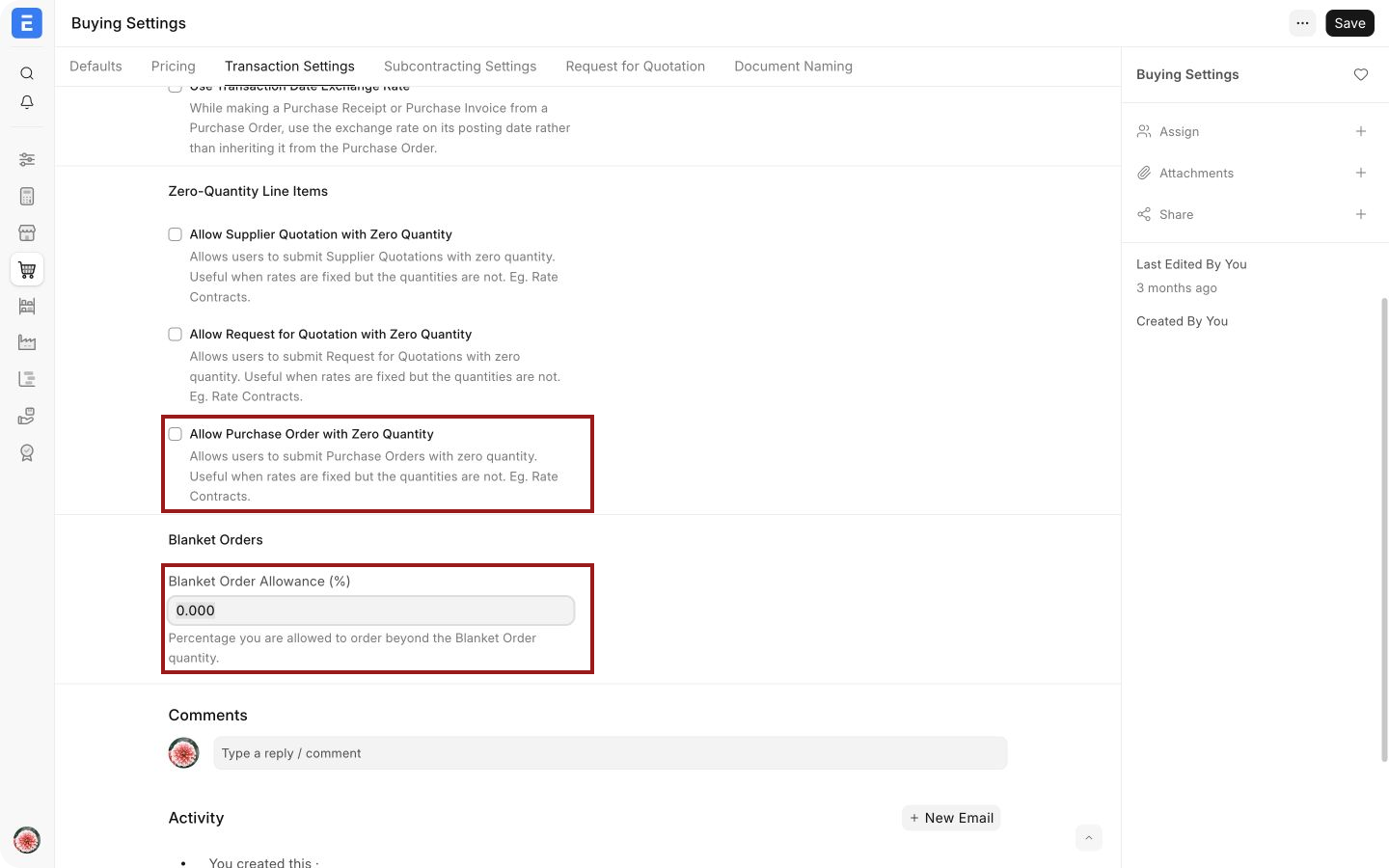
The zero-quantity options support rate contracts where price is agreed before quantity. A zero quantity has no stock or ledger effect.
Blanket Order Allowance (%) controls how far Purchase Orders may exceed the quantity agreed in a Blanket Order. A 5% allowance on 1,000 units permits orders totaling up to 1,050 units.
Subcontracting Settings
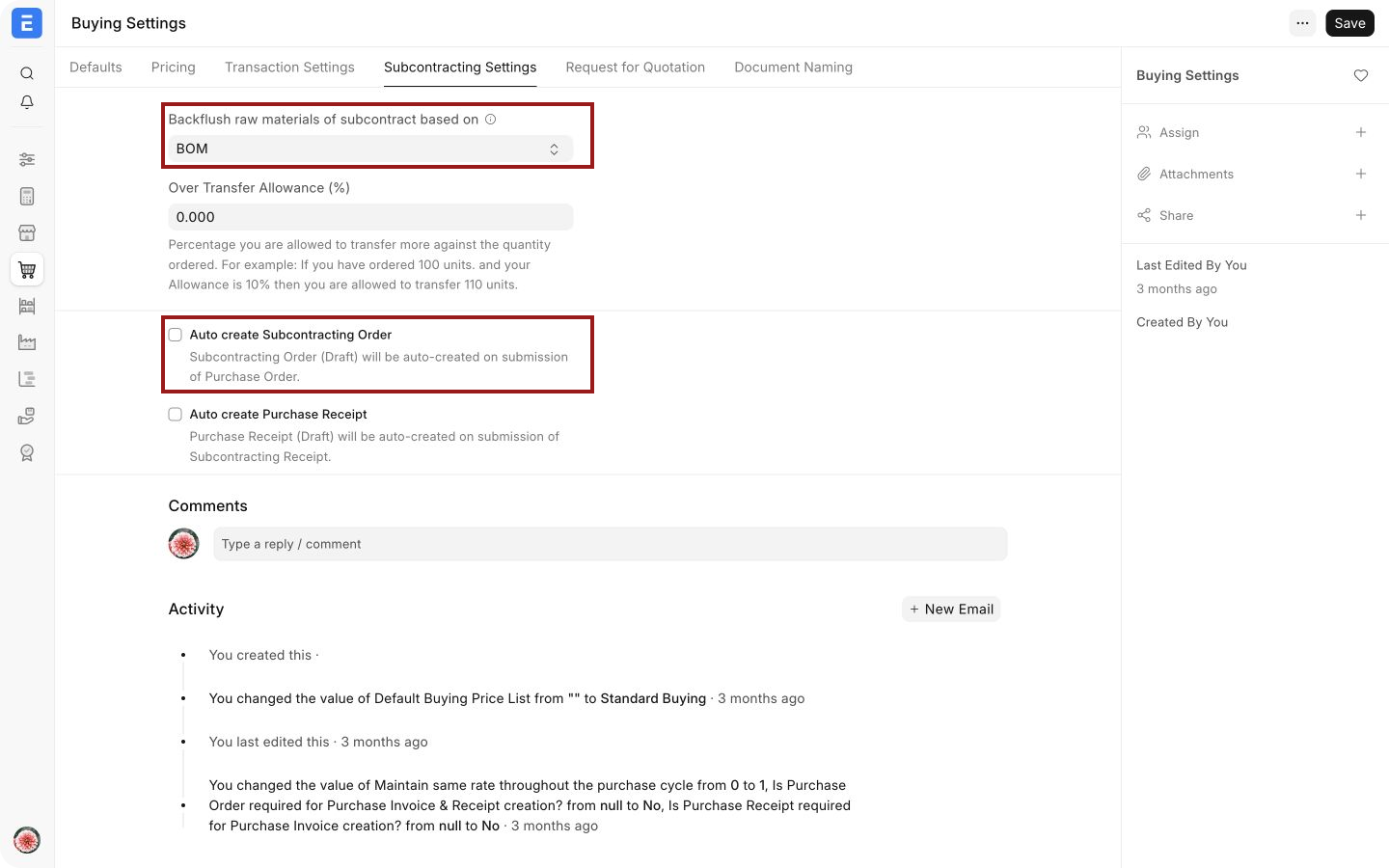
These settings apply when your company sends raw material to a supplier and receives processed goods through subcontracting.
| Field | What it controls | Nova example |
|---|---|---|
| Backflush raw materials of subcontract based on | BOM consumes the Bill of Materials quantity. Material Transferred for Subcontract uses transferred quantity. | Use BOM for a controlled recipe. Use transferred material when actual issue is the operational source. |
| Over Transfer Allowance (%) | When backflush is based on BOM, permits raw-material transfer above the ordered requirement. | A 2% allowance covers expected process loss without allowing an unlimited transfer. |
| Validate consumed quantity (as per BOM) | Compares consumption with the BOM when backflush uses transferred material. | Enable it when transfers can vary but consumption must follow engineering standards. |
| Auto create Subcontracting Order | Creates a draft Subcontracting Order when a subcontracted Purchase Order is submitted. | Use it when every subcontracted order should immediately enter the material-transfer workflow. |
| Auto create Purchase Receipt | Creates a draft Purchase Receipt for service items when the Subcontracting Receipt is submitted. | Use it when the service receipt should follow every completed subcontracting receipt without manual creation. |
Request for Quotation
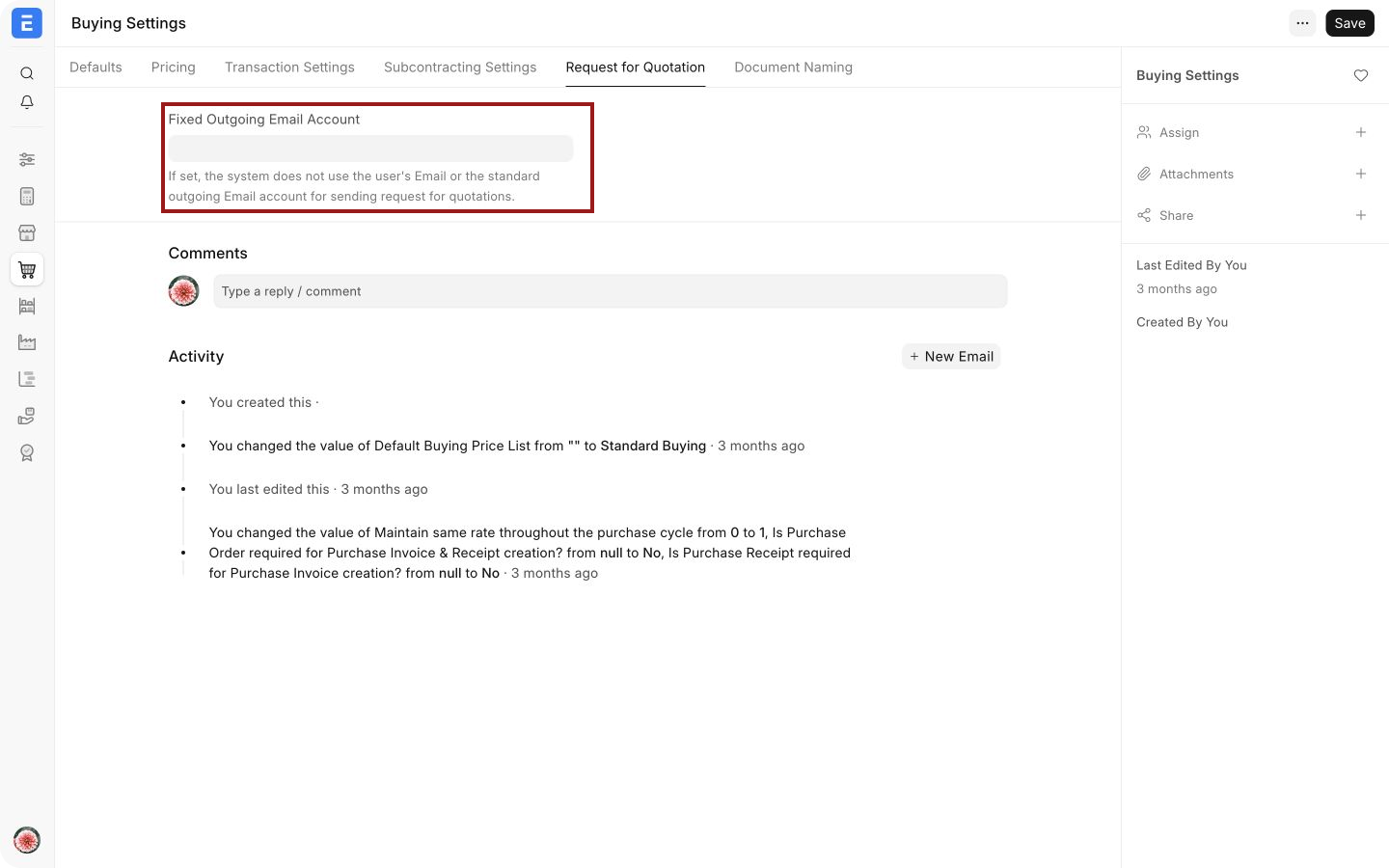
Fixed Outgoing Email Account sends every Request for Quotation from one Email Account instead of the buyer's own account or the default outgoing account. Nova can use purchasing@nova.example so suppliers receive a consistent sender and replies stay with the purchasing team.
Document Naming
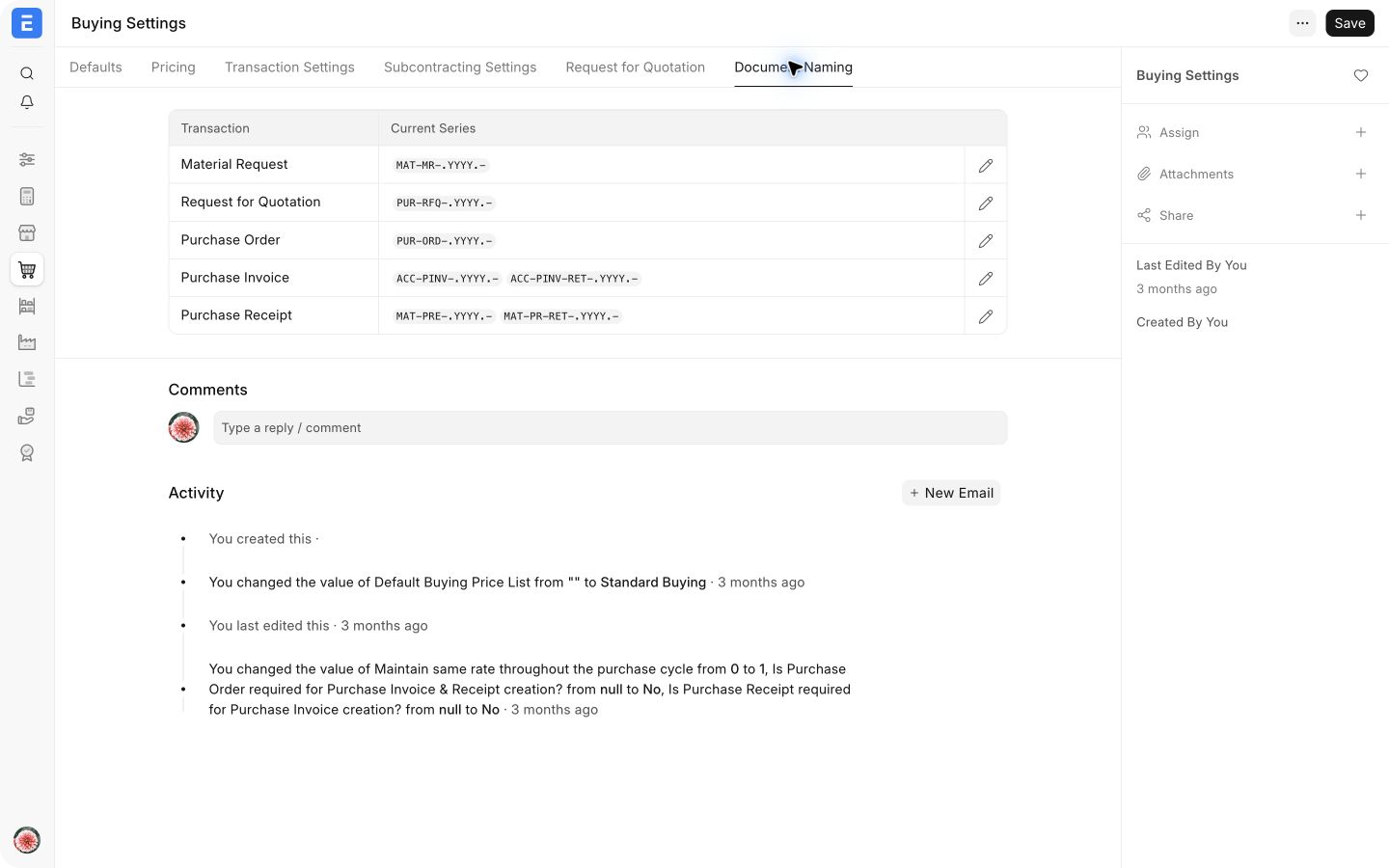
This tab shows naming series for Material Request, Request for Quotation, Supplier Quotation, Purchase Order, Purchase Receipt, and Purchase Invoice. Use the edit action to change a series.
Changing a series affects new records only. See Document Naming Settings for shared rules.
Verify the result in a transaction
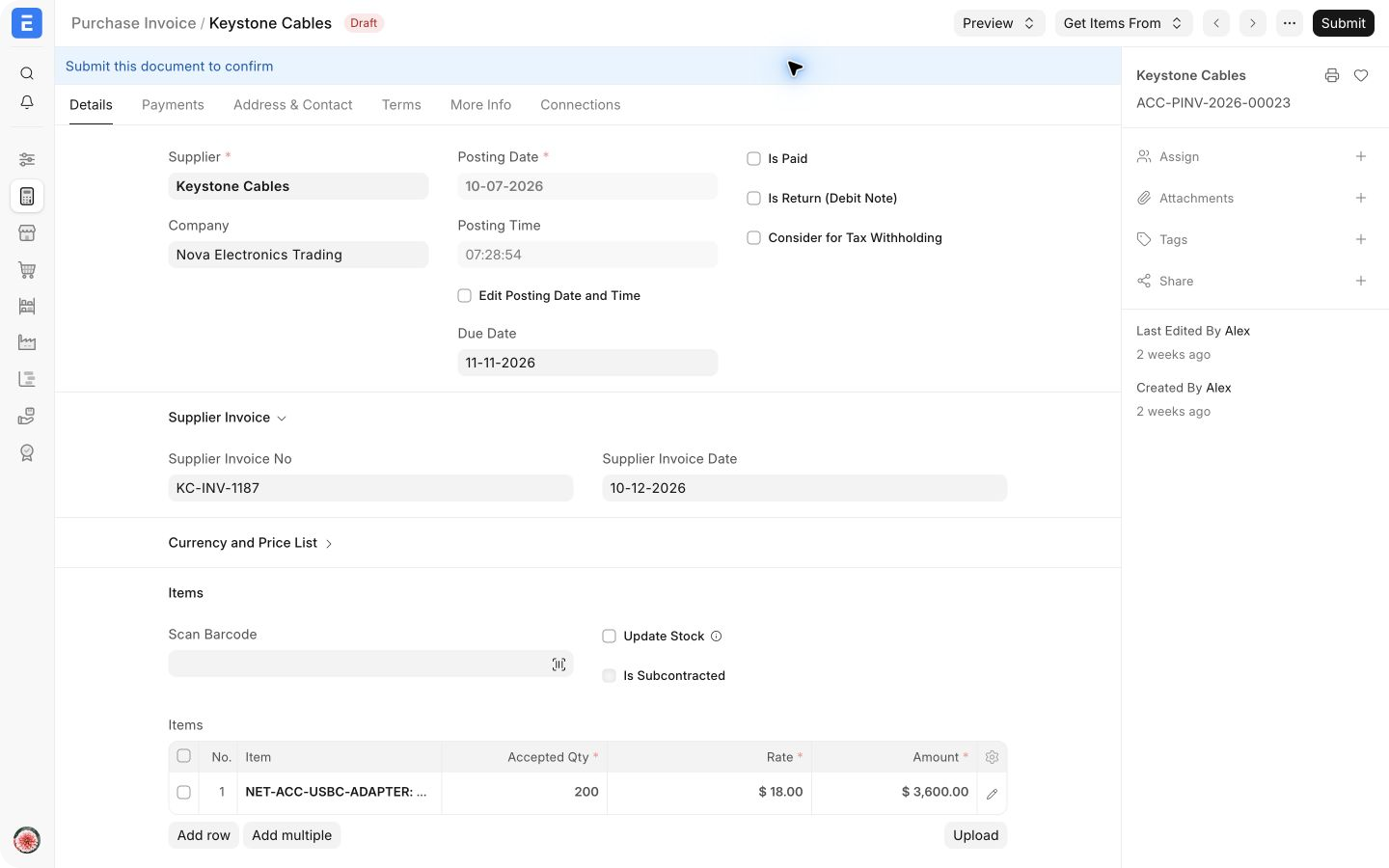
Nova created Purchase Invoice ACC-PINV-2026-00023 from Purchase Order PUR-ORD-2026-00022 for Keystone Cables. The supplier, item rows, source order, and $18 rate were carried forward. This is the practical result of using connected documents and same-rate validation: the invoice starts from the approved order instead of being re-entered from memory.
After changing a setting, create a representative draft and confirm the result.
Troubleshooting
A Purchase Receipt cannot be created without a Purchase Order
The Purchase Order requirement is set to Yes. Create the receipt from a submitted Purchase Order. A supplier-level exception allows direct Purchase Invoices only, not direct receipts.
A Purchase Invoice cannot be created without a Purchase Receipt
The Purchase Receipt requirement is set to Yes. Create the invoice from the receipt, or use an approved supplier-level exception for a service supplier that has nothing to receive.
The invoice rate differs from the order and the document will not save
Same-rate validation is using the Stop action. Restore the approved rate, amend the Purchase Order when the agreement changed, or ask a user with the override Role to approve the exception.
The landed-cost option is missing
Maintain same rate throughout the purchase cycle is enabled. Disable that setting to reveal the invoice-rate landed-cost option. Review the policy first because these two controls represent different approaches to price differences.
A debit note saved with a different rate
Returns are not subject to the same-rate check. Review the return rate before submission because the setting will not stop that difference.
Frequently asked questions
Do Buying Settings apply separately to each company?
Buying Settings is a single record for the site, so every company follows it. Use supplier-level exceptions and document-level choices only where ERPNext provides them.
Do these settings change existing submitted documents?
The settings affect new actions and documents created or validated after the change. Submitted records keep the values and ledger effects already posted.
Should a service company require Purchase Receipts?
Usually not for pure services because there is no stock movement. It can still require Purchase Orders for approval, then create Purchase Invoices directly for approved service suppliers.
Is Warn safer than Stop for rate changes?
Warn causes less interruption but relies on users to notice and act. Stop provides stronger control and needs a clear exception Role for genuine changes.
Can different suppliers use different Price Lists?
The Supplier's Price List can override the default buying Price List. The site-wide value is the fallback when no more specific value is available.