


















Nova Industries is preparing for a November sales campaign. The purchasing team expects demand for 200 USB-C power adapters, but the buyer should not place an order just because someone sent a message. The warehouse must confirm what is needed, where it is needed, and by when. The purchase also needs a traceable starting point.
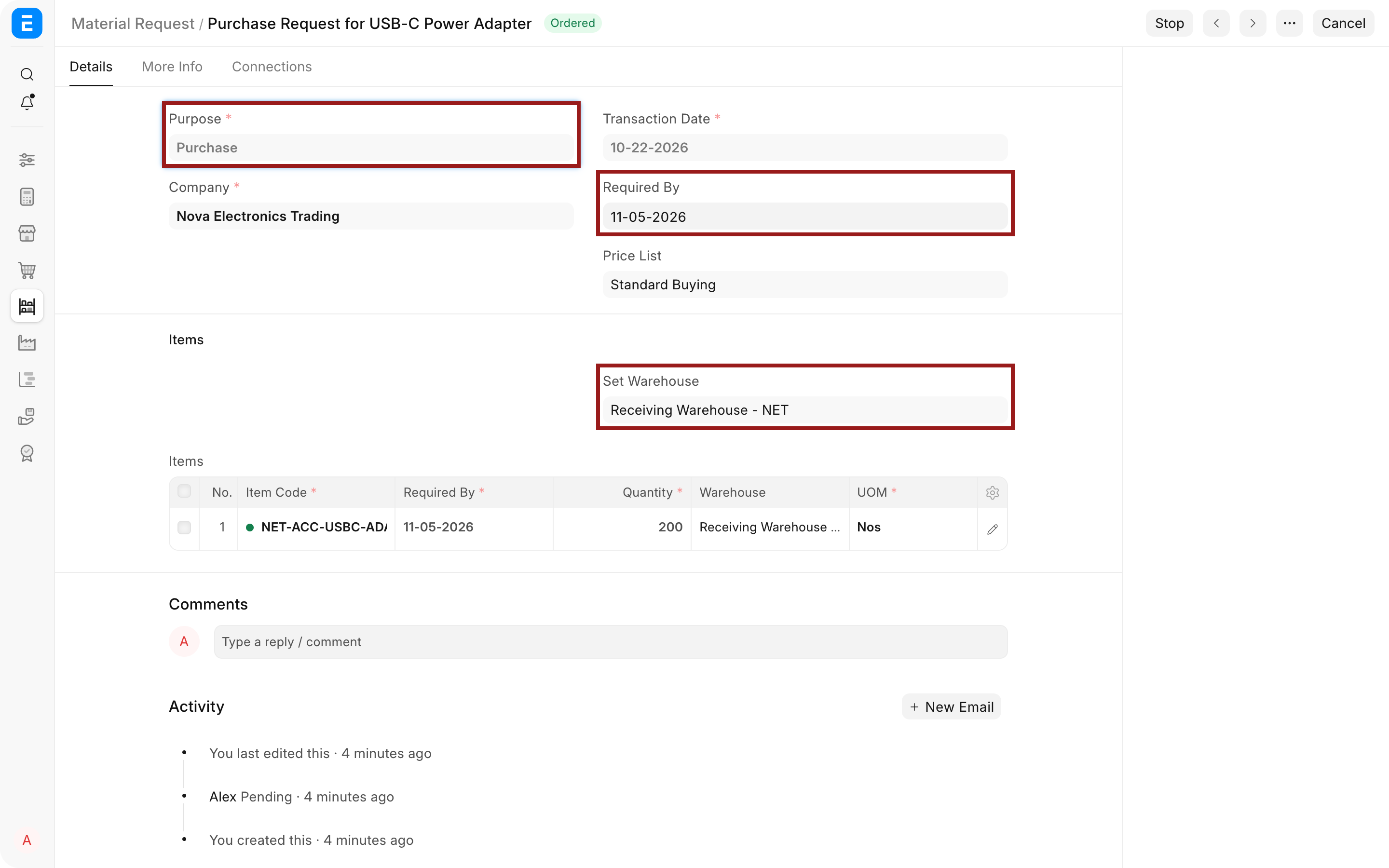
A Material Request records that internal requirement before the company asks suppliers for prices or commits to an order. In this example, Material Request MAT-MR-2026-00002 asks for 200 adapters in the Receiving Warehouse by 5 November 2026. It creates no stock or accounting entry. It gives the purchasing team an approved quantity to take into an Request for Quotation or Purchase Order.
Before you begin
Create the required Items and Warehouses. For a purchase request, confirm that the Item can be purchased and that the target warehouse is valid for the selected Company. Users normally need Stock User, Stock Manager, Purchase User, or Purchase Manager access depending on your permission setup.
Open Stock > Material Request, or search for Material Request. Select Add Material Request.
Create a Material Request
- Set Purpose to Purchase.
- Select the Company and Transaction Date.
- Set Required By to the date the material must be available.
- Select Set Warehouse to apply one target warehouse to the item rows.
- Add each Item and enter its required quantity.
- Save and review the request, then select Submit.
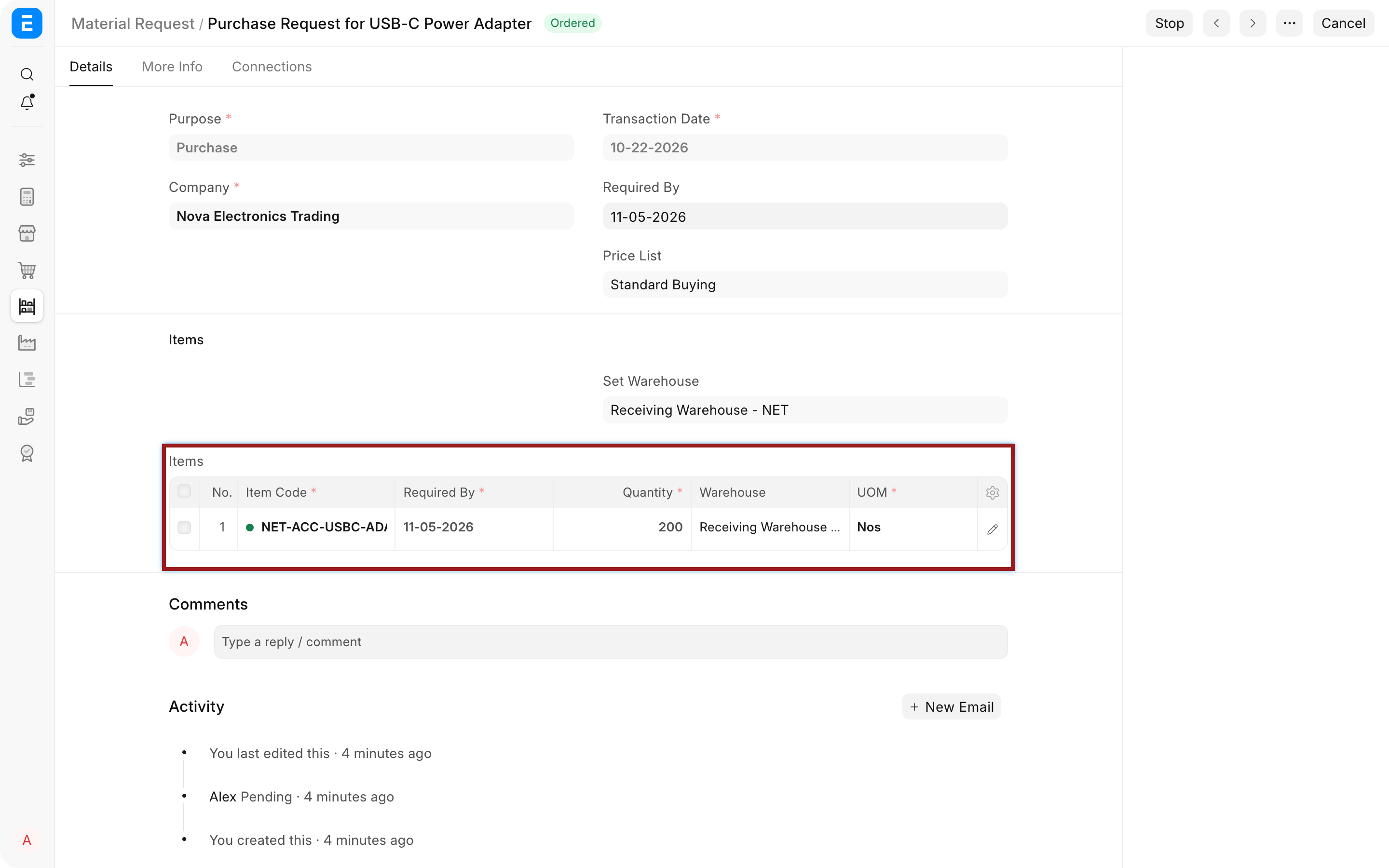
The example requests 200 USB-C power adapters for Receiving Warehouse - NET. The requested quantity is a planning value. It does not increase stock and it does not reserve supplier inventory.
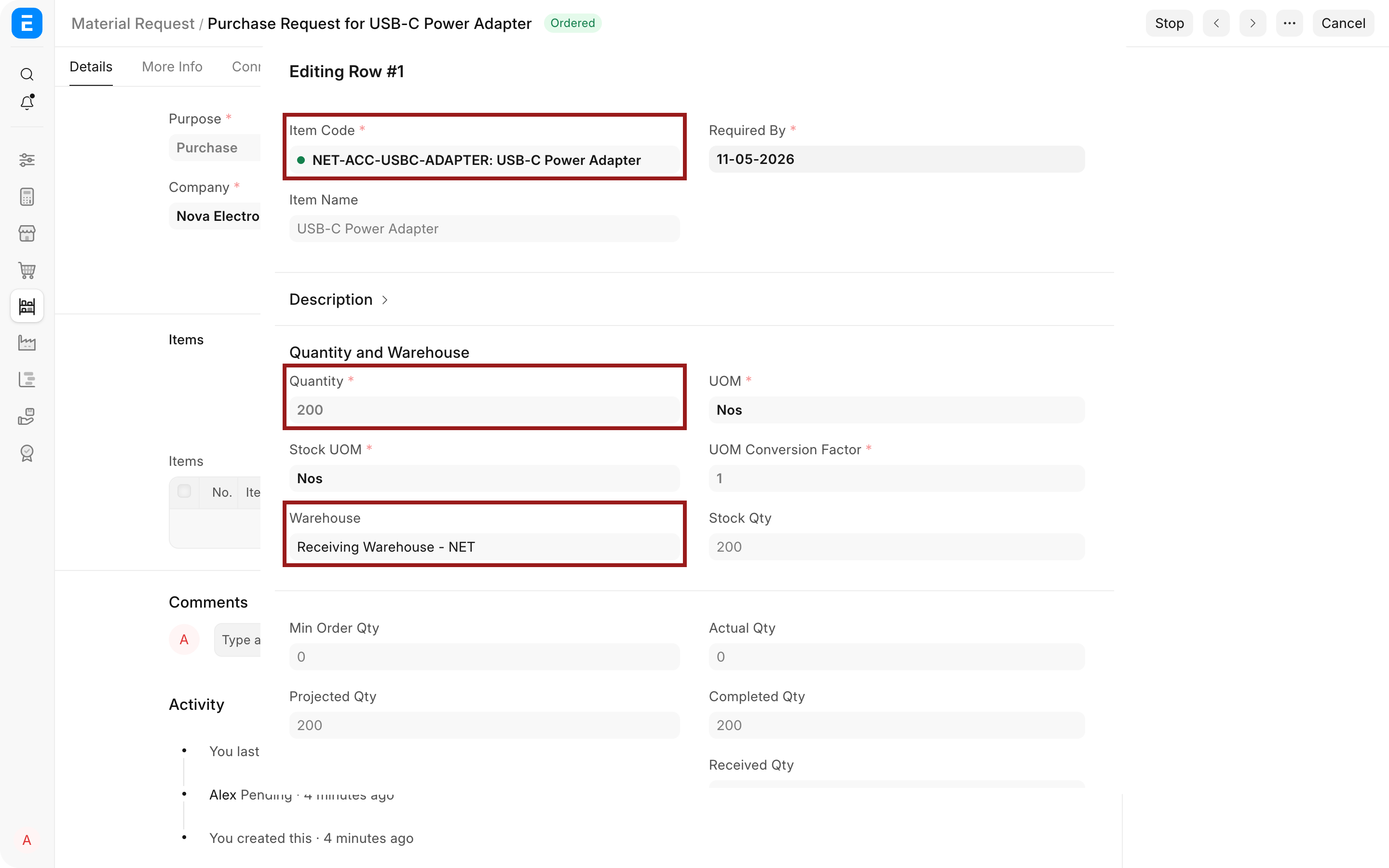
Open the item row when you need to check the stock UOM, projected quantity, current quantity, linked project, or accounting dimensions. The green dot before the Item Code means the item is currently in stock; a red dot means it is out of stock. This indicator is useful context, but the requested quantity should come from the actual business requirement.
Choose the correct purpose
| Purpose | Use it when | Typical next document |
|---|---|---|
| Purchase | Material must be bought from a supplier | Request for Quotation or Purchase Order |
| Material Transfer | Stock must move from one internal warehouse to another | Stock Entry for Material Transfer |
| Material Issue | Stock will leave the company without a customer delivery | Stock Entry for Material Issue |
| Manufacture | Finished goods must be produced | Work Order or Production Plan |
| Subcontracting | Material is required for work performed by a supplier | Subcontracting workflow |
| Customer Provided | A customer supplies material for work you will perform | Customer-provided-item workflow |
The purpose changes the meaning of source and target warehouses. For a Purchase request, the target warehouse answers where the supplier delivery should eventually be received. For a Material Transfer, both a source and a target warehouse matter.
Important fields and what they mean
| Field | What it controls | Nova example |
|---|---|---|
| Purpose | Determines why material is required and which downstream actions are available | Purchase |
| Required By | Sets the common date by which the items are needed | 5 November 2026 |
| Set Warehouse | Applies one target warehouse to new item rows | Receiving Warehouse - NET |
| Item Code | Identifies the requested product or material | NET-ACC-USBC-ADAPTER |
| Quantity | Records the internal requirement, not the supplier commitment | 200 Nos |
| Project | Attributes the requirement to a project when relevant | Optional for campaign or project buying |
| Expense Account and Cost Center | Carry accounting defaults into later buying documents where applicable | Review when the request is tied to a specific team or initiative |
ERPNext also shows Actual Qty and Projected Qty in the item details. Actual Qty is current stock in the selected warehouse. Projected Qty considers expected incoming and outgoing quantities. Use these values to challenge an unnecessary request, but do not assume projected stock will arrive on time without checking its source documents.
Create a request from another requirement
A Material Request can be entered manually, but ERPNext can also create one from operational demand.
A submitted Sales Order can create a purchase Material Request for items that must be procured for the customer. A Production Plan can create requests for components required by manufacturing. An Item with reorder levels can create requests automatically when projected quantity falls below its threshold.
For automatic reorder requests, configure the reorder level, reorder quantity, request type, and warehouse on the Item, then enable the automatic reorder process in Stock Settings. Automatically created records show that they originated from the reorder process. Review them before purchasing because a reorder rule can be outdated even when the calculation is correct.
Submit and continue the buying cycle
On submission, a purchase Material Request normally starts in Pending. Use the Create action to continue with an RFQ or Purchase Order. Creating the downstream document from the request carries the source reference and lets ERPNext calculate how much has been ordered.
If the company needs competitive prices, create an RFQ first. If the supplier and commercial terms are already approved, create a Purchase Order directly. A Supplier Quotation can also be created with the request as its source.
Do not re-enter the same items in an unrelated Purchase Order. Pull them from the Material Request so the request can move from Pending to Partially Ordered or Ordered.
Understand Material Request status
| Status | Meaning |
|---|---|
| Draft | The request has not been submitted |
| Pending | Submitted quantity still needs downstream action |
| Partially Ordered | Only part of the purchase quantity has been ordered |
| Ordered | The full purchase quantity has been included in submitted Purchase Orders |
| Partially Received | Only part of the requested quantity has been received |
| Received | The requested quantity has been received |
| Issued | A material issue request has been completed |
| Transferred | A material transfer request has been completed |
| Stopped | Further downstream action has been intentionally blocked |
| Cancelled | The submitted request was cancelled |
Transfer requests can additionally show whether the movement is Not Started, In Transit, or Completed. These states matter when a two-step warehouse transfer is used.
Change or stop a submitted request
Use Stop when the requirement is no longer valid and no more items should be ordered or moved. Stop does not cancel downstream documents that already exist. Review linked Purchase Orders, Stock Entries, or receipts separately.
If a submitted request contains an error, cancel and amend it according to your permissions and the state of linked documents. Avoid editing quantities only to force a status. The request should remain an honest record of what the business asked for.
Troubleshooting
The Material Request does not appear when creating an RFQ or Purchase Order
Confirm that the request is submitted, has Purpose Purchase, belongs to the same Company, and still has quantity left to order. A stopped, cancelled, or fully ordered request is normally excluded from source selection.
The request shows Ordered even though nothing has arrived
Ordered means the requested quantity is covered by submitted Purchase Orders. Receipt is tracked separately. Open the Connections tab or the linked Purchase Order to check received quantity.
The automatic request quantity is unexpected
Review the Item's reorder level, reorder quantity, warehouse, and projected quantity. Open Purchase Orders, transfer requests, and reservations that contribute to projected stock before changing the rule.
A warehouse is missing from the item row
Check the selected Company, disabled state, and warehouse permissions. For a purchase request, use the warehouse that should ultimately receive the goods.
Frequently asked questions
Is a Material Request mandatory before every Purchase Order?
ERPNext can create a Purchase Order without one unless your process or customization requires it. Use Material Requests when demand approval, internal ownership, quantity tracking, or centralized purchasing matters.
Does submitting a Material Request affect stock or the General Ledger?
Submission records demand only. Stock changes when a stock transaction such as a Purchase Receipt or Stock Entry is submitted. Accounting changes when an accounting transaction is submitted.
Can one request be ordered from more than one supplier?
The quantity can be split across multiple Purchase Orders. ERPNext tracks the ordered percentage against the item rows, so the request remains partially ordered until the full quantity is covered.
Can several requests be combined into one Purchase Order?
A buyer can use Get Items From on a draft Purchase Order to pull eligible items from more than one Material Request, provided the Company, supplier decision, and delivery requirements are compatible.
Should a service purchase start with a Material Request?
It can, especially when the service needs internal approval. Use a non-stock service Item and Purpose Purchase, then continue to a Purchase Order or Purchase Invoice according to the control your company needs.