


















In September, the accounts team at Nova Electronics Trading (NET), the distribution company of Nova Industries, paid a newly added supplier's $2,950.00 invoice on the day it arrived. The agreement said 30 days. The clerk who created the supplier had left its payment terms blank, and NET has no company-wide default, so the invoice came out due immediately and the cash left a month early.
NET buys phones, laptops, tablets and accessories from a handful of electronics makers, and all of them work on the same 30-day terms. Typing those terms on every supplier record invites exactly that kind of slip. The question is where to state the rule once so every supplier in the category follows it.
A Supplier Group answers it. It is a category in a tree of suppliers that can carry a default Payment Terms Template and a default payable account for each company. NET's device makers sit in the Nova Electronics Suppliers group. With Net 30 set on that group, its newest supplier, Keystone Cables, gets Net 30 the moment it joins, and its first Purchase Order shows a payment due 30 days out. The group also gives you a way to filter reports and limit which suppliers a user can see.
Before you begin
You need a Payment Terms Template for the terms you want to apply. NET uses the existing Net 30 template, which has one term: 100% of the invoice due 30 days after the invoice date. If the group should use a payable account other than the company default, create that account in the Chart of Accounts first with the account type Payable.
Create a Supplier Group
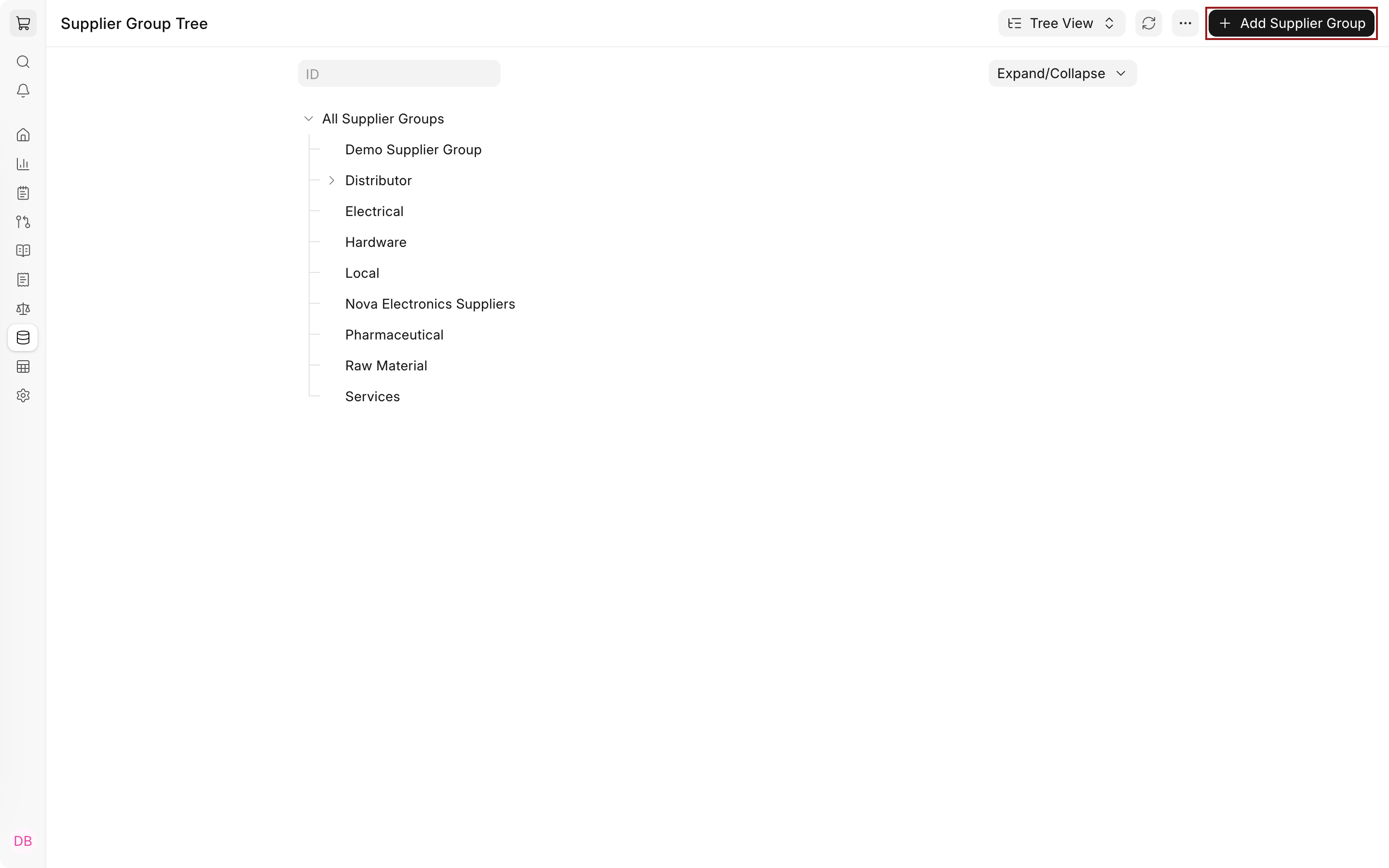
Supplier Groups live in a tree. The root, All Supplier Groups, holds every other group.
- Search for Supplier Group in the awesome bar. The list opens as Supplier Group Tree.
- Click Add Supplier Group. To place the new group under an existing parent, select the parent node first and choose Add Child.
- Enter the Supplier Group Name, for example Nova Electronics Suppliers.
- Check Is Group only when this group will hold other groups rather than suppliers. The form notes that only leaf nodes are allowed in transactions, so keep suppliers in groups without this check.
- Save.
Set default payment terms
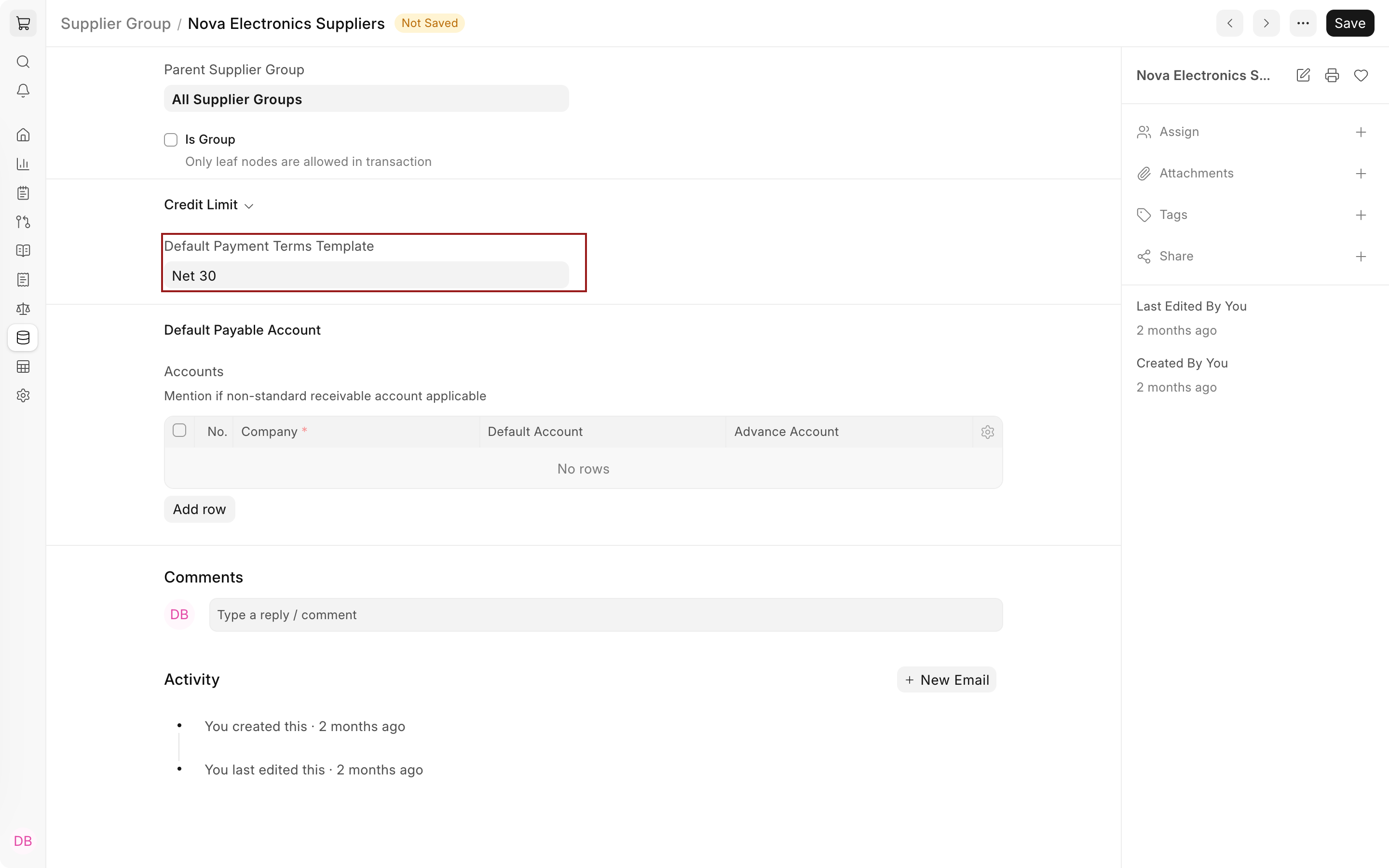
Open the group and expand the Credit Limit section. Despite its name, this section holds the Default Payment Terms Template field. NET selects Net 30 for Nova Electronics Suppliers and saves.
Set a default payable account
The Default Payable Account section has an Accounts table, available after the group is saved for the first time. Add one row per company with the Company, the Default Account where amounts owed to these suppliers are booked, and an optional Advance Account for advances paid to them. The help text under the table mentions a receivable account; on a Supplier Group, the account is the payable account.
NET leaves the table empty because Nova Electronics Suppliers should use the company default, Creditors - NET. Add a row only when a category of suppliers needs a separate control account, for example a dedicated payable account for import suppliers so their balances can be reviewed apart from domestic ones. Each row only accepts accounts that belong to the row's company.
How suppliers get the group's defaults
The group's defaults reach a transaction in two ways.
When a supplier is created or moved into the group. Selecting a Supplier Group on a Supplier copies the group's payment terms and accounts into the supplier's own fields. When NET created Keystone Cables and chose Nova Electronics Suppliers, the supplier's Payment Terms Template filled in as Net 30 before the record was saved. For an existing supplier, Actions > Get Supplier Group Details copies the group's current values again.
When a transaction finds the supplier's field empty. If a supplier has no payment terms or no account for the company, ERPNext looks at the supplier's group and then at the Company. Apex Devices, a supplier created before the group had terms, still has an empty Payment Terms Template, so its next order picks up Net 30 from the group without anyone editing Apex Devices.
| Value needed in a transaction | First choice | Then | Last |
|---|---|---|---|
| Payment Terms Template | Supplier | Supplier Group | Company |
| Payable account | Supplier's Accounts row for the company | Supplier Group's Accounts row for the company | Company's Default Payable Account |
See the result in a Purchase Order
On October 7, 2026, NET ordered 200 USB-C adapters from Keystone Cables at $18.00 each: $3,600.00, or $3,816.00 with 6% purchase tax. Purchase Order PUR-ORD-2026-00022 picked up Net 30 on its Terms tab, and its payment schedule shows one payment of $3,816.00 due on November 6, 2026, 30 days after the order date.
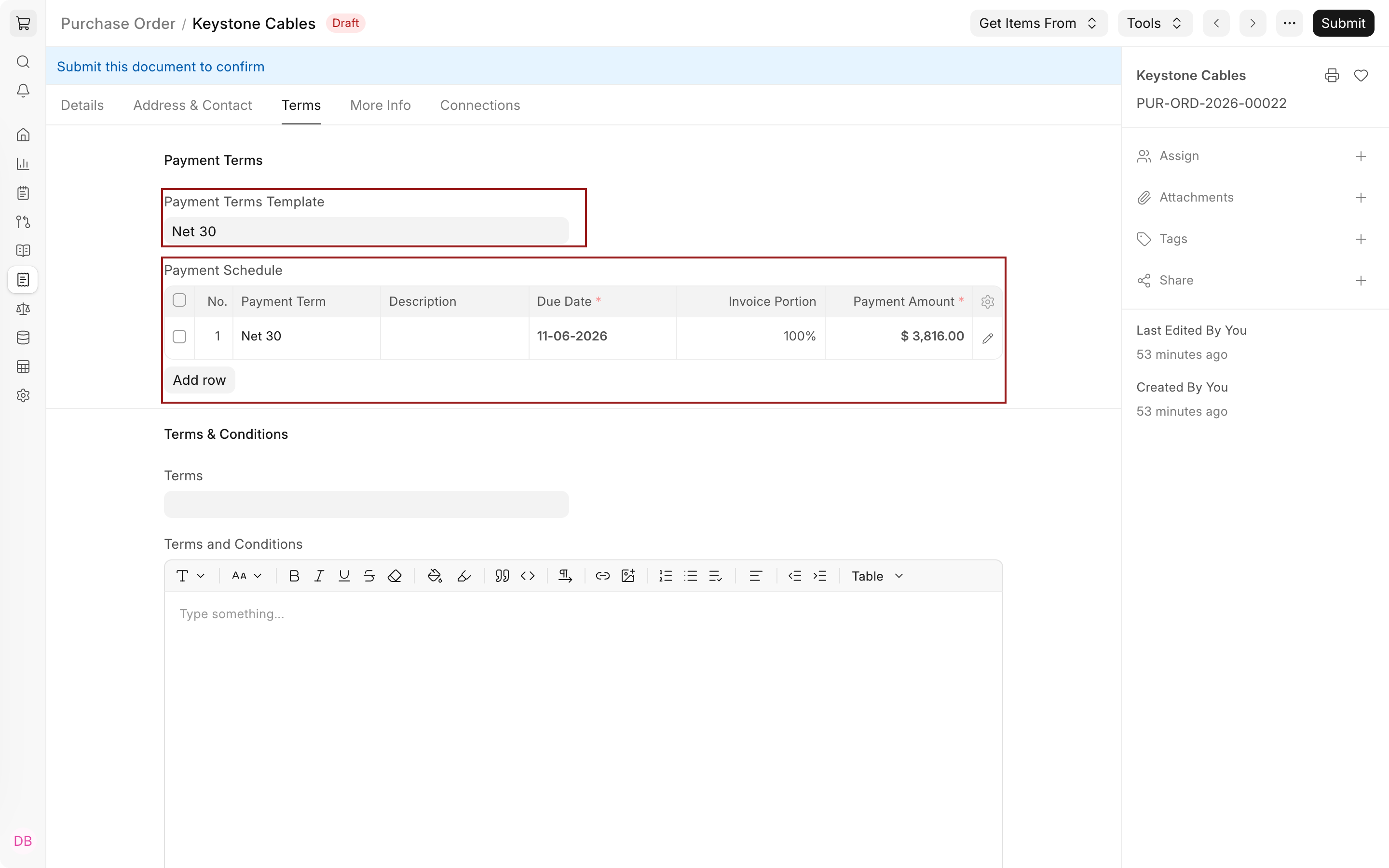
The terms travel to the Purchase Invoice created from the order. There the 30 days count from the supplier's invoice date when you enter it, so Keystone Cables' invoice dated October 12 is due on November 11. The Accounts Payable report lists the invoice against that due date and can be filtered by Supplier Group to review what the whole category is owed.
Restrict users by Supplier Group
A Supplier Group can also limit what a user sees. With a User Permission that allows a user only the Distributor group, the user can open suppliers in Distributor and in its child groups, such as Electronic Distributor. To grant only the parent group itself, check Hide Descendants on the User Permission.
Troubleshooting
A supplier's payment terms or accounts disappeared after its group was changed
Changing the Supplier Group on a supplier replaces the supplier's own Payment Terms Template and Accounts rows with the new group's values. If the new group has none, the supplier's fields are cleared. Set the terms or accounts on the supplier again, or add them to the group first and use Actions > Get Supplier Group Details.
A new order did not pick up the group's terms
The order uses the supplier's own Payment Terms Template whenever it has one. Open the supplier and check the Defaults section on the Details tab. If the supplier holds older terms copied from a previous group, clear the field or select the new terms. An order already created keeps the terms it was created with; change them on the order's Terms tab while it is a draft.
The group's payable account is not used for one company
The group's Accounts table works per company. Add a row for that company, or check whether the supplier has its own row for it, because the supplier's row wins.
Frequently asked questions
Does changing a group's terms update existing suppliers?
Suppliers that already hold their own Payment Terms Template keep it. Only suppliers with an empty field follow the group's new terms, and only in transactions created after the change. Use Actions > Get Supplier Group Details on a supplier to copy the group's current values to it.
Can a Supplier Group decide which taxes apply?
A Tax Rule can match on Supplier Group, so every purchase from suppliers in that group gets the rule's Purchase Taxes and Charges Template. The more common approach is a Tax Category on each supplier, because tax treatment often differs between suppliers that share the same payment terms. Keep the two decisions separate: group suppliers by how you pay them, and categorize them by how they are taxed.
How is a Supplier Group different from a Customer Group?
They work the same way for the two sides of the business. A Supplier Group sets defaults for purchases and payables, and a Customer Group sets defaults such as price list and receivable account for sales.