


















Create Payroll Entry with Timesheets
Use this page when you pay an employee by the hour, based on the hours they log in Timesheets. For example, a contract developer or a part-time consultant.
How it works
You mark a Salary Structure as Salary Slip Based on Timesheet and give it an Hour Rate and a Salary Component. When the Payroll Entry makes the Salary Slip, Frappe HR:
- Finds the employee's Timesheets whose Start Date is between the slip's Start Date and End Date, and whose status is Submitted, Billed, or Partially Billed.
- Adds up the hours of those Timesheets in Total Working Hours.
- Multiplies the hours by the Hour Rate of the Salary Structure and puts the amount in the Salary Component.
When you submit the slip, the Timesheets get the status Payslip. Frappe HR does not pay them again.
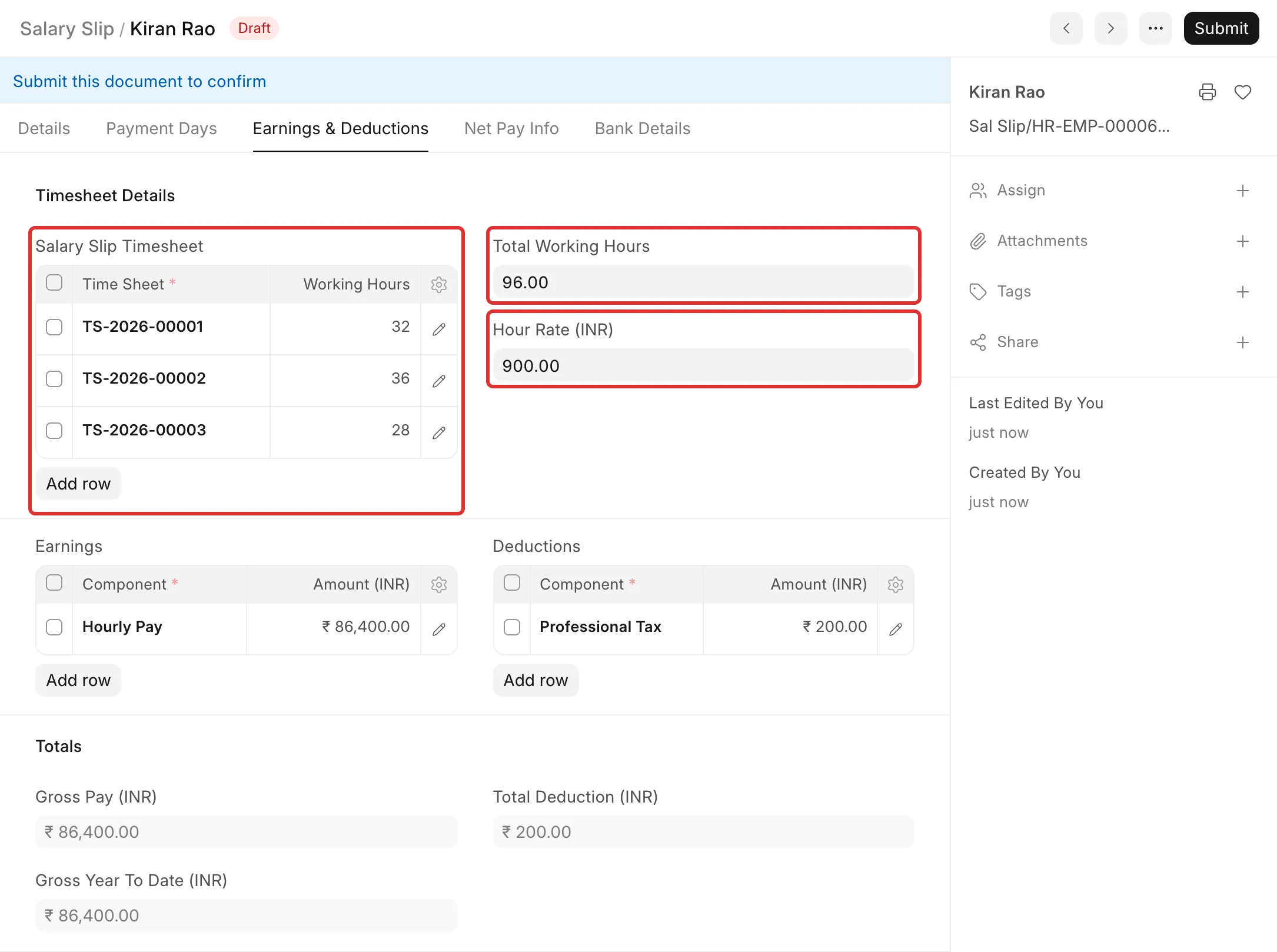
For example, Bluepeak Technologies Pvt Ltd pays Kiran Rao ₹900 an hour for work on the Northwind Fleet App project. In December 2026, Kiran submits three weekly Timesheets of 32, 36 and 28 hours. The fourth Timesheet is still in Draft. The slip pays 96 hours × ₹900 = ₹86,400.
Before you start
- You need the HR Manager role.
- The payroll setup is done: Payroll Period, Salary Components and accounts. See Process payroll in Frappe HR.
- Each Timesheet has the Employee set. Frappe HR uses the Employee, not the user, to find the hours.
Steps
1. Create the Salary Component for the hours
- Go to Payroll → Salary Component → + Add Salary Component.
- Type a Name and an Abbr, for example
Hourly PayandHP. - Set Type to Earning.
- In the Accounts table, select the Company and the salary expense Account.
- Click Save.
2. Create a Salary Structure based on Timesheet
- Go to Payroll → Salary Structure → + Add Salary Structure.
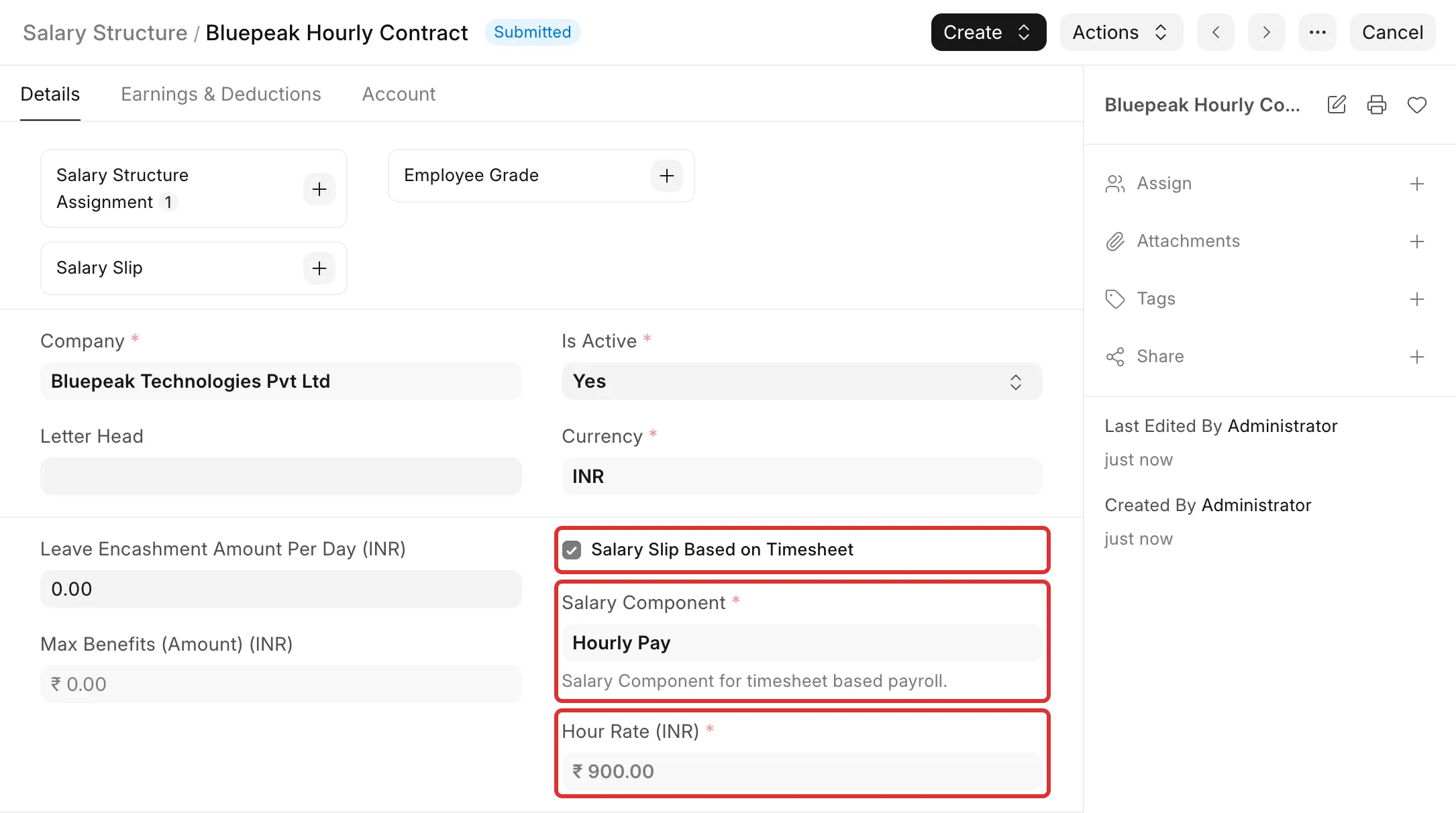
- On the Details tab, select the Company and the Currency.
- Select Salary Slip Based on Timesheet. The Payroll Frequency field is hidden. The slip period comes from the Payroll Entry instead.
- In Salary Component, select the component from step 1.
- Type the Hour Rate, for example
900. - On the Earnings & Deductions tab, add the same component to Earnings with an amount of 0. Add the deductions that apply.
- Click Save, then Submit.
3. Assign the Salary Structure
- Go to Payroll → Salary Structure Assignment → + Add Salary Structure Assignment.
- Select the Employee and the Salary Structure from step 2.
- Set the From Date, for example, 01-12-2026.
- Click Save, then Submit.
The Base can stay 0. The hourly amount does not use it.
4. Record the hours in Timesheets
- Go to Projects → Timesheet → + Add Timesheet.
- Select the Employee.
- In Time Sheets, add one row for each day: Activity Type, From Time, Hrs, and Project.
- Click Save, then Submit.
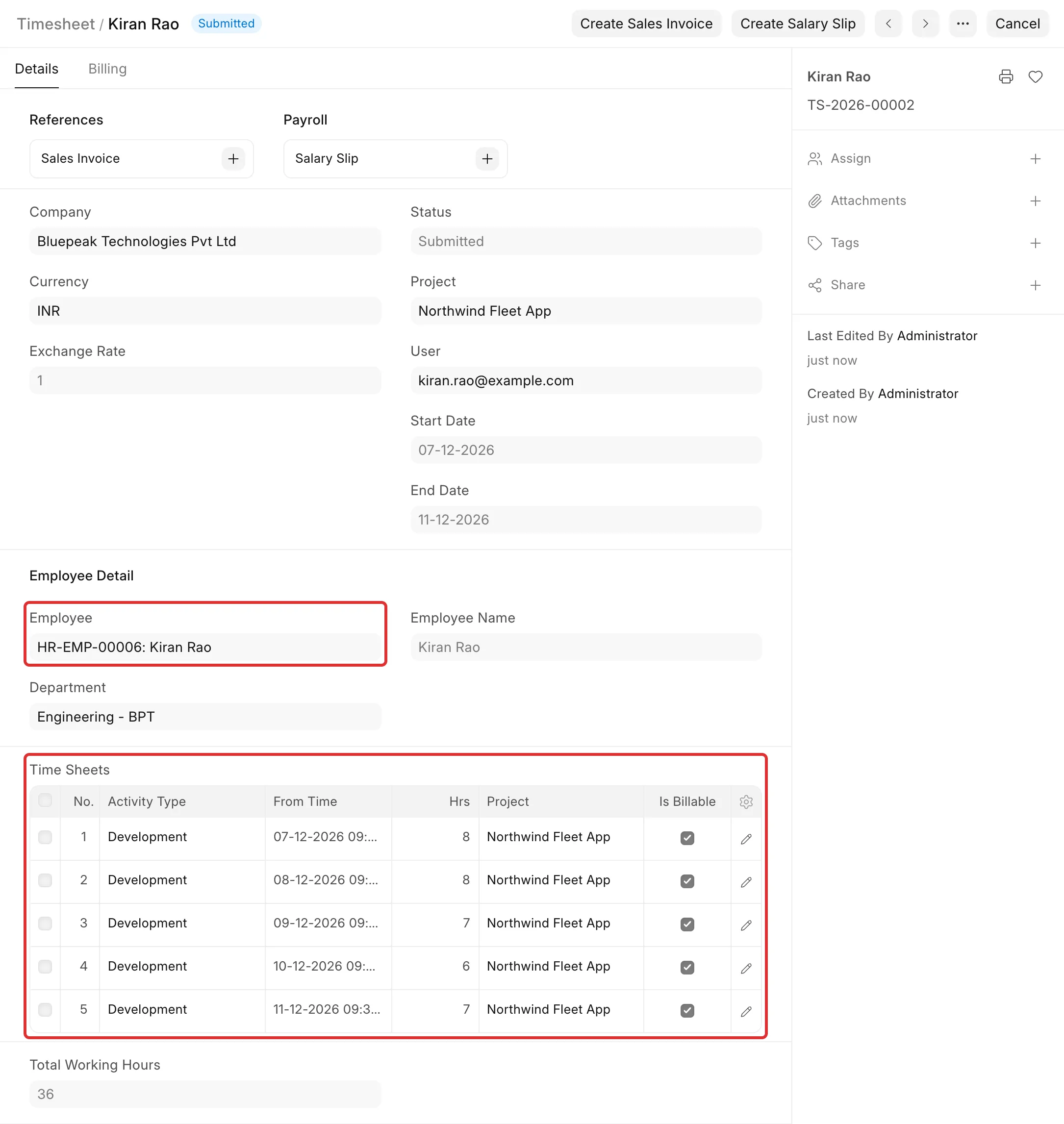
Only submitted Timesheets are paid. A Timesheet in Draft is left out of the slip.
5. Create the Payroll Entry
- Go to Payroll → Payroll Entry → + Add Payroll Entry.
- On the Overview tab, set Posting Date, Company, and Currency.
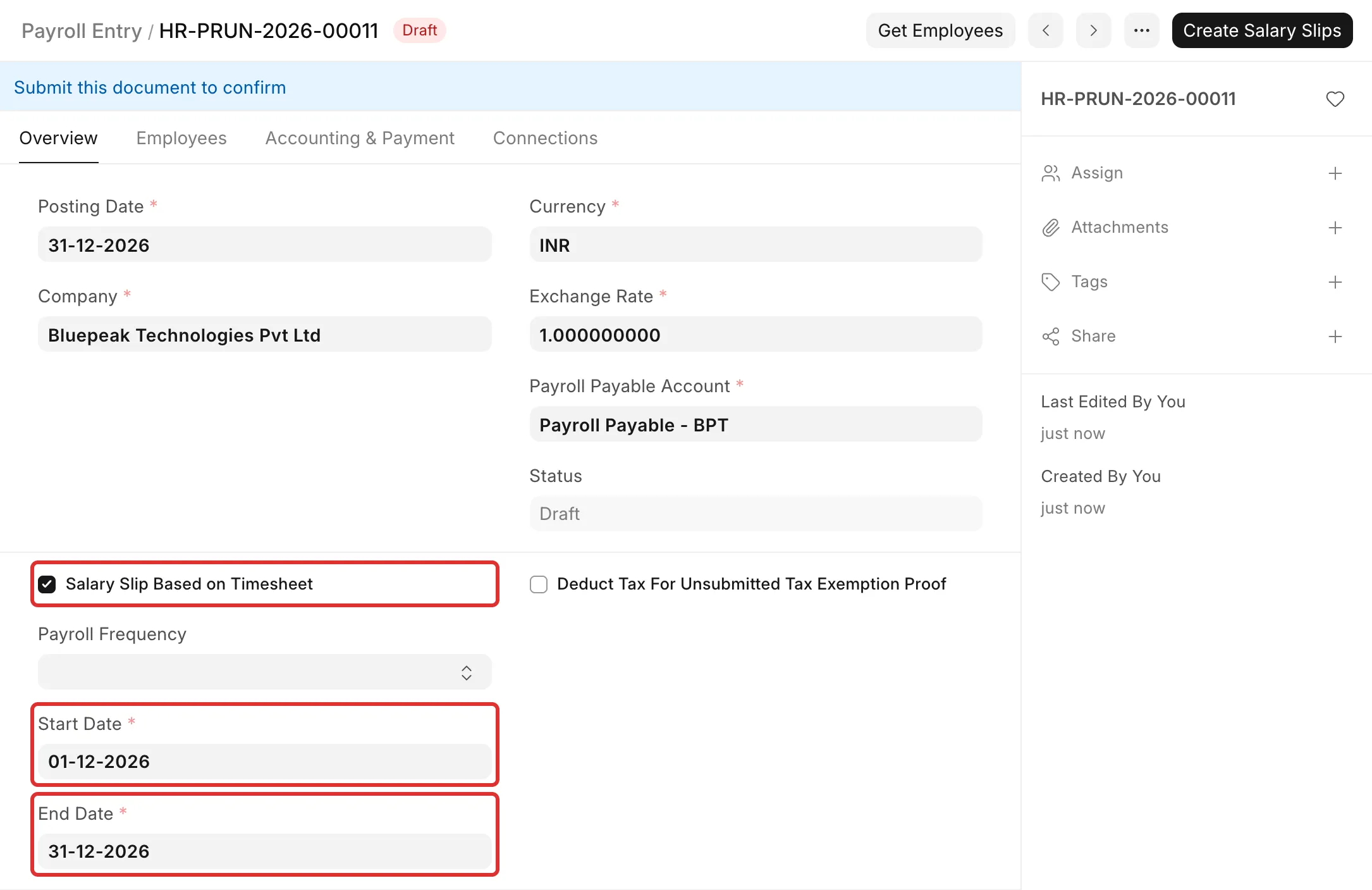
- Select Salary Slip Based on Timesheet. Payroll Frequency is no longer mandatory.
- Set Start Date and End Date, for example, 01-12-2026 to 31-12-2026.
- On the Accounting & Payment tab, select the Cost Center and the Payment Account.
- Click Save.
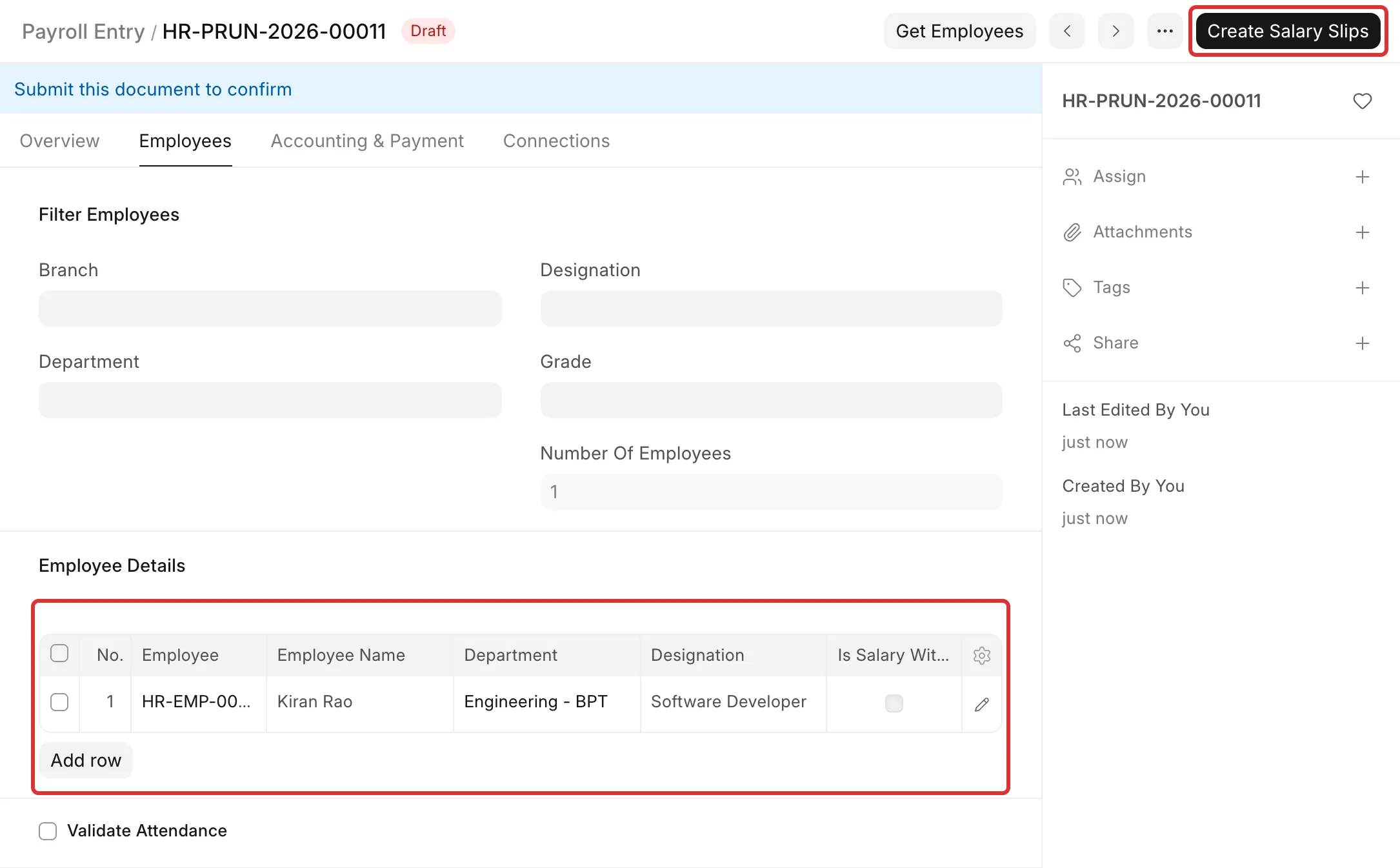
- Click Get Employees. The Employees tab shows only the employees whose Salary Structure is based on Timesheet.
6. Create and check the Salary Slip
- Click Create Salary Slips.
- Open the slip from the Connections tab of the Payroll Entry.
- On the Earnings & Deductions tab, check the Salary Slip Timesheet table, Total Working Hours, and Hour Rate.
7. Submit the slips and make the bank entry
- On the Payroll Entry, click Submit Salary Slip.
- Click Make Bank Entry, then submit the Bank Entry.
These steps are the same as for monthly payroll. See steps 9 and 10 of Process payroll in Frappe HR.
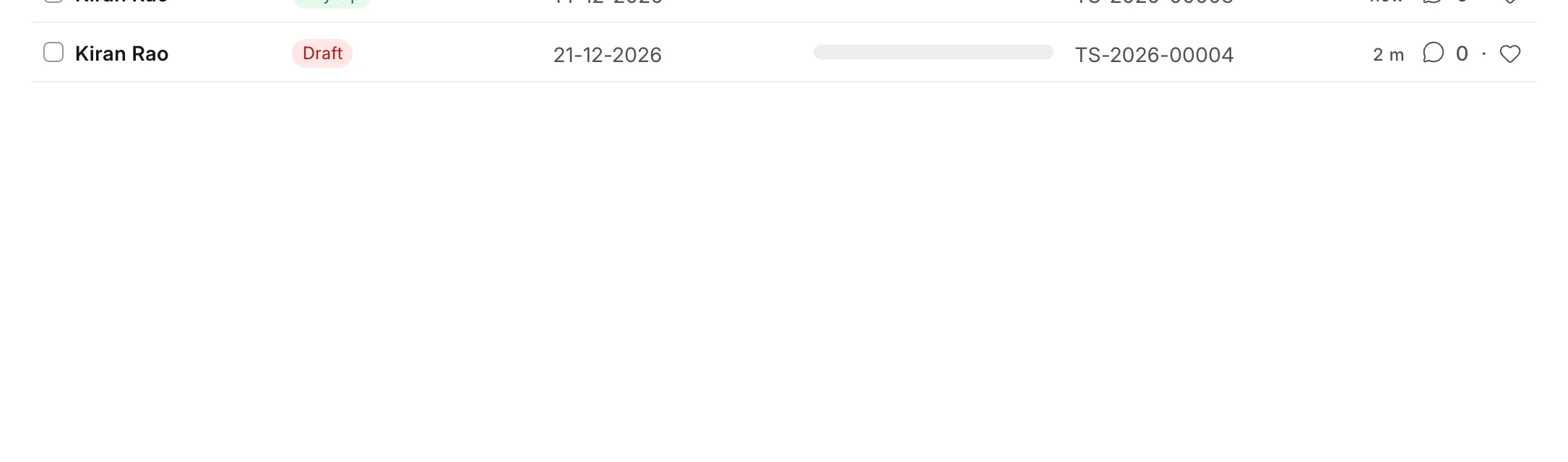
After you submit the slip, the paid Timesheets show the status Payslip. The Draft Timesheet is unchanged.
Common questions
Payroll Frequency disappears or is asked for
On a Salary Structure based on Timesheet, Payroll Frequency is hidden because the hours set the amount. On the Payroll Entry, select Salary Slip Based on Timesheet first. Then Payroll Frequency is not mandatory, and you set Start Date and End Date yourself.
Get Employees does not find the employee
A Payroll Entry with Salary Slip Based on Timesheet only finds employees whose Salary Structure has the same option. A Payroll Entry without the option finds only the other employees. Run two Payroll Entries if you have both kinds. For the other checks, see Why doesn't Payroll Entry fetch all my employees?
The slip has fewer hours than expected
Check each missing Timesheet:
- Its status is Submitted, Billed, or Partially Billed. Draft and Cancelled Timesheets are left out.
- Its Start Date is between the Payroll Entry Start Date and End Date. A Timesheet that starts on 30 November is not in the December slip, even if most of its hours are in December.
- Its status is not Payslip. A Timesheet that is already on a submitted slip is not paid again.
The slip does not use the Activity Cost rate
The slip always uses the Hour Rate of the Salary Structure. It does not read the costing rate of the Activity Cost in the Timesheet. If an employee needs a second rate, add the difference as an Additional Salary.
Can I pay only billable hours?
Not directly. The slip adds all hours of each Timesheet, billable or not. There is no setting to pay only billable hours. If you must pay only billable hours, record them for this employee in Timesheets of their own, and keep the non-billable hours out of submitted Timesheets.
The Project is not on the Journal Entry
The accrual Journal Entry does not take the Project from the Timesheets. Set the Project on the Accounting & Payment tab of the Payroll Entry. The Journal Entry and the General Ledger then get the Project.
The slip shows "Total working hours should not be greater than max working hours"
Max working hours against Timesheet is set in Payroll Settings. The message is a warning only. The slip still pays all hours. Check the Timesheets, or change the limit in Payroll Settings.