

















Organizational Chart
The Production department at the Nova Industries Pune branch has 19 people. Aarav Mehta manages six engineers, and each engineer leads a small crew of associates on the press line. Aditi Sharma, who joins on 1 December 2026, wants to see who is who before her first day, and HR wants a picture of the team to share at the plant meeting.
The Organizational Chart draws this structure from the Reports to field on each Employee. It shows every Active employee of a company as a card with their photo, name and designation, under the person they report to. A second view, the Directory, lists the same people grouped by Department, with search and filters.
Before you begin
- Each employee's Reports to is set to their manager. For many employees at once, use Data Import to update the field.
- Designation, Department and Branch are filled in, so the cards and filters show them.
- You have the HR User or HR Manager role. Employees can see the chart only when HR allows it, as described below. For roles, see Adding Users.
Open the chart
- Open the HR Setup workspace and select Organizational Chart.
- Select the company, here Nova Industries. The chart opens on your own company if you are an employee, otherwise on your default company.
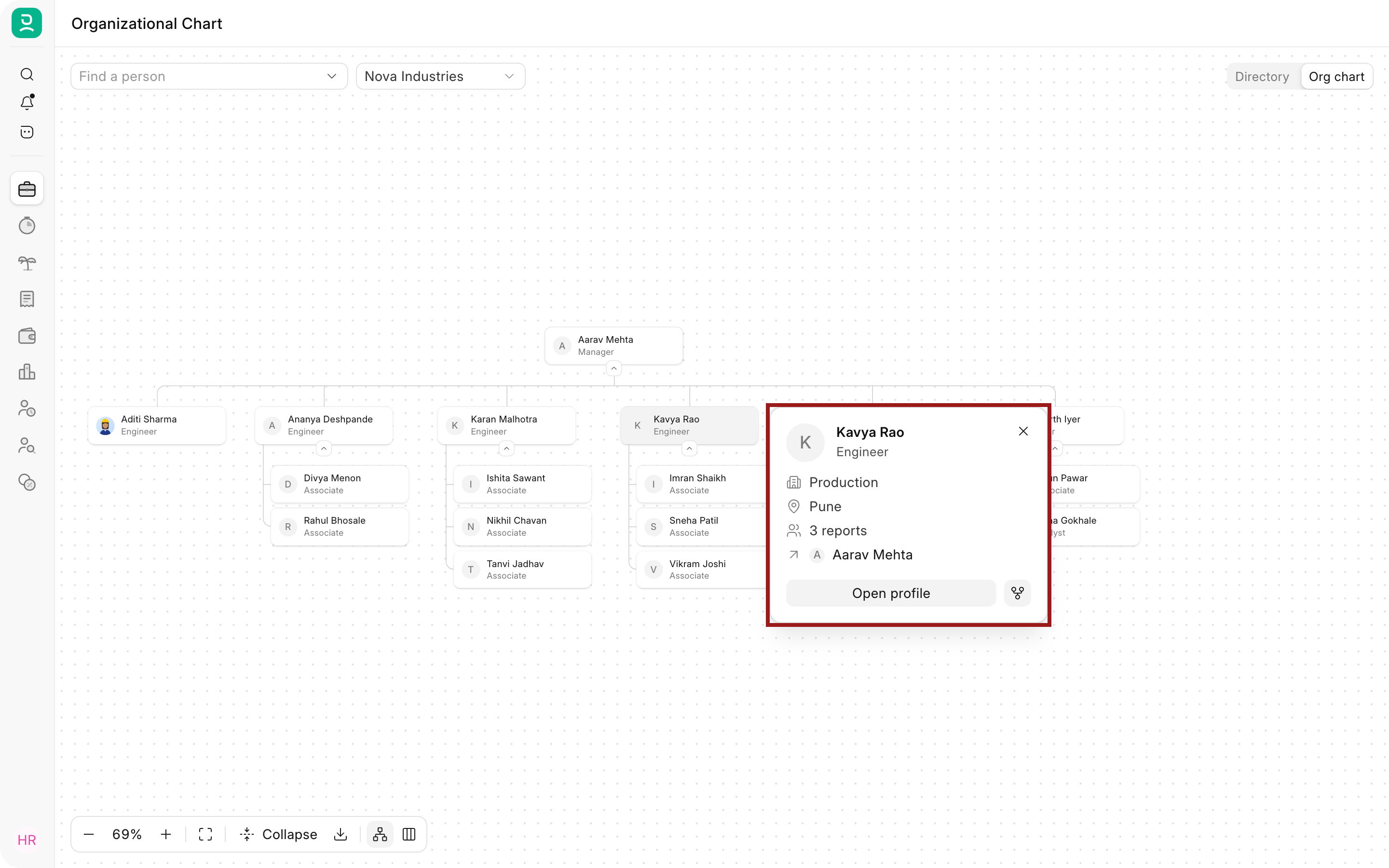
- Select the number below a manager's card, which shows the first few members and the size of their team, to show or hide that team.
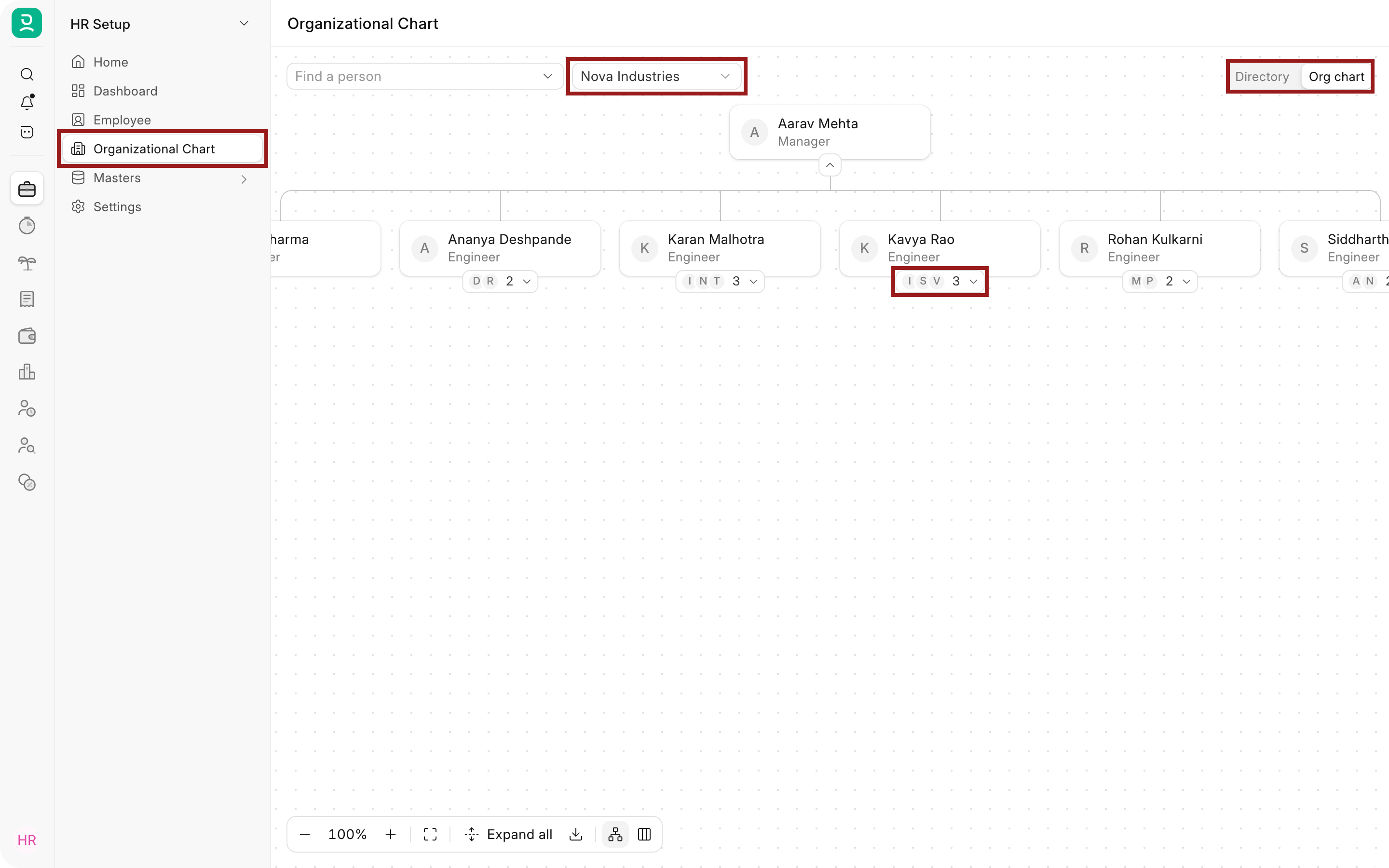
People whose manager is not in the chart start their own branch at the top. That includes anyone with no Reports to, and anyone whose manager belongs to another company or is no longer Active. Employees with any status other than Active do not appear.
Move around the chart
Drag the chart to move it, and use the toolbar at the bottom to zoom out, zoom in, reset to 100 percent or fit the chart to the screen. On the keyboard, plus and minus zoom and 0 fits the chart. Expand all opens every team at once and changes to Collapse. Expand all is refused for a company with more than 1,000 Active employees; open teams one at a time or find a person instead.
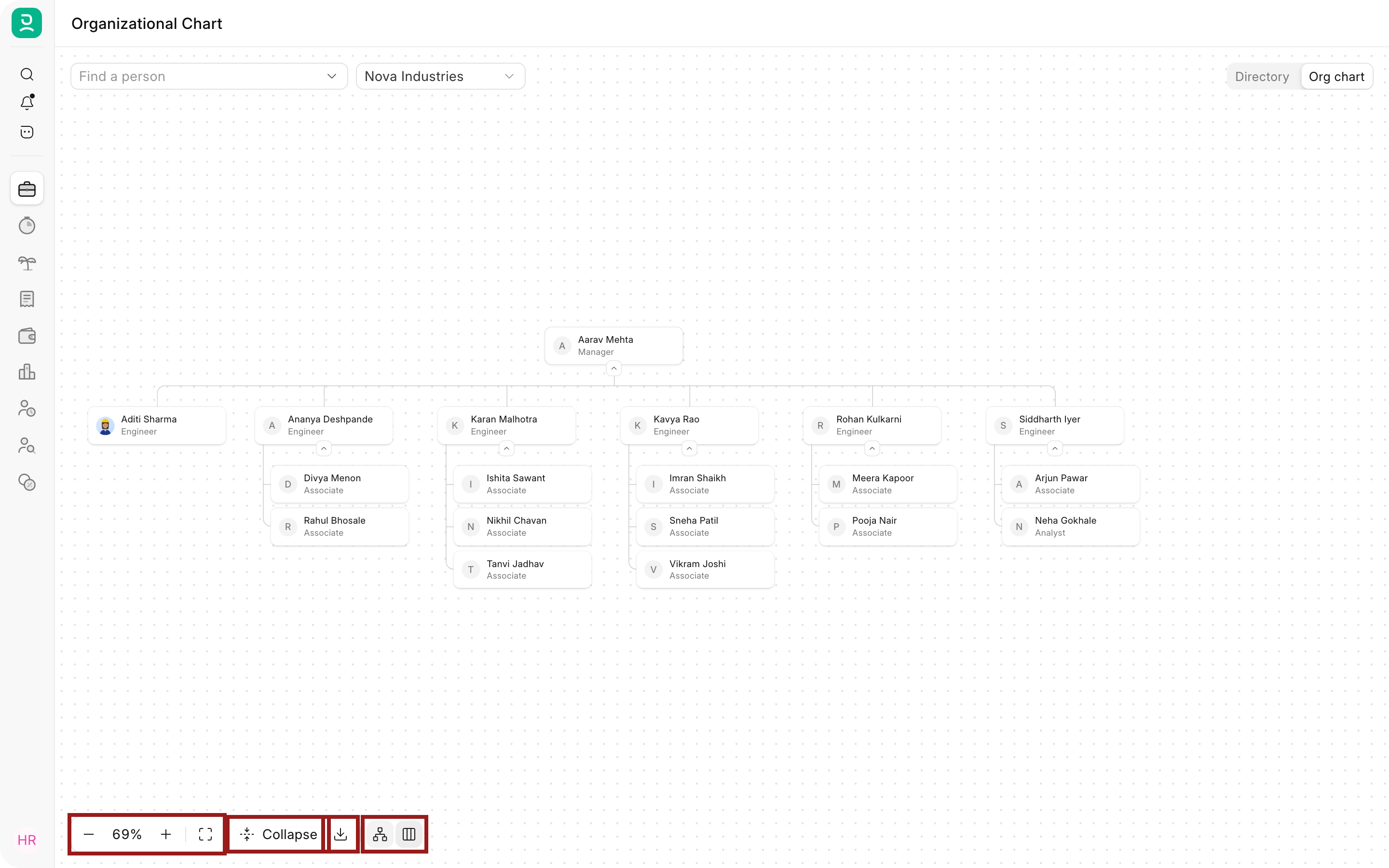
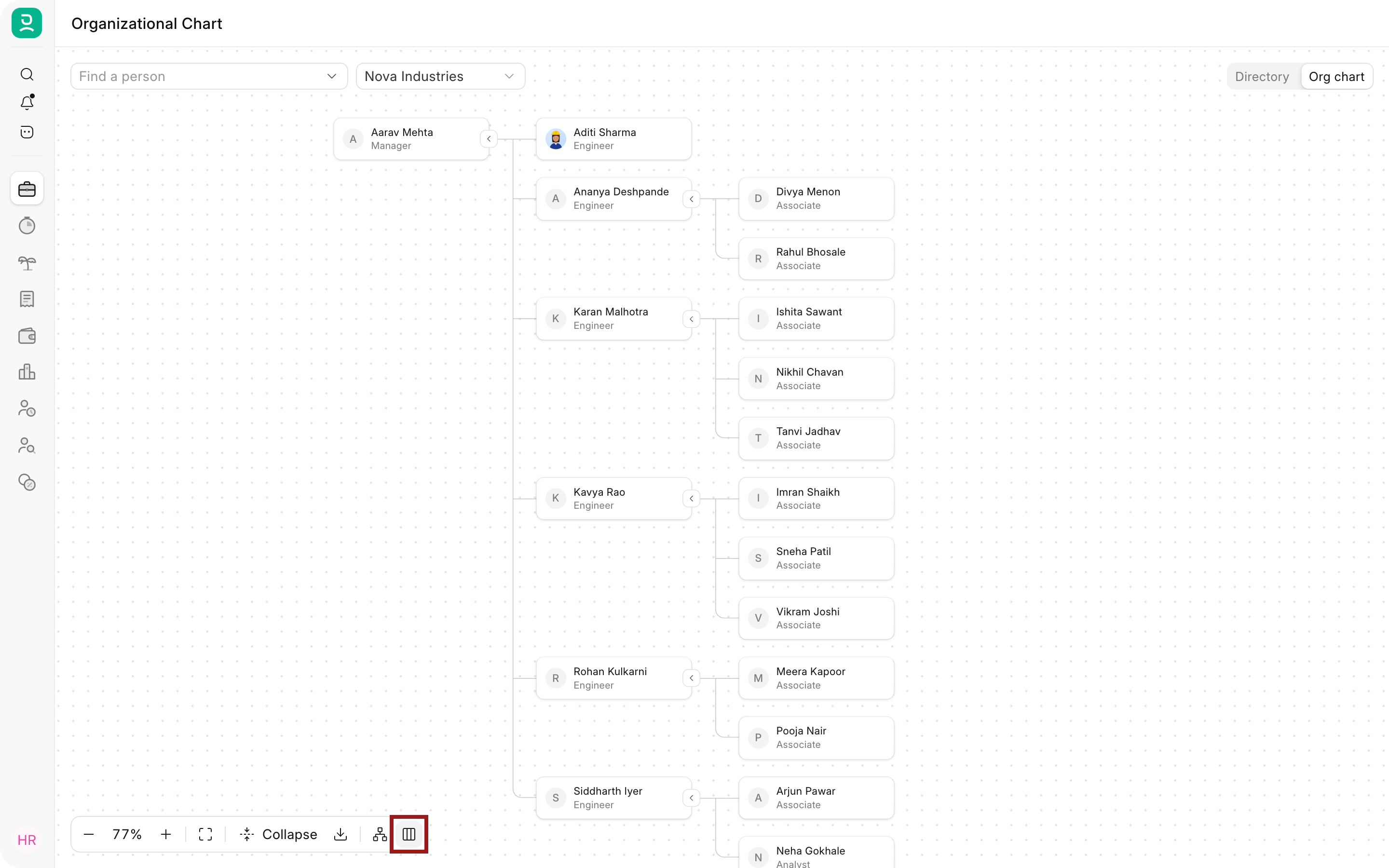
The two buttons at the end of the toolbar switch the layout between Top to bottom and Left to right. Left to right suits a deep chart with many levels. On a phone the chart always lists each team down the screen. The chart remembers the view and layout you last used.
Find a person and see their details
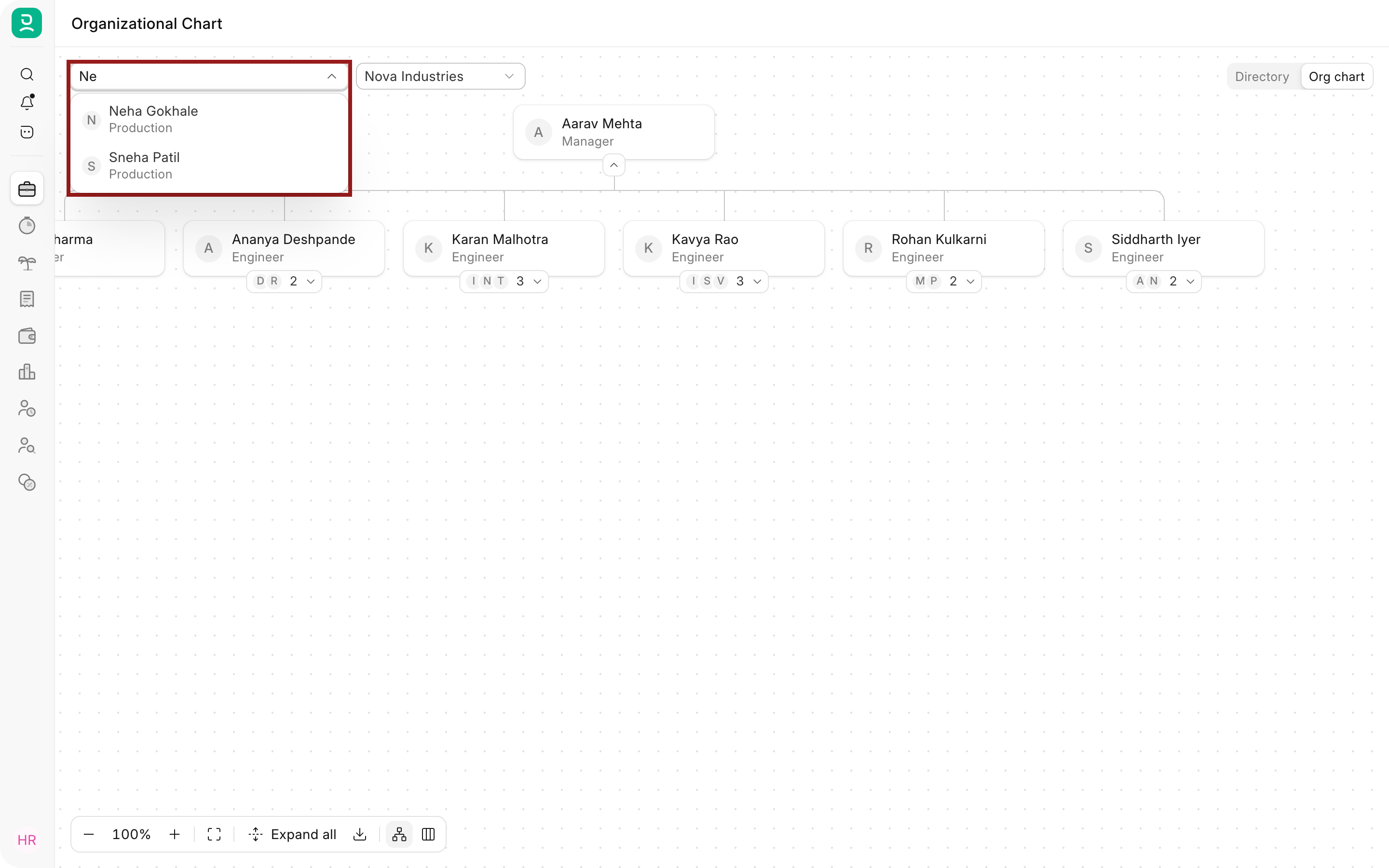
Type a name or Employee ID in Find a person and select the match. The chart opens the teams above that person and moves to their card. If you are an employee shown in the chart, Find me in the toolbar does the same for your own card.
Select a card to open a short summary of the person: designation, department, branch, number of reports and manager. Select the manager's name to move to their card. Open profile opens the person's employee profile. The mail button, shown when the employee has a company email, writes to them, and the team button shows or hides their team. A person on approved leave today shows when they are back, skipping holidays on their Holiday List, or that they are on a half day. The leave type is never shown.
Export the chart as an image
Select Export as image in the toolbar to download the chart as a PNG file. Only the teams that are open are saved, so select Expand all first to export the whole company. If the export fails, try again with fewer teams open.
Browse the directory
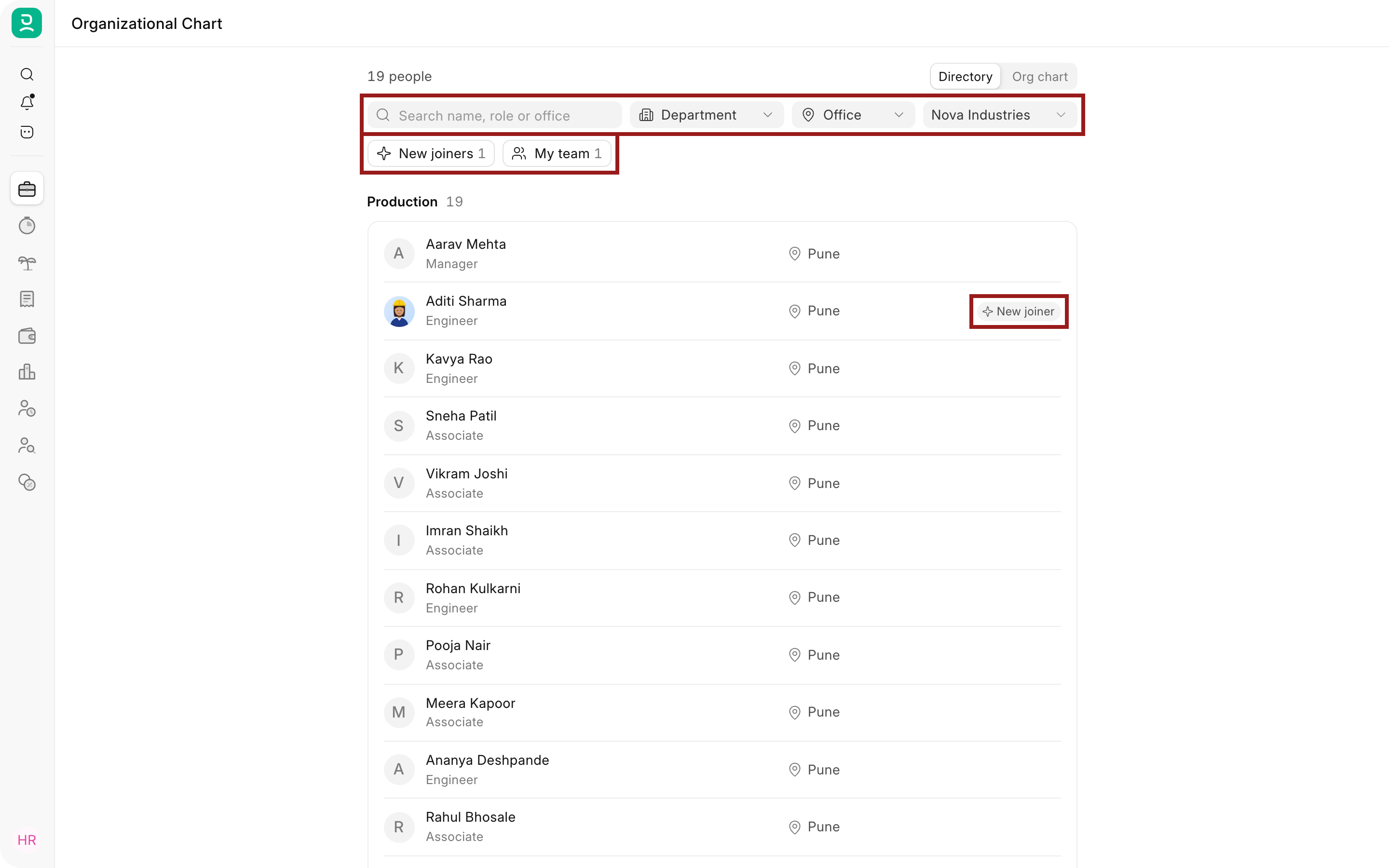
Select Directory at the top right to list everyone in the company, grouped by department and in the order of the chart. Search by name, designation or office, or filter by Department, Office, which is the Branch, and company. Select a person to open their profile.
Quick filters above the list appear only when someone matches them:
| Filter | Shows |
|---|---|
| On leave | People on approved leave today |
| Celebrating | Birthdays and work anniversaries today, when HR Settings sends those reminders |
| New joiners | People whose Date of Joining is less than 30 days ago or still ahead, such as Aditi during her Employee Onboarding |
| My team | Your reports if you manage people, otherwise the people who share your manager |
Who can see the chart
Users who can read all Employee records, such as HR, see the chart of every company they have access to. Employees see the chart of their own company only when Show Organizational Chart to All Employees is ticked in HR Settings. Without it, they see a message that HR has not shared the chart.
The chart shows directory details only: photo, name, Designation, department, branch and company email. It does not show personal email addresses, dates of birth or leave types, even to those who could read them on the Employee record.
Troubleshooting
An employee is missing or at the top of the chart
The employee is not Active, or their Reports to is empty, belongs to another company or points to someone who is no longer Active. Correct the Employee record, for example when a manager leaves through Employee Separation.
No active employees in the company
The selected company has no Active employees. Select another company, or select Add Employee to create one.
Too Many Employees
The company has more than 1,000 Active employees, so Expand all is refused. Use Find a person, open teams one at a time, or use the Directory.
Frequently asked questions
Why does a new hire not appear yet?
The chart shows employees from the day their Employee record is Active, so a new hire appears once HR creates the record, even before the Date of Joining. Check that Reports to is set, as for Aditi.
Can I show the chart for several companies at once?
The chart shows one company at a time. Switch between companies with the company selector, which lists only the companies you have access to.