


















A Job Card stores actual production information about a particular Operation performed on a particular Workstation.
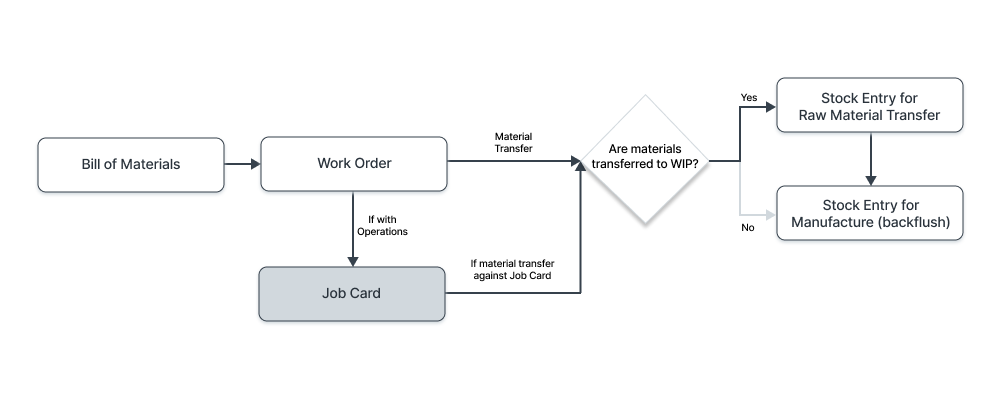
A Job Card is created from the Work Order and given to each of the Workstations in the manufacturing floor to start the production of an item with a certain quantity in each of the operations defined in the Work Order.
Job Card allows each Operation's workstation to issue a “Material Request” and “Stock Transfer to Manufacture” for raw material required against a “Job Card”.
Job Card completion will change the production status in Work Order, we can track the completion of production progress for each of the Operations defined in the Work Order.
To access the Job Card list, go to:
Home > Manufacturing > Production > Job Card
1. Prerequisites
Before creating and using a Job Card, it is advised that you create the following first:
2. How to Create a Job Card
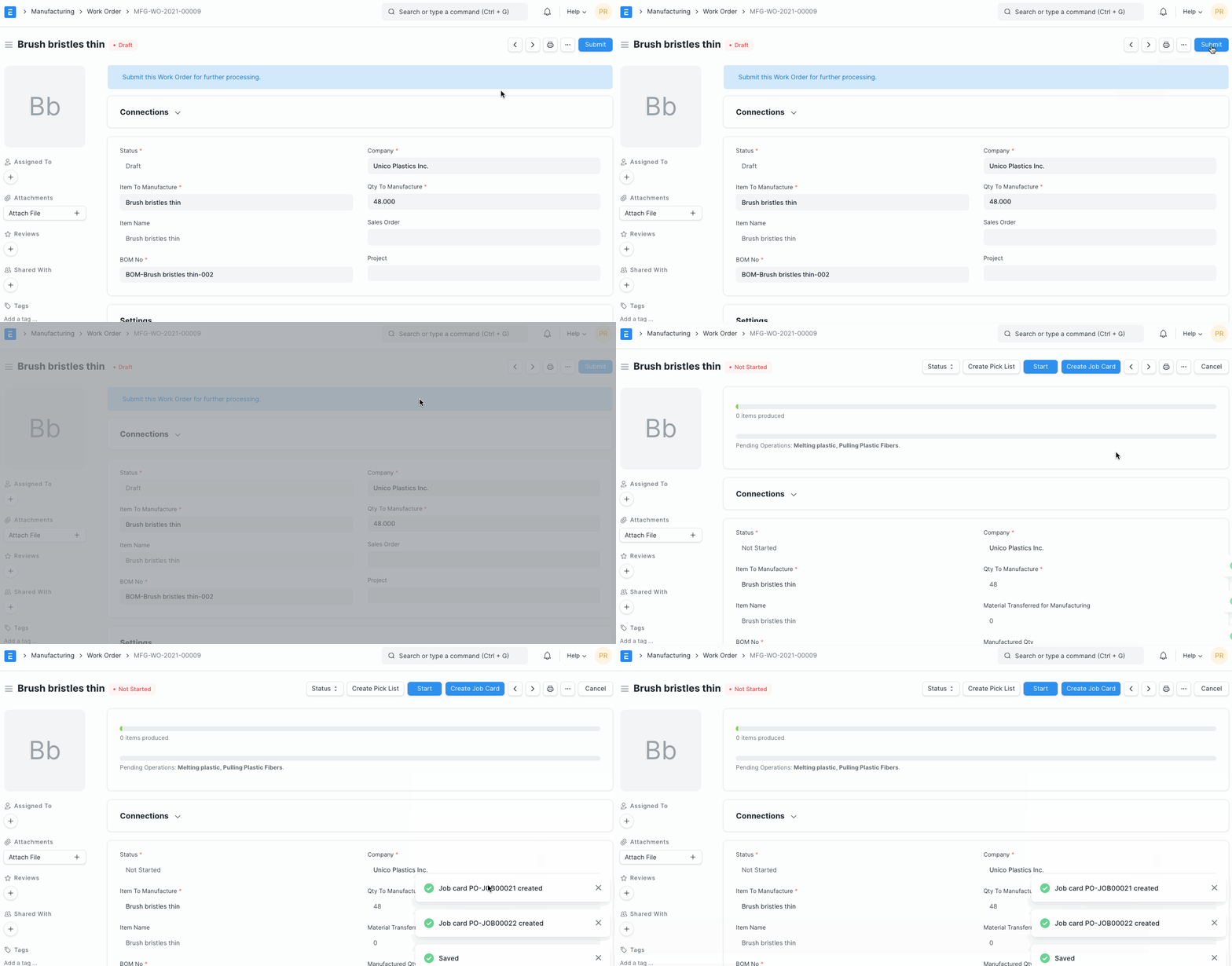
Job Card for Operations is automatically created when a Work Order is submitted.
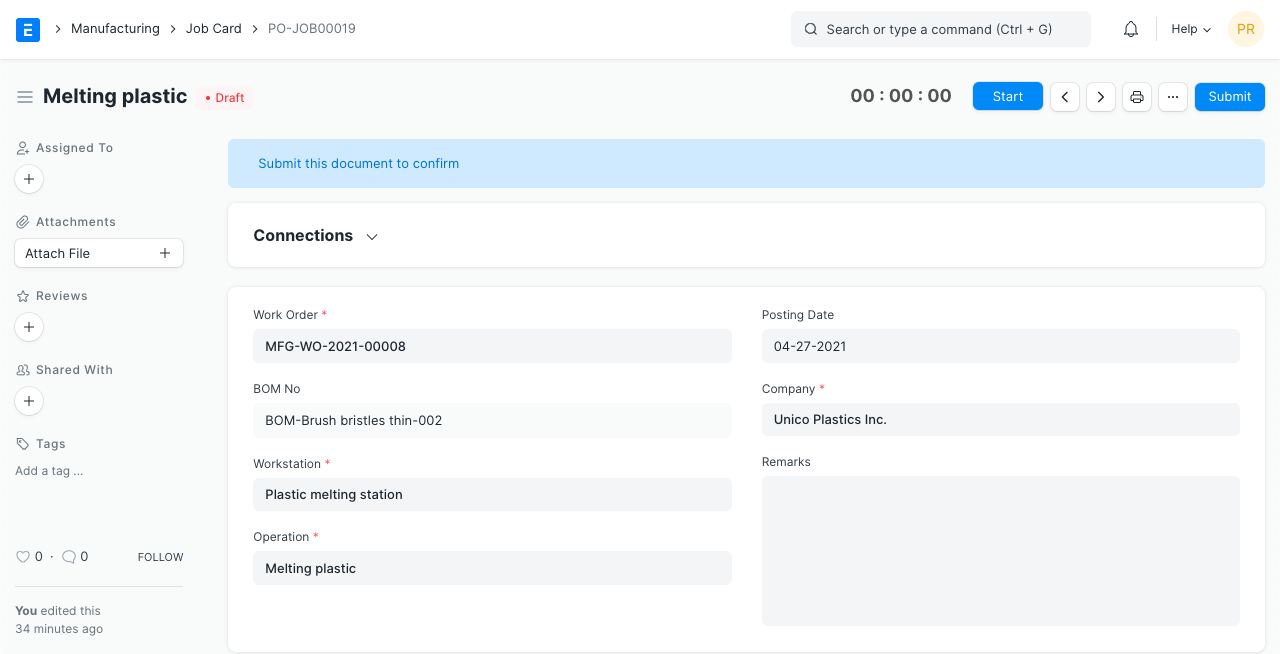
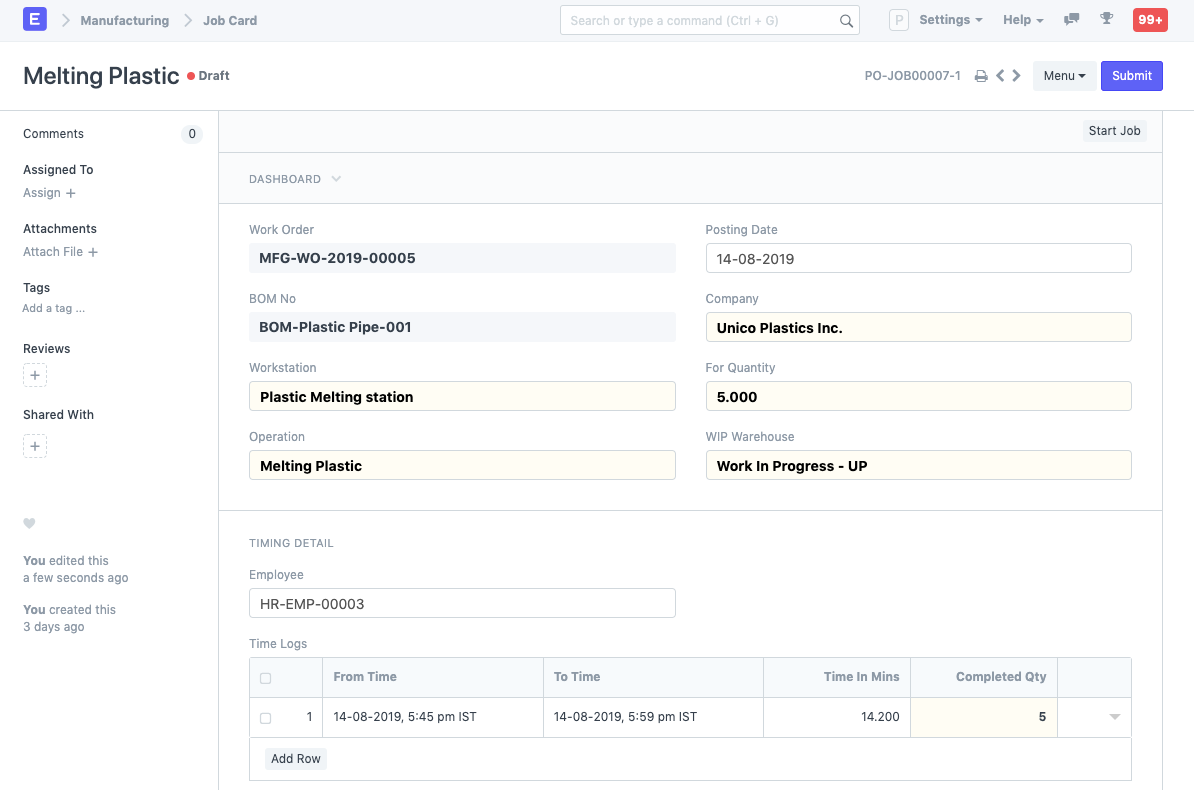
This is what a Job Card looks like:
To use a Job Card follow these steps:
- Click on the Start Job button, then on Complete Job when you're done.
- Alternatively, you can also fill the From Time and To Time in the Time Logs table.
- Select the Employee to whom the Job Card was assigned.
- Enter the Completed Quantity. This is the number of Items on which the Operation was performed for the selected time interval.
- Add more rows in the Time Logs table and record time using the Start/Completed buttons.
- Click on Submit.
In a Work Order, the Operations and Workstations are fetched from the BOM of an Item. For ease of use, you should ensure that the Routing is configured in the BOM.
Each Job Card created will have Workstation & Operations assigned. The raw material required from each Source Warehouse will be calculated based on quantity required for production.
On submitting a Work Order, Job Cards will be auto-created based on the values in the Operations table.
2.1 Select Work Order with Item to Manufacture
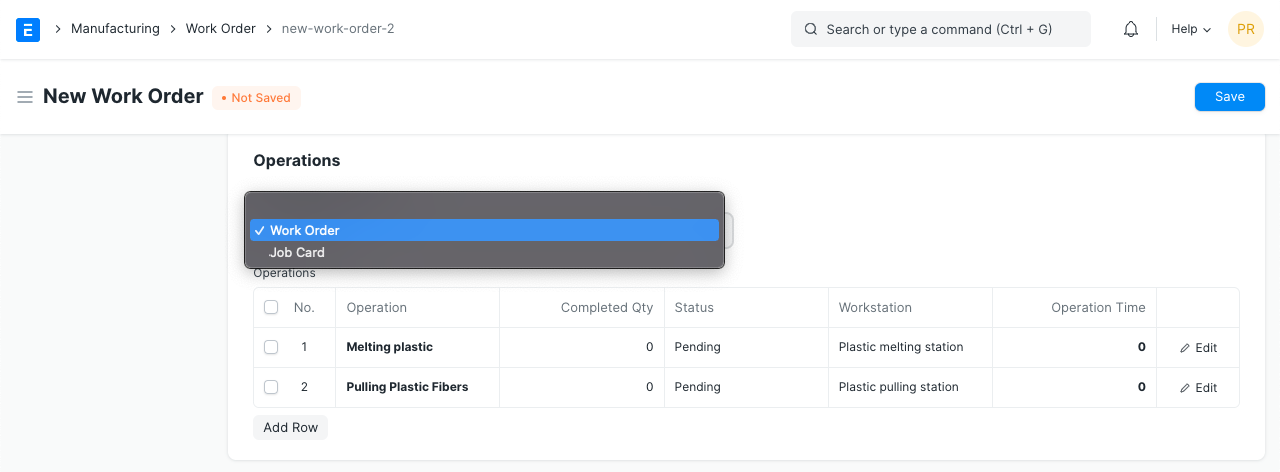
You can select 'Transfer Material Against' as 'Job Card' on the Bill of Materials to transfer raw materials for Production against Job Cards.
In the Work Order, you can select the option:
2.3 Using a Job Card
Employee assignment and timing detail will also be defined in Job Card. The time taken to do a job can be recorded. If multiple employees are working on the same Operation, add new job cards by clicking on the 'Create Job' Card button.
2.4 Material Request against Job Card
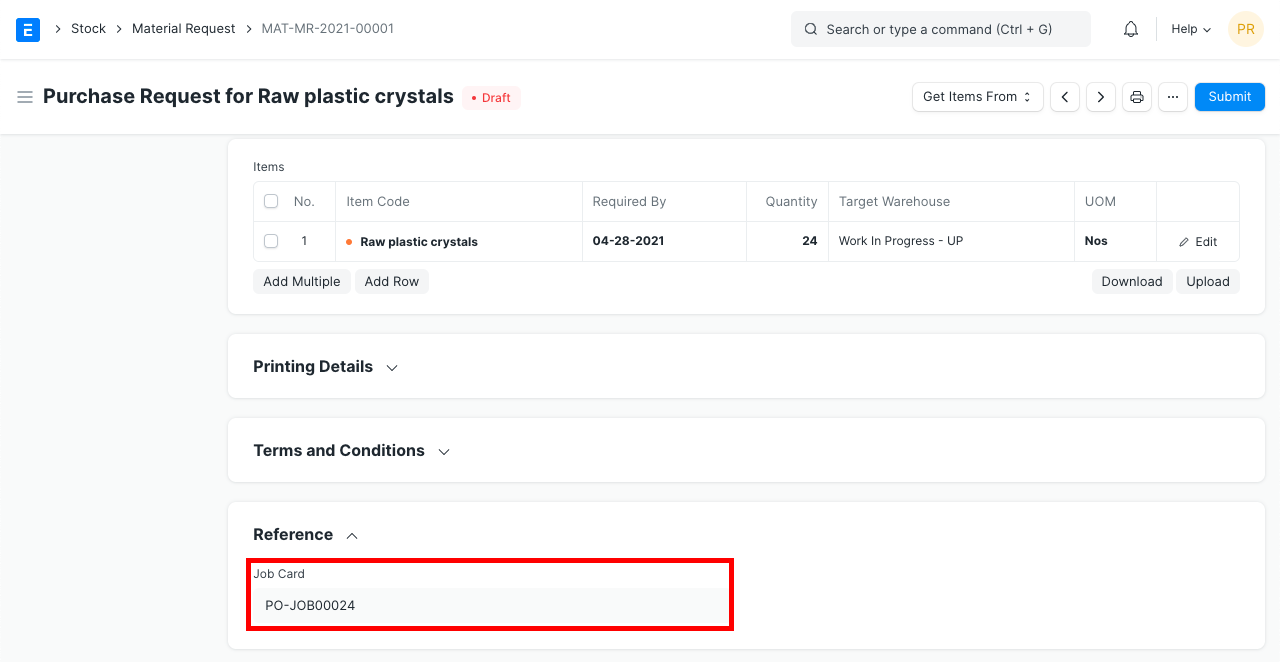
A Material Request will be raised from the Job Card as a basis/order to prepare raw material required for the manufacturing process. The Material Request raised will have its reference to the original Job Card number.
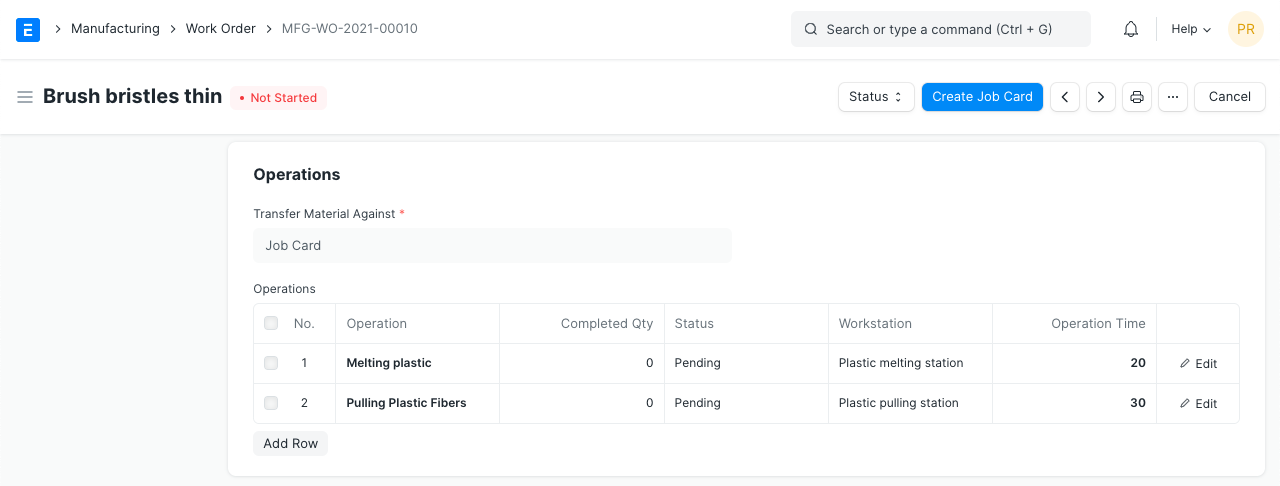
Track the Manufacturing Progress in The Work Order by The Completion of Each Operations defined in Work Order.
Job Card completion allows you to track the manufacturing progress inside the Work Order by looking at the completion of each Operation related to the Work Order.
2.5 Scrap Items
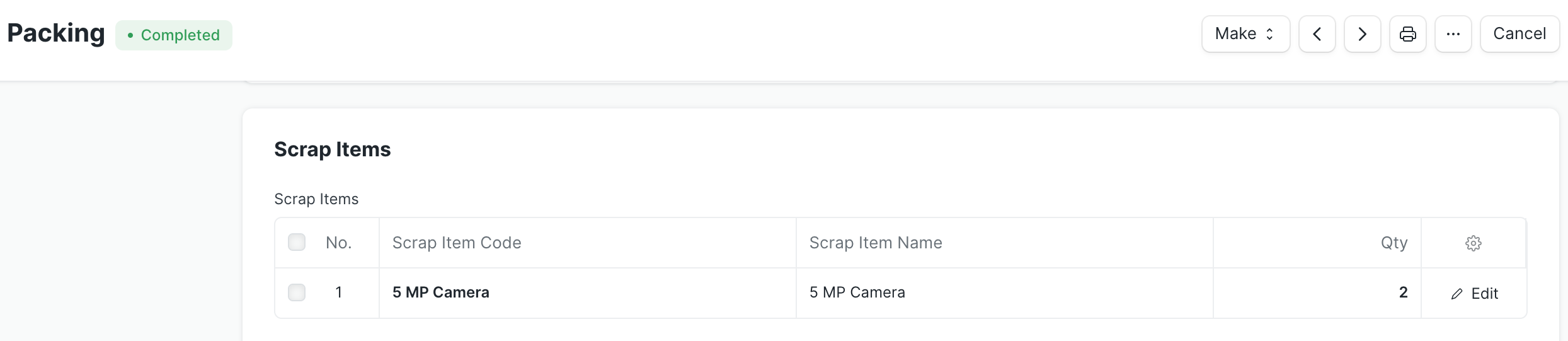
While completing the operations, there might be chances that some scrap materials will be produced. This scrap materials are required to be added in the inventory. For that user needs to put the details of the scrap items in the job card. User can also set the defective materials / broken materials in the scrap items table.
3 Produce an Item at Each Operation
If the "Produce an Item at Each Operation" enabled in the Work Order, then respective job cards has to Transfer raw materials from Store to Work In Progress warehouse and after that create the manufacture stock entry to produce output item against the job cards. In this feature on the dashboard users can see the steps to complete the job card.
This is what a Job Card looks like:
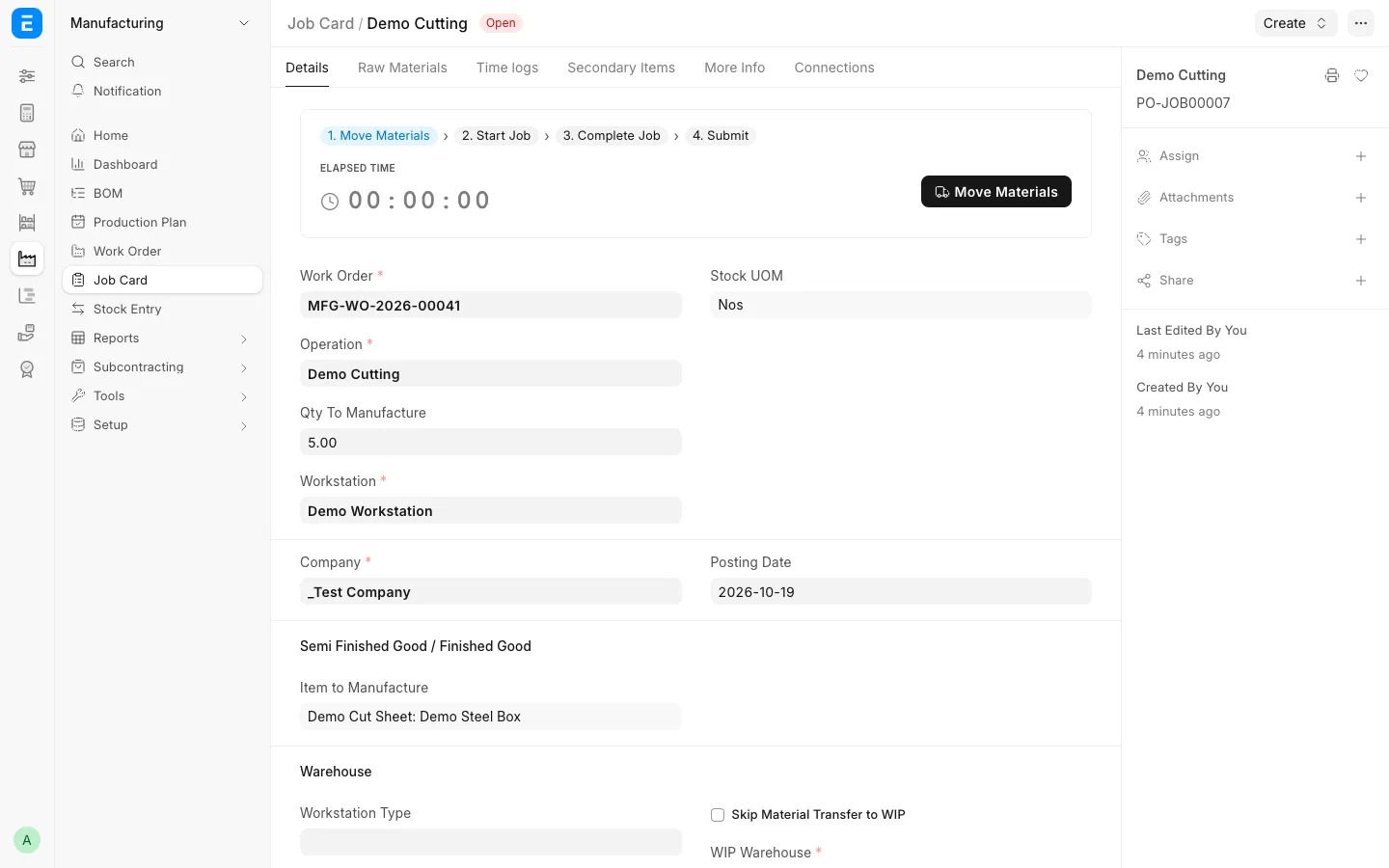
The step guide at the top of the Job Card shows what to do next: Move Materials › Start Job › Complete Job › Submit. The current step is highlighted, finished steps are ticked, and the button for the current step sits next to the timer.
To use a Job Card:
- If the Job Card has raw materials to move, click Move Materials and submit the Material Transfer for Manufacture that opens. This step is skipped when Skip Material Transfer to WIP is ticked.
- Click Start Job when the work begins, and select the employee if asked.
- Click Complete Job when you are done, and enter the Completed Quantity. This is the number of items the operation was done on.
- You can also fill From Time, To Time and Completed Qty in the Time Logs table yourself. To Time is needed only when Enforce Time Logs is ticked in Manufacturing Settings.
- Add more rows to the Time Logs table to record more sessions or other employees.
- When the earlier steps are ticked, Submit appears. Click Submit.
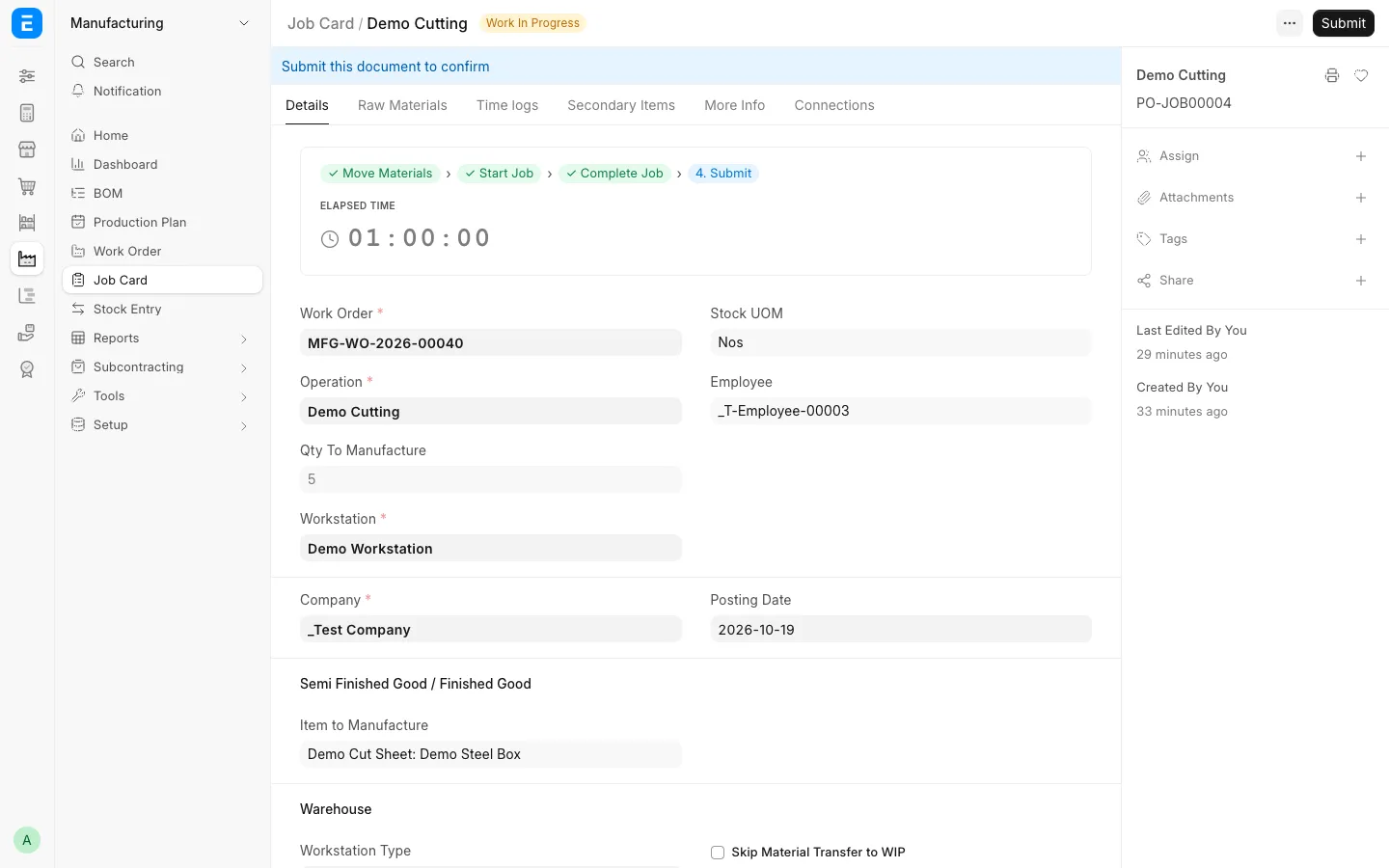
Submit stays hidden until the raw materials are moved and the job is complete, so a Job Card is not submitted by mistake.
Moving raw materials when stock is short
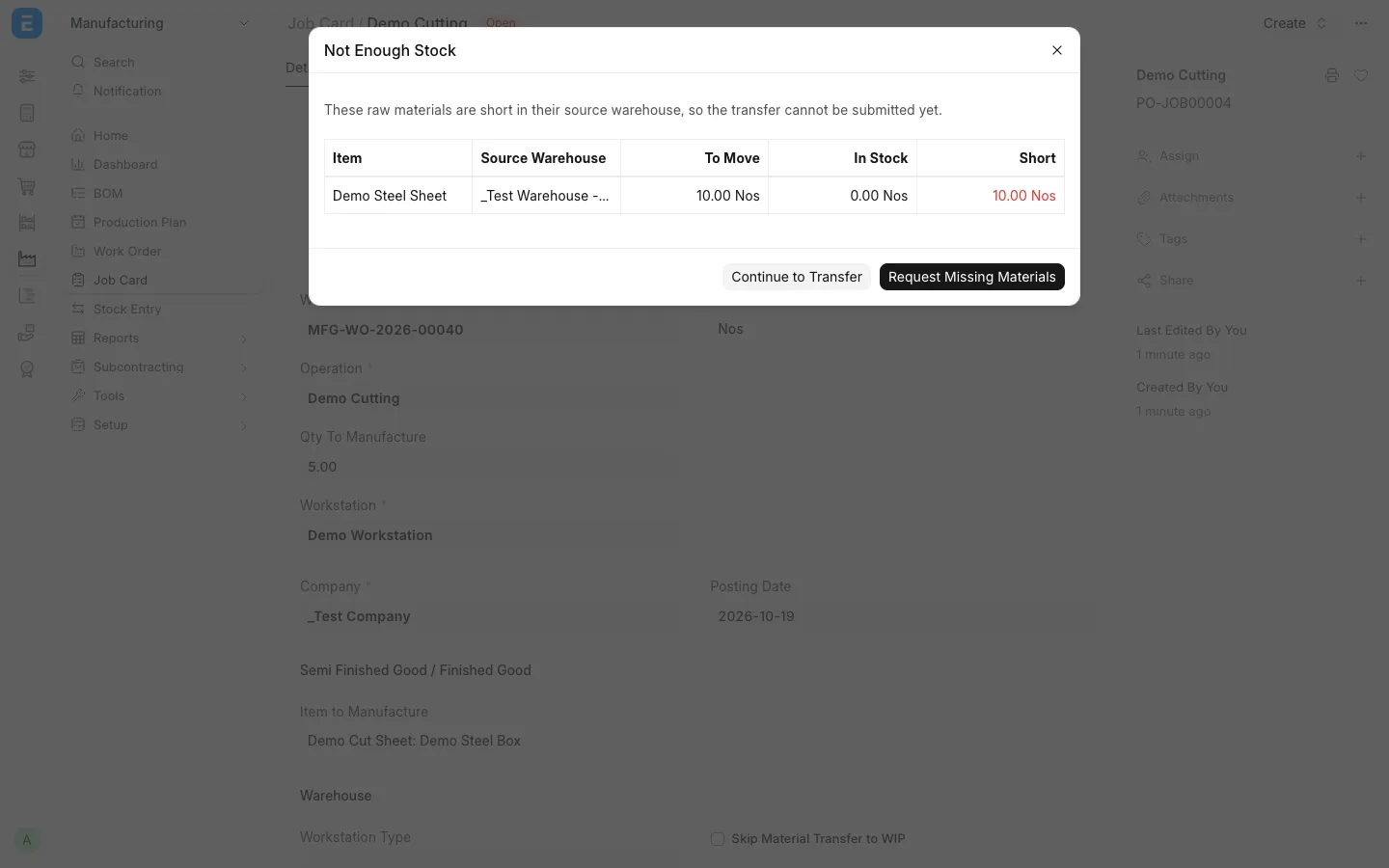
Move Materials first checks the stock of every raw material in its source warehouse. If anything is short, it shows Not Enough Stock with To Move, In Stock and Short for each raw material:
- Request Missing Materials makes a Material Request for only the short quantity, linked to the Job Card.
- Continue to Transfer opens the transfer for the full quantity.
When there is enough stock, the transfer opens straight away.
If the Job Card cannot be submitted
| Message | Why | What to do |
|---|---|---|
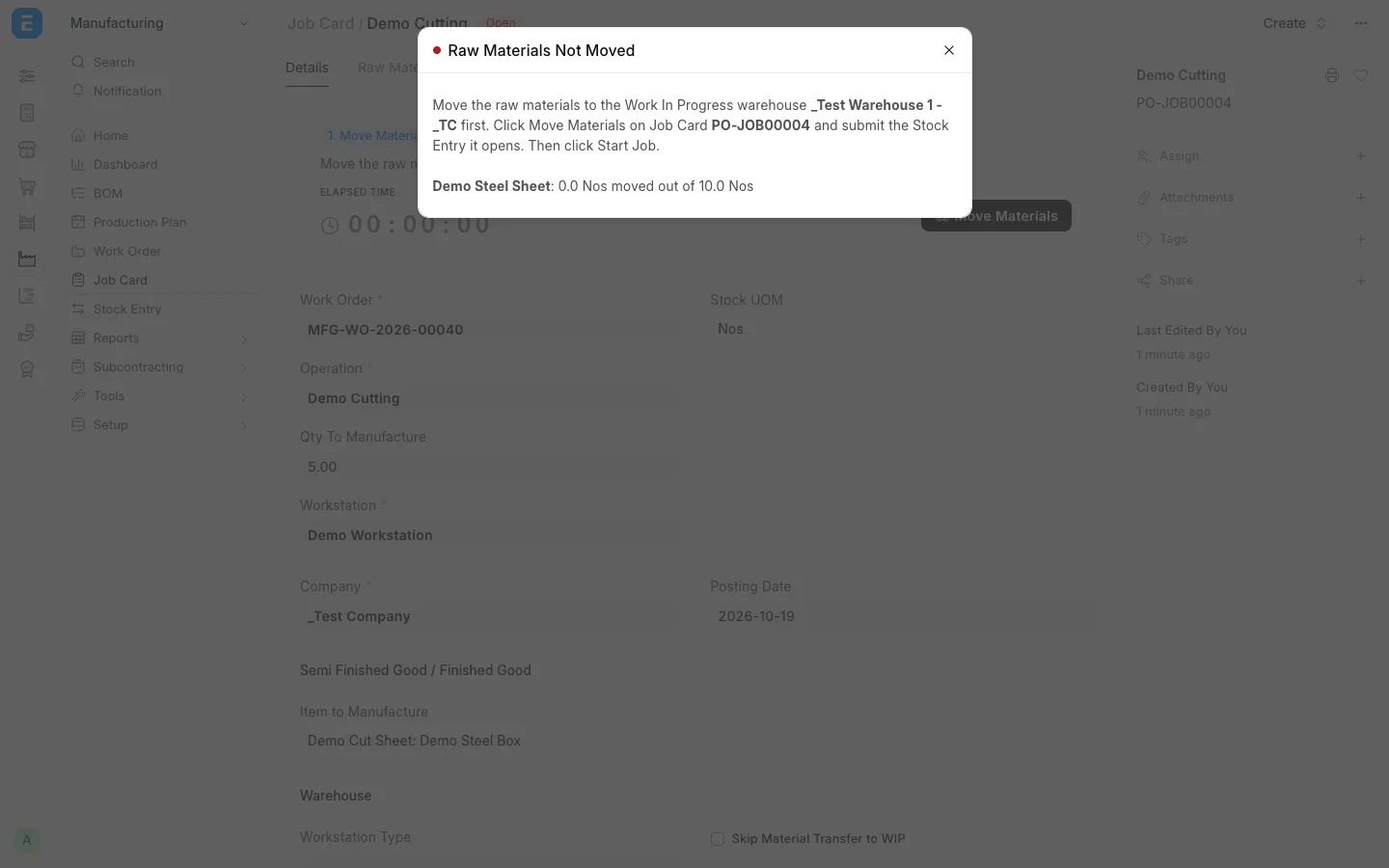
| Raw Materials Not Moved | The raw materials are not in the Work In Progress warehouse yet. The message lists each raw material still to move, for example "Demo Steel Sheet: 0.0 Nos moved out of 10.0 Nos". | Click Move Materials, submit the transfer, then click Start Job |
| Job Not Done Yet | The Job Card has no completed quantity yet | Click Start Job, then Complete Job, and enter the quantity made |
4. Features
4.1 Tracking Quality Inspection
Introduced in Version 13
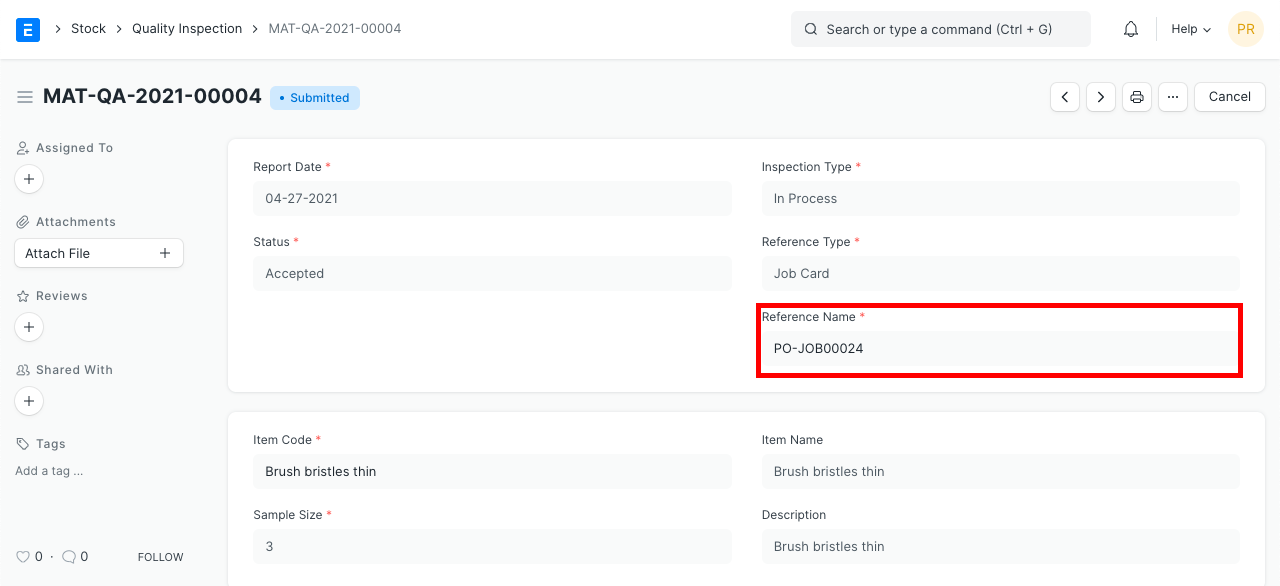
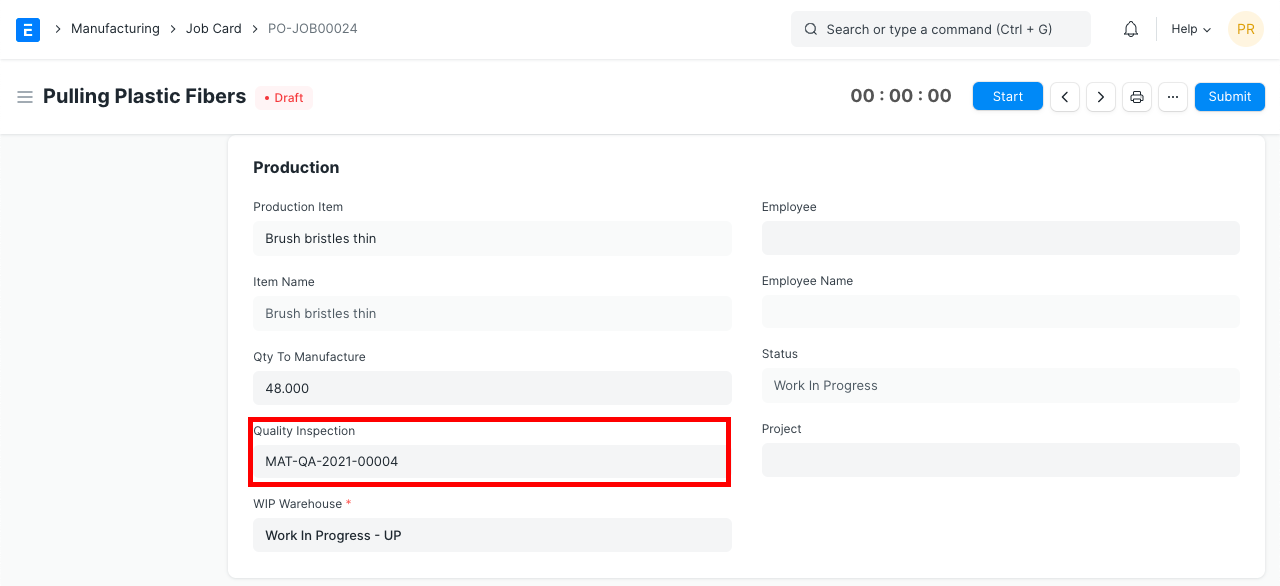
For production orders, the quality of in-process (semi-finished) goods also needs to be tracked. It is defined by the process (operation) performed on it which is in turn defined in the Job Card. In-process tests are different than incoming and outgoing material tests. Monitoring quality during manufacturing helps to make sure that the finished product produced is of the desired quality. You can create a Quality Inspection for the Production Item against the Job Card.
Pending Qty in Job Card
A new Pending Qty field has been introduced in the Job Card (in Version 16) to handle partial production and prevent incorrect Process Loss calculation.
Problem
Previously, while completing a Job Card, the system automatically considered the remaining quantity as Process Loss Qty. This caused issues in cases where the operation was only partially completed, preventing users from submitting the Job Card.
Solution
To support partial completion, a Pending Qty field has been added to the Job Card.
- Users can now specify the quantity that is still pending for the operation.
- The system will not treat the remaining quantity as Process Loss if a Pending Qty is specified.
- Process Loss Qty will be calculated only when the Pending Qty is zero, indicating that the operation is fully completed.
Example
- Qty to Manufacture: 10
- Completed Qty: 6
- Pending Qty: 4
In this case, the system will not calculate Process Loss Qty, as the remaining quantity is marked as pending.
If:
- Qty to Manufacture: 10
- Completed Qty: 6
- Pending Qty: 0
Then the remaining quantity (4) will be treated as Process Loss Qty.
This enhancement allows users to perform partial production tracking without affecting Job Card submission.
For more details, refer the Quality Inspection page.