
















A Payment Order groups Supplier payments into a controlled payment run. It tells the finance team which payments have been selected and approved, but submitting the Payment Order does not itself transfer money through the bank.
In current ERPNext, a Payment Order can fetch either initiated Supplier Payment Requests or submitted Supplier Payment Entries whose Payment Order Status is Initiated. A Supplier Payment Request is therefore useful, but it is not mandatory before creating a Payment Order.
Use it when:
- You pay many suppliers together, such as in a weekly payment run.
- A purchase or department manager decides what should be paid.
- An accountant or treasury employee executes the approved payments.
- You need a documented approval handoff before payments are recorded.
- You want to generate several Payment Entries together.
Mermaid diagram
Start typing Mermaid to preview your diagram.
Unsupported color format: "oklch(.946 0 0)"
For a small business paying one Supplier invoice at a time, a Payment Order is usually unnecessary. Create a Payment Entry directly from the Purchase Invoice. Payment Order becomes valuable when several payments must be selected, reviewed, grouped, and handed to another person or system for execution.
Before you begin
Confirm the correct Company, currency, receivable or payable account, and bank or cash ledger. Use submitted source documents and keep the bank reference or remittance advice available.
Create a Payment Order
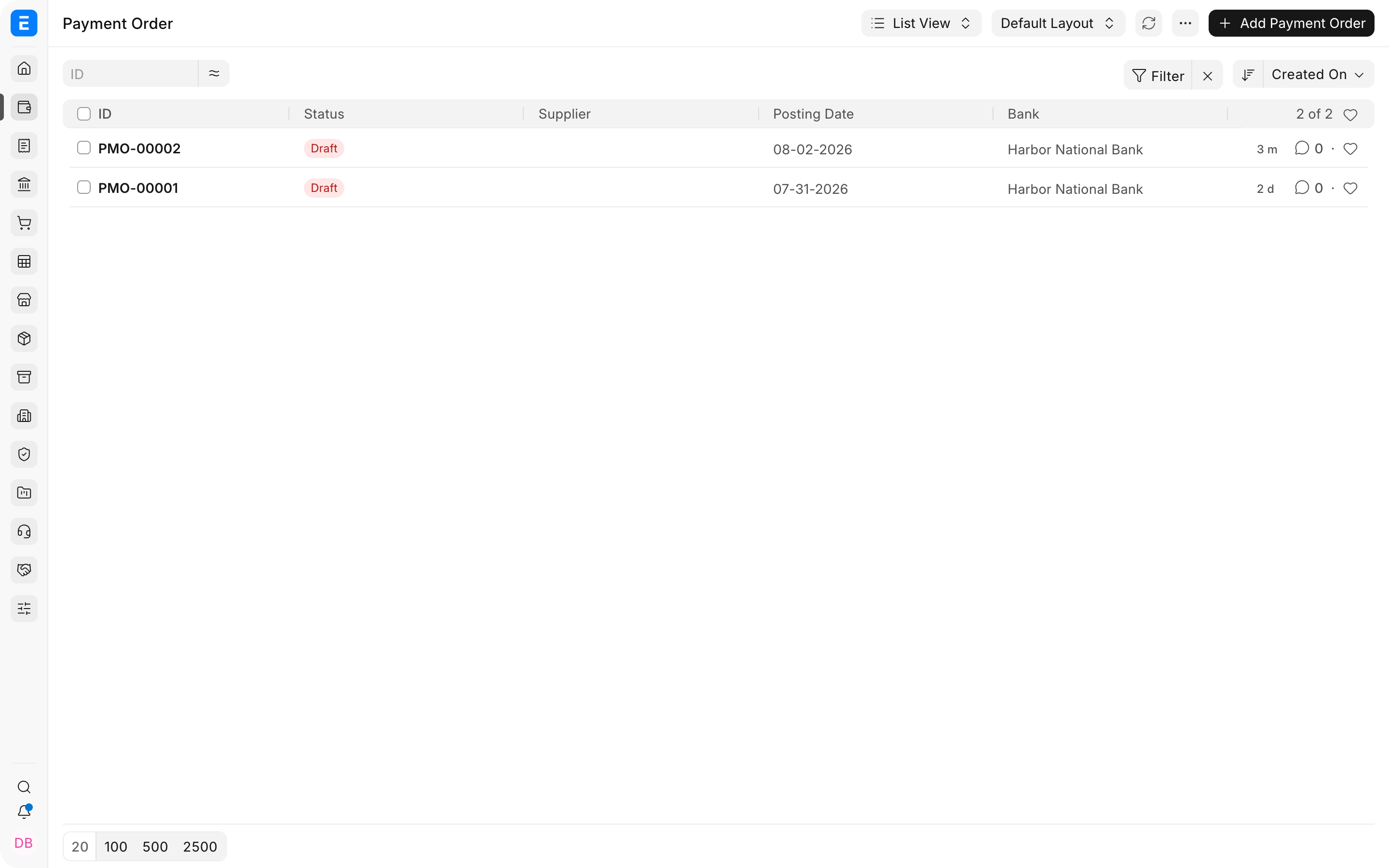
- Create a Payment Order for the correct Company.
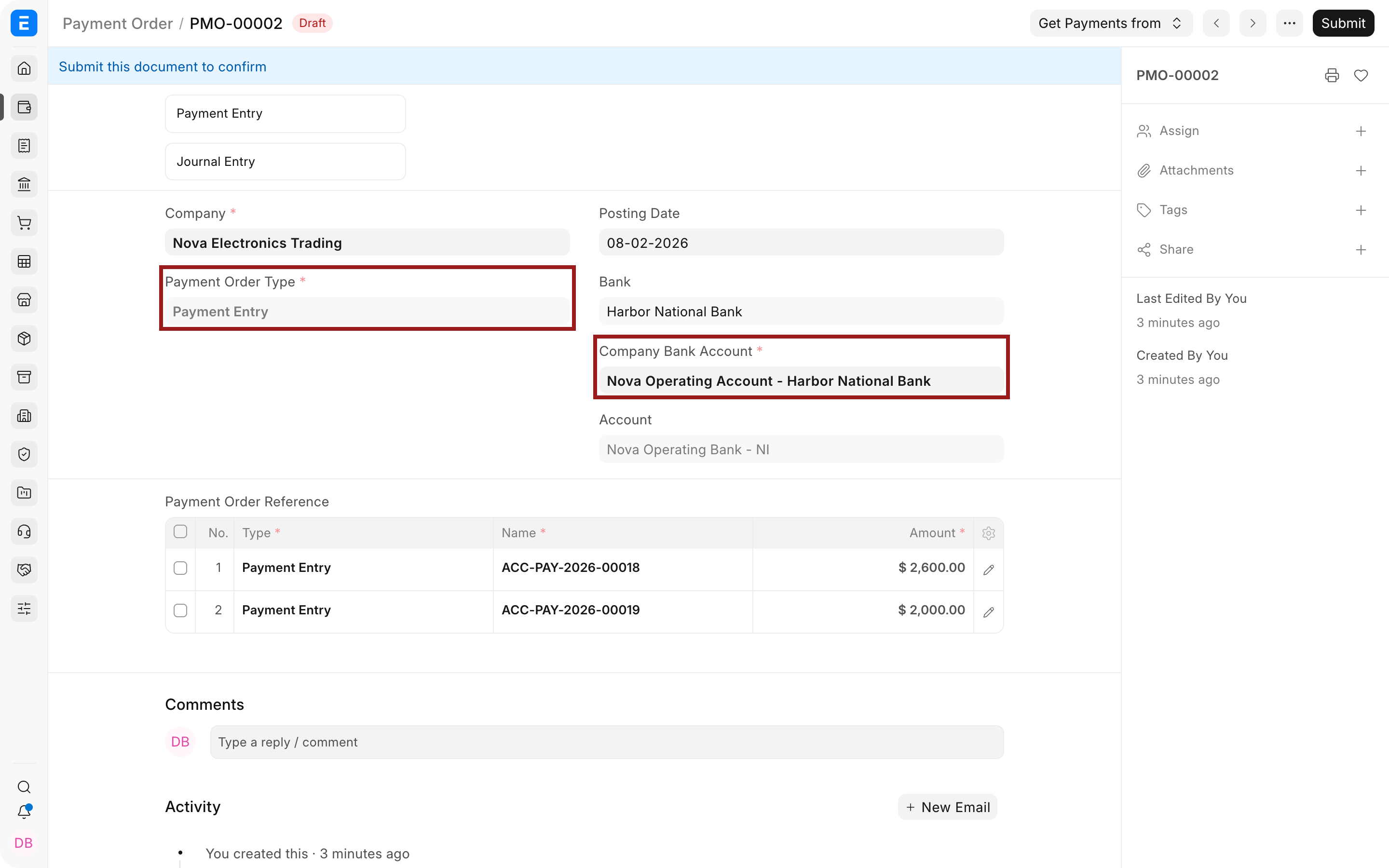
- Select the Company bank account from which the payment run will be made.
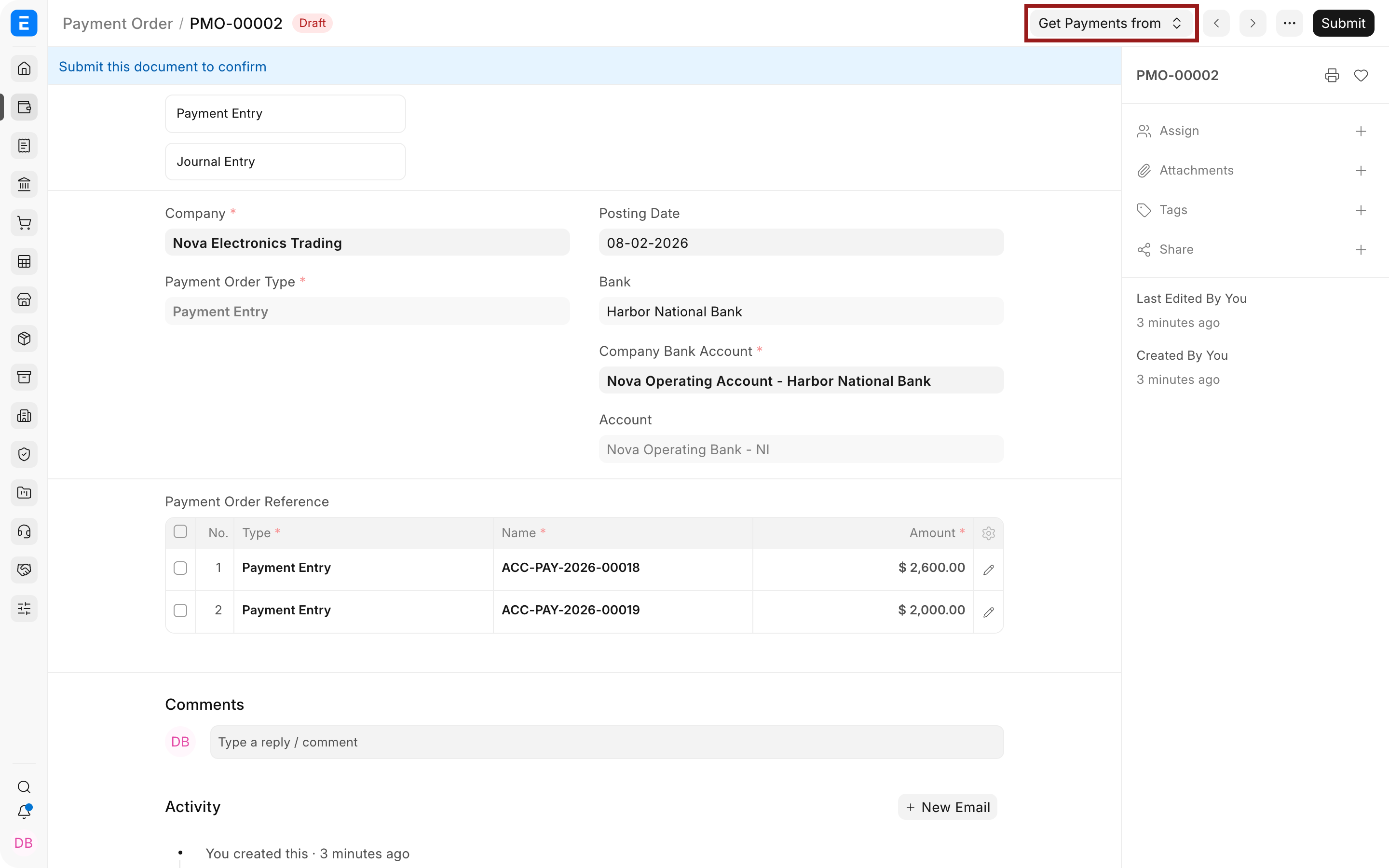
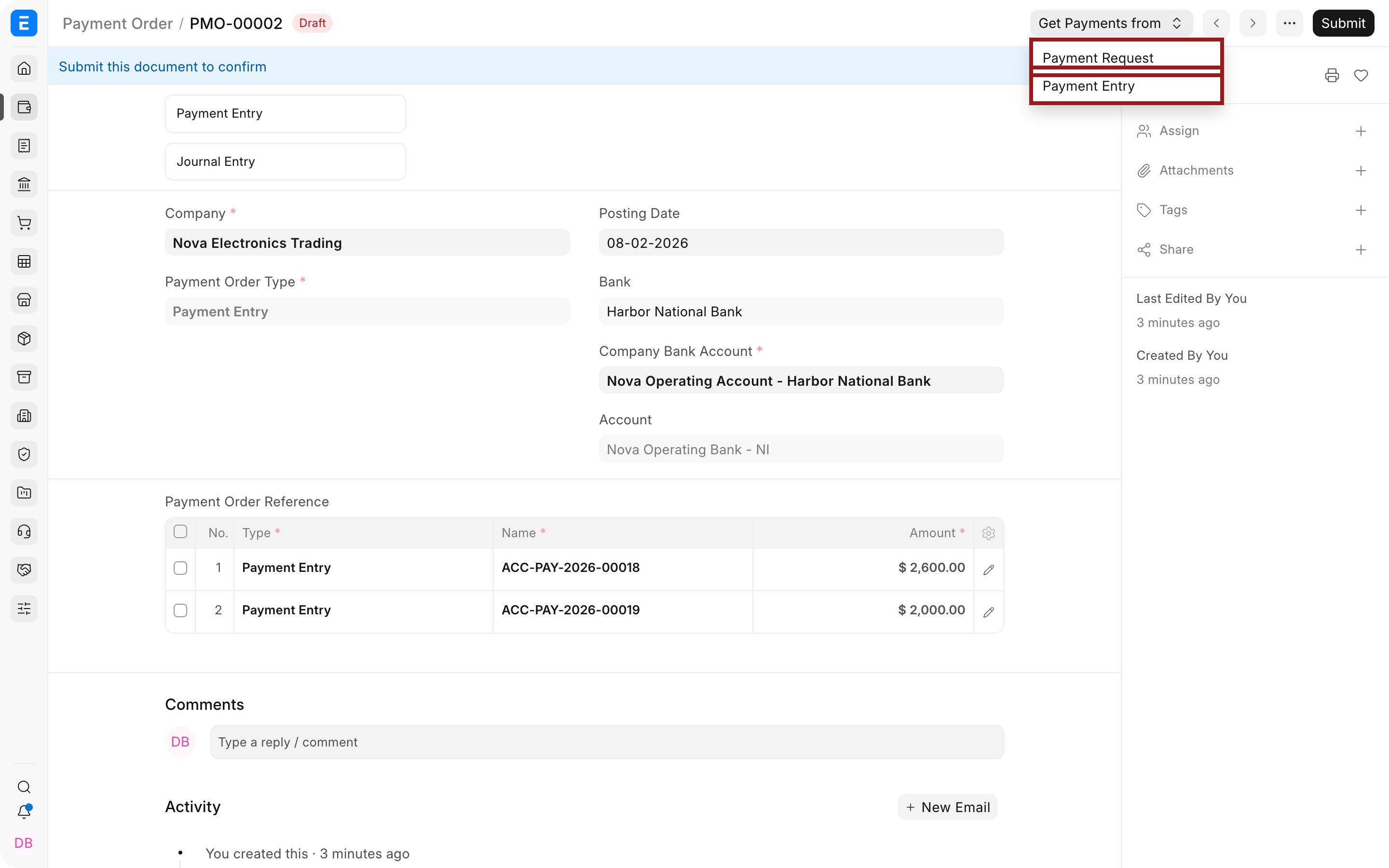
- Under Get Payments from, choose Payment Request or Payment Entry.
- Filter and select the approved Supplier references.
- Verify the Supplier, reference document, amount, Mode of Payment, and beneficiary bank account in every row.
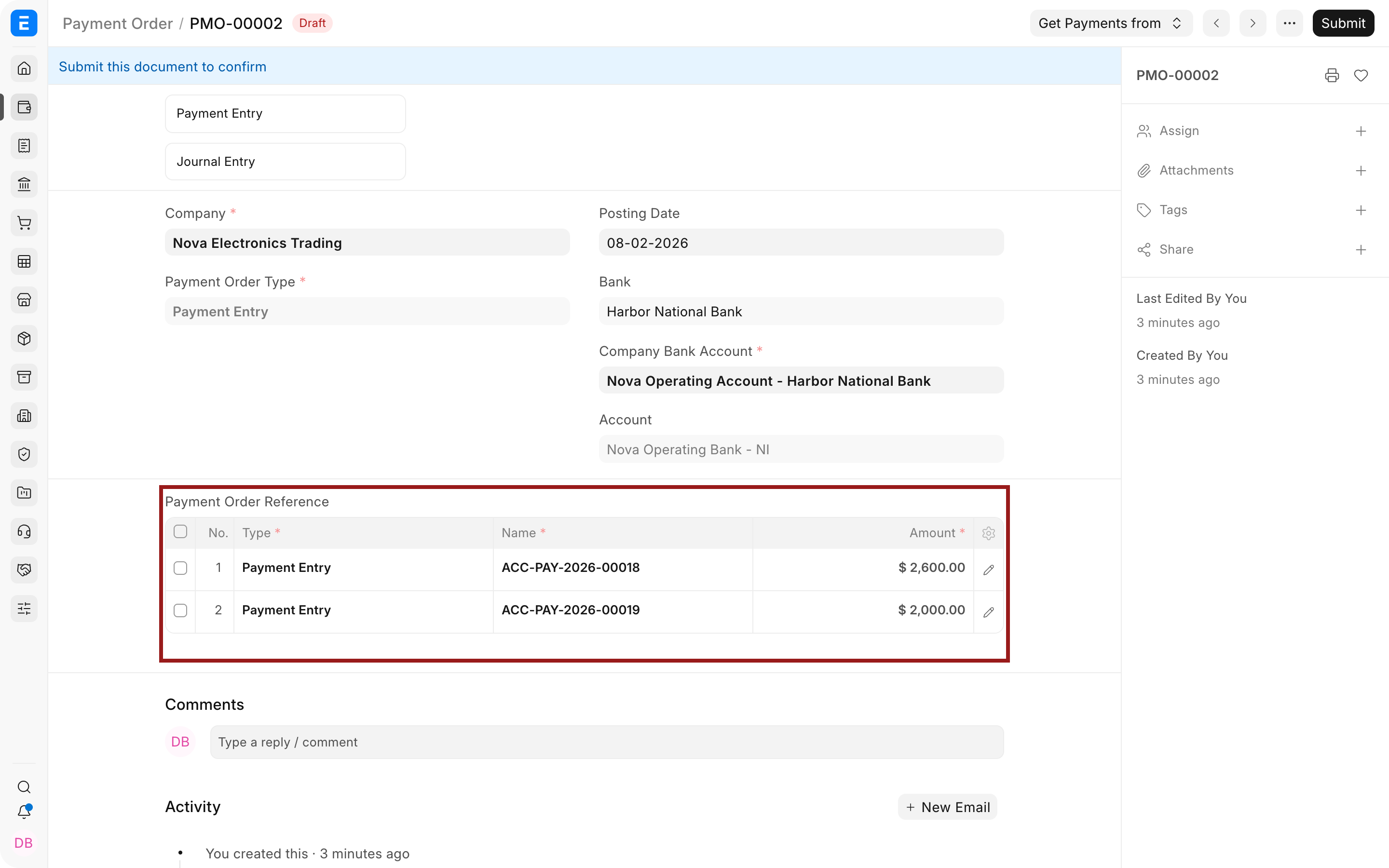
- Review the batch total and submit the Payment Order according to your approval process.
- Complete the action provided for the selected Payment Order Type, then verify the resulting accounting documents and bank processing.
Important fields and what they mean
| Field | What it controls |
|---|---|
| Company | Legal entity making the payment. |
| Payment Order Type | Identifies whether the batch was built from Payment Requests or Payment Entries. |
| Company Bank Account | Account from which the batch will be paid. |
| References | Supplier Payment Requests or Payment Entries included in the batch. |
| Supplier Bank Account | Beneficiary account for each row. |
| Amount | Approved amount to pay for the reference. |
What happens after you submit
ERPNext marks the included source records as Payment Ordered. When the Payment Order was created from Payment Requests, current ERPNext provides an action to create the corresponding Journal Entries. When it was created from Payment Entries, those submitted entries already contain the accounting postings and the Payment Order records that they have been included in the payment run.
The Payment Order does not confirm that the bank has transferred the money. Complete the bank upload, integration, or manual transfer used by your organization, then use Bank Reconciliation to match the accounting entries with the bank statement.
Troubleshooting
A supplier invoice or request is not available for selection
Confirm that the source document is submitted, approved, unpaid, and belongs to the Payment Order's Company. Check the Payment Order Type and whether the reference has already been included in another active batch.
A supplier bank account is missing
Create and validate the supplier's Bank Account, link it to the correct party, and include the beneficiary name and required routing details. Reopen the Payment Order and fetch the reference again if the existing row does not refresh.
The bank rejects the exported or transferred batch
Compare the bank's required file or API specification with the data exported from ERPNext. Payment Order organizes approved references, but bank-specific file formats and automated transmission can require an integration or customization. Validate a small test batch before production use.
The order includes the wrong supplier or amount
Correct the draft before submission. If it is already submitted, follow the supported cancellation or amendment process and keep the audit trail. Do not create compensating Payment Entries until you confirm whether the bank actually processed the batch.
Frequently asked questions
Does submitting a Payment Order pay suppliers or post the ledger?
Submitting a Payment Order does not transfer money through the bank. If it was built from Payment Requests, the resulting accounting entries still need to be created and processed. If it was built from submitted Payment Entries, the ledger entries already exist, but the real bank movement must still be completed and reconciled.
Is Payment Order the same as paying several invoices with one Payment Entry?
The documents serve different purposes. A Payment Order can group payments for multiple suppliers and beneficiaries. A standard Payment Entry belongs to one party and records the actual accounting movement.
Can Payment Order generate a bank upload file automatically?
Only when your ERPNext version, regional app, or integration implements the bank's required format. The standard document should not be assumed to produce a file accepted by every bank.
Can I use Payment Order for customers, employees, or shareholders?
Use only the party and reference types supported by the current Payment Order form and its validation. Supplier payment batching is the common workflow. Test other supported sources in a non-production site before relying on them.
How should approvals be handled for large batches?
Use roles and a Workflow so preparation, review, and submission are performed by the appropriate users. Review beneficiary details and batch totals independently before releasing payment to the bank.