


















Accounting Dimensions
Imagine Apple wants to understand whether iPhone, Mac, or Services contributes the most profit, and whether the Americas, Europe, or Greater China performs best. Creating separate Sales, Travel Expense, Bank, and Receivable accounts for every product and region would make its Chart of Accounts enormous and difficult to maintain.
Accounting Dimensions solve this by adding business context to the same accounting entry. Apple could tag a sale with Product Line = iPhone and Region = Americas, then filter financial reports by either dimension without duplicating ledger accounts. This is an illustrative example of how a large multi-product company could use dimensions, not a claim about Apple's internal accounting system.
The account tells Apple what happened, such as a sale or an advertising expense. The dimensions tell Apple which product and region it belonged to. This lets one clean set of accounts answer many management questions.
ERPNext already treats Cost Center and Project as dimensions. Create a configurable Accounting Dimension when you need an additional segment. In the working example below, Nova Electronics Trading uses Department to compare Sales, Operations, and other teams while keeping one clean set of income, expense, asset, and liability accounts.
Before you begin
Create the records that will supply the dimension values first. An Accounting Dimension must reference a DocType, so a Department dimension uses existing Department records. For a new concept such as Product Line, create and populate an appropriate custom DocType before configuring the dimension.
You need the Accounts Manager or System Manager role. Decide whether the dimension is only for analysis or must be entered on every Profit and Loss or Balance Sheet posting. Mandatory settings affect transaction submission, so test them with representative invoices, payments, and journals before enabling them for daily users.
Create an Accounting Dimension
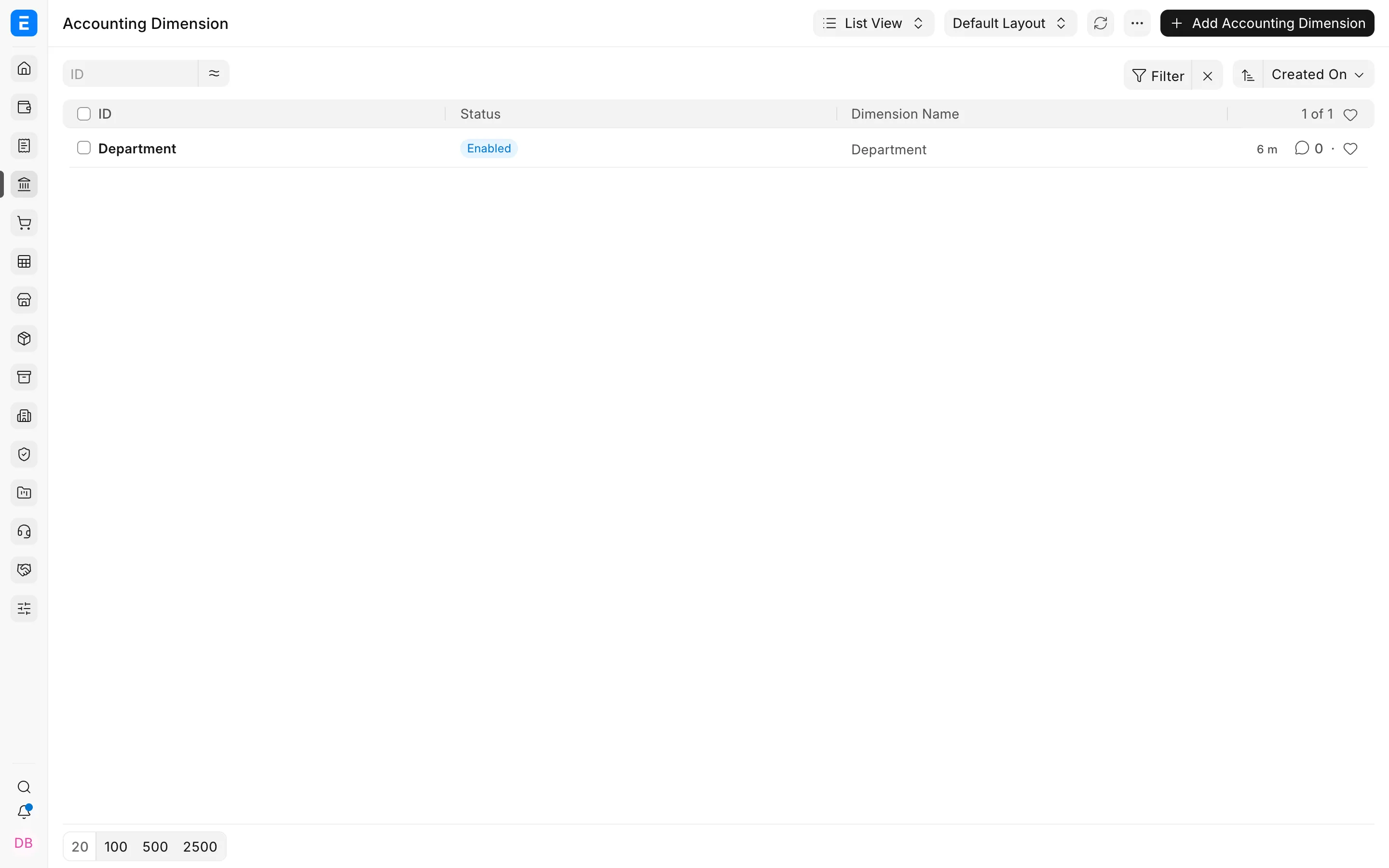
- Open the Accounting Dimension list and select Add Accounting Dimension.
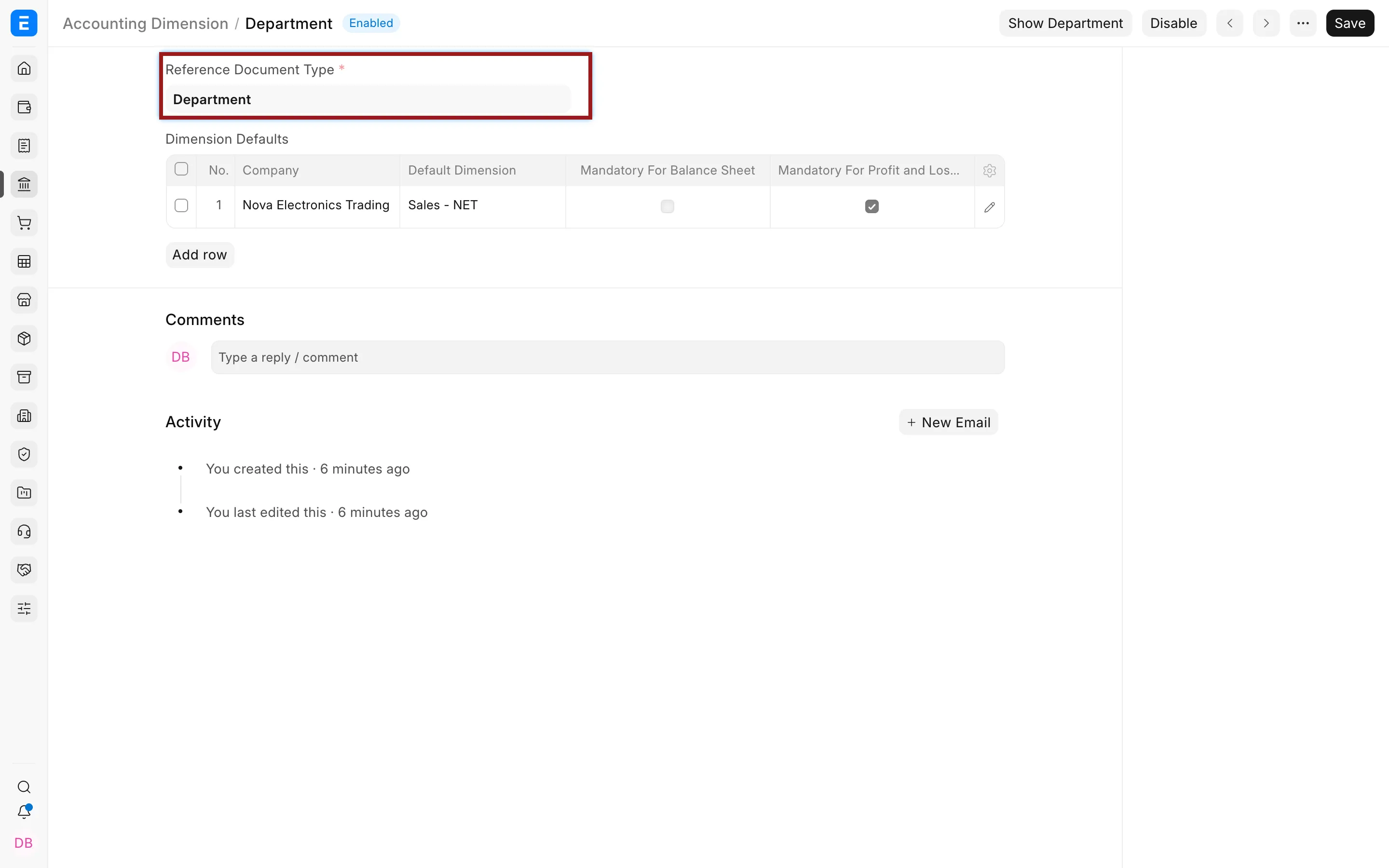
- Select the Reference Document Type. ERPNext uses records from this DocType as the available dimension values.
- Confirm the Dimension Name, then save. ERPNext creates the corresponding fields on accounting transactions and supported reports.
Set a company default and mandatory rules
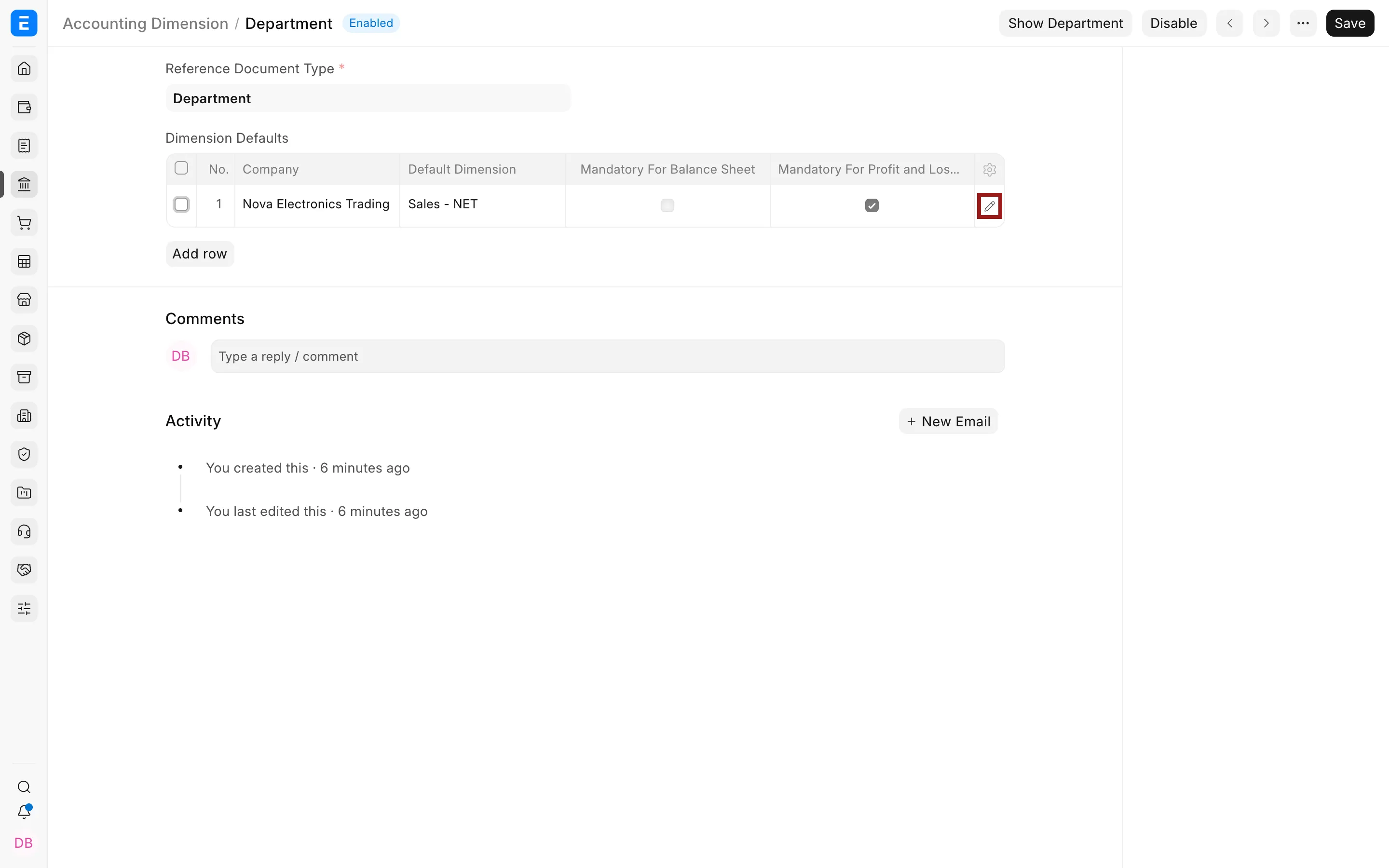
Use the Dimension Defaults child table when different companies need different defaults or validation rules. Select the highlighted pencil icon to open the complete row editor.
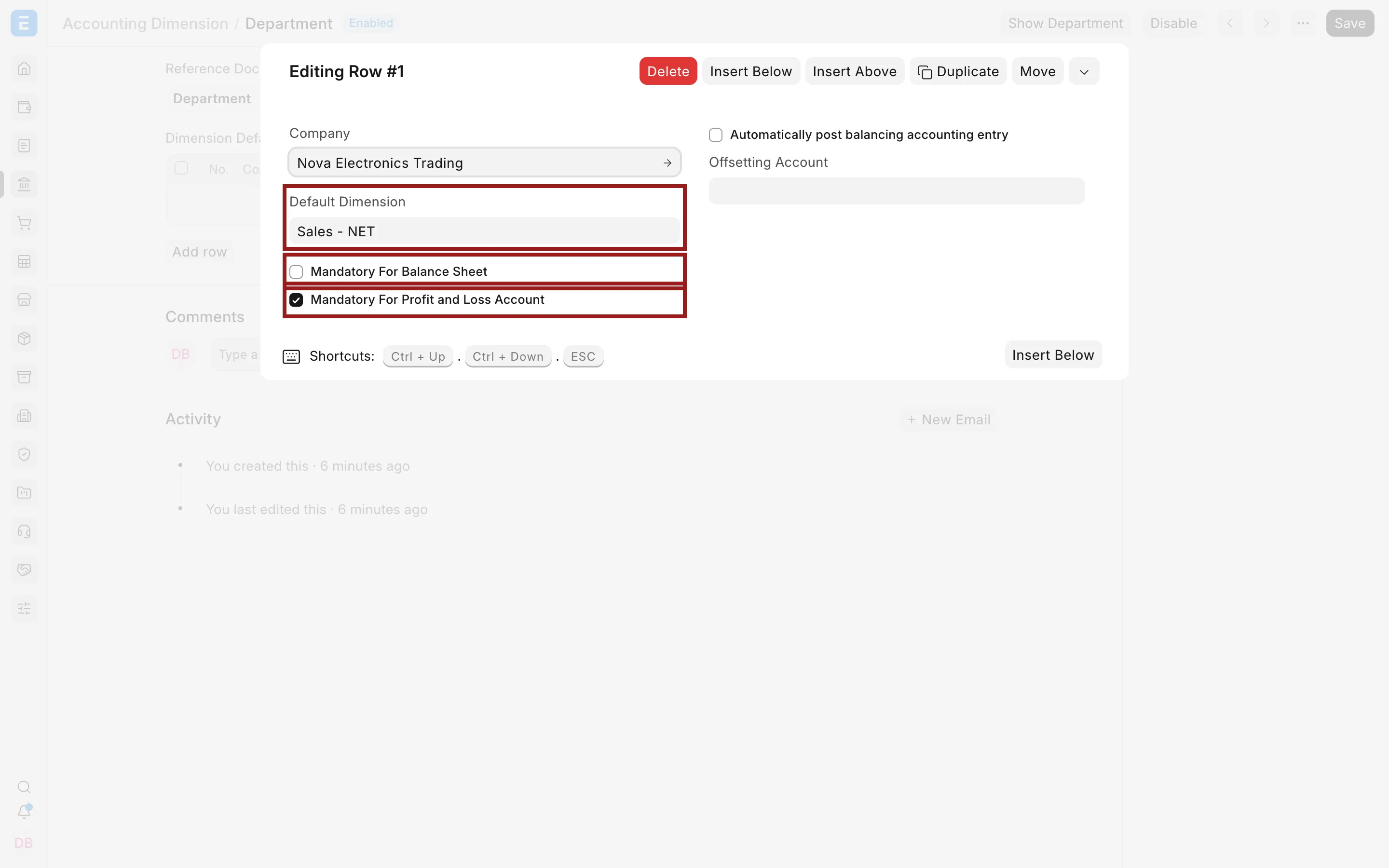
For Nova Electronics Trading, Sales - NET is the default Department. The dimension is mandatory for Profit and Loss accounts, which helps prevent untagged income and expense postings. It is not mandatory for Balance Sheet accounts in this example.
Important fields and what they mean
| Field | What it controls |
|---|---|
| Reference Document Type | The DocType whose records become selectable dimension values. This cannot be changed after the dimension is created. |
| Dimension Name | The label shown on transactions and report filters. ERPNext derives the generated field name from this value. |
| Company | The company to which a defaults-table row applies. Add separate rows when companies need different defaults or mandatory rules. |
| Default Dimension | The value ERPNext fetches automatically for the selected company. Users can change it when their role and the transaction permit it. |
| Mandatory for Profit and Loss Account | Requires a dimension for postings to Income and Expense accounts. |
| Mandatory for Balance Sheet | Requires a dimension for postings to Asset, Liability, and Equity accounts. |
| Automatically post balancing accounting entry | Uses the selected offsetting account to keep entries balanced by dimension. Enable this only after your accounting team validates the intended treatment. |
| Offsetting Account | The Asset or Liability ledger used for automatically generated balancing entries. |
Use dimensions in transactions
After the background field-creation job finishes, the new dimension appears in the Accounting Dimensions section of supported transactions such as a Sales Invoice, Purchase Invoice, Payment Entry, and Journal Entry. Choose the value that describes the transaction before submitting it.
Where ERPNext exposes the dimension on item or accounting rows, use row-level values when one document belongs to multiple departments or segments. A document-level value is convenient when the complete transaction belongs to one segment. Review the generated General Ledger entries after submission to confirm that the dimension reached the intended debit and credit lines.
Filter accounting reports by a dimension
The generated dimension becomes a filter on supported reports. Select Department in the General Ledger to inspect detailed postings, or use it on the Profit and Loss Statement and Balance Sheet to analyse a segment. Report results only include entries that were posted with that dimension value.
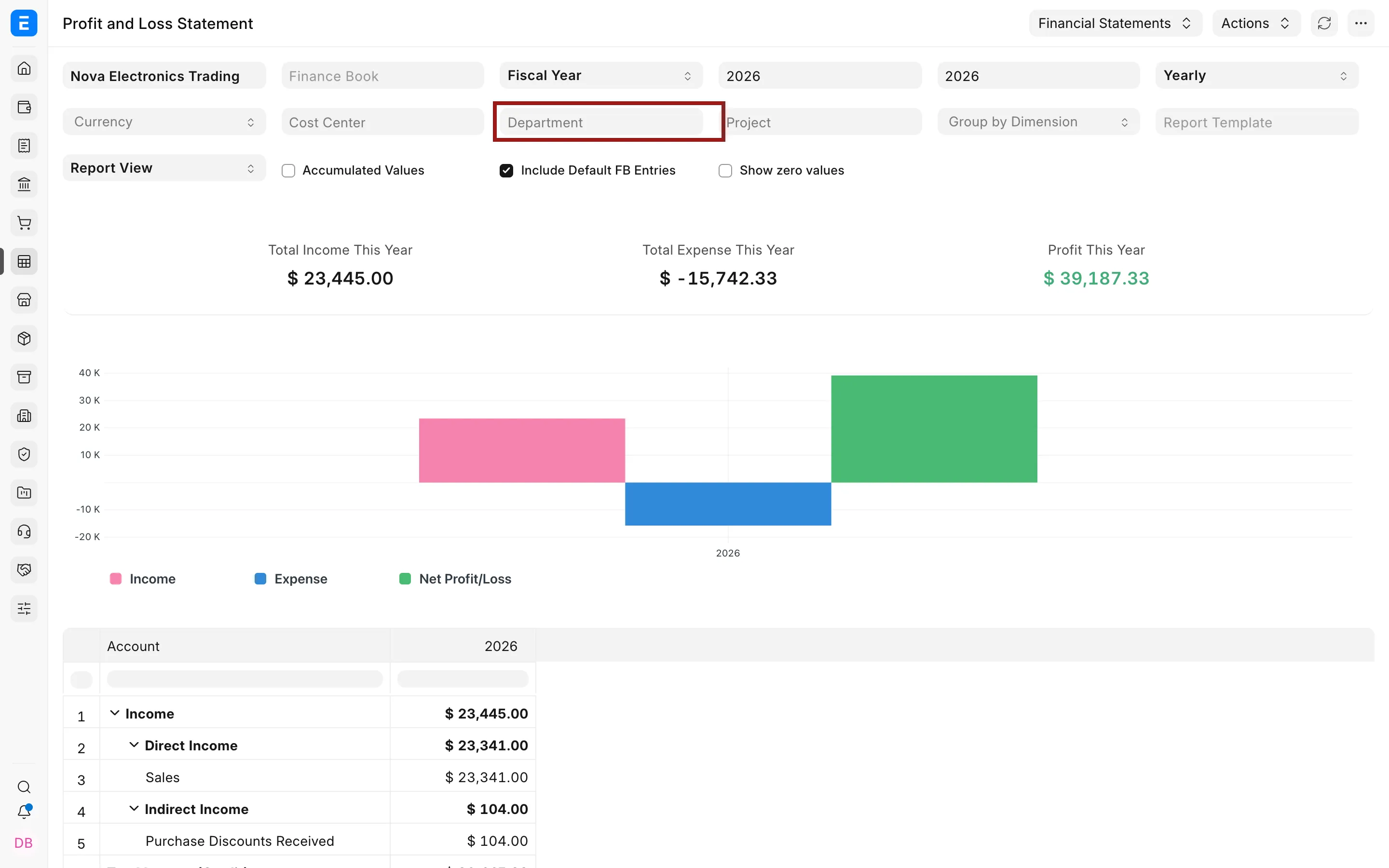
Accounting Dimensions do not retroactively tag older transactions. If earlier entries have no Department value, selecting a Department filter will exclude them. Treat dimension rollout as a controlled accounting change and decide how your team will handle historical comparisons.
Disable an Accounting Dimension
Open the dimension and select Disable when it is no longer needed. Existing transaction and ledger values remain intact, so historical reports retain their tags. Refresh the browser after disabling if the generated field remains visible on a form.
Prefer disabling to deleting. The dimension is part of posted accounting history and may be referenced by reports or validations.
Troubleshooting
The new dimension does not appear on transactions
Field creation runs in the background. Wait for queued jobs to finish, reload the browser, and confirm that the dimension is enabled. If it is still missing, ask an administrator to review failed background jobs and the generated Custom Fields.
A transaction says the dimension is mandatory
Open each accounting or item row that posts to the affected account type and provide the dimension value. A header value may not replace a missing row-level value when different rows can carry different dimensions.
A filtered report is empty or incomplete
Confirm the company, date range, and dimension filter. Then inspect the source voucher and its General Ledger entries. Transactions created before the dimension was introduced, or entries saved without a dimension when it was optional, will not appear under that value.
Frequently asked questions
Should I create a new ledger account for each department instead?
Usually no. Keep accounts for the economic nature of the posting, such as Sales or Travel Expense, and use dimensions for the responsible department or segment. This avoids an oversized Chart of Accounts while preserving analysis.
Can one invoice use more than one dimension value?
One invoice can use multiple values when the transaction exposes the dimension on item or accounting rows. Assign the appropriate value to each row and verify the resulting General Ledger entries.
Will a new dimension classify old transactions automatically?
The generated field does not classify old transactions automatically. It applies to future edits and postings. Existing ledger entries remain unchanged, so plan the effective date and historical reporting approach before rollout.
Why is a disabled dimension still visible?
Reload the browser after disabling it. If the field remains after a clean reload, confirm that the dimension is actually disabled and review current-version behavior with your administrator before changing generated Custom Fields manually.
Can I make the dimension mandatory only for income and expenses?
Enable Mandatory for Profit and Loss Account and leave the Balance Sheet option cleared. ERPNext then validates postings according to the account type.