

















Master Production Schedule
A Master Production Schedule (MPS) lists how much of each finished item you must make, by when, and when you must start. It collects the demand from your Sales Orders, Material Requests and Sales Forecast in one place. It is the input for the Material Requirements Planning Report, which works out the raw materials and sub-assemblies you need.
How it helps
- One view of demand. Open Sales Orders, their delivery schedules, Material Requests for manufacture and the Sales Forecast come together, grouped by item, delivery date and warehouse.
- Start dates you can trust. For each row, the MPS works back from the delivery date using the lead time of the item and of every item in its BOM. The Start Date shows when production or purchasing must begin.
- A base for MRP. View MRP opens the Material Requirements Planning Report for the same period, where you can make the Work Orders and Purchase Orders.
The MPS is a planning document. You save it and update it when demand changes. It does not post any stock or accounting entries, and it is not submitted.
Before you start
- BOM: each finished item needs a default BOM. The MPS uses it to find the components and their lead times.
- Item Lead Time: for the finished item and its components, make an Item Lead Time record (Stock → Item Lead Time):
- For items you make: Manufacturing Time (minutes per unit), No of Shift, Shift Time (In Hours), No of Workstations and Daily Yield (%). ERPNext calculates the Capacity per day.
- For items you buy: Purchase Time (days).
- For both: Buffer Time (days) for safety.
- Without an Item Lead Time, the lead time of that item is 0.
- Demand: submitted Sales Orders with delivery dates, Material Requests with the purpose Manufacture, and, if you forecast, a submitted Sales Forecast.
- Role: Manufacturing User, Manufacturing Manager, Stock User or Stock Manager.
Create a Master Production Schedule
1. Set the period and items
- Go to Manufacturing → Master Production Schedule and click + Add Master Production Schedule.
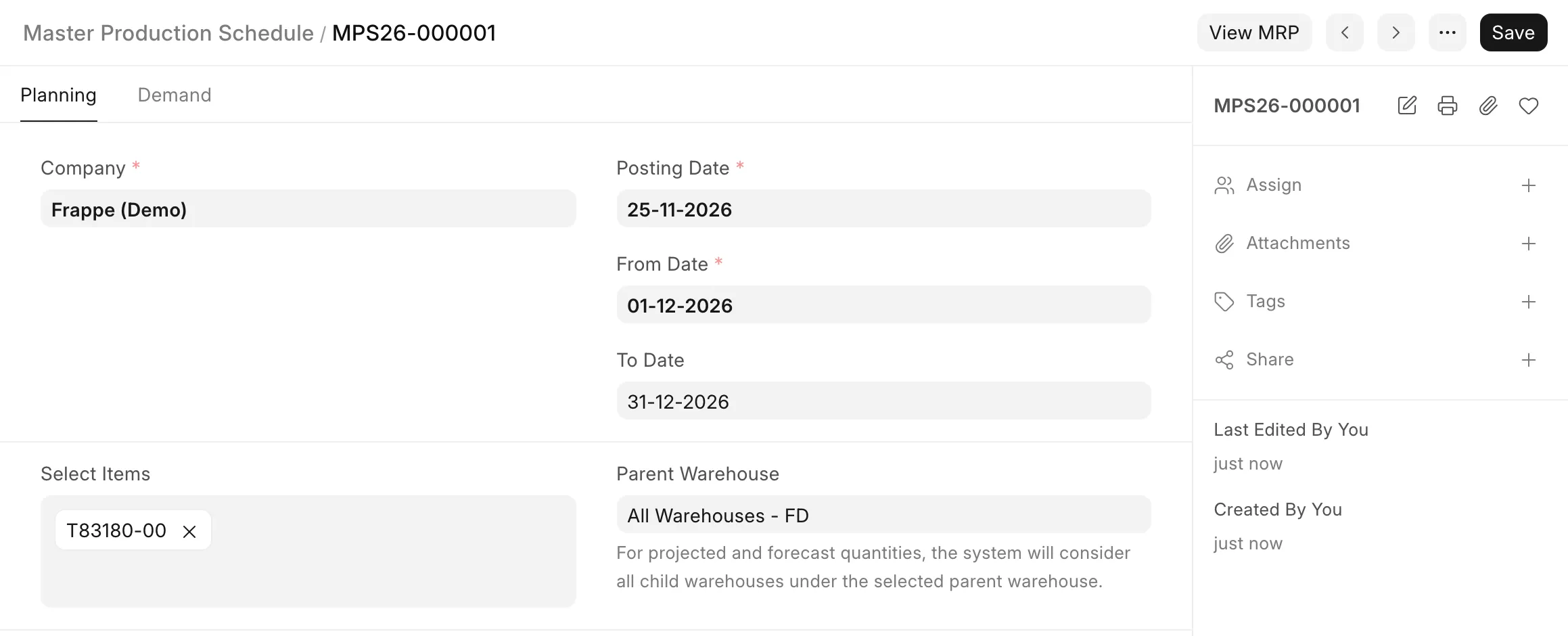
- On the Planning tab, select the Company.
- Set the From Date and To Date of the planning period. Demand with a delivery date outside this period is left out.
- In Select Items, add the finished items to plan. Leave it empty to plan all items.
- Select a Parent Warehouse, for example All Warehouses. For projected and forecast quantities, the system uses all warehouses under it.
- Click Save.
2. Get the open orders
Open the Demand tab.
- Click Get Sales Orders. In the dialog, you can filter by Customer, order date and Delivery From Date / Delivery To Date. Click Get Sales Orders. The submitted Sales Orders that are not Closed or Completed, and that have the selected items, are added to Sales Orders.
- Click Get Material Requests. Select the Purpose (Manufacture by default) and the dates. Click Get Material Requests. Open Material Requests are added to Material Requests.
You can remove rows you do not want to plan for. You can not add rows by hand.
3. Get the actual demand
Click Get Actual Demand. ERPNext fills the Items table under Actual Demand:
- From each Sales Order item: the quantity not yet delivered. If the Sales Order has delivery schedules, each schedule is a separate row on its own date.
- From each Material Request item: the quantity not yet ordered.
- Rows with the same item, delivery date and warehouse are added together.
For each row you see:
| Column | What it shows |
|---|---|
| Item Code | The finished item. The dot is orange if the Start Date is past, green if it is today, blue if it is later. |
| Delivery Date | When the customer or the Material Request needs it. |
| Lead Time | Days needed, for this quantity, to buy and make the item and all its components. |
| Start Date | Delivery Date minus Lead Time: the last day to start. |
| Planned Qty | The quantity to make. |
| BOM No | The item's default BOM. |
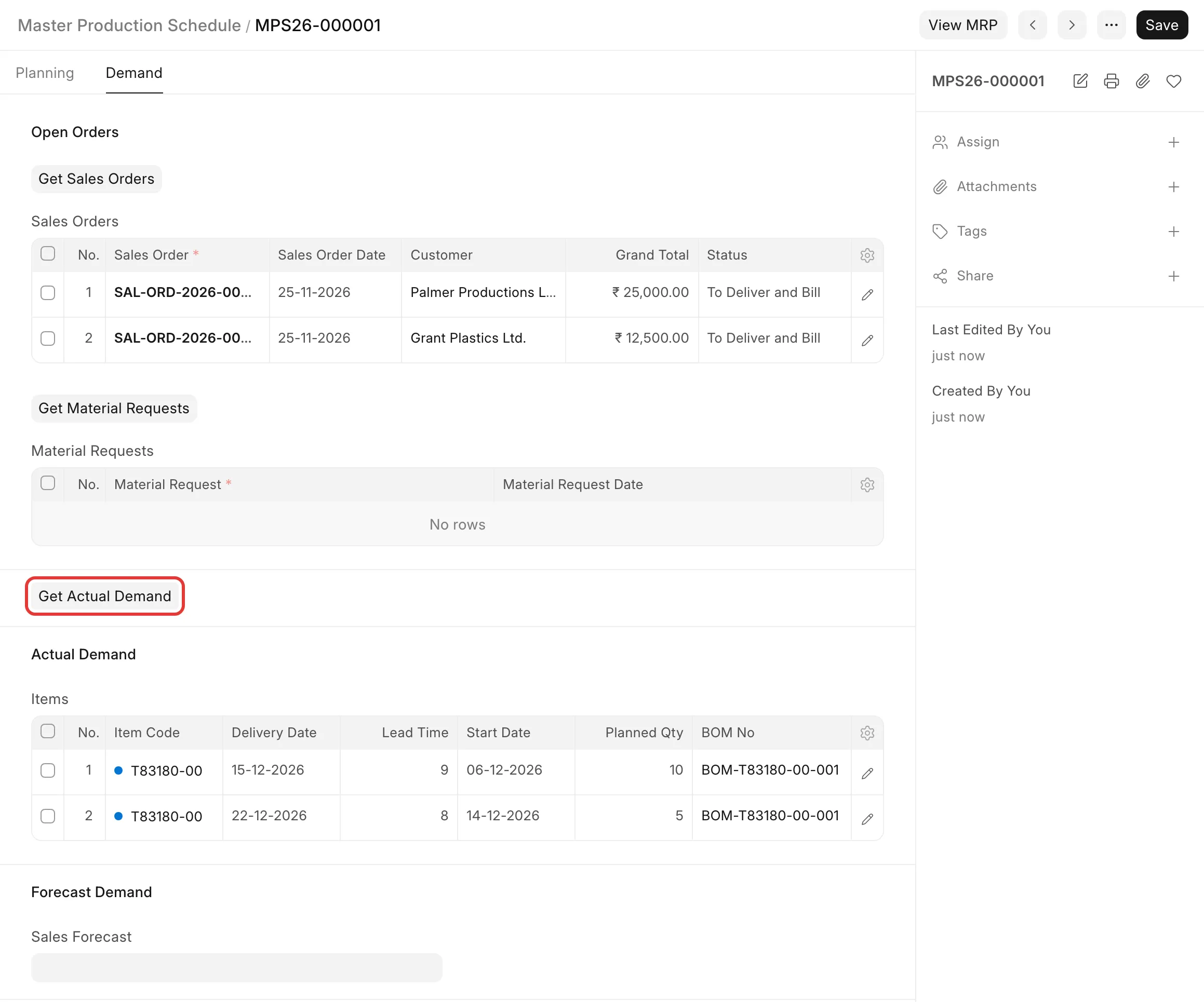
Click Get Actual Demand again whenever orders change. It replaces the whole Items table.
4. Add a Sales Forecast (optional)
To plan beyond confirmed orders, select a Sales Forecast under Forecast Demand and save. You can also open the submitted Sales Forecast and click Create MPS.
- One Sales Forecast can be linked to only one MPS.
- The Sales Forecast and the MPS must be for the same company.
- The Sales Forecast status changes to MPS Generated. It goes back to Planned if you remove the link or delete the MPS.
If you leave To Date empty, ERPNext sets it to the latest delivery date in the demand and forecast.
How the lead time is calculated
For each row, ERPNext adds:
- The item's own time: for a manufactured item, Planned Qty divided by its daily capacity; for a purchased item, its Purchase Time. Plus its Buffer Time.
- The longest time among the components in its BOM, calculated the same way for the quantity each one needs, down through every BOM level.
The result is rounded up to whole days.
Example. A finished item is made at 60 minutes a unit, in 1 shift of 8 hours: 8 units a day. It has a Buffer Time of 1 day. Its three sub-assemblies take 30 minutes a unit (16 a day). They use one raw material with a Purchase Time of 5 days and a Buffer Time of 1 day.
For 10 units: 10 ÷ 8 = 1.25 days + 1 day buffer, plus 10 ÷ 16 = 0.63 days for the sub-assemblies, plus 6 days for the raw material. That is 8.88 days, rounded up to 9. For delivery on 15 December, the Start Date is 6 December. For 5 units the lead time is 8 days.
Plan materials with MRP
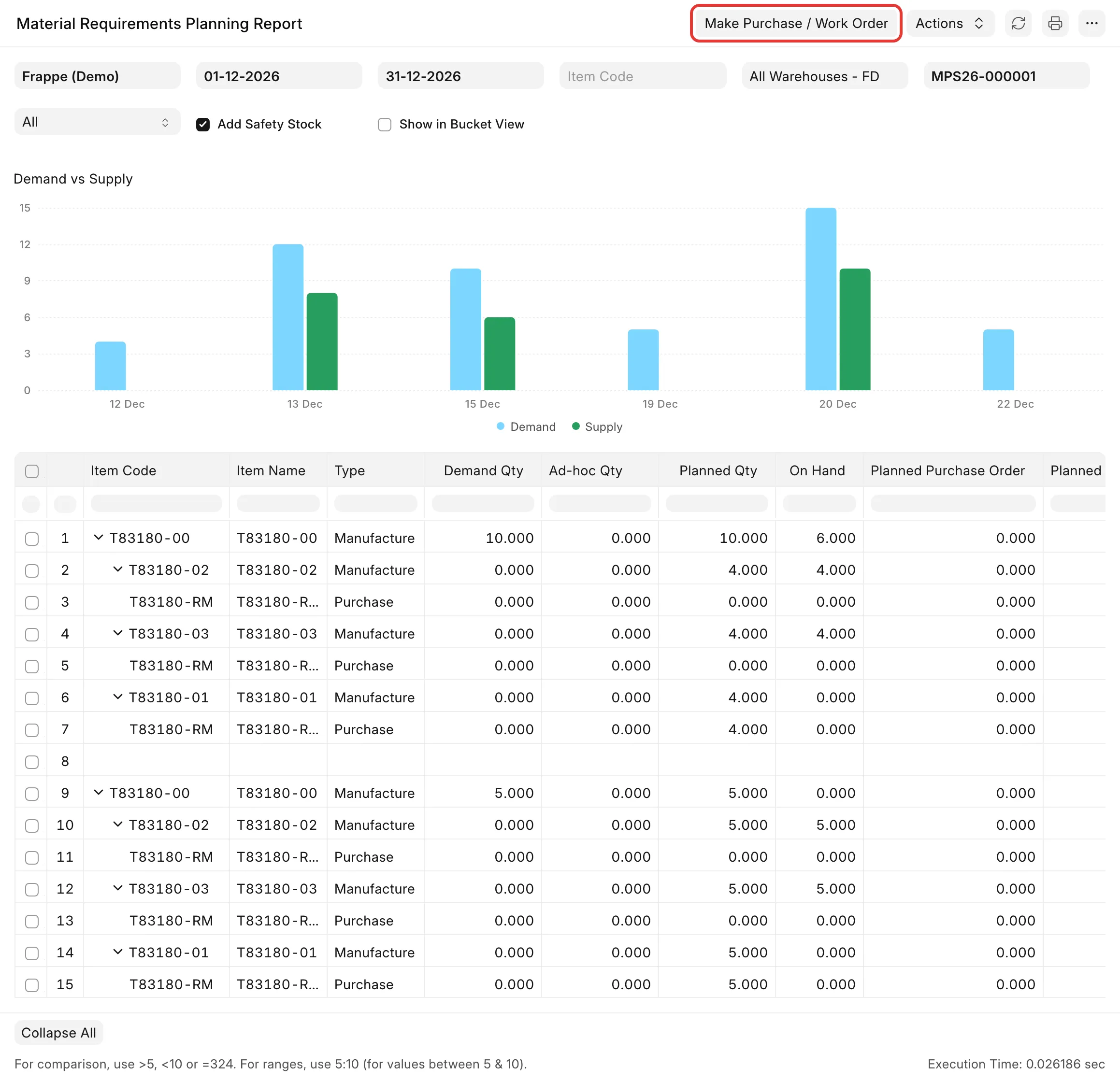
Click View MRP at the top of the MPS. The Material Requirements Planning Report opens with the same company, period, warehouse and MPS.
- It explodes each row through the BOM, and shows for every item the Demand Qty, Planned Qty, On Hand and the planned Purchase Orders and Work Orders.
- The Demand vs Supply chart shows the quantities by date. Tick Show in Bucket View to see them by week or month.
- Select rows and click Make Purchase / Work Order to make the orders.
If the MPS has no actual demand and no Sales Forecast, View MRP shows a message asking you to set one.