

















Stock Balance or Stock Ageing report fails with an error
The Stock Balance or Stock Ageing report can stop with "Report generation failed" and a Python error, for example 'NoneType' object has no attribute '_read_rowdata_packet_unbuffered' or You have an error in your SQL syntax. This page explains the common errors, why they happen and how to get the report working again.
The error
You click Generate New Report or Rebuild. After some time, the report page shows Report generation failed with a short error under it.
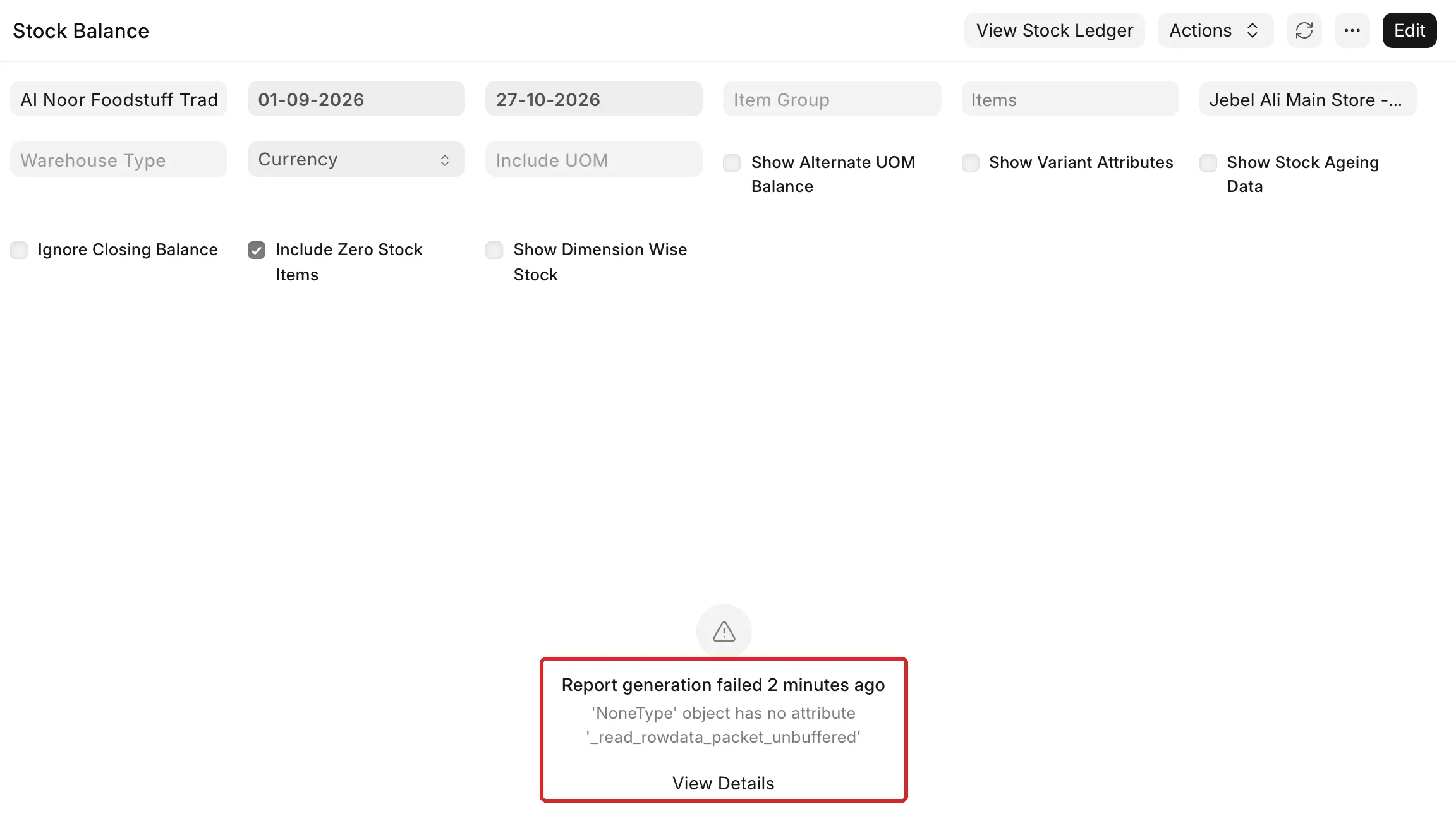
Click View Details to see the full error (the traceback) in the Prepared Report. The last line of the traceback is the error. These are the errors that customers see most often:
Database cursor error (the report stops while it reads stock ledger entries):
File "env/lib/python3.11/site-packages/pymysql/cursors.py", line 456, in read_next
`return self._conv_row(self._result._read_rowdata_packet_unbuffered())`
builtins.AttributeError: 'NoneType' object has no attribute '_read_rowdata_packet_unbuffered'
builtins.AttributeError: 'NoneType' object has no attribute 'settimeout'
SQL syntax error (usually caused by a filter value):
ProgrammingError: (1064, "You have an error in your SQL syntax; check the manual that corresponds to your MariaDB server version for the right syntax to use near '' at line 1")
Other errors caused by a filter value:
IndexError: list index out of range
TypeError: cannot unpack non-iterable NoneType object
AttributeError: 'str' object has no attribute 'nodes_'
Error only when Show Stock Ageing Data is on (Stock Balance report):
TypeError: can only concatenate str (not "float") to str
Why this happens
Stock Balance and Stock Ageing read every Stock Ledger Entry (the record of each stock movement) in the date range. On a site with many transactions, that is millions of rows. So the report usually runs in the background as a Prepared Report, and any error goes into that Prepared Report.
To save memory, these reports read the rows from the database one batch at a time. This is called an unbuffered cursor (SSCursor in the error). While the rows come in, the database connection must not do anything else. If the report runs a second query in the middle, or the database stops sending rows, the cursor loses its result. Then you see 'NoneType' object has no attribute '_read_rowdata_packet_unbuffered' or 'settimeout'.
These are the usual causes:
- An old version, or a version mismatch after an update. Some releases had a report bug that ran a second query during the read. It is fixed in later releases (for example, version 15.96.1 fixed the Stock Balance cursor error). If you update only one app, or the update did not run the migration, the report code and the framework do not match.
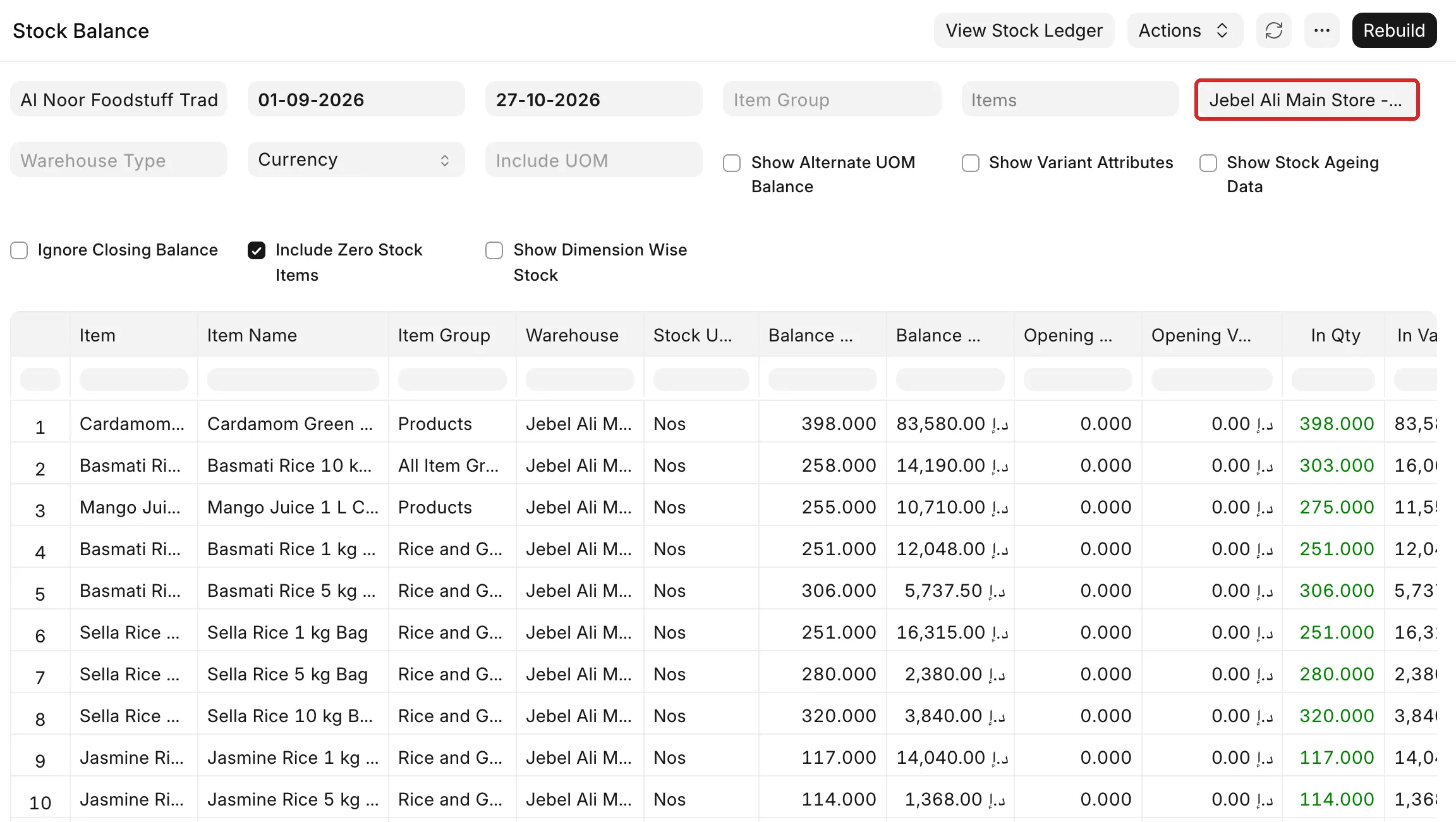
- A filter value that the report does not support. The Warehouse and Items filters expect records that you select from the list. A value that you typed and did not select, a value from an old bookmarked link, or a saved filter for a deleted warehouse can break the database query.
- Outdated apps or Python libraries. A custom app that changes the stock reports, or an old database driver (PyMySQL) on a self-hosted bench, can cause the same cursor error.
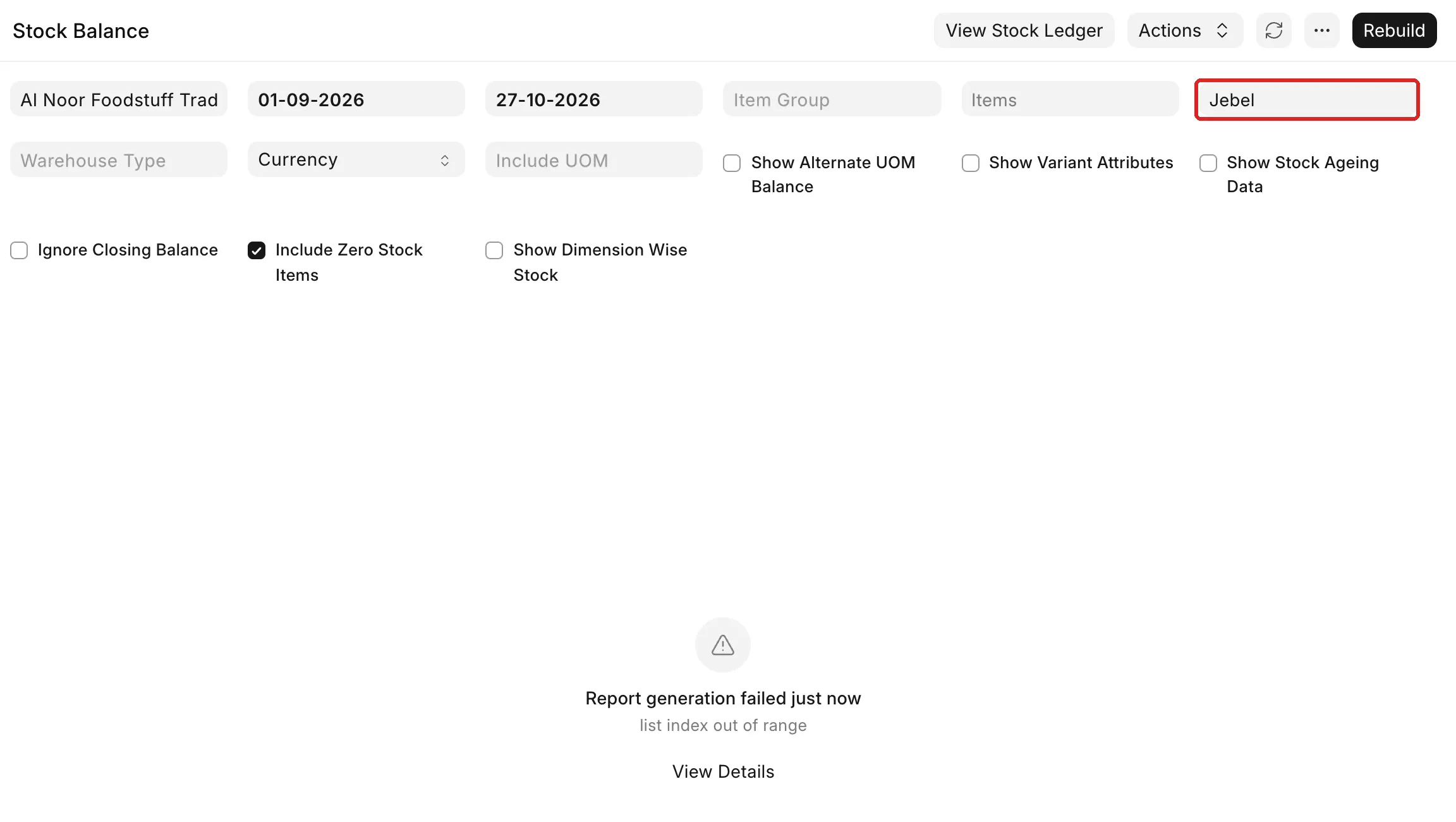
For example, Al Noor Foodstuff Trading LLC opens a saved Stock Balance link that has Jebel in the Warehouse filter. No warehouse has that name, so the report fails with list index out of range.
How to fix it
1. Get the full error
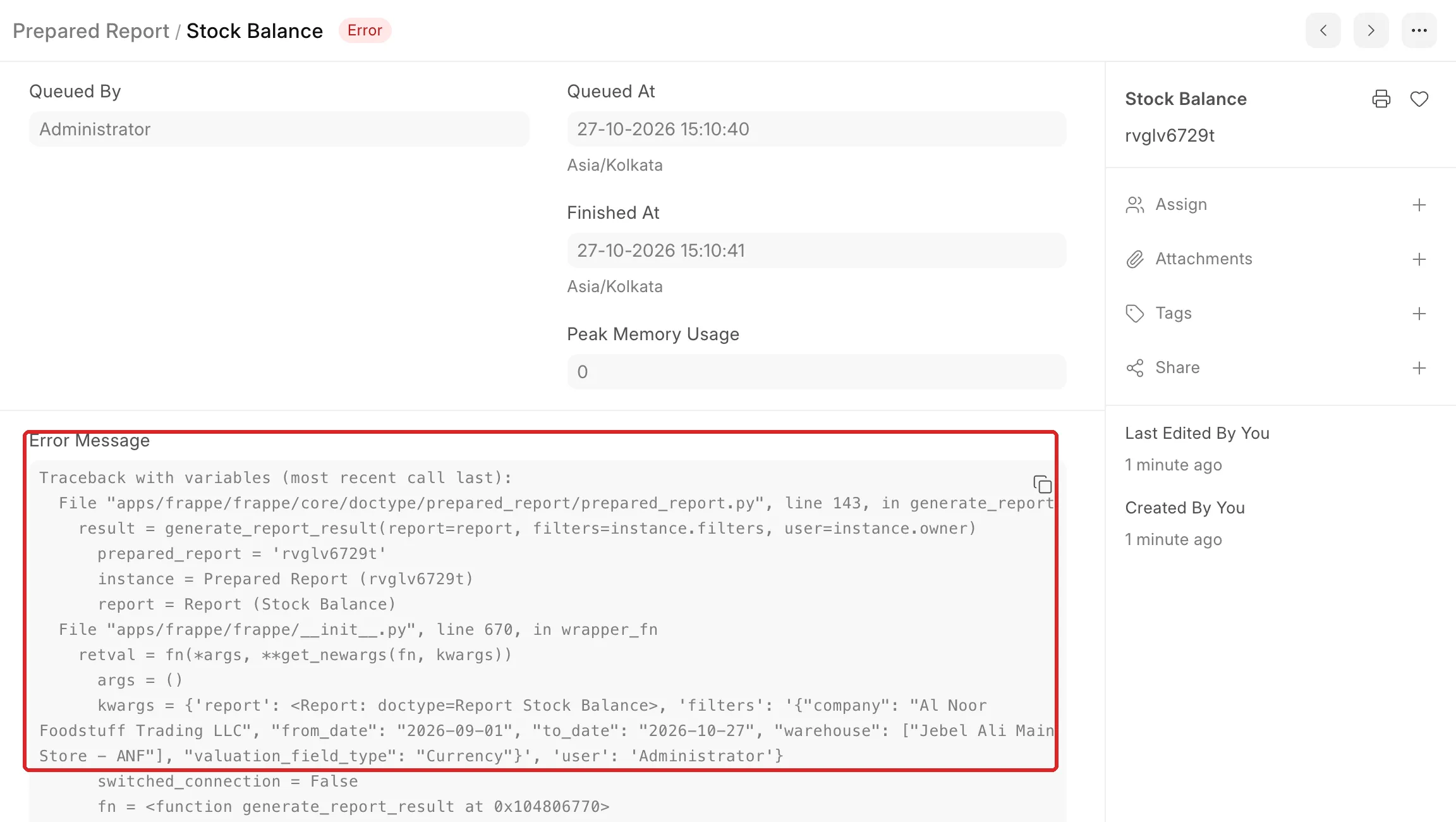
- On the report page, click View Details. The Prepared Report opens with status Error.
- In Error Message, click the copy icon at the top right. Keep this text for the next steps and for a support ticket.
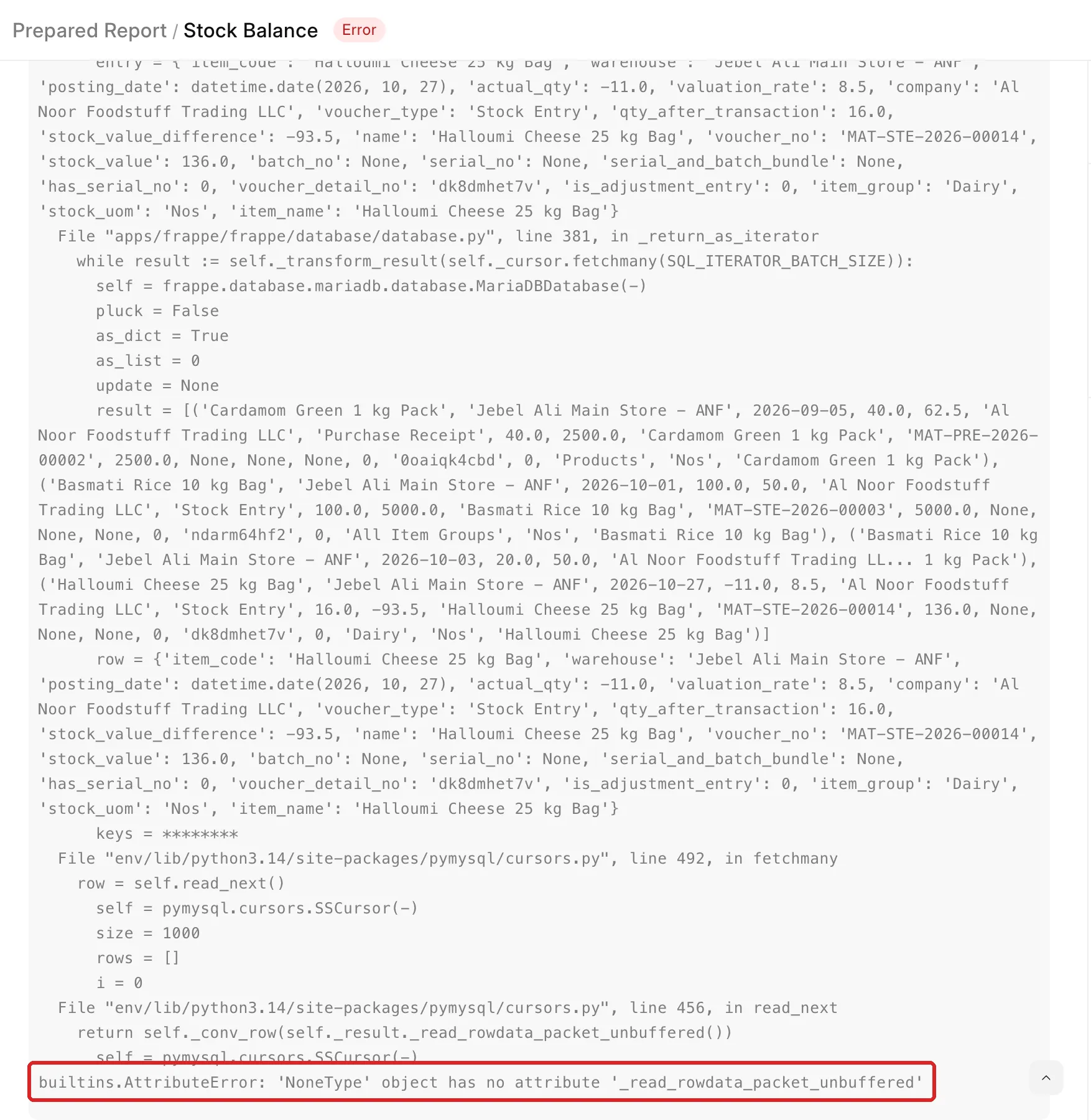
- Scroll to the end of Error Message. The last line is the error. Compare it with the list in The error.
2. Check your version
- Click your avatar at the bottom left, and then click About.
- Note the versions of Frappe Framework and ERPNext. Click the clipboard icon to copy them.
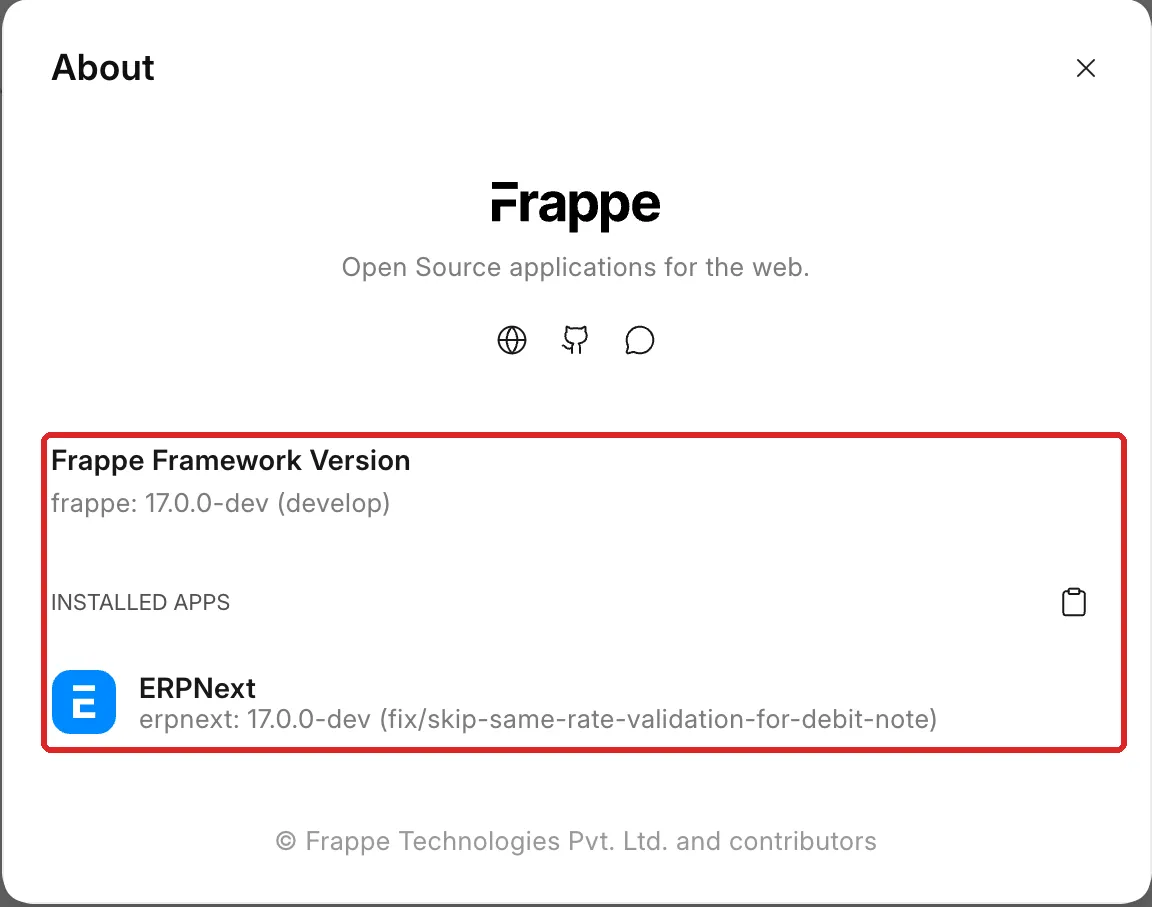
- Compare them with the latest release of your major version on GitHub releases. Frappe Framework and ERPNext must be on the same major version (for example, both v15).
3. Update to the latest version
If your site is on Frappe Cloud:
- On a public bench, Frappe Cloud updates your site on a schedule. See Public Bench Update Schedule.
- On a private bench, deploy the latest version and update the site. See Update an app/site on a private bench.
The update runs the migration and clears the cache for you.
If you host the site yourself:
- Take a backup of the site.
- Update all apps, the Python libraries and the site in one command:
bench update
- If you updated the apps in another way (for example, with
git pull), run these commands. Replaceyour-sitewith your site name.
bench setup requirements
bench --site your-site migrate
bench --site your-site clear-cache
bench restart
bench setup requirements installs the library versions that the apps need. bench migrate applies the database changes and patches of the new version.
4. Run the report again
- Open the report.
- Click Rebuild (or Generate New Report).
If the report works now, you are done.
Find which filter or report causes the problem
If the error continues after the update, find what triggers it.
- Clear all optional filters. Keep only Company, From Date and To Date (for Stock Ageing: Company, As On Date and Ageing Range).
- In Stock Balance, clear Show Stock Ageing Data.
- Click Rebuild.
- If the report works now, add the filters back one at a time. Select each value from the dropdown list. Do not type a value and leave the field.
- Click Rebuild after each filter. The filter that makes the report fail is the cause. Remove the value, select it again from the list, or replace it.
- If the report fails even without filters, try a shorter date range, for example one month.
- Run another stock report with the same company and dates, for example Stock Ledger or Stock Ageing.
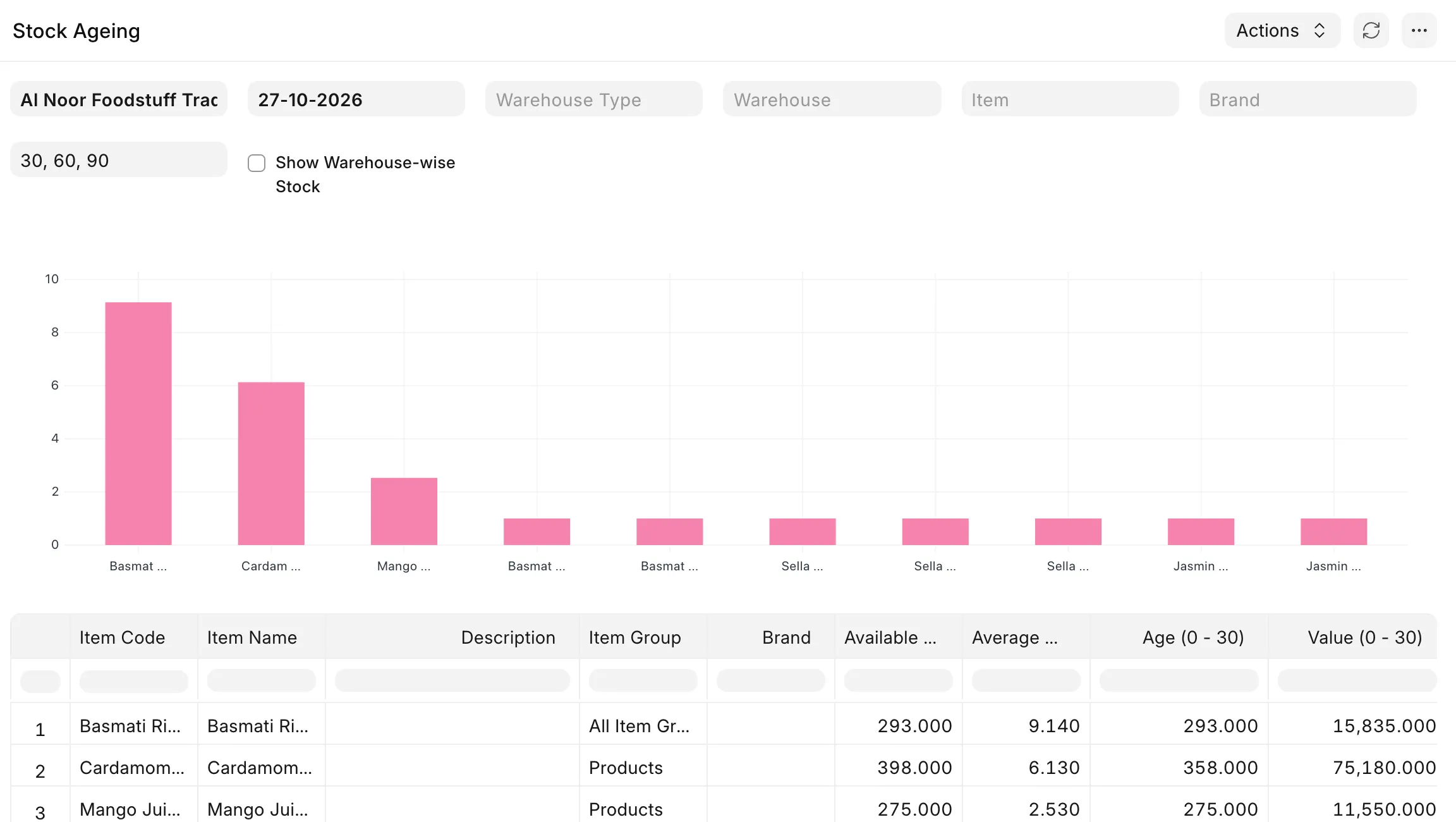
What the result tells you:
| Result | Probable cause |
|---|---|
| Fails only with one filter value | The filter value. Select a valid value from the list. |
| Fails only with Show Stock Ageing Data | A report bug in your version. Update, or raise a ticket. |
| Fails only for long date ranges | The size of the data or a server limit (time or memory). |
| All stock reports fail | A server or database problem. Raise a ticket. |
If you have a custom app that changes the stock reports, ask your developer to test the report without it.
How to prevent it
- Keep all apps on the same release. After each update, make sure the migration ran.
- Select filter values from the list. Do not edit report links by hand.
- Update saved reports and bookmarks after you rename or delete a warehouse or item.
- For large data, run the report for shorter periods or for one warehouse at a time.
If this does not fix it
Some errors come from server limits, not from the report:
'NoneType' object has no attribute 'settimeout'can mean that the database stopped sending data before the report finished.Work-horse terminated unexpectedly; waitpid returned 9means that the background job used more memory than the server allows.
Raise a support ticket. To get a fast answer, include:
- Site name, for example
yoursite.frappe.cloud. - Versions from About (step 2).
- Report name and the Prepared Report ID. The ID is the code in the Prepared Report page, for example
rvglv6729t. - Filters. Copy the report page link from the browser address bar. It contains all filters.
- Full traceback from Error Message, as text, not only a screenshot.
- When it started, for example "after the update on 12 October".
- What you tried: the filters you removed and the other reports you ran.
On Frappe Cloud, approve the site access request from support when you get it, so that the team can check the report on your site.