

















Valuation Rate Breakdown
Valuation Rate Breakdown explains, in plain words, how ERPNext worked out the value of your stock. Pick an item and a warehouse, and it walks you through every stock transaction, newest first: what came in, what went out, at what rate, and how the value per unit changed. It also points out the transactions that need your attention.
You do not need to know how stock valuation works to use it. Every transaction is explained in one sentence with real numbers, and the full calculation is one click away.
Use it when you want to answer questions like:
- Why did this delivery go out at ₹ 230 and not at the price I paid?
- Why is the value per unit in the Stock Balance report different from my purchase rate?
- Why did the rate of an old transaction change?
- What is each batch or serial number in my warehouse worth?
- Which transaction has a wrong value, and how do I fix it?
1. Open it from the Stock Ledger
This is the easiest way, because it takes you straight to the transaction you are looking at.
- Go to Stock > Reports > Stock Ledger.
- Set the Item and Warehouse filters, and the dates you want to see.
- Scroll right until you see the Incoming Rate and Outgoing Rate columns.
- Find the small ⓘ icon next to a rate:
- on stock that came in (for example a Purchase Receipt), the icon is in the Incoming Rate column
- on stock that went out (for example a Delivery Note or a Material Issue), the icon is in the Outgoing Rate column
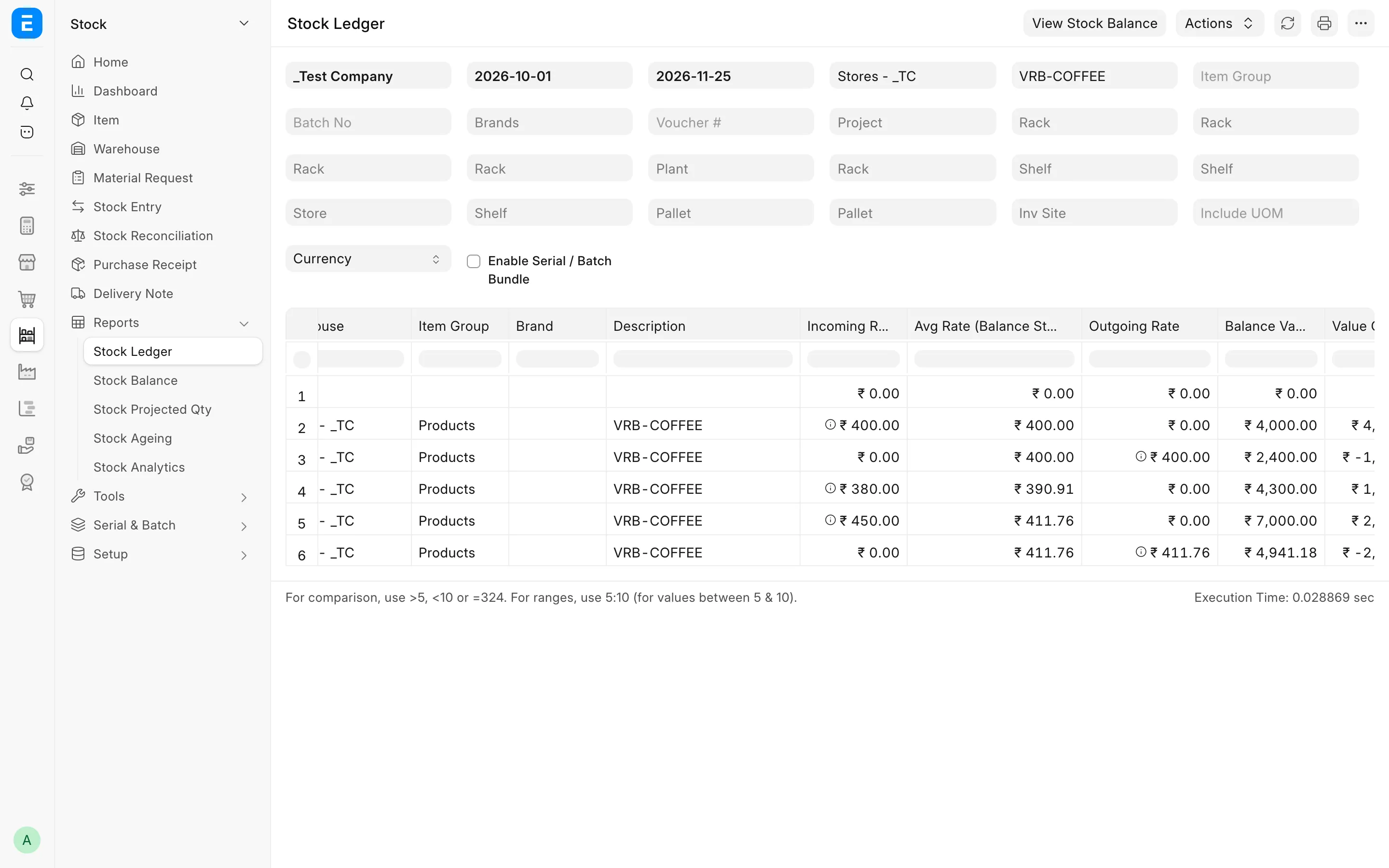
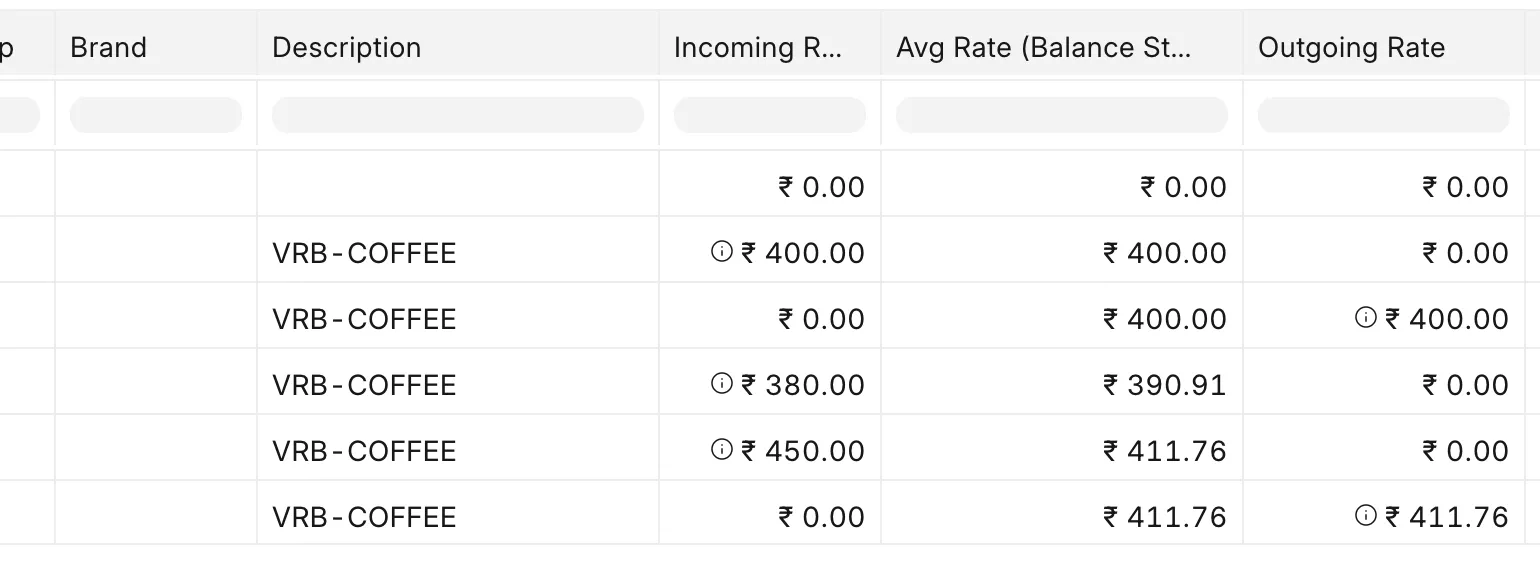
- Click the icon. When you hover over it, it says How was this calculated?
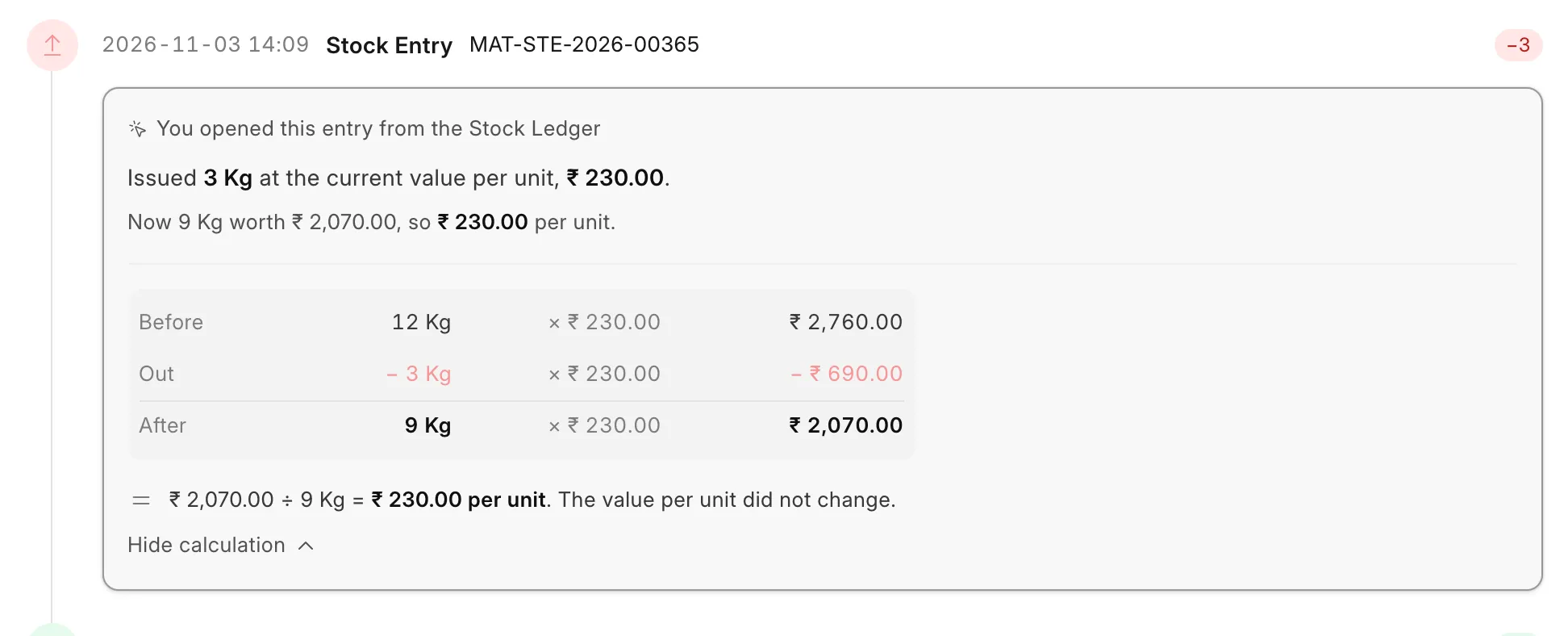
The Valuation Rate Breakdown page opens and scrolls to that transaction. It is highlighted with the line You opened this entry from the Stock Ledger, and its full calculation is already open.
2. Open it directly
- Use the search at the top of ERPNext and type Valuation Rate Breakdown.
- Open the page.
- Choose the Item and the Warehouse.
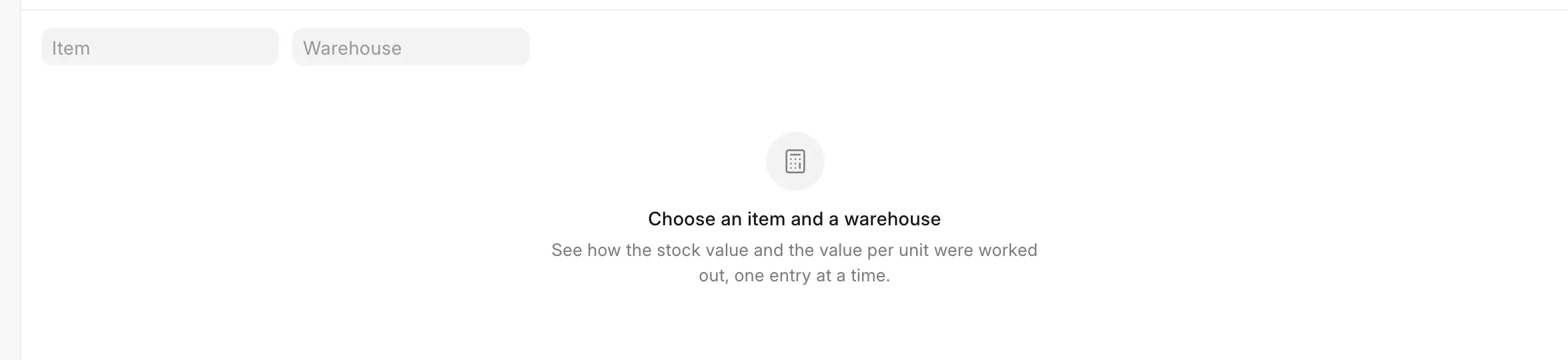
The page loads the latest transactions for that item in that warehouse.
3. Read the summary
The card at the top tells you where the stock stands now:
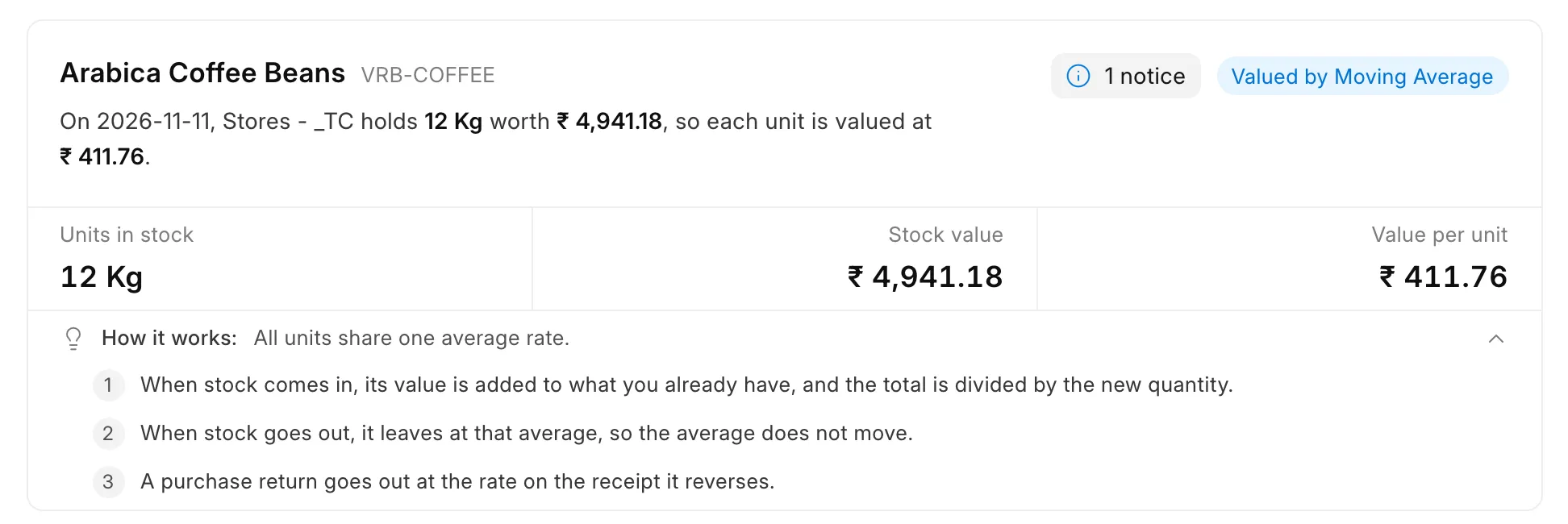
- One sentence, for example: "On 11-11-2026, Stores holds 12 Kg worth ₹ 4,941.18, so each unit is valued at ₹ 411.76."
- Units in stock, Stock value and Value per unit.
- A badge with the valuation method used for the item, for example Valued by Moving Average.
- A notices button, for example 1 notice, when there is something you should know. See Notices.
- How it works: click this line to open three short steps that explain the valuation method in plain words.
4. Read the timeline, newest first
Under How we got here, newest first, every transaction is one step. The newest one is at the top.
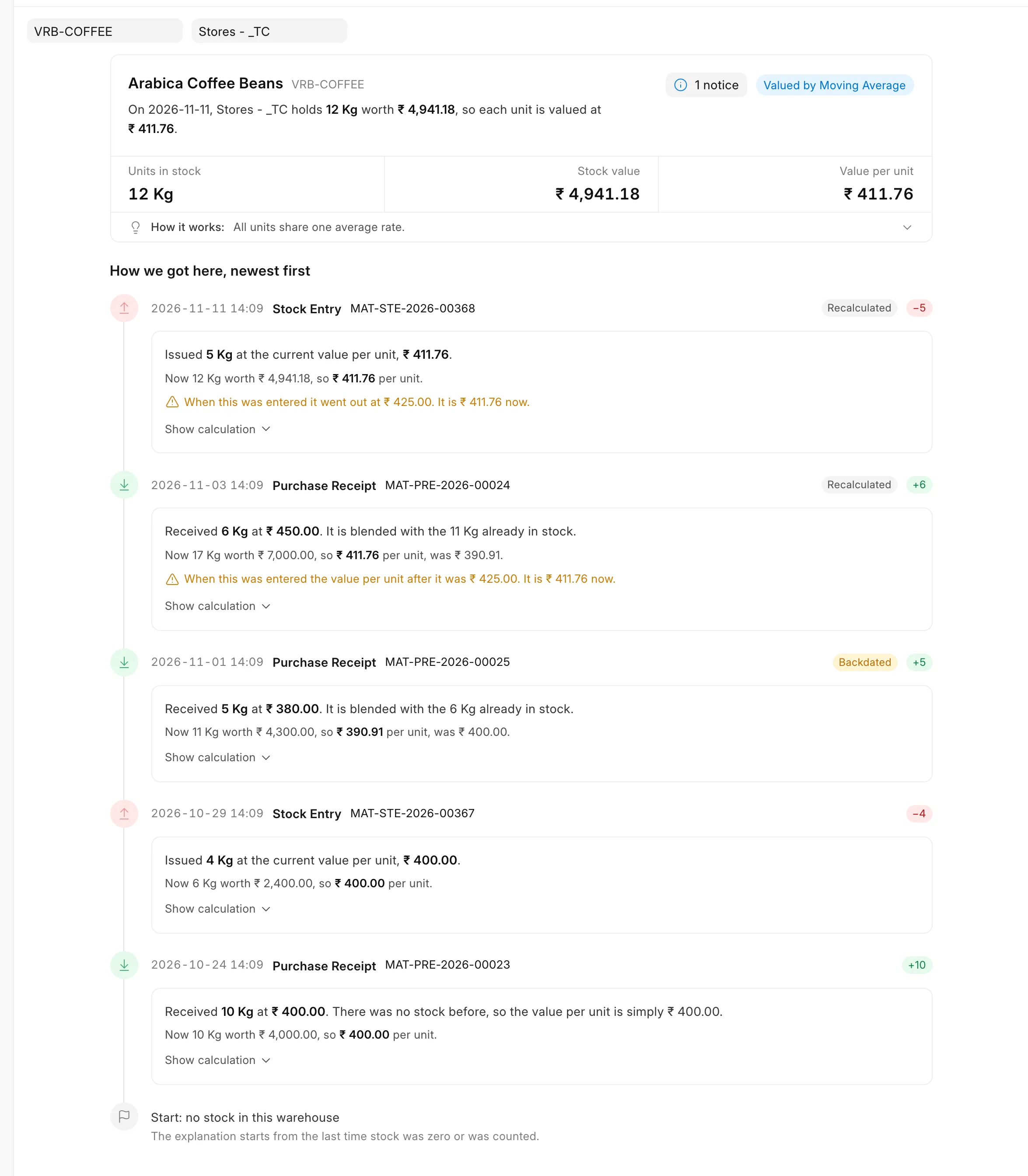
Each step shows:
- the date and time, the document type and its number (click the number to open the document)
- a green + or red − badge with the quantity that came in or went out
- labels for anything special about the transaction (see the table below)
- one sentence with the real numbers, for example "Received 6 Kg at ₹ 450.00. It is blended with the 11 Kg already in stock."
- one line with the result, for example "Now 17 Kg worth ₹ 7,000.00, so ₹ 411.76 per unit, was ₹ 390.91."
- at most three short notes, in amber, blue or red, when something needs your attention
- Show calculation, which opens the full calculation
| Label | What it means |
|---|---|
| Backdated | This transaction was entered after transactions with a later date. See section 8. |
| Recalculated | The rate of this transaction changed because of a transaction posted with an earlier date. |
| Waiting | ERPNext still has to recalculate this transaction. Its figures are not final yet. See section 9. |
| Needs repost | The figures stored for this transaction do not add up. See section 10. |
Show calculation
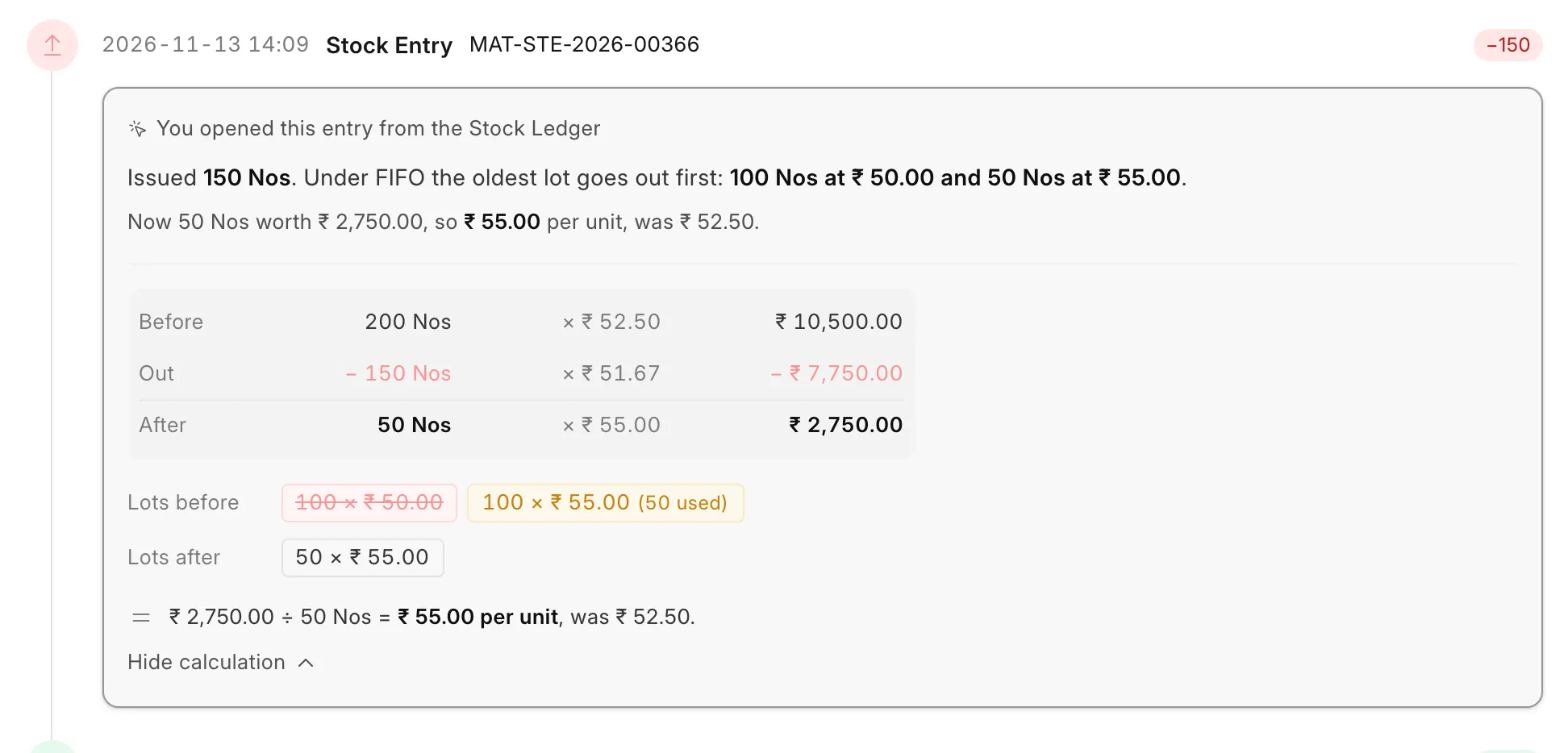
Click Show calculation under a step to see how it was worked out. Click Hide calculation to close it again.
- a small table:
- Before: the units and value before this transaction
- In or Out: what this transaction added or took away
- After: the units and value after it
- the result, for example "₹ 2,070.00 ÷ 9 Kg = ₹ 230.00 per unit. The value per unit did not change."
- for batch and serial number items, the table for each batch or serial number
- for transactions posted with an earlier date, when it was entered and which transactions changed it
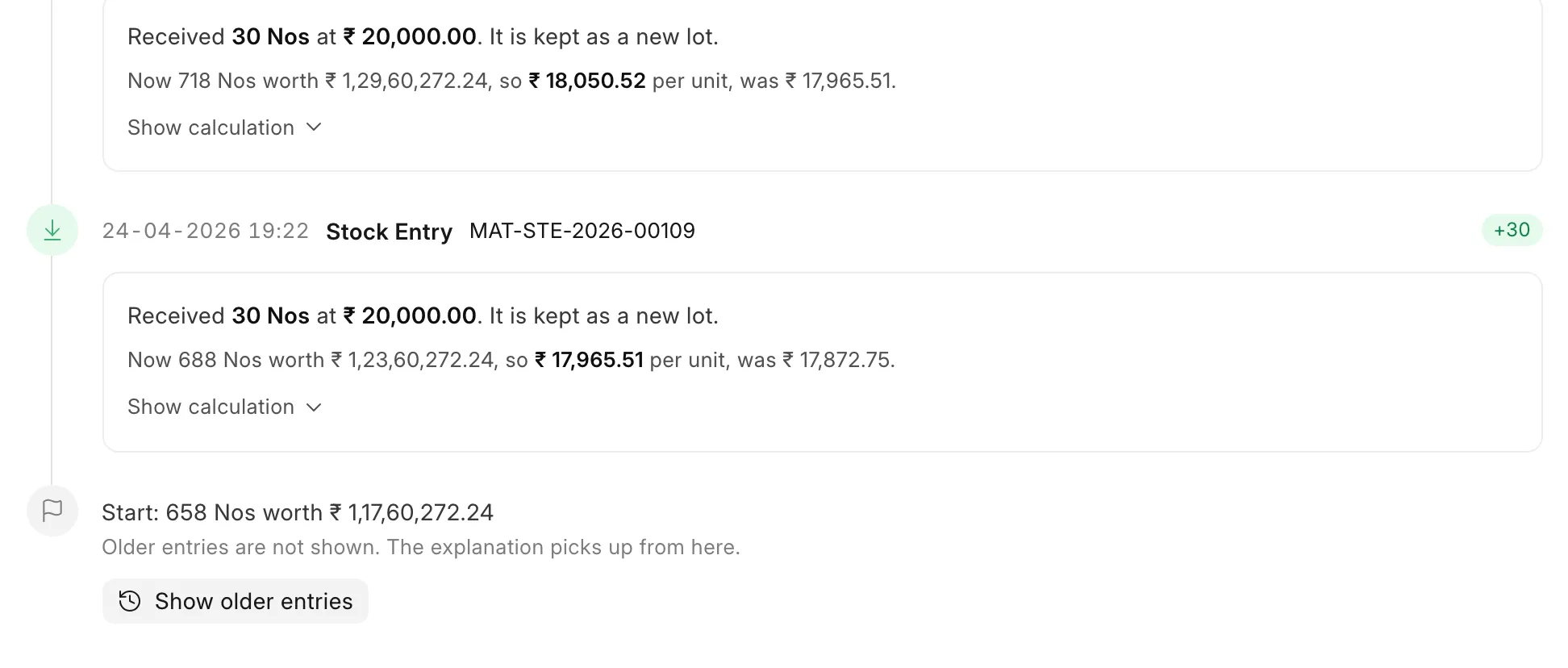
The page shows 50 transactions at a time. At the bottom, click Show older entries to load the 50 before them. The page keeps your place.
The timeline starts at the last point where the stock was zero or was counted with a Stock Reconciliation, because everything before that no longer affects today's value. The bottom of the timeline says where it starts.
Items valued by FIFO or LIFO
For these items, every receipt is kept as its own lot. Show calculation also shows the lots before and after the transaction:
- a lot that was used up is shown in red and crossed out
- a lot that was partly used is shown in amber, with how much was used
- a new lot is shown in green
Purchase returns
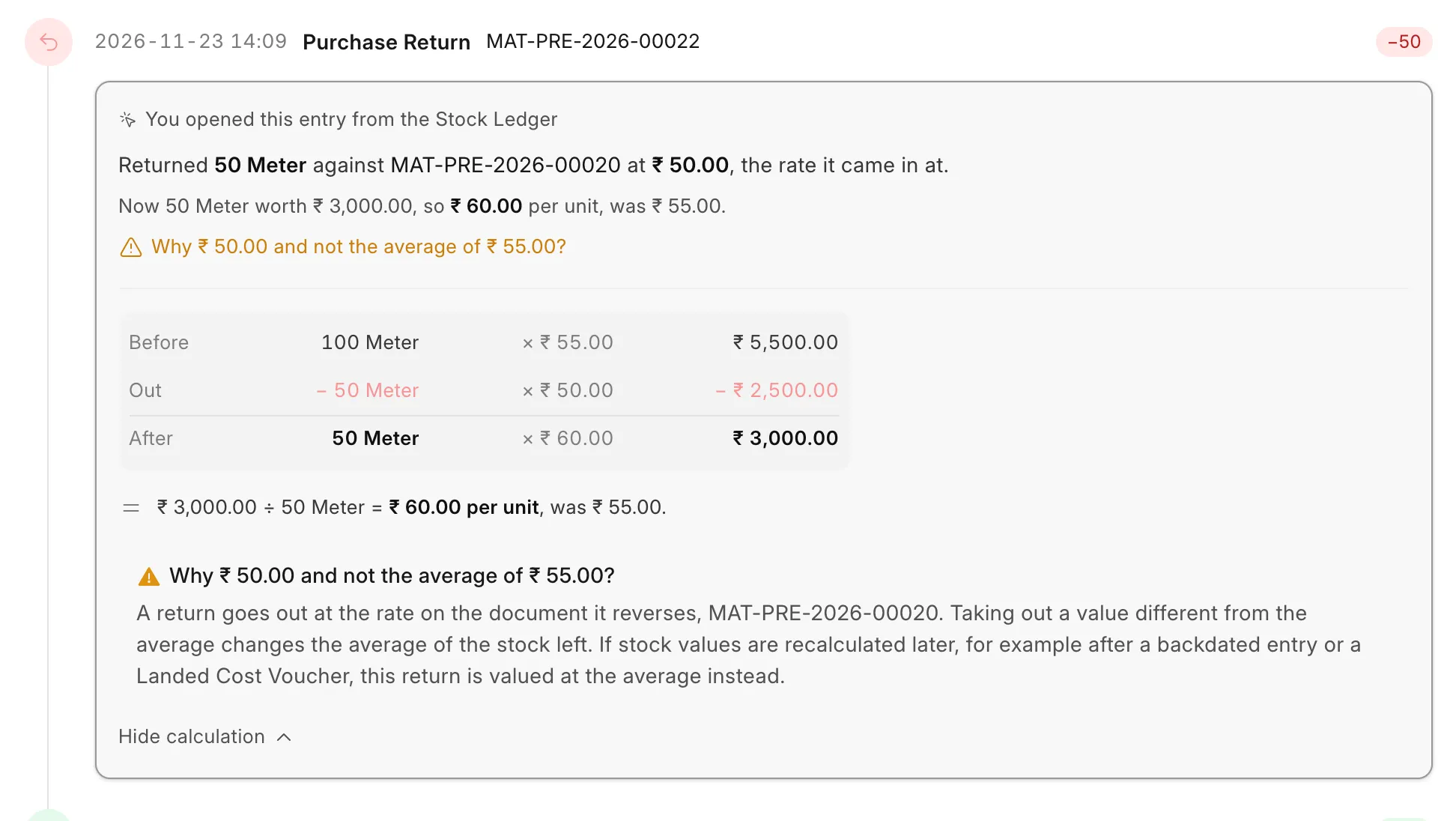
A purchase return goes out at the rate of the receipt it reverses, not at the average. When this makes the rate different from what you might expect, the step shows a note, for example "Why ₹ 50.00 and not the average of ₹ 55.00?". Show calculation explains why.
5. Notices
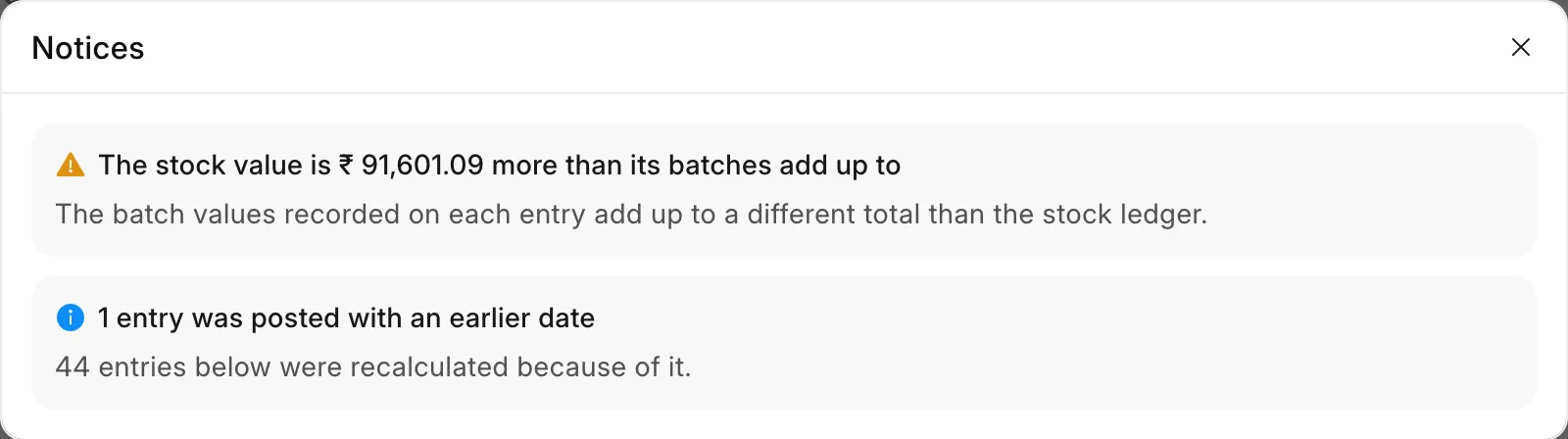
Longer messages about the whole item and warehouse are kept behind the notices button in the summary card, so they do not fill the page. The button shows how many there are, for example 2 notices. Its icon is red, amber or blue, depending on the most serious notice.
Click it to open the Notices window. It can show:
- Transactions whose figures do not add up, with a Repost from button. See section 10.
- The stock value is not what the batches or serial numbers add up to, with the transactions that caused it. See section 7.
- Transactions posted with an earlier date, and how many later transactions were recalculated because of them.
When there is nothing to report, the button is not shown.
6. Items with batches
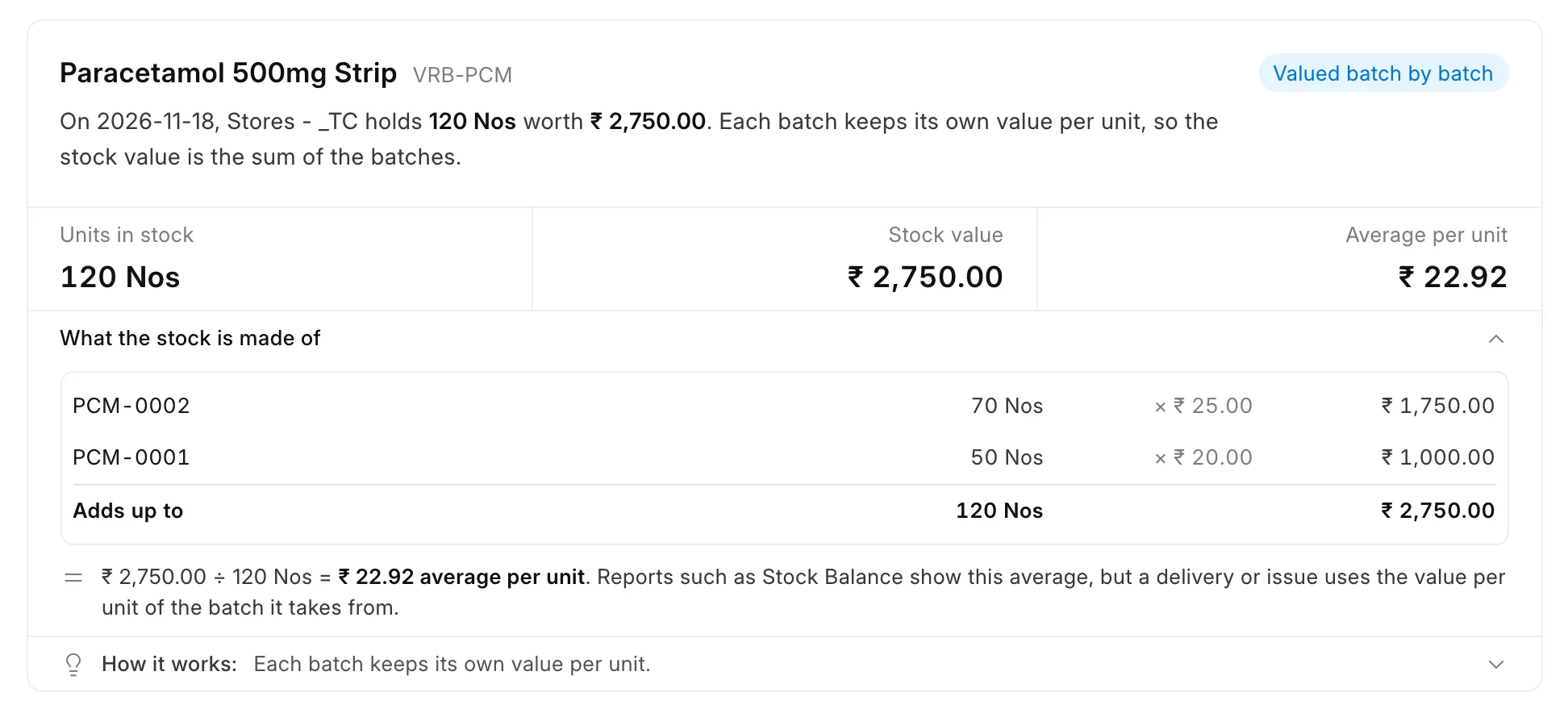
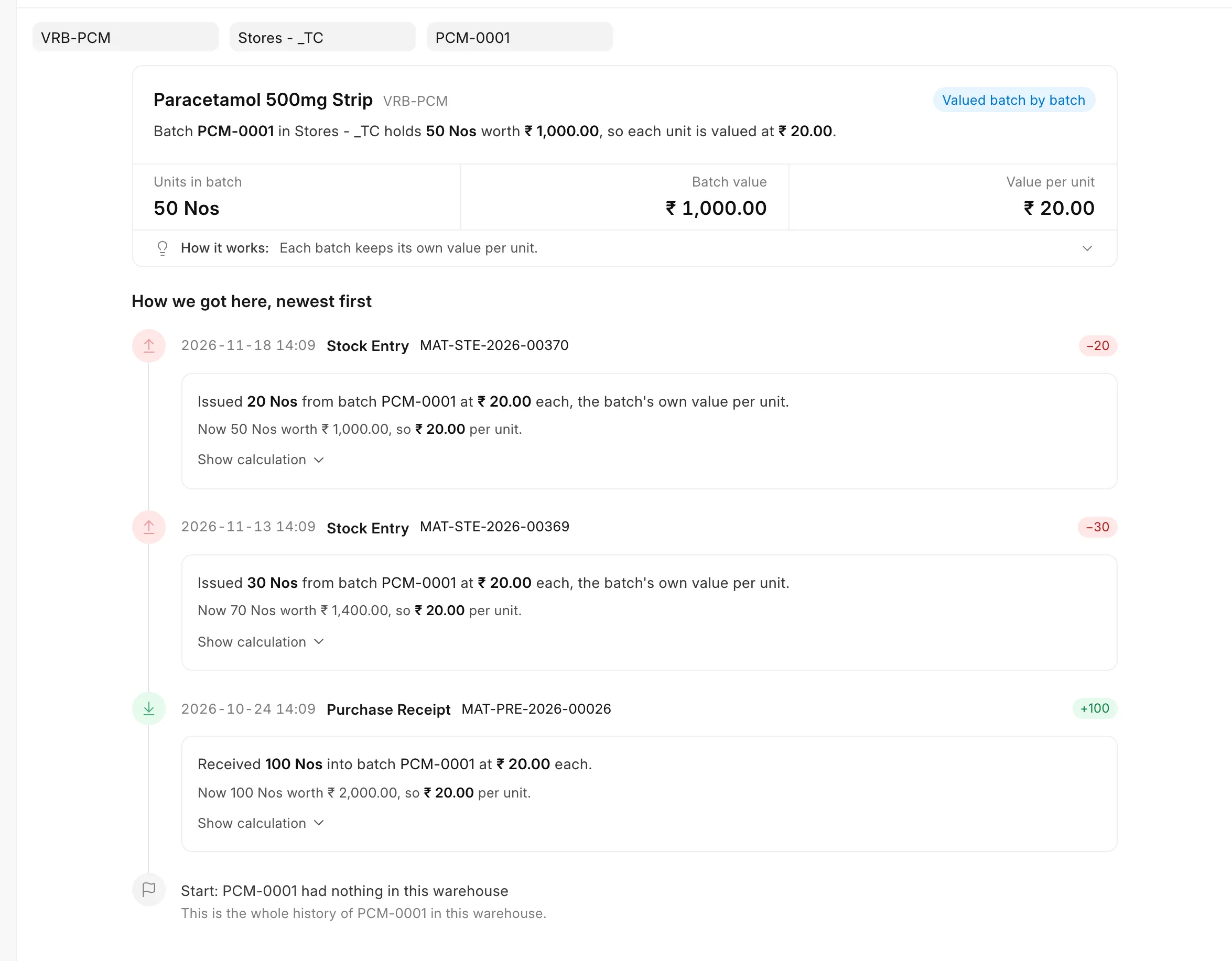
When an item keeps a separate value for each batch, the page says Valued batch by batch.
Click What the stock is made of in the summary card to open it. It is closed when the page loads, and it may take a moment to fill in after the timeline appears. It shows every batch with its units, its own value per unit and its value, and an Adds up to total. The five largest batches are shown first; click Show all to see the rest.
The third figure is called Average per unit. It is the total value divided by all units. Reports such as Stock Balance show this average, but stock does not go out at it: a delivery or issue uses the value per unit of the batch it takes from.
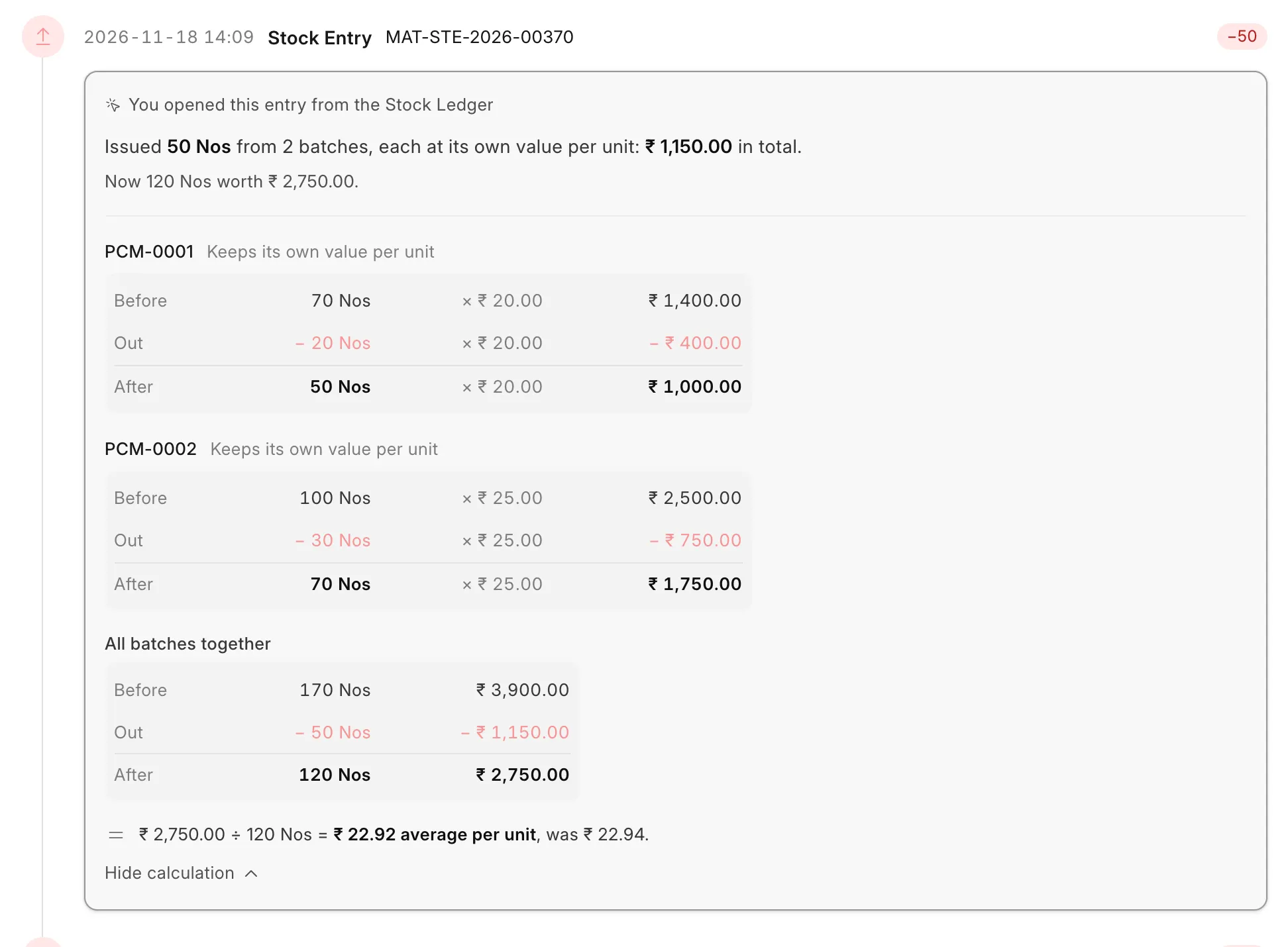
Click Show calculation on a transaction to see every batch with its own Before, In or Out, and After, at that batch's own value per unit. Under that, All batches together shows the total units and value for the warehouse.
Batches that share one value
Some batches do not keep their own value. This happens when Use Batch-wise Valuation is turned off on the batch, or when Do not use Batch-wise Valuation is turned on in Stock Settings for an item valued by Moving Average. Those batches share one value per unit.
The page then says so: the summary sentence, the badge and How it works explain which batches keep their own value and which share one, and What the stock is made of groups them as "batches that share one value".
See only one batch
A Batch filter appears next to Item and Warehouse. Choose a batch to see only the transactions that moved it. Every step then uses that batch's own numbers, and the summary says, for example, "Batch PCM-0001 in Stores holds 50 Nos worth ₹ 1,000.00, so each unit is valued at ₹ 20.00."
7. Items with serial numbers
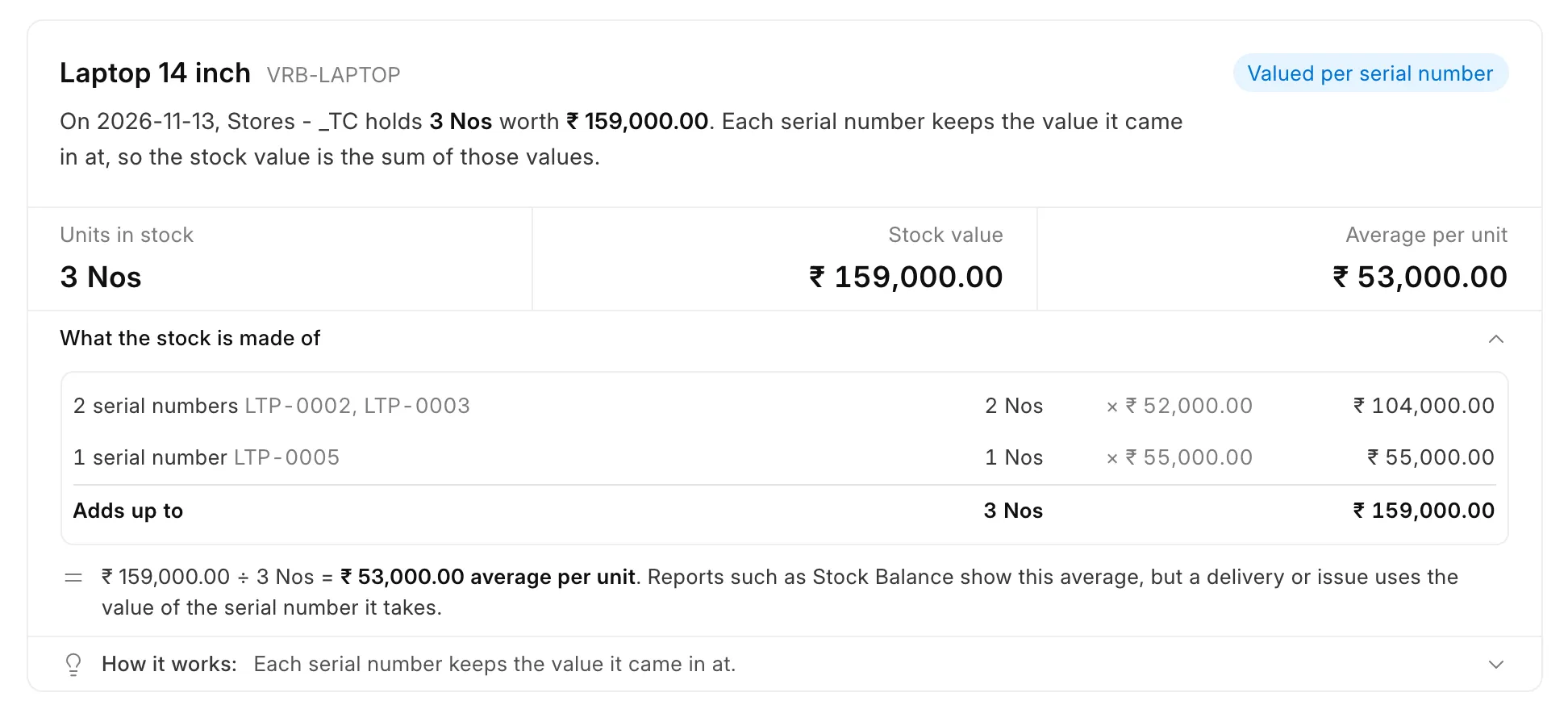
When each serial number keeps the value it came in at, the page says Valued per serial number.
Click What the stock is made of to see the serial numbers in stock, grouped by the value they came in at, and an Adds up to total. As with batches, the Average per unit is only an average. A delivery or issue uses the value of the serial number it takes.
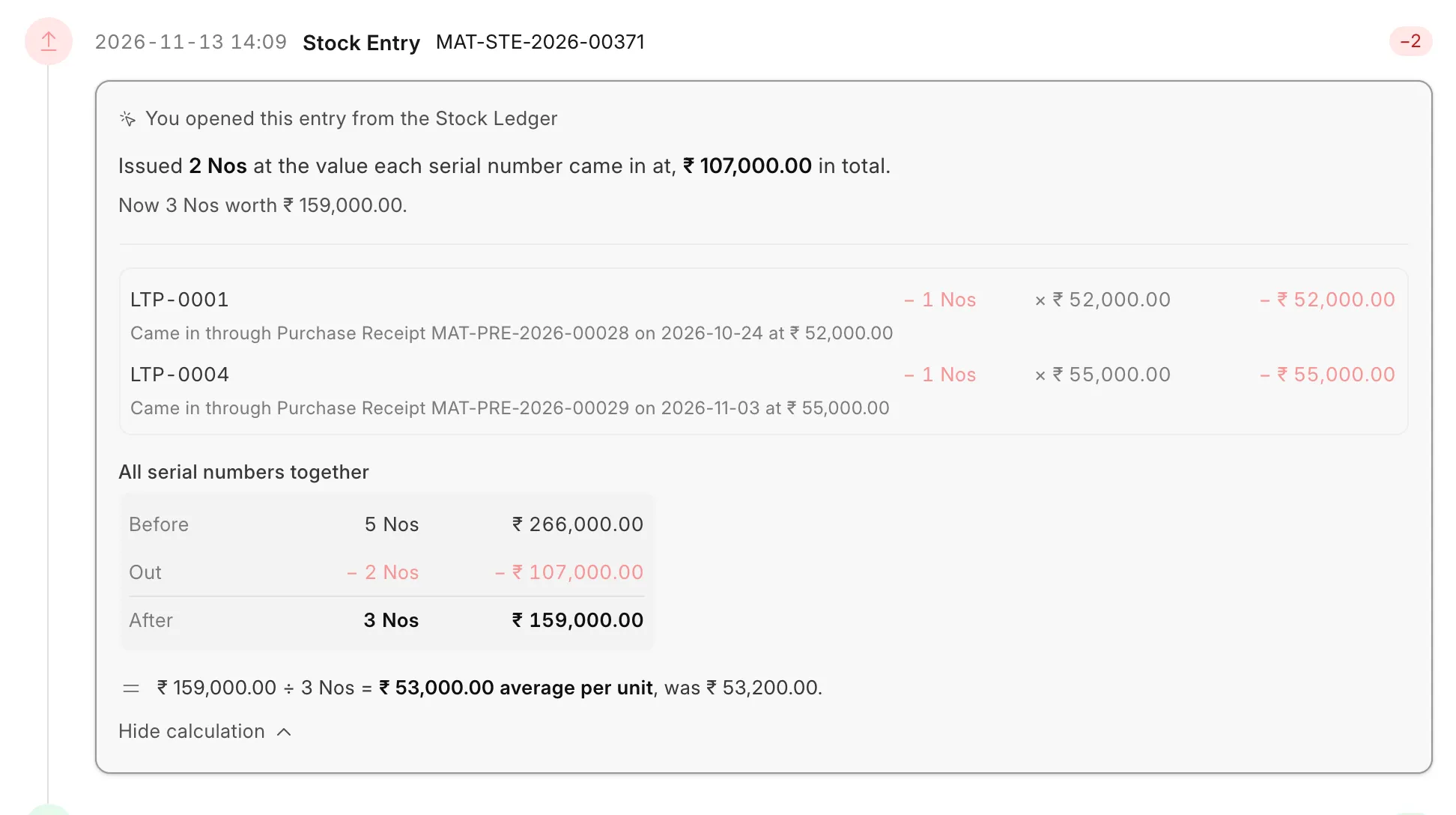
When serial numbers go out, Show calculation shows where each one came from, for example "Came in through Purchase Receipt MAT-PRE-2026-00028 on 24-10-2026 at ₹ 52,000.00".
When the numbers do not add up
If a serial number or batch went out at a different value than it came in at, the stock value no longer matches what the serial numbers or batches add up to. The notices button then shows an amber notice that says by how much, and which transaction caused it. For example:
The stock value is ₹ 12,000.00 more than its serial numbers add up to. Stock Entry MAT-STE-2026-00196 on 21-07-2026 sent out HJGHJJ0021 and HJGHJJ0022 at ₹ 0.00 each instead of ₹ 6,000.00.
The step for that transaction also has an amber note, for example "Came back through Sales Return MAT-DN-2025-00051 on 09-10-2025 at ₹ 6,000.00, but went out at ₹ 0.00".
Differences of less than 1 are only rounding and are not shown.
To correct it, ask your stock manager to create a Repost Item Valuation for that transaction. Once it has run, the notice goes away.
See only one serial number
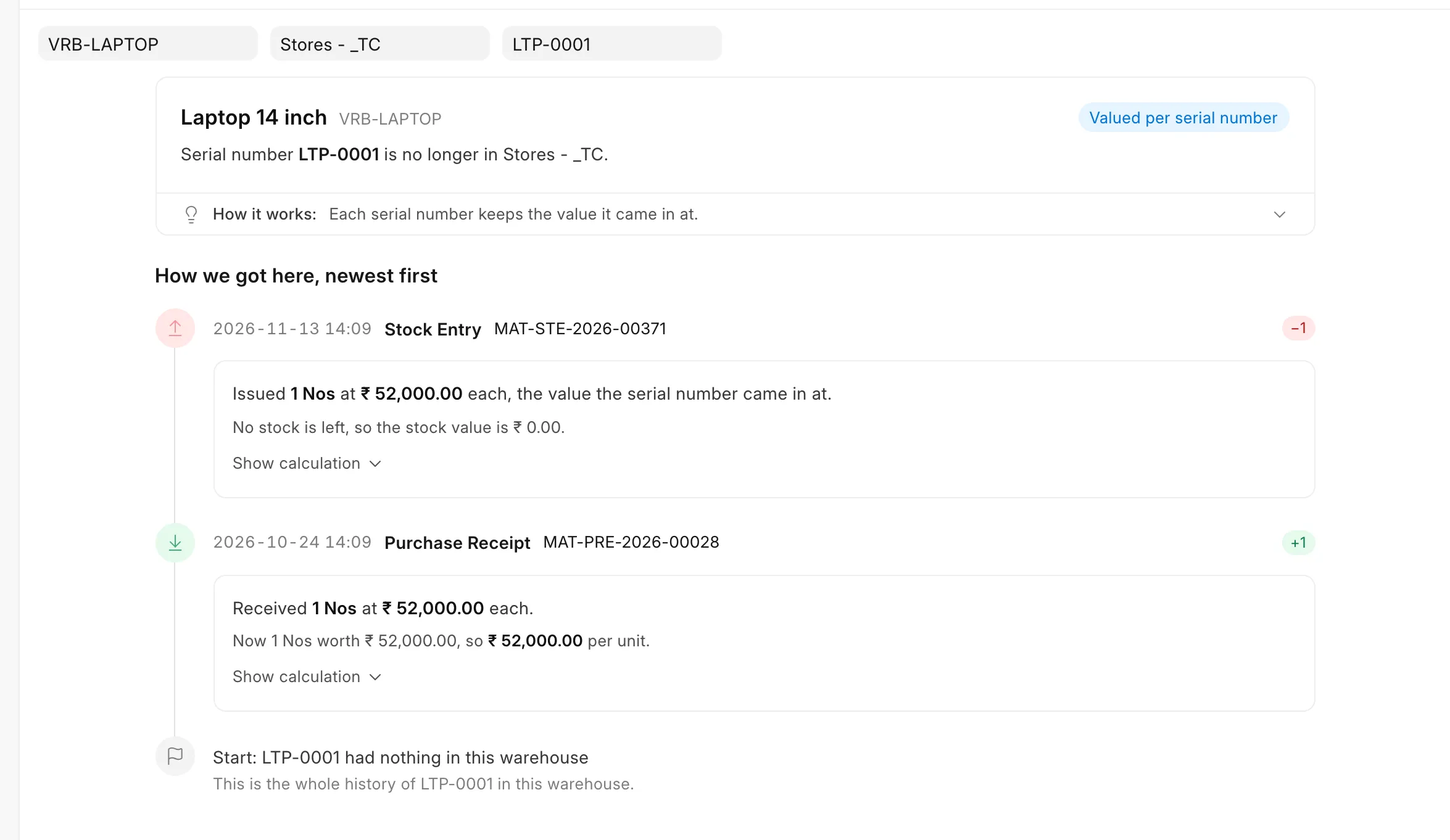
A Serial No filter appears next to Item and Warehouse. Choose a serial number to follow it in and out of the warehouse. The summary says whether it is still in stock and what it is worth.
Transactions from older versions of ERPNext
If your site was upgraded from an older version of ERPNext, older transactions may store the batch or serial number directly, without a Serial and Batch Bundle. The page includes them, so the history, What the stock is made of and the filters are complete.
8. Transactions posted with an earlier date
Sometimes a transaction is entered today but dated in the past, for example a purchase receipt that was forgotten. ERPNext then recalculates every transaction after that date, so their rates can change.
The page shows this clearly:
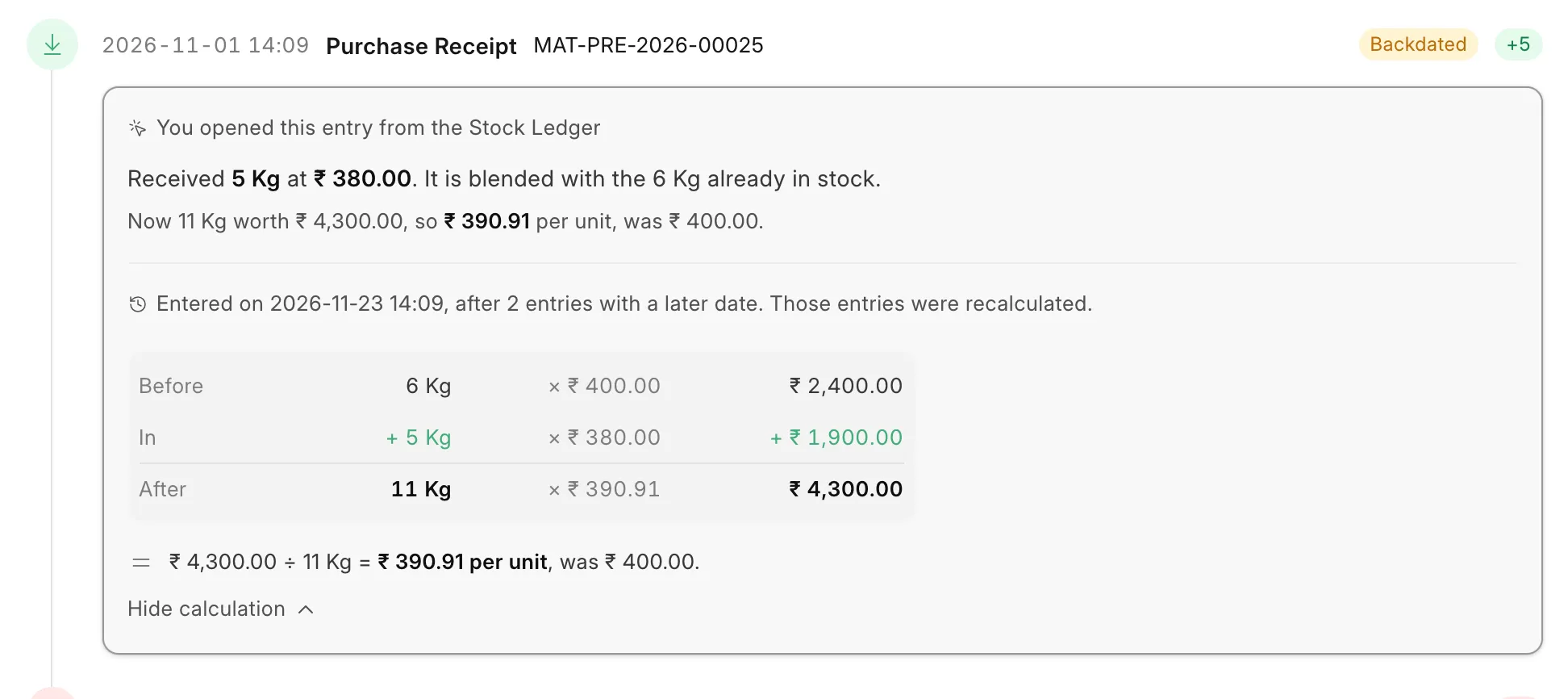
- The late transaction has a Backdated label. Show calculation says, for example, "Entered on 23-11-2026 14:09, after 2 entries with a later date. Those entries were recalculated."
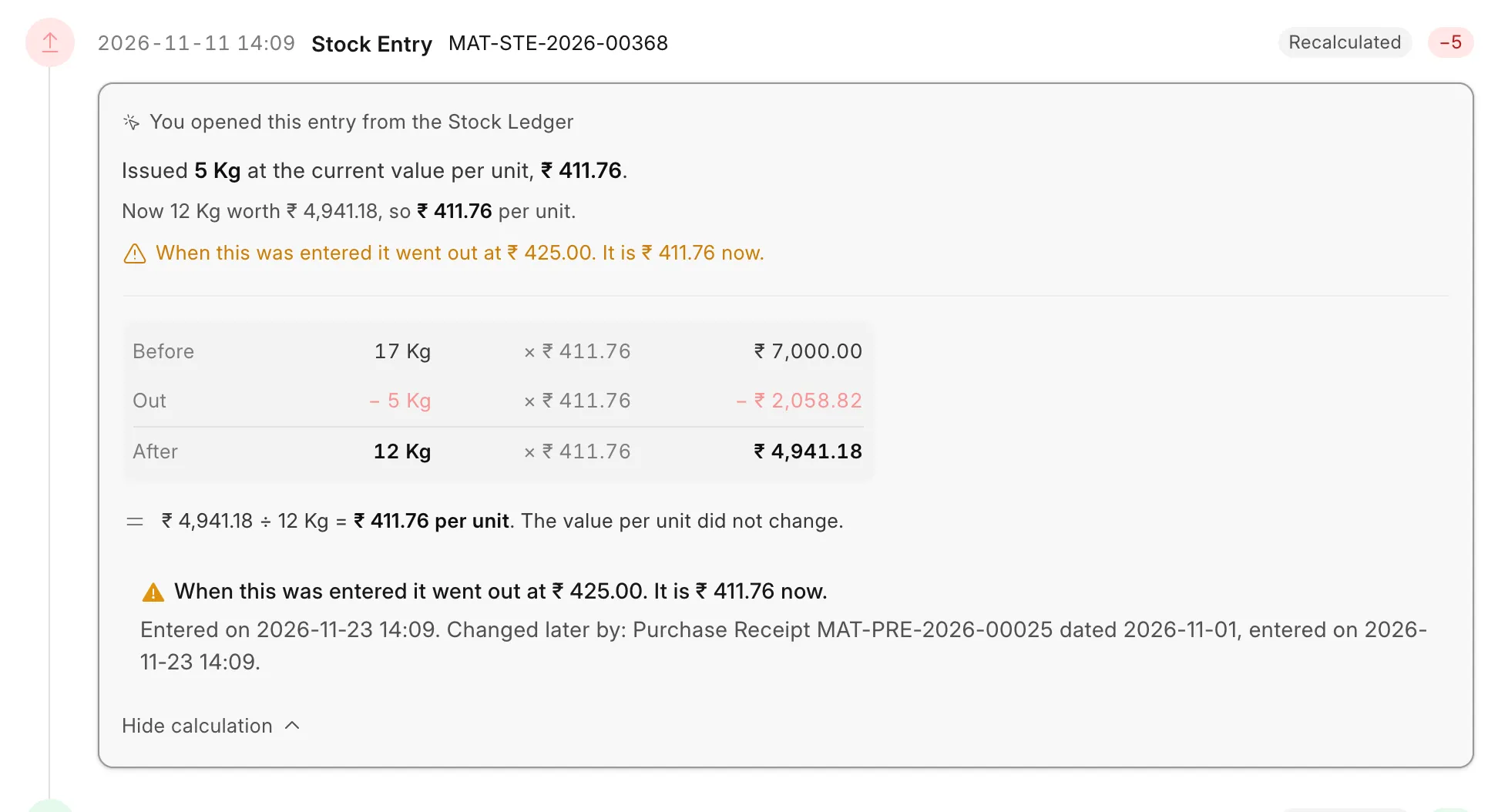
- Every later transaction whose rate changed because of it has a Recalculated label and a note with the rate it had when it was entered and the rate now, for example "When this was entered it went out at ₹ 425.00. It is ₹ 411.76 now." Show calculation names the transaction that changed it.
- The notices button tells you how many transactions were posted with an earlier date and how many were affected.
9. When ERPNext is still recalculating
After a transaction with an earlier date, ERPNext recalculates the later transactions in the background. While that is still running:
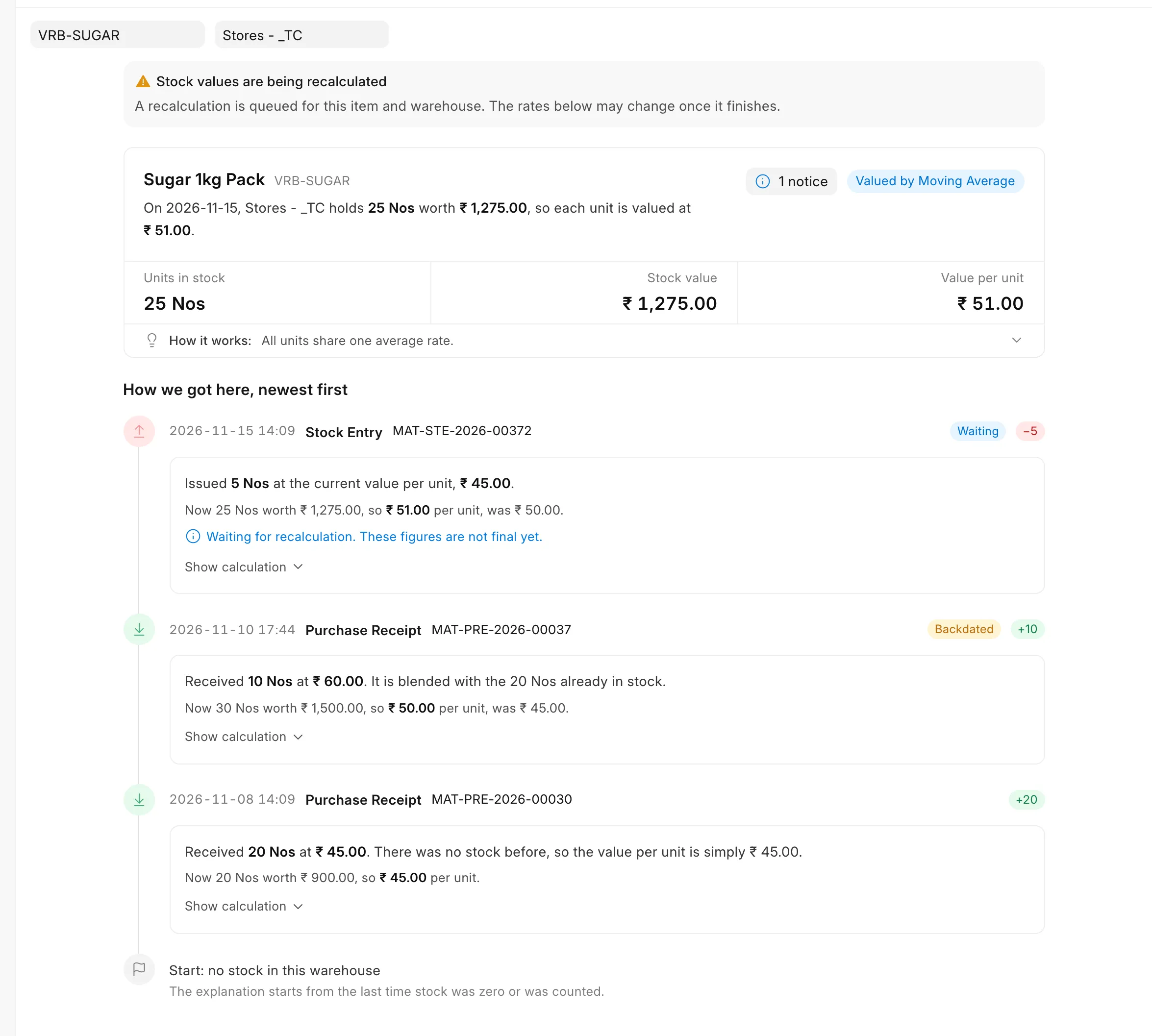
- an amber banner at the top says Stock values are being recalculated: "A recalculation is queued for this item and warehouse. The rates below may change once it finishes."
- each affected transaction has a Waiting label and the note "Waiting for recalculation. These figures are not final yet."
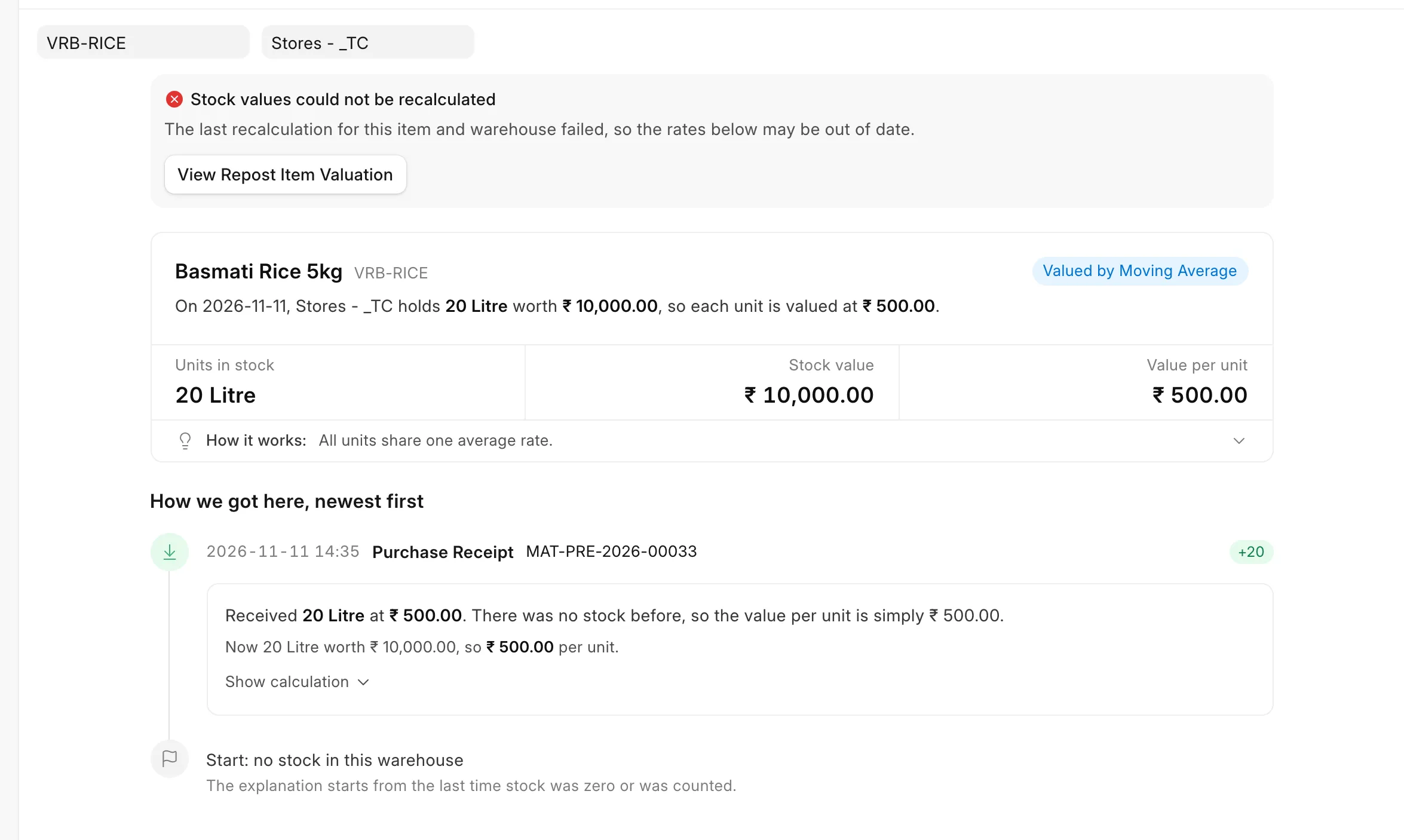
If the last recalculation for the item and warehouse failed, a red banner says Stock values could not be recalculated. Click View Repost Item Valuation to see the failed recalculation and ask your stock manager to run it again.
When the recalculation has finished, these banners and notes go away.
10. Transactions whose figures do not add up
Sometimes the figures stored for a transaction are wrong, for example after a failed recalculation or a problem in older data. A repost (a Repost Item Valuation) recalculates them. The page checks every transaction on the screen and tells you which ones need it.
A transaction is flagged when:
- the units before plus the units of this transaction do not make the units after
- the value before plus the value of this transaction does not make the value after
- the value per unit × the units does not make the stock value
- for FIFO and LIFO items, the lots do not add up to the stock
- for Moving Average items, a delivery or issue did not go out at the average before it
Differences of less than 1 are only rounding and are ignored. Transactions that are still waiting for a recalculation are not checked, because their figures are not final yet.
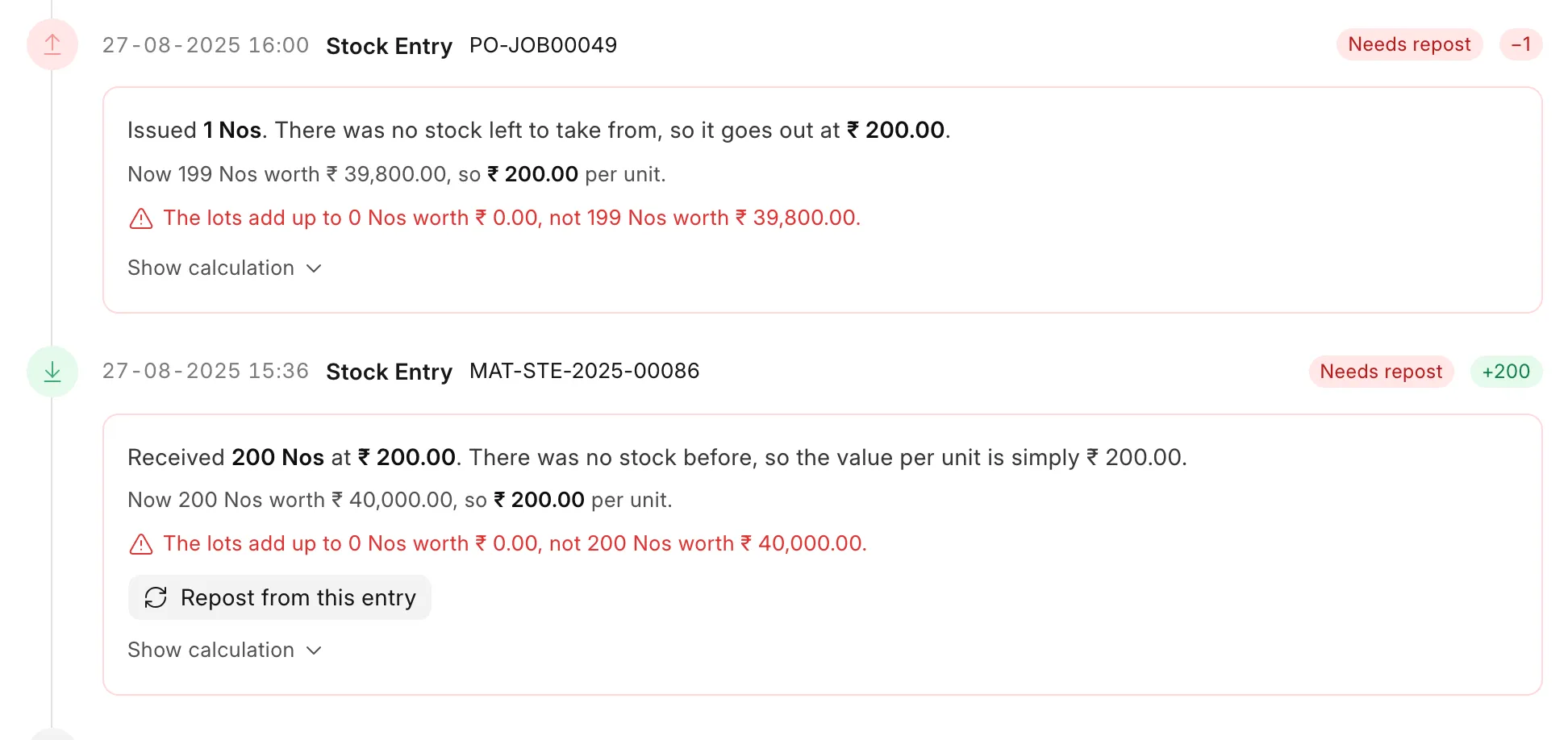
A flagged transaction has a red border, a Needs repost label, and a red note that says what does not add up, for example "The lots add up to 0 Nos worth ₹ 0.00, not 200 Nos worth ₹ 40,000.00."
Fix it with a repost
The earliest flagged transaction has a Repost from this entry button. A repost recalculates that transaction and every transaction after it, so you only need one.
- Click Repost from this entry. You can also click Repost from in the Notices window.
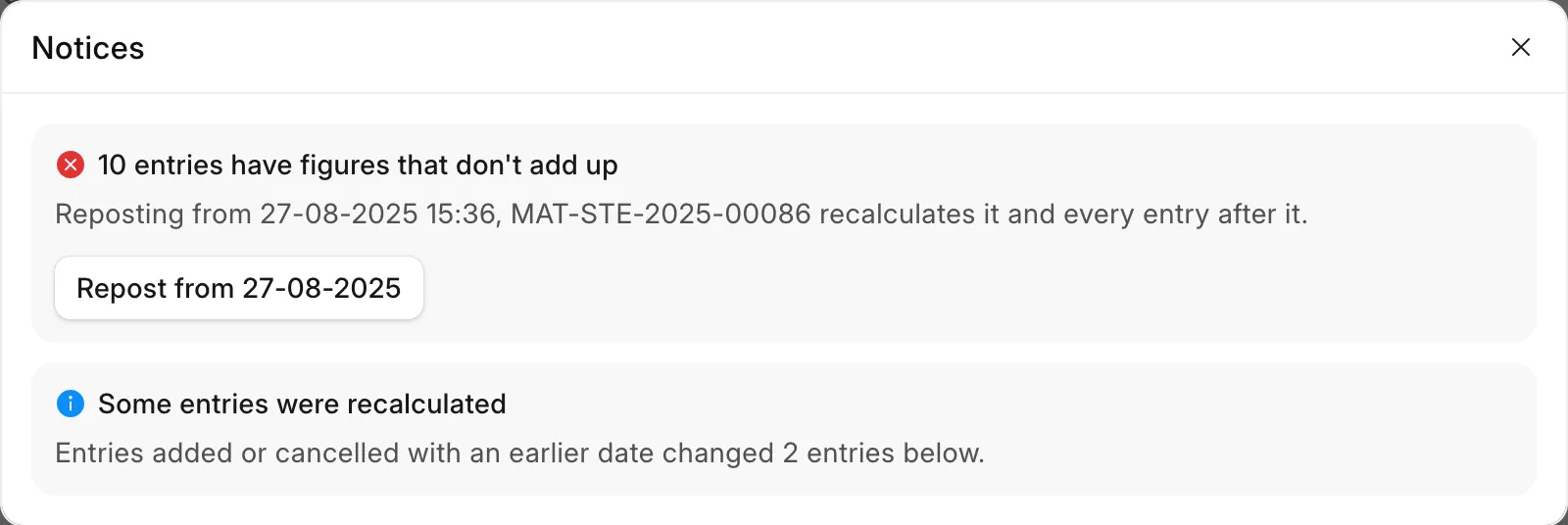
- Read the confirmation. It says which item, warehouse and transaction the recalculation starts from, and that later transactions and their accounting entries may change.
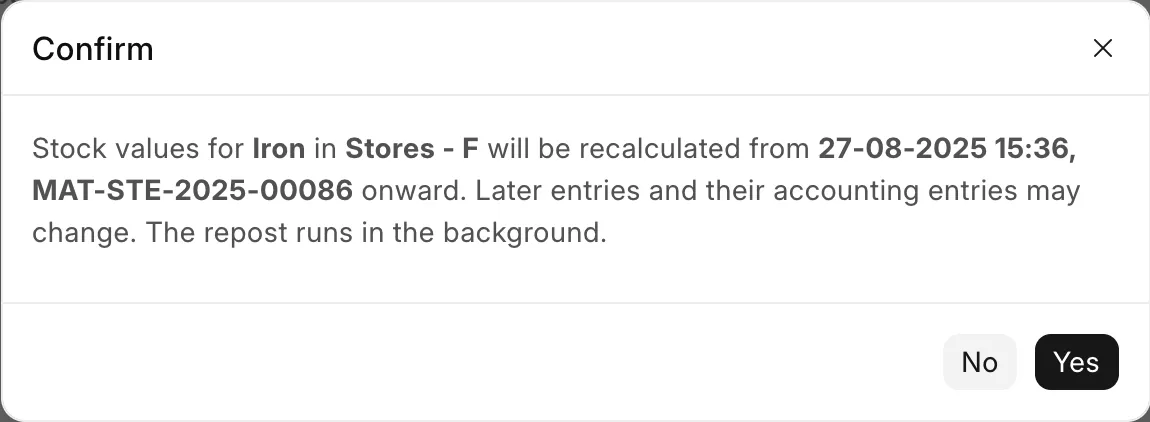
- Click Yes. ERPNext creates a Repost Item Valuation and runs it in the background. The page shows that a recalculation is queued.
- Open the page again once the recalculation has finished. The flags are gone and the figures are correct.
If the problem started before the transactions on the screen, the page finds where it started and offers to repost from there instead, for example "This started earlier, on 27-08-2025 15:36, MAT-STE-2025-00086. Reposting starts there."
Only users who can create a Repost Item Valuation see the button: Stock Manager, Accounts Manager and System Manager. Other users see "Ask a Stock Manager to repost from this entry". While a recalculation is already queued for the item and warehouse, the page says so instead of showing the button.
Who can use it
The page is available to the same people who can open the Stock Ledger report: users with the Stock User or Accounts Manager role. It only shows items and warehouses that you are allowed to see.
To create a repost from the page you also need permission to create a Repost Item Valuation (Stock Manager, Accounts Manager or System Manager).
Frequently asked questions
Why does the Stock Balance report show a different rate than the one my delivery went out at?
For items valued by batch or by serial number, the Stock Balance report shows the average of everything in stock. A delivery uses the value of the batch or serial number it takes. What the stock is made of on this page shows both, and how the average is worked out.
Why did the rate of an old transaction change?
Usually because a transaction with an earlier date was added or cancelled later. Look for the Backdated and Recalculated labels. Show calculation on the recalculated transaction names the document that changed it.
The page says the numbers will change. What should I do?
Nothing. ERPNext is still recalculating. Open the page again later and the final numbers are shown.
A transaction says Needs repost. What should I do?
Click Repost from this entry on the earliest flagged transaction, or ask your stock manager to do it. When the recalculation has finished, open the page again.
Why don't I see the Repost from this entry button?
Either you are not allowed to create a Repost Item Valuation, or a recalculation is already queued for this item and warehouse. The page tells you which.
Where did the long messages at the top go?
They are in the Notices window. Click the notices button in the summary card, for example 2 notices.
Can I change anything from this page?
Only one thing: Repost from this entry creates a Repost Item Valuation, after you confirm it. Everything else on the page only explains the values and never changes your stock or accounts.