

















Why does Stock Balance show items with zero quantity but a value
The Stock Balance report can show an item with a Balance Qty of 0 and a Balance Value that is not 0. This means the stock ledger has a value left with no stock to carry it. It is almost always a revaluation that did not finish.
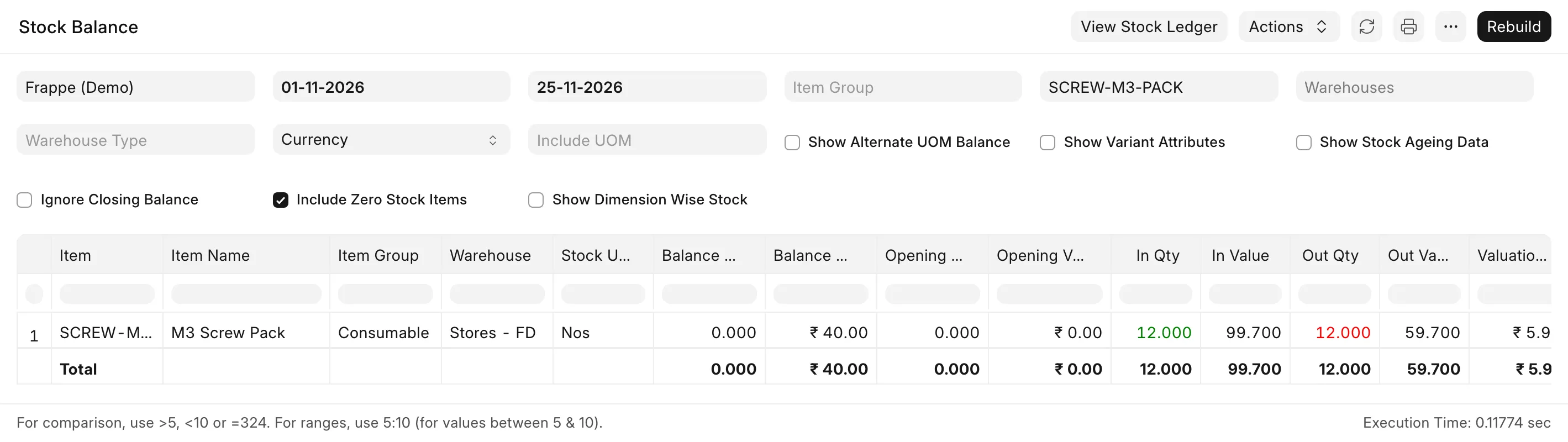
Example
You receive 10 M3 screw packs. By 7 November, you have used all 10. Then you post a receipt of 2 at 20, dated 3 November, and issue those 2 on 8 November.
The backdated receipt changes the average rate of every issue after 3 November. ERPNext recalculates those issues with a Repost Item Valuation. Until that repost finishes, the old issues keep their old rate. The quantity adds up to 0, but the value does not: Stock Balance shows 0 quantity and a value of 40.
When the repost finishes, the issues take the new rate and the value is 0.
How it works
Stock Balance adds up the value change of every stock ledger entry. Quantity and value are added up separately. They reach 0 together only when each entry has the right rate.
A value can stay with 0 quantity when:
- A repost did not run or failed. Backdated entries, cancellations and amendments need a Repost Item Valuation. If it is Queued or Failed, later entries keep old rates.
- Rates were changed outside a transaction, for example by a data import or a database patch.
- Negative stock was allowed. An issue taken at one rate and received back at another can leave a value when the quantity returns to 0.
- Rounding, in rare cases. When the quantity reaches 0 in a normal sequence, ERPNext takes the remaining value with the last issue, so rounding alone does not usually leave a value.
The same applies to batches in Batch-Wise Balance History.
How to check it
- Open Stock → Reports → Stock Ledger. Filter by the Item and Warehouse. Look at the Balance Value after the last entry and the Value Change of each entry. Find the entry where the rate stops making sense.
- Open Stock → Repost Item Valuation. Filter by the item. Any entry that is Queued, In Progress or Failed is the likely cause.
- Open Stock Ledger Variance. Select the Item and Warehouse. It lists entries where the quantity or value does not add up.
How to fix it
- If a repost is Queued or Failed: open it, fix the error it shows, and click Restart. Wait until it is Completed, then run Stock Balance again.
- If no repost is pending: make a new Repost Item Valuation. Select Based On = Item and Warehouse, the Item, the Warehouse and a Posting Date before the first wrong entry. Submit it and wait until it is Completed.
- If the value is still there: make a Stock Reconciliation for the item and warehouse with Qty 0 and Valuation Rate 0. For a batch item, add the Batch No. This sets the value to 0 and posts the difference to the Difference Account of the Stock Reconciliation (by default, Stock Adjustment).
How to hide rows with no stock
- Stock Balance: untick Include Zero Stock Items. This hides items and warehouses where both the quantity and the value are 0. A row with 0 quantity and a value still shows, because it needs a fix.
- Batch-Wise Balance History: a batch shows when it has an opening, in, out or balance quantity in the date range. To hide batches that were emptied earlier, set the From Date after they were emptied.
- Batches you do not need any more: open the Batch, tick Disabled and save.