

















Process Manufacturing
What is process manufacturing
Process manufacturing makes products from a formula, also called a recipe. Raw materials are mixed, heated, cooked, fermented, spun or dried, and the product cannot be taken apart again. Examples are food and drinks, chemicals, paints, medicines, cosmetics and yarn.
The material goes through a line of machines, one stage after the other. Each stage changes the material and makes an intermediate product, for example a pre-mix or a cooked base. Some weight is lost at most stages, for example as steam. The last stage fills or packs the finished good.
Discrete manufacturing is different. It assembles countable parts, for example a chair or a phone, and the bill of materials lists the parts of one unit.
In process manufacturing, you plan:
- The formula of one batch, as a quantity or a percentage of each raw material.
- The stages of the line, the machine of each stage and its yield.
- The packing of the finished good.
Process manufacturing in ERPNext
In ERPNext, you design the line in BOM Creator and run its Work Orders from one screen, the Plant Builder.
How it works
- Design the process in BOM Creator: the formula, the stages, the machine of each stage and the packing.
- Create BOMs from the design.
- Make a Work Order from the BOM.
- On the Work Order, click Open in Plant Builder and run the Work Order stage by stage. ERPNext makes and completes the Job Cards and the Stock Entries for you.
Part 1: Design the process in BOM Creator
A process design holds the formula for one batch, the stages, the machine of each stage and the packing. After you submit the design, Create BOMs makes the BOM.
Before you start
Set up these records once. If a record is missing, the design shows what to add.
| Record | What to set |
|---|---|
| Finished good (Item) | Weight Per Unit and Weight UOM, for example 0.5 Kg for each Nos. |
| Raw materials and semi-finished goods (Item) | A stock UOM in the weight unit, or Weight Per Unit, or a row for the weight unit in Units of Measure. |
| Semi-finished goods (Item) | One item for each process stage. |
| Workstation Type | A Machine Model, for example Mixer, Steam Kettle, Filling Line or Bagging Line. ERPNext adds 15 default types. |
| Workstation | One for each machine, with a Workstation Type and a Warehouse. |
| Operation | One for each stage. To ask for quality readings at a stage, set a Quality Inspection Template on its operation. |
The last stage of every process packs the finished good. It needs a Workstation whose type has the Machine Model Filling Line or Bagging Line.
1. Start the design
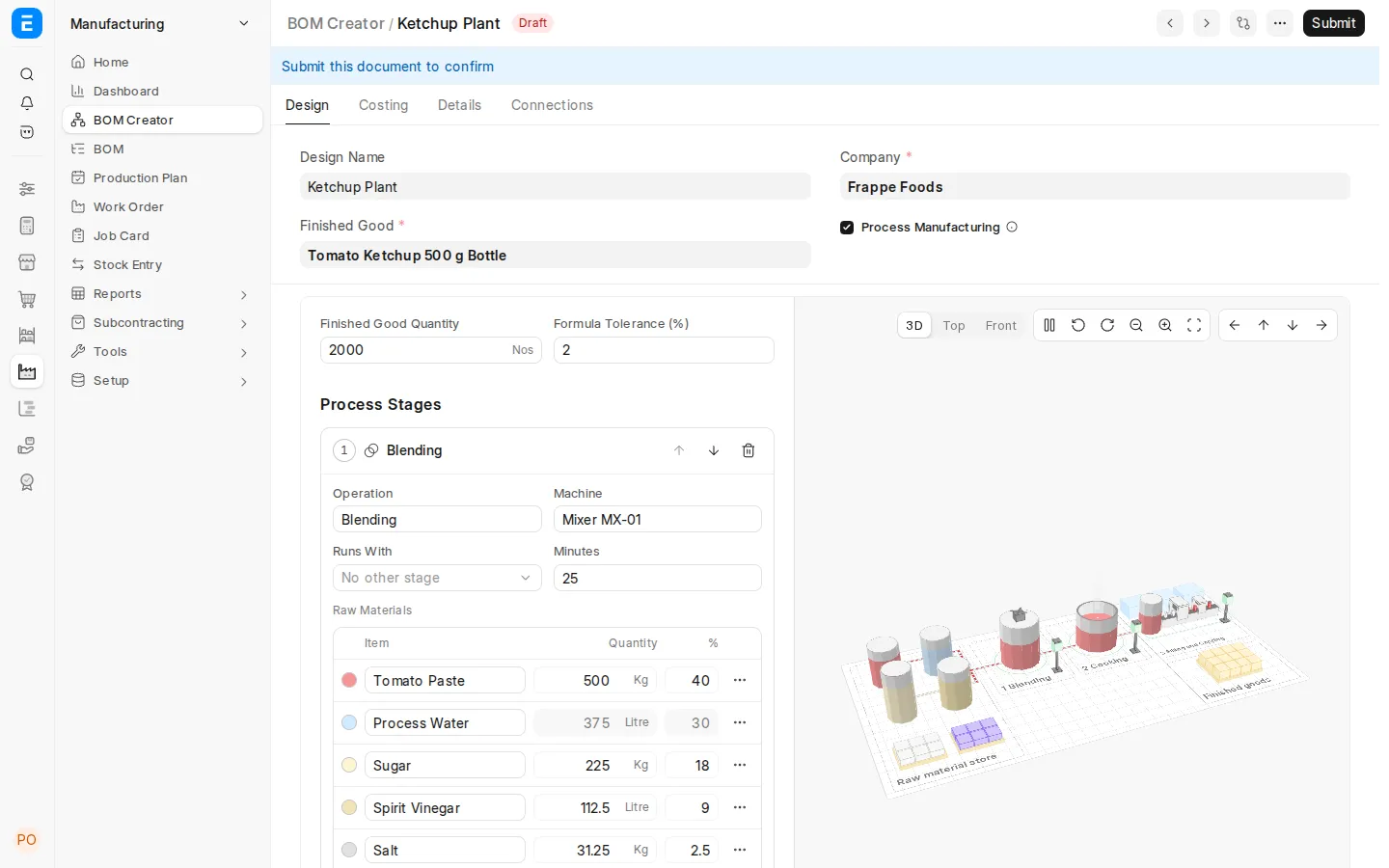
- Go to Manufacturing > BOM Creator and click New.
- Set the Design Name, the Finished Good and the Company.
- Turn on Process Manufacturing.
- Set the Finished Good Quantity. This is the batch size.
- Set the Raw Material Warehouse and the Formula Tolerance (%).
The Design tab shows the design on the left and a 3D preview of the line on the right.
2. Add the stages
- Click Add Stage and select the type of machine.
- Set the Operation, the Machine and the Minutes.
- Set the Semi-finished Good that the stage makes. The next stage takes this item.
- Set the Yield (%), the share of the weight that comes out. For example, a kettle that boils off 20% of the water has a yield of 80%.
- To run two stages at the same time, set Runs With on the second stage.
- End the process with a packing stage on a Filling Line or a Bagging Line, and add its packing materials.
3. Add the formula
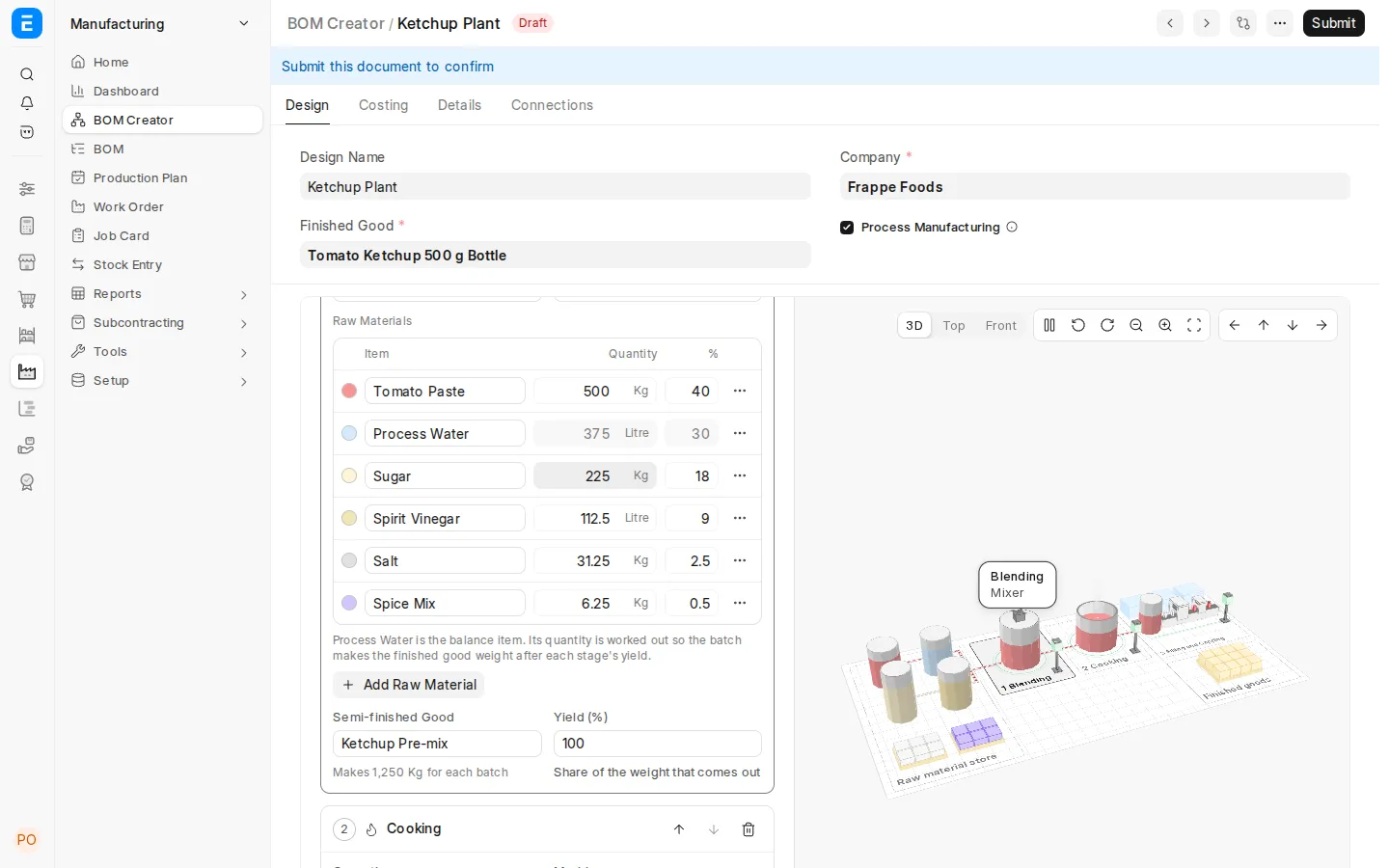
- In each stage, click Add Raw Material and select the item.
- Type the Quantity for one batch, or type the % of the batch weight. When you type a percentage, ERPNext calculates the quantity.
- Open the row menu (...) of one material and click Use as Balance. ERPNext calculates its quantity so that the batch makes the weight that you need. Water is a common balance item.
4. Create the BOMs
While you work, a red box above the stages lists what to fix, for example "2 things to fix before creating BOMs". When the box goes away, the design is complete.
- Save and submit the BOM Creator.
- Click Create BOMs.
ERPNext makes the BOM of the finished good, with one operation for each stage.
Part 2: Run the Work Order in the Plant Builder
You run the whole Work Order from one screen. Each action on the screen makes and completes the Job Cards and the Stock Entries for you. You do not open a Job Card or a Stock Entry.
1. Open the Work Order in the Plant Builder
- Make a Work Order from the BOM that the design made.
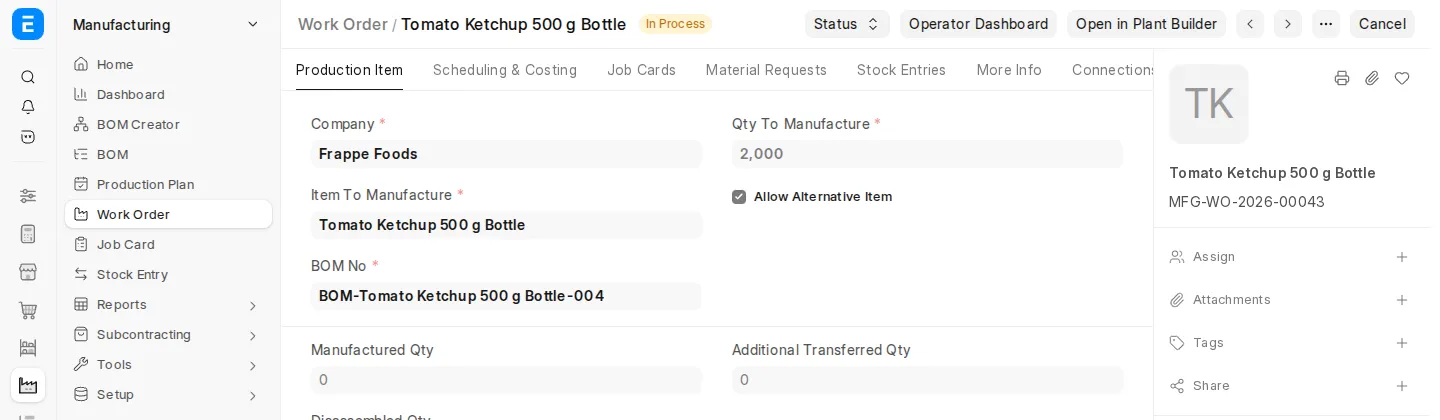
- On the Work Order, click Open in Plant Builder.
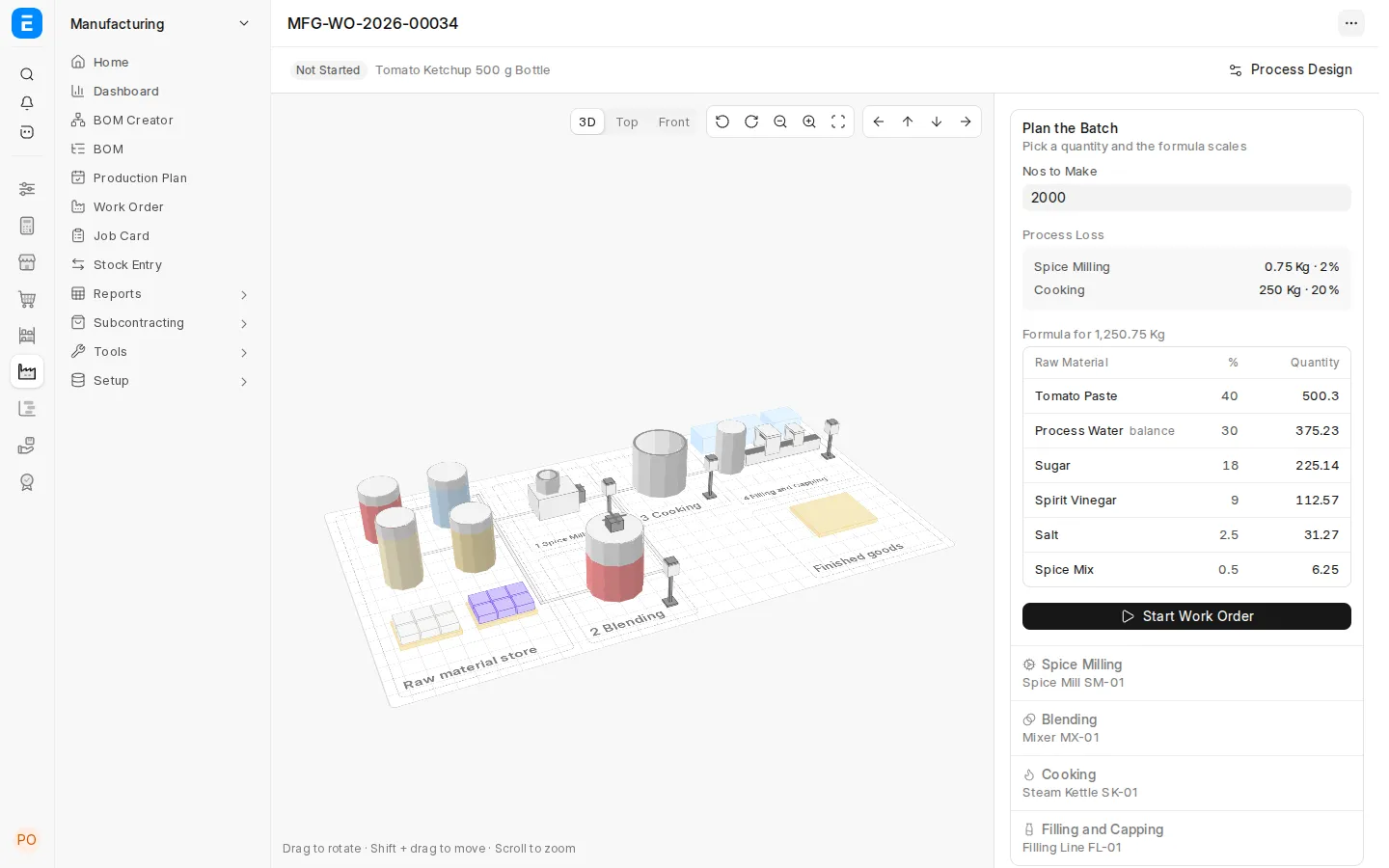
The Plant Builder shows the line in 3D on the left. On the right, it shows the steps of the run and the Stock Entries made so far.
2. Start the Work Order
- In Plan the Batch, check the quantity to make. The formula changes with the quantity.
- Click Start Work Order.
3. Run each stage
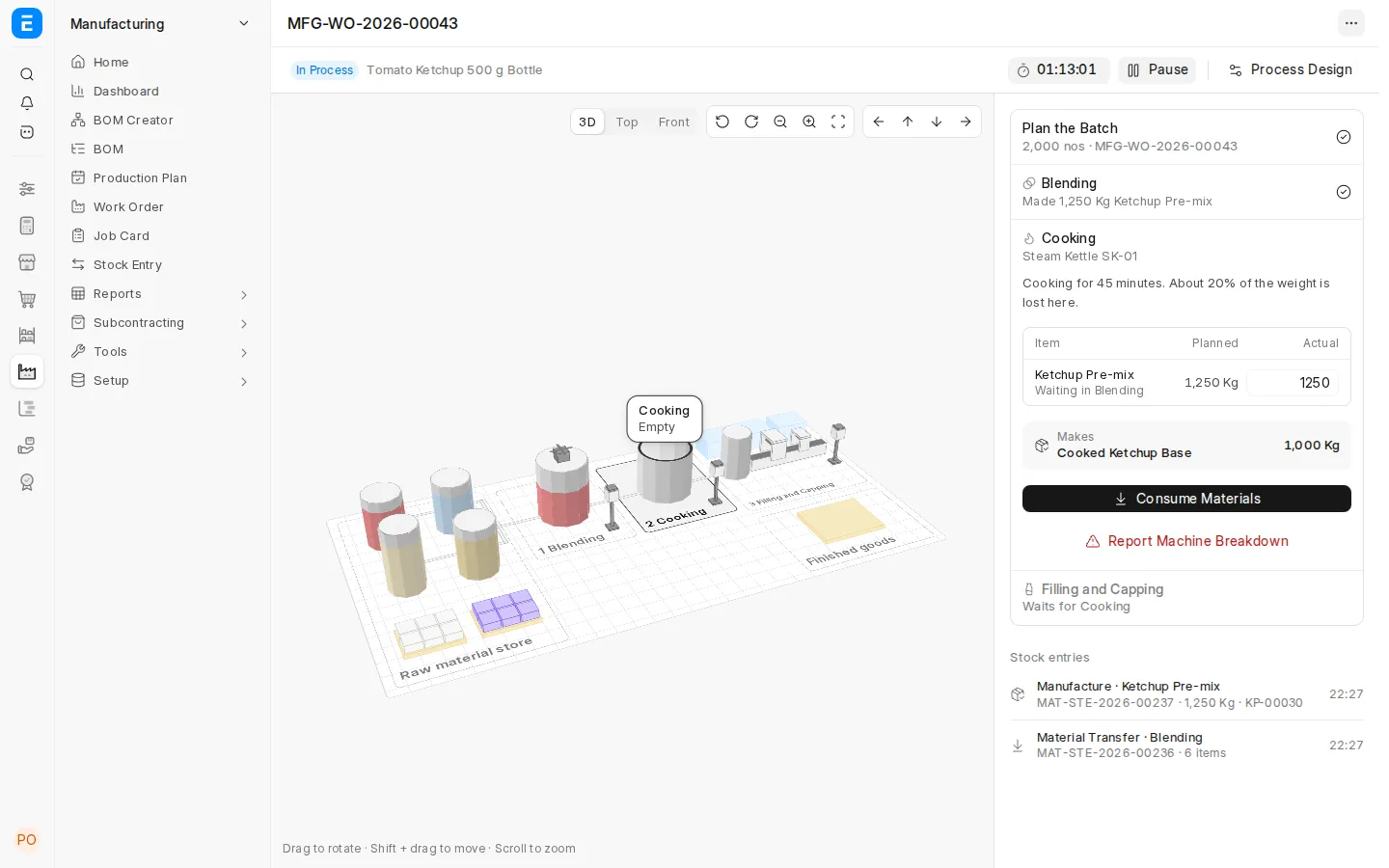
Each stage has two actions: Consume Materials and Produce.
- In Actual, type the quantity that you put into the machine. If a material is more than the Formula Tolerance off the formula, or is not in stock, the stage shows the error and you cannot consume.
- Click Consume Materials.
- When the stage is done, click Record Output.
- Type the quantity made. If the stage asks for a quality reading, type it. A reading outside its range stops the output.
- Click Produce.
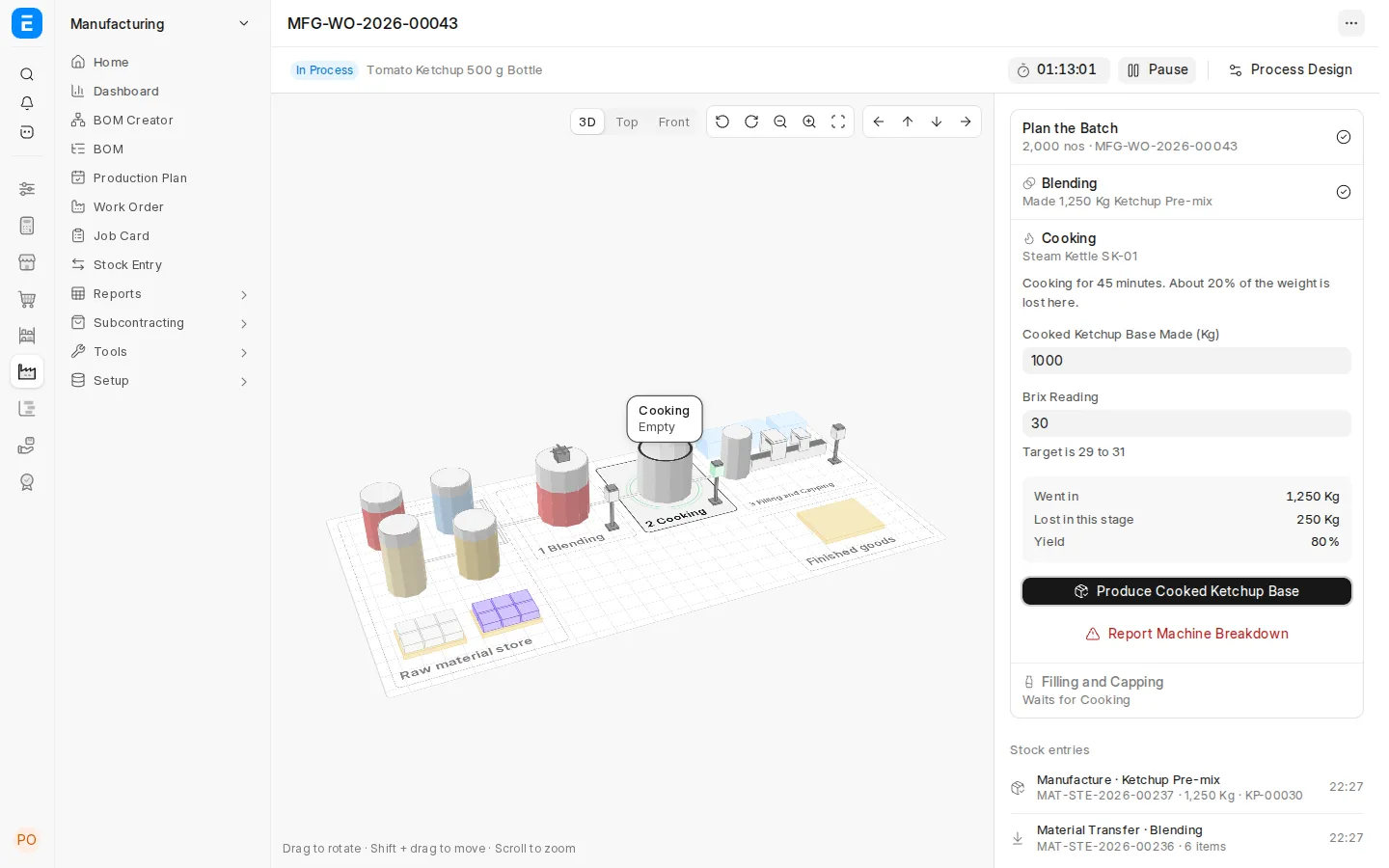
The next stage then gets the output and becomes ready. Do the same for each stage. The last stage packs the finished good.
To pass only part of the output to the next stage, type a smaller quantity in Actual. The rest waits as the next lot of that stage.
What ERPNext does for each action
| You click | ERPNext does this automatically |
|---|---|
| Start Work Order | Submits the Work Order. Makes a Job Card for each stage and starts the Job Cards of the first stages. |
| Consume Materials | Makes and submits a Material Transfer for Manufacture into the warehouse of the machine, against the Job Card of the stage. |
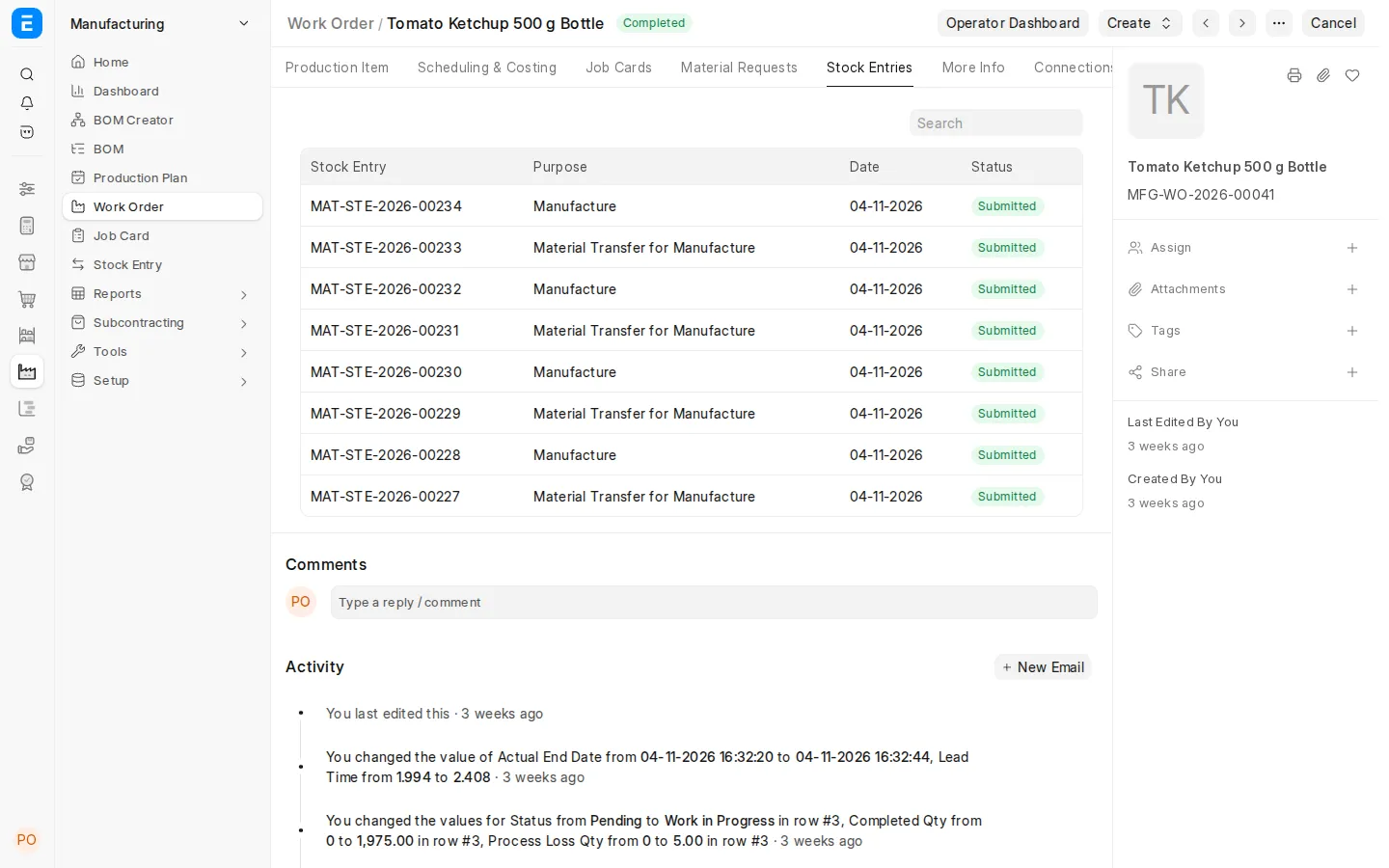
| Produce | Completes and submits the Job Card with the quantity made and the process loss. Makes and submits the Manufacture entry for the item of the stage. Saves the Quality Inspection when the stage asks for readings. Starts the Job Card of the next stage. Makes a Job Card for the next lot when part of the quantity still waits. |
| Produce in the last stage | Makes the Manufacture entry for the finished good and completes the Work Order with its process loss. |
| Pause and Resume | Pauses and resumes the Job Cards that run. |
| Report Machine Breakdown, then Stop Machine | Pauses the Job Card and sets the Workstation status to Problem. |
| Restart Machine | Makes a Downtime Entry with the stop reason and resumes the Job Card. |
| Run Another Batch | Makes a new Work Order from the same BOM. |
4. The completed Work Order
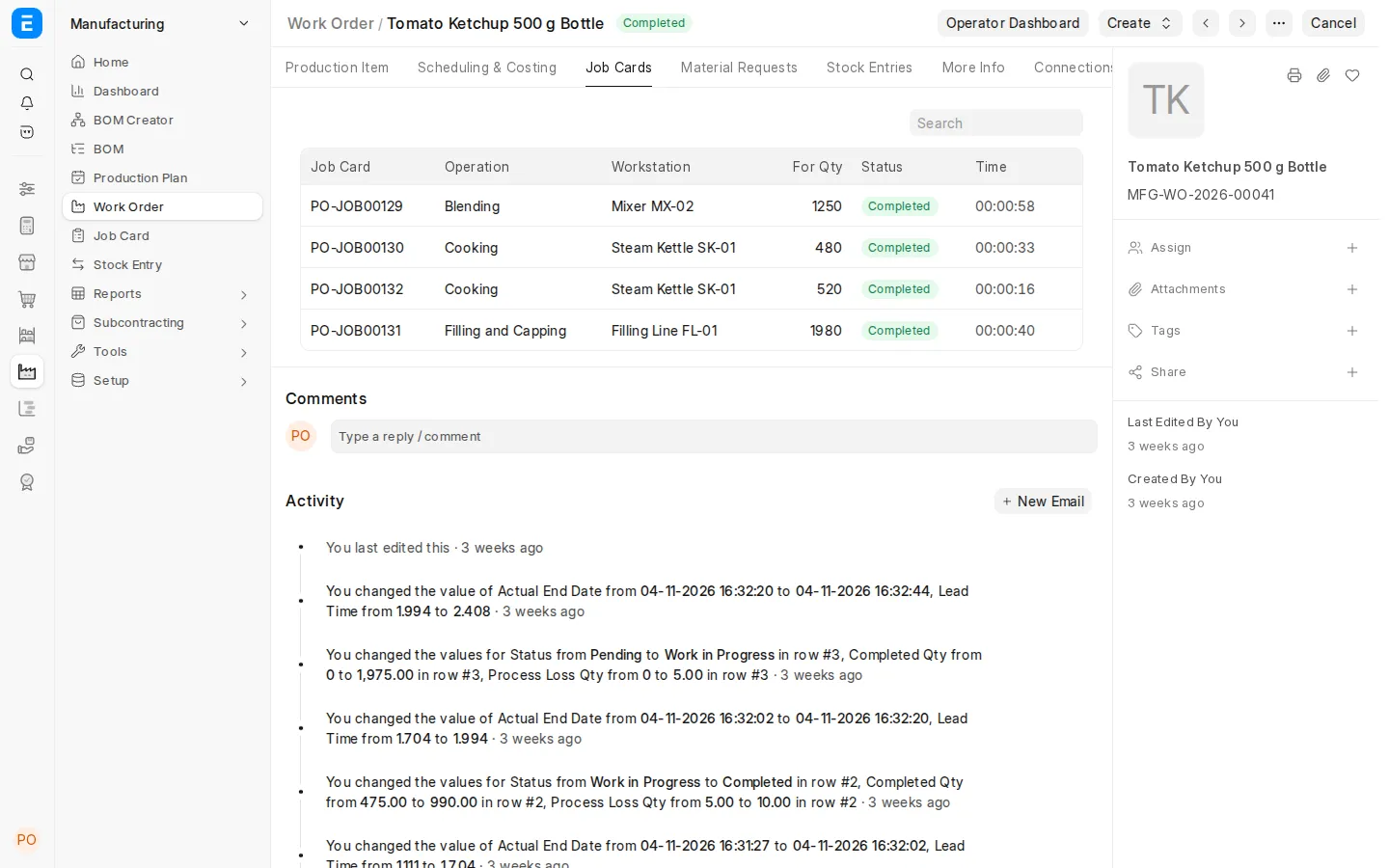
When the last stage finishes, the Work Order is completed. The screen shows the good units, the process loss, the overall yield and the batch of each stage.
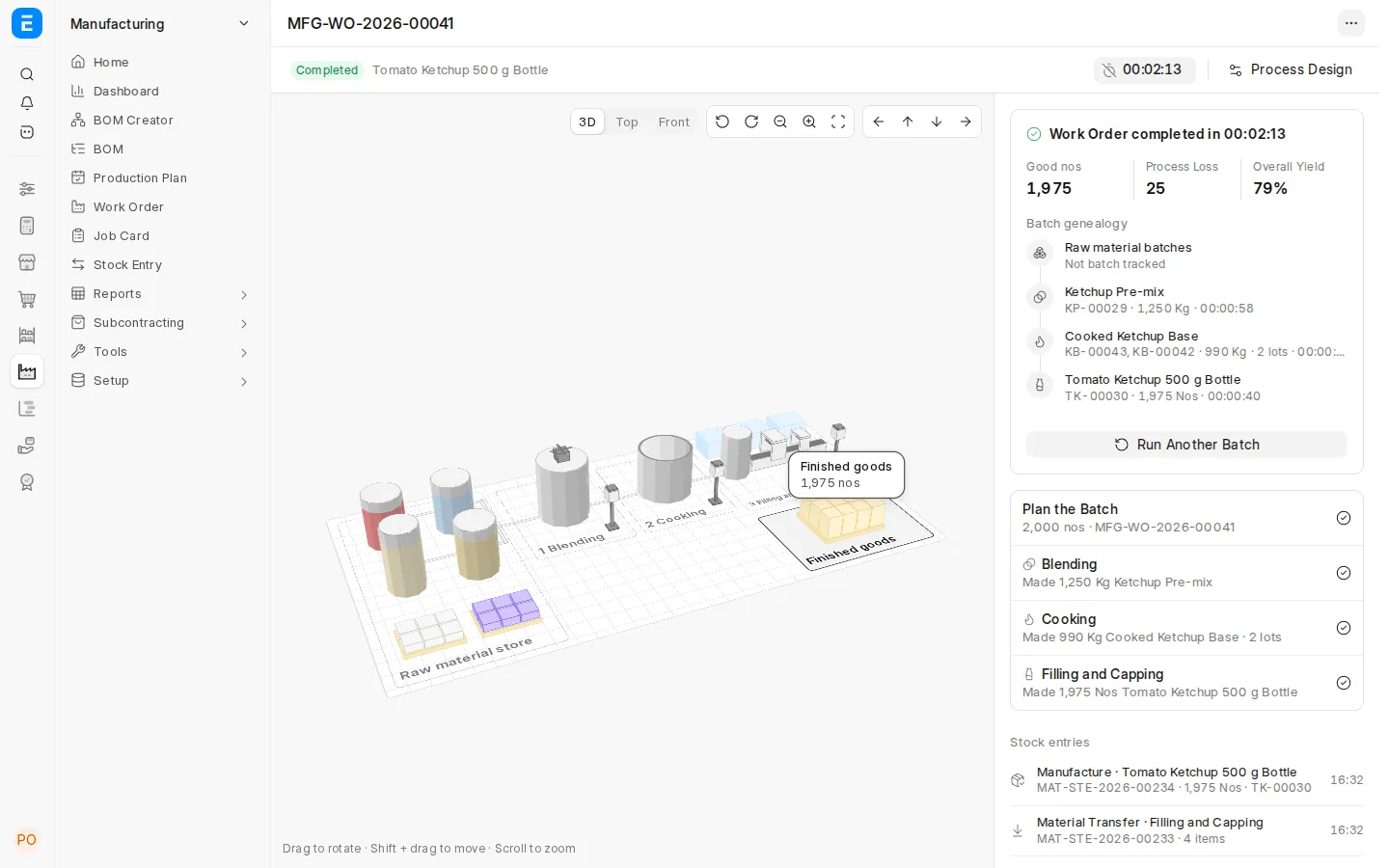
The Work Order shows everything the Plant Builder made, in the Job Cards tab and the Stock Entries tab.